AI PowerPoint 轉影片轉換器
將 PowerPoint 轉化為清晰、引人入勝的影片

入職導覽
將合規文件、安全協議或法規指南,轉化為結構化的認證影片。讓 AI 虛擬人清晰引導員工掌握每項要求,有效降低法律風險,並確保團隊隨時保持稽核就緒。

無塵室協議
闡明無塵室的行為準則與操作要求,確保員工嚴格遵守規範,有效提升工作效率與安全性。

AR-700 操作培訓
本課程介紹 AR-700 精密組裝機器人的操作流程與安全規範,協助員工掌握正確操作技巧。

行銷洞察
受到全球領先品牌的信賴







將 PowerPoint 簡報轉化為影片,而非螢幕錄影
靜態投影片,蛻變為結構化影片場景
Leadde 將投影片內容轉化為邏輯清晰的影片架構,而非單純地將投影片原樣呈現。冗長段落可濃縮為精簡旁白,重要概念可視覺化突顯,每個主題皆可劃分為獨立場景。
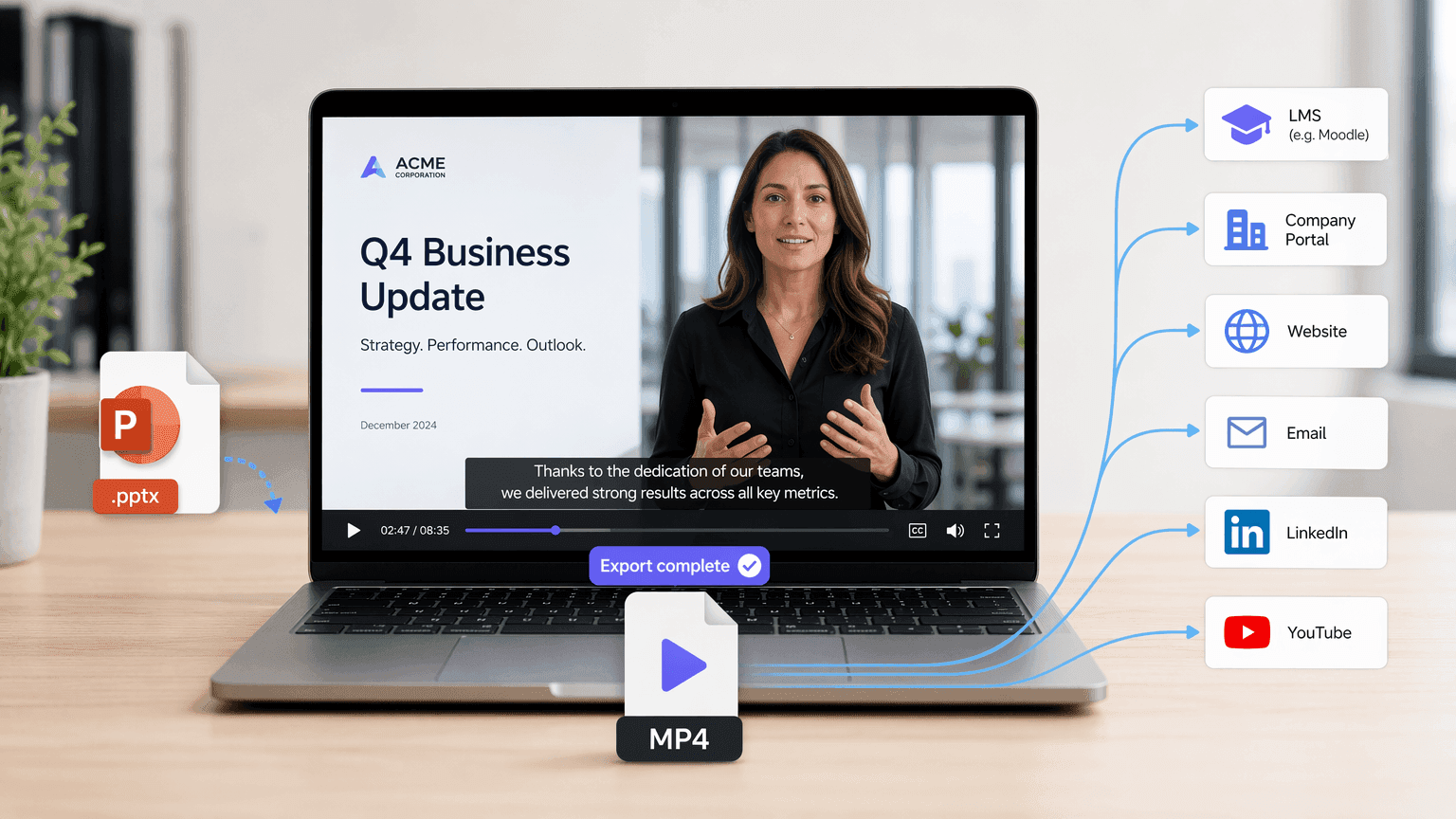
下載最終簡報為 MP4 影片
審閱生成的大綱與場景後,即可建立影片,並將最終成果下載為 MP4 檔案。MP4 格式讓簡報影片能輕鬆透過學習管理系統、公司入口網站、網站、電子郵件行銷、社群平台或影片託管服務分享。
為何選擇 Leadde 進行 PowerPoint 影片轉換?
智慧內容轉化
免安裝軟體
自動匹配視覺素材與虛擬人像
簡報全球化
透過 Leadde 將 PowerPoint 轉化為影片的步驟
使用投影片演示器將簡報轉化為影片。依照以下步驟,體驗流暢的 PowerPoint 轉影片轉換過程。
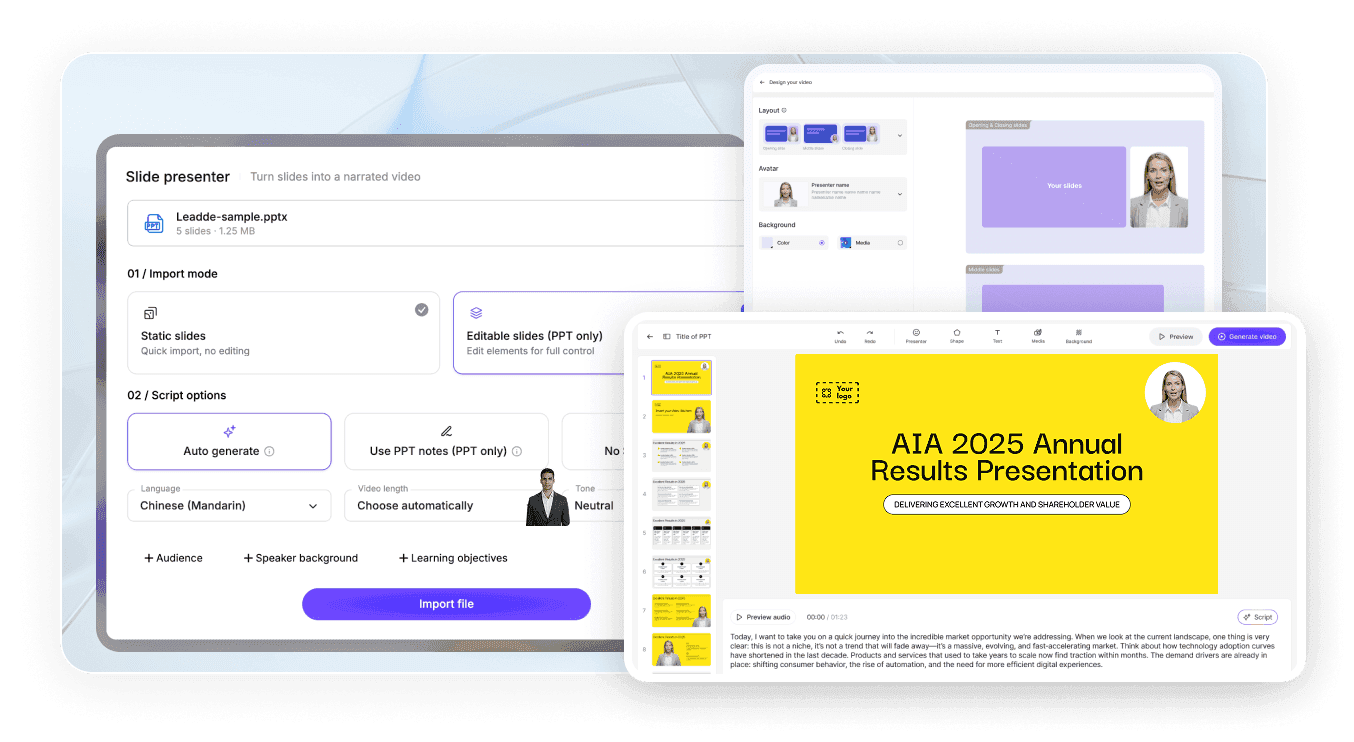
步驟 1 上傳您的簡報
步驟 2 自訂輸出
步驟 3 生成並下載
如何將 PowerPoint 轉換為帶有音訊的影片
簡報影片需要旁白,而不僅僅是會動的投影片。Leadde 會根據您的 PowerPoint 內容生成 AI 旁白,因此您無需逐張投影片錄製音訊,只需在製作影片前審閱和編輯腳本即可。
使用旁白設定可:
選擇目標語言
設定語氣
調整細節程度
為特定受眾改寫
將項目符號轉化為完整的口語句子
新增與旁白同步的字幕
適用於員工培訓、線上教育、銷售簡報、產品介紹和內部溝通。

更高效地建立、更新與分享 PowerPoint 影片
免費試用 PowerPoint 影片轉換
利用 Leadde 的免費方案,上傳 PPTX 檔案,生成大綱,並在選擇付費方案前,測試影片建立工作流程。
無需重建簡報,即可更新影片
當資訊有所變動時,開啟已儲存的 Leadde 專案檔,編輯腳本或場景內容,並重新生成受影響的區塊。您無需重新錄製整個簡報。
透過互動式 AI 聊天分享影片
將完成的影片託管於 Leadde,讓觀眾能透過互動式聊天面板,針對簡報內容提問。
一份簡報,多種受眾,彈性再利用
調整語言、旁白語氣、腳本細節與視覺風格,為員工、客戶、學生、高階主管或國際團隊,建立同一份簡報的不同版本。
深受教育工作者、高階主管與銷售專業人士信賴
PowerPoint 影片轉換免費試用
告別「PowerPoint 簡報之死」
流暢內容迭代
互動式影片聊天
Webinar Replays
Product Demos
從 PowerPoint 打造專業影片簡報
PowerPoint includes native options for recording or exporting a presentation as a video. These options are useful when you want to preserve the original slideshow exactly as it appears. Leadde is designed for a different workflow. Instead of only saving the original slideshow as a video, Leadde analyzes the slide content and reconstructs it into a new video format.

PowerPoint export or recording
- Preserves the original slide layout
- Often requires manual narration
- Primarily follows slide order
- Uses existing presentation visuals

Leadde AI conversion
- Rebuilds slides into video-oriented scenes
- Can generate AI voiceover
- Can restructure the content into an outline
- Can add new visuals, layouts, and avatars
更多文件與文章轉影片工具
An AI PowerPoint to video converter is a tool that reads the text and structure of a .pptx file, then automatically generates a narrated video with visuals, avatars, or voiceover based on that content.
Upload your .pptx file to an AI tool such as Leadde, select a target language, tone, and audience, review the AI-generated video outline, then export the finished narrated video as an MP4.
Yes, both PowerPoint's built-in export feature and third-party AI tools like Leadde, SlideSpeak, and Aspose.Slides can convert PPT and PPTX files directly into standard MP4 video files.
In PowerPoint, go to File → Export → Create a Video, choose your resolution and timing settings, then save the file directly as an MP4.
Yes, AI tools such as Leadde can automatically generate voiceover narration from your slide text or speaker notes in dozens of languages and voice styles.
Leadde does not preserve original PowerPoint animations or transitions; it rebuilds slide content into new AI-generated video scenes.
Yes, tools like Leadde offer free, browser-based PowerPoint-to-video conversion that requires no software installation or account for basic use.
Leadde accepts .pptx files up to 200 MB for upload and outputs the converted result as a standard MP4 video file.
Yes, PowerPoint's native File → Export → Create a Video feature produces a watermark-free MP4.
No, cloud-based AI tools like Leadde run entirely in your browser and require no software installation, though PowerPoint's own native export requires PowerPoint to be installed on your device.
Yes, PowerPoint offers native video export on macOS through File → Export, and browser-based AI tools like Leadde work on Mac since they don't depend on the operating system.
常見問題