How to Make Training Videos That Are Easy to Update and Scale (2026 Guide)

Training videos are one of the most effective ways to teach, onboard, and scale knowledge. But after working with teams and analyzing real-world workflows, one thing is clear:
👉 The challenge is not creating a training video.
👉 The real challenge is creating training videos that are fast to produce, easy to update, and scalable.
In this guide, you’ll learn not just how to make a training video—but how to build a repeatable, efficient training video system using proven workflows, real use cases, and modern AI tools.
With an AI video generator like Leadde, you can turn existing scripts, documents, or slides into a professional training video in minutes. The platform automatically builds structured scenes, generates narration, highlights key points, and adds an AI presenter—making it easy to produce consistent, high-quality training videos at scale.
What Is a Training Video?
A training video is a structured instructional video designed to teach a specific task, process, or concept.
Unlike static documents, training videos:
- Combine visual + audio learning
- Allow replay and self-paced learning
- Replace repetitive explanations at scale
In real-world teams, this often means:
- Replacing weekly onboarding calls
- Standardizing internal processes
- Reducing support or training workload
Why Training Videos Work Better Than Text or Meetings?
From both implementation experience and user research, training videos consistently outperform traditional formats:
• On-demand learning Learners can pause, rewind, and rewatch difficult steps—something static documents or one-time meetings can’t provide.
• Lower training cost One well-made video can replace repeated explanations, saving both time and instructor resources.
• Higher engagement Visual demonstrations, voiceover guidance, and real examples keep learners more focused than reading long PDFs or slide decks.
• Better retention Video combines audio + visual cues, which helps learners remember information more effectively than text alone.
• Ideal for distributed teams Training videos ensure everyone receives the same instructions, regardless of location or time zone. For remote work, these distributed teams benefit greatly from async video learning.
• SEO benefits for customer education When used as public tutorials or product guides, training videos improve search visibility and streamline global customer education, helping users solve problems independently.
📌 One small team reported explaining the same process 10+ times per week before switching to video—highlighting the real operational cost of not using training videos.
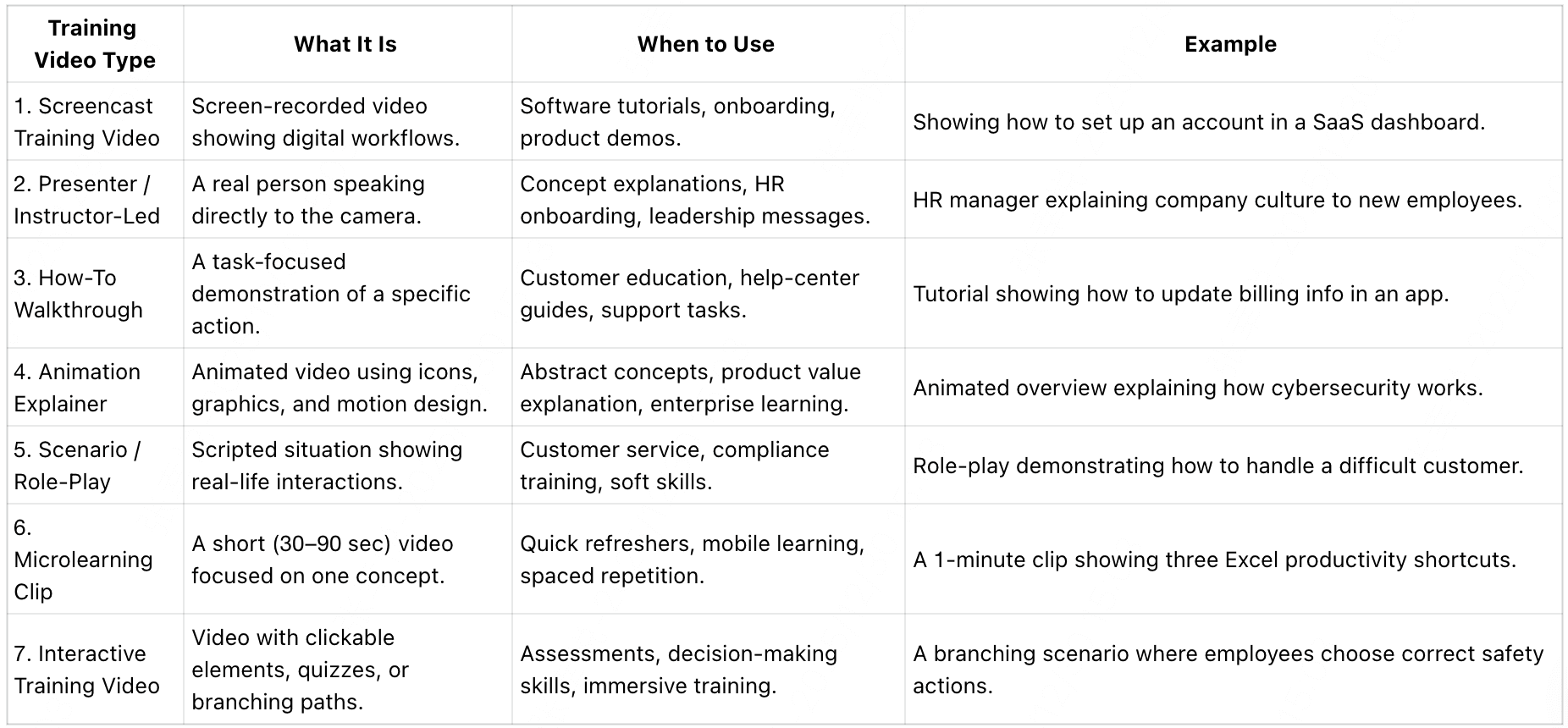
What Types of Training Videos are frequently used? (With Use Cases)
Training videos come in several formats, each designed for different learning needs. Choosing the right type helps viewers understand faster and apply what they learn more effectively.
How to Make Training Videos Faster (Without Complex Editing Skills)
One of the biggest bottlenecks in training video creation is time spent editing.
Traditional workflow:
- Record → edit → re-record → edit again
- Tools like Premiere or advanced editors slow down non-experts
Optimized workflow (used in modern teams):
- Script → generate → refine
What changed:
- Recording is no longer the bottleneck
- Editing is partially automated
- Teams focus on content clarity instead of production complexity
📌 In practice, teams using AI-assisted workflows report:
- Faster first drafts
- Less re-recording
- Shorter production cycles
Why Script-First Training Videos Are More Effective (And Save Hours of Rework)
A major shift in effective training video production is moving from:
👉 “Record first” → ❌
👉 “Script first” → ✅
What happens without a script:
- Frequent pauses and mistakes
- Multiple retakes
- Unclear explanations
Script-first workflow:
- Define learning objective
- Create structured outline
- Write concise script
- Generate or record video
Real impact:
- Eliminates re-recording loops
- Improves clarity
- Makes updates easier later
📌 In practice, teams that adopted script-first workflows reduced production friction significantly—even without changing tools.
AI Training Video Workflow: From Document to Video in Minutes
Modern training video creation is shifting toward automation pipelines.
Real-world workflow used by teams:
- Documentation (Notion / Google Docs)
- Script generation (AI tools)
- Scene structuring
- Video generation (AI platforms)
- Review + refinement
Before vs After:
| Before | After |
|---|---|
| Manual recording | Auto-generated scenes |
| Voiceover recording | AI narration |
| Editing timeline | Pre-structured video |
| High effort per video | Scalable production |
📌 In some workflows, AI enables:
- Draft video creation in minutes
- Faster iteration cycles
- Easier localization (multi-language support)
👉 Important: AI is not fully automatic—but it significantly reduces manual effort.
How to Make a Training Video with AI (Step-by-Step Guide)
Creating a training video with AI is now faster and easier than ever. Here’s a step-by-step guide to producing a polished training video using the AI Video Creator—from uploading your content to generating the final video.
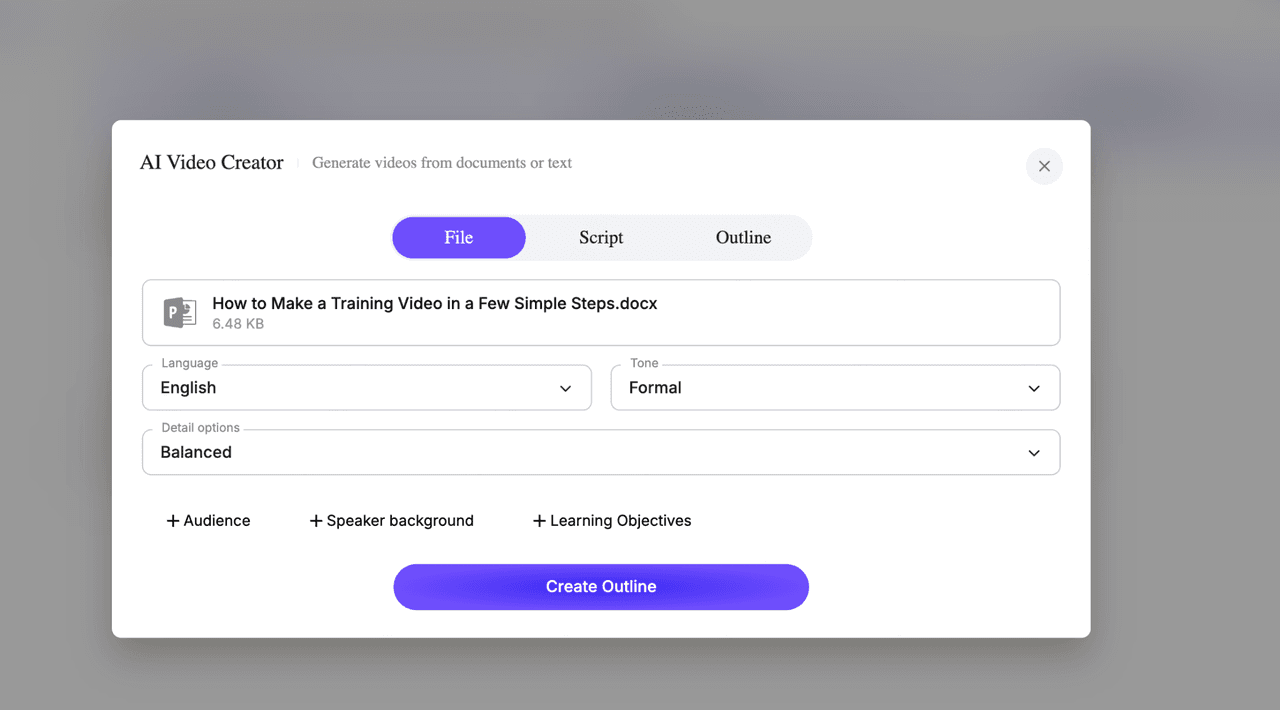
Step 1 — Upload Your File or Start with a Script
Begin by selecting how you want to create your training video.
- File Mode: Upload a document (DOCX, PDF, PPTX) such as your training outline or written guide.
- Script Mode: Paste a script you’ve already written.
- Outline Mode: To control each scene's content, simply write your outline in Markdown.
This helps the AI understand your content and auto-generate a structured training video.
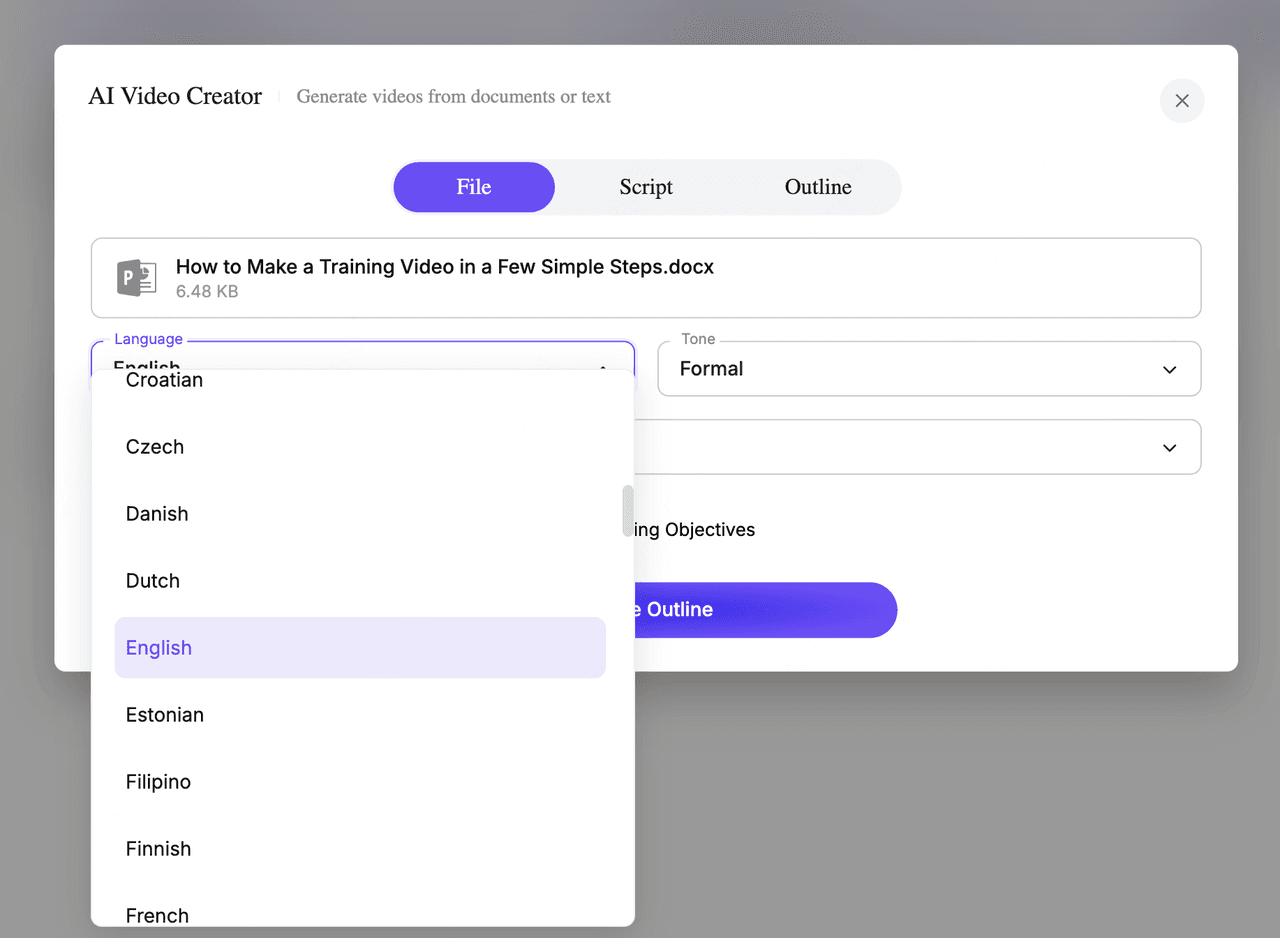
Step 2 — Choose the Video Language
From the dropdown menu, select the language your audience prefers.
Your tool supports dozens of languages—including English, French, German, Spanish, Chinese, and more—ideal for global teams and multilingual training.
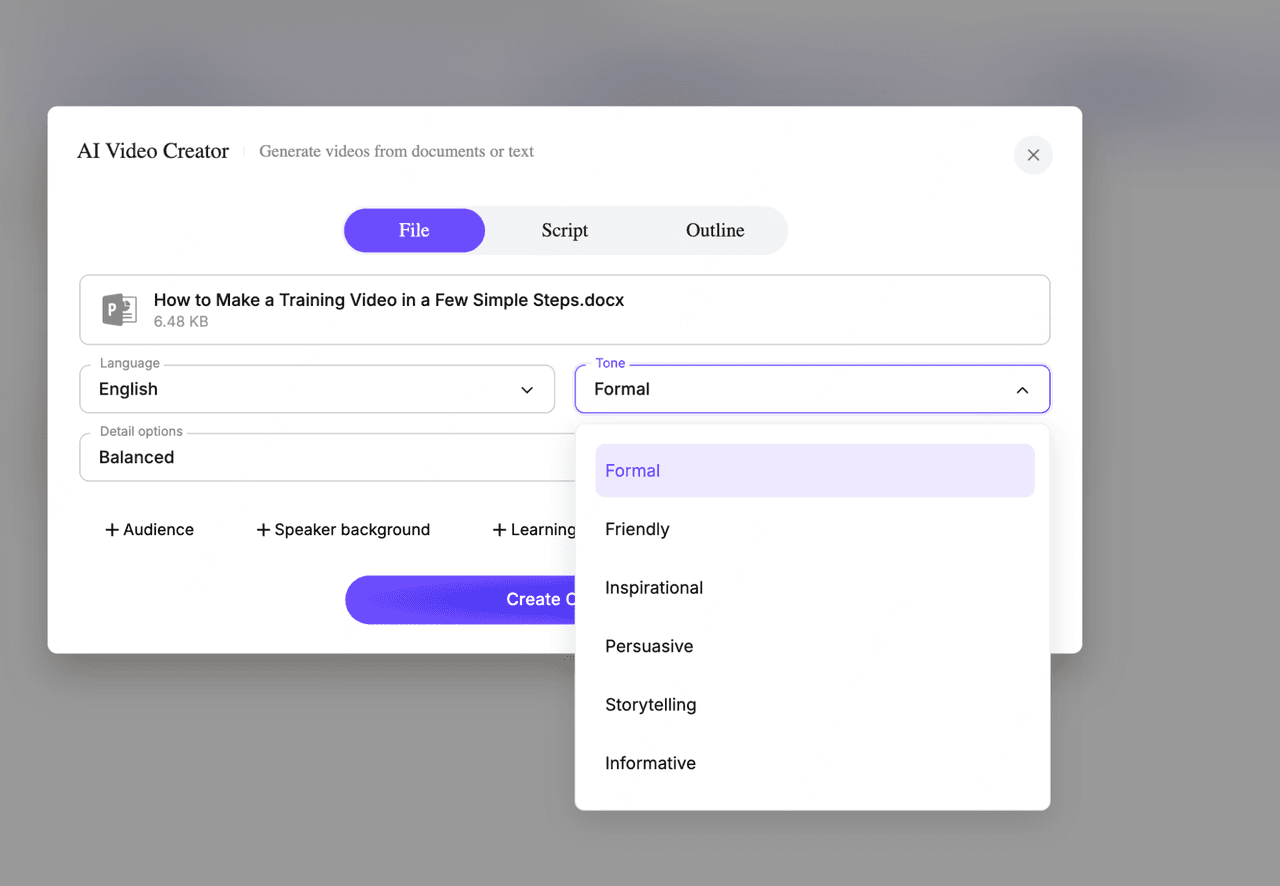
Step 3 — Pick the Tone of Voice
Choose how you want the presenter to sound:
- Formal (corporate training)
- Friendly (customer onboarding)
- Inspirational (motivation & leadership)
- Persuasive
- Storytelling
- Informative
Tone helps shape the style and clarity of your training script.
Step 4 — Select Your Detail Level
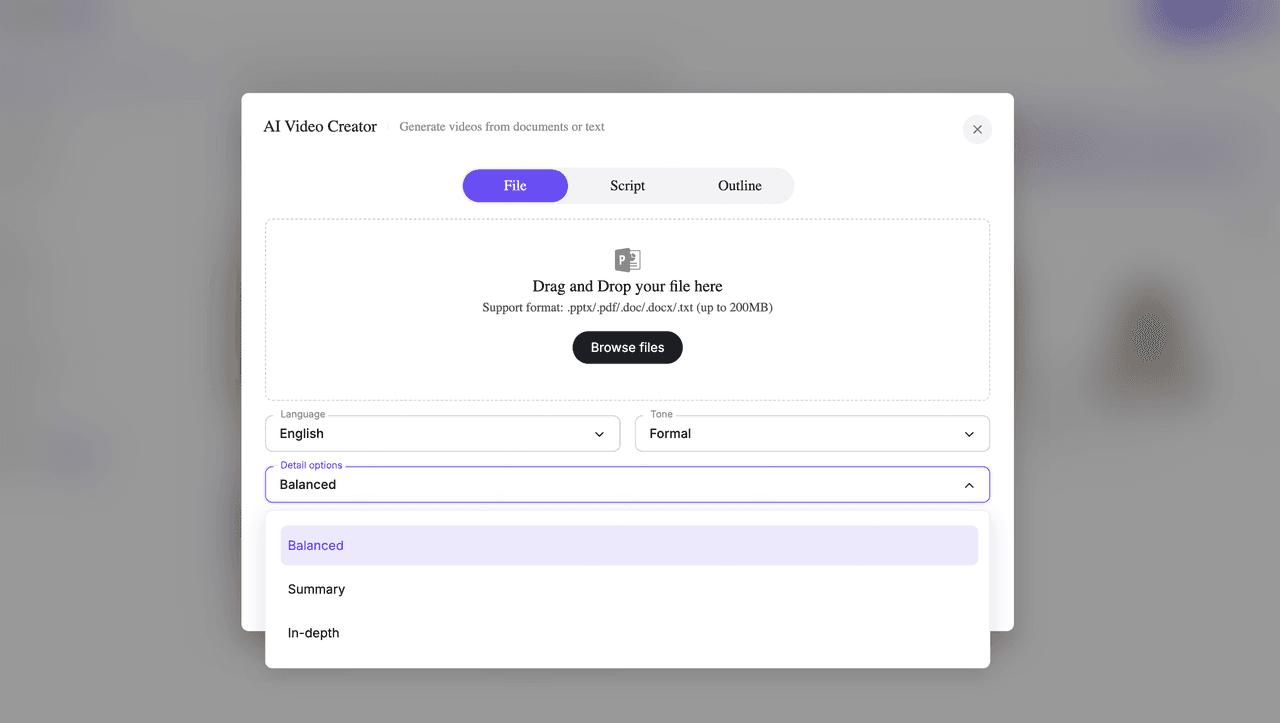
Choose how detailed you want the video content to be: balanced, summary, and in-depth. This option controls how deep the script goes—great for microlearning vs. in-depth training.
Step 5 — Add Optional Training Context
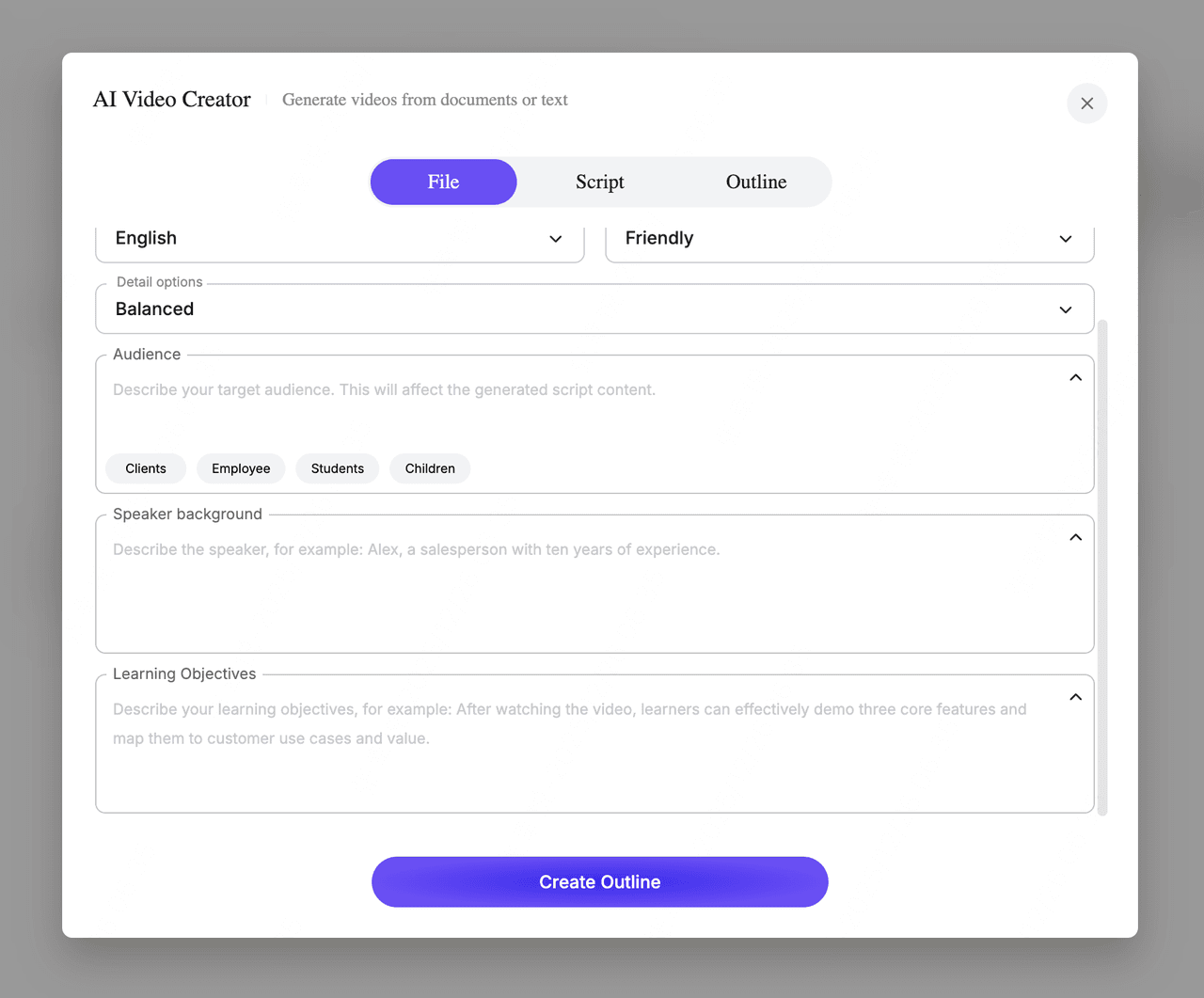
To make the script more accurate, fill in any of the optional context fields:
- Audience (Clients, Employees, Students, Children, etc.)
- Speaker Background (e.g., “Alex, onboarding specialist with 5 years of HR experience.”)
- Learning Objectives (“After watching, learners can ___.”)
These help the AI produce content aligned with real learning outcomes.
Step 6 — Click “Create Outline”
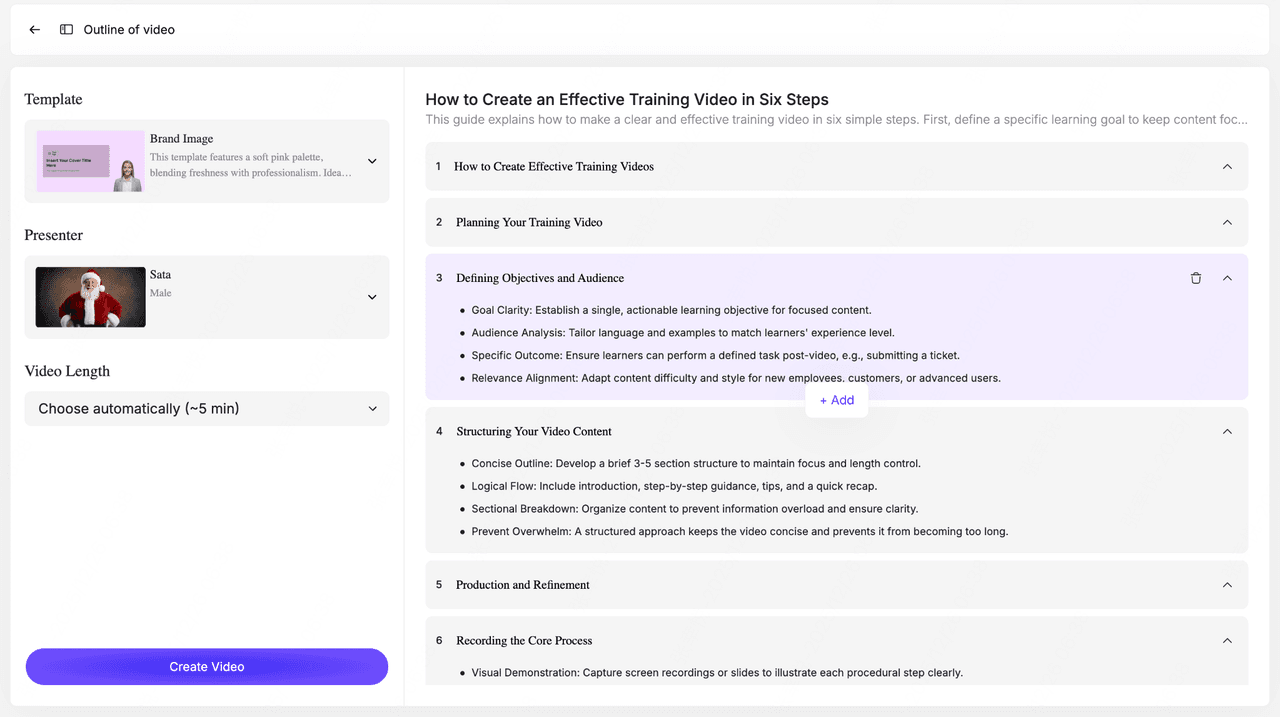
The AI generates a structured outline based on your input. You’ll get a complete modular script including introduction, planning, defining objectives, structuring content, production tips, recording steps and editing & refinement.
You can expand, edit, rearrange, or delete any section.
Step 7 — Choose a Video Template
Select from multiple pre-designed training templates such as business-style presentation, corporate onboarding, product demo, etc.
Templates automatically apply consistent layouts, colors, and transitions.
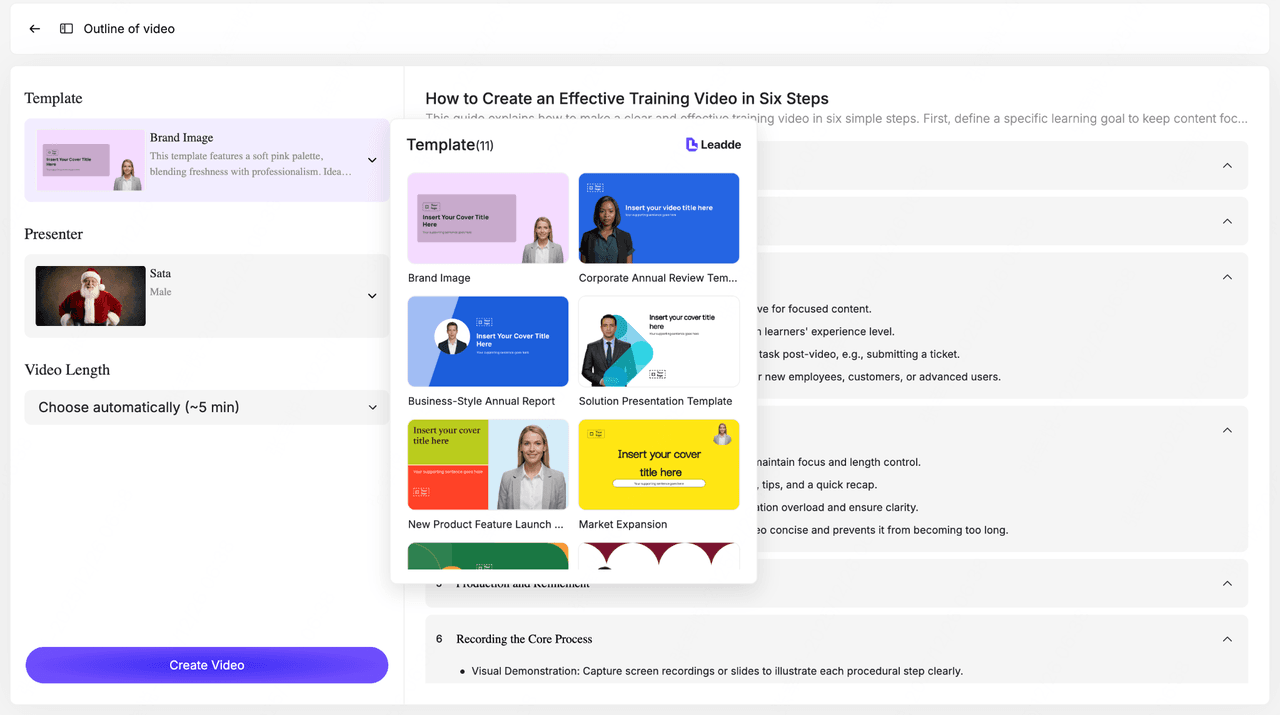
Step 8 — Select Your Presenter (AI Avatar)
Pick an AI presenter who will narrate your training video. Over 200 professional avatars are offered, choose the avatar that best matches your training tone and brand.

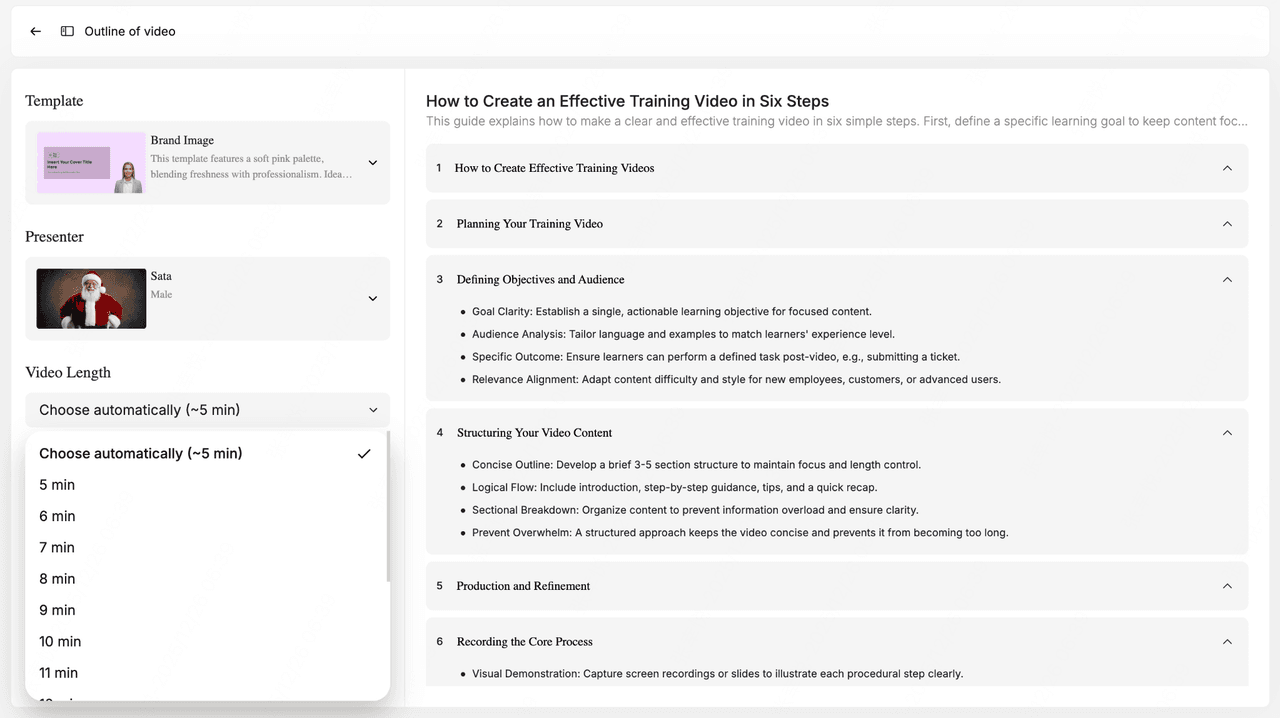
Step 9 — Choose the Video Length
Select a preferred duration (5–18 minutes), or let AI choose automatically. The system adjusts pacing, script density, and scene length accordingly.
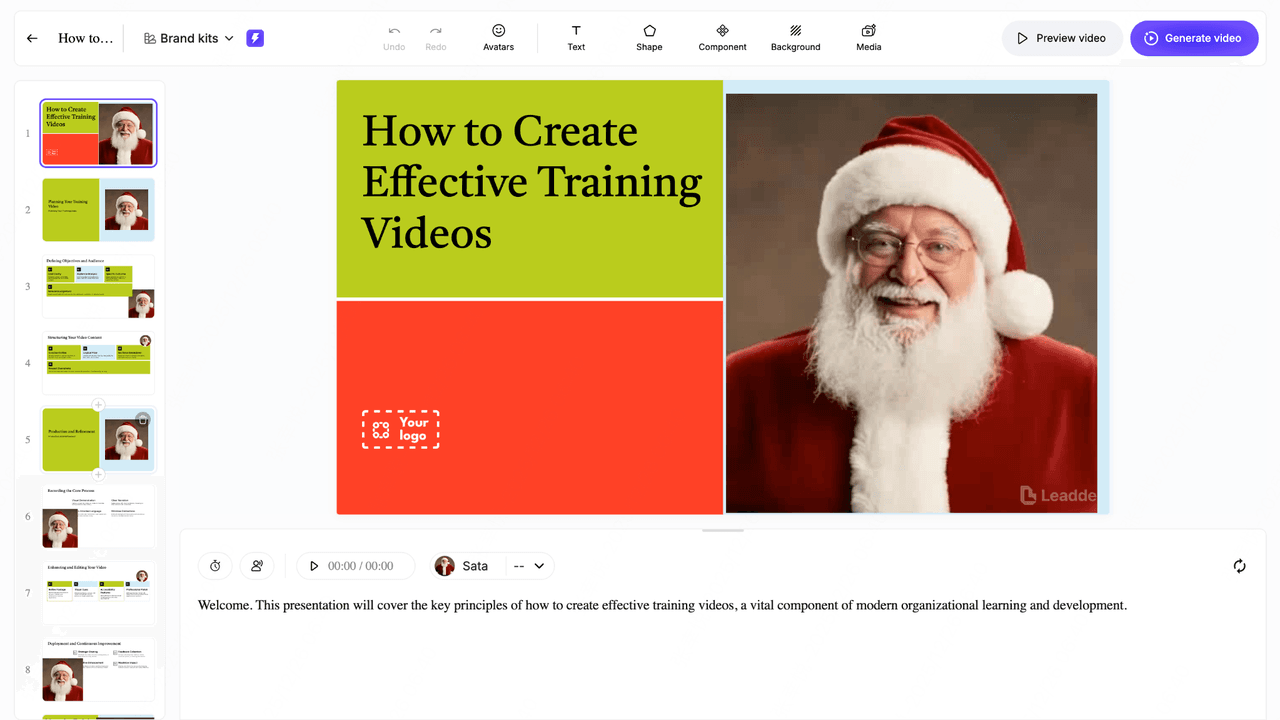
Step 10 — Video Created
After Click “Create Video”, the AI generates your full training video:
- Slides + layout design
- Voiceover narration
- On-screen text
- Scene transitions
- Supporting visuals
- Structurally aligned with your outline
You can then preview, adjust, or regenerate any part.
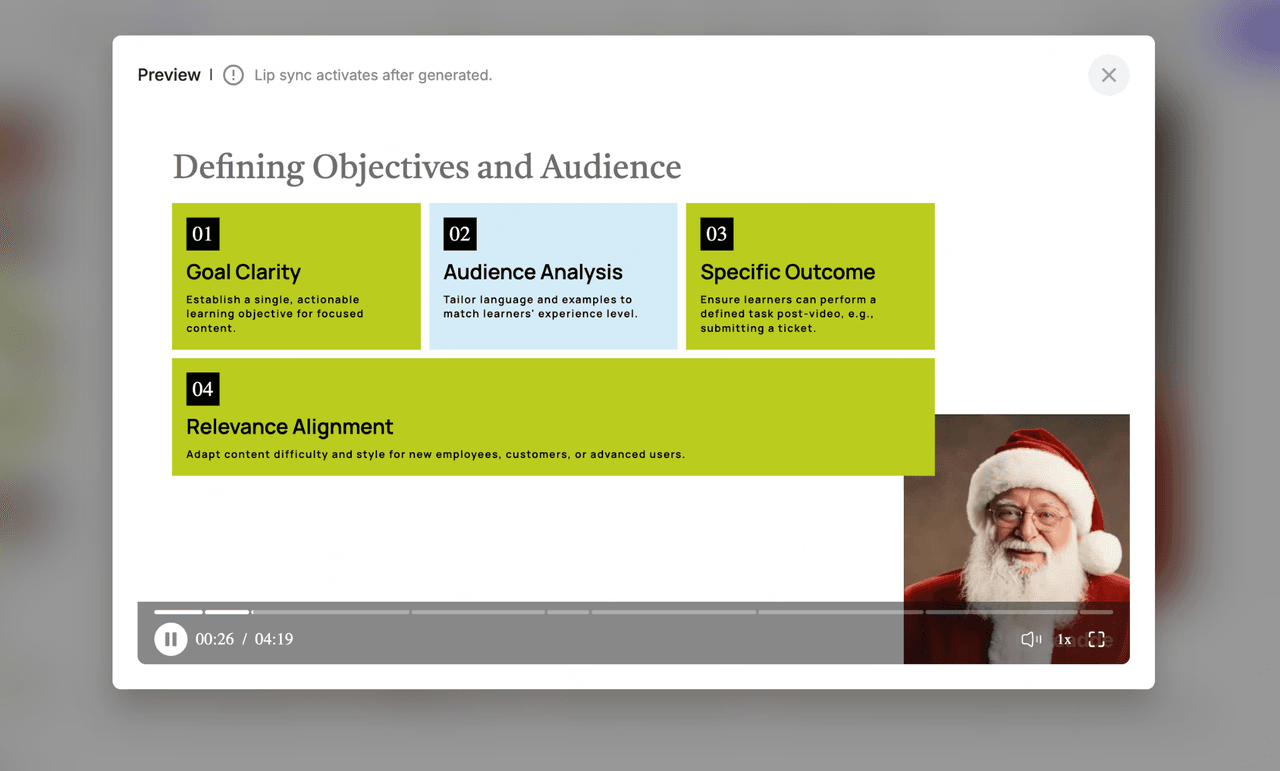
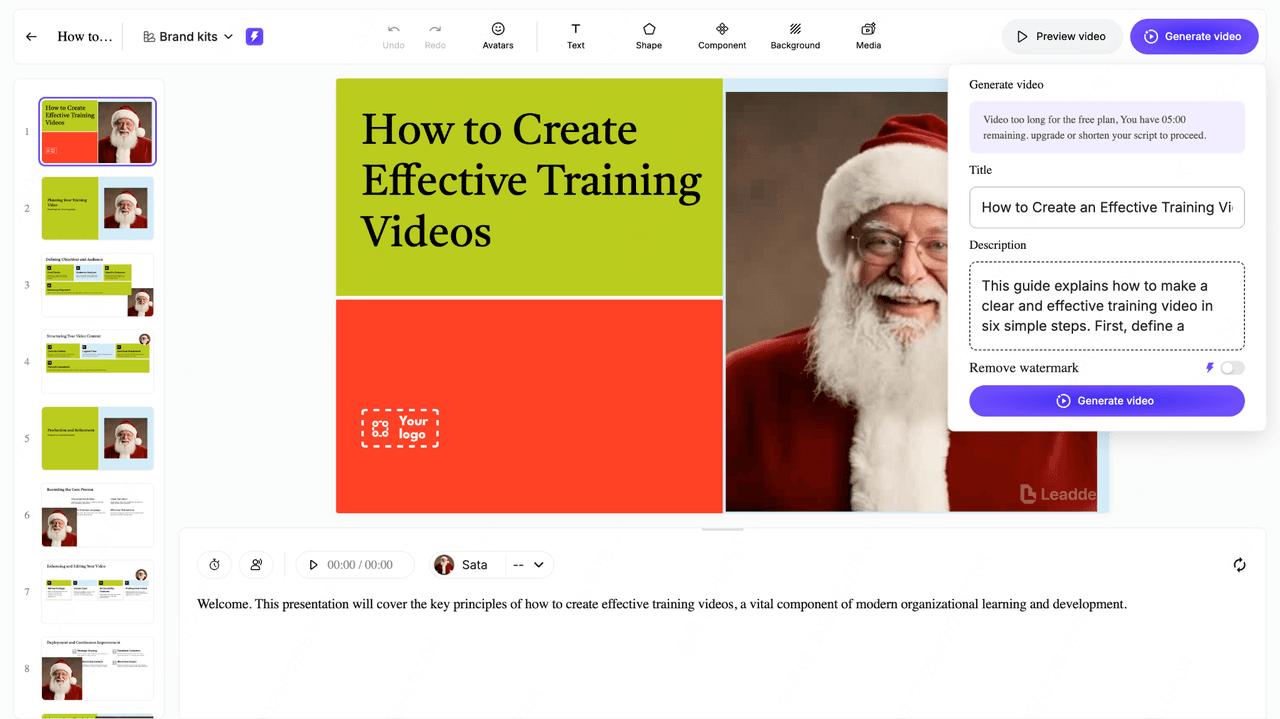
Step 11 — Preview Your Video
Click Preview video to watch an instant preview.
- Lip sync activates after final generation
- You can check pacing, layout, timing, and narration
- Make quick changes before exporting
Preview acts as a safe “draft mode” before creating the final video.
Step 12 — Generate Video
When everything looks good, click 'Generate video'. Title and video description are automatelly generated and you can modify them by yourself.
How to Create Training Videos That Are Easy to Update (Without Re-recording Everything)
The #1 long-term problem with training videos is:
👉 They become outdated quickly.
Common issue:
- Process changes → entire video becomes useless
- Teams must re-record from scratch
Better approach: modular video design
Key strategies:
- Break videos into 2–3 minute sections
- Separate steps into independent clips
- Use script-driven generation (easy to edit text → regenerate video)
Result:
- Update only the affected section
- Avoid full re-production
📌 Teams prioritizing “updateability” over “production quality” achieve much better long-term ROI.
Best Training Video Formats for Different Use Cases
Choosing the right format dramatically improves effectiveness.
Based on real use cases:
1. Screen Recording (Software Training)
- Best for: tools, dashboards, workflows
- Most commonly used in internal training
2. Presenter Videos (Onboarding & Concepts)
- Best for: HR onboarding, leadership training
3. How-To Walkthroughs (Customer Education)
- Best for: product tutorials, support
4. Microlearning Clips (Quick Tips)
- Best for: short, repeatable knowledge
- Ideal length: under 90 seconds
📌 Insight:
- Short, focused videos consistently outperform long tutorials
- Users prefer task-based learning, not long lectures
How to Turn Repetitive Training Into Scalable Video Systems
Training videos are most valuable when they replace repeated work.
Real scenario:
A team repeatedly explained the same onboarding process weekly.
Solution:
- Convert SOP → training video
- Store in shared knowledge base
- Reuse across hires
Result:
- Reduced repetitive meetings
- Faster onboarding
- Consistent training quality
👉 This is the real ROI of training videos:
not engagement—but operational efficiency
How to Make Training Videos More Engaging Without Spending More Time
Engagement does not require more production effort—just smarter design.
High-impact, low-effort improvements:
- Use highlights, arrows, zooms
- Keep sections under 2–3 minutes
- Add captions (also improves SEO)
- Use consistent templates
📌 Insight from real usage:
Videos fail not because of production quality—but because:
- They are too long
- They lack structure
- They don’t show real actions
Common Training Video Mistakes That Reduce Learning Effectiveness
Avoid these common issues:
❌ Talking-head only videos
→ No visual guidance
❌ Long, unstructured videos
→ Low retention
❌ No clear objective
→ Confusing for learners
❌ Hard-to-update content
→ Quickly becomes obsolete
📌 The most effective videos are:
- Short
- Visual
- Task-oriented
What are the Expert Tips to Make Your Training Videos More Engaging?
Creating a training video is only half the job—ensuring people stay engaged is what makes the content effective. Here are expert-backed tips to keep your videos clear, memorable, and enjoyable to watch.
Use visual cues and graphics
Highlight important actions with arrows, labels, color blocks, or subtle animations. Visual cues help guide attention and make complex steps easier to follow, especially in software tutorials.
Keep each section under 2–3 minutes
Short, focused segments prevent viewer fatigue and improve retention. Break long topics into smaller chapters so learners can watch at their own pace or revisit specific steps quickly.
Add captions for clarity and accessibility
Captions help viewers learn in noisy environments, support non-native speakers, and improve comprehension. Google also prioritizes accessible videos, making captions beneficial for SEO.
Maintain consistent templates and styling
Use the same fonts, colors, intro slides, and transitions throughout your training library. Consistency makes your content feel professional and reduces cognitive load for viewers.
Add B-roll, screen zooms, and movement
Subtle motion—like zooming into an important button, cutting to a supporting clip, or adding a close-up—keeps the video visually dynamic and reinforces what the viewer should focus on.
Use AI tools to speed up your workflow
AI can generate scripts, create voiceovers, clean up audio, remove silences, auto-caption your video, and even suggest edits. This dramatically reduces production time while improving overall quality.
Test your video with real users
Share the video with a few learners before publishing. Ask where they got confused, what they liked, and whether they could complete the task afterward. Iteration is what turns good training into great training.
Choosing the Right Training Video Tools (Based on Real Use Cases)
Different tools serve different purposes:
Fast Recording
- Best for quick internal sharing
- Limitation: weak editing
Advanced Editing Tools
- Best for polished courses
- Limitation: time-consuming
AI Video Generators (e.g., Leadde)
- Best for scalable production
- Strength: speed + consistency
- Limitation: still needs refinement
📌 Key insight:
👉 Tool choice should follow use case—not features
How to Build a Repeatable Training Video Production Workflow
The most effective teams don’t “make videos”—they build systems.
Proven workflow:
- Define objective
- Write script
- Generate or record video
- Review with users
- Update modularly
Key principle:
👉 Training videos are not one-time assets—they are living content systems
Training Video Template (Script + Storyboard)
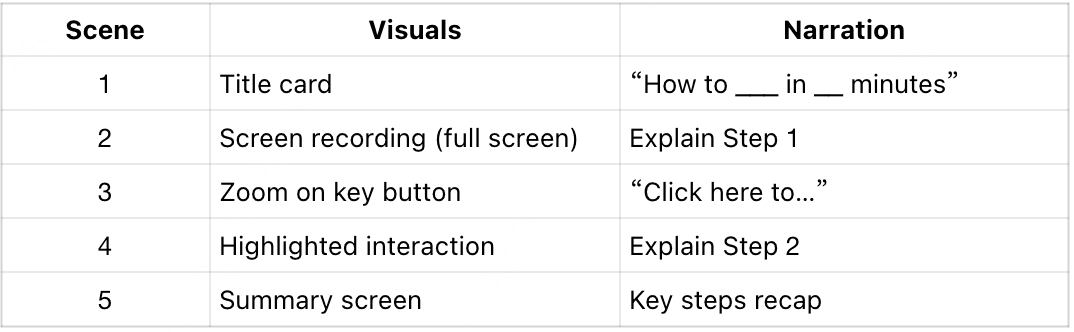
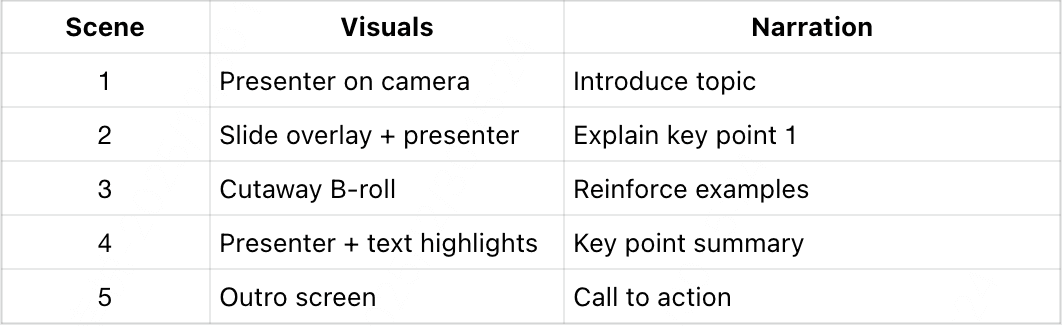
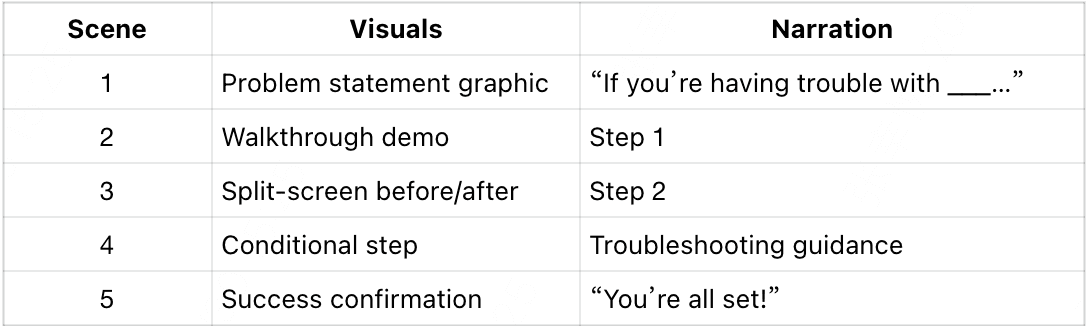
Here are some ready-made templates to structure your training videos quickly. Each template includes a sample script and a basic storyboard so you can begin recording right away.
Template 1: Screen Recording Video
(Ideal for software tutorials & product feature walkthroughs)
Script Template
- Intro: “In this video, you’ll learn how to ___.”
- Step 1: “Open the ___ panel. Click ___ to begin.”
- Step 2: “Select ___ from the menu. This lets you ___.”
- Step 3: “Review the settings and press ___ to finish.”
- Outro: “You’ve now completed ___. Try it yourself to get familiar with the workflow.”
Storyboard Template
Template 2: Presenter Video
(Ideal for onboarding, introductions, and conceptual explanations)
Script Template
- Intro: “Hi, I’m ___. Today I’ll walk you through ___.”
- Key Point 1: “Here’s why this matters…”
- Key Point 2: “The most important step is…”
- Key Point 3: “Avoid these common mistakes…”
- Outro: “Thanks for watching—next, check out the guide on ___.”
Storyboard Template
Template 3: How-To Walkthrough Video
(Best for customer support, product setup, and troubleshooting)
Script Template
- Intro: “This video shows you how to ___.”
- Step 1: “Start by ___.”
- Step 2: “Next, check whether ___.”
- Step 3: “If you see ___, do ___.”
- Outcome: “Once finished, you should be able to ___.”
Storyboard Template
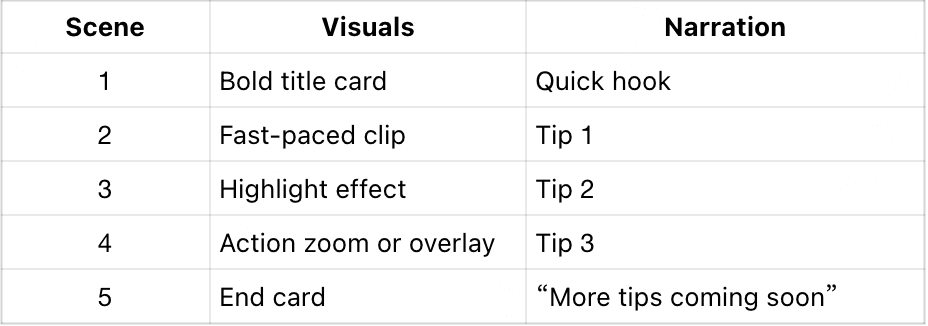
Template 4: Microlearning Clip
(Perfect for short tips, mobile training, and quick refreshers)
Script Template
- Hook (3 seconds): “Did you know you can ___ in under a minute?”
- Tip 1: “First, ___.”
- Tip 2: “Then, try ___.”
- Tip 3 (optional): “You can also ___ if you need faster results.”
- Outro: “Save this for later and try it in your next workflow.”
Storyboard Template
FAQs about Training Video
What is the easiest way to make a training video?
The easiest way is to use a screen recorder or an AI video generator with ready-made templates. These tools let you script, record, and edit quickly without needing professional equipment.
What makes a good training video?
A good training video is short, clear, visually guided, and focused on one learning outcome. Using captions, structured steps, and consistent styling also improves engagement and retention.
How long should a training video be?
Most training videos work best between 2–6 minutes, with longer topics broken into short chapters. Microlearning clips should stay under 90 seconds for maximum retention.
Can AI create training videos?
Yes—AI can generate scripts, voiceovers, subtitles, and even complete videos using avatars or screen simulations. This makes training content faster and cheaper to produce at scale.
What tools do I need to make a training video?
You typically need a screen recorder, a video editor, and an audio or caption tool. AI tools can further speed up the workflow by automating scripting, editing, and accessibility features.
How do I make training videos more engaging?
Use visual cues, keep videos short, and focus on real tasks instead of explanations.
Do I need professional editing skills?
No—modern tools and templates allow non-experts to create effective videos.
How do I avoid re-recording videos multiple times?
Write a script first and structure your content before recording.
Can training videos replace live training?
Yes—for repetitive processes, they significantly reduce the need for live sessions.
Conclusion
Creating a training video is no longer the hard part.
The real advantage comes from building a system that is:
- Fast to produce
- Easy to update
- Scalable across teams
The most effective training videos today are built on three principles:
👉 Script-first
👉 Modular structure
👉 AI-assisted production
When done right, training videos don’t just teach—they eliminate repetitive work and scale knowledge across your organization.