10 Best Training Video Software in 2026 and Why Most Tools Fail

The best training video software in 2026 is the one that helps your team create, update, and scale training content fast—not just produce beautiful videos.
For most companies, the real challenge is not making a training video once. It is maintaining onboarding videos, SOP walkthroughs, compliance modules, and product tutorials as processes constantly change.
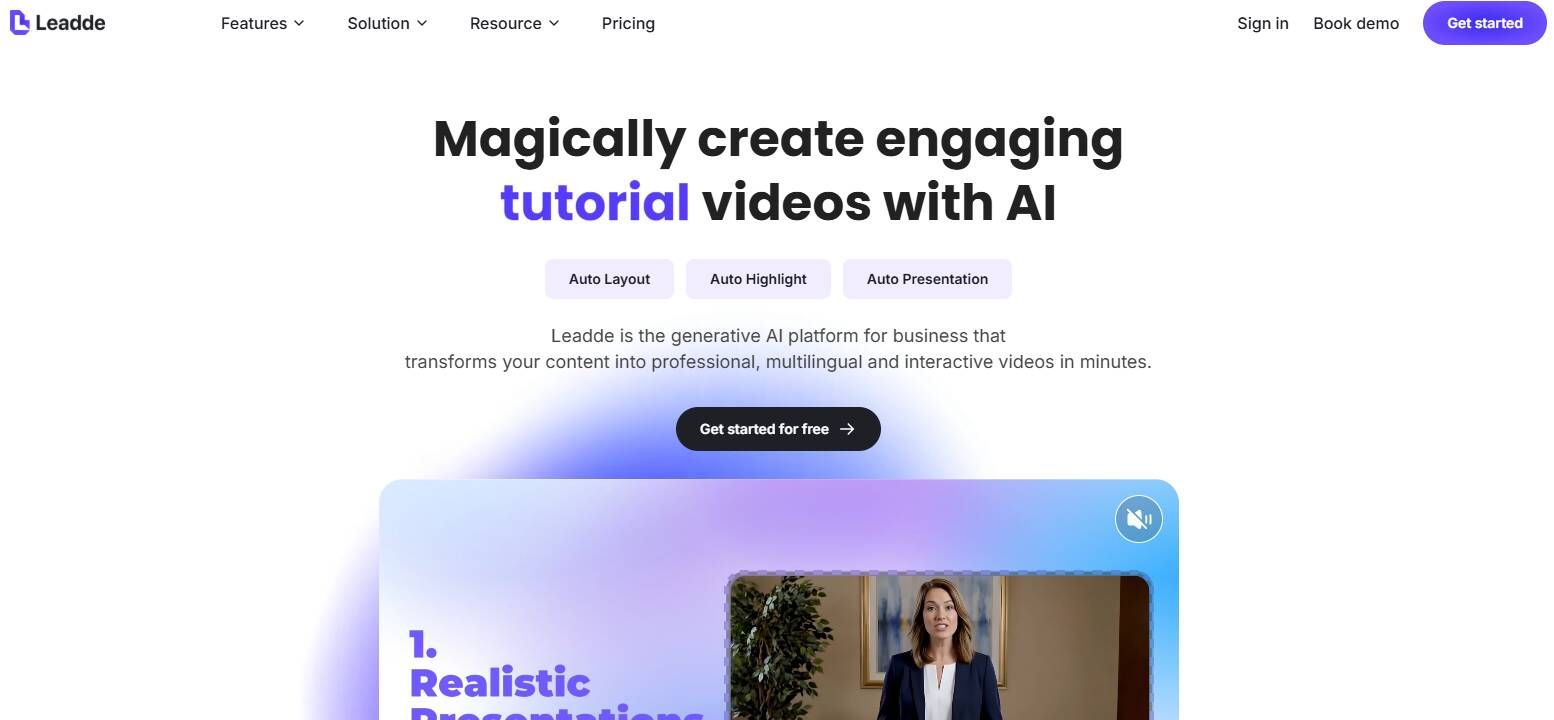
That is why an AI-powered training video platform like Leadde.ai is replacing traditional video editors. Modern teams need tools that can turn scripts, documents, and workflows into repeatable, multilingual training videos with minimal manual work.
After researching how L&D teams, onboarding managers, and instructional designers actually build training content, one pattern is clear:
Teams care more about update speed, localization, and long-term maintenance than cinematic production quality.
In this guide, I compare the 10 best training video software platforms for 2026, with a strong focus on AI tools that reduce production time, improve scalability, and support global training operations.
You’ll learn:
- Which AI training video software works best for enterprise teams
- When to choose AI avatars vs screen recording tools
- Why many teams move away from “beautiful videos” toward maintainable systems
- Real use cases from onboarding, compliance, and software training teams
- How to choose the right platform based on workflow, not hype
Why Training Video Software Matters More Than Ever in 2026
Training video software has shifted from a “nice-to-have” tool to a core operational system.
In most organizations, knowledge changes faster than documentation can keep up.
Product teams release updates weekly. Compliance policies change quarterly. Internal SOPs evolve constantly. Written docs alone are too slow, too inconsistent, and too easy to ignore.
Video solves this because it makes knowledge easier to understand, faster to consume, and easier to distribute across teams.
But in 2026, the biggest shift is not video itself.
It is AI.
1. Faster Content Updates Are Now the Real ROI Driver
Teams need to update onboarding, product, and compliance training at a rapid pace. Video tools allow quick revisions and consistent delivery across the entire organization.
2. Microlearning Is Now Standard
Short, focused videos improve completion rates and knowledge retention. Companies prefer tools that make it easy to create bite-sized training modules.
3. Remote & Hybrid Work
Distributed teams rely on asynchronous learning. Video offers a scalable way to train employees across different time zones.
4. Growing Multi-language Needs
Global teams require localized video content. Tools with auto-subtitles and translation support have become essential.
5. AI Is Transforming Production
AI video tools can turn scripts into complete training videos in minutes—no filming or editing skills needed. This makes training video creation 10× faster and more accessible to any team.
The Best Training Video Software for 2026
Leadde – Best AI Training Video Software for Fast, Scalable Training Creation
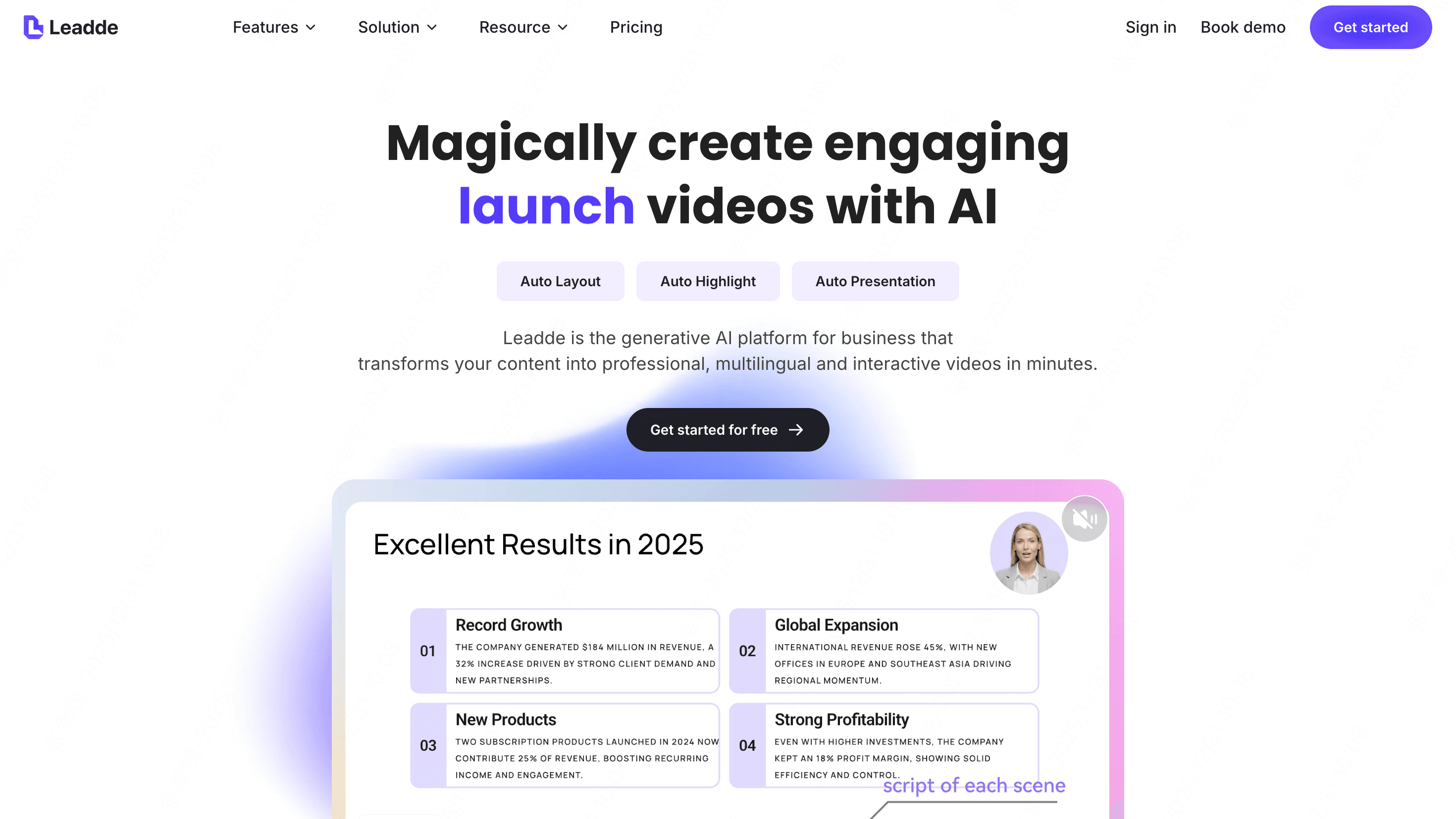
Best for: teams that want to turn scripts, documents, or outlines into complete training videos in minutes—without filming, editing, or design work.
What it does: Leadde converts your training materials into fully structured, presenter-led videos automatically. Users can upload a document, paste a script, or provide a Markdown outline, and the system instantly generates your video’s narrative structure, slide layouts, visual design, AI presenter, voiceover, and subtitles. It’s designed to help L&D teams create scalable training videos at record speed.
Key features:
- AI presenter (avatar) with synchronized voiceover narration
- Text-to-video generation from DOCX, PDF, PPTX, scripts, or Markdown
- Auto-generated structure (introduction → key points → steps → recap)
- Multi-language creation with instant language switching
- Auto-subtitles and accessibility support
- Template-based visual design for consistent branding
- Voice tone control (formal, friendly, narrative, instructive, persuasive, etc.)
- Content depth options (summary, balanced, in-depth)
- AI-assisted customization for pacing, length, and audience targeting
Ideal for:
- SOP & process training
- Employee onboarding
- Product and feature tutorials
- Compliance & safety modules
- Microlearning content
- Global teams needing multilingual video output
Why it stands out: Leadde automates the entire training video workflow—from script creation to final rendering. After you upload or paste your content, the AI builds your outline, selects design layouts, adds an AI presenter, formats your scenes, and generates multilingual versions without extra work. With its preview-and-adjust workflow, teams can finalize polished training videos with minimal effort. Compared to other AI video makers, Leadde offers a deeper level of structure control, scene customization, and rapid localization—making it one of the fastest and most scalable solutions for enterprise training.
Synthesia — Best for scalable AI avatar videos
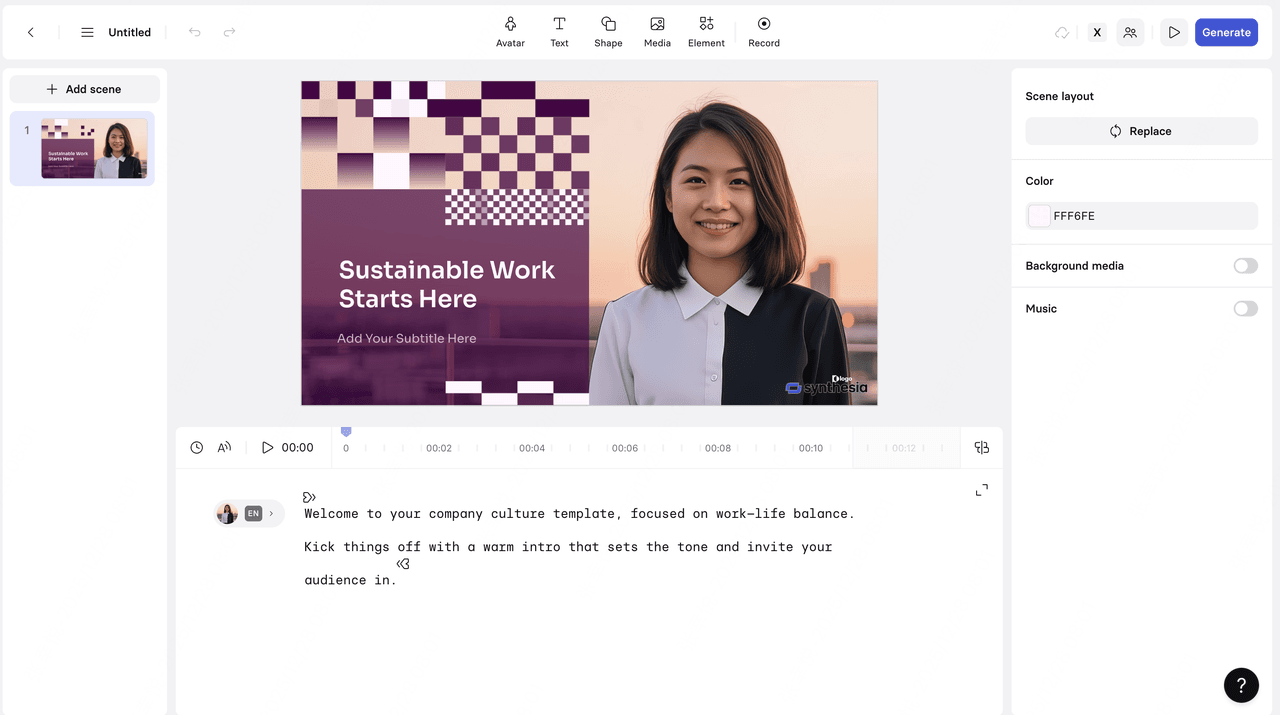
Best for: organizations that need large volumes of presenter-style training videos without filming real actors.
What it does: Synthesia allows users to generate videos using AI avatars that read your script in any of 120+ languages. It focuses on creating consistent presenter-led videos for training, onboarding, and corporate communication.
Key features:
- High-quality AI avatars with professional on-camera delivery
- 120+ languages and accents
- Text-to-video creation with simple script input
- Brand templates for repeatable training formats
- Auto-subtitles and basic editing tools
Ideal for:
- Global training teams
- Presenter-led onboarding modules
- Compliance and policy videos
- Standardized instructional content
Why it stands out: Synthesia offers one of the largest avatar libraries and the widest language support in the AI video category. It excels at producing consistent, scalable presenter-led content. However, its focus is primarily on avatar videos, with limited flexibility for advanced layout customization or complex visual storytelling.
Best Screen Recording Training Video Software
Camtasia — Best for high-quality screen tutorials
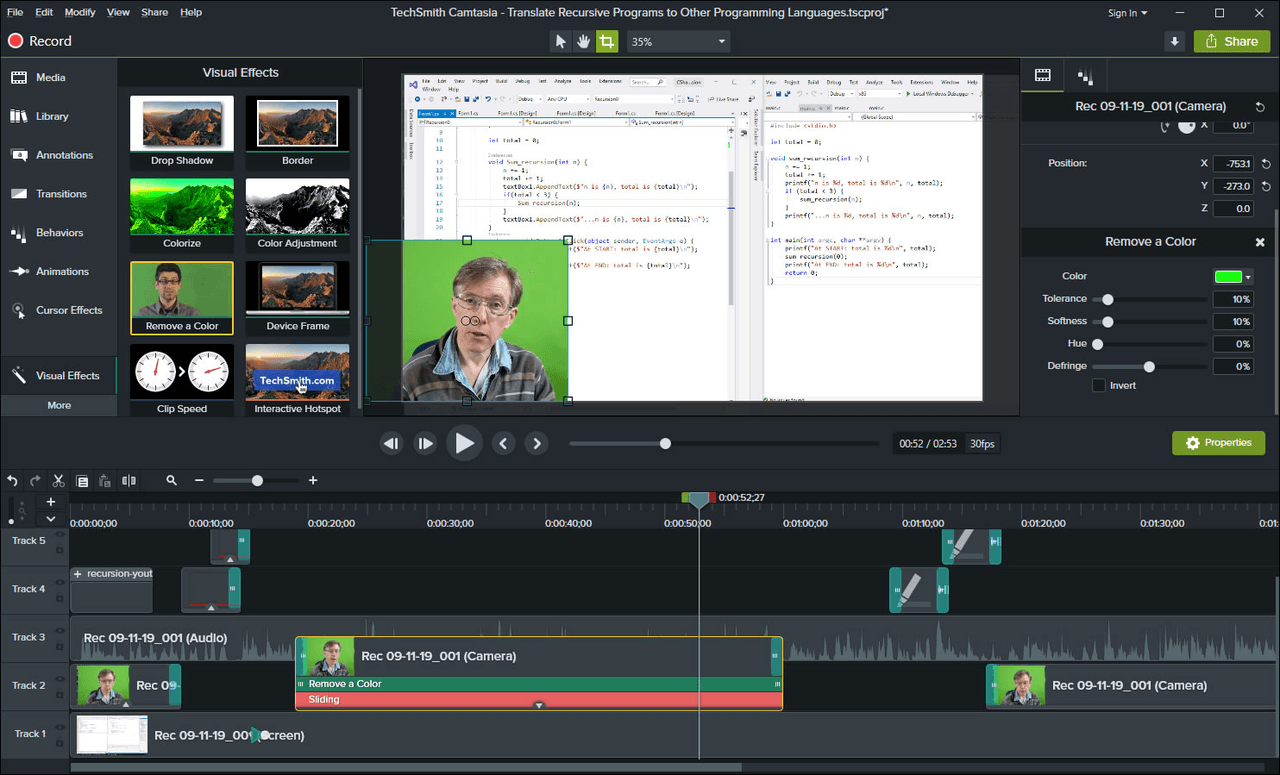
Best for: teams that need polished, instructor-style screen training videos.
Camtasia is one of the most established screen recording tools, offering an all-in-one solution for capturing screens, recording voiceovers, and editing videos in a timeline-based interface. It's popular among educators, software trainers, and enterprise L&D teams that require detailed, professional tutorials.
Key features:
- High-resolution screen recording with cursor effects
- Drag-and-drop editing timeline
- Annotations, callouts, and step markers
- Built-in templates and transitions
- Multi-track editing for audio, webcam, and screen layers
Ideal for:
- Software training videos
- Instructor-led tutorials
- Technical documentation
- Customer education content
Why it stands out: Camtasia combines powerful recording tools with an intuitive editor. It strikes a balance between accessibility and advanced capabilities, making it suitable for both beginner and intermediate creators who want high production value.
Loom — Best for quick explainer videos
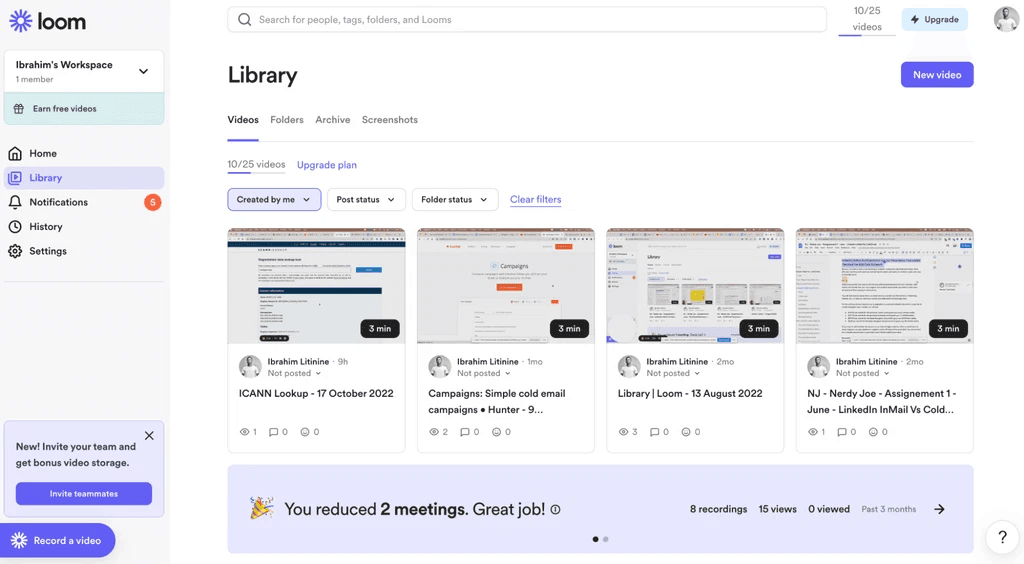
Best for: fast recording and sharing of short, lightweight explainer videos.
Loom is designed for instant communication—ideal for quick demos, internal training, and async updates. It allows users to record their screen, webcam, or both simultaneously and share videos with a simple link. There’s no need for complex editing, making it perfect for teams that value speed and simplicity.
Key features:
- One-click screen and webcam recording
- Auto-generated transcripts and captions
- Reactions, comments, and time-stamped notes
- Instant sharing via link
- Lightweight trimming and editing tools
Ideal for:
- Quick internal training videos
- Software walkthroughs
- Manager updates and async communication
- Customer support explanations
Why it stands out: Loom’s strength is its speed. It reduces the entire training video workflow to a single step: record → share. While it doesn’t offer advanced editing, it excels for rapid knowledge transfer and real-time team communication.
Best Animated Training Video Software
Vyond — Best for character-driven storytelling
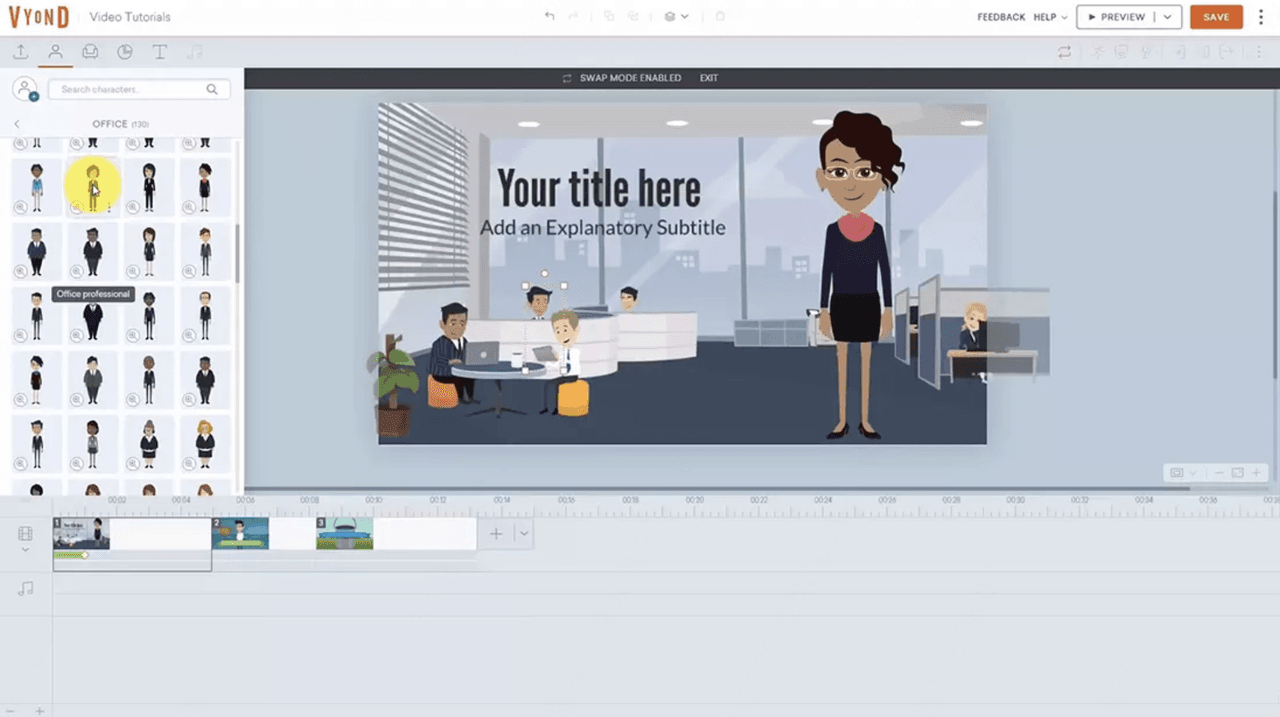
Best for: training scenarios that rely on people-focused storytelling, role-play, or process visualization.
Vyond is one of the most powerful animation platforms for training content. Its character-driven approach allows teams to build realistic workplace scenarios—perfect for soft skills training, compliance lessons, and behavioral learning. With extensive character customization and scene libraries, users can bring almost any scenario to life.
Key features:
- Fully customizable characters with facial expressions and actions
- Large library of workplace scenes, props, and animations
- Lip-sync and text-to-speech voiceovers
- Timeline editor for multi-scene storytelling
- Templates designed specifically for training and e-learning
Ideal for:
- Soft skills and communication training
- Compliance and safety scenarios
- Customer service role-play videos
- Policy and behavior-based training
Why it stands out: Vyond offers unmatched flexibility for creating narrative-style training videos. Its character animation system helps instructors build engaging, relatable situations that boost learner retention. It's especially popular among corporate L&D teams and instructional designers.
Powtoon — Best for Lightweight Animated Explainers
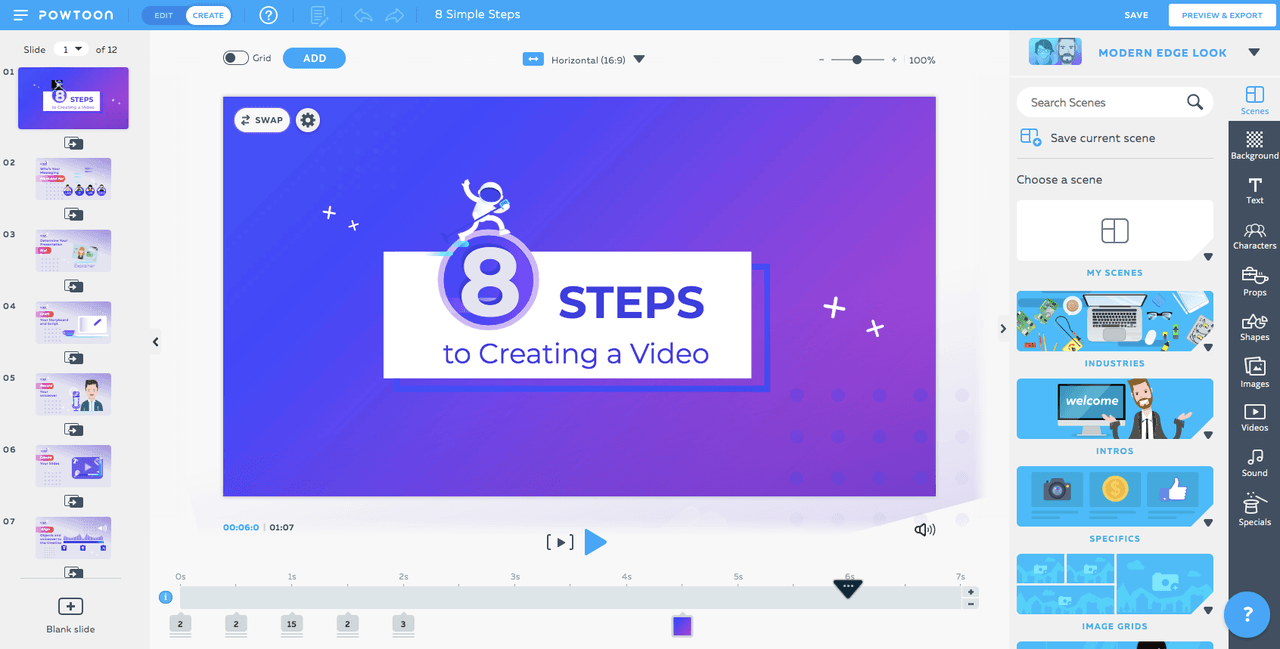
Best for: quick, visually appealing animated explainers and training summaries.
Powtoon focuses on simple, presentation-style animations that combine text, icons, characters, and motion graphics. It's designed for users who want to create clean, modern explainers without spending time on complex editing. Its intuitive interface makes it easy to produce animated videos that break down information into digestible visuals.
Key features:
- Ready-made animated templates
- Drag-and-drop editor for icons, text, and motion graphics
- Slide-based structure similar to presentation tools
- Library of characters, props, and transitions
- Export options for MP4, PPT, and integrations with LMS and workplace tools
Ideal for:
- Training summaries and high-level overviews
- Process explainers
- Microlearning modules
- Internal communications and employee updates
Why it stands out: Powtoon is perfect for non-designers who want to create polished animations quickly. Its presentation-like layout is familiar and easy to use, making animated training accessible to any team—even those without design or video expertise.
Best Professional Video Editing Tools
Adobe Premiere Pro — Best for advanced video editing
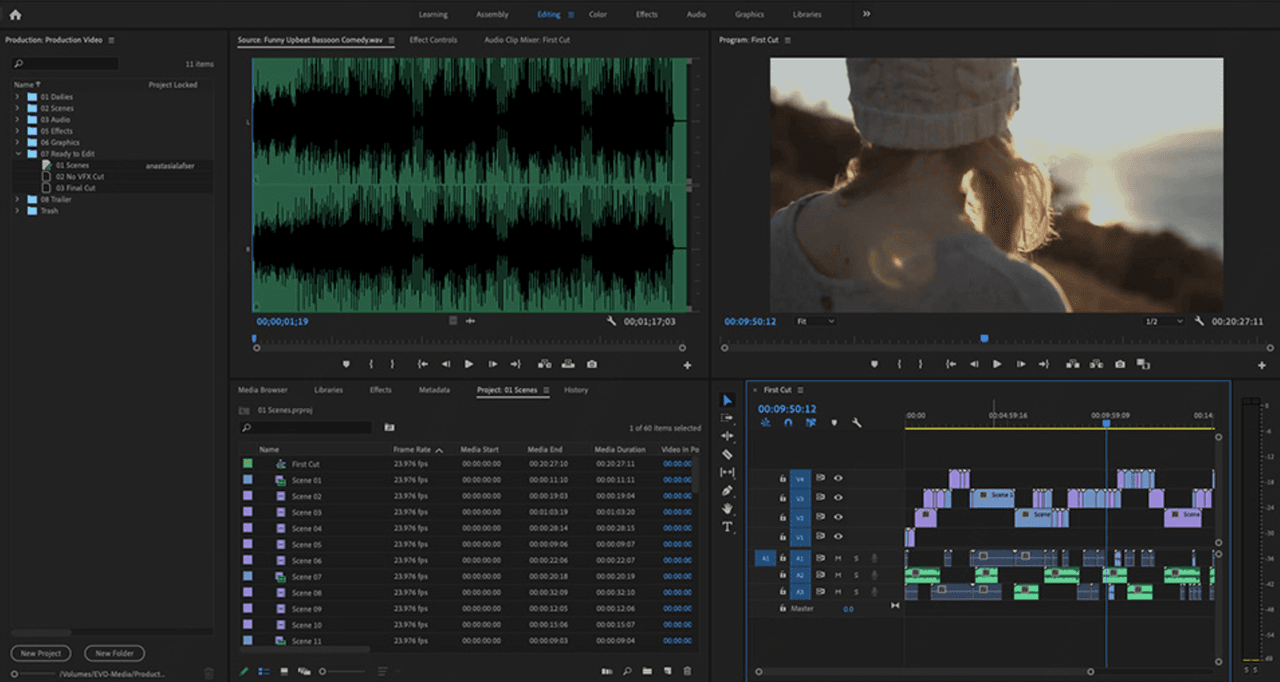
Best for: teams that need full creative control and broadcast-level production quality.
Adobe Premiere Pro is the industry standard for professional video editing. It provides deep editing capabilities that allow creators to fine-tune every detail—from color correction and audio mixing to motion graphics and multi-camera editing. For organizations producing high-quality training content, Premiere Pro offers a workflow flexible enough to handle any complexity.
Key features:
- Multi-track timeline with precision editing tools
- Advanced color grading and lighting controls
- Motion graphics and title design via Adobe After Effects integration
- Audio editing, noise reduction, and sound mixing
- Supports all major formats (MP4, MOV, ProRes, etc.)
- Seamless integration with Photoshop, Illustrator, Audition, and Adobe Stock
Ideal for:
- Live-action training videos
- High-quality product demonstrations
- Brand storytelling or onboarding videos
- Long-form or multi-module training content
Why it stands out: Premiere Pro is built for professional workflows. Its depth, ecosystem, and reliability make it ideal for teams that need top-tier production quality and already have video editing experience or dedicated creative resources.
DaVinci Resolve — Best free professional-grade editor
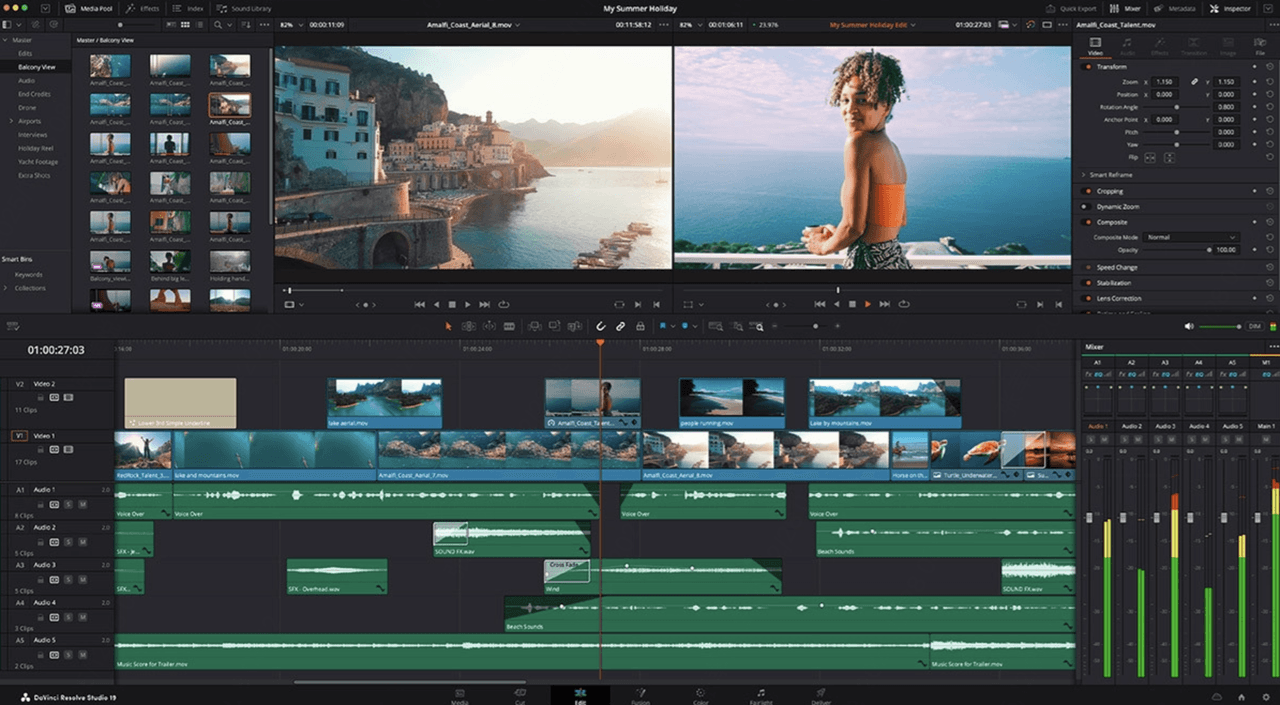
Best for: teams that want powerful editing and color grading tools without paying for a premium subscription.
DaVinci Resolve is one of the most capable free editing tools available and is widely used in professional film production. It combines editing, color grading, visual effects, and audio post-production in one platform. For training teams working with live-action footage or detailed tutorials, Resolve delivers exceptional quality with no cost barrier.
Key features:
- Industry-leading color grading tools
- Multi-track editing timeline
- Fusion: advanced visual effects and motion graphics
- Fairlight: full audio mixing suite
- High-performance rendering
- Free version includes almost all core features
Ideal for:
- Cinematic training videos
- Technical demonstrations with multiple camera angles
- Teams needing precise color control or audio mixing
- Organizations wanting professional results on a budget
Why it stands out: DaVinci Resolve offers capabilities that rival expensive editing suites—yet it’s free. It’s the best choice for teams wanting professional-grade results without licensing fees, as long as they’re comfortable with a steeper learning curve.
Best Beginner-Friendly Training Video Software
Clipchamp — Best for simple drag-and-drop editing
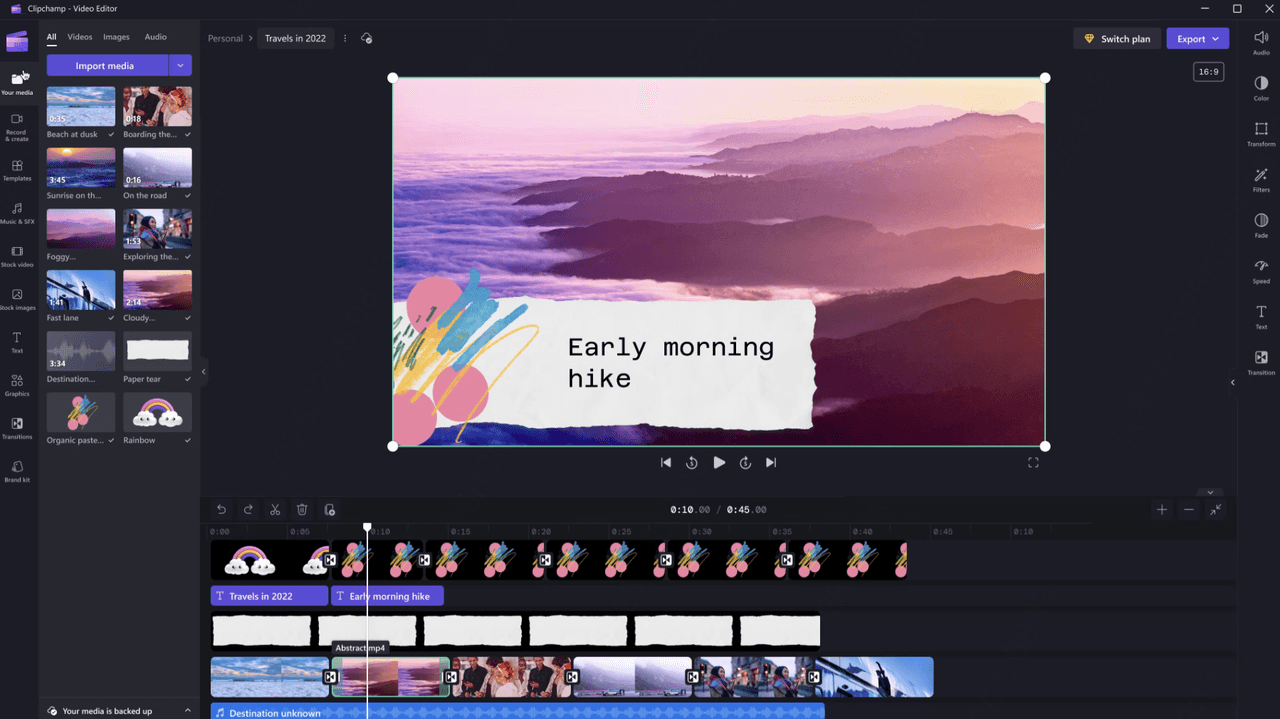
Best for: beginners who need a quick, intuitive editor for basic training videos.
Clipchamp, now part of Microsoft, is a simple and accessible video editor designed for users with little to no video production experience. Its drag-and-drop interface, template library, and built-in stock assets make it easy to assemble short explainer videos, onboarding clips, or basic tutorials—all without professional tools.
Key features:
- Drag-and-drop editing with a clean, beginner-friendly interface
- Templates for intros, explainers, and training-style videos
- Built-in stock footage, images, and music
- Text overlays, transitions, and basic motion graphics
- Exports directly to MP4 with standard aspect ratios
- Cloud-based access through Microsoft 365
Ideal for:
- Simple onboarding videos
- Team updates or internal announcements
- Short explainers or recap videos
- Training content that doesn't require animation or complex editing
Why it stands out: Clipchamp makes video editing as easy as editing a slide deck. It’s perfect for teams who want to produce lightweight, approachable training videos without investing time in learning complex software.
iMovie — Best for Mac Users
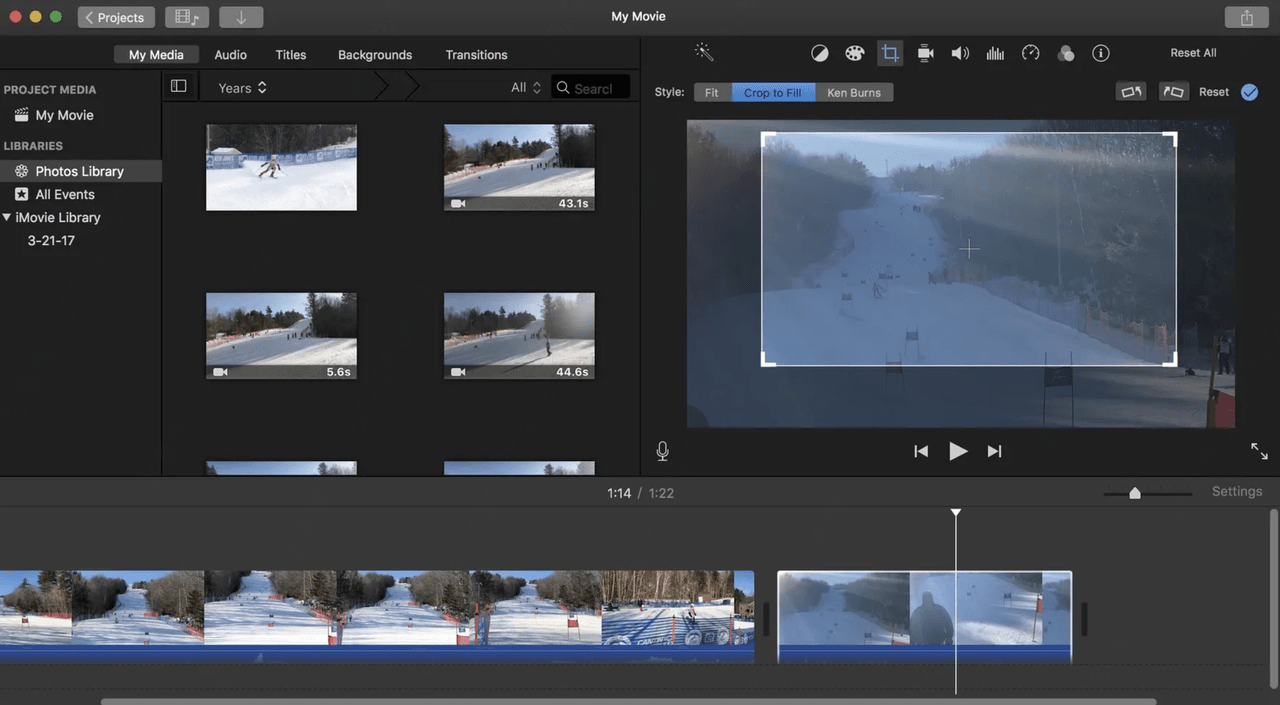
Best for: Mac users who need a free, polished editing tool for basic training videos.
iMovie is Apple’s built-in video editor, designed to help macOS and iOS users create clean, professional-looking videos with minimal effort. Its ready-made templates, smooth transitions, and simple timeline editing make it a solid choice for small training projects such as onboarding clips, internal walkthroughs, or product explainers—especially for teams already working within the Apple ecosystem.
Key features:
- Free for all macOS and iOS users
- Clean templates for fast storytelling and structure
- Simple timeline editing with drag-and-drop clips
- Basic color correction and audio enhancement tools
- Built-in transitions and title styles
- Seamless integration across Mac, iPhone, and iPad
Ideal for:
- Quick onboarding or internal training videos
- Short product explainers and tutorials
- Small teams or solo creators on Apple devices
- Training content that prioritizes clarity over advanced effects
Why it stands out:
iMovie offers a polished editing experience at zero cost. For Mac users who want reliable results without learning complex editing software, it’s an easy way to create professional-looking training videos with minimal setup.
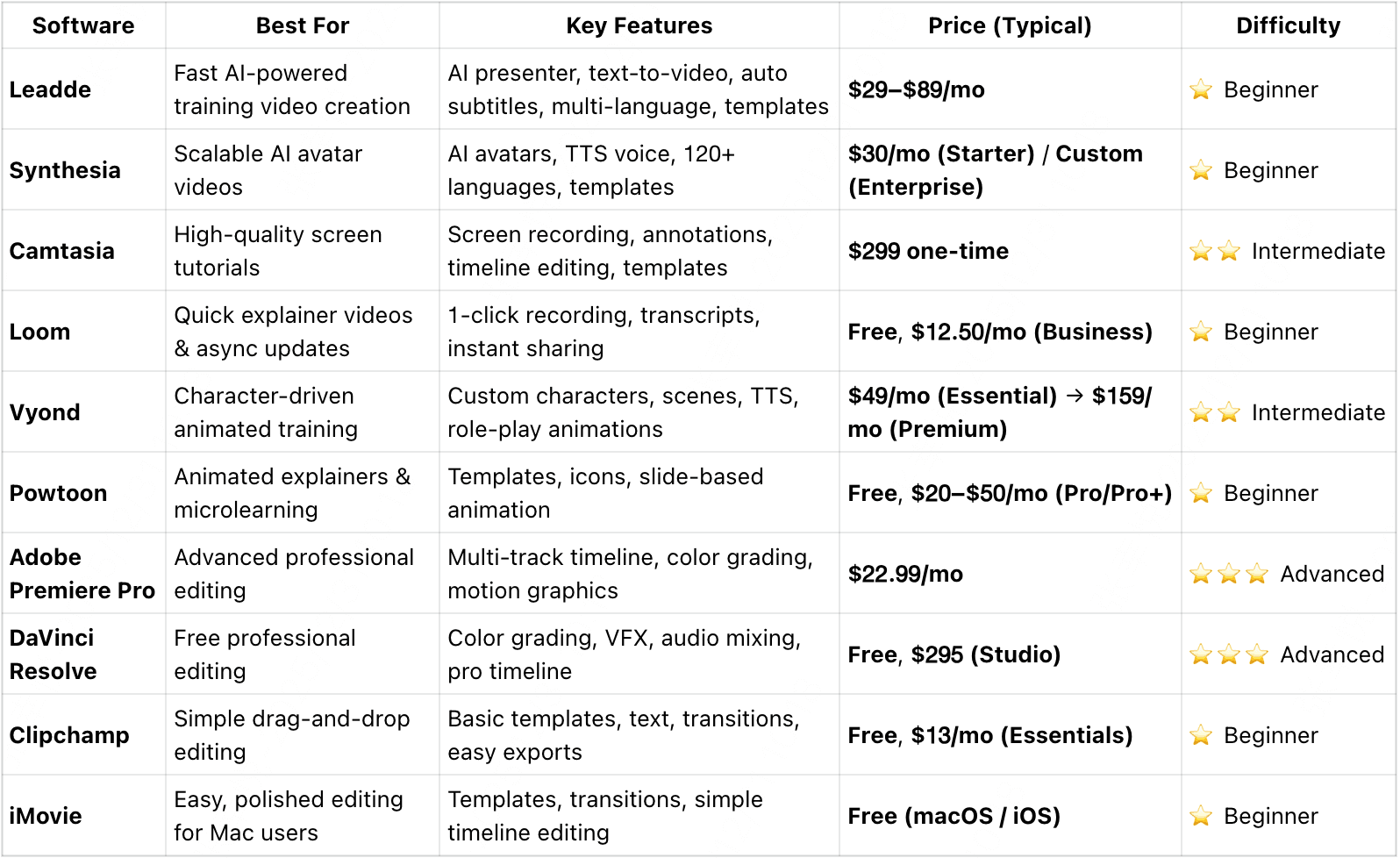
Comparison Table of Training Video Softwares
This comparison table highlights the key features, strengths, pricing levels, and difficulty of each training video software to help teams choose the right tool faster.
How to Choose the Right Training Video Software
With so many tools on the market, selecting the right training video software comes down to matching your team’s skills, workflow, and training goals. Here are the key factors to evaluate:
1. Team Skill Level
Consider who will be creating the videos:
- Beginners may need simple drag-and-drop editors or AI tools that generate videos from scripts.
- Advanced creators may prefer tools with detailed editing controls or professional post-production features.
2. Type of Training Videos You Need
Different formats require different tools:
- AI presenter videos for scalable, camera-free training
- Screen recordings for software tutorials and walkthroughs
- Animated videos for storytelling or process explanations
- Live-action videos for demonstrations or compliance training
Choosing the right category ensures you don’t overpay for features you’ll never use.
3. Templates and Reusability
Reusable templates help keep training consistent and reduce production time.
Look for tools offering slide layouts, branded themes, or scene templates—especially if you produce recurring content like onboarding or SOP updates.
4. Multi-language and Accessibility Support
For global teams, the software should support:
- Automatic subtitles
- Translation
- Voiceover updates
- Accessibility features (captions, screen-reader friendly elements)
These capabilities reduce manual work and keep training inclusive.
5. Export Options and LMS Compatibility
Ensure the tool supports the formats your organization needs:
- MP4, WebM, GIF, SCORM, xAPI
- Seamless integration with LMS or knowledge-base platforms
- Easy embedding for internal wikis or help centers
Better compatibility = smoother distribution.
6. Pricing and Budget
Training needs vary widely, so evaluate:
- Free vs. paid plans
- Cost per creator
- AI credits or video generation limits
- Enterprise options for large teams
Choose software that fits your budget without compromising essential features.
FAQ: Real Questions Teams Ask Before Buying Training Video Software
What is the best training video software for employee onboarding?
For scalable onboarding, AI-first platforms like Leadde work best because they reduce production time and make updates easier. If your onboarding relies heavily on live screen demos, Camtasia is often the better fit.
Is Storyline better than Camtasia?
Not always.
Storyline is better for interactive learning, quizzes, and LMS tracking.
Camtasia is better for software tutorials and screen-recorded walkthroughs.
They solve different problems.
Is AI avatar software worth it for training videos?
Sometimes. For high-volume standardized delivery, AI avatar software makes a lot of sense. But for fast-changing internal training, many teams prefer AI voiceover and structured workflows over avatar-heavy production because updates are faster.
Why do some teams stop using tools like HeyGen?
Because long-term maintenance becomes difficult.
Voice stability, subtitle issues, and frequent re-rendering often create more work than expected.
Can H5P replace Storyline?
For many teams, partially yes.
Especially when budget is limited and interactive learning is the main priority.
But Storyline still offers stronger enterprise control and LMS integration.
Is there an all-in-one training video software for editing + quizzes + LMS?
Rarely.
Most companies still use a stack of tools.
This is why AI workflow systems are becoming more valuable than single-purpose software.
What is the best budget under $500 setup?
Usually:
Camtasia + H5P
or
Loom + lightweight LMS workflows
depending on whether your focus is tutorials or interaction.
Should I prioritize video quality or update speed?
Update speed.
Almost always.
Training content that stays current beats beautiful content that becomes outdated.
Conclusion
In 2026, training video software plays a critical role in how teams scale learning, onboard faster, and keep knowledge up to date. With AI-powered tools, microlearning formats, and global distribution becoming standard, creating effective training videos is no longer slow or complex.
There’s no single best tool—only the one that fits your team’s workflow and goals. Choose a platform that matches your skill level, training format, and distribution needs, then start with one simple use case.
Your knowledge already exists. The right training video software helps you turn it into training content your team can actually use.