How to Use AI for Fast and Efficient Training Video Production (Complete Guide for Scalable, High-Impact Learning)
AI has fundamentally changed how training videos are created. What once required days of scripting, filming, editing, and coordination can now be done in hours—with fewer resources and far greater scalability.
But the real shift isn’t just speed.
Through hands-on implementation and analyzing real-world workflows across teams, one thing becomes clear:
👉 The biggest advantage of AI is not full automation—it’s eliminating production bottlenecks while keeping human expertise where it matters most.
This guide breaks down exactly how to use AI for training video production—along with real workflows, measurable outcomes, and practical strategies that actually work.
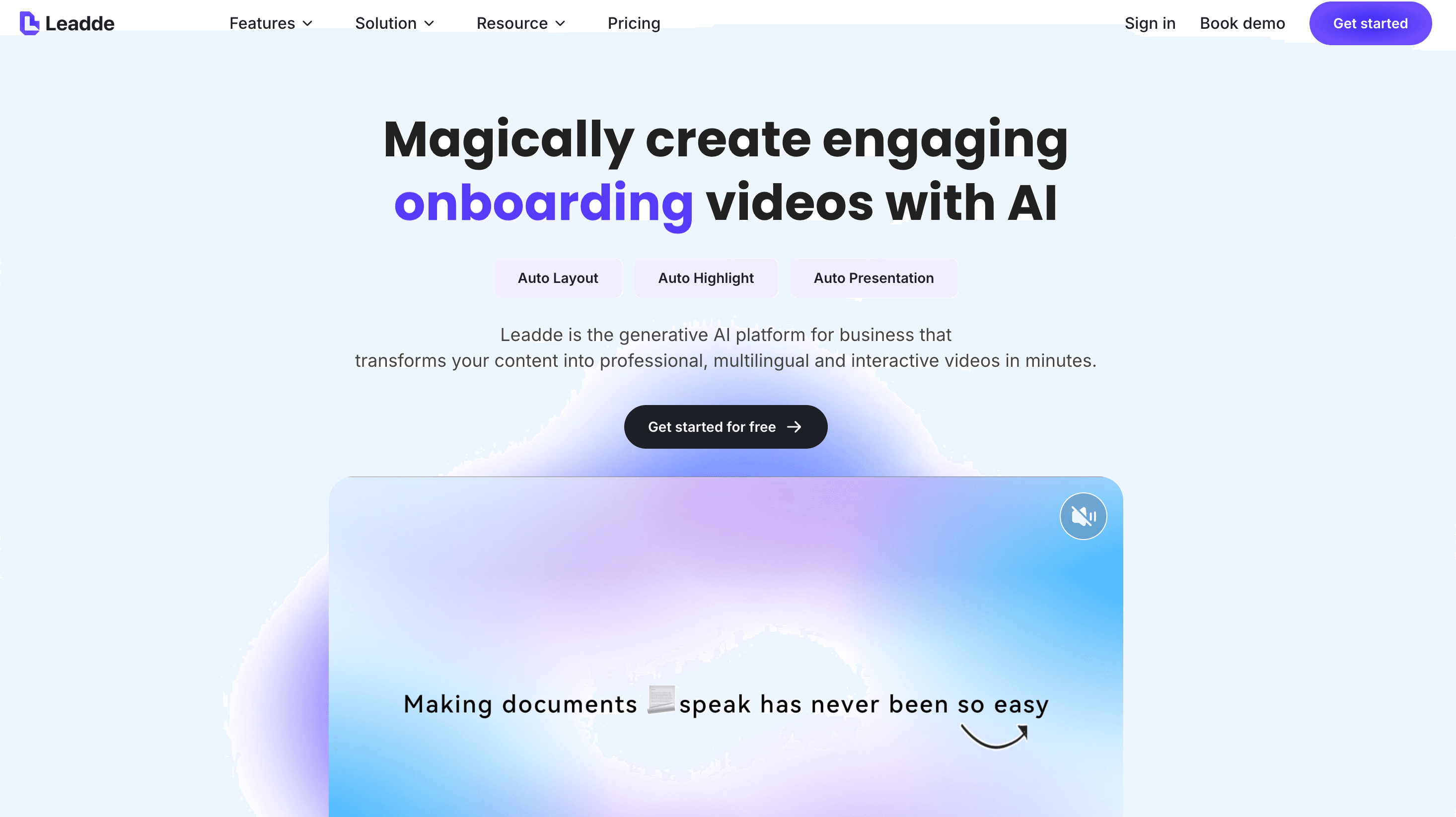
With an AI video generator like Leadde, you can quickly turn scripts, documents, or slides into polished training videos. The platform automatically creates structured scenes, narration, key highlights, and an AI presenter—helping teams scale high-quality training content with minimal effort.
What Is AI Training Video Production? A Practical Definition for Modern Teams
AI training video production refers to using artificial intelligence to automate or accelerate key parts of the video creation process, including:
- Scriptwriting
- Voiceover generation
- Video editing
- Subtitles and translation
- Scene structuring
- AI presenters (avatars)
Unlike traditional production, which relies heavily on manual work and filming, AI allows teams to convert existing knowledge (documents, SOPs, slides) directly into structured video content.
👉 In practice, this means:
- Training content becomes modular, editable, and scalable
- Updates no longer require re-recording entire videos
- Small teams can produce content at enterprise scale
Is AI Training Video Production Worth It? Cost, ROI, and Real-World Tradeoffs
One of the most important strategic questions is whether AI video production actually delivers ROI compared to traditional video production cost.
What changes in practice:
Time savings
- Traditional workflow: 2–3 hours for a 5-minute video
- AI-assisted workflow: ~30 minutes for first draft
Production efficiency
- Iteration cycles reduced by ~60%
- Script → voice → video pipeline becomes near-instant
Maintenance cost
- Instead of re-recording:
- Edit script → regenerate video
- Updates become minutes instead of days
Tradeoffs to consider:
Where AI performs extremely well:
- Onboarding videos
- SOP training
- Product walkthroughs
- Internal documentation
Where AI struggles:
- High-emotion storytelling
- Complex expert-led training
- High-stakes compliance content
👉 Insight:
AI delivers the highest ROI when used to scale repeatable training, not replace expert-led teaching.
AI vs Traditional Training Video Production: Which Approach Works Better?
Traditional Production
- High quality, high cost
- Strong human presence
- Difficult to update
AI Production
- Fast, scalable, low cost
- Easy to update
- Consistent output
Real-world conclusion:
The most effective teams don’t choose one—they combine both.
👉 Best-performing model:
- AI handles:
- scripting drafts
- voiceover
- visuals
- Humans handle:
- accuracy
- storytelling
- final polish
Step-by-Step: How to Use AI for Training Video Production
Step 1 — Define the Training Goal
Before creating any training video, start by defining the learning goal. Clarify who the video is for, what skill or process they need to learn, and what outcome you expect them to achieve. A focused goal helps you structure the video, keep it concise, and choose the right level of detail.
AI can quickly turn your objectives into a clear course outline, giving you a structured starting point in seconds.
Step 2 — Generate a Script with AI
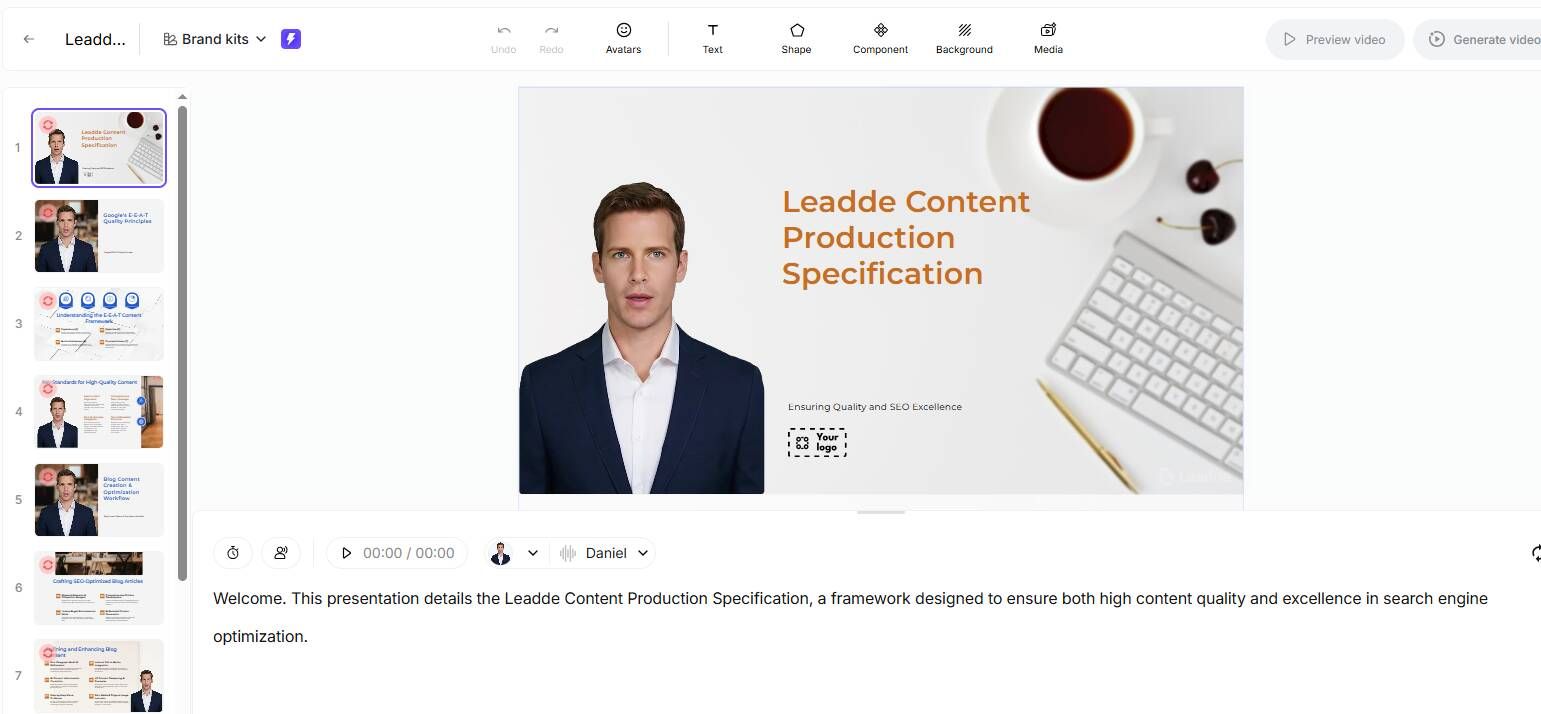
A strong script is the foundation of an effective training video. AI can help you draft clear, structured, and concise scripts in minutes, reducing the time normally spent planning and rewriting.
The key is to give the AI enough context and clear constraints so the final output fits the video format.
How to Write a Training Video Script with AI
Provide the AI with:
- Your audience
- The key skill or process being taught
- The learning objective
- The expected video length
- Any required steps, terminology, or visuals
This helps the AI generate a script that’s accurate, relevant, and ready for production.
How to Make Your Script Concise and Video-Friendly
To ensure the script works well on video:
- Use short sentences and simple language
- Break the content into clear steps or segments
- Add cues for visuals, screen actions, or annotations
- Keep each idea focused and avoid long paragraphs
- Maintain a natural, conversational tone that works for narration or AI avatars
A concise script improves viewer retention and makes editing smoother.
AI Script Prompt Examples
✔ Basic Prompt
“Write a concise training video script teaching beginners how to create a new project in our task management tool. Keep it under 2 minutes and break the explanation into clear steps.”
✔ Structured Prompt
“Create a training video script for new support agents on how to respond to a customer ticket.
Include:
- An introduction
- Three key steps
- Short, simple sentences
- On-screen cues for what the viewer should see Target length: 3 minutes.”
✔ Professional Prompt with Visual Cues
“Write a training video script that teaches employees how to submit an expense report in our internal system.
Requirements:
- Target audience: new hires
- Learning goal: complete an expense submission without errors
- Structure the script into sections (Intro, Steps, Summary)
- Use clear, conversational voiceover lines
- Add cues like ‘Show dashboard,’ ‘Zoom into button,’ and ‘Highlight field’ Length: 2–3 minutes.”
Step 3 — Upload or Paste Your Content about Training Video
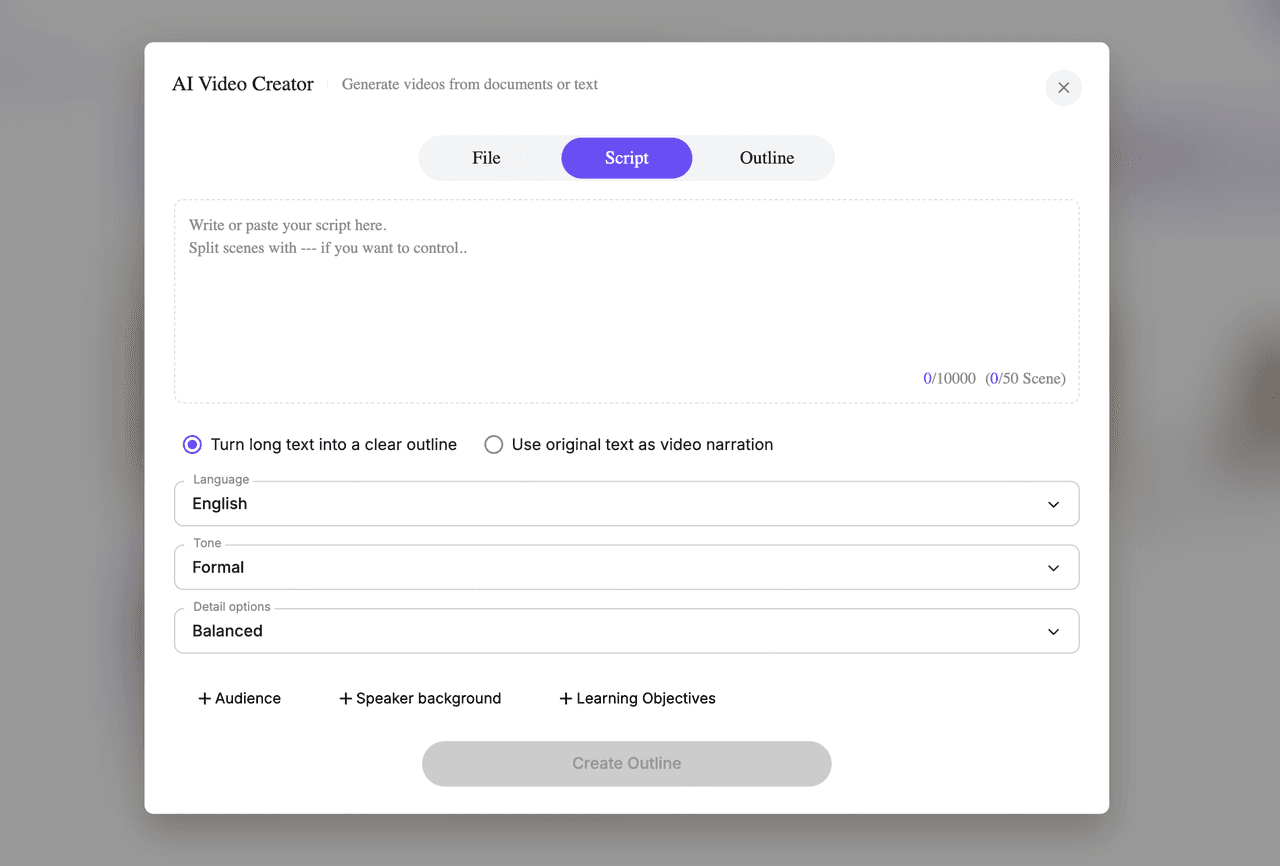
Begin by importing the content you want to turn into a training video. You can choose the method that matches your workflow:
- Upload a file (DOCX, PDF, PPTX)
- Paste your script directly into the editor
- Provide a Markdown outline for scene-by-scene control
Once your content is added, configure the key parameters that shape the video:
Select the Video Language
Choose the language your learners need—English, Chinese, Spanish, French, German, or others. This ensures your training content is ready for global audiences.
Choose the Tone of Voice
Set the style of narration for your AI presenter, such as formal, friendly, inspirational, persuasive, storytelling, or informative, depending on your training context.
Set the Content Detail Level
Decide how deep the content should go:
- Summary for quick overviews
- Balanced for general training
- In-depth for technical or advanced lessons
Add Optional Training Context
To generate more accurate and relevant instructional content, you can specify:
- Target audience
- Presenter background
- Learning objectives
These inputs help the AI create a script that aligns closely with real training needs.
Step 4 — Generate the Structure and Customize Your Video Elements with AI
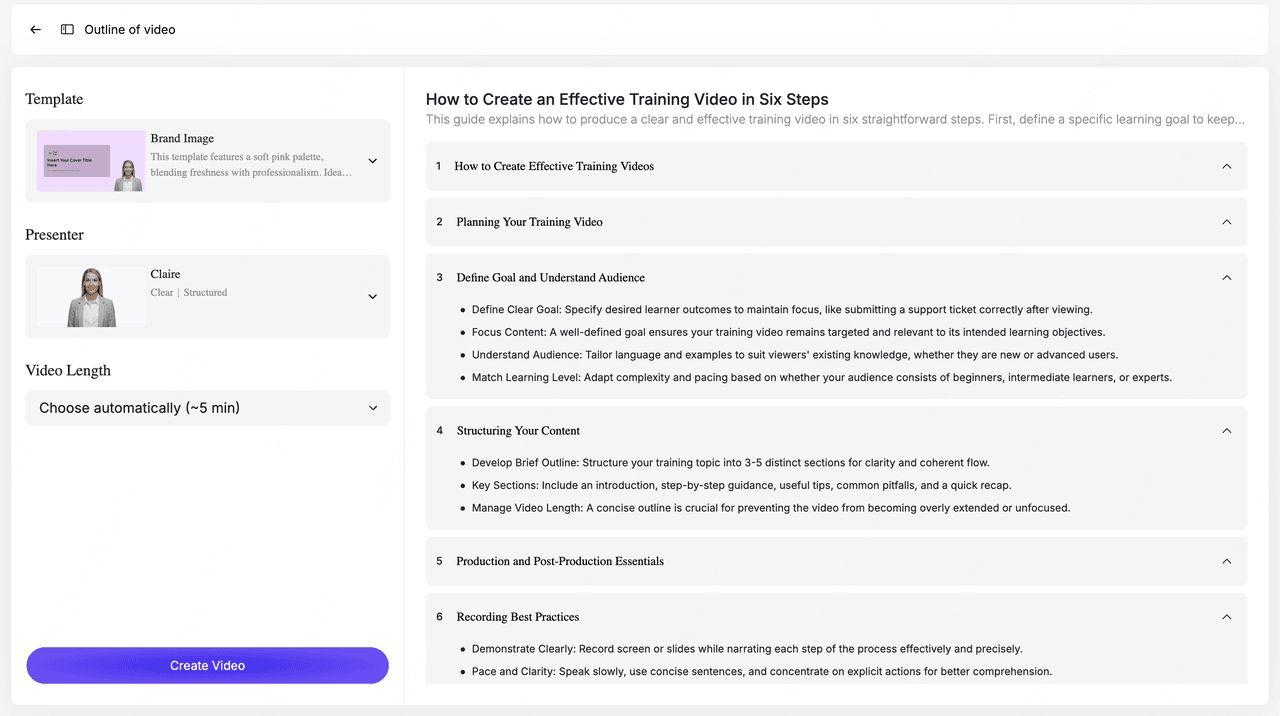
Once your inputs are ready, click “Create Outline.” The system instantly generates a complete, modular video structure— including an introduction, key learning points, step-by-step sections, demo segments, and a final recap. This becomes the foundation of your training video.
Next, tailor the video’s look and feel to match your brand and training goals:
Choose a Video Template
Select from a range of professional training layouts, such as corporate presentations, onboarding themes, or product demo styles. Templates ensure consistent visuals, brand colors, typography, and transitions across all scenes.
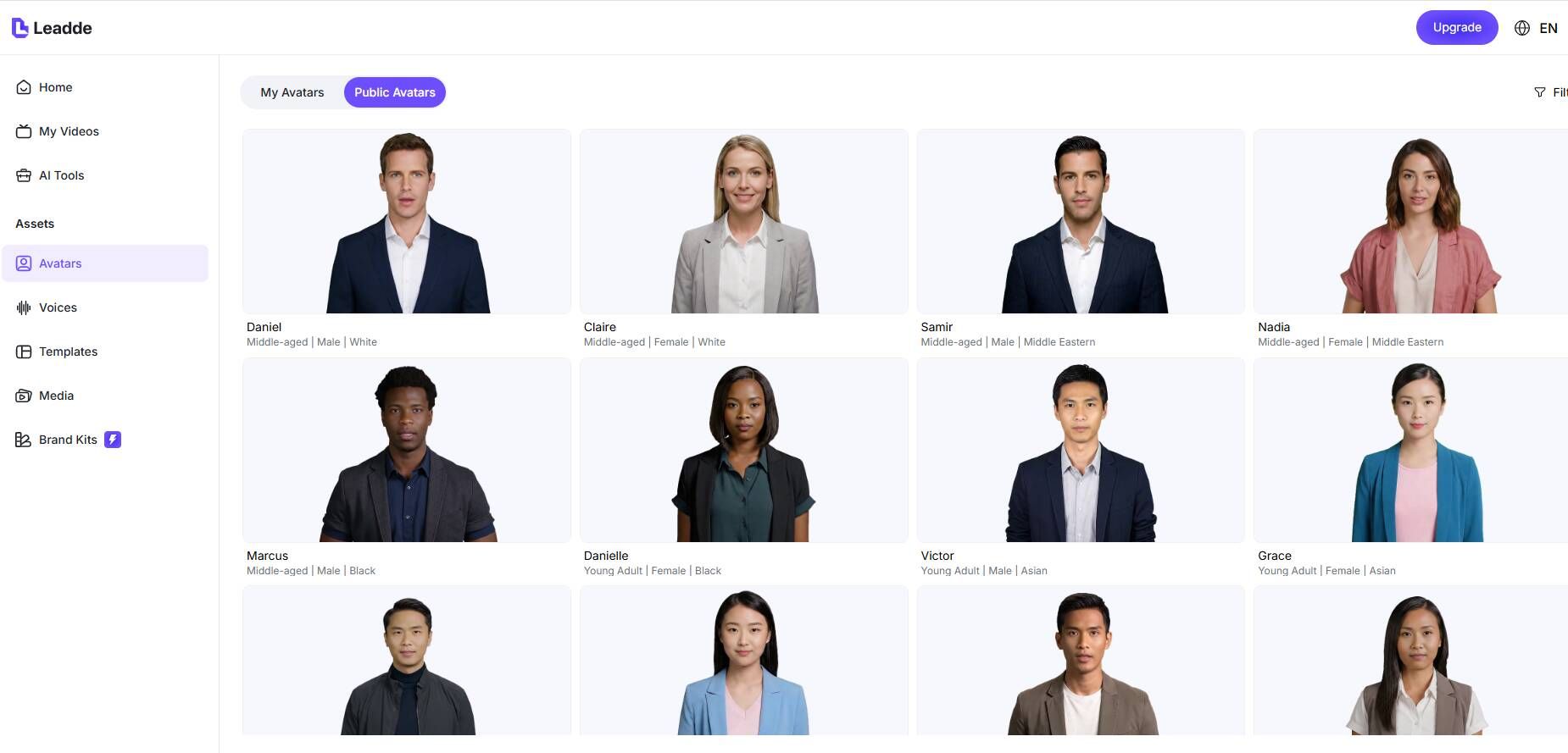
Select an AI Presenter (Avatar)
Choose a presenter that reflects your brand voice and audience needs. With hundreds of avatar options—professional, friendly, instructional, authoritative—you can match the tone of the training instantly.
Decide the Video Length
Set the desired duration (e.g., 5–18 minutes) or allow the AI to automatically optimize pacing based on your script and outline.
Step 5 — Generate the Full Training Video with AI
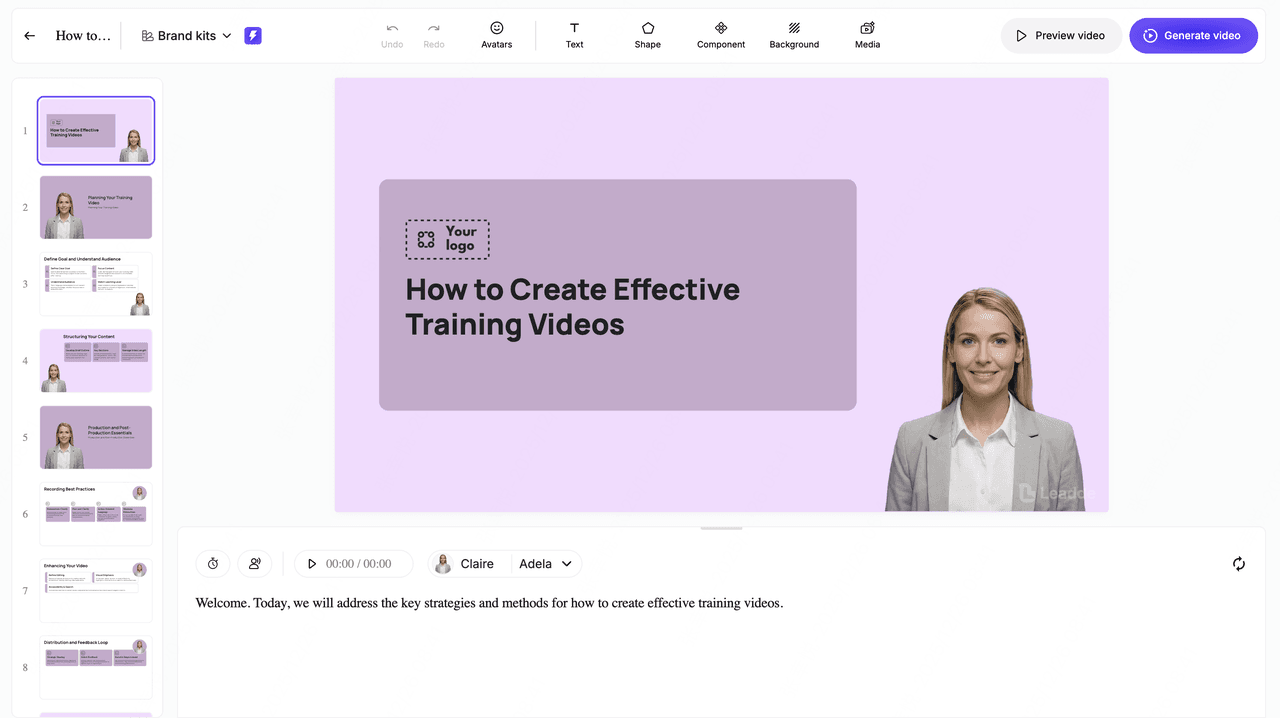
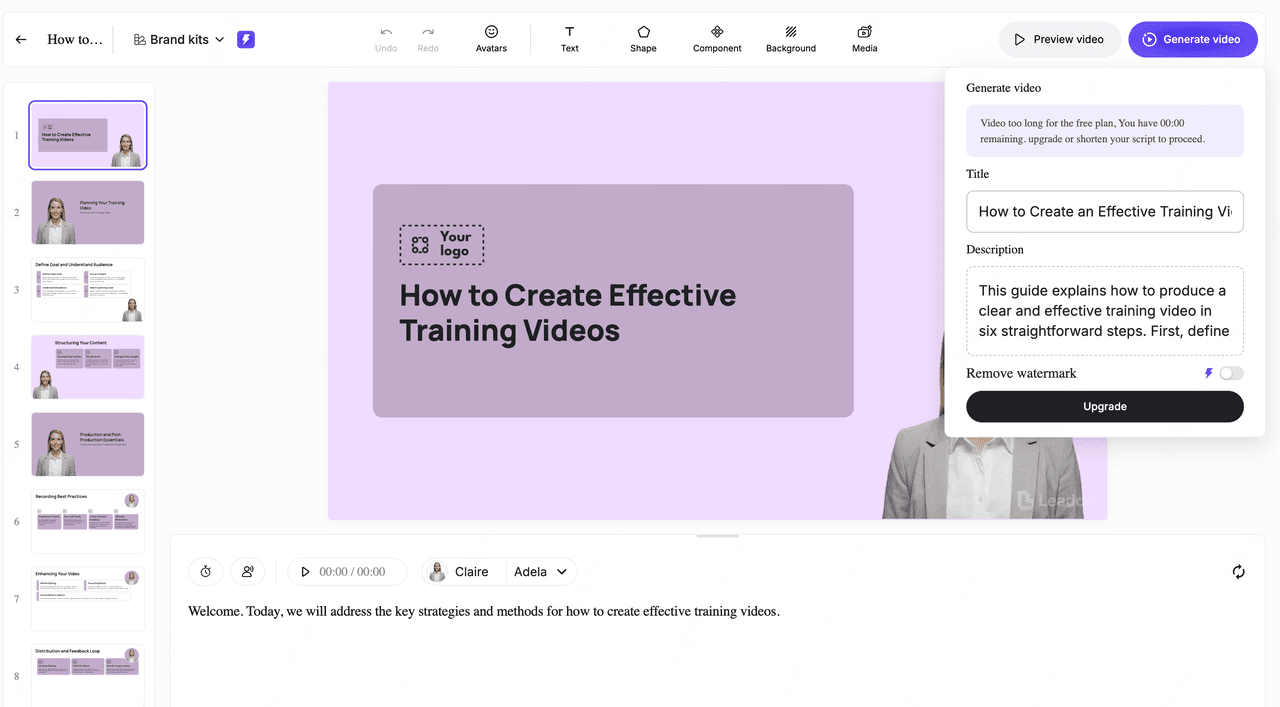
After you click “Create Video,” the AI automatically assembles your complete training video. It designs each slide layout, selects background styles, adds transitions, formats on-screen text, and incorporates supporting visuals—all based on the outline you approved.
An AI presenter is added to every scene with perfectly synchronized voiceover narration. Subtitles are generated automatically for accessibility, and you can enable AI voice synthesis or voice cloning to match your preferred vocal style.
The system also supports instant language switching, allowing you to create multilingual versions without re-recording or redesigning anything. With one click, your training video becomes globally scalable.
Step 6 — Preview and Generate Your AI Made Training Video
Preview Your Video
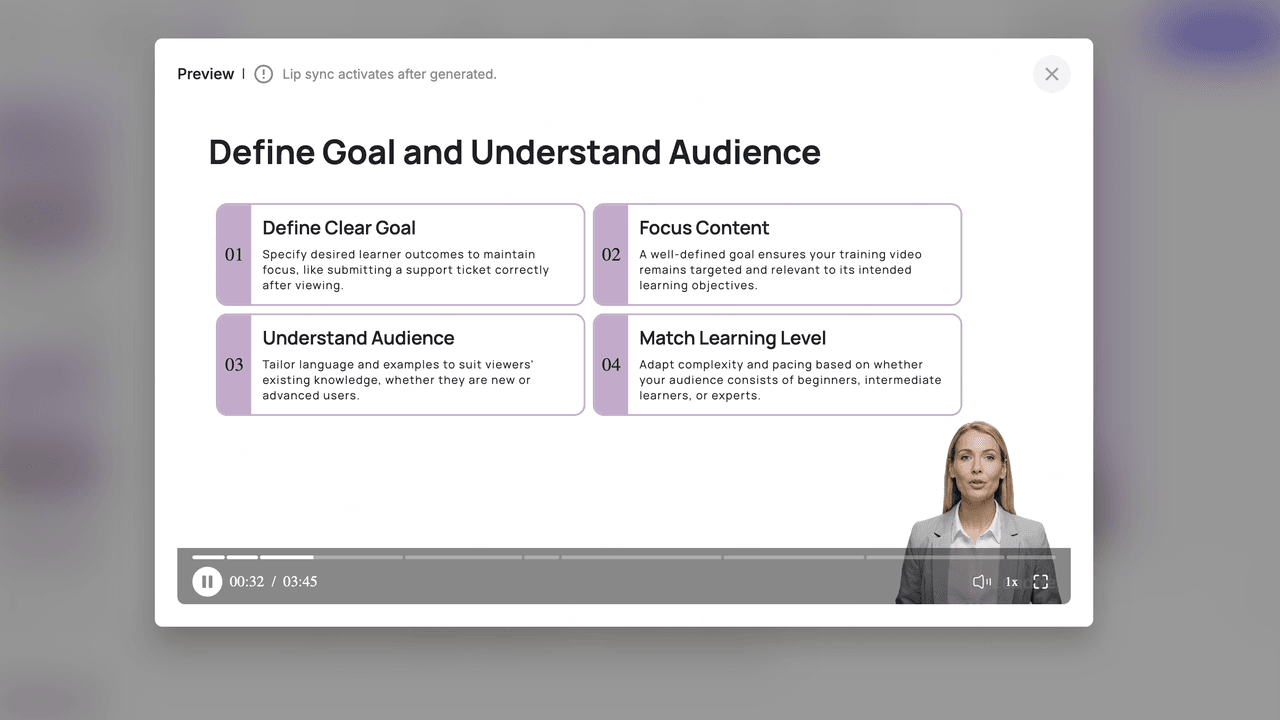
Once the draft is ready, click “Preview Video” to review the overall flow. This preview lets you quickly check:
- Scene pacing
- Slide layout and design
- On-screen text accuracy
- Voiceover timing and clarity
The preview acts as a safe draft, allowing you to make adjustments before final rendering.
Generate the Final Video
When everything looks correct, click “Generate Video.” The system will produce the full training video, including:
- Polished slide designs
- AI-generated voiceover narration
- Lip-syncing for the presenter (applied after final rendering)
- Smooth scene transitions
- Supporting visuals and animations
A video title and description are generated automatically, and you can edit them before export. Your training video is now ready to download, publish, or share across your LMS, website, or internal tools.
⭐ Why This Workflow Works
Using AI dramatically simplifies training video production:
- No need for cameras, microphones, or studio setups
- No need for professional editing skills
- Consistent visuals and narration across your entire training library
- Updates can be made in seconds—just edit the text and regenerate
- Scales easily for onboarding, SOPs, compliance, and product training
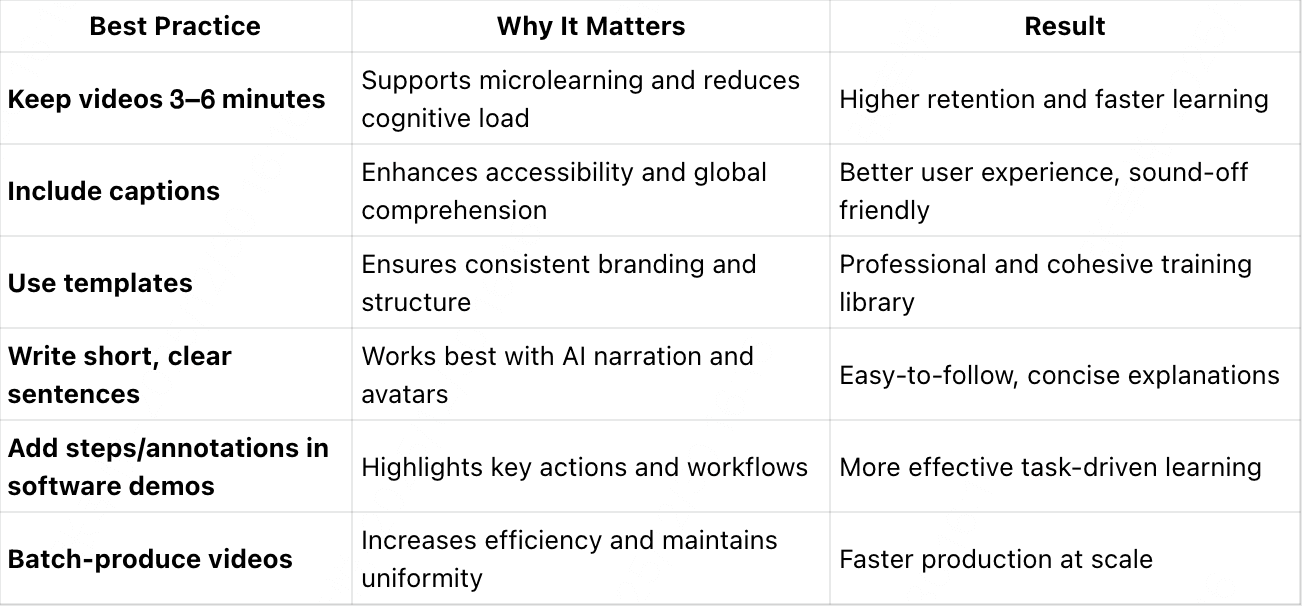
Best Practices for High-Quality AI Training Videos
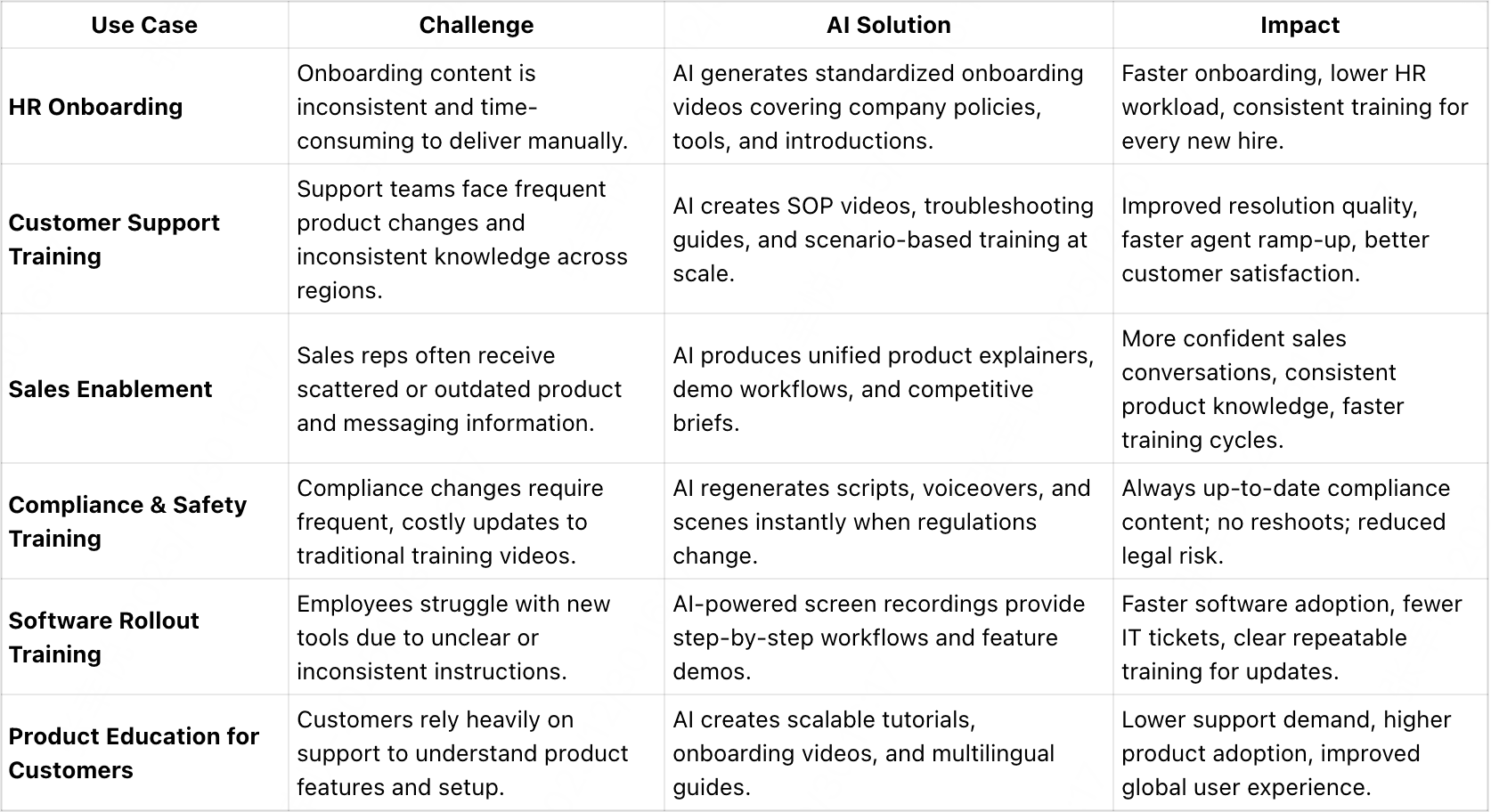
Examples & Use Cases of AI Training Video Production
The Best Hybrid Workflow: Combining AI Automation with Human Expertise
The most effective production model is not fully automated.
Proven workflow:
AI handles:
- First draft script
- Voiceover
- Visual layout
Human handles:
- Content accuracy
- Clarity improvements
- Engagement optimization
Why this works:
- AI removes repetitive work
- Humans ensure learning effectiveness
👉 Result:
- Faster production
- Higher-quality output
- Better learner engagement
Why AI Training Videos Often Feel Robotic (And How to Fix It)
One of the most common challenges is lack of engagement.
Root causes:
- Flat AI voice
- Generic scripts
- Overuse of avatars
- No storytelling
Solutions that consistently improve results:
- Use conversational scripts
- Add real screen recordings
- Combine AI visuals with human narration
- Break content into micro-lessons
👉 Key insight:
Engagement improves significantly when AI is used as support—not replacement—for human communication.
The Hidden Limitations of AI Video Generators for Training Content
AI is powerful—but not universal.
Key limitations:
1. Accuracy risks
AI-generated scripts require review
2. Weak performance in complex topics
Technical or regulated content needs expert validation
3. Lack of emotional nuance
AI struggles with persuasion and storytelling
Common Workflow Bottlenecks When Using Multiple AI Tools
Many teams experience unexpected inefficiencies.
Typical fragmented workflow:
- Tool 1: script
- Tool 2: voice
- Tool 3: video
- Tool 4: subtitles
Result:
- constant exporting/importing
- version mismatches
- lost time
👉 Best solution:
Use integrated platforms or minimize tool switching.
How to Maintain and Update Training Videos Efficiently with AI
This is one of AI’s biggest advantages.
Traditional model:
- Re-record entire video
- Re-edit everything
AI model:
- Edit script
- Regenerate video
Real impact:
- Updates reduced by up to 70% time savings
- Enables continuous content improvement
Best Use Cases for AI Training Video Production (With Real Examples)
1. Employee Onboarding
- Standardized content for onboarding videos
- Easy updates
- Scalable across teams
2. Software & Process Training
Real scenario:
- Screen recording + AI voice
- Updates handled via script edits
Result:
- ~70% reduction in update time
3. Course Creation
Real workflow:
- Script → AI video → human polish
Result:
- 5-minute video:
- from 2–3 hours → ~30 minutes
4. Internal Knowledge Libraries
- SOP videos
- Compliance training
- Repeatable workflows
👉 Insight:
AI excels when content is structured and repeatable
How to Make AI-Generated Training Videos More Engaging and Effective
Proven techniques:
- Use shorter videos (2–5 minutes)
- Focus on one objective per video
- Add visual cues and motion
- Use conversational tone
- Include interaction (quizzes, prompts)
How to Ensure Accuracy and Compliance in AI-Generated Training Content
To maintain trust and quality:
- Always review scripts with subject matter experts
- Validate instructions and terminology
- Test videos with real users
- Standardize templates and guidelines
👉 This is critical for enterprise and regulated environments.
FAQ: AI Training Video Production (Based on Real User Questions)
Can AI replace human trainers in video-based learning?
No. AI enhances production but human expertise is still essential for clarity, trust, and engagement.
What is the best AI tool for training video creation?
It depends on your workflow. Finding the best training video creators often means looking for setups that minimize tool switching and support script-to-video generation in one system.
How long does it take to create a training video with AI?
A 5-minute video can be produced in ~30 minutes for a first draft, compared to several hours traditionally.
How do you turn a PPT into a training video with AI?
Upload slides → generate script → apply voiceover → render video. Many tools support this workflow directly.
Are AI-generated training videos effective?
Yes—especially for structured, repeatable content. Effectiveness increases significantly when combined with human review.
How do you update training videos using AI?
Edit the script and regenerate the video—no need to re-record.
Are AI avatars better than real presenters?
They are more scalable, but less engaging. Hybrid approaches often perform better.
What are the biggest mistakes when using AI for training videos?
- Skipping human review
- Creating overly long videos
- Relying entirely on automation
What’s the best workflow for small teams?
AI for production + human for validation and storytelling.
Can AI training videos be used for professional or technical training?
Yes—but only with proper expert validation and quality control.
Conclusion: How to Scale Training Video Production with AI
AI has made training video production faster, cheaper, and more scalable—but the real advantage lies in how you use it.
The highest-performing teams follow a clear principle:
👉 Use AI to eliminate repetitive work
👉 Use humans to ensure clarity, accuracy, and engagement
Start with one workflow. Optimize it. Then scale.
That’s how you turn AI from a tool into a training production system.