Can ChatGPT Create a Training Video? A Complete 2026 Guide

If you're asking whether ChatGPT can create a training video, the honest answer is:
ChatGPT cannot create a full training video—but it can power 80–90% of the process.
From hands-on implementation and user research, the biggest shift is this:
- ChatGPT is not a video tool
- It is a content engine for training systems
In real workflows:
- Training scripts that used to take 2–4 hours can now be generated in minutes
- Some AI-powered pipelines can produce a complete training video in ~5 minutes when combined with the best training video software
The real breakthrough isn’t video generation—it’s eliminating the bottleneck of thinking, structuring, and writing.
To turn that content into a fully polished training video, platforms like Leadde.ai can help you convert scripts into professional videos in minutes with high-quality AI avatars, voiceovers, and multilingual support.
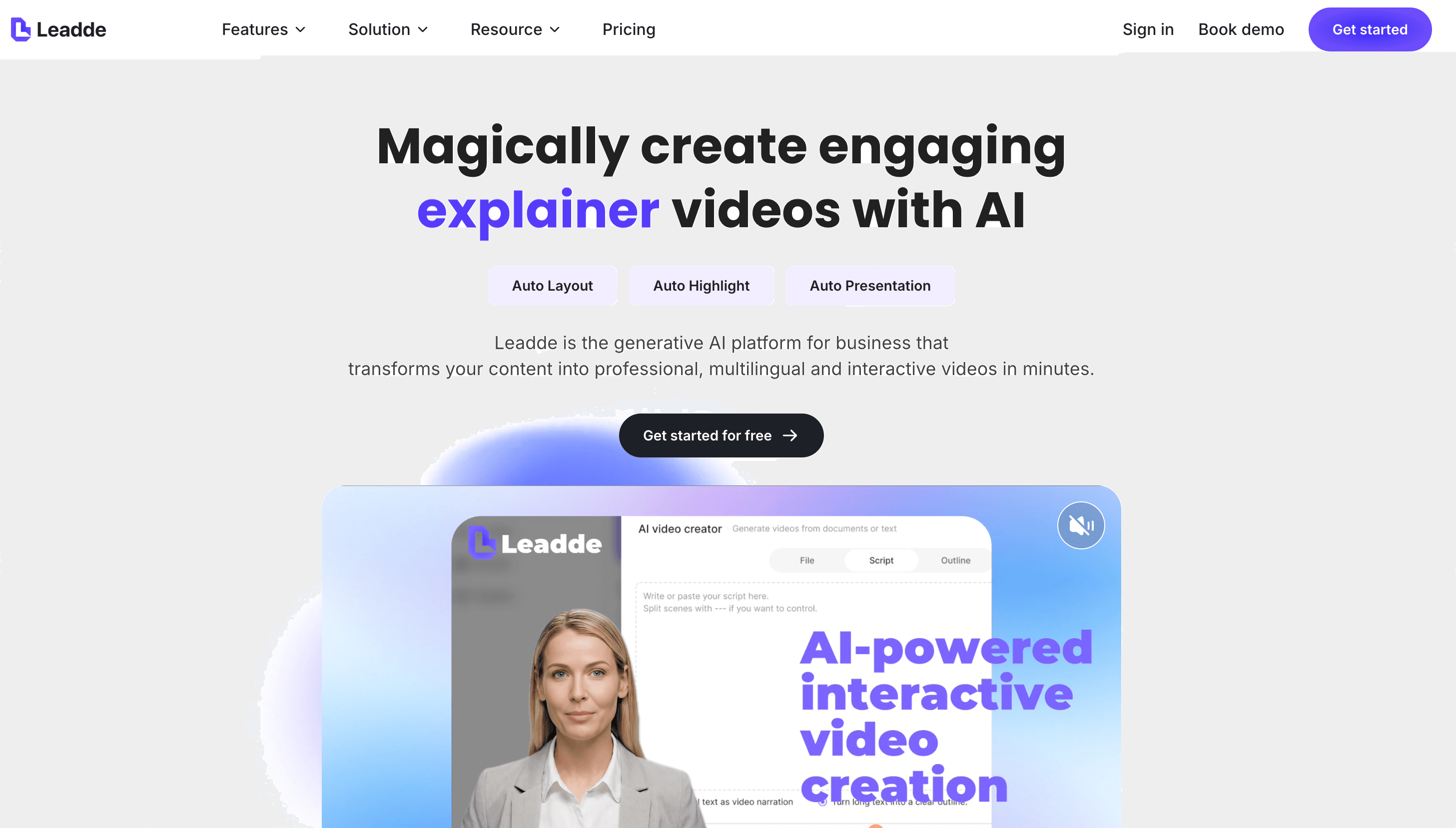
What ChatGPT Can and Cannot Do When Creating a Training Video
What ChatGPT Can Do
ChatGPT can handle most of the content creation tasks involved in producing a training video. It can:
- Generate full scripts and written content (perfect if you need to write a video script)
- Break down workflows into clear how-to steps
- Explain technical concepts in simple or detailed language
- Provide teaching scenarios, examples, and quiz questions
- Write narration text, voiceover scripts, and subtitle text
What ChatGPT Cannot Do Alone
There are also important limitations. ChatGPT cannot:
- Directly export or produce a video file
- Generate real footage or live-action visuals
- Maintain visual consistency across multiple scenes or camera angles
- Perform visual editing, timing adjustments, or voice recording
The AI Training Video Workflow with ChatGPT
Creating a high-quality training video with AI follows a clear and repeatable process. The full workflow moves through several stages—from defining your goal, to writing the script, to recording, editing, publishing, and finally analyzing performance.
Step 1: Define Your Training Objective
Before generating a script, set a simple and clear training goal so ChatGPT knows exactly what type of content to create.
- Identify your audience & skill level Understand who the video is for and what they already know.
- Set a clear training goal (SMART) Define what learners should achieve by the end of the video.
- Plan a short, focused video (micro-learning) Aim for 2–7 minutes to improve retention when you create microlearning videos.
- Use a simple structure Introduction → Steps/Explanation → Demo → Recap
- Copy-and-Paste Prompt for ChatGPT
Use this prompt to generate a precise learning objective:
Prompt: “Act as an L&D expert. Create a clear, SMART learning objective for a training video about [topic]. Include the target audience, skill level, expected outcome, and the key skills learners should gain.”
Step 2: Generate the Training Script with ChatGPT
Once your training objective is clear, you can use ChatGPT to generate a polished, structured script. ChatGPT is especially strong at shaping lessons, simplifying complex topics, and producing multiple versions of the same content.
How to Use ChatGPT to Write Your Script
When prompting ChatGPT, make sure to include:
- Scenario and context — who the video is for, what problem it solves
- Clear steps or process — break the training into logical segments
- Brand tone and style — formal, friendly, technical, or instructional
- Different format variants — short version, long version, or slide-based version
Script Templates
You can ask ChatGPT to write scripts in common training formats such as:
- Standard Tutorial Script(Introduction → Steps → Demo → Recap)
- Step-by-Step Product Training Script
- Onboarding / Employee Training Script
These templates help your content align with learners’ expectations and instructional best practices.
Advanced Prompts
Use advanced prompts to adapt the script for different audiences or platforms:
- “Convert this training script into a YouTube-friendly structure with a hook and clear timestamps.”
- “Rewrite this script for a corporate compliance training audience with more formal tone and clearer risk explanations.”
- “Turn this script into a slide-based version suitable for an AI avatar presentation.”
- “Simplify this script for beginners while keeping key technical terms accurate.”
Step 3: Convert ChatGPT’s Script Into a Training Video
Once you have a script from ChatGPT, you can turn it into a polished training video using your AI video creation tool. The workflow is simple and gives you full control over language, tone, structure, and final output.
Upload Your Script and Set the Core Video Parameters
Start by choosing how to import your content:
- Upload a file (DOCX, PDF, PPTX)
- Paste your script directly
- Use an outline in Markdown for scene-by-scene control
Then configure the foundational settings that shape the entire video:
Select the Video Language
Choose the language your audience needs—English, Chinese, Spanish, French, German, and many more. This is ideal for scalable, multilingual training using multilingual AI avatars.
Choose the Tone of Voice
Choose the tone of voice you want for the presenter, such as formal, friendly, inspirational, persuasive, storytelling, or informative.
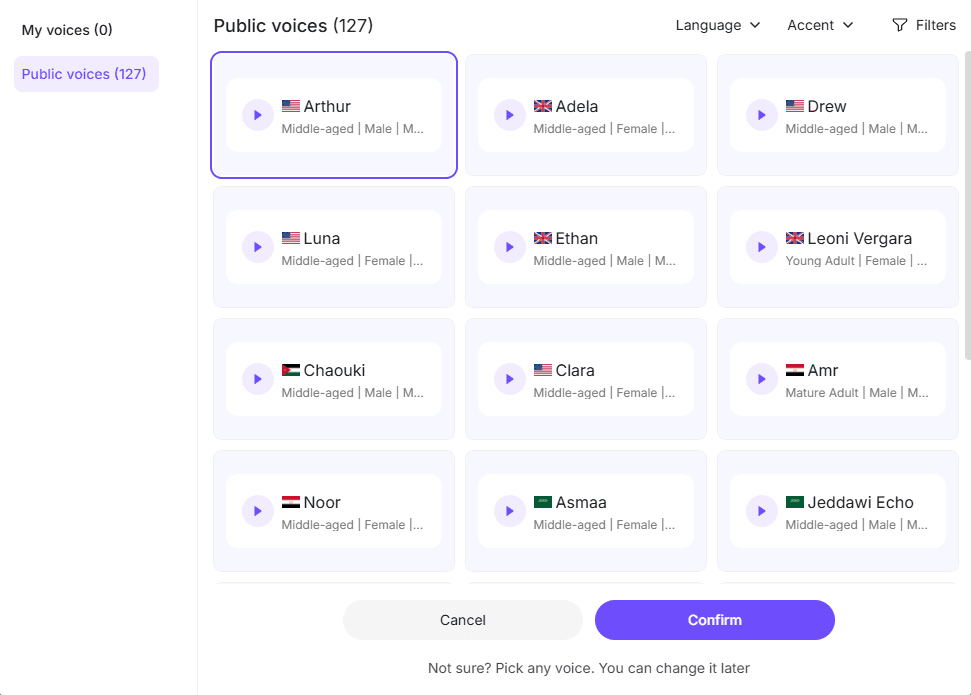
Set Your Content Detail Level
Pick how deep the video should go: summary, balanced (general training) or in-depth (technical or advanced training)
Add Optional Training Context
For more accurate instructional content, you can specify target audience, presenter background and learning objectives
This helps the AI generate a script aligned with real educational needs.
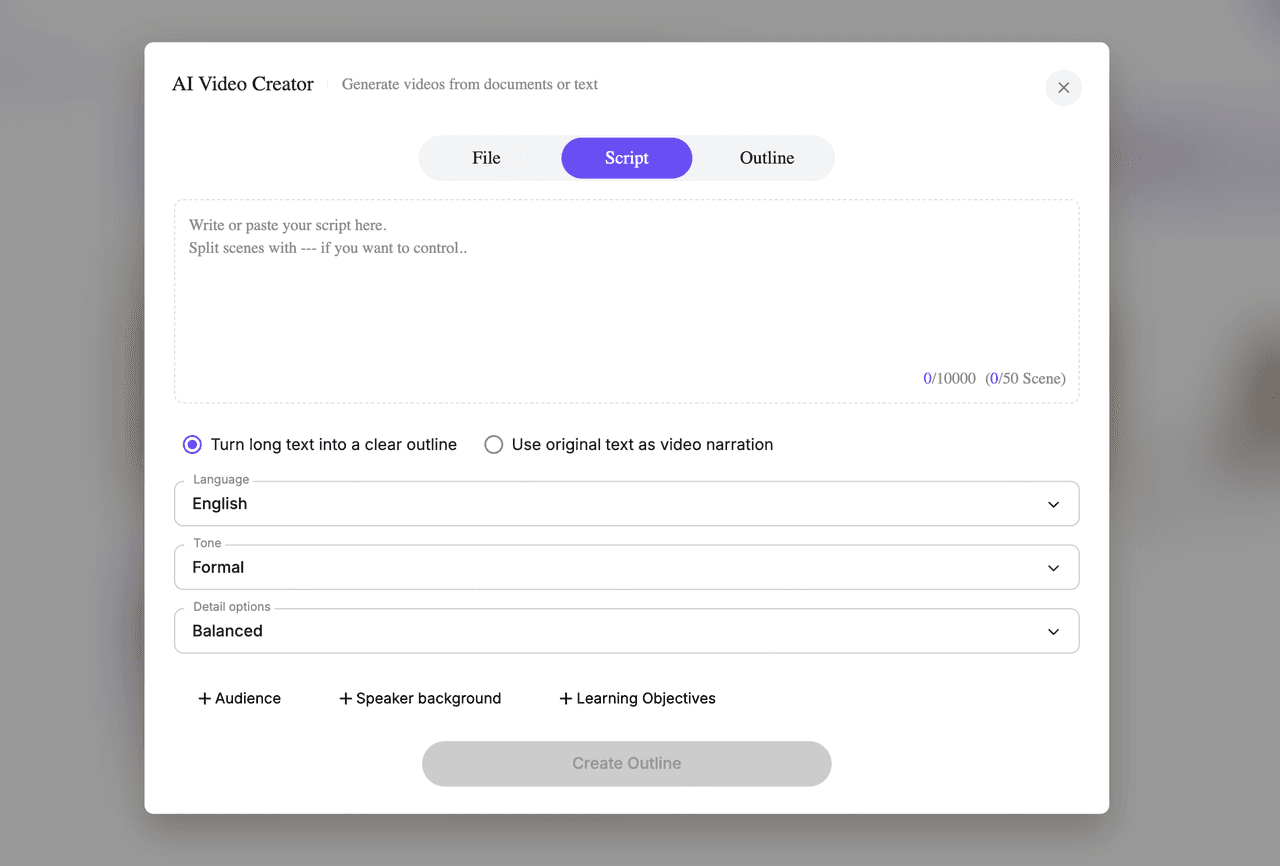
Step 4: Generate the Structure and Customize Your Video Elements
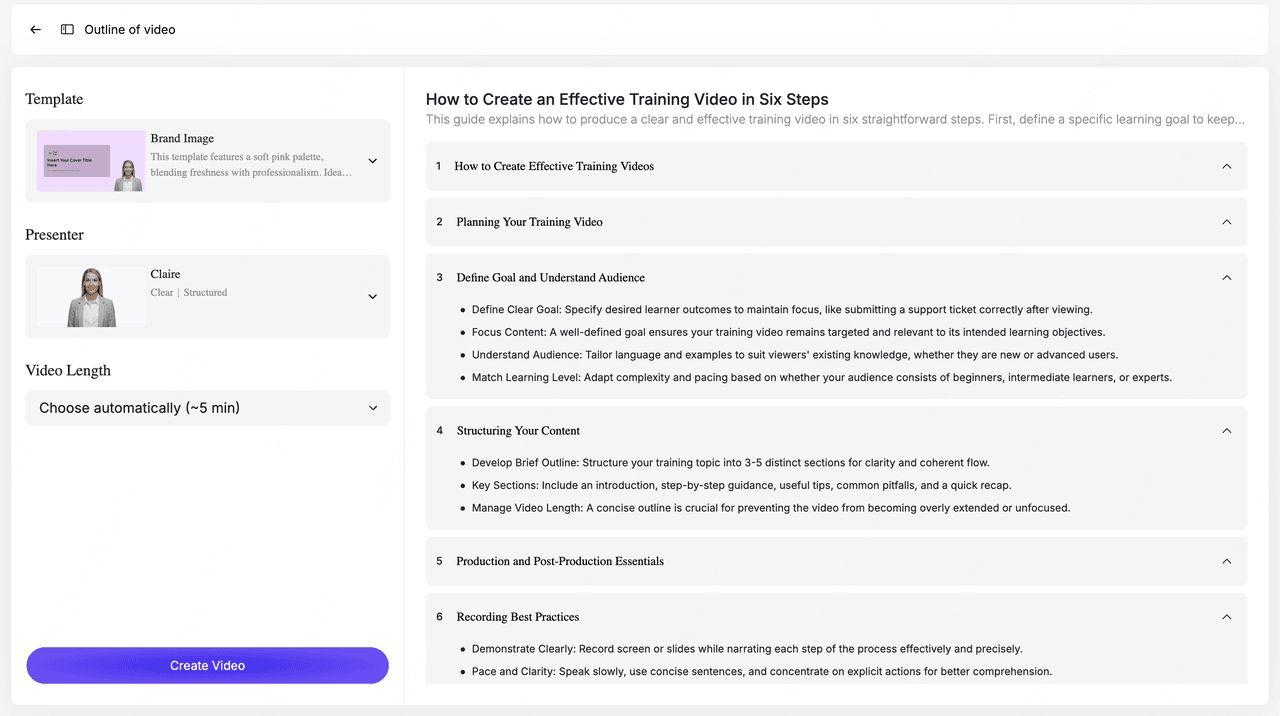
After setting your inputs, click 'Create Outline'. The system produces a full, modular structure including introduction, key concepts, steps, demo areas, and recap.
Next, customize the visual and narrative style:
Choose a Video Template
Pick from professional training layouts—corporate presentations, onboarding templates, product demos, etc. Templates ensure consistent style, colors, and transitions.
Select an AI Presenter (Avatar)
Choose from 200+ AI avatars for video creation that fit your brand’s tone and training purpose.
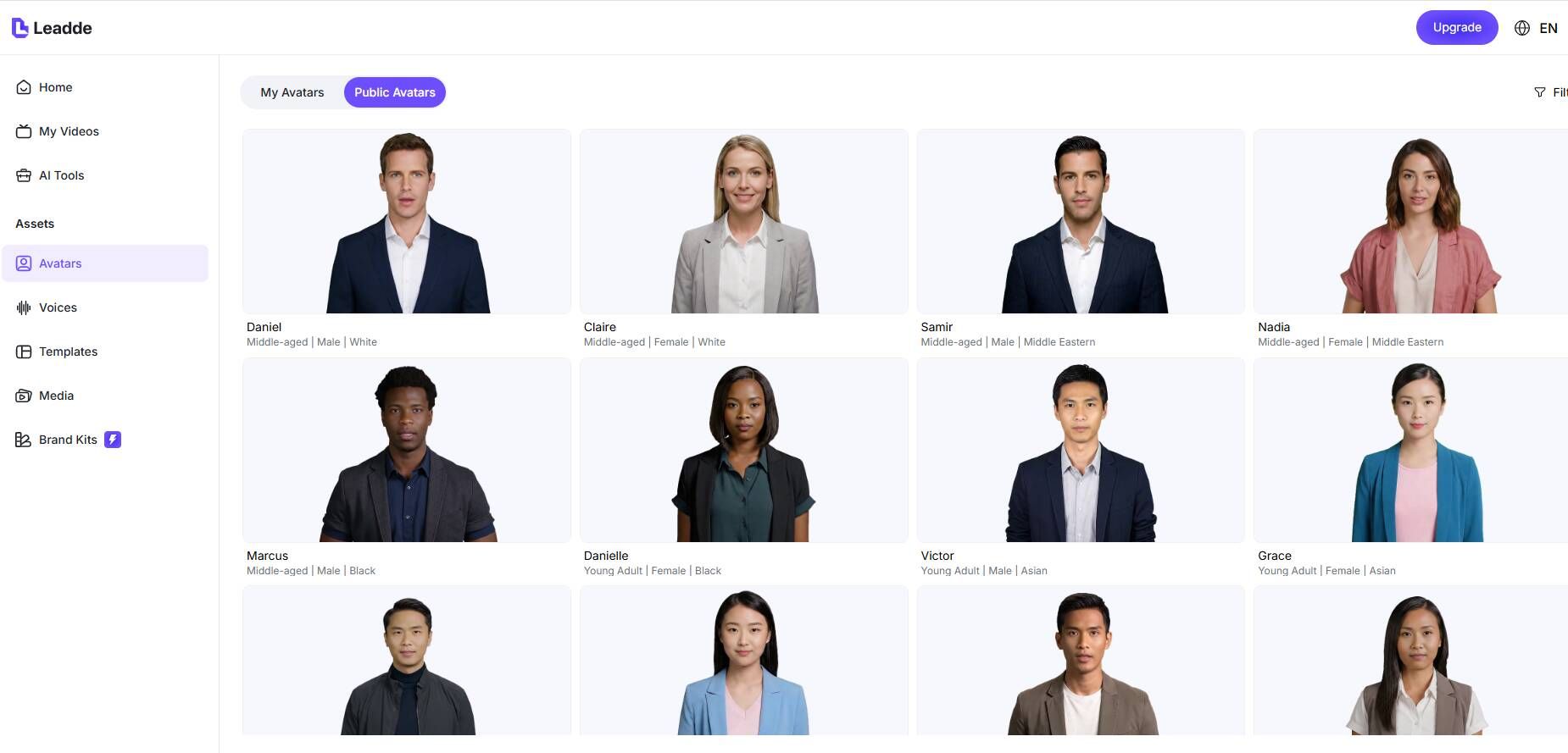
Decide the Video Length
Set your preferred duration (5–18 minutes) or let the AI optimize pacing automatically.
Step 5: Video Created
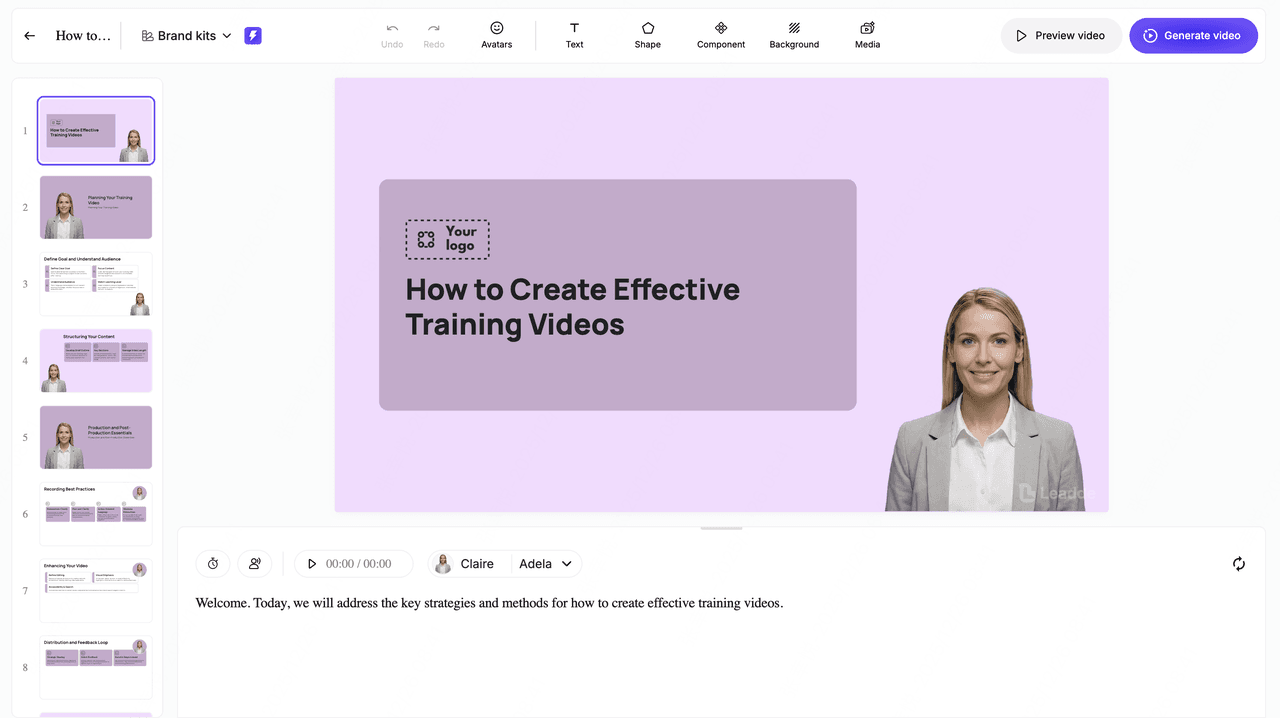
After you click “Create Video,” the AI assembles your entire training video automatically. It builds the slide layout, background design, transitions, on-screen text, and supporting visuals—all aligned with your outline.
An AI presenter is added to each scene with synchronized voiceover narration. Subtitles are generated automatically for higher accuracy, and you can enable AI voice synthesis or voice cloning if needed.
The video also supports instant language switching, letting you create multilingual versions without re-recording anything.
Step 6: Preview and Generate the Final Video
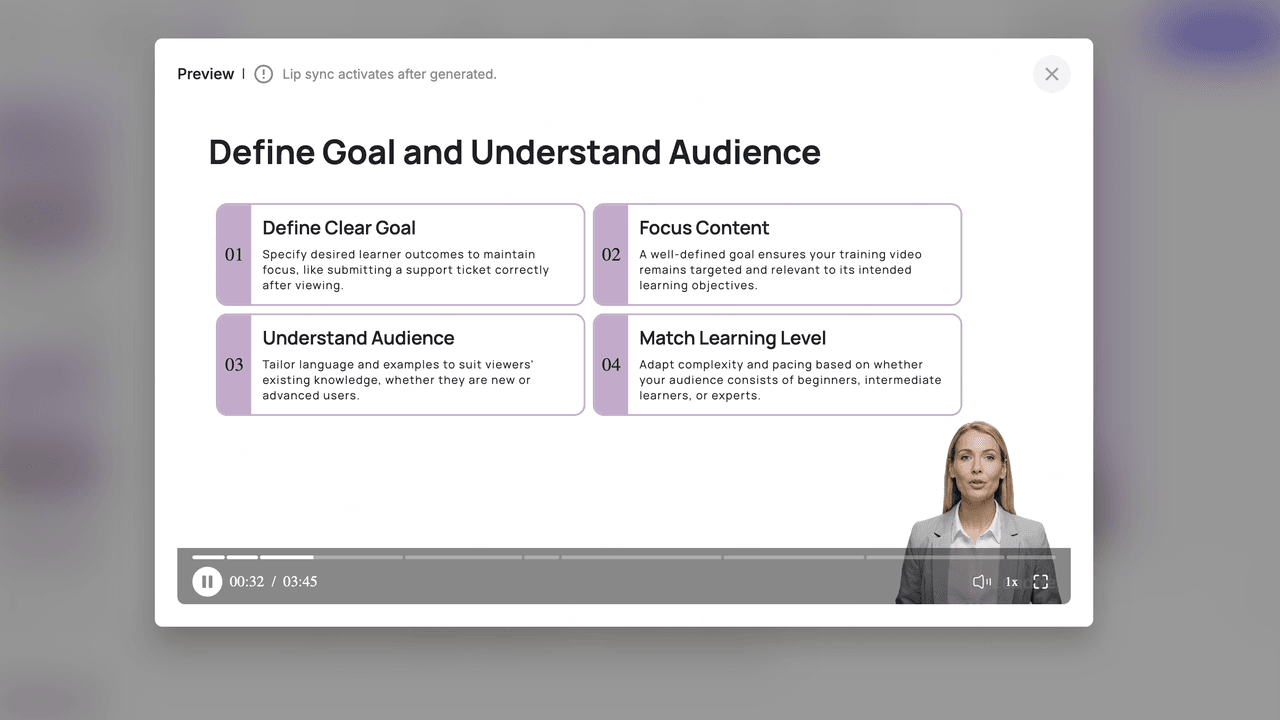
Preview Video
When the video draft is ready, use 'preview video' to quickly review pacing, scene layout, on-screen text and voiceover timing. This preview serves as a safe draft before final rendering.
Generate Video
Once everything looks right, click 'Generate Video'. The system creates the full training video with slides and design, voiceover narration, lip-sync (after final generation), scene transitions and supporting visuals.
A title and description are auto-generated and can be edited manually as well.
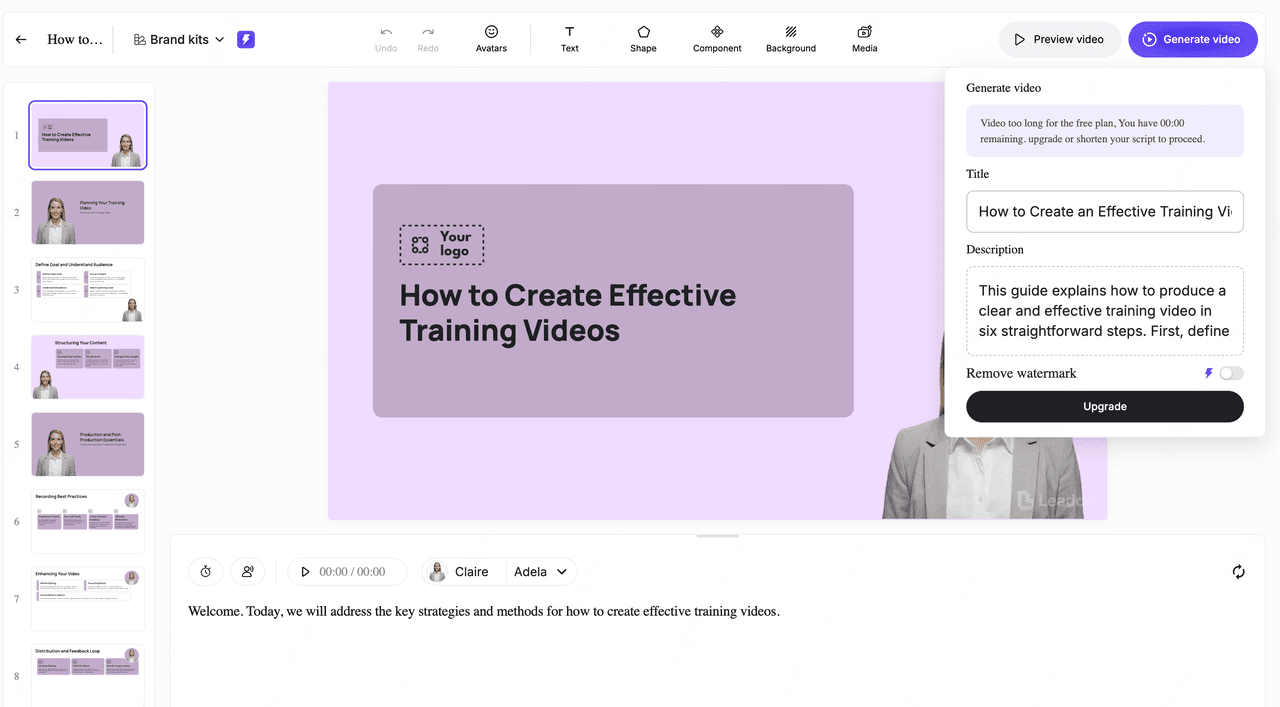
Your training video is now ready to download, publish, or share.
Real Workflow Transformation (Before vs After)
| Stage | Before AI | After AI |
|---|---|---|
| Script writing | 2–4 hours | 5–15 minutes |
| Video production | 4–8 hours | 5–30 minutes |
| Localization | Manual | Instant (AI translation) |
👉 This is where the often-cited “10× faster production” claim becomes realistic.
Best AI Tools to Turn ChatGPT Scripts into Training Videos
From real usage patterns, the most effective stack includes:
Script & Content
- ChatGPT
- Claude
- Notion AI
Video Generation
- Leadde
- Avatar-based AI video tools
- Slide-based explainer tools
Analytics
- YouTube Studio
- Google Analytics
My Recommended AI Stack for Creating Training Videos Faster
Based on implementation experience:
Minimum viable stack:
- ChatGPT → Script
- AI video generator → Production
Advanced stack:
- ChatGPT → Script + variations
- AI video tool → Video
- Analytics → Optimization
This setup balances:
- Speed
- Quality
- Scalability
Real Use Cases: How I Use ChatGPT for Training Video Creation
Case 1: Automated Training Video Production
- User Type: AI tool builder / content creator
- Goal: Automate script-to-video pipeline
- Result:
- Training video generated in ~5 minutes
- Before: Manual scripting + editing
- After: Fully automated pipeline
👉 Insight: Speed is the primary driver of adoption
Case 2: Replacing Repetitive Employee Training
- User Type: Team manager / operator
- Goal: Reduce onboarding workload
- Before: Repeated live training sessions
- After: AI-generated reusable training content
- Quantifiable Data:
- No measurable data shared
👉 Insight: The real value is scalability, not just video creation
Case 3: AI-Assisted Course Creation
- User Type: Course creator
- Goal: Accelerate content production
- Before: Fully manual course design
- After: AI-assisted scripting and structuring
- Quantifiable Data:
- No measurable data shared
👉 Insight: AI adoption is still early, but workflows are forming
Why Most AI Training Videos Fail (And How to Fix Them)
From real-world failures, common issues include:
1. Poor Script Quality
Fix: Spend more time refining prompts
2. Overly Long Videos
Fix: Use micro-learning (2–7 minutes)
3. Lack of Visual Support
Fix: Add diagrams, screenshots, B-roll
4. Generic Content
Fix: Add real examples and context
The Hidden Limitations of AI-Generated Training Content
Even with advanced tools, limitations remain:
- Risk of inaccurate information
- Lack of deep domain expertise
- Weak engagement without human touch
- Limited adaptability for complex learning scenarios
This is why AI works best as:
A co-creator, not a replacement for expertise
How I Reduced Training Content Creation Time from Hours to Minutes Using AI
By implementing a structured workflow:
- Script creation reduced from hours → minutes
- Video production reduced from days → under 1 hour
- Updates became near-instant
The biggest gain wasn’t just speed—it was:
Consistency and scalability across all training content
The Real ROI of AI Training Videos: Time, Cost, and Scalability
From real implementations:
Time Savings
- Up to 10× faster production
Cost Reduction
- Less need for:
- Video editors
- Voice actors
- Re-recording
Scalability
- Instant multilingual training
- Unlimited content variations
Best Practices for Creating High-Impact AI Training Videos with ChatGPT
Here are several best practices to help your AI-generated training videos perform better, stay clearer, and deliver higher learning impact:
- Use micro-learning formats: Short, focused videos improve retention and make it easier for learners to absorb and revisit key information.
- Prioritize visual-first content: Incorporate diagrams, flowcharts, screenshots, and on-screen highlights to make complex topics easier to understand.
- Add B-roll to maintain visual consistency: Supporting footage, animations, or background visuals help the video flow smoothly and keep viewers engaged.
- Create multilingual versions of your training content: AI makes translation and voice generation easy, allowing you to scale training across global teams.
- Update your training videos regularly: AI tools allow for fast revisions. Refresh scripts, visuals, and instructions as processes change to keep content accurate and relevant.
FAQ: Real Questions About ChatGPT and Training Videos
1. Can ChatGPT create a training video?
No. It creates scripts and content, but you need video tools to produce the final video.
2. What tools should I use with ChatGPT?
AI video generators like Leadde, avatar tools, or slide-based e-learning video platforms.
3. How long should a training video be?
Typically 2–7 minutes for best engagement.
4. Can AI replace human trainers?
No. It can automate repetitive teaching but not replace human expertise.
5. Is AI-generated training content reliable?
It depends on validation. Always review outputs for accuracy.
6. Can I automate training video creation completely?
Partially. Script → video can be automated, but strategy still needs human input.
7. Can I train AI using existing training videos?
Yes, but it requires additional tools and setup beyond ChatGPT.
8. Are AI training videos effective?
They are effective for:
- Onboarding
- Product demos
- Standardized training
Less effective for:
- Coaching
- Complex decision-making
9. What’s better: training videos or documentation?
Both serve different purposes—best used together.
10. Is it worth using ChatGPT for training videos in 2026?
Yes—especially for speed, scale, and cost efficiency.
Conclusion: ChatGPT Is Not a Video Tool—It’s the Engine Behind Scalable Training
ChatGPT doesn’t create training videos by itself—but it fundamentally transforms how they are made.
When combined with AI video tools (as outlined in your workflow ), it enables:
- Faster production
- Lower costs
- Scalable training systems
The real opportunity is not just creating videos faster—
It’s building a repeatable, AI-powered training system that scales with your business.