How to Convert a PDF Manual Into a Training Video
To convert a PDF manual into a training video, the fastest workflow is now AI-assisted: upload the manual, let AI extract the learning goal, generate a structured outline, rewrite the content into a training script, create a storyboard, and turn it into a video with visuals, narration, captions, and review-ready scenes.
The key is not to simply turn each PDF page into narrated slides. A PDF manual is usually built for reference, while a training video is built for action. The goal is to help someone perform a task correctly, safely, and confidently.
With AI workflow platforms such as Leadde, this process can be automated much further. Instead of manually reading the entire manual, writing an outline, drafting a script, and building the video scene by scene, Leadde can use AI to turn a PDF manual into a structured training video by automatically generating the outline, script, and video content from the source document.
In my user research with training creators, instructional designers, software trainers, operations teams, and business owners, one pattern appeared repeatedly: teams do not just want a “video version of a PDF.” They want a faster way to turn SOPs, machine manuals, software guides, onboarding documents, and technical PDFs into training assets people will actually use.
For teams that want to speed up this process, Leadde can use AI to automatically turn a PDF manual into a structured training video, helping you move from static documentation to visual learning content faster.

Why Convert a PDF Manual Into a Training Video?
The biggest reason to convert a PDF manual into a training video is that long manuals often do not get read.
In one manufacturing use case I studied, a furniture business had SOP PDFs for each machine, but new employees were not reading them. The company had high turnover, frequent onboarding needs, and expensive quotes from local video agencies. Their goal was simple: turn machine SOPs into accurate, visual training that new operators could understand quickly.
This is common across manufacturing, software onboarding, HR systems, medical operations, and internal training. PDF manuals often fail because they are too long, too dense, hard to search during work, and written for reference instead of performance.
However, video is not automatically better. A weak training video can be just as ineffective as a weak PDF. The most common mistake is using AI to create an avatar that reads the PDF word for word. That may look modern, but it rarely improves learning.
The best training videos turn static instructions into:
- Short task-based modules
- Clear demonstrations
- Visual warnings
- Common mistake examples
- Checklists
- Knowledge checks
- Updateable source files
Step 1: Decide Whether Your PDF Manual Should Become a Training Video
Not every PDF should become a video. Some documents are better as searchable references.
A PDF is a good candidate for a training video if it includes step-by-step procedures, machine operation, software workflows, safety instructions, onboarding tasks, customer education, or repeatable processes.
A PDF is a poor candidate if it is mostly legal language, dense tables, technical formulas, financial data, or reference material that people need to search rather than watch.
A practical rule is this: if the PDF teaches someone how to do something, it can become a video. If it stores information someone may need to look up later, keep it as a document or turn it into a job aid.
For the furniture manufacturing case, the right solution was not one long video covering the entire SOP. A better structure would be short modules: setup, safety checks, operation, troubleshooting, and shutdown. This makes the training easier to watch and easier to update when the SOP changes.
Step 2: Extract Training Objectives From the PDF Manual
Before making the video, define what the learner should be able to do after watching.
A PDF says, “Here is everything about this process.”
A training video should say, “Here is the task, why it matters, and how to do it correctly.”
Start with these questions:
- Who is the learner?
- What task must they perform?
- What are the most common mistakes?
- What are the most dangerous mistakes?
- What tools, materials, permissions, or safety checks are required?
- How will you verify that they learned it?
For a machine manual, the objective might be:
“After watching this video, the operator will be able to inspect the machine, complete safety checks, start the equipment, follow the correct production sequence, respond to warning signs, and shut the machine down safely.”
For a software manual, the objective might be:
“After watching this video, the learner will be able to log in, find the correct record, submit the request, confirm approval status, and avoid common data-entry errors.”
This step prevents the video from becoming too long. In one training production case I studied, the target video length was 6–8 minutes, but the draft grew close to 20 minutes because too much source content was included. The fix is to separate content into four groups:
| PDF Content | Best Use |
|---|---|
| Must-do steps | Main video |
| High-risk warnings | Visual callouts |
| Helpful context | Short explanation |
| Reference details | Checklist or job aid |
Step 3: Rewrite the PDF Manual Into a Video Script
A PDF manual is usually too formal for narration. A training video script should be clear, direct, and spoken in simple steps.
For example, a manual might say:
“Prior to machine initialization, operators must verify that all protective guards are installed, the emergency stop mechanism is functional, and no foreign objects are present in the operating zone.”
A better video script would be:
“Before you start the machine, complete three safety checks. First, confirm that all guards are in place. Second, test the emergency stop. Third, check the operating area and remove any tools, packaging, or debris.”
A strong training video script usually includes:
- Opening: what the learner will learn
- Context: when the task is used
- Preparation: tools, materials, access, or PPE
- Demonstration: step-by-step workflow
- Warnings: what can go wrong
- Common mistakes: where people usually fail
- Recap: short checklist
- Knowledge check: scenario or quiz question
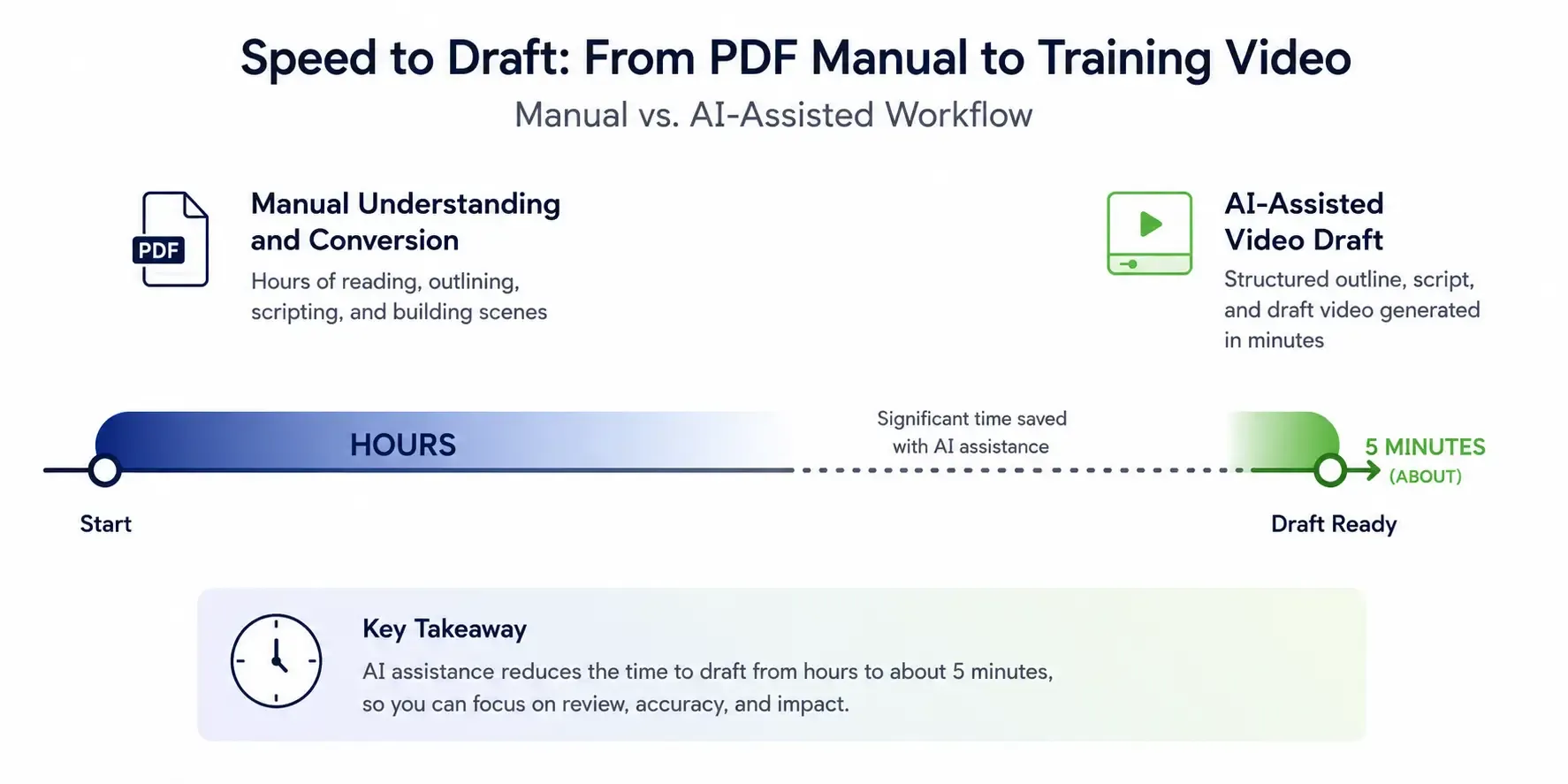
In one technical documentation case, complex PDFs took hours to understand and convert manually. With an AI-assisted workflow, the creator could generate a video draft in about 5 minutes. That is a major speed improvement, but the draft still required human review. AI is useful for first drafts; it should not be the final authority for technical, safety, or compliance content.
Step 4: Choose the Best Video Format for the PDF Manual
The right format depends on what the manual teaches.
For physical tasks, use real footage. This is best for machine operation, warehouse processes, lab procedures, medical device handling, field service, and safety training. Learners need to see the real equipment, controls, hand movements, warning labels, and environment.
For software manuals, use screen recording. This is best for HR systems, CRM workflows, ERP processes, SaaS onboarding, and internal tools. In a Workday adoption case I studied, one instructional designer needed to create a large number of software demo videos. The practical workflow used detailed scripts, screen recordings, AI voiceover, captions, pauses, zooms, and highlight boxes. The key lesson was that real screen capture was more trustworthy than generic AI-generated UI.
For simple explanations, use AI avatar video carefully. Tools like Synthesia, HeyGen, Colossyan, Elai, and DeepBrain can help with onboarding introductions, policy summaries, product explainers, and multilingual content. But in my research, AI avatar videos received mixed reactions. They are fast, but some learners find them unnatural or distracting. For procedural training, the main visual should be the task, not a talking head.
For abstract concepts, use animation or motion graphics. This works well for risk explanations, process flows, product mechanisms, and compliance scenarios. Be careful with charts, formulas, tables, and technical diagrams. AI tools may misread or redraw data incorrectly, so expert review is essential.
Step 5: Create a Storyboard Before Producing the Training Video
A storyboard maps each part of the PDF to a scene, voiceover, visual, and on-screen text. It prevents the video from becoming too long, too text-heavy, or visually weak.
Use a structure like this:
| Scene | PDF Source | Voiceover | Visual | On-Screen Text |
|---|---|---|---|---|
| 1 | Purpose | “You’ll learn how to operate the machine safely.” | Machine image | Safe Operation |
| 2 | Safety | “Put on required PPE before starting.” | Operator wearing PPE | Wear PPE |
| 3 | Setup | “Check that all guards are installed.” | Guard close-up | Check Guards |
| 4 | Startup | “Turn the main switch on.” | Control panel | Step 1: Power On |
| 5 | Error handling | “If you hear abnormal noise, stop immediately.” | Warning visual | Stop and Report |
In an HR training case I studied, a team had to rebuild more than 100 job aids after a system UI change. The first round took months. Using Scribe, the team could capture processes in minutes, generate screenshots, document clicks, and produce editable step text. They still used Canva, Adobe Express, Camtasia, and ElevenLabs to polish and convert materials into video-like assets.
The lesson: when each step already has a visual, production becomes much faster.
Step 6: Use the Right Tools to Convert a PDF Manual Into a Training Video
There is no single best PDF-to-video tool. The best workflow usually combines several tools.
| Need | Tool Types | Examples |
|---|---|---|
| Analyze PDF | AI document tools | ChatGPT, Claude, NotebookLM |
| Draft script | AI writing tools | ChatGPT, Claude |
| Voiceover | AI voice | ElevenLabs, WellSaid, Murf |
| Avatar video | AI presenter | Synthesia, HeyGen |
| Screen recording | Recording/editing | Camtasia, Loom, ScreenFlow |
| Step-by-step guides | Process capture | Scribe, Supademo, Tango, Guidde |
| Job aids | Design tools | Canva, Adobe Express |
| eLearning | Authoring tools | Storyline 360, iSpring Suite AI |
| Tracking | LMS | Moodle, TalentLMS, Docebo |
In one eLearning conversion project, teams received large PPT/PDF files and had only two weeks to improve them. Level 1 eLearning development was estimated at 29–64 hours. With clean source material and a controlled workflow, some teams reported a 40–50% reduction in development effort. One simple process improvement, a one-page scope, timeline, and polish-level document, reduced scope-creep conversations by about 80%.
The lesson is important: tools help, but scoping and workflow save even more time.
Step 7: Add Training Design Elements, Not Just Video
A video file is not the same as training. To make the PDF manual video effective, include instructional elements that support performance.
Add:
- Learning objective
- Step-by-step workflow
- Visual demonstration
- Callouts and captions
- Safety warnings
- Common mistakes
- Short recap
- Downloadable checklist
- Knowledge check
- Supervisor sign-off for high-risk tasks
For example, if the PDF says, “Ensure the pressure valve is closed before startup,” the video should show the valve, the correct position, the incorrect position, the consequence of skipping the step, and a checklist item confirming it.
One case from a mid-sized tech company showed the value of reusable training assets. The company had about 300 training videos and had transcribed around 180 of them. Finding a course outline dropped from about 3 hours of watching videos to 20 minutes of reading transcripts. Caption coverage improved from about 30% to 90% in about two weeks.
The lesson: when you create a training video from a PDF, also create the transcript, checklist, job aid, and quiz. One source should produce multiple useful assets.
Step 8: Review the Training Video for Accuracy and Make It Easy to Update
Accuracy matters more than speed, especially for SOPs, safety, medical, financial, technical, or compliance training.
Review these items before publishing:
- Step order
- Numbers and thresholds
- Safety warnings
- Tool names
- Machine labels
- Software screens
- Compliance language
- Captions and accessibility
- Visual accuracy
Use subject matter expert review at four points: script, storyboard, rough cut, and final video.
Also design for maintenance. Videos are harder to update than PDFs, so create short modules instead of one long video. Keep the script, storyboard, raw footage, voiceover files, project files, transcript, version number, and review date.
Recommended lengths:
- Software walkthrough: 2–5 minutes
- Safety reminder: 1–3 minutes
- Single procedure: 3–7 minutes
- Troubleshooting module: 2–5 minutes
This matters because UI screens, SOPs, and policies change. In the HR case with 100+ job aids, a UI change forced major rework. The team’s newer process captured updated steps in minutes instead of rebuilding everything from scratch.
Step 9: Publish, Track, and Improve the PDF Manual Training Video
After production, publish the video where learners will actually use it:
- LMS
- SharePoint
- Confluence
- Notion
- Internal knowledge base
- Onboarding portal
- Customer education hub
- QR code near equipment
- Embedded help center article
Track more than views. Useful metrics include completion rate, quiz pass rate, rewatch rate, drop-off point, support tickets, new hire ramp time, error rate, rework rate, safety incidents, supervisor sign-off, and learner feedback.
A good training video should improve performance, not just increase content output.
How an AI Workflow Converts a PDF Manual Into a Training Video
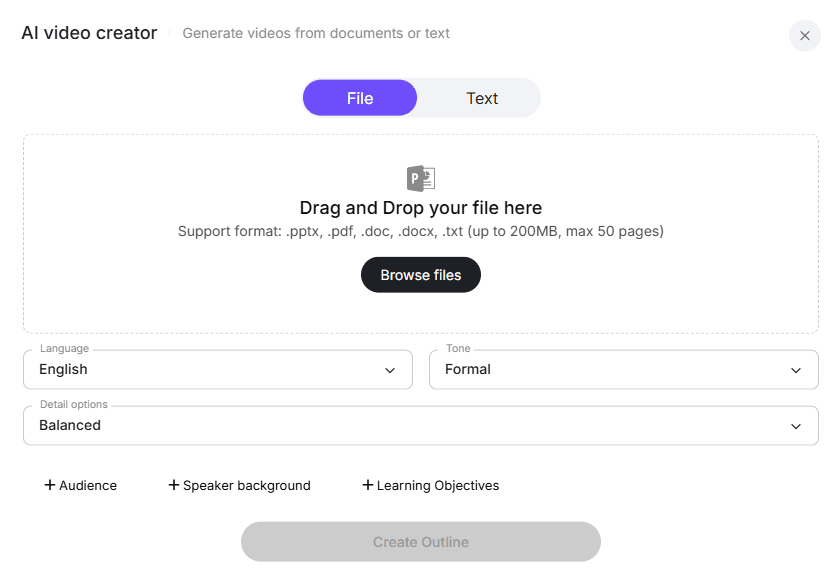
An AI workflow can make PDF-to-video conversion much faster by automating the most time-consuming steps: reading the manual, extracting key procedures, writing the script, creating the outline, and generating the first video draft.
A typical workflow looks like this:
- Upload the PDF manual.
- AI extracts the learning goal, key steps, warnings, and risks.
- AI generates a training outline.
- AI rewrites the manual into a video script.
- AI creates scenes, narration, captions, and on-screen text.
- A subject matter expert reviews the video for accuracy.
- The final version is published with a checklist, quiz, or job aid.
In one technical documentation case from my research, complex PDFs previously took hours to understand and convert manually. With an AI-assisted workflow, a video draft could be generated in about 5 minutes.
FAQ: Converting a PDF Manual Into a Training Video
Can AI convert a PDF manual into a training video automatically?
AI can create a first draft, script, summary, voiceover, or avatar video. In one technical PDF workflow, a draft video could be generated in about 5 minutes. But AI output still needs expert review, especially for technical, safety, medical, legal, or compliance content.
What tools should I use to turn SOP PDFs into training videos?
Use ChatGPT, Claude, or NotebookLM for analysis; Camtasia or Loom for recording; Scribe, Supademo, Tango, or Guidde for process capture; ElevenLabs or WellSaid for voiceover; and Synthesia or HeyGen for avatar-based sections.
Is Synthesia good for PDF manual training videos?
Synthesia can be useful for introductions, summaries, policy explanations, and multilingual content. It is less effective when learners need to see real equipment, real software, or detailed physical procedures.
How long should a training video from a PDF manual be?
For most task-based training, aim for 3–7 minutes. Software walkthroughs often work best at 2–5 minutes. If the video reaches 20–30 minutes, split it into modules and move reference content into a checklist or job aid.
How long does it take to create a training video from a PDF manual?
It depends on complexity. In my research, estimates ranged from 20–120 minutes of development per finished minute of eLearning. One creator estimated 8 hours per finished minute for higher-quality video. Another spent about 16 hours producing a 15-minute training video.
Should I replace the PDF manual with the video?
No. Keep the PDF as the official reference. Use the video for demonstration, the checklist for performance support, the transcript for searchability, and the quiz for verification.
Final Takeaway: The Best Way to Convert a PDF Manual Into a Training Video
The best way to convert a PDF manual into a training video is to redesign the manual into a learning experience. Extract the task, write a clear script, storyboard the visuals, use real footage or screen recordings where possible, add callouts and knowledge checks, review for accuracy, and keep the video modular for updates.
The strongest training video is not an AI avatar reading a PDF. It is an accurate, visual, searchable, updateable training asset that helps people do the job correctly.