How to Turn PDFs into Training Videos with AI
PDFs are one of the most common formats for training content. Companies use them for onboarding manuals, SOPs, compliance policies, product guides, course materials, safety procedures, and customer education documents.
The problem is that PDFs are often hard to learn from. They may be accurate, but they are not always engaging. Employees skim them. Customers ignore them. New hires forget the details. Trainers end up repeating the same explanations again and again.
A better workflow is to turn PDFs into short, structured training videos. With AI, you can upload a PDF, extract the key ideas, turn the content into a spoken script, add an AI presenter, and create an editable video that your team can review before publishing.
If you already have a PDF ready, Leadde's PDF to Video tool helps turn static PDF content into avatar-led training videos for employees, customers, and partners.
Why Turn PDFs into Training Videos?
PDFs are useful as reference materials, but they are not always the best format for learning.
A PDF usually requires the reader to find the important sections, understand the context, remember the steps, and apply the information later. That works for some people, but it creates friction when the content is long, technical, or required for work.
Training videos reduce that friction by guiding the learner through the material.
A good PDF-based training video can:
- Summarize the most important points
- Explain the purpose of the document
- Break long content into short modules
- Add narration and visual emphasis
- Show examples instead of only text
- Make procedures easier to follow
- Help teams learn the same information consistently
- Support onboarding, compliance, and customer education at scale
AI makes this process faster because your team does not have to rewrite the PDF manually, record a presenter, or build every video scene from scratch.
What Types of PDFs Work Best for Training Videos?
Not every PDF needs to become a video. The best candidates are PDFs that teach a process, explain a policy, introduce a product, or help someone complete a task.
| PDF Type | Best Training Video Format | Example Use Case |
|---|---|---|
| Employee onboarding PDF | Short welcome and setup video | Help new hires understand tools, policies, and first-week tasks |
| SOP PDF | Step-by-step process video | Train employees to complete a repeatable workflow |
| Policy PDF | Compliance or HR training video | Explain required behavior, risks, and examples |
| Product manual PDF | Customer education video | Teach users how to use a product or feature |
| Course PDF | Lesson-style educational video | Turn learning materials into video modules |
| Safety PDF | Procedure and warning video | Show what to do and what to avoid |
| Sales enablement PDF | Rep training video | Teach messaging, positioning, and objection handling |
The best PDFs are structured. They have headings, sections, lists, process steps, or clear learning goals. Dense legal PDFs or unstructured reports may need cleanup before they become useful training videos.
If your training content includes other formats too, you can also read Leadde's guide on converting documents into training videos.
How to Turn PDFs into Training Videos with AI
The goal is not to turn every sentence in the PDF into narration. That usually creates a boring video.
The better goal is to turn the PDF into a training experience: one clear learning objective, short scenes, a useful script, and visual cues that help the learner remember what matters.
Step 1: Choose the Right PDF
Start with a PDF that has a clear training purpose.
Good examples include:
- A new hire onboarding guide
- A compliance policy
- A customer setup manual
- A safety procedure
- A product training document
- A process checklist
- A course handout
- An internal SOP
Before you upload the PDF, ask:
- Who needs to watch this training?
- What should they understand after watching?
- What action should they take?
- Which parts of the PDF are essential?
- Which parts can remain as reference material?
A 30-page PDF should rarely become one 30-minute video. It is usually better to split it into short modules.
Step 2: Extract the Training Objective
PDFs often include more information than a learner needs in one sitting.
Before generating a video, define the training objective. This keeps the video focused and prevents the AI from creating a long summary with no clear purpose.
For example:
| Weak Objective | Better Objective | |
|---|---|---|
| Employee handbook | Explain the whole handbook | Teach new hires what to do in their first week |
| SOP document | Summarize the SOP | Show the exact steps employees must follow |
| Compliance policy | Explain the policy | Help employees recognize risky behavior and respond correctly |
| Product manual | Cover every feature | Teach customers how to complete one core workflow |
The clearer the objective, the better the training video.
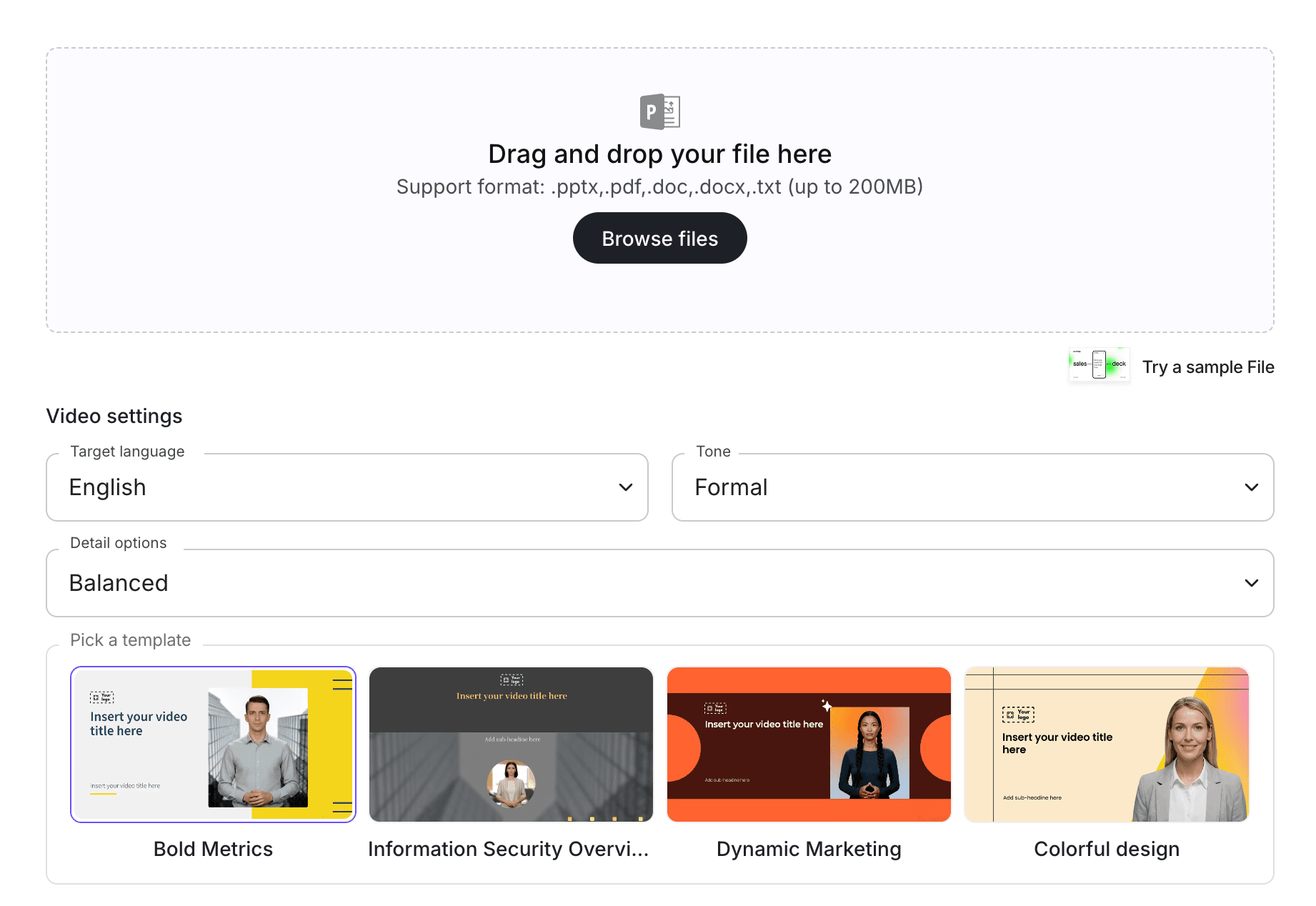
Step 3: Upload the PDF into an AI Video Tool
Once the training goal is clear, upload the PDF into an AI video workflow.
With PDF to Video, teams can turn PDF-based training content into video drafts without starting from a blank script. If the source content is not a PDF, you can use Doc to Video, DOCX to Video, or PowerPoint to Video depending on the file type.
At this stage, the AI should identify the structure of the PDF, pull out the main sections, and turn the material into a training-friendly outline.
The quality of the PDF matters. A clean PDF with headings, bullet points, tables, and clear sections will usually produce a better result than a scanned document or a dense block of text.
Step 4: Convert the PDF into a Video Script
A PDF is written for reading. A video script is written for listening.
That difference matters.
A strong AI-generated training script should be:
- Clear when spoken aloud
- Shorter than the original PDF
- Organized around one training objective
- Broken into scenes
- Easy for a reviewer to edit
- Accurate to the original source material
- Written in plain language
For example, a PDF paragraph about an internal security policy may become a short video script like:
"Before sharing customer data, check whether the recipient is authorized. If you are unsure, do not send the file. Contact your manager or security team first."
That is easier to remember than a dense policy paragraph.
For high-risk content such as compliance, safety, legal, or HR policy training, the script should remain faithful to the source PDF. AI can simplify the language, but it should not change the meaning.
Step 5: Break the PDF into Short Video Scenes
The best PDF training videos are modular.
Instead of creating one long video, break the content into scenes. Each scene should explain one idea, one step, or one decision.
A simple structure might look like this:
| Scene | Purpose |
|---|---|
| Scene 1 | Explain what the PDF covers |
| Scene 2 | Define who the training is for |
| Scene 3 | Introduce the key process or rule |
| Scene 4 | Walk through the required steps |
| Scene 5 | Show common mistakes |
| Scene 6 | Summarize what to remember |
| Scene 7 | Tell the learner what to do next |
This structure works well for employee onboarding, SOPs, policies, product education, and customer training.
If you are building a full training library, connect PDF-based modules with a broader AI training video generator workflow so your team can keep the style, structure, and review process consistent.
Step 6: Add an AI Presenter and Visual Highlights
Training videos are easier to follow when the learner has a guide.
An AI presenter can introduce the topic, explain the PDF, and make the content feel more guided than a silent slide deck. With an AI avatar generator, teams can create presenter-led training without filming or recording voiceover.
But the presenter is only one part of the video. The visual layer matters too.
Use visual highlights for:
- Key definitions
- Process steps
- Dos and don'ts
- Warnings
- Required actions
- Checklists
- Examples
- Screenshots
- Policy rules
- Decision points
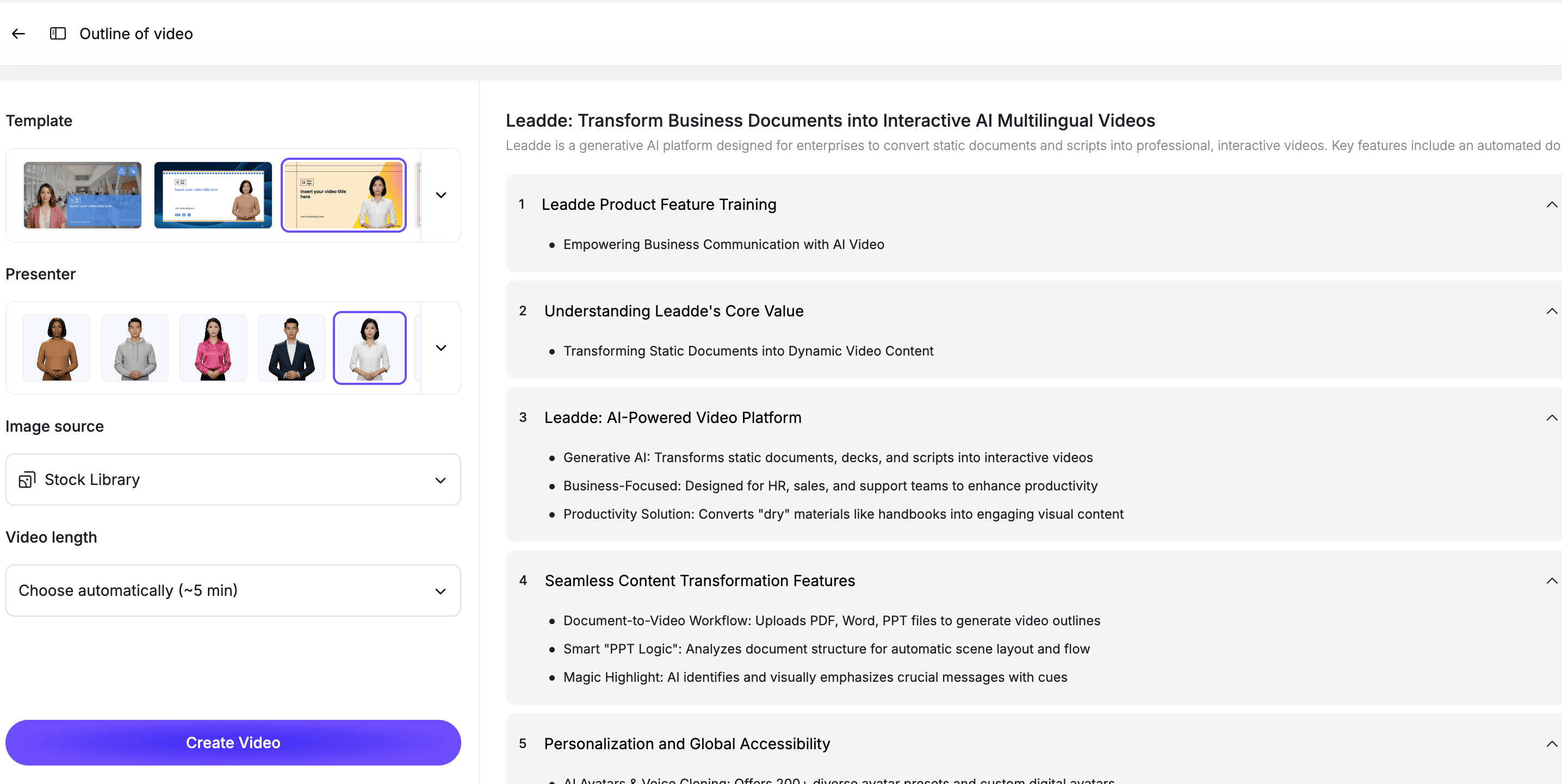
This is where a PDF becomes more useful as a video. Instead of asking the learner to read everything, the video shows what matters and explains it in order.
Step 7: Review the Video Against the Original PDF
AI can speed up video creation, but the final content still needs human review.
Before publishing a PDF-based training video, compare it against the original PDF.
Check for:
- Missing steps
- Incorrect simplification
- Changed meaning
- Wrong terminology
- Outdated policy language
- Overgeneralized examples
- Missing warnings
- Unclear instructions
- Visuals that do not match the source
For compliance, policy, safety, and HR training, the document owner should approve the final script and video.
A good review process is:
- Review the generated outline.
- Review the script.
- Confirm the scene order.
- Check the narration.
- Check on-screen text.
- Compare the final video against the PDF.
- Approve the video for publishing.
Step 8: Publish, Translate, and Update the Training Video
After review, the video can be added to your LMS, onboarding flow, customer education library, internal knowledge base, or sales enablement hub.
If your team works across regions, you may also need localized versions. AI video tools can help translate the script and create multilingual training videos faster than recording each version manually.
This is especially useful for:
- Global onboarding
- Regional compliance training
- Customer education
- Franchise training
- Partner enablement
- Distributed operations teams
When the PDF changes, update the video too. The best workflow lets you revise one scene or section instead of recreating the entire video.
Best Practices for PDF-to-Training-Video Workflows
Keep the Video Short and Focused
Do not turn the entire PDF into one long video.
If the PDF covers multiple topics, split it into multiple modules. A good training video usually teaches one workflow, one policy, one lesson, or one decision.
Use the PDF as the Source of Truth
The video should explain the PDF, not replace it completely.
For compliance, HR, safety, legal, and operational training, the official PDF should remain the source of truth. The video is the learning layer that helps people understand and apply it.
Rewrite for Spoken Language
A sentence that works in a PDF may sound unnatural in a video.
Edit the script so it sounds clear when spoken aloud. Use shorter sentences, direct language, and examples.
Add Visual Structure
Do not show walls of text on screen.
Use scene titles, short bullet points, checklists, callouts, and visual examples. The video should make the PDF easier to absorb, not simply display the PDF page by page.
Keep the Video Editable
PDFs change. Policies change. Product workflows change.
Use a workflow where your team can update specific scenes, scripts, and visuals when the original PDF changes.
Use Cases for PDF Training Videos
Employee Onboarding PDFs
Many onboarding programs start with PDFs: company policies, tool setup guides, first-week checklists, benefits documents, and communication norms.
Instead of sending new hires a folder of PDFs, HR teams can turn the most important materials into short onboarding videos.
For this workflow, connect PDF training videos with AI Onboarding Video Maker so new hires get a more guided experience.
SOP PDFs
SOP PDFs are important, but they can be hard to follow when employees are learning a process for the first time.
A video can walk through:
- What the SOP is for
- Who needs to follow it
- What materials are required
- What steps to complete
- What mistakes to avoid
- What to do if something goes wrong
For SOP-specific workflows, use SOP Video Maker, and read the related guide on turning SOP documents into training videos.
Policy PDFs
Policy PDFs often use formal language. Employees may receive the policy, but not fully understand how it applies to real situations.
A policy training video can explain:
- What the policy means
- Why it matters
- Who it applies to
- What behavior is expected
- What examples are allowed or not allowed
- What to do when someone is unsure
For a policy-specific workflow, see Leadde's guide on turning policy documents into videos.
Product Manual PDFs
Customer education teams often have product manuals, setup PDFs, and feature guides.
Turning those PDFs into videos can help customers learn faster and reduce support requests. Instead of asking users to read a long manual, a short training video can walk them through the workflow step by step.
Course PDFs
Schools, training providers, and internal L&D teams often have course PDFs, lecture notes, or lesson handouts.
These can become short video lessons that explain one concept at a time. This is especially useful when the PDF is accurate but too dense for learners to absorb quickly.
How Leadde Helps Turn PDFs into Training Videos
Leadde helps teams turn existing PDF content into editable, avatar-led training videos.
With Leadde, teams can:
- Upload PDF-based training materials
- Turn PDF content into video scripts
- Break long PDFs into short scenes
- Add AI presenters
- Edit scripts and scenes before publishing
- Add visual highlights and examples
- Create multilingual versions for global teams
- Reuse existing PDF materials instead of starting from scratch
Start with PDF to Video if your source file is a PDF. Use AI Training Video Generator if your goal is to build a larger training video library across multiple document types.
If you already have a PDF ready, you can also try Leadde directly and start building your first AI training video.
Common Mistakes to Avoid
Mistake 1: Turning Every Page into a Scene
A PDF page is not the same thing as a video scene.
Some pages may need multiple scenes. Other pages may not need to appear in the video at all. Build the video around the training objective, not the PDF page count.
Mistake 2: Making the Video Too Long
Long PDF-based videos are hard to finish and hard to update.
Split long PDFs into shorter modules so learners can watch only the section they need.
Mistake 3: Copying PDF Language Directly
PDF language is often too formal for video.
Rewrite the script so it sounds natural when spoken, while keeping the meaning accurate.
Mistake 4: Skipping Review
AI-generated scripts can miss nuance.
Always review the video against the original PDF before publishing, especially for policies, SOPs, compliance, and safety content.
Mistake 5: Forgetting to Update the Video
If the PDF changes, the training video should change too.
Choose an editable workflow so updates do not require a full production cycle.
FAQ
Can AI turn a PDF into a training video?
Yes. AI can turn a PDF into a training video by extracting the key content, generating a script, breaking the material into scenes, adding narration or an AI presenter, and creating an editable video draft.
What kind of PDFs are best for training videos?
The best PDFs have a clear teaching purpose. Examples include onboarding manuals, SOPs, policy documents, compliance guides, product manuals, safety procedures, sales enablement PDFs, and course materials.
Is PDF to video useful for employee training?
Yes. PDF to video is useful for employee onboarding, SOP training, compliance training, policy rollouts, internal process education, and recurring training programs.
Should I convert the entire PDF into one video?
Usually no. Long PDFs should be split into short training modules. Each video should focus on one topic, workflow, policy, or learning objective.
Can I edit the video after it is generated from a PDF?
Yes, if you use an editable AI video workflow. You should be able to revise the script, adjust scenes, update visuals, and regenerate sections when the source PDF changes.
Can I use PDF to video for customer education?
Yes. Product manuals, setup guides, customer onboarding PDFs, and feature documentation can become customer education videos that reduce friction and support requests.
What is the difference between a PDF video and a PDF training video?
A PDF video may simply summarize or present the PDF. A PDF training video is designed to teach. It has a learning objective, scene structure, clear explanations, examples, and a review process.
Conclusion
PDFs are valuable, but they are not always the easiest way to train employees, customers, or partners.
Turning PDFs into training videos helps teams make important information easier to understand, remember, and apply. The best workflow is not just uploading a PDF and generating a long video. It is about turning the PDF into a structured learning experience.
Start with a clear PDF, define the training objective, generate a script, break the content into short scenes, add an AI presenter, review the output, and keep the video editable for future updates.
Use Leadde's PDF to Video tool to turn your existing PDFs into editable, avatar-led training videos.