Add Images to AI Videos


Upgrade Your Video Content with Visual Inserts
Onboarding walkthrough
Turn compliance documents, safety protocols, or regulatory guidelines into structured certification videos. Let an AI avatar walk employees through each requirement clearly — reducing legal risk and keeping teams audit-ready.

Cleanroom protocols
Explains the behavior guidelines and operational requirements for cleanrooms, ensuring employees adhere to standards and improve work efficiency and safety.

AR-700 operation training
Introduces the operation process and safety guidelines of the AR-700 precision assembly robot, helping employees master proper operating techniques.

Marketing insights
Trusted by the world's leading brands







Why Use Leadde to Add Images to Avatar Videos
Add Photo to Video AI Free
You don't need a degree in video editing to merge media. With the Leadde editor, you simply upload your core video file, select your PNG/JPG image, and drag it exactly where you want it on the canvas. It's an intuitive drag-and-drop workspace designed for speed, operating entirely online.
Script-Driven Image Positioning
Place your photo perfectly. Want a company logo permanently sitting in the top right corner as a watermark? Need a product image to slide onto the screen at a specific moment? In Leadde, you can link the image's entrance and exit animations directly to the spoken narration in the script area, ensuring perfect timing.
Add Photo to Video with Music
Turn a simple photo into an engaging media experience. Besides overlaying pictures onto existing footage, you can upload a single static photo to Leadde, apply an AI voiceover, and generate dynamic visuals to instantly create a slideshow or podcast visualizer.
No Installation Required
Don't waste hard drive space searching for an "add photo to video app." Leadde is a cloud-native platform. You upload your heavy video files (.mp4 or .mov) to our secure servers, edit everything smoothly within a Chromium-based browser like Google Chrome, and download the rendering extremely fast.
How to Add an Image to a Video Online
Overlay pictures and logos onto your footage in three quick steps.
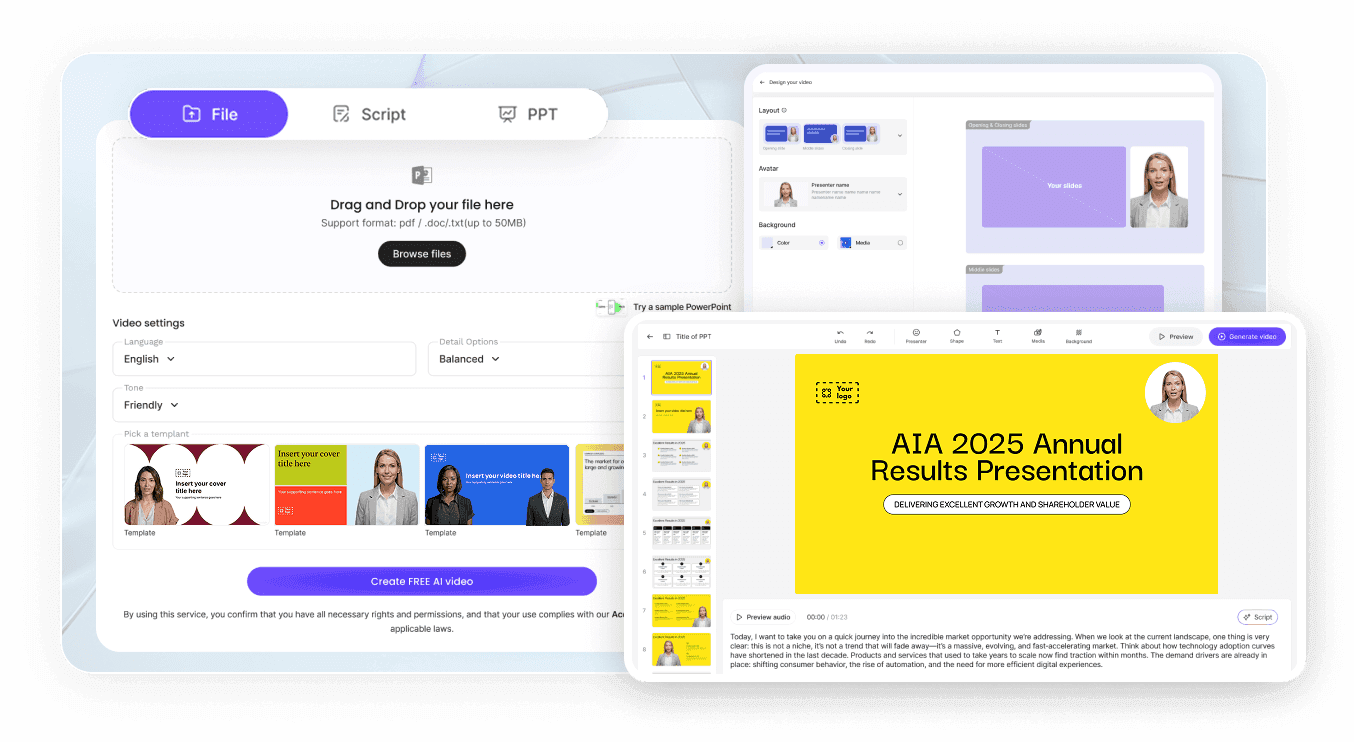
Step 1: Upload Your Video File
Create a new project in Leadde and upload your base video. Whether it's a corporate presentation, a TikTok dance, or a screen recording, simply add the video asset to your canvas and set its fit mode (like Loop or Insert).
Step 2: Upload and Position Your Photo
Click the media tab, click "Upload," and select the image (JPEG/PNG) you want to overlay. Click the image to add it directly onto the video canvas. You can easily crop the picture, adjust its opacity, manage its layer order, and place it anywhere — like holding up a virtual product next to your face.
Step 3: Adjust Timing and Export
In the script area, click the handle icons at the beginning and end of the text to set exactly when the image should animate in and out alongside the narration. Once satisfied, click "Generate Video" to download the finalized MP4 file with the photo permanently baked in.
Trusted by Creators, Marketers & Brands
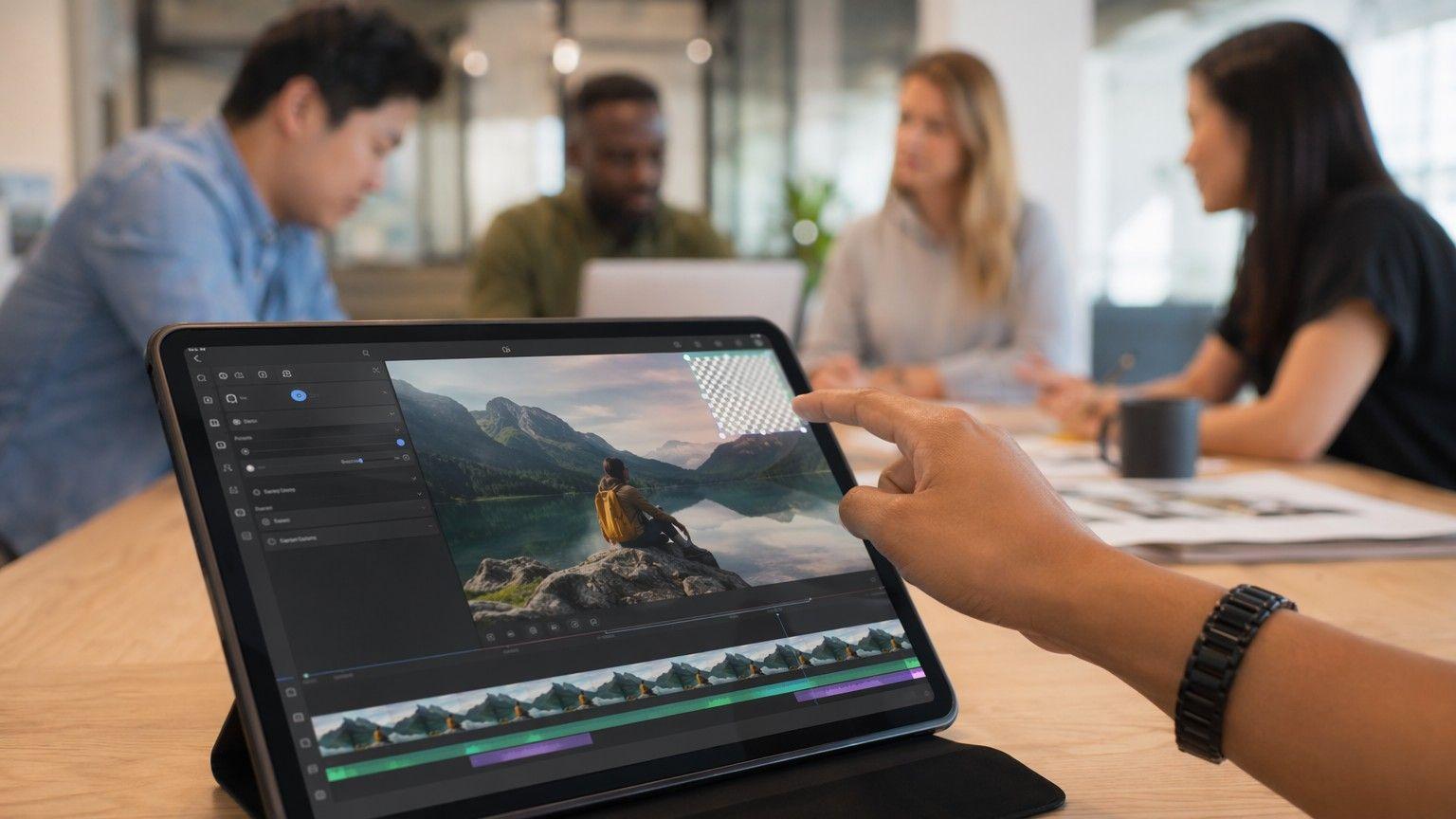
Brand Consistency via Watermarking
Protect your intellectual property on social media. Many creators use Leadde to quickly upload their transparent PNG logos and place them delicately in the corner of their videos, ensuring their brand receives credit even if the video is re-uploaded by aggregators.

Seamless AI Presenter Integration
Take it a step further. Instead of just adding a photo over your own video, you can upload a background image (like a chart or a house listing), and use Leadde's AI avatars to place a lifelike digital human directly on top of the photo, narrating its details automatically.
Engaging Viewer Interactivity
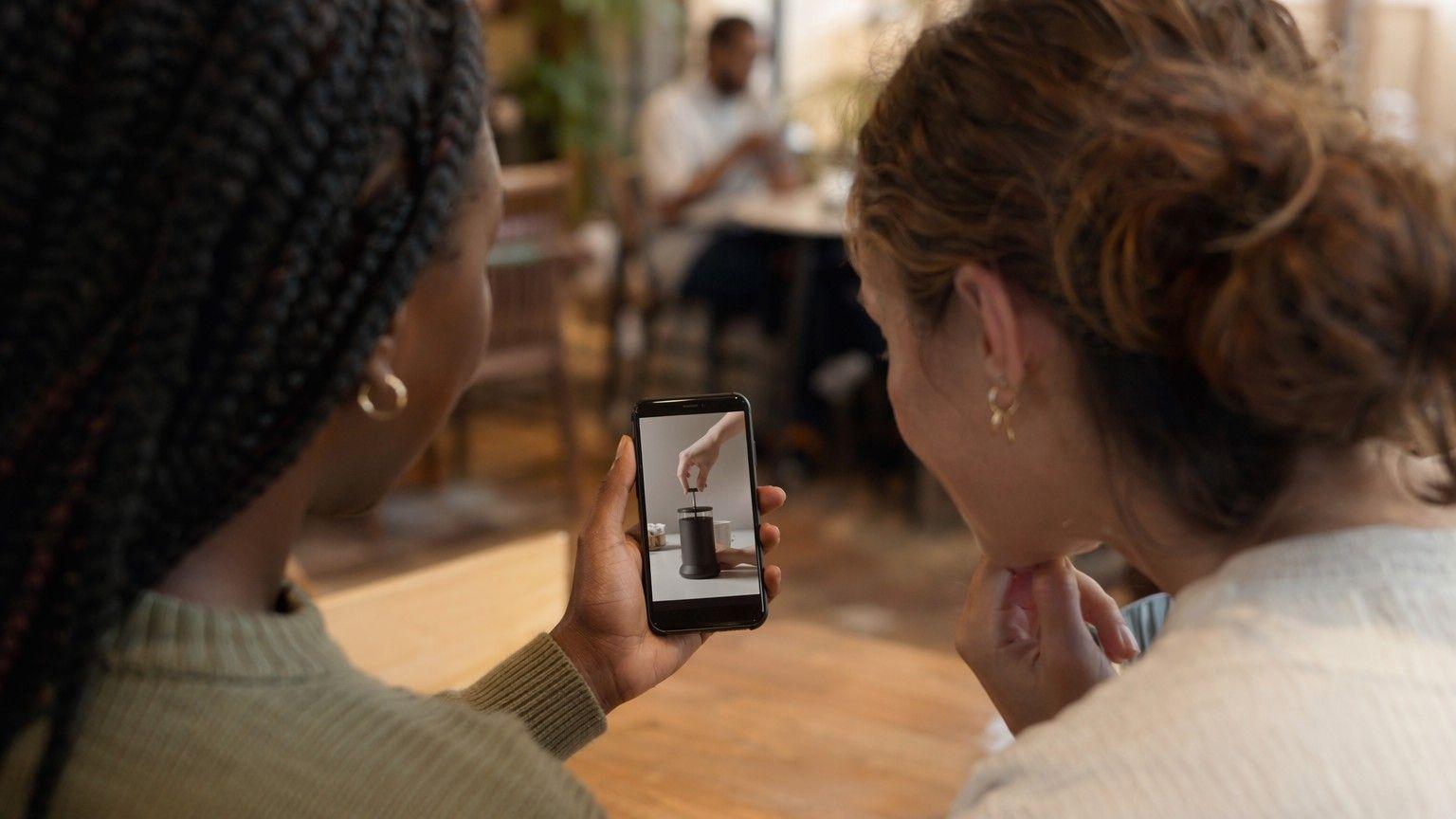
Host the video with Leadde and turn static photos into conversations. If a viewer sees the product photo you added to the video running on a Leadde share link, they can use the side-chat to ask questions about the item, and the AI will supply instant responses.
Translate Added Text Data
If the photo you added to the video contains crucial text, you can use Leadde's powerful translation tools to instantly regenerate localized audio or on-screen captions explaining the image data clearly to international audiences in 88 languages.
Add Photo to Video Editor Scenarios
Reaction & Commentary Videos
Real Estate Agent Listings
Walk potential buyers through a home digitally. Add high-resolution photos of the renovated kitchen or a neighborhood map directly over the background video while our voiceover video maker narrates the benefits of the specific property.
SaaS Software Tutorials
E-Commerce Product Showcases
Make your ads pop with our AI ad generator. Overlay transparent PNGs of 5-star customer review badges, "50% OFF" sale tags, or free shipping icons directly onto your product videos to dramatically increase buyer trust and conversion rates.
Corporate Presentations
Podcast Audio Visualizers
Frequently asked questions
Yes. Leadde fully supports uploading transparent PNG files. This makes it incredibly easy to use the platform to add seamless watermarks, logos, and floating graphics without an ugly white background box to any video online.
No. Leadde's cloud rendering engine ensures that your original video footage and the high-resolution images you add to it are exported in crisp quality, preserving the professionalism of your content.
No app download is required, as Leadde functions entirely in the browser. However, while you can access the platform via mobile browsers, Leadde is primarily designed for desktop use. For the best experience and full editing functionality, we recommend us
Absolutely. You can upload dozens of photos to your Leadde media library and add them all into your scenes. Have them animate in one after the other, or stack them using the layer controls so multiple photos are visible on-screen at the exact same time.
Combine Your Media Effortlessly
Join creators who trust Leadde to easily add watermarks, logos, and images to their footage. Try our Add Photo to Video AI editor for free today.