AI Caption Generator for Video


Capture the Sound-Off Audience Effortlessly
Onboarding walkthrough
Turn compliance documents, safety protocols, or regulatory guidelines into structured certification videos. Let an AI avatar walk employees through each requirement clearly — reducing legal risk and keeping teams audit-ready.

Cleanroom protocols
Explains the behavior guidelines and operational requirements for cleanrooms, ensuring employees adhere to standards and improve work efficiency and safety.

AR-700 operation training
Introduces the operation process and safety guidelines of the AR-700 precision assembly robot, helping employees master proper operating techniques.

Marketing insights
Trusted by the world's leading brands







Why Leadde is the Best Auto Caption Video Maker
100% Accurate Script-to-Subtitle Sync
Because Leadde generates your video directly from your input text, documents, or PPTs, the captions are always 100% accurate. There are no speech recognition errors or misspellings to fix. Our voiceover video maker instantly creates the voiceover and maps the text perfectly to the audio timeline.
Dynamic Text Styles & Animations
Download Separate Subtitle Files
Seamless 89-Language Translation
How to Generate Captioned Videos with AI
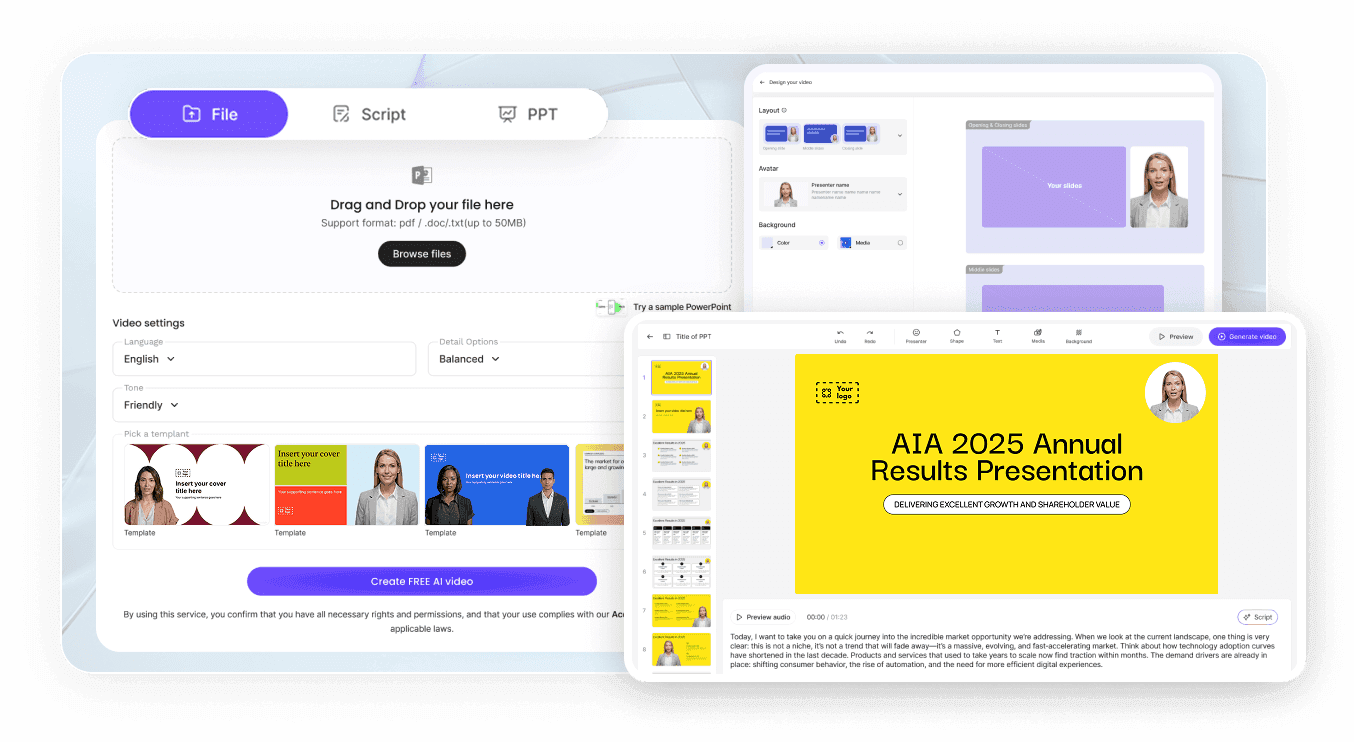
Step 1: Input Your Script or Document
Step 2: Customize Text Styles & Avatars
Select a realistic AI avatar to narrate your video — or skip the on-screen presenter entirely with the faceless video generator. Click the "Text" button to add dynamic text boxes to your canvas. Adjust the font, apply bold colors, and set trigger animations in the timeline so the words appear exactly when spoken to retain viewer attention.
Step 3: Export Video & Subtitles
Trusted by Top Creators & Social Media Managers
Boost Viewer Retention Rates
Enhance SEO & Discoverability
Accessibility Compliance
All-in-One Video Generation
Leadde isn't just a subtitle tool—it's an entire production studio. You don't need a camera or a microphone. You can use our text to video tools to generate an AI avatar presenter, and Leadde will automatically bake perfectly synced audio and captions seamlessly into the final export.
AI Caption Scenarios & Social Media Growth
Instagram Reels & TikToks
YouTube Video Essays
Keep viewers engaged during longer content. Download the exact subtitle files from your generated video and upload them to YouTube with our AI YouTube video generator, ensuring viewers can comfortably follow your complex arguments and data points via closed captions.
E-Learning & Course Videos
Corporate Training & Communications
Silent E-Commerce Ads
Interactive Support Videos
Go beyond simple subtitles. Share your captioned video via a Leadde link, and allow customers to use our interactive video maker chat panel to ask questions about the tutorial directly, getting instant responses.
Frequently asked questions
Leadde's captions are 100% accurate. Because our platform generates the voiceover directly from the text or document you provide, there is zero risk of speech recognition errors or misunderstood accents. What you type is exactly what is generated and captioned in perfect sync.
Yes. When your video is finished generating, you can go to the sharing page and click the "Download" button to select and download the independent subtitle files, which can then be uploaded to YouTube or other platforms.
Absolutely. Leadde acts as an advanced video editor. You can easily select your text elements on the canvas and modify the font, color, weight, opacity, and layer order, and add specific entrance or emphasis animations.
Leadde is primarily a text-to-video and document-to-video generation platform. It automatically generates voiceovers, scenes, and synced subtitles from your written scripts or uploaded files (.doc, .pdf, .pptx) rather than transcribing the audio of pre-recorded MP4 videos.
Never Publish a Silent Video Again