How Teams Can Turn PowerPoint Slides into Training Videos
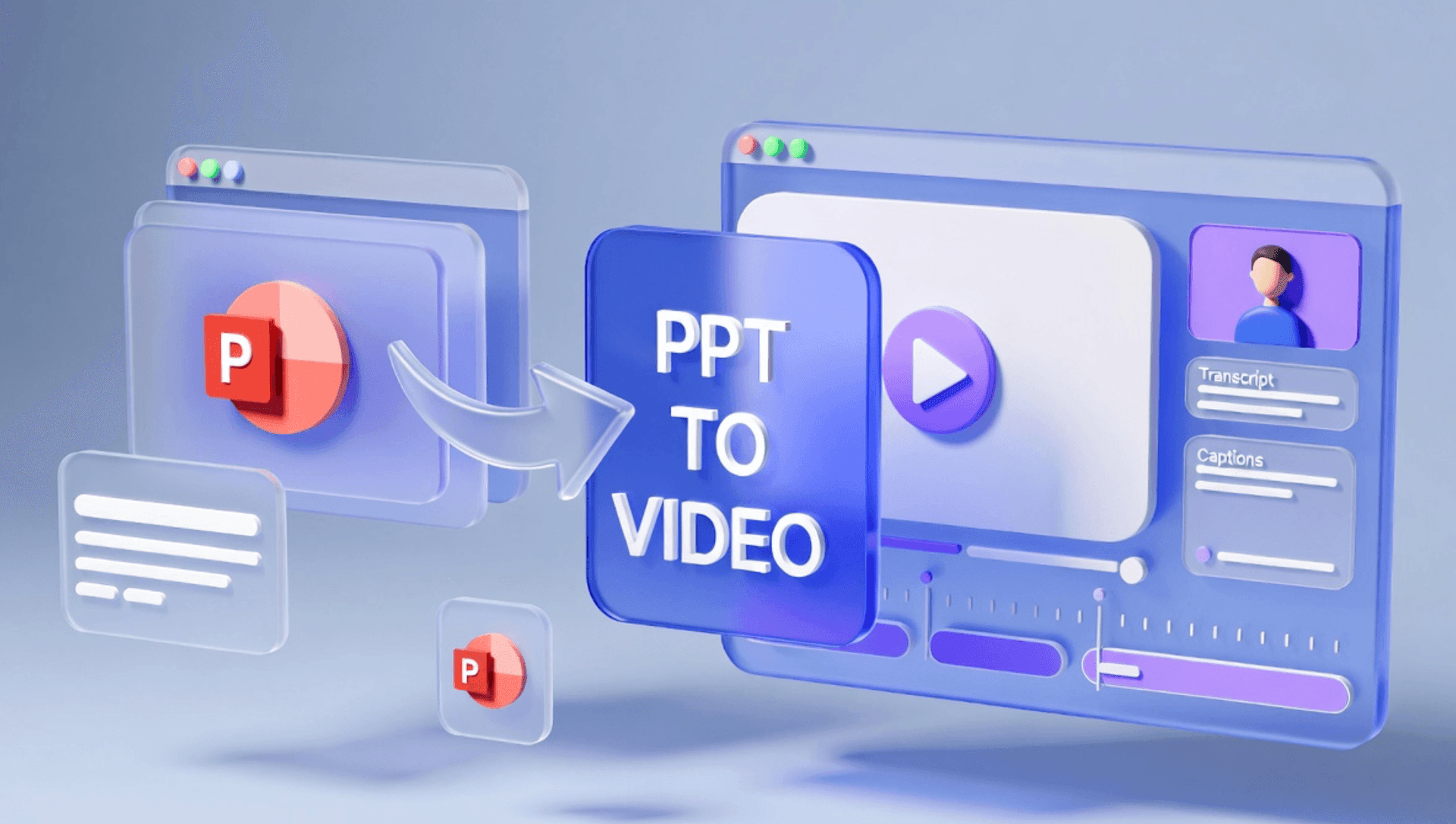
PowerPoint is still one of the most common formats for team training. HR teams use slide decks for onboarding. Sales teams use them for enablement. Compliance teams use them for policy refreshers. Product teams use them to explain launches, workflows, and internal updates.
The problem is that slides are not always easy to learn from on their own.
A PowerPoint deck may work well in a live meeting, but once the presenter is gone, the slides often lose context. People skim them, miss the explanation, or ask someone to walk them through the material again.
That is why many teams are turning PowerPoint slides into training videos. With AI, you can upload a PPT or PPTX file, turn the slides into a clear script, add an AI presenter, create short scenes, and publish an editable training video without recording a live presenter.
If your team already has training decks, Leadde's PowerPoint to Video tool helps convert slides into avatar-led videos for employee training, onboarding, sales enablement, and internal education.
Why Turn PowerPoint Slides into Training Videos?
PowerPoint decks are useful for organizing information. They are not always enough for training.
A slide deck usually depends on a presenter. The presenter explains the context, adds examples, connects the ideas, and tells the audience what to do next. Without that voiceover, the deck can feel incomplete.
Training videos solve this by turning slides into guided learning experiences.
A good PowerPoint-based training video can:
- Explain the slides in a consistent voice
- Add narration and context
- Break long decks into short modules
- Help new hires learn asynchronously
- Support sales and customer-facing teams
- Reduce repeated live training sessions
- Make internal knowledge easier to reuse
- Create a more engaging alternative to static slides
For teams, this matters because training content is rarely one-time use. A deck may need to be reused across departments, regions, new hire cohorts, customers, partners, or sales teams.
AI makes the process faster because teams do not need to rewrite the deck manually, record voiceover, schedule a presenter, or rebuild the content from scratch.
What Types of PowerPoint Decks Work Best as Training Videos?
Not every deck should become a video. The best candidates are decks that teach a process, explain a workflow, train a team, or support repeated learning.
| PowerPoint Deck Type | Best Training Video Format | Example Use Case |
|---|---|---|
| New hire onboarding deck | Avatar-led onboarding module | Help new employees understand tools, policies, and workflows |
| Sales enablement deck | Scenario-based training video | Teach reps messaging, positioning, and objection handling |
| Compliance deck | Policy training video | Explain rules, risks, and required behavior |
| Product training deck | Feature walkthrough video | Teach internal teams or customers how a product works |
| Customer education deck | Guided tutorial video | Help customers learn a workflow without a live session |
| Operations deck | Process training video | Show teams how to follow a repeatable workflow |
| Course slides | Lesson-style video module | Turn educational slides into video lessons |
The best decks already have a clear structure. They include section titles, bullet points, examples, diagrams, screenshots, or process steps.
If your training source is not a PowerPoint file, you can use Doc to Video for general documents or PDF to Video for PDF-based training materials.
How to Turn PowerPoint Slides into Training Videos
The goal is not to simply export a PowerPoint deck as a video file. That creates a slideshow, not a training video.
A real training video needs narration, structure, scene flow, examples, and visual emphasis.
Step 1: Choose the Right PowerPoint Deck
Start with a deck that has a clear training purpose.
Good candidates include:
- A new hire onboarding deck
- A sales enablement deck
- A product training deck
- A compliance refresher
- A customer education presentation
- A course module
- A process training deck
- A department update that needs to be reused
Before converting the deck, ask:
- Who is the audience?
- What should they understand after watching?
- What action should they take?
- Which slides are essential?
- Which slides can be removed or combined?
- Should this become one video or several short videos?
A 40-slide deck should rarely become one long training video. It is usually better to split the deck into modules.
Step 2: Clean Up the Slides Before Uploading
AI can help turn slides into a video, but the quality of the input still matters.
Before uploading the PowerPoint file, clean up the deck.
Remove:
- Duplicate slides
- Old screenshots
- Outdated pricing or policies
- Speaker notes that no longer apply
- Internal comments
- Placeholder slides
- Slides that only made sense in a live meeting
Then improve the structure:
- Add clear section titles
- Keep one idea per slide
- Make process steps explicit
- Add context where slides are too vague
- Highlight the key takeaway of each section
The cleaner the deck, the better the video draft will be.
Step 3: Upload the PowerPoint into an AI Video Tool
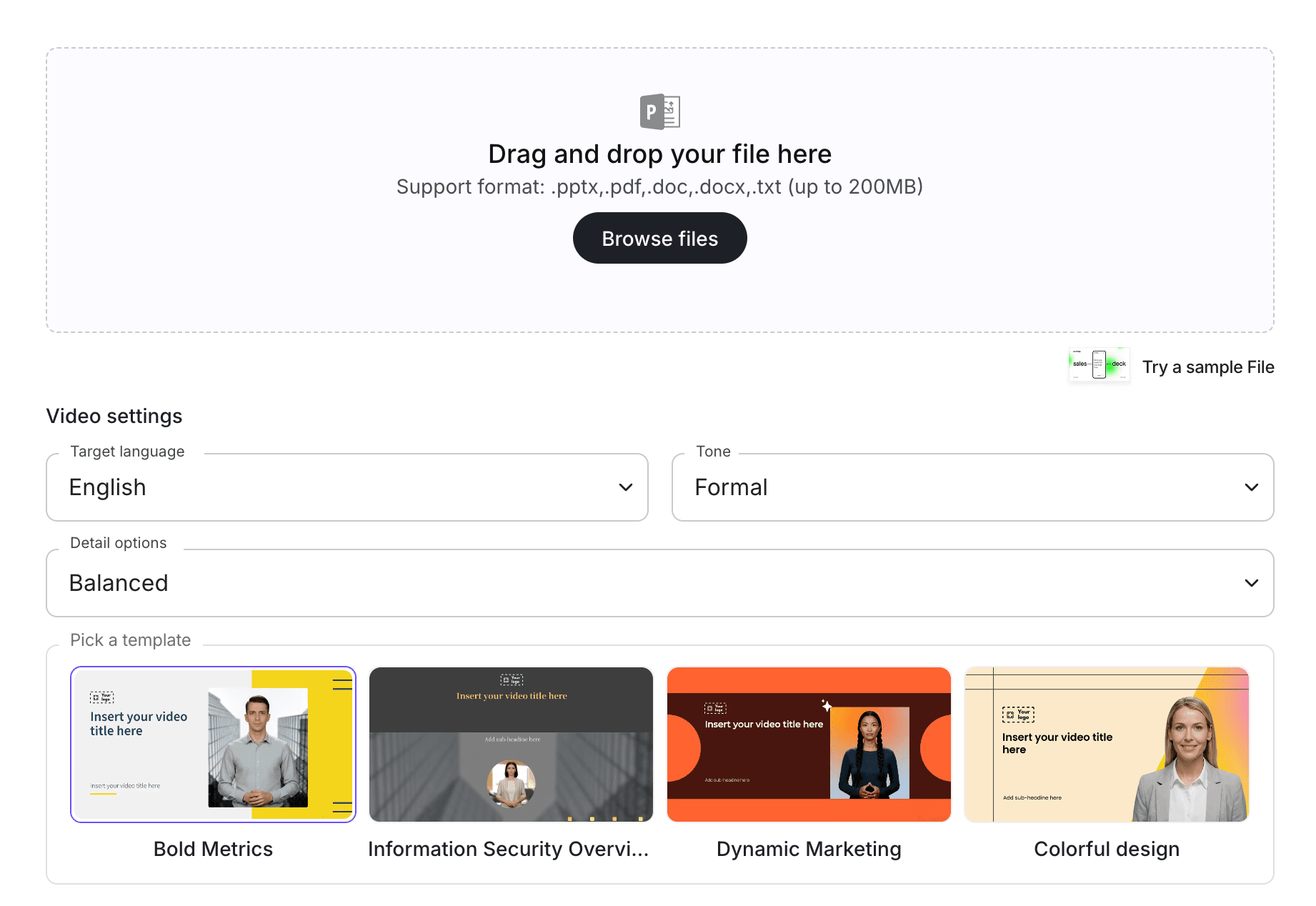
Once the deck is ready, upload it into a PowerPoint-to-video workflow.
With PowerPoint to Video, teams can turn existing PPT or PPTX files into video drafts instead of starting from a blank script. If your training program includes multiple source formats, connect this workflow with an AI training video generator so your team can create a consistent training library.
At this stage, the AI should analyze the slides, identify the main ideas, and turn the deck into a training-friendly outline.
This is different from simply recording a slideshow. The AI should help create a video structure that teaches, not just displays slides.
Step 4: Turn Slide Content into a Spoken Script
Slides are usually written for presentation support. A video script is written for listening.
That difference matters.
A slide might say:
"Q3 sales process updates"
But a video script should explain:
"In this training, we will walk through the three updates to the Q3 sales process: when to qualify an account, how to log discovery notes, and when to involve a solutions engineer."
A strong script should be:
- Clear when spoken aloud
- Shorter than the slide deck
- Organized around one learning objective
- Easy for a manager or trainer to review
- Accurate to the original material
- Written in plain language
- Broken into scenes or chapters
This is especially important for compliance, product, and sales training. The script should simplify the material without changing the meaning.
Step 5: Break the Deck into Short Training Scenes
One PowerPoint deck can become one video, but it often should become multiple modules.
A good structure might look like this:
| Scene | Purpose |
|---|---|
| Scene 1 | Introduce the training topic |
| Scene 2 | Explain who the training is for |
| Scene 3 | Present the first core idea |
| Scene 4 | Show an example or workflow |
| Scene 5 | Highlight common mistakes |
| Scene 6 | Summarize key takeaways |
| Scene 7 | Explain the next action |
For team training, shorter modules are usually better.
Instead of turning a 45-slide deck into a 25-minute video, split it into:
- Module 1: Overview
- Module 2: Key workflow
- Module 3: Examples
- Module 4: Common mistakes
- Module 5: Next steps
This makes the video easier to watch, easier to assign, and easier to update later.
Step 6: Add an AI Presenter or Avatar
Many training decks are designed to be presented by a human. When you turn them into videos, an AI presenter can replace the missing explanation layer.
With an AI avatar generator, teams can create presenter-led training without filming, recording voiceover, or scheduling a studio session.
An AI presenter can:
- Introduce the topic
- Explain each section
- Connect ideas between slides
- Add a more human feel to the training
- Make the video easier to follow
- Help standardize the training experience across teams
The presenter should match the training context.
For example:
- New hire onboarding: warm and friendly
- Compliance training: clear and professional
- Sales enablement: confident and direct
- Product training: explanatory and precise
- Customer education: helpful and approachable
Do not choose an avatar randomly. The presenter affects how credible and useful the training feels.
Step 7: Add Visual Highlights and Video Editing
A strong training video should not look like a static slideshow.
Use visual highlights to make important points easier to remember.
This can include:
- Callouts
- Arrows
- Checklists
- Timeline moments
- Captions
- Scene titles
- Process steps
- Before-and-after examples
- Product screenshots
- Dos and don'ts
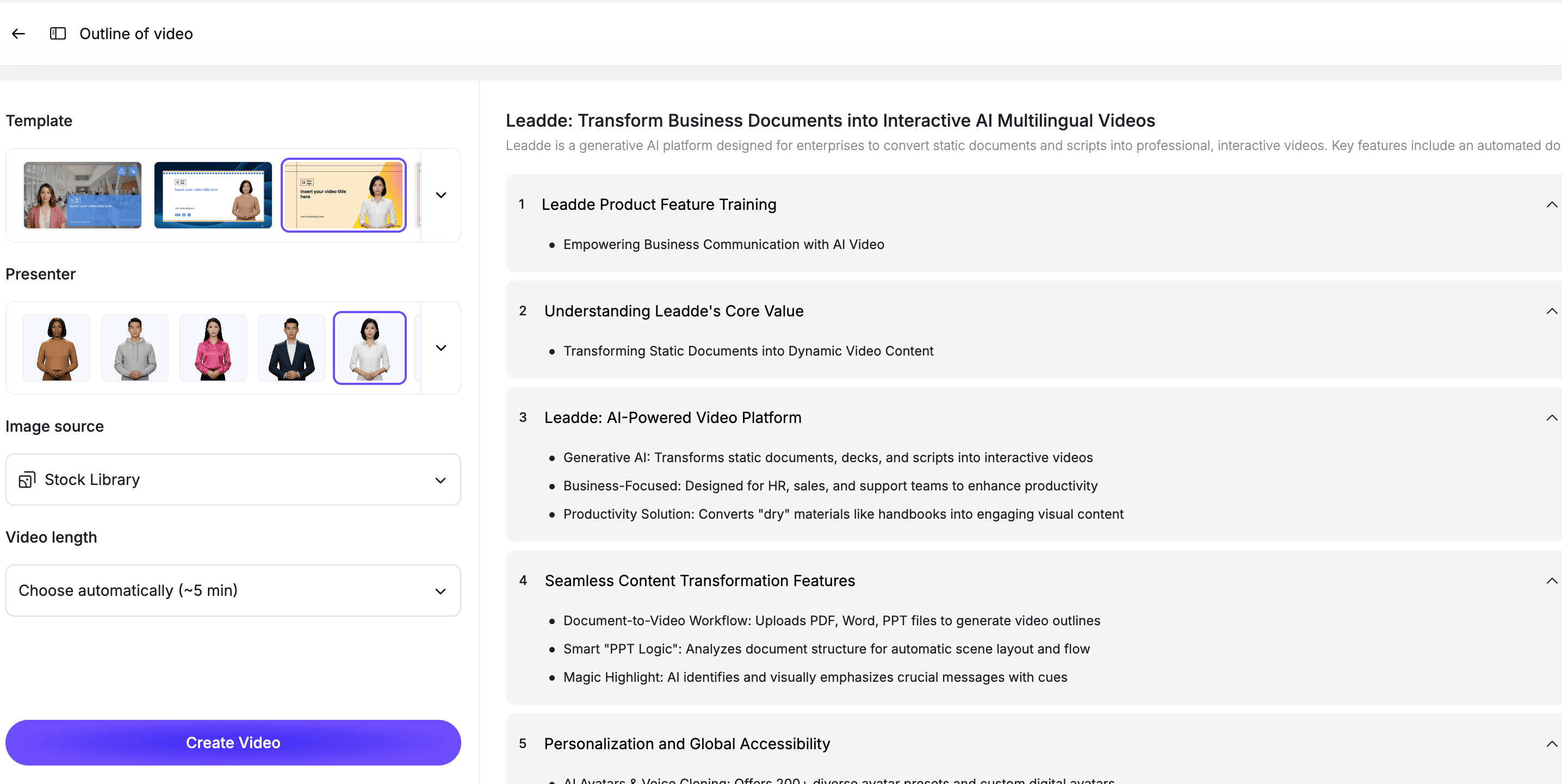
This is where PowerPoint becomes more useful as video. The goal is not to show every slide exactly as it appeared. The goal is to explain the material in a way that people can understand and apply.
Step 8: Review the Video Before Publishing
AI can speed up training video creation, but the final video still needs review.
Before publishing, compare the video against the original PowerPoint deck.
Check for:
- Missing slides or concepts
- Incorrect simplification
- Changed meaning
- Wrong terminology
- Outdated screenshots
- Unclear examples
- Narration that does not match the slide
- Visuals that distract from the training goal
- Missing next steps
For sales, product, HR, and compliance training, the owner of the deck should review the final script and video before publishing.
Step 9: Publish, Translate, and Update the Training Video
Once the video is approved, publish it where your team already learns.
This might include:
- LMS platforms
- Internal knowledge bases
- Onboarding flows
- Sales enablement hubs
- Customer education portals
- Partner training libraries
- Team update pages
If your team operates globally, you may also need localized versions. AI video workflows can help translate scripts and create multilingual versions faster than recording every version manually.
When the source deck changes, update the training video too. The best workflow lets your team revise one scene instead of recreating the whole video.
Best Practices for PowerPoint-to-Training-Video Workflows
Do Not Turn Every Slide into a Scene
A PowerPoint slide is not always a video scene.
Some slides may need multiple scenes. Other slides may only need one sentence. Some slides may not belong in the training video at all.
Build the video around the learning objective, not the slide count.
Keep Each Video Focused
One video should teach one topic, one workflow, one policy, or one decision.
If a deck covers multiple topics, split it into multiple short videos. This improves completion rates and makes the content easier to reuse.
Rewrite for Spoken Language
Slide bullets are not scripts.
Rewrite them into clear narration that sounds natural when spoken aloud. Use short sentences, examples, and transitions.
Preserve the Original Meaning
For compliance, product, HR, and sales training, accuracy matters.
The AI can simplify the message, but it should not change the meaning. Keep the original deck as the source of truth.
Make the Video Easy to Update
PowerPoint decks change often.
Choose an editable workflow so your team can revise scenes, update scripts, swap screenshots, and republish the training video without starting over.
Use Cases for PowerPoint Training Videos
Employee Onboarding
Onboarding decks often contain important information about tools, policies, workflows, and company culture.
Instead of asking every new hire to read or attend the same presentation, HR teams can turn onboarding decks into short videos. These videos help new employees learn asynchronously and revisit the material later.
For onboarding-specific content, connect this workflow with AI Onboarding Video Maker.
Sales Enablement
Sales teams often rely on decks for messaging, positioning, competitive talk tracks, and product updates.
A training video can turn those slides into a repeatable coaching asset. Instead of sending reps a deck and hoping they interpret it correctly, teams can provide a guided explanation with examples.
A sales enablement video can cover:
- New positioning
- Objection handling
- Discovery questions
- Product demo flow
- Competitive messaging
- Follow-up best practices
Compliance and Policy Training
Compliance decks are often presented once and forgotten.
Turning them into videos makes the content easier to assign, track, and revisit. A video can explain not just what the policy says, but how employees should act in real situations.
If the source material is a policy document rather than a slide deck, see Leadde's guide on turning policy documents into videos.
Product and Feature Training
Product teams often create slide decks for launches, new features, internal demos, and customer-facing education.
A training video can turn those slides into a reusable asset for sales, support, success, and customers.
This is especially useful when the product changes often and teams need a faster way to keep training materials current.
Course and Learning Materials
Educators, L&D teams, and internal trainers often have slide decks from live sessions.
Those decks can become video lessons that learners can watch on demand. For broader education workflows, AI Educational Video Maker and AI Learning Video Generator can help create structured learning videos beyond simple slide conversion.
How Leadde Helps Turn PowerPoint Slides into Training Videos
Leadde helps teams turn existing PowerPoint decks into editable, avatar-led training videos.
With Leadde, teams can:
- Upload PowerPoint slides
- Generate a training script from slide content
- Break long decks into short scenes
- Add AI presenters
- Edit scripts and scenes before publishing
- Add visual highlights and captions
- Create multilingual versions for global teams
- Reuse existing decks instead of starting from scratch
Start with PowerPoint to Video if your source material is a PPT or PPTX deck. Use AI Training Video Generator if your goal is to build a broader training video library across slides, PDFs, SOPs, and other documents.
If you already have a deck ready, you can also try Leadde directly and start building your first AI training video.
Common Mistakes to Avoid
Mistake 1: Exporting Slides as a Video and Calling It Training
A slideshow export is not the same as a training video.
Training videos need narration, structure, examples, and a clear learning objective.
Mistake 2: Keeping Too Many Slides
Most decks include slides that made sense in a live meeting but do not belong in an on-demand video.
Remove or combine slides before converting the deck.
Mistake 3: Copying Slide Bullets as Narration
Slide bullets are usually too compressed.
Turn them into clear spoken explanations. Add context, transitions, and examples.
Mistake 4: Making the Video Too Long
Long training videos are hard to finish.
Split large decks into short modules so learners can watch the section they need.
Mistake 5: Skipping Review
AI-generated scripts can miss nuance.
Always review the video against the original deck before publishing, especially for compliance, product, sales, and HR training.
FAQ
Can AI turn PowerPoint slides into training videos?
Yes. AI can turn PowerPoint slides into training videos by extracting slide content, generating a spoken script, breaking the deck into scenes, adding an AI presenter, and producing an editable video draft.
What kinds of PowerPoint decks work best as training videos?
The best decks have a clear teaching purpose. Examples include onboarding decks, sales enablement decks, compliance training slides, product training decks, customer education presentations, and course materials.
Is PowerPoint to video useful for employee training?
Yes. PowerPoint to video is useful for onboarding, internal training, compliance refreshers, product education, sales enablement, customer education, and recurring team training.
Should I convert the entire PowerPoint deck into one video?
Usually no. Long decks should be split into short training modules. Each video should focus on one topic, workflow, lesson, or learning objective.
What is the difference between a slideshow video and a training video?
A slideshow video usually shows slides in sequence. A training video teaches the material with narration, structure, examples, visual highlights, and a clear learning objective.
Can I edit the video after it is generated from PowerPoint?
Yes, if you use an editable AI video workflow. You should be able to revise the script, adjust scenes, update visuals, change presenters, and republish when the deck changes.
Can I use PowerPoint training videos for sales enablement?
Yes. Sales decks can become training videos for messaging, objection handling, product positioning, discovery calls, competitive talk tracks, and demo preparation.
Conclusion
PowerPoint slides are a strong starting point for training, but they often need a presenter to become useful learning content.
AI helps teams turn existing decks into editable training videos with scripts, scenes, avatars, visual highlights, and multilingual versions. This makes training easier to scale across onboarding, sales enablement, compliance, product education, and internal knowledge sharing.
The best workflow is simple: start with a clear deck, remove unnecessary slides, define the training objective, generate a script, break the deck into scenes, add an AI presenter, review the video, and keep it editable for future updates.
Use Leadde's PowerPoint to Video tool to turn your existing slides into editable, avatar-led training videos for your team.