How to Record a Video on Canvas: Native Tools vs AI Solutions

To record a video on Canvas, use the built-in Rich Content Editor (RCE) and select Upload/Record Media from the toolbar, or go to Insert > Media > Upload/Record Media. If you already have a pre-recorded file, knowing how to upload a video to Canvas can save you time. Canvas works best for short webcam or audio recordings, especially when using Chrome or Firefox instead of Safari.
For smoother uploads and fewer rendering issues, keep native Canvas recordings under 15 minutes, then remember the final step: click Save, Reply, or Submit so your video is actually posted. Understanding how to post a video on Canvas properly ensures that students or instructors can view your submission without errors.
That works for quick updates—but not for scalable course or training video production. If you want to scale up your organization's content, learning how to make a training video efficiently is essential. Manual recording often means camera anxiety, retakes, editing delays, and repeated work every semester.
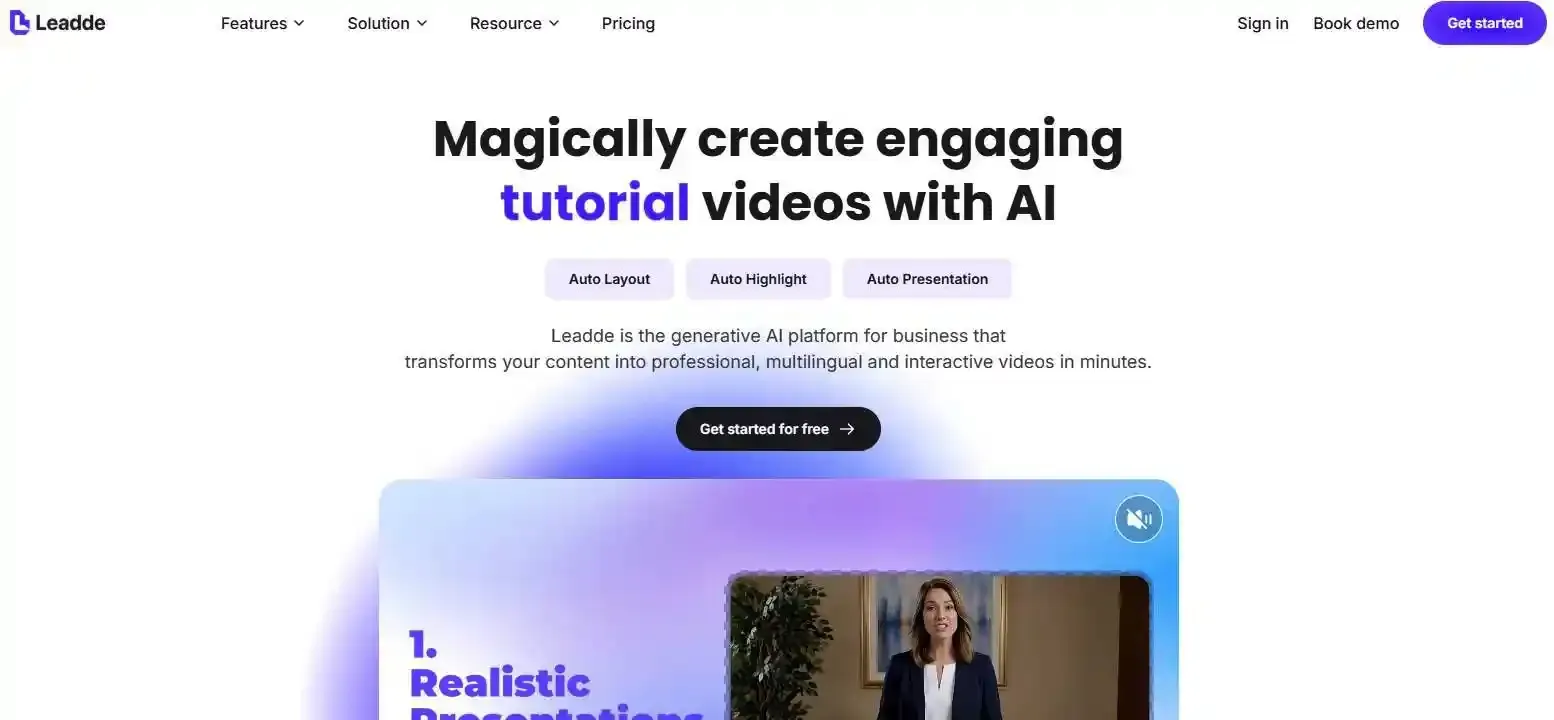
Leadde removes that bottleneck by turning documents, slides, and text into professional business videos automatically, helping teams create videos in minutes while saving over 80% in production costs and 90% in content creation time.
How to Record a Video on Canvas Using the Native Rich Content Editor?
Canvas includes a native recording tool inside the Rich Content Editor. This is the fastest option when you need to record a short webcam message, audio note, assignment response, discussion reply, or course update.
It is best for simple videos, not complex production. If you need long videos, polished training modules, multilingual versions, or reusable assets, you may need Canvas Studio, Kaltura, Panopto, or an AI video platform.
How Do You Find the Upload/Record Media Tool in Assignments, Pages, and Discussions?
Open the Canvas area where you want to add your video. This could be an Assignment, Page, Discussion, Announcement, or Quiz.
Then:
- Open the Rich Content Editor
- Click the Media icon in the toolbar
- Choose Upload/Record Media
- Open the Record tab
- Select your microphone and webcam
- Click Start Recording
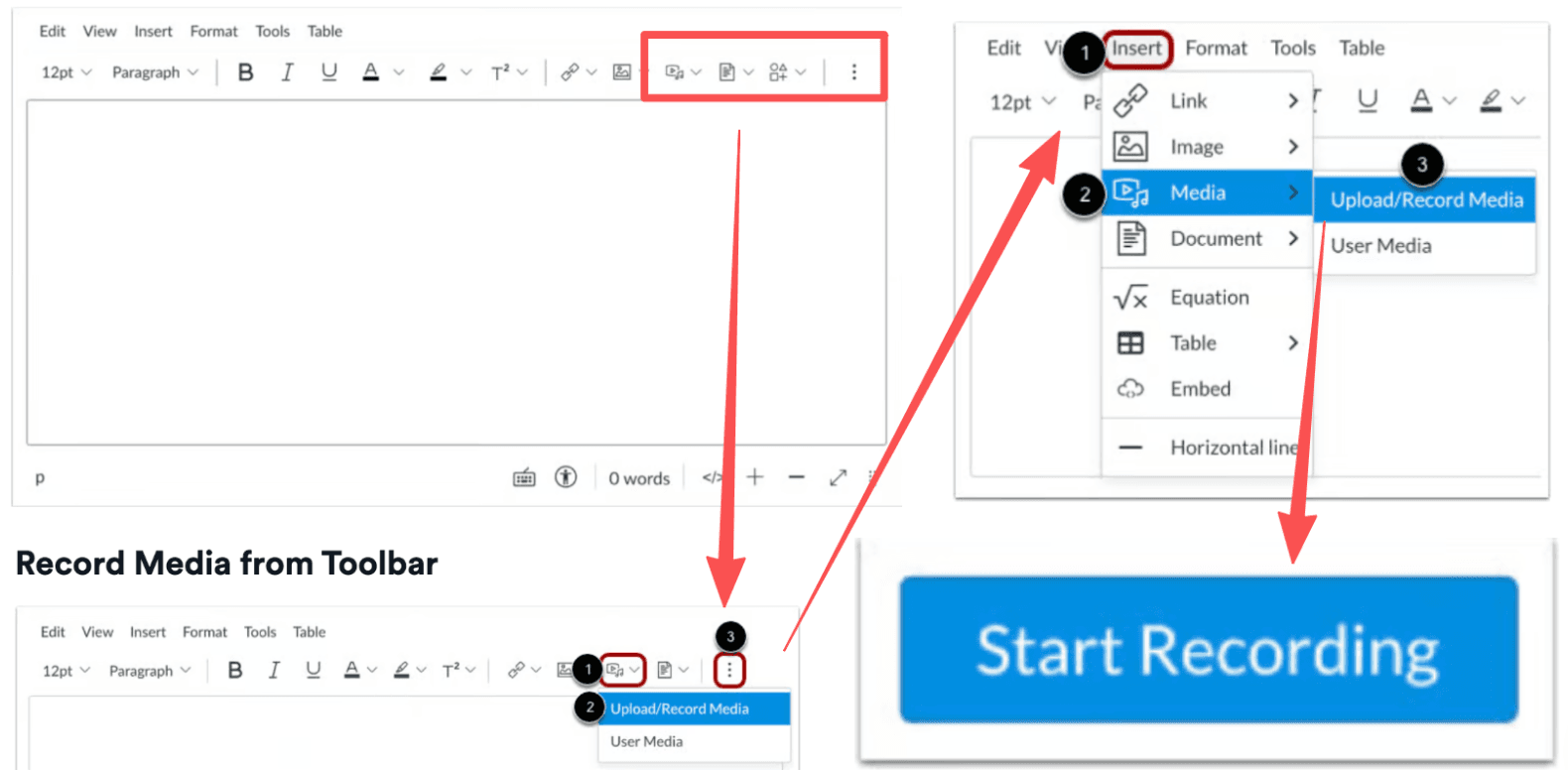
Instructure’s official video guide confirms that the RCE recording flow starts by opening a Canvas feature that supports the editor, selecting Upload/Record Media, opening the Record tab, and using the default microphone and webcam or changing device settings.
How Do You Allow Webcam and Microphone Access in Your Browser?
The first time you record, your browser will ask for permission to use your camera and microphone. Click Allow.
Before recording, check:
- Your webcam preview appears
- The correct microphone is selected
- Your audio meter responds when you speak
- Background noise is low
- Your browser has not blocked Canvas permissions
If the browser blocks access, open your browser site settings and allow camera and microphone access for your Canvas domain.
Why Must You Save, Reply, or Submit After Recording?
This is the mistake that causes many failed submissions.
Clicking Save Media only inserts the recording into the editor. It does not always finish the post, page, discussion reply, or assignment submission.
After saving the recording, complete the final Canvas action:
| Canvas Location | Final Action |
| Assignment | Click Submit Assignment |
| Discussion | Click Reply or Post Reply |
| Page | Click Save |
| Announcement | Click Save or Publish |
| Quiz / other RCE area | Follow the final submission or save button |
For assignment media submissions, Instructure explicitly shows that students must click Submit Assignment after recording or uploading media, and that a successful submission shows an alert and sidebar information.
What Are the Most Common Canvas Media Recording Problems and Fixes?
Canvas recording issues usually come from four areas: browser compatibility, camera permissions, audio input settings, and long upload/rendering times.
| Common Problem | Root Cause | Quick Fix / Best Practice |
| Distorted or clipping audio | Wrong mic selected or system input sensitivity is too high. | Lower system mic volume to 50%-75%; ensure the correct headset mic is selected. |
| "Stuck Rendering" or upload fails | Browser incompatibility (Safari encodes media differently). | Switch to the latest version of Google Chrome or Mozilla Firefox. |
| Video fails to upload completely | Internet timeout or video exceeds the recommended length. | Keep native RCE recordings under 15 minutes. Use external tools for long lectures. |
| Submission appears lost | Only clicked "Save Media" but didn't submit the actual page. | Always click the final "Submit Assignment", "Reply", or "Save" button at the bottom. |
Why Is Your Microphone Distorted, Too Quiet, or Not Detected?
Microphone problems often happen because Canvas is using the wrong input device. This is common when you have headphones, a USB microphone, a webcam microphone, and a laptop microphone connected at the same time.
Before recording:
- Click the Mic button in the recorder
- Choose the correct microphone
- Record a 5–10 second test clip
- Listen for clipping, echo, or background noise
- Move closer to the microphone if your voice is too quiet
If the sound is distorted, lower the microphone input level in your system settings. If your voice sounds far away, switch from the laptop mic to a headset or external microphone.
Why Does Safari Fail or Canvas Get Stuck Uploading?
Safari is a known problem for native Canvas RCE media recording. Instructure states that Safari does not support recording media in the Rich Content Editor and recommends Chrome or Firefox instead.
If Canvas gets stuck uploading or rendering:
- Do not close the browser tab immediately
- Check your internet connection
- Try Chrome or Firefox
- Shorten the recording
- Record externally and upload the file
- Contact your instructor or school support team if it is a graded assignment
For high-stakes assignments, record a backup copy outside Canvas before submitting.
Why Should Canvas Recordings Stay Under 15 Minutes?
Canvas can record media for any length of time, but long native recordings are risky. Instructure recommends using an external provider for media longer than 15 minutes because longer recordings take more time to render and may be interrupted by unstable internet.
Use native Canvas recording for:
- Short introductions
- Weekly updates
- Discussion replies
- Quick assignment responses
- Short audio/video feedback
Use another tool for:
- Long lectures
- Screen recordings
- Group presentations
- Reusable course modules
- Training videos for multiple departments
How Do Canvas Studio, Kaltura, Panopto, and Native Canvas Recording Compare?
Native Canvas recording is convenient, but it is not always the best choice. Schools often connect Canvas with tools like Canvas Studio, Kaltura, or Panopto to manage larger video workflows.
These tools are usually better for captions, screen recording, libraries, analytics, and reuse.
Which Tool Is Best for Quick Webcam Recording?
For a short webcam or audio message, use Canvas Record Media in the Rich Content Editor.
It is best when you need to:
- Reply quickly in a discussion
- Record a short assignment response
- Add a quick instructor note
- Give simple video feedback
- Avoid opening another tool
Native Canvas recording is simple, but it is not ideal for polished or reusable videos.
Which Tool Is Better for Screen Recording, Reuse, and Captions?
For screen recording, reusable lecture content, or caption workflows, use a dedicated video platform if your institution provides one.
| Tool | Best For | Limitations |
| Canvas Record Media | Quick webcam/audio recordings | Not ideal for long or reusable videos |
| Canvas Studio | Course videos, screen capture, comments, analytics | Availability depends on school setup |
| Kaltura | Media libraries, captions, lecture content | Institution-specific setup |
| Panopto | Lecture capture, screen recording, video management | Institution-specific setup |
| Zoom / Loom / OBS | External recording and backup workflows | May require upload into Canvas |
Canvas RCE videos support caption files, but native RCE recording does not mean captions are automatically generated in every Canvas environment. Instructure notes that Canvas videos support caption files after recording and saving.
Where Are Your Canvas Videos Saved and Managed?
Where your video is saved depends on how you record it.
| Recording Method | Likely Storage Location |
| RCE recording | Uploaded Media folder in User Files or Group Files |
| Assignment media submission | User Files |
| Institution media tool | My Media, Studio library, Kaltura library, Panopto folder, or similar |
| External recording | Your device or cloud storage before upload |
Instructure states that media recorded in the RCE is saved in the Uploaded Media folder in User Files or Group Files, and assignment submission media is stored in User Files.
Why Is Manual Canvas Video Recording Inefficient for Scalable Training and Course Creation?
Manual recording is fine for one short message. It becomes inefficient when you need dozens of videos, consistent quality, multilingual delivery, or reusable training content.
For schools, training teams, and enterprises, the real cost is not just recording time. It is the repeated cycle of planning, recording, reviewing, editing, captioning, updating, and localizing.
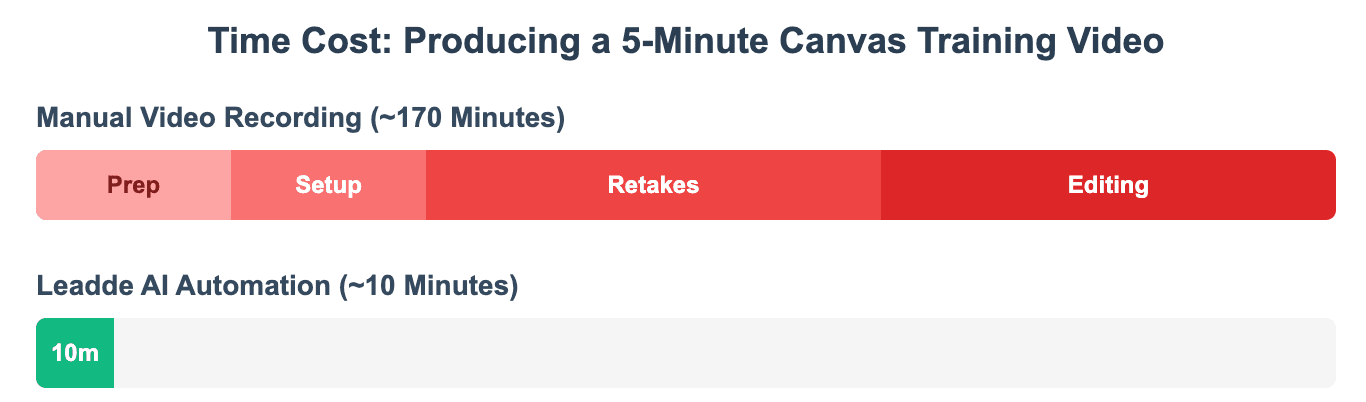
How Do Retakes, Camera Anxiety, and Editing Slow Down Video Production?
Many people underestimate how long a “quick” video takes.
A five-minute video may require:
- Script preparation
- Camera setup
- Lighting checks
- Audio testing
- Multiple retakes
- Editing
- Uploading
- Captioning
- LMS embedding
- Version updates later
Camera anxiety adds even more friction. Instructors, trainers, and subject-matter experts may know the content well but still hesitate when recording themselves.
That makes manual video creation hard to scale.
Why Is Manual Recording Hard to Scale Across Semesters, Teams, or Departments?
Manual recordings become outdated quickly.
A course policy changes. A product feature changes. A compliance rule changes. A department needs the same training in another region.
Then the team must record again.
This creates three problems:
- Consistency problem: every presenter explains the topic differently.
- Update problem: old videos remain in circulation.
- Scale problem: one expert becomes the bottleneck.
For reusable LMS training, teams need a workflow that makes updates faster than re-recording.
Why Is Multilingual LMS Training Difficult with Traditional Recording?
Traditional video production becomes especially slow when content must support multiple languages.
A multilingual training workflow may require:
- Translating the script
- Finding native speakers
- Re-recording voiceover
- Rebuilding captions
- Re-exporting videos
- Re-uploading each language version
- Keeping every version updated
This is why native Canvas recording is not enough for global training. It solves the recording problem, but not the localization problem.
How Can AI Automate Professional Canvas Training Videos with Leadde?
AI video creation is useful when the goal is not simply to “record yourself,” but to turn existing knowledge into structured, professional, reusable videos. Knowing how to use AI for training videos can completely transform your digital curriculum development.
Leadde is built for that workflow. It helps teams convert business content into AI-powered videos without traditional filming, manual editing, or repeated recording. Leadde’s official overview says the platform converts PowerPoint files, PDFs, Word documents, scripts, and text into structured video presentations, including outlines, scenes, voice-over scripts, and visual layouts.
How Can Leadde Turn Documents, Slides, and Text into Videos Automatically?
Instead of opening a webcam and recording manually, teams can start with the content they already have:
- PowerPoint decks
- PDFs
- Word documents
- SOPs
- Training manuals
- Scripts
- Plain text
Leadde can transform this material into structured video content. Its product page also states that it can convert DOC, PDF, PPT, text, and scripts into organized outlines with adjustable explanation depth and clarity.
This is useful for Canvas environments because many course and training videos begin as static materials.
How Can AI Avatars and Multilingual Video Help Scale LMS Training?
For large organizations, the challenge is not one video. It is creating many versions for different audiences, regions, and learning needs.
Leadde supports multilingual video creation and AI avatars. Its official product page currently states that it offers 175+ languages and 300+ AI avatars, while the uploaded official product overview also describes multilingual workflows and a large avatar library.
This matters for LMS teams because it helps reduce:
- Repeated presenter recording
- Manual localization work
- Inconsistent training delivery
- Delays when content changes
- Production dependency on one instructor or trainer
How Can Interactive Video Improve Canvas Learning and Onboarding?
A standard Canvas recording is passive. Learners watch it, pause it, and maybe ask questions elsewhere.
Interactive video changes that pattern.
Leadde’s official product information describes interactive video experiences where viewers can chat with video content and explore material more deeply. Its product page also describes real-time text chat with content for deeper insight and engagement.
For Canvas, this can support:
- Employee onboarding
- Product training
- SOP training
- Compliance learning
- Course explainers
- Customer education
- Internal knowledge sharing
The goal is not to replace every Canvas recording. It is to use the right method for the right job.
Which Canvas Video Creation Method Should You Choose in 2026?
The best method depends on your goal. A student submitting a short assignment does not need the same workflow as a company creating multilingual onboarding videos.
Use a simple decision path: quick task, reusable course asset, or scalable training system.
Best Option for Students Recording Assignments or Discussions
Students should usually use the tool required by the instructor.
Choose native Canvas recording when:
- The assignment asks for a short video response
- The discussion requires a video reply
- You only need webcam or audio
- The recording is under 15 minutes
- You can use Chrome or Firefox
Before submitting, students should check:
- The correct microphone and webcam are selected
- The video plays in preview
- The video appears in the submission box
- The final Submit Assignment button has been clicked
- A submission confirmation appears
Canvas assignment submissions also allow students to upload existing audio or video files when the instructor permits it, but Canvas will not accept media uploads larger than 500 MB.
Best Option for Instructors Creating Reusable Course Videos
Instructors should use native Canvas recording for quick, informal communication.
Use it for:
- Weekly updates
- Short reminders
- Clarifying assignment instructions
- Simple discussion prompts
- Quick audio/video feedback
Use Canvas Studio, Kaltura, Panopto, or a similar media platform for:
- Reusable lecture videos
- Screen recordings
- Caption workflows
- Semester-to-semester video libraries
- Analytics
- Long-term course content
This keeps Canvas native recording focused on speed while dedicated media tools handle more complex video needs.
Best Option for Teams That Need Fast, Scalable, Multilingual Video Creation
Teams that need professional, repeatable, multilingual video should consider AI video creation rather than relying solely on traditional methods or basic best training video software.
Leadde is strongest when the content already exists as a document, slide deck, script, or training manual. It can help teams create professional business videos faster, localize content, manage updates, and reduce production dependency on manual recording.
Use Leadde when you need:
- Fast training video production
- Multilingual LMS content
- AI avatars instead of repeated presenter recording
- Consistent style across departments
- Interactive learning experiences
- Reusable onboarding or training modules
- Lower video production time and cost
Conclusion
The best way to record a video on Canvas depends on the job.
For a short webcam or audio message, use the Rich Content Editor and the Upload/Record Media tool. For student assignments, record or upload the media, preview it, and always click Submit Assignment. For longer videos, screen recordings, captions, or reusable course content, use Canvas Studio, Kaltura, Panopto, or another dedicated media tool.
For scalable training, manual recording is often the bottleneck. When teams need to turn documents, slides, and text into polished, multilingual, reusable videos, an AI platform like Leadde can move the workflow beyond one-off Canvas recordings and into repeatable video production.