Best Animation Tools for Educators in 2026: 12 Top Picks

The best animation tools for educators in 2026 depend on what you need to create. Canva and Powtoon are useful for animated presentations, Blender and Krita fit animation learning, while AI tools help educators turn existing lesson materials into videos faster. The best choice is not the tool with the most features, but the one that makes a concept clearer with the least unnecessary work.
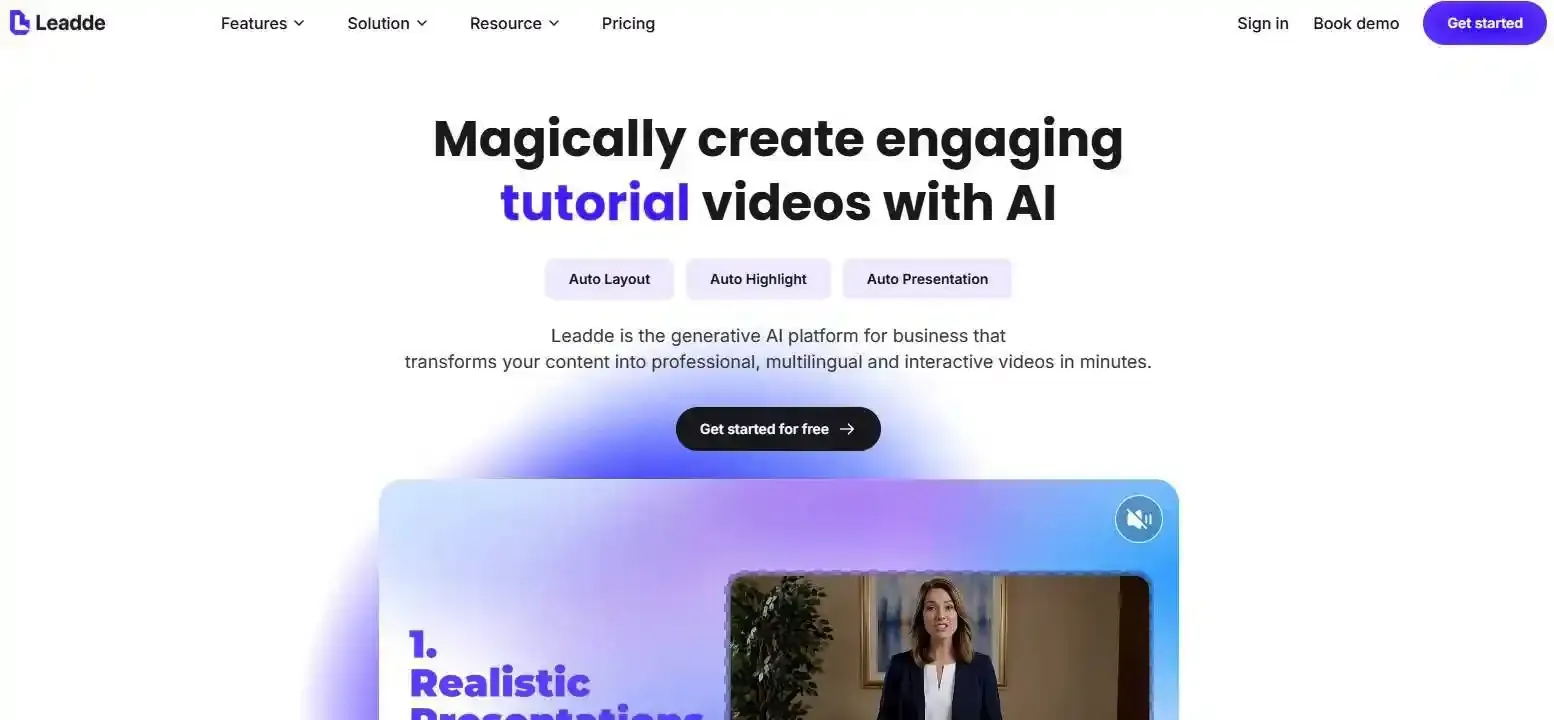
For educators who already have a PDF, PowerPoint, lesson plan, or training document, Leadde offers a different workflow: it turns existing content into structured videos with generated scenes, narration, and multilingual presentation instead of requiring every scene to be built manually.
In this guide, I compare the best tools for AI video, animated presentations, whiteboard explainers, interactive learning, 2D and 3D animation, and student projects, while also looking at free-plan limits, learning curves, classroom compatibility, accessibility, AI accuracy, and how easy each tool is to update.
Best Animation Tools for Educators: Which Tools Are Best in 2026?
The best animation tool depends on the teaching task. Teachers creating lessons usually benefit from fast, template-based or AI-assisted tools, while students learning animation need software that exposes drawing, timelines, keyframes, rigging, and 3D workflows. Educators who already have PDFs, slides, or lesson documents should also consider document-to-video tools instead of rebuilding content manually.
| Tool | Best For | Animation Type | AI | Free/Education Option | Learning Curve |
| Leadde | PDFs, PowerPoints, and lesson documents to video | Structured AI video | Yes | Check current plan | Low |
| Canva for Education | Animated presentations and visual lessons | Slides, motion, interactive content | Yes | Free for eligible education users | Low |
| Powtoon | Classroom explainers and storytelling | Characters, presentations | Yes | Education options available | Low–Medium |
| Animaker | Character animation and multilingual video | 2D, avatars, AI video | Yes | Free plan with watermark | Low–Medium |
| VideoScribe | Step-by-step explanations | Whiteboard animation | Limited/assisted | Education pricing | Low |
| Genially | Interactive learning | Animation, quizzes, branching | Yes | Free education plan | Low |
| Adobe Express | Quick classroom media | Graphics, video, animation | Yes | Free K–12 education offer | Low |
| Vyond | Training and polished explainers | Characters, scenarios, AI video | Yes | Free trial | Medium |
| Blender | Teaching 3D animation | 3D, rigging, keyframes | Some AI ecosystem tools | Free/open source | High |
| Krita | Hand-drawn 2D animation | Frame-by-frame 2D | No core dependency | Free/open source | Medium |
| OpenToonz | Advanced 2D animation learning | Traditional 2D | No core dependency | Free/open source | Medium–High |
| FlipaClip | Beginner animation on mobile devices | Frame-by-frame 2D | Limited | Check current plan | Low |
Canva now combines animations, voiceovers, quizzes, classroom resources, and AI-assisted creation in its education environment. Powtoon supports teachers and students with educational templates and can convert PowerPoint presentations into video. Animaker combines AI text-to-video with characters, subtitles, voices, and translation.
For whiteboard-style explanations, VideoScribe offers education templates for concepts such as processes and lesson plans. Genially is stronger when learners need to click, explore, answer questions, or interact with content rather than simply watch it. Adobe Express adds classroom management, assignments, animations, and education-specific privacy controls for K–12 users.
For educators who already have substantial source material, Leadde takes a different approach. Instead of starting with an empty animation canvas, it can turn documents, PDFs, PowerPoints, and learning materials into structured scenes, scripts, narration, and visual presentations. That workflow is especially relevant when the teaching content already exists and the main problem is converting it into video efficiently.
Blender, Krita, and OpenToonz belong in a different category. They are better suited to teaching animation itself. Blender includes professional animation and rigging tools; Krita is a free open-source painting application with animation capabilities; OpenToonz is free and can be used for professional, amateur, and school animation production.
| Tool | Best For | Animation Type | AI Enabled | Free/Education Option | Learning Curve |
| Leadde | PDFs, PowerPoints, and lesson documents to video | Structured AI video | Yes | Check current plan | Low |
| Canva for Education | Animated presentations and visual lessons | Slides, motion, interactive | Yes | Free for eligible education users | Low |
| Powtoon | Classroom explainers and storytelling | Characters, presentations | Yes | Education options available | Low–Medium |
| Animaker | Character animation and multilingual video | 2D, avatars, AI video | Yes | Free plan with watermark | Low–Medium |
| VideoScribe | Step-by-step explanations | Whiteboard animation | Limited | Education pricing | Low |
| Genially | Interactive learning | Animation, quizzes, branching | Yes | Free education plan | Low |
| Adobe Express | Quick classroom media | Graphics, video, animation | Yes | Free K–12 education offer | Low |
| Vyond | Training and polished explainers | Characters, scenarios, AI video | Yes | Free trial | Medium |
| Blender | Teaching 3D animation | 3D, rigging, keyframes | Some | Free / Open source | High |
| Krita | Hand-drawn 2D animation | Frame-by-frame 2D | No | Free / Open source | Medium |
| OpenToonz | Advanced 2D animation learning | Traditional 2D | No | Free / Open source | Medium–High |
| FlipaClip | Beginner animation on mobile devices | Frame-by-frame 2D | Limited | Check current plan | Low |
How Should Educators Choose the Right Animation Tool?
Start with the learning task, not the software.
Are you creating lessons, student projects, or teaching animation skills?
A teacher making a two-minute science explainer does not need the same tool as a student learning rigging. Likewise, a student creating an animated book report may need something simpler than professional animation software.
For teacher-created lessons, prioritize speed, clarity, editing, captions, and content reuse. For student projects, ease of creation and classroom access matter more. For animation courses, the software should expose real animation principles such as frame timing, keyframes, drawing, or 3D rigging.
Do you need live teaching, prerecorded video, or interactive content?
Live teaching often works better with teacher-controlled slides because the instructor decides when the next visual appears. Prerecorded video benefits from fixed narration and timing. Interactive tools such as Genially serve a third use case: learners can explore content, answer questions, and move through interactive content. Genially currently supports interactions, animations, live collaboration, and imports from PDF, PowerPoint, and Google Slides.
Use the minimum amount of motion your lesson needs
A useful rule is minimum viable motion:
Static visual → GIF → animated slide → whiteboard explanation → AI video → custom 2D/3D animation.
Do not choose a more complex format unless movement adds instructional meaning. If a diagram plus two animated arrows explains the concept, a fully rigged character scene may simply add production work.
| Teaching Goal / Scenario | Recommended Motion Level | Example Tools to Use |
| Live Classroom Teaching | Animated Slides (Teacher controlled) | Canva, Adobe Express |
| Interactive Self-Paced Learning | Clickable content, branching, quizzes | Genially |
| Converting Existing PDFs/Slides | AI Video with structured narration | Leadde |
| Step-by-step Process Explanations | Whiteboard explanation / Light 2D | VideoScribe, Powtoon |
| Teaching Animation Principles | Custom 2D / 3D with Keyframes & Rigging | Blender, Krita, OpenToonz |
How Did We Evaluate the Best Animation Tools for Educators?
A useful education tool should reduce production friction without reducing instructional control.
How quickly can a teacher create the first usable video?
Learning curve matters more than the theoretical feature ceiling. Template and AI tools generally shorten the path from idea to usable video, while Blender or OpenToonz make more sense when mastering animation is itself the learning objective.
The number of handoffs matters too. A traditional workflow may require separate software for illustration, animation, narration, captions, and editing. A more integrated workflow can reduce both time and file management.
Can educators reuse, edit, and update existing teaching content?
This is one of the most overlooked evaluation criteria. A lesson may need a new statistic, revised policy, translated narration, or updated diagram next semester.
For recurring educational content, maintainability is part of quality. A slightly simpler video that another teacher can edit may be more useful than a polished animation that has to be rebuilt whenever the curriculum changes.
Tools that accept existing source material can reduce duplicated work. Powtoon, for example, promotes PowerPoint-to-video conversion, while Genially can import PDF, PowerPoint, and Google Slides. Leadde extends this idea by analyzing document structure and generating the video flow itself.
Is the pricing and school workflow actually practical?
“Free” can mean open source, a limited free plan, an education-only offer, or a trial.
Krita and OpenToonz are genuinely free and open source. Animaker offers a free plan but states that free exports contain a watermark. Adobe Express for Education is free for K–12 schools and districts, while Canva offers Canva Education to eligible education users. Genially has a free education tier with student collaboration and interactive features.
Schools should also check student accounts, managed-device compatibility, privacy controls, captions, and how finished work will be shared.
How Can Teachers Turn PDFs, PowerPoints, and Lesson Notes Into Animated Videos?
For many educators, the fastest workflow begins with material they have already created.
From existing material to script and visual scenes
A practical workflow is:
- Choose one concept worth visualizing. A process, sequence, relationship, or difficult abstract idea is usually a better candidate than an entire chapter.
- Use the existing source. Start with the PDF, PowerPoint, lesson notes, study guide, or training document instead of rewriting everything.
- Structure it into scenes. Decide what learners need to see, hear, and understand at each step.
- Choose the production method. Build scenes manually with a template tool, or use an AI/document-to-video workflow to generate a first draft.
- Review, revise, caption, and publish.
Leadde is designed around this source-first workflow: the platform analyzes content logic and information hierarchy before generating scenes, scripts, narration, and visual presentation.
Review AI-generated scripts, visuals, and narration
AI can shorten production, but educational accuracy still requires human review.
Check labels, diagrams, sequence, scale, formulas, dates, pronunciation, and whether the visual actually represents the source material. This becomes especially important in science, mathematics, technical training, and other subjects where a plausible-looking visual can still teach the wrong relationship.
Build for the next update, not only the first export
Save reusable intros, diagram styles, narration patterns, quiz scenes, and summary layouts. If only one fact changes next semester, the ideal workflow lets you replace one scene rather than recreate the whole video.
This is where document-based and reusable-scene workflows can create more long-term value than one-off custom animation.
When Does Animation Actually Improve Learning?
Animation is most useful when motion itself carries information.
Which concepts benefit most from animation?
Animation can clarify movement, sequence, change over time, spatial relationships, and processes that are difficult to observe directly. Examples include cell division, mechanical systems, supply-and-demand shifts, or a multi-step procedure.
However, animation is not automatically superior to static graphics. Research on multimedia learning shows that learners have limited processing capacity, and dynamic visuals can become difficult to follow when information disappears too quickly. Segmenting animations into meaningful parts can help learners process each stage before moving on.
When can too much animation make learning harder?
Decorative movement, complex backgrounds, unnecessary music, and excessive on-screen information can increase extraneous cognitive load.
Evidence-based educational video design instead emphasizes signaling to direct attention, segmenting to break information into manageable units, and weeding to remove material that does not support the learning goal. Narration and visuals should complement each other rather than repeat the same dense text.
A simple principle works well in practice:
If the movement does not explain something, question whether it needs to move.
Should animation replace the teacher or support the teacher?
Not every animation needs prerecorded narration.
In live teaching, a silent or lightly labeled animation can let the educator explain the process, pause, ask students to predict what happens next, and adapt the explanation in real time. Prerecorded narration is more useful for self-paced lessons, revision, flipped classrooms, and asynchronous training.
The strongest workflow is often not “AI replaces the presentation.” It is animation provides the visualization; the educator provides context, questioning, and judgment.
| Animation Practice | Example Scenario | Impact on Learning (Cognitive Load) | Recommendation |
| Illustrating change over time | Cell division, mechanical systems | Reduces intrinsic load by showing invisible processes | Use (Highly Recommended) |
| Signaling / Cuing | Arrows or highlights pointing to a key term | Directs learner attention effectively | Use (Supports focus) |
| Segmenting | Pausing the animation after each step | Prevents cognitive overload | Use (Keep chunks small) |
| Decorative movement | Bouncing text, excessive slide transitions | Increases extraneous load (distracting) | Avoid (Keep it static) |
| Redundant text & audio | Reading a dense paragraph aloud exactly | Splits attention unnecessarily | Avoid (Use visuals + narration instead) |
What Should Educators Know Before Using Animation Tools in a School?
A classroom tool has requirements that ordinary creator software may not.
Privacy, student accounts, accessibility, and ownership matter
Before asking students to sign up, check the vendor’s education and privacy documentation rather than assuming a consumer account is appropriate.
Adobe Express for Education, for example, includes education-specific privacy controls, school-managed accounts, SSO options, and classroom features. Genially’s education plan states support for student collaboration and FERPA-COPPA/GDPR compliance.
Age requirements also matter. Vyond explicitly notes that its former GoAnimate for Schools product was phased out and directs school-age users toward alternatives designed for children; its current education guidance is more appropriate for educators and adult learners.
Accessibility should be part of creation from the beginning. Captions, readable text, clear contrast, and logical pacing are more useful than adding accessibility after export.
Can the content survive across devices and future semesters?
Check whether the tool works on school-managed devices, whether students need email accounts, whether projects can be shared or exported, and whether another teacher can continue editing them later.
This changes the definition of value. A reusable, editable animation can be more valuable than a beautiful one-off video.
It also reduces vendor dependence: the school should know what happens to its teaching materials if a subscription changes, a staff member leaves, or the course moves to another platform.
Common mistakes educators should avoid
The most common mistakes are choosing the most powerful tool instead of the most usable one, rebuilding material that already exists in PDFs or slides, adding motion without an instructional purpose, publishing AI-generated visuals without checking them, ignoring captions and mobile viewing, and producing one long video where several short reusable segments would work better.
Research on multimedia learning supports this simpler approach: remove irrelevant elements, highlight what matters, and divide complex explanations into meaningful segments.
Frequently Asked Questions About Animation Tools for Educators
What is the best animation tool for educators?
There is no single best option. Canva and Powtoon suit visual presentations, VideoScribe works well for whiteboard explanations, Leadde is useful when educators already have PDFs or lesson documents, and Blender or Krita make more sense when students are learning animation skills.
What is the best free animation tool for teachers?
For traditional animation, Krita and OpenToonz are free and open source. Canva, Adobe Express, Genially, and Animaker also provide education or free options, but eligibility, watermarks, credits, and export limits differ, so educators should check the current plan before adopting a tool at scale.
Can teachers create animated videos without animation skills?
Yes. Template-based tools such as Canva, Powtoon, VideoScribe, and Animaker reduce the need for traditional animation skills. AI and document-to-video tools go further by generating scripts, scenes, narration, or first drafts from prompts and existing teaching materials.
Can AI turn a PDF or PowerPoint into an animated educational video?
Yes. Some modern AI video workflows can use documents or presentations as source material. Leadde, for example, is designed to turn PDFs, PowerPoints, documents, and learning materials into structured video scenes and narration. Educators should still review factual accuracy and visual interpretation before publishing.
What animation tools are best for students?
It depends on the goal. FlipaClip is approachable for beginner mobile animation, Krita and OpenToonz suit 2D animation learning, and Blender is a stronger choice for students developing 3D animation and rigging skills.
Is Canva good enough for educational animation?
For animated slides, short explainers, classroom visuals, quizzes, and student projects, often yes. Canva for Education now includes animations, voiceovers, interactive tools, AI-assisted creation, and accessibility features. For detailed character animation, professional 3D work, or complex frame-by-frame production, a specialist tool is more appropriate.
Conclusion
There is no single best animation tool for every educator. The right choice depends on whether you need to explain a concept, turn existing lesson materials into video, create an interactive activity, or teach animation itself. Start with the simplest workflow that communicates the idea clearly, then add more sophisticated animation only when it improves the learning experience.