How to Create Multilingual PowerPoint Videos with AI in 2026

To create multilingual PowerPoint videos with AI, upload your .pptx file to an AI video platform that can extract slide content, generate a voiceover script, translate it into target languages, and produce localized videos with AI voices, subtitles, avatars, and adaptive visual layouts.
The best workflow helps you turn PPT into elearning video formats, converting one source deck into multiple language-ready videos without manually recording, editing, or rebuilding every version.
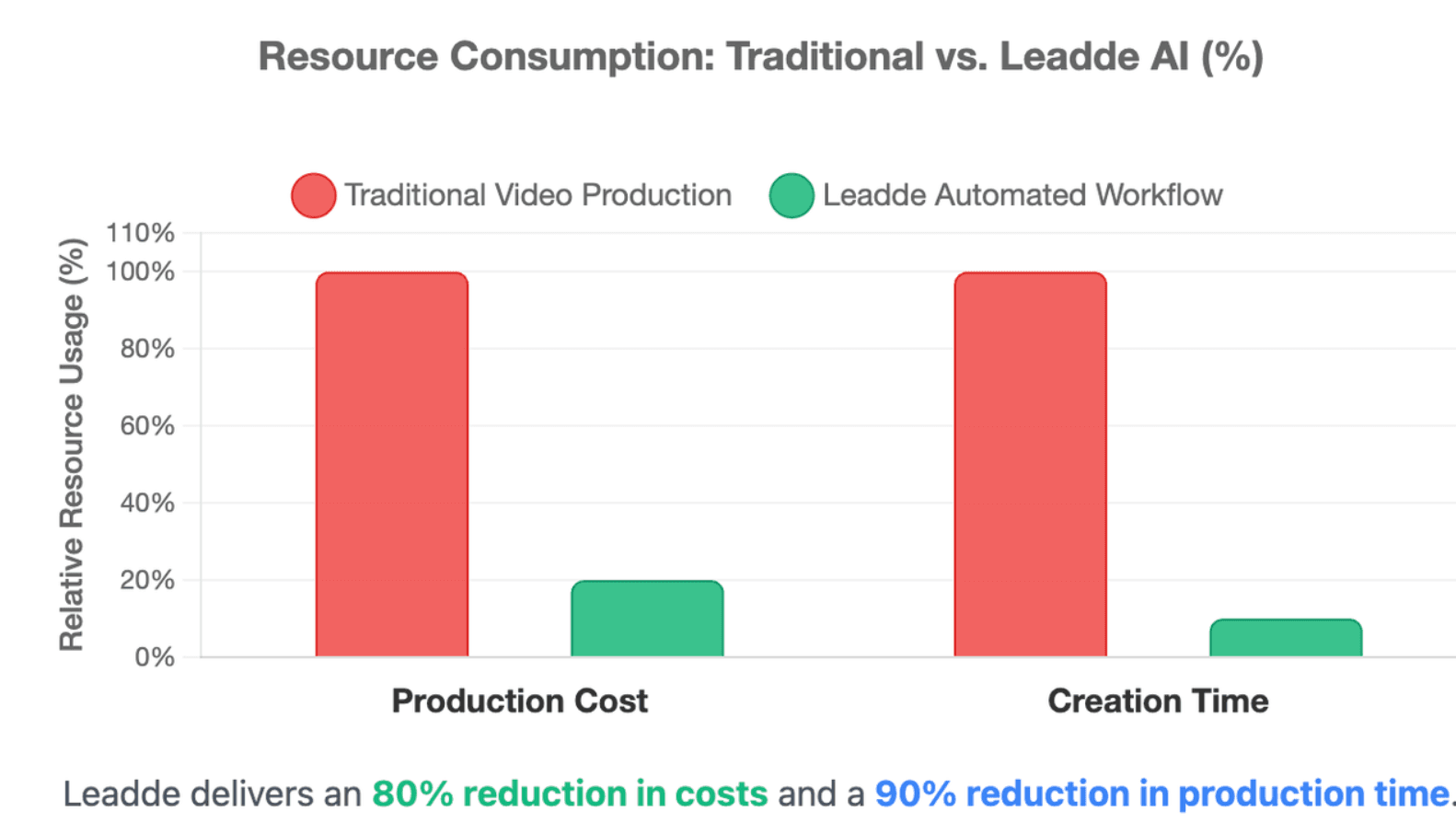
Manual localization breaks layouts, delays launches, and drains budgets with repeated recording and editing. Leadde solves this by offering a streamlined ppt to video converter that turns PowerPoint files and documents into professional multilingual business videos automatically, helping teams create videos in minutes while saving over 80% in production costs and 90% in content creation time.
How to Create Multilingual PowerPoint Videos with AI: A Step-by-Step Workflow
A strong multilingual PowerPoint video workflow starts with one clean source deck and ends with several localized video versions. The goal is not only to export slides as an MP4, but to create videos that include narration, subtitles, translated text, visual consistency, and update control.
PowerPoint itself can save a presentation as an MP4 or other video format, but that mainly creates a slideshow-style video. For AI narration, avatars, translated scripts, editable scenes, and scalable localization, global teams need a more complete document-to-video framework.
Step 1: Upload and Analyze the PowerPoint File
The localization process begins by uploading your core presentation deck directly into the AI platform. The system ingests standard .pptx files and parses structured design layouts.
Advanced semantic parsers read the spatial positioning of your visual assets and text blocks. The AI automatically isolates background imagery from active text containers to prepare individual slide layers for multi-language migration.
[PowerPoint Ingestion] ───> [Spatial Parsing] ───> [Layer Isolation]
Step 2: Generate the Video Outline, Scenes, and Voiceover Script
Once the slide ingestion is complete, the AI framework automatically extracts text from your layout slides and speaker notes. This text is parsed to generate structured video scenes and clean narrative scripts.
The platform maps out your presentation hierarchy and assigns timeline cues for visual transitions. You can review the auto-generated script blocks side-by-side with corresponding slide previews before triggering speech engines.
Step 3: Translate Scripts, Voiceovers, Subtitles, and On-Screen Text
The core automation engine translates your visual slide copy, contextual subtitles, and script voiceovers simultaneously. The setup applies your localized text inputs across 170+ global languages and regional accents.
Advanced platforms execute automated speech-synthesis pipelines that generate high-fidelity vocal tracks. The AI synchronizes these localized voiceovers directly with your slide timeline to ensure fluid content delivery.
Step 4: Review, Render, Export, and Manage Each Language Version
The final workflow step involves a complete timeline verification inside the multi-language workspace. Users preview the synchronized digital presenters alongside translated slide graphics to catch any contextual issues.
Once checked, the platform renders all language variants simultaneously in parallel processing pipelines. Teams can then export standard video files or push interactive modules straight to corporate knowledge systems.
What Is AI Presentation Video Localization and How Does the Document-to-Video Framework Work?
AI presentation video localization is the process of turning one source presentation into multiple localized video versions with AI-generated scripts, narration, subtitles, avatars, and visual layouts.
Implementing an end-to-end video localization global audience guide ensures your messaging remains intact. Instead of treating PowerPoint as a flat slideshow, it treats the deck as source content that can be analyzed, rewritten, translated, narrated, and rebuilt into a professional video.
From Static Slides to Structured Video Scenes
Traditional localization workflows treat slide presentations as flat, un-editable graphic assets. The modern document-to-video framework breaks these assets down into dynamic visual layers.
The AI identifies spatial relationships between logos, text boxes, and charts to convert flat slides into video frames. This structural breakdown allows individual screen elements to adjust dynamically to target language requirements.
How AI Voiceover, Text-to-Speech, and Avatars Replace Manual Recording
Traditional multilingual video production often requires a new voice actor, recording session, editing timeline, and review cycle for every language. AI voiceover and text-to-speech reduce this workload by generating narrated audio from approved scripts. Learn how to narrate PowerPoint presentations automatically using these virtual engines.
AI avatars can add a presenter layer when a human-like guide improves trust or attention. This is useful for onboarding, compliance, product training, and sales enablement where a consistent presenter experience matters.
However, avatars are not always required. Some videos only need a clean AI voiceover, subtitles, and strong slide visuals. The right choice depends on audience expectations, budget, and content type.
Why Multilingual PowerPoint Videos Need More Than Simple MP4 Export
A simple MP4 export preserves the slide sequence, but it does not solve localization. It does not automatically create translated narration, subtitles, regional voice tracks, localized layouts, or version control.
Microsoft’s own PowerPoint support confirms that presentations can be saved as videos such as MP4, which is useful for distribution. But a multilingual business workflow needs translation, narration, layout adaptation, and review after the export stage. If you need a refresher, check the steps on how to save PowerPoint as video files.
For global teams, the real value is not “one video file.” It is a repeatable system for turning one deck into many accurate, branded, language-ready videos.
Which AI Tools Are Best for Turning PowerPoint Presentations into Multilingual Videos?
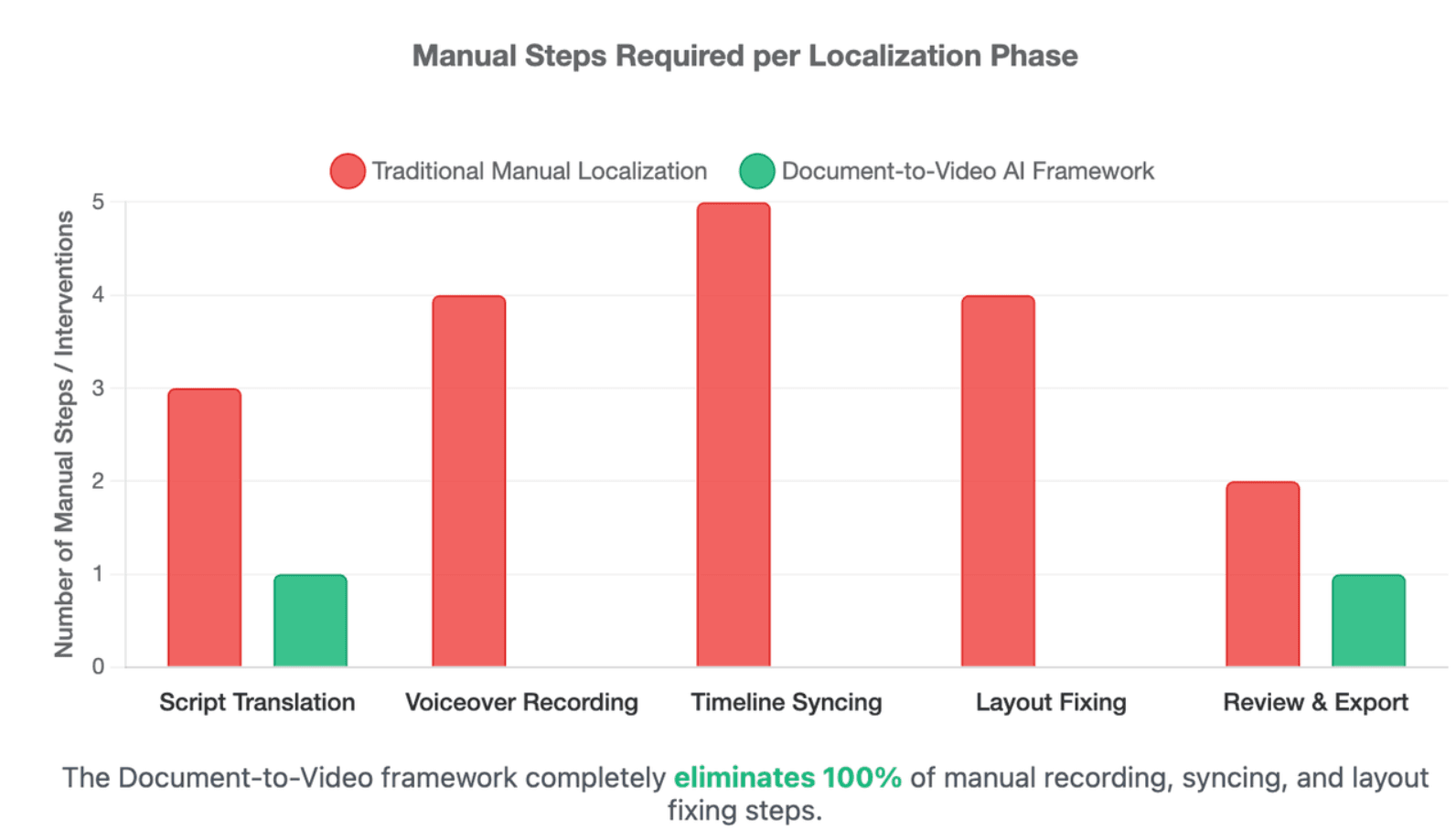
The best tool depends on your workflow. Some tools are strong for single-language narration. Others are built for avatar videos, enterprise training, or document-to-video automation.
A good selection framework is:
| Need | Best-Fit Workflow | AI Video Workflow |
| Simple slideshow MP4 | PowerPoint export | AI draft + review |
| Single-language AI video draft | Copilot / Clipchamp | AI draft + local QA |
| Avatar-led presentation video | Synthesia, HeyGen, Colossyan, Elai | AI voice or avatar narration |
| Voiceover-focused narration | Narakeet, SlideSpeak-style tools | Automated scene rendering |
| Enterprise document-to-video localization | Leadde | Update source and refresh versions |
| Brand typography | Fonts may not support all language characters | Manage versions in one workflow |
Microsoft Copilot and Clipchamp for Single-Language Narrated Videos
Microsoft Copilot and Clipchamp are useful for teams already working inside Microsoft 365. Microsoft’s support documentation explains that users can create a video in the Microsoft 365 Copilot app by describing the video and optionally adding a file to help Copilot understand the content. (微软支持)
This works well for fast internal video drafts, team updates, or single-language workplace communication. It is less ideal when the main need is large-scale multilingual version control, multiple regional voice tracks, avatar localization, and content lifecycle management.
Synthesia, HeyGen, Colossyan, and Elai for Avatar-Based Presentation Videos
Synthesia, HeyGen, Colossyan, and Elai all support different versions of slide-to-video or presentation-to-video workflows.
Synthesia says users can upload PowerPoint files and turn them into AI videos with avatars, voiceovers, and branding. Its documentation also describes importing .pptx files to create narrated videos.
HeyGen positions its PowerPoint-to-video tool around importing PPT, PPTX, or PDF files, automatically turning slides into scenes, and adding lifelike avatars and voiceovers.
Colossyan highlights a useful decision point: use simple PowerPoint “Save as video” for slideshow MP4, but use AI narration, avatars, or editable scenes when you need a richer video workflow.
Panopto’s AI Video Studio, Elai, is positioned around multilingual training at scale and supports PowerPoint-to-video as a primary workflow for training content. (Panopto)
Leadde for Document-to-Video Workflows, Multilingual Video Creation, and Enterprise Content Management
Leadde delivers an advanced architectural setup designed for automated enterprise document-to-video scale. The architecture preserves corporate identity rules perfectly while providing complete design flexibility.
The platform offers a disruptive subscription structure. Its Starter Plan costs just $19/month and includes unlimited video generation, removing the financial barriers of legacy credit meters.
Enterprise Scale: [PPTX Document] ───> [Leadde Unlimited Engine] ───> [170+ Localized Variants]
Leadde supports 170+ languages with regional accents and allows users to generate custom avatars directly from simple photos. The ecosystem includes unique workflow features like auto-highlighting to maximize learner engagement.
Why Do Translated PowerPoint Layouts Break in Traditional AI Video Tools?
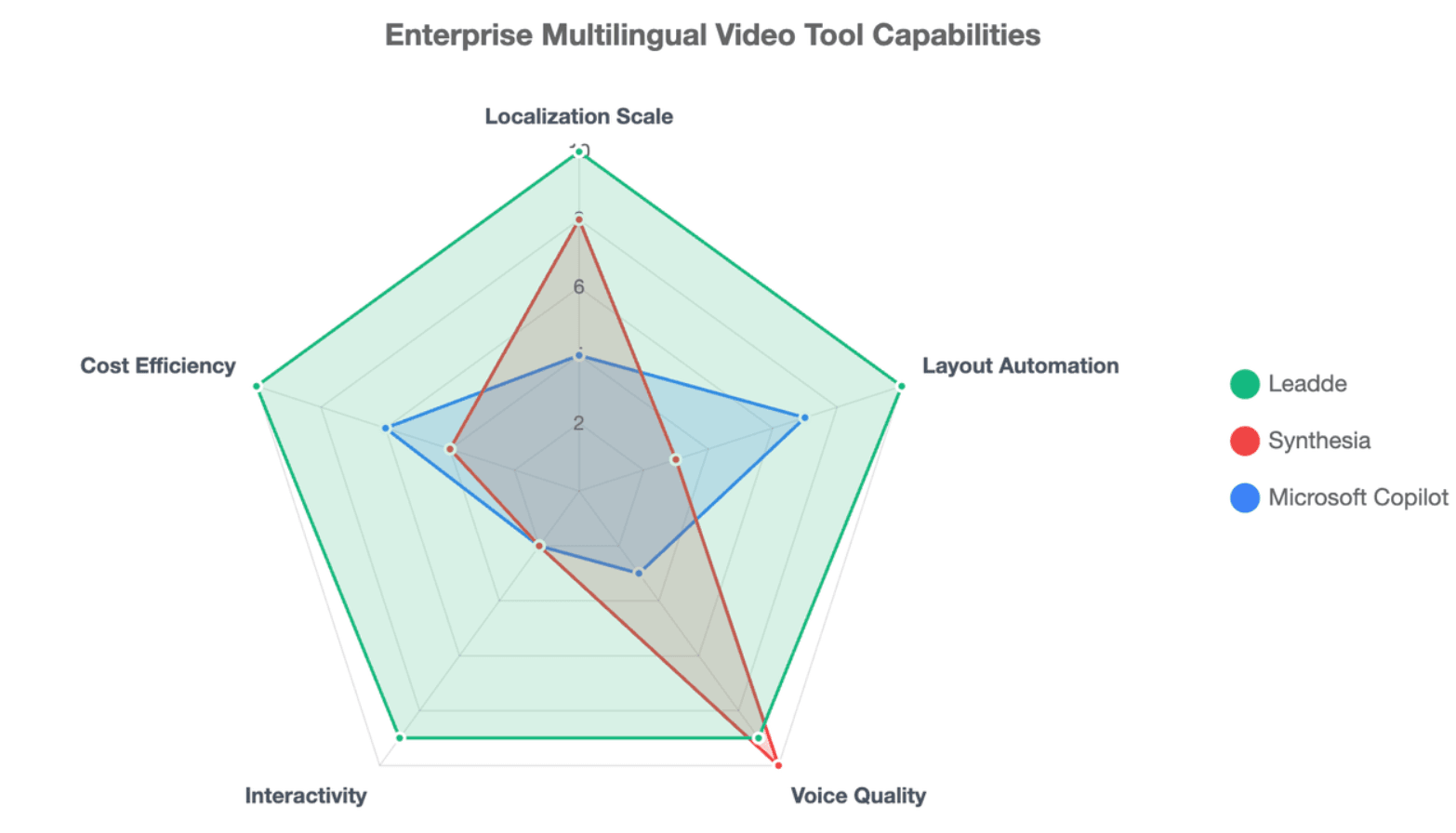
Translated PowerPoint layouts often break because language expansion changes the visual balance of a slide. A sentence that fits cleanly in English may become much longer in German, Spanish, French, or other languages.
This is one of the biggest hidden problems in multilingual presentation videos. The translation may be accurate, but the layout can still look unprofessional.
The Text Expansion Problem in Multilingual Slide Design
A major issue in document translation is the text expansion phenomenon. When localization tools translate English copy into languages like German, French, or Italian, the text volume expands by 20% to 30%.
Traditional video software leaves text boxes static during translation. This mismatch causes translated text strings to spill out of design grids, resulting in broken layouts for your international users.
How Rigid Templates Can Distort Typography, Charts, and Brand Layouts
Legacy applications rely on unyielding, non-editable slide templates. When translated content alters text length, these structures fail to accommodate the new visual footprint.
This technical limitation leads to overlapping text lines, hidden chart legends, and misaligned brand logos. Corporate teams are then forced to manually redesign individual frames, wasting valuable production time.
How Auto Layout, Layer-Level Editing, and Visual Highlighting Improve Localized Videos
Leadde eliminates these layout issues through intelligent automation. The system features a native Auto Layout engine that dynamically reshapes text containers and resizes brand typography during translation.
[Expanded Text Ingestion] ───> [Auto Layout Engine] ───> [Proportional Grid Realignment]
The system works alongside an automated Auto Highlight algorithm that applies visual emphasis to key phrases in real time. This maintains clear presentation hierarchies across all language versions automatically.
How Can Global Teams Reduce PowerPoint Video Localization Costs and Production Time?
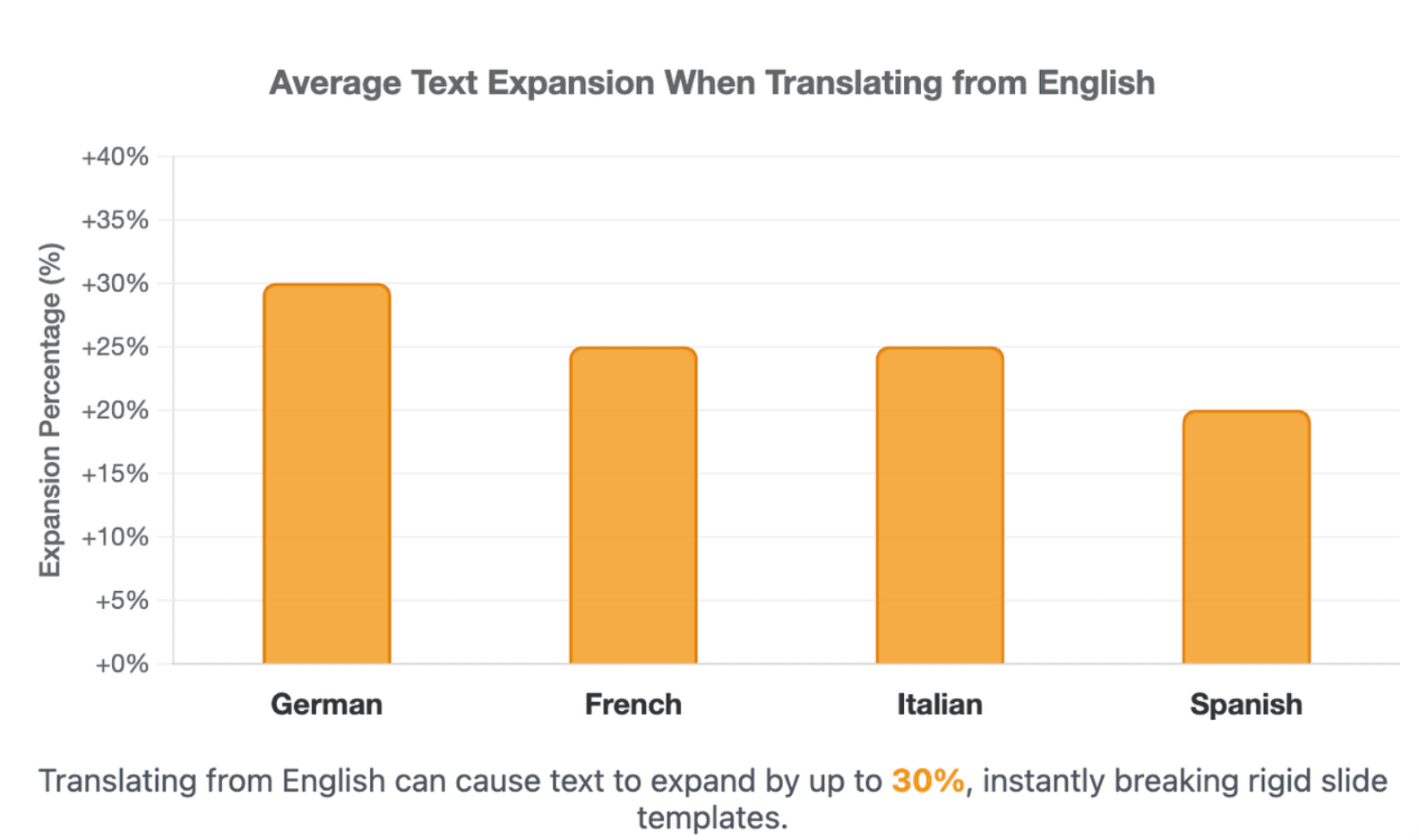
Global teams reduce localization cost by replacing repeated manual work with a repeatable AI workflow. The biggest savings usually come from avoiding repeated recording, re-editing, and one-off agency production for every language.
The goal is not to remove human review. The goal is to reserve human effort for quality control, terminology, and cultural accuracy while AI handles repetitive production work.
Why Manual Translation, Voiceover Recording, and Editing Become Expensive at Scale
Traditional localization pipelines involve fragmented, siloed work. Agencies charge hefty fees per word for translation, while voice talents bill teams by the hour for localized recording sessions.
When you factor in video editors manually syncing audio with slide animations, costs rise quickly. This manual approach becomes too slow and expensive for companies managing large catalogs of internal training materials.
How AI Video Workflows Reduce Re-Recording, Re-Editing, and Agency Dependence
Automated AI platforms consolidate translation, voice generation, and slide timing into a unified digital workspace. Updates to training decks no longer require booking studio time or renegotiating agency contracts.
When product details or corporate compliance terms change, users modify the script text inside the platform dashboard. The system renders the updated multi-language assets instantly, reducing development overhead.
How to Calculate ROI for Training, Onboarding, SOP, and Product Education Videos
Enterprises measure localization returns across software industries, tech outsourcing, and precision manufacturing setups. Transitioning to automated tools delivers an immediate drop in production costs.
Moving to systems like Leadde allows teams to save over 80% on traditional video production budgets. At the same time, it reduces end-to-end content creation times by 90%, helping companies deploy training materials faster.
Are One-Way MP4 Videos Enough, or Do You Need Interactive Multilingual Presentation Videos?
One-way MP4 videos are useful when the goal is simple distribution. They work well for announcements, short explainers, and basic learning content.
But for global training, product education, or knowledge transfer, flat MP4 files can become limiting. Viewers may need to search, ask questions, revisit specific sections, or access updated language versions.
The Limits of Flat Video Files for Global Training and Knowledge Sharing
A flat video file has several structural limits:
- It is hard to search inside the content.
- Viewers cannot ask follow-up questions.
- Updates often require replacing the full file.
- Language versions can become scattered.
- Teams cannot easily see which sections viewers replay or skip.
For simple communication, this may be fine. For enterprise learning and knowledge management, it can create friction.
A better question is not “Can we export this as MP4?” It is “Can our global teams learn from it, search it, update it, and trust it?”
How Interactive Video, AI Avatars, and Chat-with-Video Improve Learner Engagement
Interactive video helps turn passive viewing into active learning. Instead of watching a fixed file, users can explore the content, ask questions, and revisit relevant sections.
Leadde describes interactive video experiences such as Chat with Video and advanced playback modes, which allow viewers to interact with the video and explore material more deeply. (Leadde AI)
This is especially useful for:
- New employee onboarding.
- Technical product training.
- Policy and compliance content.
- Customer support education.
- Multi-region sales enablement.
AI avatars can also help maintain a consistent presenter experience across regions, especially when the same training message must feel familiar in different languages.
How Version Control, Analytics, and LMS-Ready Video Libraries Support Global Teams
When videos become part of a training or knowledge system, teams need more than exports. They need governance.
A scalable multilingual video library should include:
- Source deck tracking.
- Language version tracking.
- Subtitle and script management.
- Review status.
- Update history.
- Viewer analytics.
- LMS or knowledge base distribution.
Leadde materials describe version control, analytics, content management, multilingual workflows, and enterprise controls as part of its business video production approach. (Leadde AI)
Analytics matter because they help teams decide which videos work, which languages need improvement, and which decks should be turned into videos next.
Conclusion
Scaling corporate knowledge globally requires moving past the high costs of legacy localization agencies and the rigid limits of traditional tools. Legacy software options keep content siloed in static formats and burden teams with expensive monthly credit limits.
Deploying automated document-to-video tools like Leadde allows companies to optimize their training budgets with unlimited video generation and automated Auto Layout design systems. Adopting interactive, chat-enabled digital presenters helps global enterprises turn static presentations into engaging learning assets that connect with international workforces.