5 Steps to Turn PPT Into an E-learning Video in Minutes (Step-by-Step Guide 2026)
Turning a PowerPoint into a polished e-learning video is easier than ever—but doing it well (fast, scalable, and effective for learning) is where most teams struggle.
Based on hands-on project experience and extensive user research across training teams, this guide goes beyond basic steps. You’ll learn:
- How to convert PPT into video in minutes with AI
- What actually works in real training environments
- Where most workflows break down (and how to fix them)
- Cost, scalability, and tool decisions backed by real cases
If you’re looking for an all-in-one solution, Leadde AI Video Creator simplifies the entire process—from PPT upload to fully generated, interactive e-learning videos—without the need for complex tools or workflows.
For a detailed guide, check out how to make a “how-to” video with AI.
Step-by-Step: How to Convert PowerPoint into an E-Learning Video with AI
Step 1: Upload Your PPT or Text Content
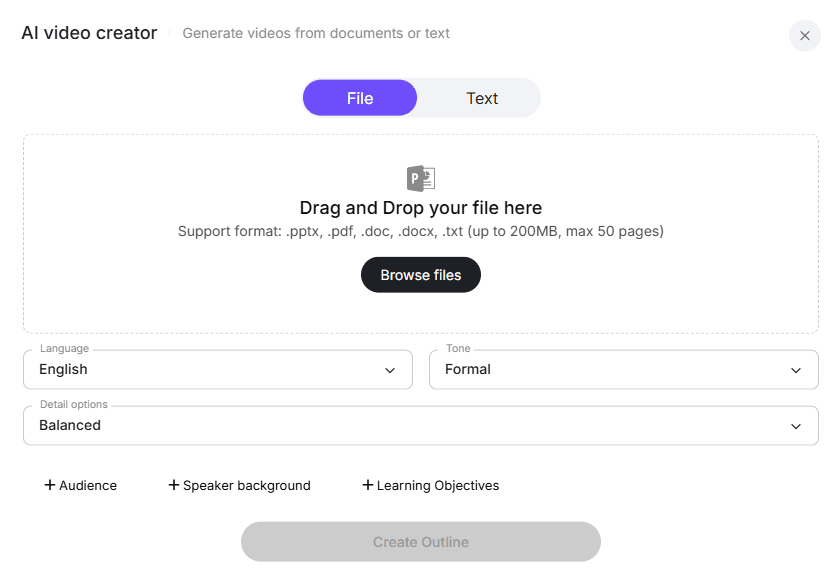
Start by uploading your presentation or script to the AI platform. Supported formats include PPT, DOCX, PDF, and TXT. The system will automatically analyze your content structure, key topics, and learning objectives. You can also transform documents into multilingual demos to reach a broader audience.
Best practices from real projects:
- Keep slides minimal (1 idea per slide)
- Highlight key bullets for narration emphasis
- Add audience + learning goals metadata (improves AI output quality)
In multiple projects, structured slides reduced editing time by 30–50%
Step 2: Auto-Generate and Customize Video Outline
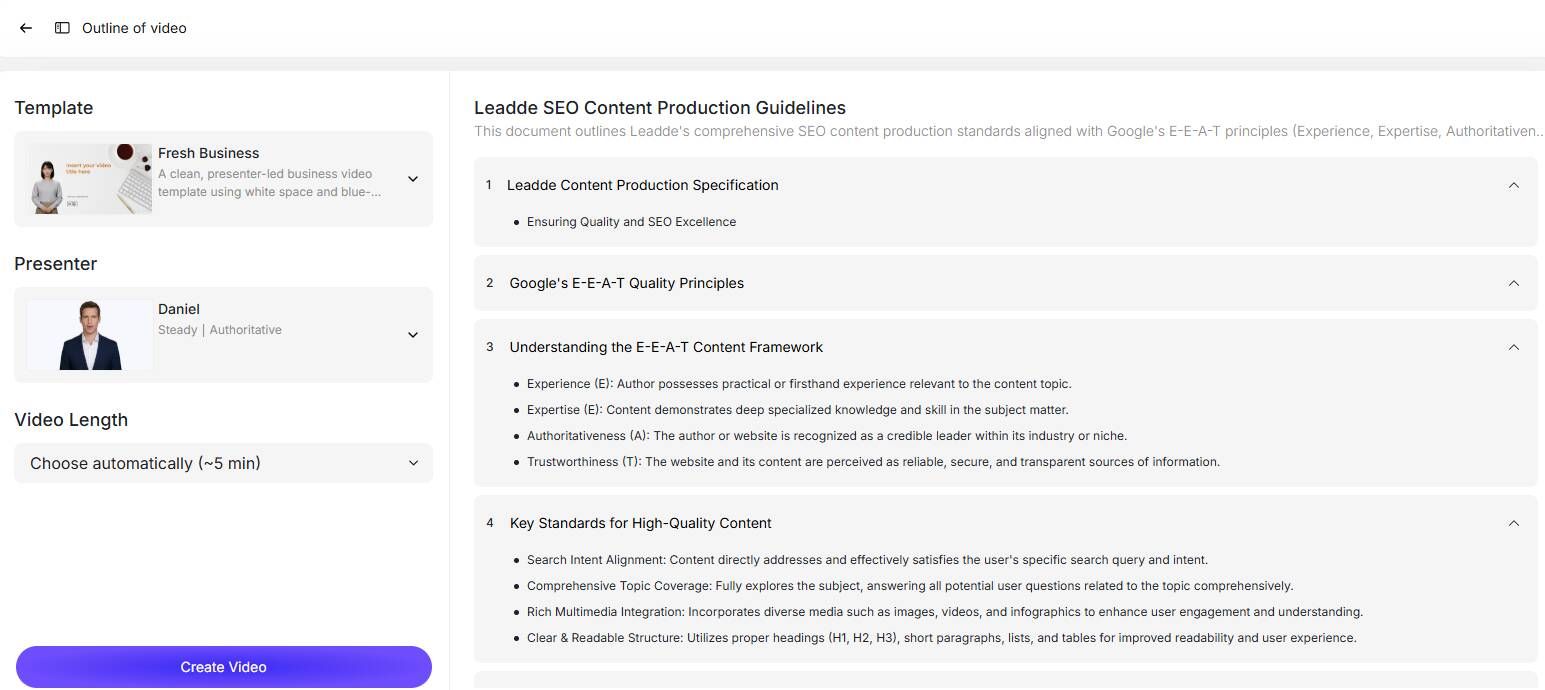
Once uploaded, the AI generates a structured video outline based on your content. You can edit section titles, reorder slides, remove unnecessary parts, or add new sections to improve flow. For inspiration, see creating informational videos from documents.
What I always adjust:
- Reorder sections for logical flow
- Merge redundant slides
- Break long sections into micro-learning units
In practice, improving outline structure reduced drop-off rates in training videos.
Step 3: Choose Presenter and Voice for Narration
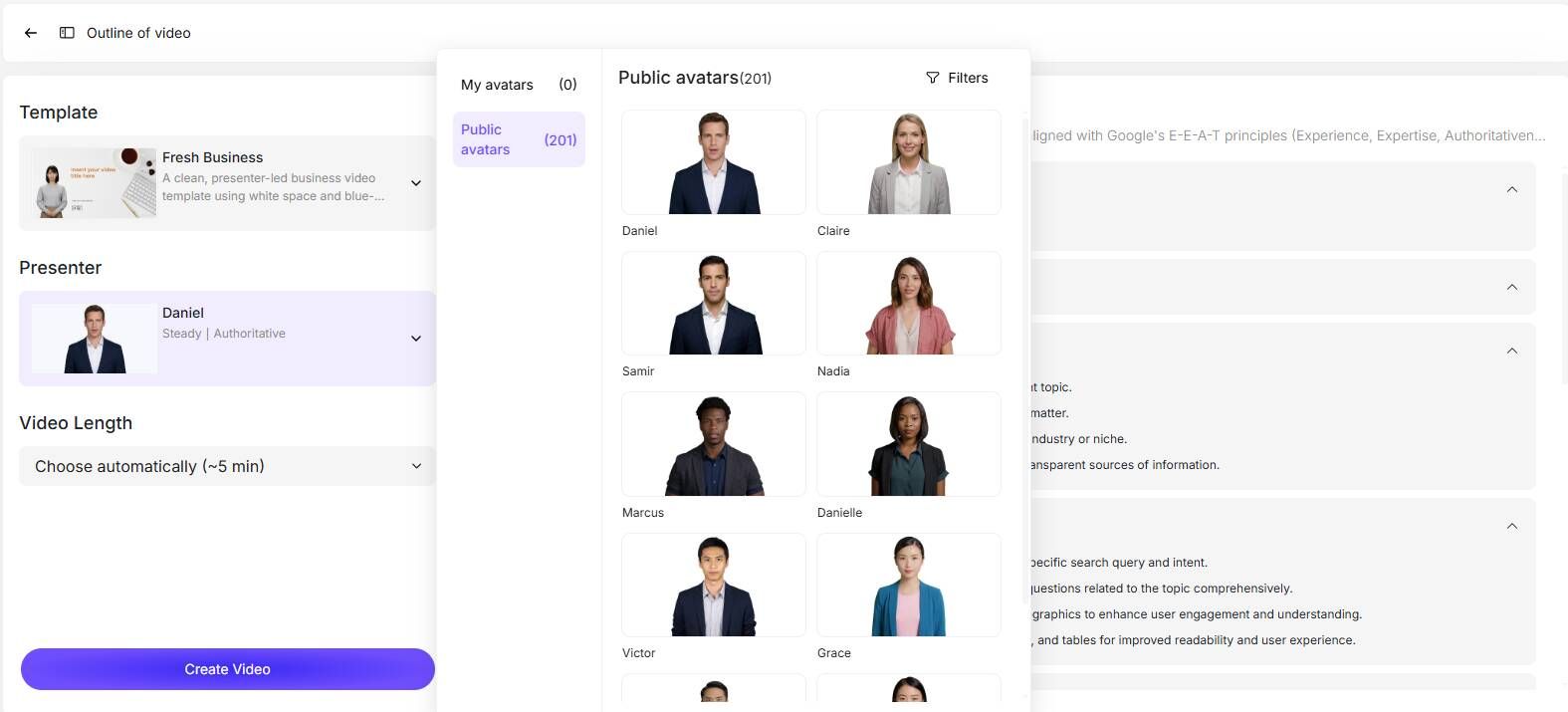
Select from available AI avatars and voices. The right presenter can enhance learner engagement and retention. You can preview voices and styles to match the tone of your training material. If you’re creating corporate training, check out how to make employee training videos or internal communication videos.
Field-tested tips:
- Corporate training → neutral, professional tone
- Onboarding / marketing → conversational tone
- Avoid robotic pacing → adjust pauses manually
A simple script rewrite (from bullet points → conversational tone) significantly improved viewer retention in internal testing.
Step 4: Select Video Template and Adjust Duration
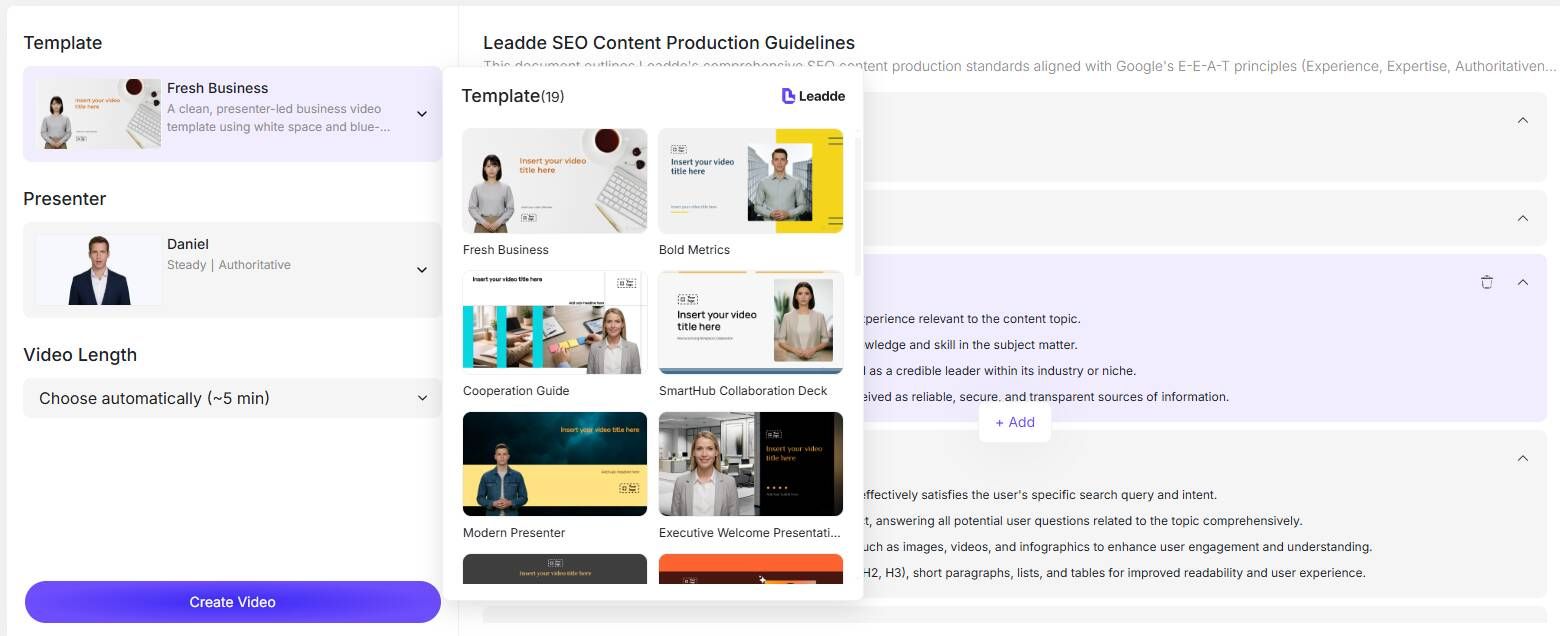
Pick a video template optimized for tutorials or explainer videos. Templates influence visual style, layout, and pacing. Set the video length to control detail and flow. You can also transform product URLs into AI videos or create walkthrough videos for interactive guides.
Best practices:
- Keep videos under 5–8 minutes per module
- Use visual emphasis (callouts, highlights)
- Break long PPTs into multiple videos
Short-form modules consistently outperform long videos in completion rates.
Step 5: Generate, Preview, and Share Your E-learning Video
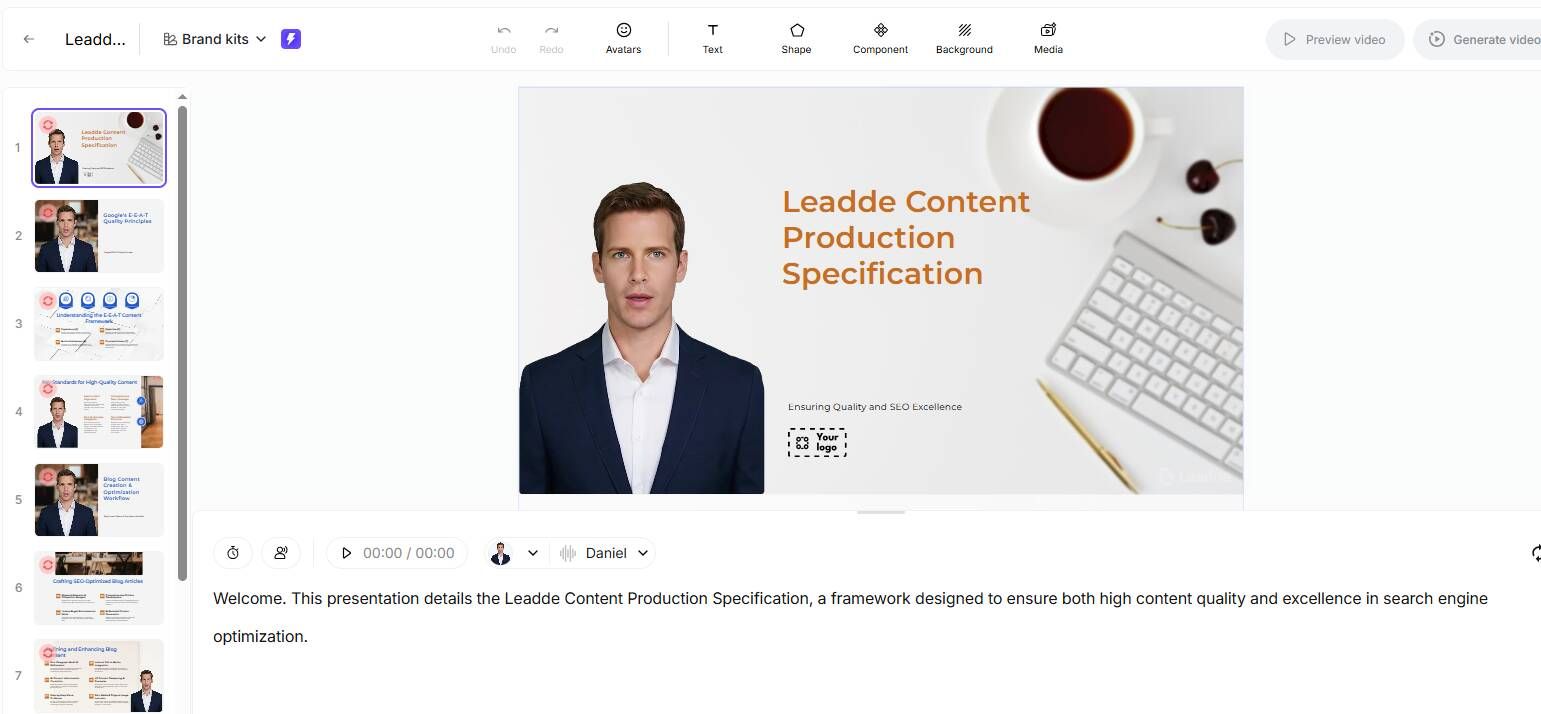
After confirming the script and settings, generate your video. Preview it for accuracy, timing, and visual quality. Once satisfied, share or embed the video on your learning platform. For options on professional-quality output, explore the best AI commercial video makers in 2026 or multi-language demo automation platforms.
Tips:
- Review slides with complex charts or images to ensure clarity.
- Leverage AI suggestions for visual enhancements and highlights.
In real deployments, final QA prevents most learner complaints.
Why Converting PPT to Video Alone Is Not Enough for Effective E-Learning
A critical insight from real-world training programs:
Turning PPT into video ≠ effective e-learning
Common issues:
- No interaction → low engagement
- No assessment → no learning validation
- No tracking → no measurable ROI
👉 In multiple training rollouts, video-only courses underperformed compared to video + quiz formats.
What works better:
- Add quizzes every 3–5 minutes
- Include checkpoints or summaries
- Use branching scenarios for complex topics
Fastest Way to Turn PPT into E-Learning Video (Real-World Workflows Compared)
Through testing different approaches under time pressure, three workflows stand out:
1. Screen Recording (Fastest)
- PPT + voice recording
- Time: hours
- Quality: low–medium
2. AI Video Generation (Best Balance)
- Upload PPT → auto video
- Time: minutes to hours
- Quality: medium–high
3. Authoring Tools (Best Quality)
- Tools like Storyline
- Time: days
- Quality: high
In one project, a full training course was launched in under 48 hours using an AI-based workflow.
Common Workflow Bottlenecks in PPT to E-Learning Conversion
From user research and implementation experience, these are the biggest blockers:
1. Tool fragmentation
- PPT → Video tool → Authoring tool → LMS
2. SCORM complexity
- Export errors
- LMS compatibility issues
3. Manual rework
- Editing scripts, syncing audio, fixing layouts
Teams typically use 3–5 tools per project, increasing error rates and production time.
Solution:
Adopt end-to-end platforms or automated pipelines
How to Add Interactivity to PPT-Based E-Learning Videos
Video alone is not enough—you need interaction.
Proven approaches:
✔ Authoring tools
- Add quizzes, branching, clickable elements
✔ LMS-based interaction
- Embed quizzes after video
✔ AI-generated interaction (emerging)
- Auto-generated questions & summaries
Adding simple quizzes increased completion rates significantly in multiple deployments.
Cost Breakdown: AI Video Tools vs Traditional E-Learning Development
Cost becomes critical at scale.
Real-world cost dynamics:
| Approach | Cost Pattern | Best For |
|---|---|---|
| Manual production | High labor cost | Premium courses |
| AI tools | Pay per minute | Fast content |
| Automated pipeline | High setup, low marginal cost | Large-scale training |
Key insight:
- Small projects → AI is cost-efficient
- Large-scale (1000+ minutes) → costs increase rapidly
One large training program (~1200+ minutes) required shifting to a custom automated pipeline to control costs.
How to Make AI-Generated Training Videos Sound Natural
One of the most common quality issues: robotic narration.
What works in practice:
- Rewrite scripts into conversational tone
- Use shorter sentences
- Add pauses and emphasis
- Avoid reading slide text verbatim
Switching from slide text → conversational script dramatically improved perceived quality.
Scaling E-Learning Video Production: From 1 Video to 1000+ Minutes
Scaling changes everything.
Challenges:
- Cost explosion
- Production delays
- Inconsistent quality
Solutions used in real projects:
- Template standardization
- Automated script generation
- Batch voice generation
- Modular content design
The biggest shift:
From “creating videos” → to “building a content production system”
Choosing the Best PPT to E-Learning Tools Based on Your Needs
Tool selection framework:
✔ Speed-focused
- AI video generators like Leadde
✔ Interaction-focused
- Authoring tools (e.g., Storyline)
✔ Simplicity-focused
- PPT plugins
There is no “best tool”—only the best tool for your workflow.
Real Case Studies: Turning PPT into E-Learning Videos (With Results)
Case 1: 48-Hour Training Launch
- User: L&D manager
- Goal: Launch urgent training
- Result: Course deployed in <48 hours
- Change: Manual SCORM → direct AI platform
Insight: Speed requires eliminating unnecessary steps.
Case 2: 30-Minute Course Creation
- User: Independent course creator
- Goal: Maximize efficiency
- Result: Full course generated in ~30 minutes
- Change: Manual creation → AI automation
Insight: AI enables rapid prototyping of courses.
Case 3: Improving Video Quality
- User: Instructional designer
- Goal: More natural delivery
- Result: Improved engagement
- Change: Script rewrite (bullet → conversational)
Insight: Script quality matters more than visuals.
Case 4: Scaling to 1200+ Minutes of Training
- User: Enterprise training team
- Goal: Produce large-scale content
- Result: Built automated pipeline
- Change: Manual production → systemized workflow
Insight: Scaling requires systems, not tools.
FAQ: Common Questions About Turning PPT into E-Learning Videos
What is the fastest way to convert a PowerPoint into an e-learning video?
The fastest way is to use AI video generation tools that automatically convert slides into narrated videos within minutes.
- Fastest option: AI tools (fully automated)
- Alternative: Screen recording (quick but lower quality)
For speed and acceptable quality, AI tools are the most efficient choice.
Can you create e-learning courses without using SCORM?
Yes. Many modern e-learning platforms allow you to publish and track courses without SCORM.
- Direct video hosting
- Built-in analytics dashboards
- LMS-native tracking
SCORM is only necessary if your organization requires legacy LMS compatibility.
How do you add quizzes or interactivity to a PPT-based video?
You can add interactivity in three main ways:
- Use e-learning authoring tools (interactive course builders)
- Embed quizzes in your LMS after the video
- Use AI tools that auto-generate quizzes from content
For best results, add a quiz every 3–5 minutes to improve engagement.
Which is better for e-learning: Storyline or Camtasia?
It depends on your goal:
- Camtasia: Best for recording and editing videos
- Storyline: Best for interactive e-learning courses
If you need quizzes and branching scenarios, Storyline is the better choice.
Are there free tools to convert PPT to SCORM?
Yes, but most free tools have limitations:
- Restricted features
- Watermarks or export limits
- Limited customization
They are suitable for basic use, but not for professional training content.
Can AI automatically generate quizzes from PowerPoint content?
Yes. Many AI e-learning tools can:
- Extract key points from slides
- Generate multiple-choice questions
- Create summaries and assessments
However, reviewing the generated quizzes is important to ensure accuracy.
How can you make AI-generated narration sound more natural?
To improve AI voice quality:
- Rewrite slide text into conversational language
- Use shorter sentences
- Add pauses and emphasis
- Avoid reading bullet points directly
Natural-sounding scripts significantly improve learner engagement.
How do you reduce costs when producing large volumes of training videos?
To lower production costs at scale:
- Use AI tools for automation
- Create reusable templates
- Batch process scripts and voiceovers
- Build a standardized content pipeline
This approach is essential when producing large-scale training content.
Can you fully automate the process of turning PPT into video?
Yes, most of the process can be automated using AI:
- Script generation
- Voice narration
- Video creation
However, manual review is still necessary to ensure quality, accuracy, and clarity.
Should every PowerPoint be converted into an e-learning video?
No. Only convert PPTs into videos if they require explanation or structured learning.
Avoid video if:
- The content is purely informational
- It changes frequently
- It does not require narration
A simple rule:
If it doesn’t need explanation, it doesn’t need video.
Conclusion
Converting PPT presentations into e-learning videos is now a simple, AI-powered process. By following these five steps—uploading content, customizing the outline, selecting a presenter and voice, choosing a template, and generating the final video—you can create professional-quality training videos efficiently. This method reduces production time while improving learner engagement and content retention. Additionally, AI tools make it easy to make demos quickly and save costs across your training content.