How to Save PowerPoint as Video (Native & AI Methods)
To save a PowerPoint as a video, use Microsoft PowerPoint’s built-in export feature to convert your presentation into an MP4 or MOV file with preserved slide timings, animations, narration, and transitions. This method works well for standard presentations on Windows and Mac, but complex decks with embedded media, long audio tracks, or heavy animations can cause timing errors, audio sync problems, or export failures. For training, SOP documentation, multilingual education, and scalable business video production, modern AI document-to-video platforms increasingly outperform native PowerPoint export by reducing production time by up to 90% and lowering content creation costs by as much as 80%.

Quick Answer: How to Save PowerPoint as Video
To save a PowerPoint as a video:
On Windows
- Open your presentation in PowerPoint.
- Click File → Export → Create a Video.
- Choose video quality (1080p is recommended for most business use).
- Select Use Recorded Timings and Narrations if you already recorded voiceovers or timings.
- Click Create Video.
- Save as MP4.
On Mac
- Open your presentation.
- Click File → Export.
- Choose MP4 or MOV.
- Enable timings/narration if needed.
- Click Export.
If your presentation includes complex animations, narration, embedded media, or large files, native export can fail or create timing/audio problems. In those cases, screen recording or AI document-to-video tools are often more reliable.
Why Convert PowerPoint to Video Instead of Sharing Slides?
Static slide decks are increasingly inefficient for modern communication.
A PPT file assumes:
- the viewer has PowerPoint installed,
- they understand your intended pacing,
- they know when to click,
- they interpret transitions correctly,
- and they stay engaged through text-heavy slides.
In practice, this rarely happens.
In our analysis of presentation-to-video workflows, the strongest use cases consistently involve situations where playback consistency matters more than editability.
These include:
- employee onboarding
- SOP documentation
- compliance training
- sales enablement
- product demos
- educational lectures
- conference sessions
- digital signage
- asynchronous executive updates
Video solves several distribution problems immediately
Consistent delivery
Every viewer receives the same pacing, transitions, narration, and messaging.
No software dependency
MP4 files play anywhere.
Better engagement
Motion, voice, and controlled sequencing outperform static decks.
Cross-device compatibility
Phones, tablets, LMS platforms, intranets, YouTube, and embedded webpages all support video.
Real Example: Experimental Playback Required Deterministic Timing
One of the most revealing workflows we analyzed involved a research presentation containing:
- 300 slides
- 50 timed trials
- audio on nearly every slide
The goal was not simply “convert PowerPoint to MP4.”
The actual requirement was:
deterministic playback with zero timing drift.
That distinction matters.
If your PowerPoint functions as:
- a timed experiment,
- a training module,
- a self-running kiosk presentation,
- or a compliance walkthrough,
then export reliability becomes mission-critical.
How to Save PowerPoint as Video on Windows
PowerPoint for Windows includes native video export.
This is the fastest option for simple presentations.
Step 1: Open Your Presentation
Launch PowerPoint and load your PPTX file.
Before exporting:
- confirm fonts display correctly
- test animations
- check linked media
- verify narration playback
Step 2: Go to File → Export → Create a Video
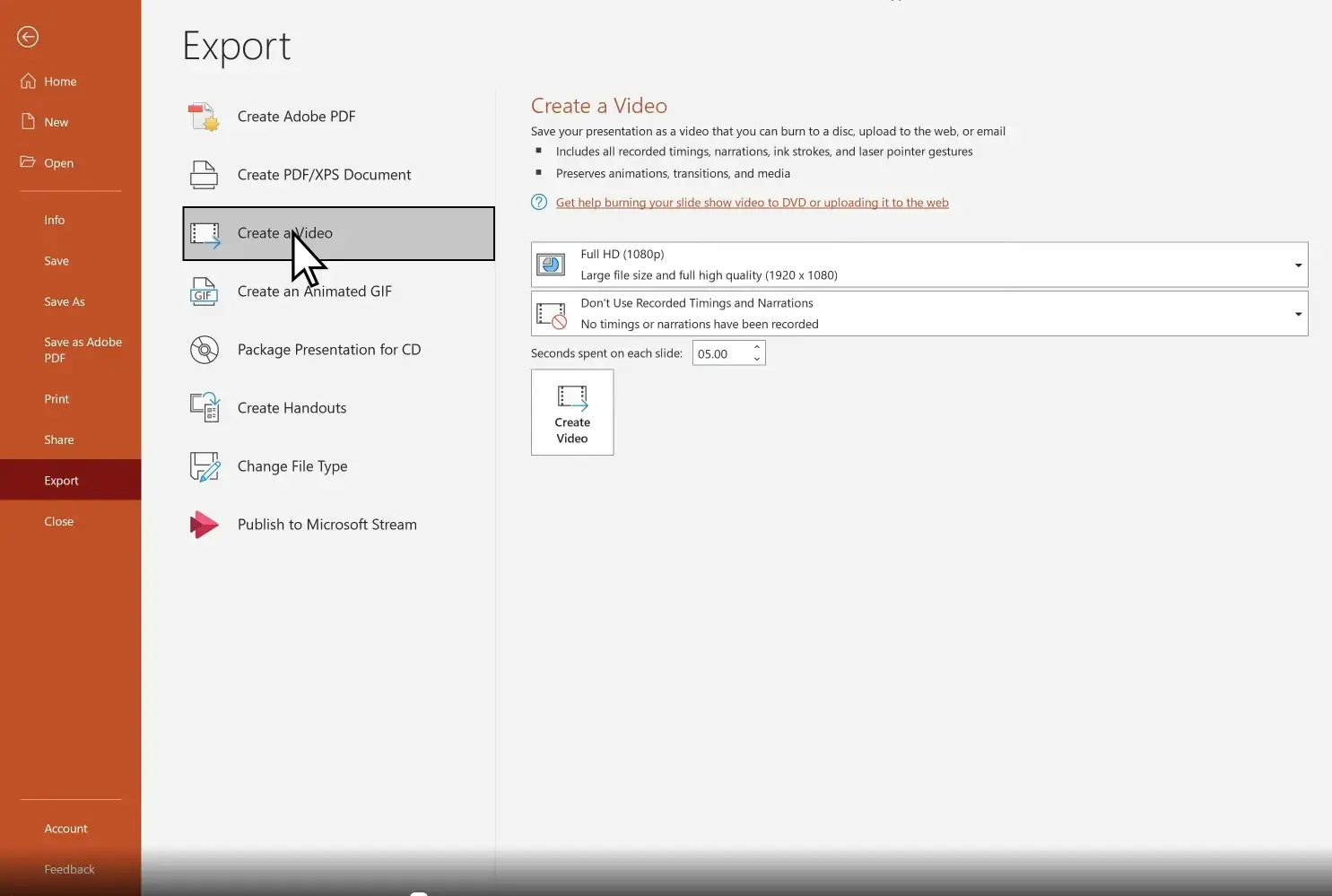
Navigation:
File → Export → Create a Video
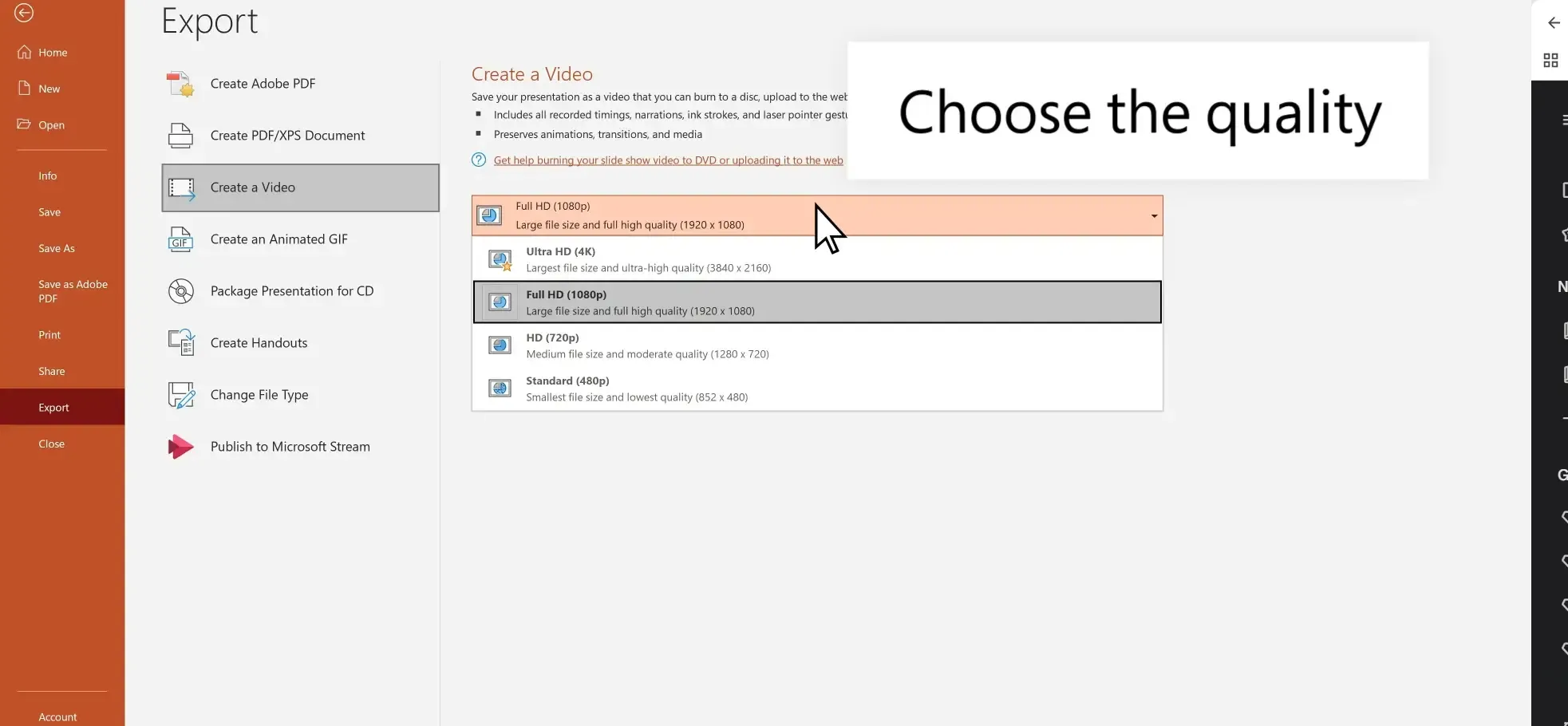
You’ll see export options for:
- Ultra HD (4K)
- Full HD (1080p)
- HD
- Standard
For most use cases:
1080p is the optimal choice.
It balances:
- clarity
- compatibility
- manageable file size
Step 3: Choose Timing Settings
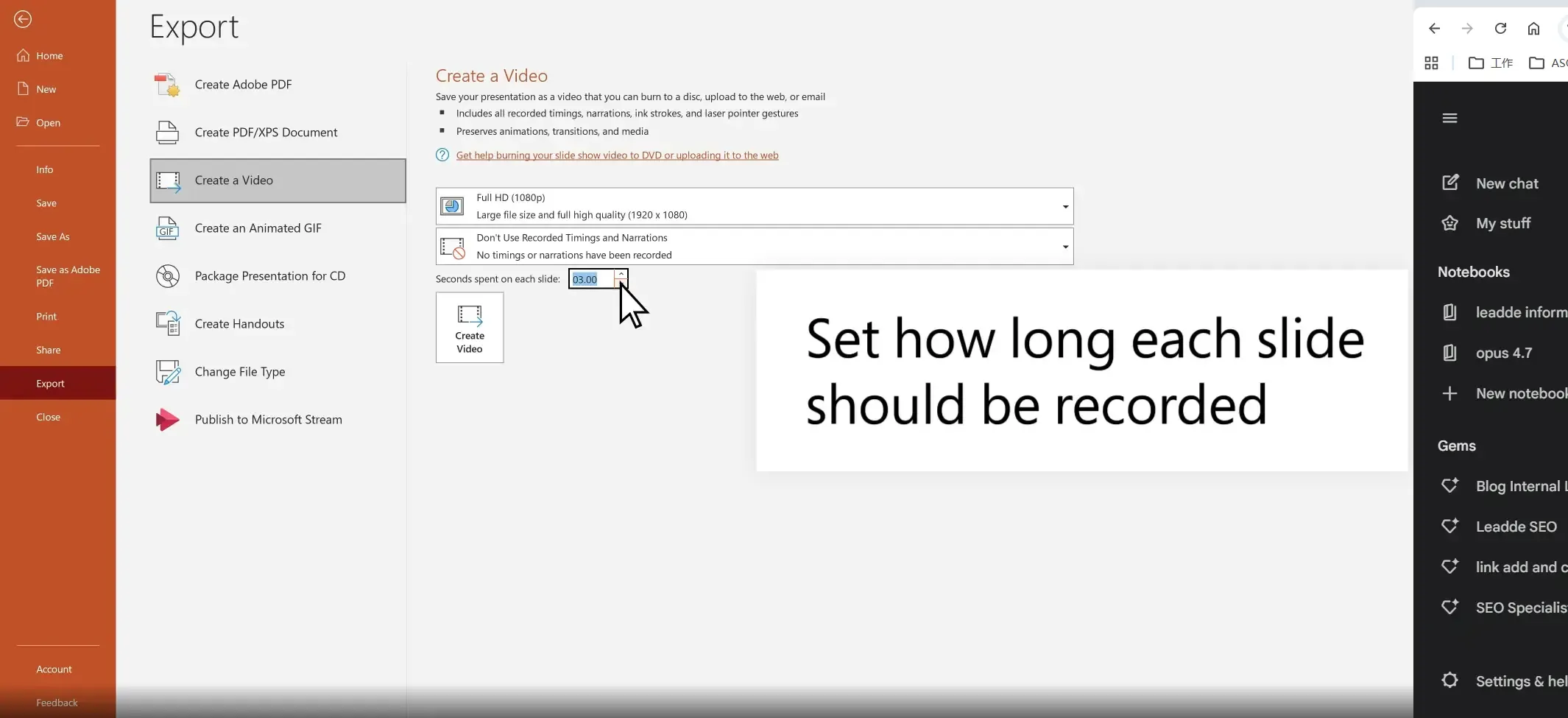
This is where many exports fail.
You’ll see two paths:
Use Recorded Timings and Narrations
Choose this if you already recorded:
- narration
- webcam presentation
- manual timings
- rehearsed transitions
PowerPoint will attempt to preserve timing.
Don’t Use Recorded Timings
If no timing exists, PowerPoint asks:
Seconds spent on each slide
Example:
- 5 seconds
- 10 seconds
- custom duration
This applies a default timing.
Step 4: Click Create Video
Choose:
- destination folder
- filename
- MP4 format
Then export.
Rendering time depends on:
- slide count
- animations
- embedded media
- narration length
- resolution
Simple decks finish quickly.
Complex decks may take much longer.
How to Save PowerPoint as Video on Mac
Mac export works, but behavior differs from Windows.
Common Mac-specific friction includes:
- audio inconsistency
- font rendering differences
- media compatibility issues
- MOV vs MP4 confusion
Export Steps
Open PowerPoint.
Navigate:
File → Export
Select:
- MP4
or - MOV
Choose:
- Presentation Quality
- Internet Quality
- Low Quality
Enable:
Use Timings and Narrations
Then export.
MP4 vs MOV on Mac
MP4
Best for:
- YouTube
- LMS
- browser playback
- business distribution
Advantages:
- universal compatibility
- smaller size
- easier sharing
MOV
Best for:
- Apple workflows
- Final Cut editing
- high-quality local production
Tradeoffs:
- larger files
- weaker compatibility outside Apple environments
For most business users:
Choose MP4.
Best PowerPoint Video Export Settings
Export settings directly affect:
- quality
- file size
- playback reliability
- upload speed
Best Resolution
1080p (Recommended)
Best for:
- training videos
- SOP walkthroughs
- YouTube
- client presentations
- internal communications
Why:
Strong visual quality without oversized output.
4K
Best for:
- premium presentations
- large display playback
- ultra-high resolution demos
Downside:
Large files + slower export.
If your deck contains heavy animations or embedded media, 4K increases failure risk.
Best Frame Rate
PowerPoint doesn’t expose deep frame-rate controls like professional editors.
Native exports typically perform adequately for:
- narration-based content
- business explainers
- slide-based instruction
If you need cinematic motion:
PowerPoint is the wrong tool.
Best Slide Duration
If no narration exists:
Start with:
5–8 seconds per slide
Adjust based on content density.
Examples:
Sparse slides:
3–5 seconds
Data-heavy slides:
8–15 seconds
Training modules:
variable timing preferred
Why PowerPoint Video Timing Gets Messed Up
This is one of the highest-frequency production failures.
Symptoms:
- animations fire too early
- transitions happen too fast
- pauses disappear
- narration desyncs
- manual rehearsed pacing gets ignored
The Real Cause: Timing Logic Conflicts
PowerPoint timing comes from multiple systems:
- transition timing
- animation timing
- narration timestamps
- recorded rehearsal timings
- default slide duration settings
These systems can conflict.
That’s why timing feels unpredictable.
Recorded Timings vs Seconds Per Slide
This distinction causes enormous confusion.
Recorded Timings
Uses:
- rehearsed timing
- narration timestamps
- manual progression timing
Best for:
- spoken presentations
- training
- timed demos
Seconds Per Slide
Applies:
uniform timing across slides.
Best for:
simple decks with no animation complexity.
If you choose the wrong option, PowerPoint can override intended pacing.
Real Workflow Example: Timed Research Playback
In one workflow audit, the presentation contained:
- 300 slides
- 50 experimental trials
- nearly every slide with audio
The concern wasn’t export convenience.
It was timing precision.
When timing is critical, relying blindly on native export is risky.
Best Timing Fixes
Re-record timings cleanly
Remove conflicting timing data.
Then:
Slide Show → Rehearse Timings
Rebuild timing intentionally.
Avoid mixed timing systems
Do NOT combine:
- manual animation delays
- narration timestamps
- fallback slide duration rules
Pick one logic system.
Test short exports first
Export:
5–10 slides
Validate:
- timing
- pauses
- animation sync
Then scale.
PowerPoint Exported Video Has No Audio? Fix Sync, Missing Narration, and Music Problems
Audio reliability is the biggest native export weakness.
Symptoms:
- no narration
- missing background music
- sync drift
- cut-off audio
- slide mismatch
Why Audio Breaks
Common causes:
- corrupted embedded audio
- conflicting narration layers
- unsupported media codecs
- export timing mismatch
- Mac playback inconsistencies
Background Music Stops After First Slide
A common failure pattern:
music starts normally, then disappears.
Cause:
audio playback settings weren’t configured correctly.
Fix:
Set audio to:
Play Across Slides
Then retest export.
Narration Is Out of Sync
Cause:
timing metadata conflict.
Fix:
- Clear timings
- Re-record narration
- Export a short test
- validate sync
Embedded Online Videos Fail
Linked web videos are unreliable.
Common symptoms:
- black box
- missing playback
- frozen frame
Fix:
Download video locally.
Embed local media.
Best Practice for Audio Stability
For business-critical exports:
Use:
- local audio
- consistent codec formats
- short validation exports
Never assume first export is correct.
Why PowerPoint Export Gets Stuck at 99% (And How to Fix It)
Few PowerPoint export problems are more frustrating than watching progress freeze at 99%.
At that point, most users assume the export is “almost done.”
Often, it isn’t.
In real production workflows, this failure pattern usually indicates rendering bottlenecks—not near completion.
The larger and more media-heavy the presentation, the more likely this becomes.
Why PowerPoint Video Export Freezes
Native PowerPoint export was built for standard slide presentations—not high-complexity video production.
Rendering strain increases dramatically when a deck includes:
- high-resolution images
- multiple embedded videos
- long narration tracks
- dense animation layers
- large font libraries
- heavy transitions
- webcam recordings
- layered design assets
PowerPoint must flatten all of this into a single video render.
That’s computationally expensive.
Real Production Pattern: Long Presentations Fail More Often
In enterprise training workflows, long presentations are where export reliability starts collapsing.
Typical examples:
- onboarding training decks
- compliance modules
- product certification walkthroughs
- conference presentations
- internal education content
Once timelines extend beyond simple slide playback, export instability rises sharply.
The issue becomes worse if narration spans tens of minutes.
Fix #1: Compress Media Before Export
PowerPoint often struggles with oversized assets.
Compress media first:
File → Info → Compress Media
Choose:
- Full HD
or - Standard
This reduces:
- rendering load
- file size
- export memory pressure
Fix #2: Remove Unnecessary Animations
Animations multiply rendering complexity.
Problematic patterns:
- cascading bullet reveals
- layered object entrances
- complex motion paths
- overlapping fade effects
If video delivery matters more than slide theatrics, simplify aggressively.
Fix #3: Replace Linked Media with Local Assets
External dependencies break exports.
Avoid:
- linked cloud videos
- streamed media
- browser embeds
Use:
downloaded local files only.
Fix #4: Split Long Decks Into Sections
One practical production fix:
break large decks into smaller exports.
Example:
Instead of exporting:
1 × 90-minute deck
Export:
- module 1
- module 2
- module 3
Then combine externally.
This dramatically improves reliability.
Fix #5: Save a Fresh Copy
PowerPoint files accumulate corruption over time.
Especially after:
- repeated editing
- copied slides
- template reuse
- imported media revisions
Try:
Save As → New File
Then export the clean copy.
Can You Save PowerPoint as Video Online?
Short answer:
Not natively in PowerPoint Online.
This creates major confusion because many users expect browser PowerPoint to match desktop functionality.
It doesn’t.
PowerPoint Online vs Desktop
Desktop PowerPoint
Supports:
- MP4 export
- MOV export (Mac)
- narration
- timings
- recorded presentations
PowerPoint Online
Does NOT reliably support:
- native video export
- advanced rendering workflows
- complex export settings
If you only have browser access, native export is not the right path.
Chromebook Users: Common Limitation
This affects:
- students
- remote workers
- managed enterprise environments
If you're using:
- Chromebook
- locked-down corporate device
- browser-only Microsoft environment
you may discover there is no export-to-video option.
That’s expected.
Alternatives If You Need Online PowerPoint to Video Conversion
Options:
Screen Recording
Fastest workaround.
Play slideshow.
Record screen.
Works everywhere.
Cloud Conversion Platforms
Better for:
- training content
- AI narration
- localization
- reusable video production
More scalable than native export.
PowerPoint Export vs Screen Recording: Which Is Better?
This depends entirely on your workflow.
There is no universal winner.
Native Export Wins When You Need Simplicity
Best for:
- clean internal presentations
- simple narrated decks
- quick MP4 generation
- low editing requirements
Advantages:
- free
- built-in
- fast setup
- no extra tools
Limitations:
- timing unpredictability
- audio reliability issues
- weak editability
- export failures
Screen Recording Wins When Playback Precision Matters
Screen recording captures exactly what you see.
That makes it useful when:
- animations must fire precisely
- timing must remain deterministic
- native export behaves unpredictably
Use cases:
- research playback
- product walkthroughs
- sensitive demos
Real Workflow Example: Experimental Playback
A timed presentation workflow containing:
- 300 slides
- 50 trial sequences
- audio on nearly every slide
is not an ideal native export candidate.
In that context:
screen recording provides higher playback certainty.
Because what you record is exactly what viewers receive.
Downsides of Screen Recording
Tradeoffs:
- manual process
- harder editing
- re-recording required for changes
- inconsistent capture quality if poorly configured
Still, for reliability, many teams prefer it.
How to Save PowerPoint as Video With Narration and Webcam Recording
If your goal is presenter-led content, PowerPoint supports basic narration workflows.
But there are limitations.
Record Slide Show Workflow
PowerPoint allows:
Slide Show → Record Slide Show
You can capture:
- narration
- timings
- pointer movement
- webcam video (depending on version)
Then export.
Best For
Reasonable use cases:
- internal presentations
- academic lectures
- basic training modules
- executive updates
Weaknesses
The native presenter workflow becomes painful quickly.
Problems include:
- awkward retakes
- inconsistent webcam quality
- hard editing
- version control problems
If one line changes, you may need to re-record.
Why This Breaks at Scale
Imagine a training team maintaining:
- onboarding modules
- policy walkthroughs
- product education videos
Every product update means:
- reopening PPT
- setting camera again
- matching audio quality
- reproducing presentation timing
That is operationally inefficient.
Best PowerPoint to Video Converter Tools in 2026
If native PowerPoint export works for your workflow, that’s the simplest option.
But many production teams outgrow it quickly.
The deciding question is:
What are you actually trying to create?
Because “convert PowerPoint to video” can mean very different things.
Examples:
- exporting a quick MP4
- creating employee onboarding content
- building multilingual SOP training
- making presenter-led explainer videos
- turning static docs into scalable video assets
Different goals require different tools.
Option 1: Native PowerPoint Export
Best for:
- quick MP4 exports
- simple narrated decks
- internal sharing
- low-complexity presentations
Strengths
- free
- already built in
- fast for simple decks
- no learning curve
Weaknesses
- timing instability
- audio sync issues
- export freezes
- weak editing after export
- poor localization workflow
- no scalable automation
Best if:
you occasionally need a slide deck as video.
Not ideal if:
video creation is part of your actual workflow.
Option 2: Screen Recording Tools
Best for:
- timing-sensitive playback
- demo walkthroughs
- deterministic recording
- browser-based workarounds
Examples:
- Camtasia
- OBS
- Loom
- built-in OS recorders
Strengths
- captures exactly what you see
- avoids native rendering issues
- flexible recording
Weaknesses
- manual
- hard to update
- re-record burden
- editing overhead
Best if:
you need reliability over automation.
Option 3: AI Avatar Video Tools
Best for:
- talking head explainers
- marketing videos
- spokesperson content
Examples:
- Leadde
- Synthesia
- HeyGen
Strengths
- AI presenters
- voice generation
- polished output
- multilingual delivery
Weaknesses
- template constraints
- weak document automation
- presentation rebuild required
These tools are strong if your workflow starts from scripts.
Less ideal if your workflow starts from PowerPoint files.
Option 4: Automated Document-to-Video Platforms
Best for:
- PPTX conversion
- PDF conversion
- SOP transformation
- training automation
- enterprise knowledge scaling
This category solves a different problem.
Instead of asking:
“how do I export my slides?”
It asks:
“how do I turn business knowledge into scalable video content?”
That distinction matters.
PowerPoint to Video Tool Comparison
| Feature | Native PowerPoint | Screen Recording | Leadde/ Synthesia / HeyGen | Leadde |
|---|---|---|---|---|
| Export PPT to MP4 | Yes | Indirect | No native PPT workflow | Yes |
| Timing Reliability | Medium | High | High | High |
| Narration Support | Basic | Manual | AI | AI |
| Webcam Presenter | Basic | Manual | AI Avatar | AI Avatar |
| Editable After Export | No | Limited | Yes | Yes |
| PPT Layer Editing | No | No | No | Yes |
| Multilingual Localization | Weak | Manual | Good | Strong |
| Document-to-Video Automation | No | No | Limited | Yes |
| Enterprise Scaling | Weak | Weak | Medium | Strong |
Why Native Export Stops Working at Scale
The native PowerPoint workflow breaks once content production becomes operational.
Examples:
- HR onboarding
- customer education
- internal enablement
- multilingual SOPs
- partner certification
- compliance documentation
At that point, the problem is no longer:
“how do I save this deck as MP4?”
The real problem becomes:
how do I create, update, localize, and scale video efficiently?
How Modern Teams Convert PowerPoint Into Professional Video Faster
Traditional workflow:
- build slides
- record narration
- re-record mistakes
- export video
- edit externally
- rebuild for updates
- recreate for translations
This is slow and fragile.
The Real Cost of Traditional Production
Operational costs include:
- designer time
- presenter time
- recording setup
- editing labor
- localization expense
- update maintenance
That compounds quickly.
Organizations shifting to automated video workflows report:
- up to 80% lower production costs
- up to 90% faster turnaround
These gains matter most when producing content at volume.
How Leadde Turns PowerPoint Into Professional AI Video
If your goal is simple MP4 export, native PowerPoint may be enough.
If your goal is scalable video production, the workflow changes.
Leadde is designed for teams that start with business documents and need production-ready video quickly.
Supported inputs:
- PPTX
- DOCX
- internal documentation
Layered PowerPoint Import (Not Flat Video Conversion)
Traditional export permanently flattens content.
Once exported:
- text is locked
- timing is fixed
- visuals require full rebuild
Leadde uses layered import.
That means after uploading PowerPoint:
you can still edit:
- text
- icons
- visuals
- layouts
- content blocks
without rebuilding the original deck.
This is critical for frequently updated business content.
AI Presenters Instead of Manual Webcam Recording
Native presenter workflows are hard to maintain.
Leadde replaces manual talking-head production with:
This enables:
- presenter-led training
- sales explainers
- multilingual onboarding
- product walkthroughs
without camera setup.
Voice Cloning
Instead of recording repeatedly, teams can create reusable synthetic narration using short audio samples.
Benefits:
- consistency
- speed
- rapid updates
- localization efficiency
Supported output spans:
170+ languages and accents
Enterprise Localization at Scale
Traditional localization requires:
- translation vendors
- re-recording
- re-editing timelines
- rebuilding subtitles
- asset recreation
Leadde supports:
1-click translation into 92 languages
For global organizations, this removes a major bottleneck.
Interactive Video Workflows
Modern knowledge delivery increasingly requires more than passive video.
Leadde supports interactive experiences such as:
Useful for:
- internal knowledge bases
- onboarding
- support education
- enterprise enablement
Best Workflow for Enterprise Training Videos
Training content has different requirements than one-off presentations.
Priorities include:
- consistency
- updates
- multilingual distribution
- playback reliability
- cost efficiency
Employee Onboarding
Need:
standardized delivery.
Video ensures every employee receives identical messaging.
SOP Documentation
Need:
repeatable procedural training.
Better than static PDFs.
Compliance Training
Need:
traceable consistency.
Video improves standardization.
Customer Education
Need:
reusable product education. Fast updates matter.
Fast updates matter.
Partner Enablement
Need:
global consistency.
Localization matters.
PowerPoint to Video FAQ
Why is my PowerPoint export stuck at 99%?
Usually because of:
- oversized media
- animations
- narration complexity
- corrupted assets
Fixes:
- compress media
- split deck
- save fresh copy
- simplify animations
Why does my PowerPoint video have no audio?
Common causes:
- narration export disabled
- codec incompatibility
- broken embedded audio
- timing conflicts
Why is my narration out of sync?
Usually caused by conflicting timing metadata.
Best fix:
clear timings and re-record.
Why does background music stop after one slide?
Audio was likely not set to:
Play Across Slides
Can PowerPoint Online save as video?
No native desktop-equivalent export support.
Use:
- desktop PowerPoint
- screen recording
- external conversion workflows
Can Chromebook users export PowerPoint to MP4?
Usually not via native PowerPoint browser workflows.
Alternatives are required.
Is MP4 or MOV better?
For most business use:
MP4
Choose MOV mainly for Apple-native editing workflows.
Why are my animations broken after export?
Conflicting:
- animation timing
- transition timing
- narration timing
Simplify logic.
Is screen recording better than export?
Better when:
timing precision matters.
Worse when:
rapid editing matters.
Can I export PowerPoint with webcam video?
Yes, using Record Slide Show.
But native editing is limited.
What’s the best PowerPoint to video converter?
Depends on workflow:
Simple export:
PowerPoint
Timing capture:
screen recording
AI presenter content:
Synthesia / HeyGen
Document-to-video scaling:
Leadde
Can I edit an exported PowerPoint video later?
Only in video editors.
Native PowerPoint exports are flattened.
What’s best for training videos?
If scale matters:
AI document-to-video workflows outperform native export.
Final Verdict: What’s the Best Way to Save PowerPoint as Video?
If you need a simple MP4 quickly:
native PowerPoint export is fine.
If you need exact playback reliability:
screen recording is safer.
If you need scalable business video production:
traditional export becomes a bottleneck.
That’s especially true for workflows involving:
- frequent updates
- presenter videos
- multilingual training
- enterprise documentation
- customer education
In 2026, the real shift is this:
teams are no longer just exporting slides.
They are converting business knowledge into reusable video systems.
If that’s your use case, document-to-video platforms like Leadde provide a fundamentally more scalable workflow than traditional PowerPoint export.