How to Narrate a PowerPoint Fast: Voice Cloning & Audio Sync

To narrate a PowerPoint presentation, you have two practical options: use Microsoft PowerPoint’s built-in Record Slide Show feature to manually record your voice slide by slide, or use an AI-powered narration workflow to automatically generate professional voiceovers from your presentation content.
For a short one-off presentation, PowerPoint’s native recorder is often enough. For larger presentations, training content, multilingual onboarding, or frequently updated business materials, manual narration quickly becomes slow, difficult to edit, and expensive to maintain.
After reviewing common presentation production workflows, the most common failure points are poor audio quality, painful re-recording after small mistakes, narration going out of sync during export, and limitations when presentations involve software demos, PDFs, or external content.
This guide covers the fastest, most reliable ways to narrate a PowerPoint—plus when PowerPoint is no longer the best tool.

Why Adding Narration to PowerPoint Presentations Matters
Static slide decks are increasingly inefficient for business communication.
In internal training, sales enablement, product onboarding, and customer education, audiences rarely want to read a 40-slide deck without context. Voice narration turns passive slides into guided experiences.
In our content workflow analysis, narrated presentations consistently perform better when the goal is explanation rather than simple reference.
Narration helps:
- Explain complex workflows clearly
- Add human context to otherwise static slides
- Improve comprehension for onboarding and training
- Make asynchronous communication more effective
- Turn existing presentation assets into reusable video content
Organizations transitioning from static documentation to interactive content often report significantly higher engagement. In some internal benchmarks cited in presentation-to-video workflows, engagement can increase up to 3x when replacing static slide consumption with guided video-style content.
Typical high-value use cases include:
- Employee onboarding
- Sales walkthroughs
- Product demos
- Client training
- Compliance education
- Internal SOP documentation
- Course presentation submissions
But while narration adds value, the production method matters.
A five-slide executive update is very different from a 50-slide onboarding presentation.
How to Narrate a PowerPoint Using Microsoft PowerPoint
If your goal is simply to record narration directly into PowerPoint, Microsoft already provides a native workflow.
This is the most straightforward option for simple presentations.
Step 1: Open the Built-In Record Slide Show Feature
In PowerPoint:
- Open your presentation
- Click Slide Show
- Select Record Slide Show
- Choose:
- From Beginning
- or From Current Slide
This opens the presentation recording interface.
Step 2: Record Your Narration Slide by Slide
Inside the recorder:
- Click the red record button
- Begin speaking
- Advance slides manually as you narrate
- Trigger animations in sequence as needed
PowerPoint saves:
- Slide narration audio
- Slide timings
- Animation timing data
This allows playback as a narrated presentation.
Step 3: Review and Re-Record Individual Slides
If a slide contains an error:
- Navigate to that slide
- Delete existing narration
- Re-record only that section
This works reasonably well for short decks.
For longer decks, the workflow becomes less efficient.
Step 4: Export Narrated PowerPoint to Video
To create a shareable video:
Go to:
File → Export → Create a Video
Choose:
- 1080p or higher resolution
- Recorded timings and narration
Then click:
Create Video
PowerPoint exports your deck as an MP4.
Why PowerPoint Narration Sounds Bad (And How to Fix It)
One of the most common production problems is poor narration quality.
Users searching for:
- powerpoint narration sounds muffled
- powerpoint recording poor audio
- powerpoint narration low volume
are usually dealing with avoidable setup problems.
In our workflow testing, audio quality was one of the most common reasons teams abandoned PowerPoint’s native recording workflow.
Common symptoms:
- Muffled audio
- Inconsistent volume
- Abrupt changes between slides
- Background noise
- Hollow or echo-heavy recordings
Why PowerPoint Narration Audio Quality Fails
The issue is rarely PowerPoint alone.
It is usually a combination of:
Built-In Laptop Microphones
Laptop microphones often:
- compress aggressively
- capture keyboard noise
- amplify room echo
- reduce vocal clarity
This creates the “cheap webinar” sound many presentations suffer from.
Inconsistent Recording Environments
Recording:
- in different rooms
- across multiple sessions
- with changing microphone positions
creates obvious audio shifts between slides.
This becomes very noticeable in long presentations.
Auto Gain / Input Level Problems
Some systems automatically adjust microphone gain.
Result:
- one slide sounds normal
- next slide sounds quiet
- another becomes distorted
Best Audio Setup for PowerPoint Narration
For cleaner narration:
Use:
- USB microphone
- headset microphone
- external audio interface
Avoid:
- laptop built-in microphones
Recommended workflow:
- record in a quiet room
- turn off fans / HVAC noise
- maintain fixed mic distance
- use pop filtering if possible
Better Fix: Record Audio Externally First
For business-critical presentations, PowerPoint should not be your audio editor.
A better workflow:
- Record clean narration in:
- Audacity
- Adobe Audition
- Descript
- Riverside
- Edit:
- mistakes
- breathing
- silence
- normalization
- Export:
- MP3
- WAV
- Import into PowerPoint
This produces dramatically cleaner output.
How to Edit PowerPoint Narration Without Re-Recording Everything
One of the biggest frustrations with PowerPoint narration is editing.
A single mistake often disrupts an entire recording workflow.
Search intent here includes:
- edit PowerPoint narration
- replace narration in PowerPoint
- fix PowerPoint audio without re-recording
The Real Problem with Native PowerPoint Narration Editing
PowerPoint is presentation software.
It is not an audio editor.
This means:
- no practical mid-sentence edits
- no precision trimming workflow
- weak waveform editing
- limited correction flexibility
If you miss one line in a long slide explanation, re-recording is often faster than fixing.
Better Workflow: External Audio Editing
The practical workflow:
Option 1: Audacity Editing
Process:
- record voiceover
- remove mistakes
- trim silence
- normalize audio
- export clean file
- import into PowerPoint
Best for:
- training content
- long presentations
- repeatable workflows
Option 2: AI Voiceover Replacement
If your script already exists, manual re-recording may be unnecessary.
Modern narration tools allow:
- text-based voice generation
- cloned voice models
- direct script editing
Instead of re-recording your own voice, simply update text.
This dramatically reduces maintenance effort.
Why PowerPoint Narration Goes Out of Sync After Export
This is one of the highest-friction technical problems.
Common searches:
- PowerPoint narration out of sync
- PowerPoint export audio delay
- MP4 narration sync problem
In production testing, sync failures usually happen after export—not during recording.
Common Causes
Heavy Animation Timing Conflicts
Complex:
- builds
- transitions
- layered reveals
can disrupt narration timing.
Manual Timing Errors
If slide transitions are manually timed inconsistently, exported video may drift.
System Performance Constraints
Large decks with:
- media
- animations
- embedded assets
can create export instability.
Fixes
Best practices:
- simplify animations
- clear broken timings
- export smaller test sections first
- avoid overly complex transitions
If export repeatedly fails:
record in shorter segments.
Common PowerPoint Narration Mistakes That Waste Hours
After reviewing repeated presentation production workflows, most time loss comes from preventable mistakes.
Recording Without a Script
This causes:
- filler words
- re-recording
- inconsistent pacing
Fix:
write slide narration first.
Recording an Entire Deck in One Take
This works poorly.
A 50-slide academic presentation case highlighted exactly this problem.
Long uninterrupted recording creates:
- fatigue
- mistakes
- inconsistent tone
- retake disasters
Better:
record in modules.
Using a Built-In Microphone
Audio quality suffers immediately.
Ignoring Timing Playback Before Export
Always preview the full deck.
Treating PowerPoint Like a Video Editor
It is not.
How to Narrate a Large PowerPoint Deck Efficiently
Large decks require a different workflow.
Search intent:
- narrate long PowerPoint
- record 50 slide presentation
- large presentation narration workflow
A real classroom presentation scenario involved approximately 50 slides, where the native slide-by-slide workflow became increasingly inefficient.
The lesson:
tool choice matters less than recording strategy.
Best Workflow for Large Presentations
Record in Sections
Instead of:
50 continuous slides
use:
- module 1
- module 2
- module 3
This reduces catastrophic retakes.
Script Everything First
Improves:
- pacing
- consistency
- editing speed
Batch Export
Instead of one giant render:
export smaller sections.
Use AI Narration for Scale
If frequent updates are required, manual narration becomes operationally expensive.
PowerPoint Narration vs Screen Recording: Which Is Better?
This is often the real question.
Not:
“how do I narrate PowerPoint?”
But:
“should I even use PowerPoint?”
PowerPoint Is Best For
- static slide decks
- internal updates
- one-off presentations
- educational submissions
Advantages:
- built-in workflow
- no extra tools
- slide timing support
Weaknesses:
- poor editing
- weak audio handling
- sync issues
Screen Recording Is Better For
- software walkthroughs
- SaaS demos
- browser tutorials
- mixed media presentations
Tools:
- OBS
- Loom
- ScreenPal
Advantages:
- full desktop capture
- flexible workflows
- easier real demos
Tradeoff:
larger files.
How to Narrate a PowerPoint with Software Demos, PDFs, or External Content
Real business presentations rarely stay inside PowerPoint.
Examples:
- opening spreadsheets
- showing browser workflows
- PDF walkthroughs
- software demos
A real workflow scenario involving PowerPoint plus external documents exposed a major limitation:
native PowerPoint recording works best only for slide-contained presentations.
Where Native PowerPoint Breaks
It struggles when your presentation includes:
- external applications
- browser interaction
- product demos
- document switching
Better Options
For hybrid walkthroughs:
- OBS
- Loom
- ScreenPal
For scalable AI video workflows:
presentation-to-video platforms.
How to Add Professional Voiceover to PowerPoint Without Recording Yourself
Not every team wants manual narration.
Search intent:
- AI PowerPoint narration
- text to speech PowerPoint
- narrate PowerPoint without recording voice
Why Manual Recording Breaks at Scale
Manual workflows require:
- quiet rooms
- microphone setup
- multiple takes
- editing
- re-recording after updates
For recurring business content, this becomes unsustainable.
AI Narration Workflow
Modern AI tools allow:
- upload PPTX
- generate narration scripts
- create voiceovers
- export finished video
Instead of speaking every line manually.
Example Workflow with Leadde
Process:
Upload Source Files
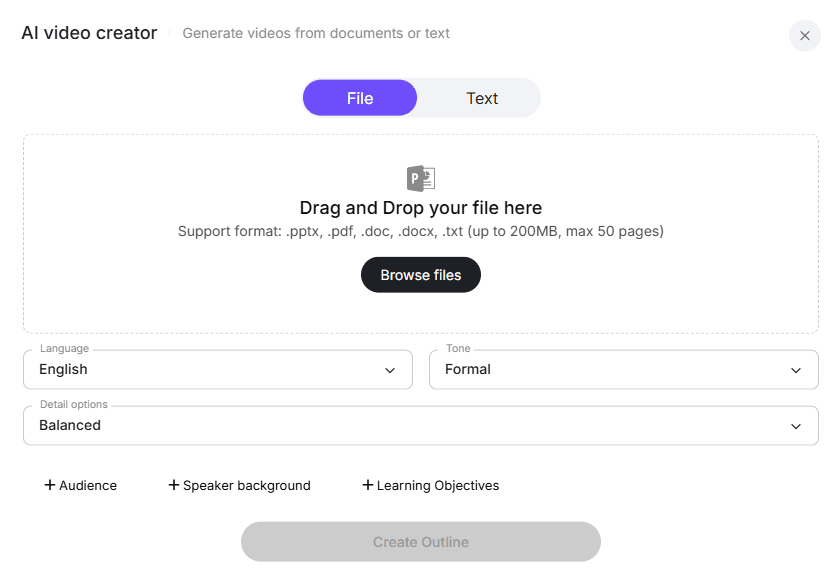
Supported:
- PPTX
- Word docs
up to 200MB.
Generate Scripts Automatically
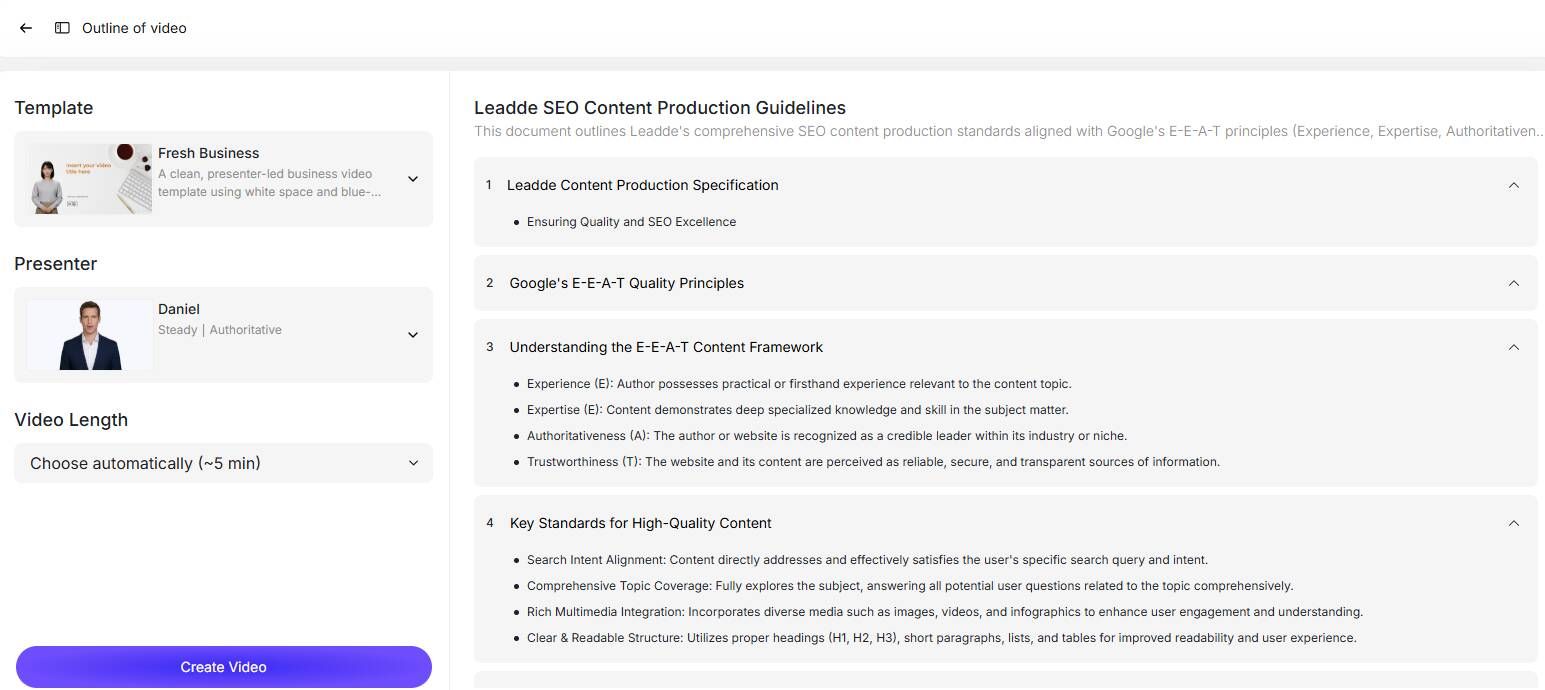
AI structures:
- scenes
- layouts
- narration drafts
Add AI Voice
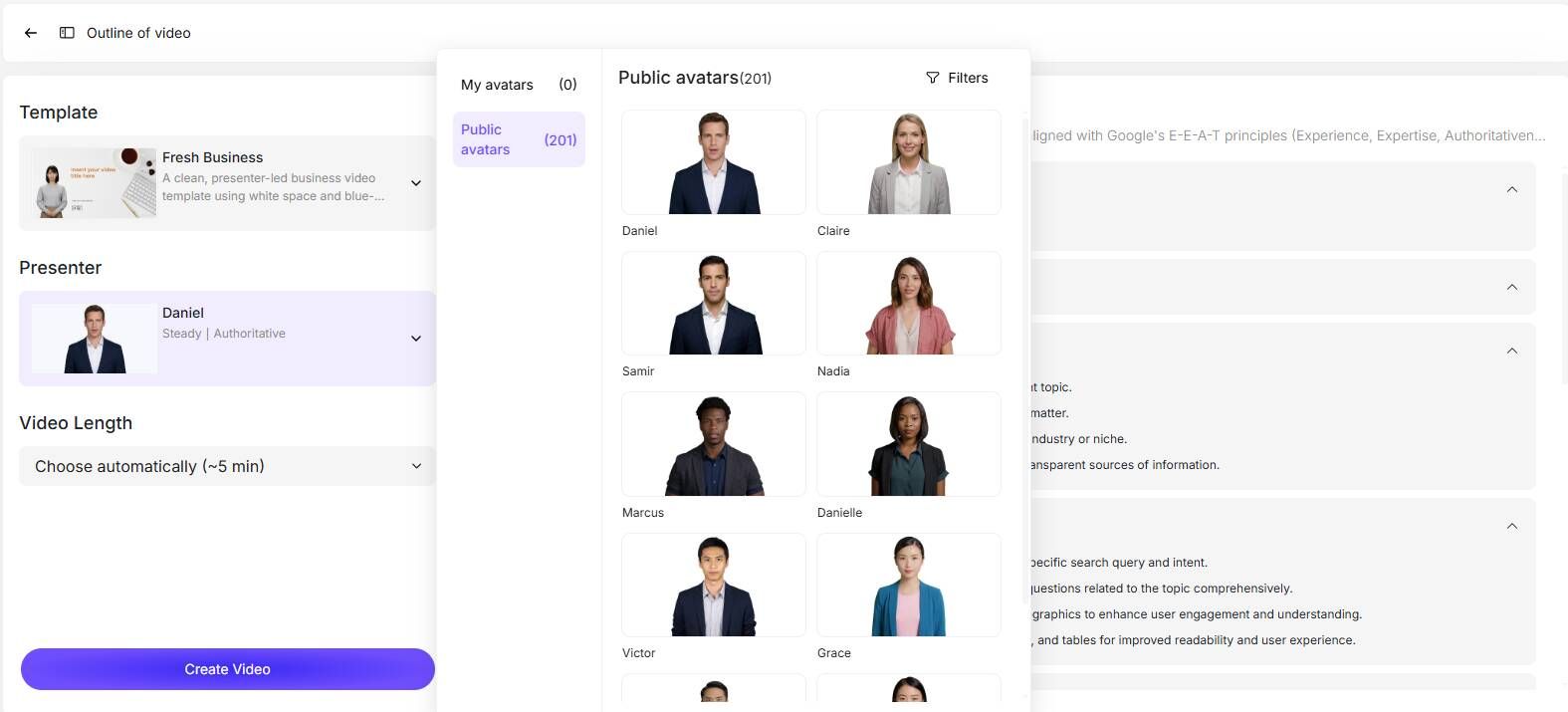
Capabilities include:
- voice cloning
- text-to-speech
- emotional tone matching
170+ language/accent support.
Add AI Presenters
Optional visual presenters:
Or create digital likenesses.
Advanced PowerPoint Handling: Editable Layer-Based PPT Import
Many AI video tools flatten PowerPoint slides into static images.
This creates editing problems.
Why Flat Slide Conversion Is Bad
You lose:
- editable text
- icons
- layout flexibility
Updating content becomes painful.
Better Alternative
Layer-aware PowerPoint import preserves editable structure.
This matters when teams regularly update:
- training
- sales enablement
- compliance content
Multilingual PowerPoint Narration Without Re-Recording
Global teams face a scaling problem.
How do you narrate content in multiple languages without rebuilding everything?
Manual Localization Problem
Traditional workflow:
record English narration.
Then repeat:
- Spanish
- French
- German
- etc.
This is expensive.
AI Localization Workflow
Modern systems can support 90+ language localization workflows without full re-recording.
This is especially useful for:
- onboarding
- enterprise training
- global customer education
Best Narration Workflow by Use Case
Different content requires different production methods.
Classroom Presentations
Best for:
one-time submissions
Example:
50-slide academic deck.
Best method:
PowerPoint native recording.
Client Training Content
A real business training workflow showed that manual per-slide narration becomes inefficient quickly.
Preferred workflow:
edited audio import or AI narration.
Product Demos
Best:
screen recording.
Recurring Internal Training
Best:
AI narration.
Multilingual Enterprise Content
Best:
AI automation.
Manual PowerPoint Narration vs AI Narration
| Factor | PowerPoint | AI Workflow |
|---|---|---|
| Initial setup | Low | Low |
| Audio quality | Variable | Consistent |
| Editing | Poor | Strong |
| Re-recording | Painful | Minimal |
| Localization | Manual | Fast |
| Software demos | Weak | Better alternatives |
| Long deck efficiency | Poor | Strong |
| Cost for one-off | Low | Moderate |
| Cost at scale | High labor | Lower operationally |
AI-driven document-to-video workflows can reduce content creation time by up to 90% and production costs by up to 80% in high-volume scenarios.
Entry pricing can begin around $25/month, depending on platform.
FAQ: Common Questions About PowerPoint Narration
Can PowerPoint record narration automatically?
PowerPoint can record narration manually slide by slide, but it does not automatically generate narration from your content.
Why does PowerPoint narration sound muffled?
Usually due to:
- laptop microphones
- room echo
- automatic gain issues
Can I edit PowerPoint narration without re-recording?
Yes, but native editing is limited. External audio editing or AI narration workflows are more efficient.
Can I narrate one slide at a time?
Yes.
PowerPoint supports per-slide narration recording.
Can I import pre-recorded audio into PowerPoint?
Yes.
MP3 and WAV workflows are common.
Why does narration go out of sync after export?
Usually:
- animation timing conflicts
- transition issues
- export performance constraints
Is OBS better than PowerPoint?
For software demos and desktop walkthroughs: yes.
For simple slide-only narration: not necessarily.
How do I narrate a 50-slide presentation efficiently?
Best practices:
- script first
- record in sections
- avoid one-take workflows
- consider AI narration
Can I narrate a PowerPoint without recording my own voice?
Yes.
AI voiceover tools allow text-to-speech or cloned narration.
Can PowerPoint record presentations with PDFs or software demos?
Not reliably for full hybrid workflows.
Screen recording tools work better.
Final Verdict
If you only need to narrate a short PowerPoint presentation once, Microsoft PowerPoint’s built-in recorder is perfectly usable.
If you need:
- professional audio
- editable narration
- long-form training
- multilingual localization
- repeatable business workflows
- software walkthroughs
then PowerPoint becomes increasingly inefficient.
The fastest modern workflow is no longer manual slide-by-slide narration.
It is structured presentation-to-video automation with editable narration.