How to Convert PowerPoint to Video (Fastest Methods, AI Tools, and Real-World Workflows)
Converting a PowerPoint to video is straightforward: you can either export it directly from PowerPoint (File → Export → Video) or use AI tools to automatically turn slides into fully narrated videos. The best method depends on your goal—simple playback, or scalable, presentation-ready content with voiceover.

This guide breaks down both approaches, explains when each works best, and shares real-world workflows and constraints observed across dozens of use cases.
Building on this, tools like Leadde.ai take it further by turning any PowerPoint or document into a fully narrated, professional video in minutes—while its layered import feature lets you edit text, icons, and visuals individually, saving up to 90% of creation time and 80% of production costs without rebuilding slides from scratch.

Why Convert PowerPoint to Video for Async Communication and Content Reuse
PowerPoint is designed for live delivery. Video is designed for distribution.
In practice, converting PPT to video solves three problems:
- Viewers don’t need a presenter
- Content becomes reusable across platforms
- Playback is consistent across devices
In multiple workflows I’ve analyzed, teams using video instead of slides saw:
- Fewer follow-up explanations
- Easier onboarding reuse
- Better engagement in async environments
Video formats also eliminate formatting inconsistencies that often appear when sharing PPT files.
Why PPT to Video Looks Easy but Becomes Time-Consuming at Scale
At a glance, exporting a PPT seems like a one-click task. In reality, the time cost grows quickly once you go beyond simple slides.
From workflow analysis:
- A 20–40 slide deck already introduces noticeable friction when timing, narration, and transitions are involved
- A 100+ slide deck becomes operationally heavy without automation
Typical breakdown:
- Slide timing setup
- Voice recording per slide
- Re-recording due to errors
- Export rendering time
Before optimization:
- Manual narration + editing per slide
After optimization: - Automated generation (AI or structured tools)
The key insight: exporting is not the bottleneck—production is
Why the “Export to Video” Option Is Missing in PowerPoint (Version Differences Explained)
One of the most common blockers is simply not seeing the export option.
Based on testing across environments:
PowerPoint Desktop (Windows)
- Full support: File → Export → Create a Video
- Best control over resolution, timing, narration
PowerPoint Desktop (macOS)
- File → Export → select MP4 or MOV
- Fewer customization options
PowerPoint Web Version
- No video export support
This explains why many workflows fail before they begin—especially in education or corporate environments where web-based Office is standard.
The Biggest Bottleneck in PPT to Video: Narration, Not Export
In nearly every workflow I’ve analyzed, narration—not export—is the real constraint.
Key issues:
- Recording takes longer than slide creation
- Small mistakes require full re-recording
- Consistency is difficult across multiple videos
Before:
- Manual voice recording per slide
After: - AI-generated narration based on slide content
This is why AI-based PPT-to-video tools have gained traction—they remove the most time-intensive step.
PowerPoint Export vs AI Video Generation: Choosing the Right Workflow
Choosing the right method depends on your output goal.
Use PowerPoint Export when:
- You only need visual playback
- No narration is required
- Slides are already timed
Use AI Video Tools when:
- You need voiceover or explanation
- You want structured, reusable content
- You are producing multiple videos
In practice:
- Static presentations → PowerPoint
- Content-driven videos → AI tools
How to Convert PowerPoint to Video (Step-by-Step)
Method 1: Using PowerPoint (Manual)
Windows
- File → Export → Create a Video
- Choose resolution (1080p / 4K)
- Use recorded timings or set manually
macOS
- File → Export → select MP4
- Adjust timing and quality
Best for:
- Simple presentations
- No narration required
Method 2: Using AI Tools (Automated)
- Upload PPT
- Select tone and language
- Generate outline
- Add AI narration
- Export video
Best for:
- Scalable production
- Narrated content
- Faster turnaround
How to Convert PPT to Video Without Recording (AI Workflow)
For faster production—especially when turning existing slides into reusable videos—AI video generators offer a more streamlined workflow than traditional workflow.
Step 1: Upload your PPT file
Upload your PPT file directly. The system analyzes slide structure and content to prepare a scene-based video layout.
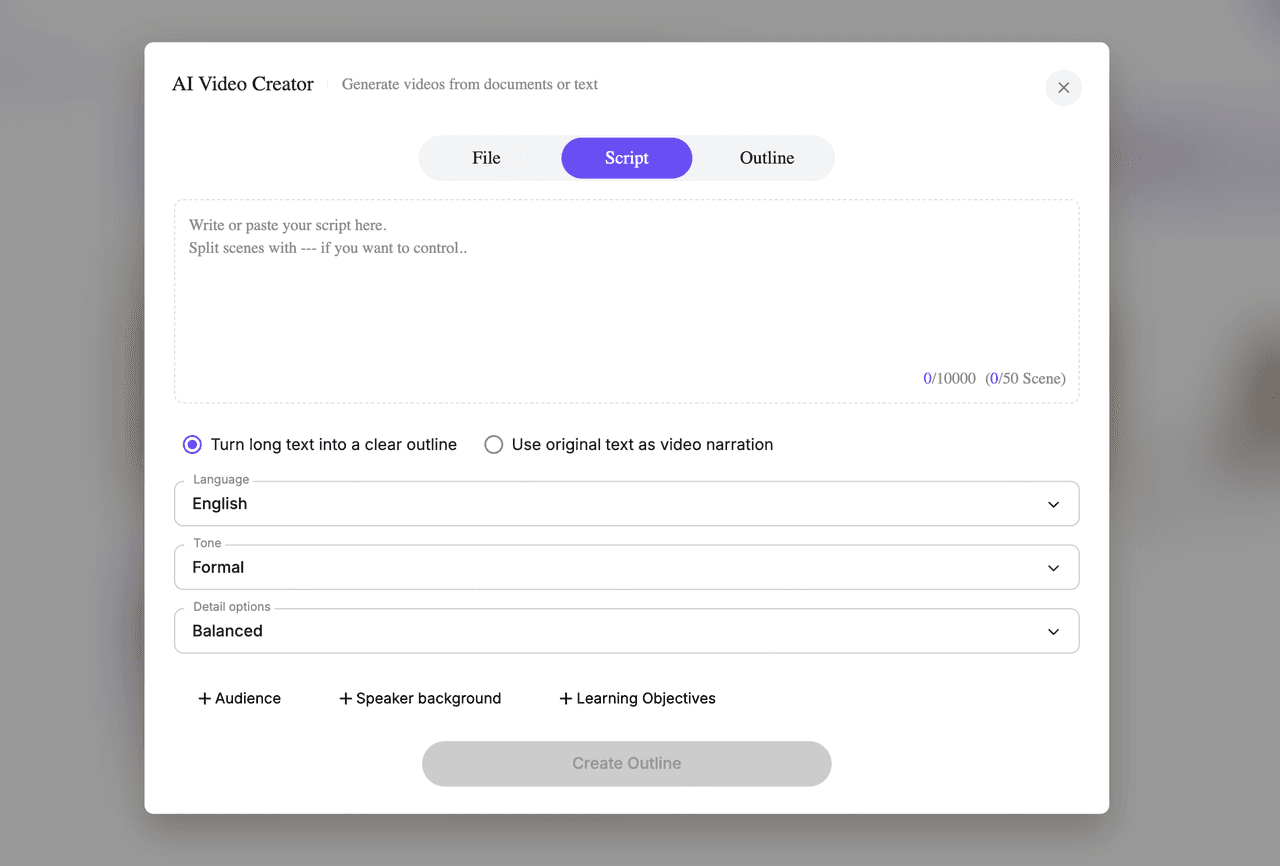
Step 2: Choose language, tone, and detail level
Select the video language, presenter tone (such as formal, friendly, or informative), and how detailed the script should be. These settings control narration style and pacing.
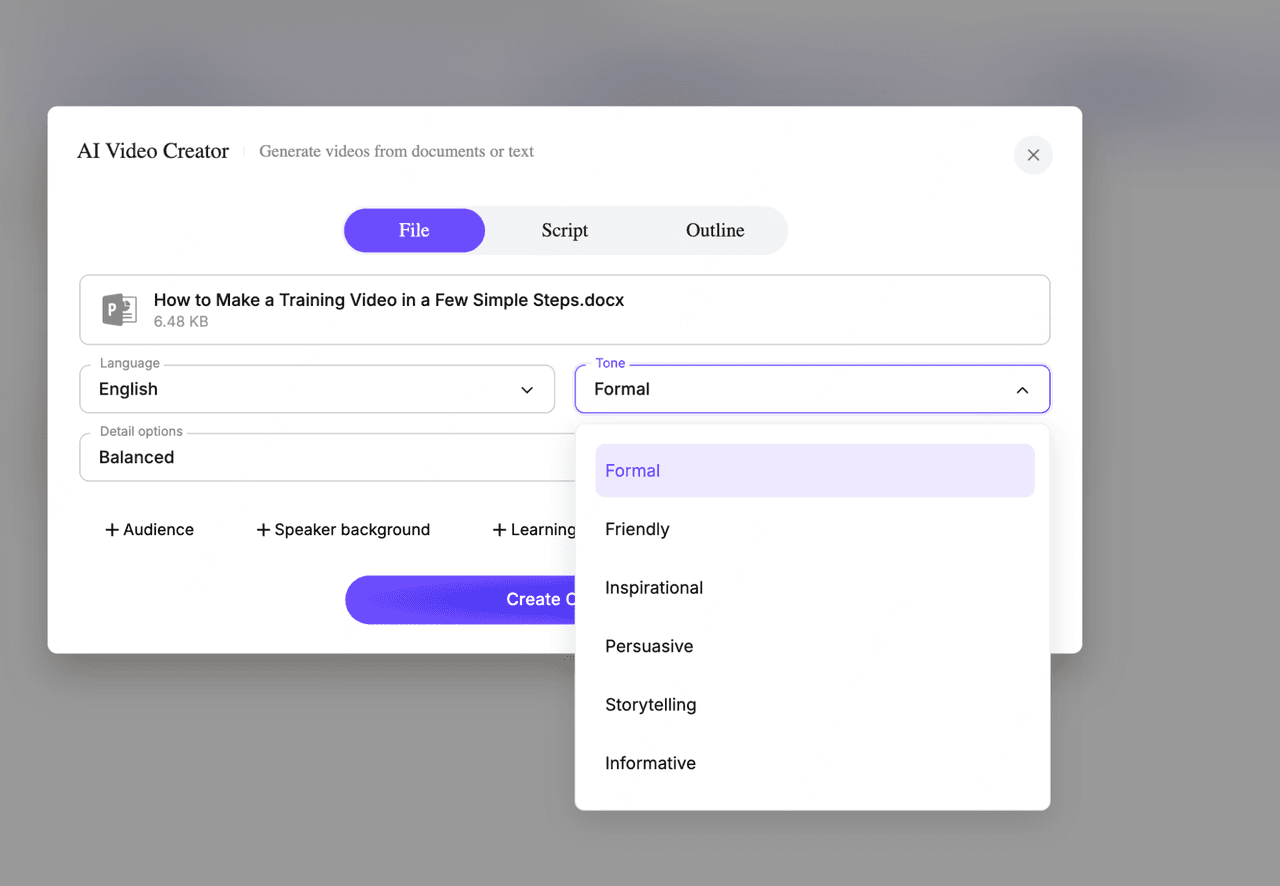
Step 3: Add optional context
You can optionally define the audience, speaker background, or learning objectives. This helps the AI align narration and structure with real use cases, such as training or onboarding.
Step 4: Generate a structured outline
The AI converts slides into a modular outline, organizing content into clear sections and scenes. You can edit, reorder, or expand any part before video generation.
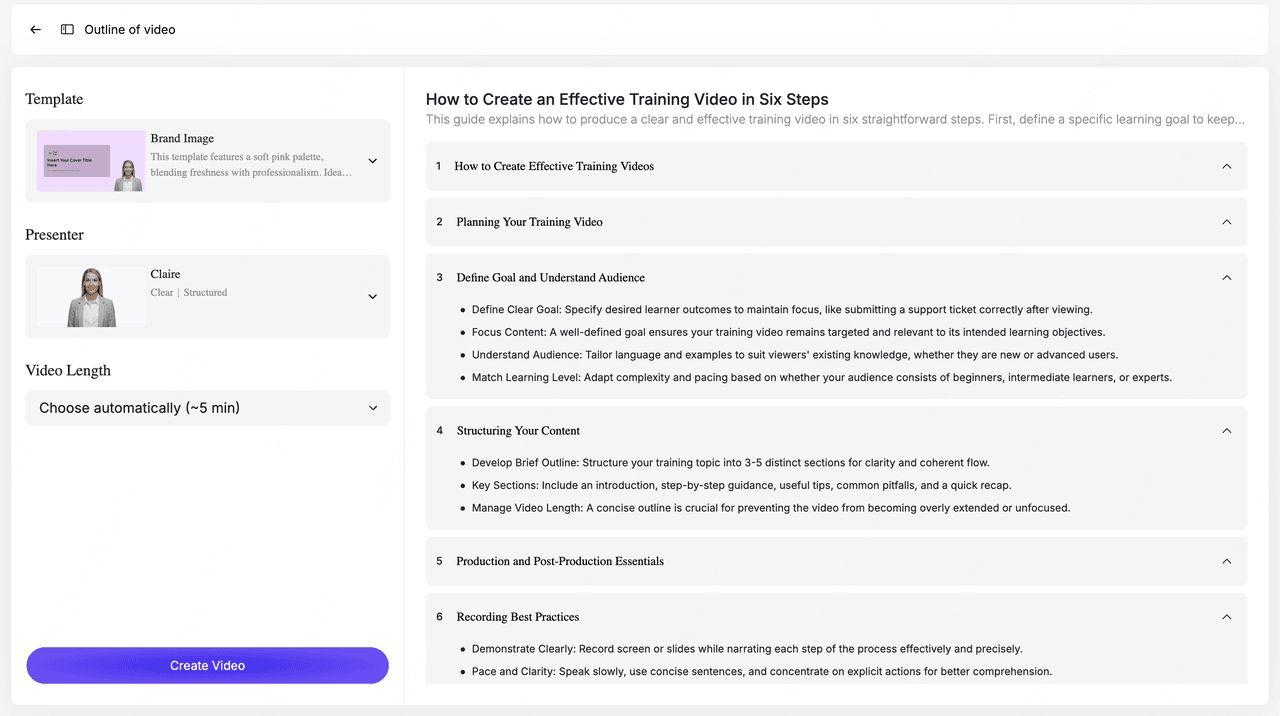
Step 5: Select a video template and presenter
Choose a visual template to ensure consistent layout and transitions, then select an AI presenter to narrate the video.
Step 6: Create and preview the video
After clicking ‘Create Video’, the system generates the full video—including narration, on-screen text, visuals, and transitions. Preview the result, adjust pacing or content if needed, and regenerate specific scenes.
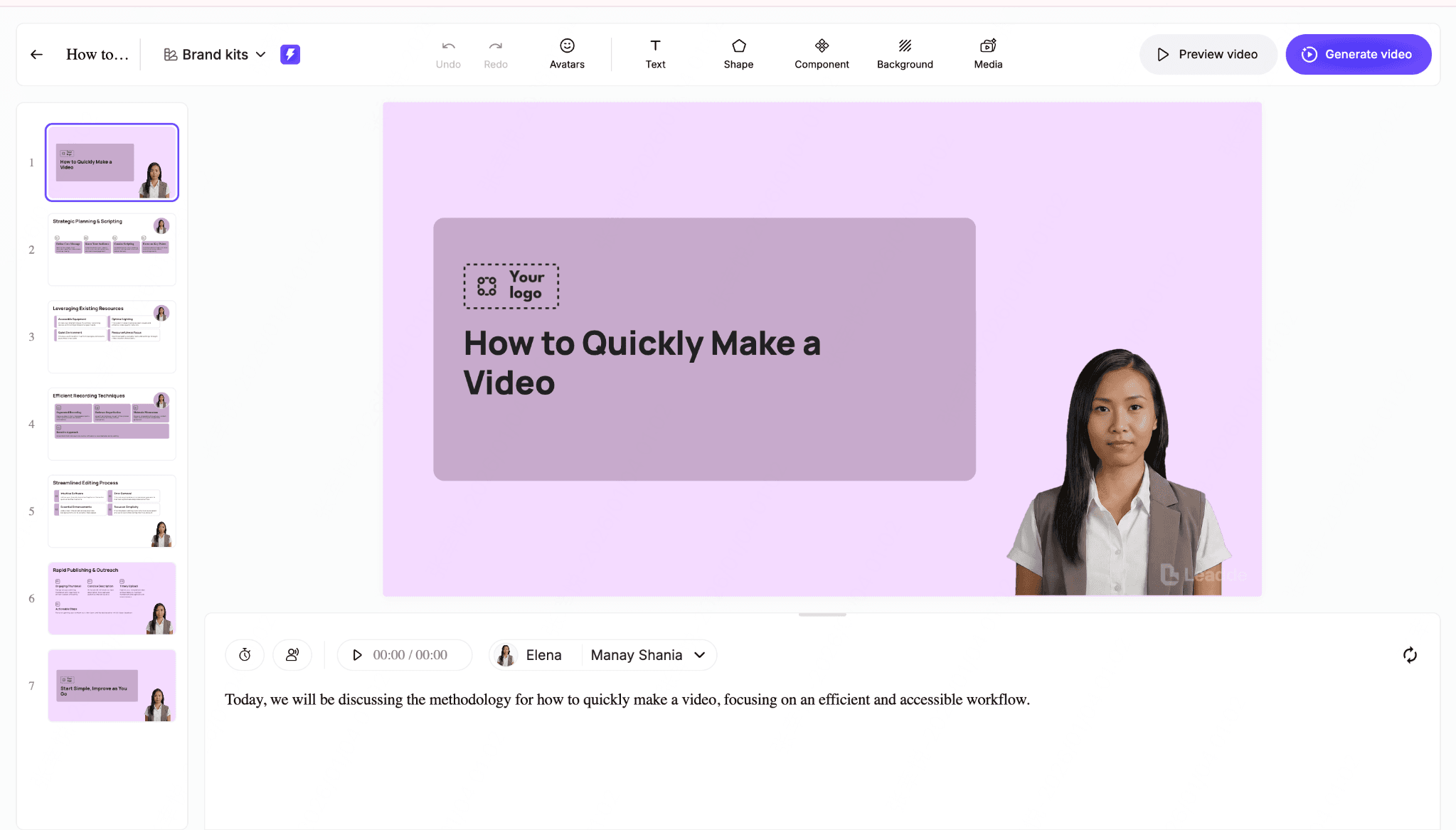
Step 7: Export the final video
Once approved, generate and download the video file. Titles and descriptions are created automatically and can be edited before sharing.
With an AI video generator like Leadde, this approach makes it possible to turn PPT slides into structured videos in minutes—without recording each slide manually.
Converting Large PPT Decks (100+ Slides) for Training and eLearning
Large-scale decks require a different approach.
Example scenario:
- 150-slide training presentation
Before:
- Manual segmentation
- Recording per section
- Editing and stitching
After:
- Import into structured tools (e.g., Storyline, Captivate)
- Or use AI to segment and narrate automatically
Key requirements in these cases:
- Modular structure
- Consistent narration
- LMS compatibility
The insight: large decks are not “videos”—they are content systems.
Why PPT to Video Export Can Be Slow (and How to Speed It Up)
Export time is often underestimated.
Observed factors:
- Video length (1-hour content can take 2+ hours to render)
- Resolution (4K significantly slower)
- Animations and transitions
Optimization tips:
- Use 1080p unless necessary
- Simplify animations
- Pre-record timings
- Split long decks into sections
Common PPT to Video Problems and How to Fix Them
1. No sound in video
- Cause: narration not recorded
- Fix: use recorded timings or AI voice
2. Animations not working
- Cause: unsupported effects
- Fix: simplify animations
3. Export option missing
- Cause: web version
- Fix: switch to desktop app
4. File too large
- Cause: high resolution
- Fix: reduce to 1080p
5. Export stuck or slow
- Cause: system performance
- Fix: reduce length or complexity
PPT to Video vs Screen Recording: Which Is Better?
PPT Export
- Clean output
- Consistent formatting
- No human error
Screen Recording
- More control over delivery
- Natural presentation style
- Harder to edit and scale
Decision rule:
- Need scalability → export or AI
- Need personality → recording
How to convert PPT to video on Windows vs macOS
PowerPoint offers built-in video export on both Windows and macOS, but the steps, formats, and options aren’t identical. Understanding these differences helps you choose the right settings and avoid common export issues.
Convert PPT to video on Windows
On Windows, video export is available in most modern versions of Microsoft PowerPoint and provides the widest range of control options.
- Export path Go to File → Export → Create a Video.
- Video format and quality Videos are exported as MP4 (or WMV in older versions). You can choose from multiple resolutions, including Full HD (1080p) and Ultra HD (4K), depending on your version of PowerPoint.
- Recorded timings vs fixed duration
- Use Recorded Timings and Narrations if you’ve added slide timings or voiceover.
- Use a fixed duration per slide if no narration is recorded and you want consistent pacing.
Windows export is ideal when you need precise control over resolution and timing.
Convert PPT to video on macOS
On macOS, PowerPoint uses a slightly different export flow with fewer customization options.
- Export path Go to File → Export, then select a video format.
- MP4 vs MOV macOS supports both MP4 and MOV exports. MP4 is generally recommended for compatibility across devices and platforms.
- Common macOS export limitations
- Fewer resolution presets compared to Windows
- Limited control over advanced animations and transitions
- Some media effects may not export exactly as previewed
macOS export works well for simple presentations, but complex animations or high-resolution needs may require additional processing.
Quick takeaway
- Windows offers more control over quality and timing
- macOS offers simpler export with fewer settings
- Both systems support MP4, but export behavior and limitations differ
This platform-specific breakdown helps ensure your PPT videos export correctly—regardless of the device you’re using.
Best practices for converting PPT to video
To make a PPT video effective, focus on clarity and structure rather than slide volume or visual effects. Simple adjustments can significantly improve watch time and comprehension.
- Keep videos short and structured Break long presentations into smaller sections. Short, well-organized videos are easier to watch and revisit.
- One idea per slide Each slide should communicate a single point. This improves pacing and prevents narration from becoming rushed or unclear.
- Optimize for accessibility Use clear visuals, readable text, and captions whenever possible. Accessible videos are easier to follow and more likely to be reused across teams.
- Choose the right resolution for your use case Export higher resolutions for large screens or public sharing, and smaller sizes for quick internal distribution or email delivery.
Following these best practices ensures your PPT videos are easier to watch, understand, and share—regardless of platform or device.
Frequently Asked Questions (FAQ)
Can I convert PPT to video for free?
Yes. PowerPoint includes a built-in export feature.
What is the best format for PPT video?
MP4 is the most compatible and widely supported format.
Why does my PowerPoint video have no sound?
Because narration was not recorded or included during export.
Can I convert PPT to video without recording?
Yes. AI tools can automatically generate voiceovers.
Why can’t I export PPT to video?
You are likely using the web version, which does not support this feature.
What is the fastest way to convert PPT to video?
Using AI tools that automate narration and structure is the fastest method.
Can I convert PPT to video on Mac?
Yes, using File → Export → MP4 or MOV, though with fewer options than Windows.
Can I convert PPT to video in bulk?
Yes, but this typically requires AI tools or eLearning platforms.
Will animations be preserved?
Basic animations are preserved, but complex ones may not render correctly.
How long should a PPT video be?
3–10 minutes is optimal for most use cases.
Is AI better than PowerPoint for video conversion?
It depends. AI is better for narrated, scalable content. PowerPoint is sufficient for simple exports.
Conclusion
There is no single best way to convert PPT to video. The right method depends on whether you need simple playback or scalable, narrated content.
From real-world workflows, the key shift is clear:
- Traditional export solves format conversion
- AI tools solve content production
Choosing the right approach can reduce production time from hours to minutes while making videos easier to reuse, update, and distribute.