
AI Slideshow Video Maker

Turn PowerPoint into Clear, Engaging Videos

Onboarding walkthrough
Turn compliance documents, safety protocols, or regulatory guidelines into structured certification videos. Let an AI avatar walk employees through each requirement clearly — reducing legal risk and keeping teams audit-ready.

Cleanroom protocols
Explains the behavior guidelines and operational requirements for cleanrooms, ensuring employees adhere to standards and improve work efficiency and safety.

AR-700 operation training
Introduces the operation process and safety guidelines of the AR-700 precision assembly robot, helping employees master proper operating techniques.

Marketing insights
Trusted by the world's leading brands







What Is an AI Slideshow Video Maker?
An AI slideshow video maker turns presentations, documents, or text into narrated videos automatically. Leadde analyzes your source content, creates an outline and narration, restructures information into video scenes, and adds visuals, subtitles, highlights, AI voice, or an AI presenter to create a more engaging slideshow-style video. Instead of simply recording static slides, Leadde turns the ideas inside your source material into a scene-by-scene video designed for viewing and listening.

Why Use Leadde's AI Slideshow Video Maker?
Turn Content Into Video Scenes
Upload a PPT, PDF, document, text, or script. Leadde analyzes the structure and key information, then reorganizes the content into scenes rather than simply displaying each original page.
Generate Narration Automatically
Turn written content into natural AI voiceovers, so your slideshow can explain each scene instead of relying only on text and music.
Add Voice or AI Presenters
Narrate your slideshow with AI voice or add an AI avatar as an on-screen presenter. You can also hide the avatar when you want a voice-over-only slideshow video.
Add Visuals, Motion, and Highlights
Build each slideshow scene with automatically organized layouts, generated or uploaded media, subtitles, background music, and animated highlights that draw attention to key information.

Who Is an AI Slideshow Video Maker For?
Teachers and Educators
Turn presentations, lecture notes, PDFs, and lesson materials into narrated educational slideshow videos that explain information clearly from scene to scene.
Training and L&D Teams
Convert training decks, onboarding materials, policies, and process documents into reusable slideshow videos for employee learning and internal education.
Businesses
Transform company presentations, product documents, proposals, and internal materials into narrated videos that are easier to present, share, and update.
Content Creators
Repurpose presentations and written content into visual slideshow videos without manually building every scene, script, and layout from a blank timeline.
How to Create a Slideshow Video with AI
Use the Slide Presenter to transform presentations into videos. Follow these steps to experience a seamless PowerPoint to video converter.
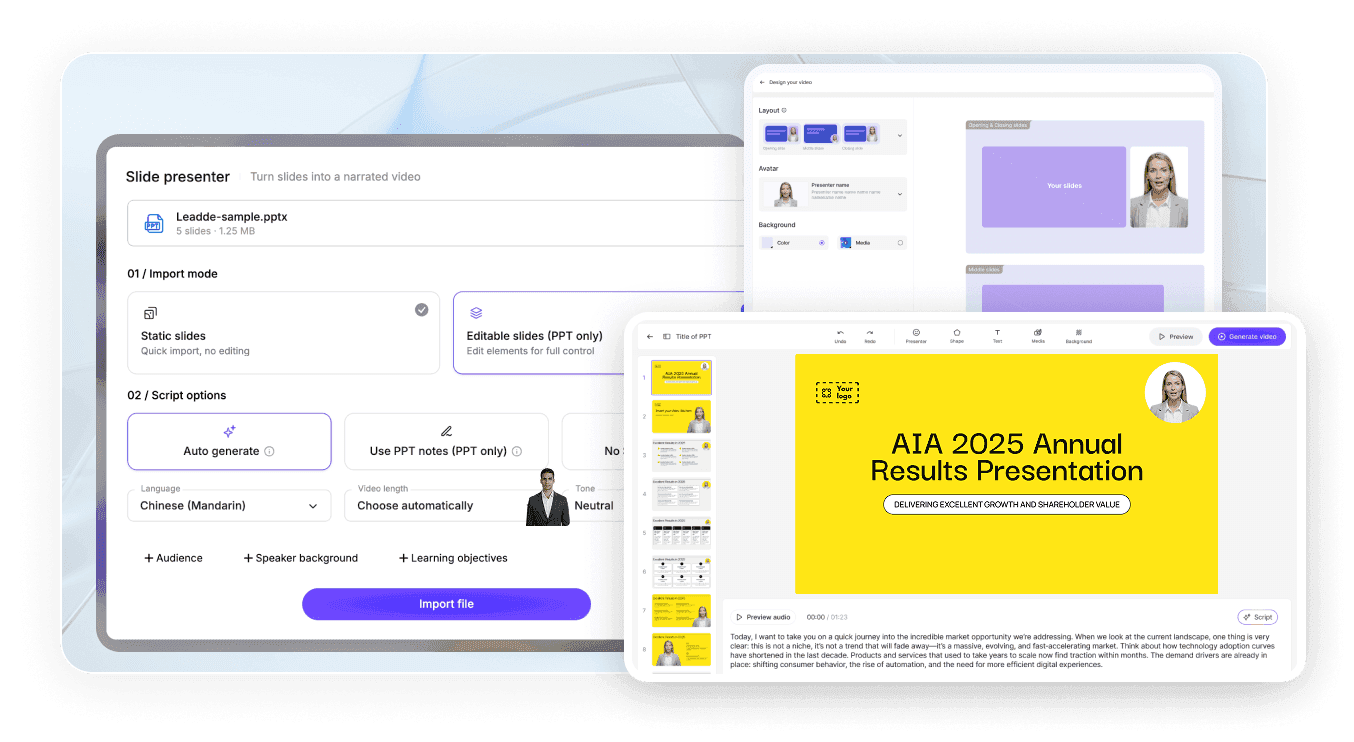
Step 1: Add Your Content
Upload a PPT, PDF, DOC, DOCX, or TXT file, or start with text or a script. Leadde reads the source content and identifies its structure and key points.
Step 2: Let AI Build the Video
Leadde generates an outline, narration, scenes, layouts, visuals, subtitles, and highlights. Choose an AI voice, add an avatar, or create a voice-over-only video.
Step 3: Edit and Generate
Review your scenes, adjust the script, visuals, presenter, pacing, or highlights, then generate your finished slideshow video for sharing or export.
AI Slideshow Video Maker Use Cases
Presentation to Video
Turn an existing PowerPoint or PDF presentation into a narrated slideshow video without relying on a simple screen recording of static slides.
Training Slideshow Videos
Convert training decks, policies, SOPs, and learning materials into structured videos with narration, clear scenes, and visual emphasis.
Educational Slideshow Videos
Transform lectures, class presentations, teaching materials, and study content into video lessons with narration, subtitles, visuals, and optional AI presenters.
Narrated Visual Slideshows
Turn written information into visual slideshow videos using structured scenes, narration, uploaded or generated media, subtitles, and optional presenters.
Product Presentation Videos
Use product decks, feature documents, and launch materials to create narrated explainer or walkthrough videos for customers and internal teams.
Sales and Business Presentations
Turn pitch decks, proposals, company presentations, and product information into narrated videos that teams can share with customers, prospects, or colleagues.
Frequently asked questions
Start with the content you already have, such as a PPT, PDF, document, or script. Leadde analyzes the material and converts it into structured scenes with narration, visuals, subtitles, and optional AI presenters, reducing the need to build the video manually slide by slide.
Yes. Leadde's Slide Presenter can import PowerPoint presentations, extract their content and structure, and rebuild them as video scenes. It can also turn presentation bullet points into spoken narration and add voice, subtitles, visuals, highlights, or an AI avatar.
Yes. You can upload a PDF and use its content as the source for a video. Leadde analyzes the document, identifies its structure and main information, then generates an outline, narration, scenes, and visual layouts for the resulting video.
No. Leadde is designed to understand and restructure source material rather than simply record or display static slides. It can reorganize presentation or document content into scene-by-scene video sequences and generate narration, layouts, visuals, subtitles, and highlights around the source information.
Yes. Leadde supports AI voice narration and AI avatars. You can create a presenter-led slideshow video or hide the avatar and use voice-over only, depending on how you want the information to be presented.
Yes. Leadde supports background music as part of the video creation workflow. You can combine music with narration, visuals, subtitles, uploaded media, and other scene elements when creating your slideshow video.
Yes. Leadde supports multilingual video creation and localization, including AI voices, translation, dubbing, and subtitles. Its current homepage product specification lists support for 88 languages and 175 dialects.
Create Your Slideshow Video with AI
Turn your presentations, documents, or text into structured narrated videos with scenes, visuals, voice, and optional AI presenters.

Frequently asked questions
An AI PowerPoint-to-video converter reads the page layout and presentation content of a .pptx file, then automatically generates an explainer video with visuals, an avatar, or narration based on the file’s content and structure.
Upload your .pptx file to Slide Presenter, choose an import mode, and set the target language, tone, and audience as needed. Create and render the video, then export the completed narrated video as an MP4 file.
Yes, both PowerPoint's built-in export feature and third-party AI tools like Leadde, SlideSpeak, and Aspose.Slides can convert PPT and PPTX files directly into standard MP4 video files.
In Leadde Slide Presenter, follow the workflow: Upload File → Create Video → Render → Export. Choose your preferred resolution, then export the final file directly as an MP4 video.
Yes, AI tools such as Leadde can automatically generate voiceover narration from your slide text or speaker notes in dozens of languages and voice styles.
Leadde does not preserve the original animations or transitions from PowerPoint. Instead, you can use Leadde’s built-in animation effects or highlight key content with one click, so important information appears at the right moment in sync with the narration.
Yes, tools like Leadde offer free, browser-based PowerPoint-to-video conversion that requires no software installation or account for basic use.
Leadde accepts .pptx files up to 500 MB for upload and outputs the converted result as a standard MP4 video file.
Yes. Slide Presenter includes a built-in export feature that allows all users to export videos as MP4 files. To export a watermark-free version, a paid subscription is required.
No, cloud-based AI tools like Leadde run entirely in your browser and require no software installation, though PowerPoint's own native export requires PowerPoint to be installed on your device.
Yes, PowerPoint offers native video export on macOS through File → Export, and browser-based AI tools like Leadde work on Mac since they don't depend on the operating system.
Turn Your PowerPoint Presentation into a Video
Join thousands of professionals using Leadde to convert static .pptx files into captivating videos. Try our AI PowerPoint to video converter for free today.