AI PDF to Video: Make Engaging Videos Beyond Slides

The biggest mistake in AI PDF-to-video creation is treating every PDF page as a video scene. The result is often a narrated slideshow: summarized text, repetitive transitions, and little reason to keep watching.
A better approach is to restructure the PDF around ideas, evidence, and viewer attention. Strong videos decide what deserves its own scene, what should stay on screen, and what the narration should explain.
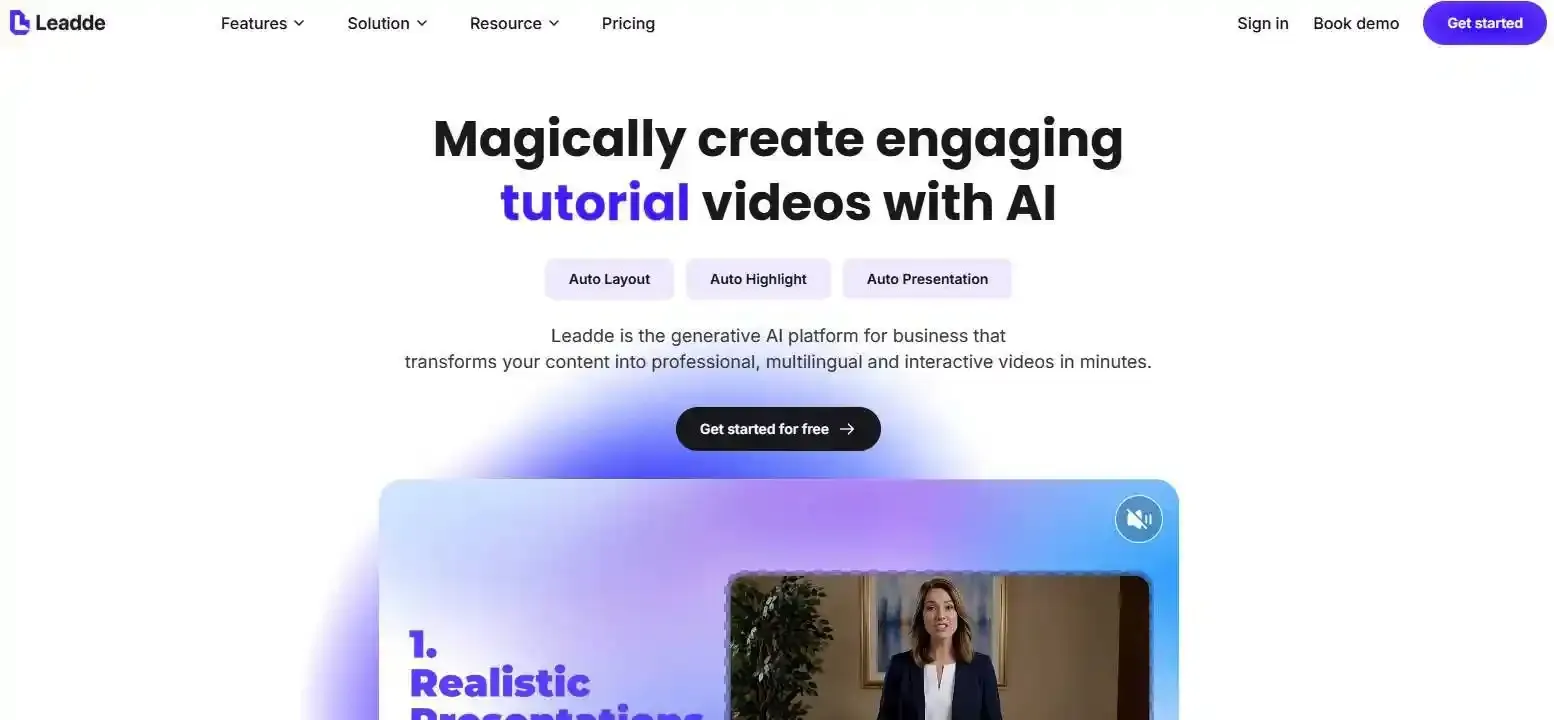
Leadde follows this more flexible approach by turning PDFs and presentations into editable video scenes with AI narration, visual layouts, highlights, and optional presenters. In this guide, we’ll show how to make AI PDF videos more engaging, clearer, and more faithful to the source.
AI PDF Videos: Why Do Slide-by-Slide Summaries Feel So Boring?
The fastest way to turn a PDF into a video is also one of the easiest ways to make a boring video: summarize page one, turn it into a scene, add narration, then repeat for every page.
That workflow preserves the PDF, but it rarely creates a good viewing experience.
A PDF is designed for reading. Readers can stop, scan backward, compare paragraphs, inspect a chart, or skip an appendix. Video is different. The creator controls what appears, when it appears, and where the viewer should focus.
That means the structure of the document should be treated as source material—not as the final video timeline.
A PDF Page Is Not a Video Scene
One PDF page may contain a headline, three arguments, a chart, a footnote, and a recommendation. Trying to explain all of that in one scene usually creates either too much text or a long voiceover.
The opposite also happens. Three or four PDF pages may all support one simple conclusion. Turning each page into a separate scene creates unnecessary repetition.
A better rule is:
One scene = one clear cognitive task.
A scene might ask the viewer to understand:
- one claim,
- one comparison,
- one process step,
- one piece of evidence,
- or one takeaway.
Tools such as Leadde already move beyond basic page recording by analyzing source material and reorganizing PDFs and presentations into editable scenes with narration, layouts, subtitles, highlights, and optional presenters.
The AI-generated structure should still be treated as a draft. The important decision is not simply “How many pages are in the PDF?” but “How many distinct ideas does the viewer actually need to process?”
The “Knowledge Dump Test”
A useful way to judge an AI-generated PDF video is to ask two questions:
If I turn off the visuals, does the voiceover still contain almost everything?
And:
If I mute the video, can I read almost everything the narrator is saying on screen?
If the answer to both is yes, the video probably has too much duplication.
It is essentially a document being delivered through two channels at once.
This problem also appears in real e-learning production. In one instructional-design discussion about turning hundreds of PowerPoint lessons into AI-narrated videos, commenters criticized the approach as a “knowledge dump” rather than a designed learning experience.
The problem is not AI narration itself. The problem is expecting narration to make an information-heavy slide engaging without changing how the information is structured.
Decide What the Video Should Actually Do
Before generating scenes, finish this sentence:
After watching this video, the viewer should be able to ______.
For example:
- explain a concept,
- complete a process,
- compare two options,
- understand the main finding,
- avoid a common mistake,
- or decide what to do next.
This forces you to distinguish essential video content from information that can stay in the PDF.
A research report may contain 30 pages of methodology, supporting tables, citations, and appendices. A three-minute executive video may need only the key question, major evidence, implication, and recommendation.
A better video is not necessarily a more complete copy of the PDF. It is a more purposeful interpretation of it.
How Do You Turn PDF Content Into a Video Story Instead of a Slide Deck?
The biggest structural upgrade is to stop asking:
“How should I summarize each section?”
Instead ask:
“What does the viewer need to understand first, second, and third?”
Document order and explanation order are not always the same.
Extract the Argument, Not Just the Sections
Many AI tools naturally identify headings such as:
Introduction
Method
Results
Discussion
Conclusion
That is useful for understanding the document, but it should not automatically become the video structure.
For an explainer, a stronger sequence might be:
Question → Answer → Evidence → Why It Matters
For an explainer, a stronger sequence might be:
Question → Answer → Evidence → Why It Matters
For training:
Problem → Correct Action → Demonstration → Warning → Check
Start by extracting:
Main question What problem is this PDF addressing?
Core claim What is the most important thing the viewer should understand?
Evidence Which numbers, examples, charts, or findings support it?
Meaning Why does that evidence matter?
Next step What should the viewer remember or do?
This is closer to building an argument than summarizing a table of contents.
Build Scenes Around Ideas, Claims, Steps, or Evidence
Once the argument is clear, convert it into scene-sized units.
For example, imagine a report contains:
- two pages explaining the problem,
- one page of market data,
- two pages describing causes,
- a recommendation page.
A page-based workflow might produce six scenes.
A narrative-first workflow could instead produce:
Scene 1 — The Problem Establish what is changing and why viewers should care.
Scene 2 — The Evidence Reveal the most important chart or number.
Scene 3 — Why It Is Happening Explain the two major causes visually.
Scene 4 — What to Do Next Present the recommendation.
The source is still the same. The unit of organization has changed from pages to meaning.
Give Every Scene a Clear Function
A useful storyboard should not only say what information appears in each scene. It should also say what job that scene performs.
A simple Scene Function System is:
Hook — Give the viewer a reason to continue.
Orient — Explain what they are looking at.
Explain — Make a concept or mechanism understandable.
Prove — Show the evidence.
Demonstrate — Show how something works.
Compare — Make a difference visible.
Check — Ask the viewer to retrieve or apply what they learned.
Takeaway — Reinforce what matters.
Before generating visuals, read only the scene headlines from beginning to end.
If they do not form a logical story on their own, adding animation will not fix the problem. Fix the structure first.
| Traditional PDF Element | Video Narrative Scene | Scene Function (Job) |
| Introduction / Background | The Hook / Problem | Establish what is changing & why they should care. |
| Market Data / Results | The Evidence | Reveal the most important chart or number. |
| Causes / Discussion | Why It Is Happening | Explain the major causes visually. |
| Conclusion | What to Do Next | Present the clear recommendation. |
What Should Be on Screen, and What Should the Narration Explain?
A strong AI PDF video uses visuals and narration as complementary channels.
The screen should not become a transcript of the voiceover, and the narrator should not simply read what viewers can already see.
Use an Information Channel Budget
For every important idea, decide which channel should carry most of the information.
| Channel | Best Used For |
| Screen | structure, labels, evidence, key phrases |
| Voice | context, reasoning, interpretation |
| Motion | sequence, change, relationships |
| Interaction | prediction, recall, decisions |
For example, imagine the source PDF says revenue rose from one period to another because one customer segment expanded.
A weak scene shows:
“Revenue increased because Segment A grew.”
The narrator then reads the same sentence.
A stronger scene shows the chart and highlights Segment A while the narrator explains why that segment changed and what the change means.
Now the two channels are doing different jobs.
Turn PDF Content Into Visual Explanations
Do not begin with:
“Which image should I add?”
Begin with:
“What relationship does the viewer need to see?”
Then choose the visual form.
Process → Steps
Reveal each step as it becomes relevant.
Comparison → Side-by-side view
Show differences spatially rather than reading a list.
Chronology → Timeline
Let position and motion communicate sequence.
Concept → Diagram or analogy
Turn an abstract relationship into something visible.
List → Group, hierarchy, sequence, or decision
Do not automatically turn six bullets into six animated bullets.
This distinction matters because decorative visuals and explanatory visuals do different things. A generic stock clip may improve visual variety, but it often does little to explain the underlying PDF.
| Information Type | Recommended Channel | Example in Practice |
| Exact Data & Trends | Screen (Visual) | Highlighting Segment A on a bar chart. |
| Context & "Why" | Narration (Audio) | Explaining the underlying reason Segment A grew. |
| Spatial/Process Ties | Screen (Visual) | Revealing process steps sequentially on screen. |
| Final Implications | Narration (Audio) | "This means we must adjust our Q3 strategy." |
How Should You Handle Charts, Tables, and Diagrams?
Charts and tables need special treatment because they often contain evidence, not decoration.
Use a simple decision:
Preserve → Rebuild → Demonstrate → Remove
Preserve the original when its exact form matters—for example, a research figure that the viewer needs to recognize.
Rebuild it when the underlying data matters but the PDF version is too dense to read on video.
Demonstrate it when the source actually describes a process or system that would be clearer through sequential animation.
Remove it when the visual adds no information to the video goal.
Avoid displaying a complex chart and leaving the viewer to figure out where to look. Instead use progressive reveal:
- establish what the chart measures,
- highlight the relevant series or value,
- explain the change,
- reveal the implication.
The same principle applies to tables. If only two rows and three columns matter to the argument, showing the entire 30-row table usually creates unnecessary visual load.
Most importantly, never invent missing values or simplify a visual in a way that changes its meaning.
How Do You Make AI PDF Videos Engaging Without Making Them Distracting?
It is easy to confuse engagement with production value.
AI makes it increasingly easy to add avatars, transitions, animated backgrounds, generated B-roll, zooms, and motion graphics.
But more visual activity does not automatically create a better explanation.
Animate Meaning, Not Decoration
Motion works best when it helps viewers understand:
- what changed,
- what happened first,
- where something moved,
- how two things relate,
- or which element deserves attention.
For example:
A process diagram can reveal one step at a time.
A chart can highlight the bar being discussed.
A before-and-after scene can transition between two states.
A workflow can animate the direction of information.
These are explanatory motions.
By contrast, animating every headline, icon, background, and transition simply because the tool allows it can make the viewer work harder to identify what matters.
There is also an AI Polish Paradox: sometimes a more polished-looking video is less useful.
A Reddit user trying to create tutorials for completing PDFs wanted the original form to stay on screen while AI highlighted fields and filled them with example information. Their complaint was that some AI tools added too much visual treatment instead of staying focused on the actual document.
For that task, source fidelity is part of the engagement. Viewers need to recognize exactly what they will see when they perform the task themselves.
Should You Use an AI Avatar or Just Voiceover?
An avatar can help when the presenter itself has a useful role.
Good uses include:
- welcoming the viewer,
- introducing a scenario,
- building human connection,
- delivering a short explanation,
- or guiding attention.
But avatars should not automatically occupy valuable screen space throughout a technical explanation.
When the viewer needs to inspect:
- a chart,
- software interface,
- procedure,
- form,
- diagram,
- or dense visual evidence,
a full-screen visual with voiceover may work better.
Leadde, for example, allows creators to use an AI presenter or hide the avatar and use voiceover only, while still controlling scenes, highlights, visuals, and pacing.
The question should therefore be:
“Does the presenter help the viewer understand this scene?”
not:
“Does this video have an avatar?”
Use Questions and Interaction at Meaningful Moments
Interaction can make a video more active, but only when it changes what the viewer is doing mentally.
Useful moments include:
Before an important reveal
“What do you think caused this change?”
At a common misconception
“Which of these two interpretations is correct?”
Before a critical procedure
“What should happen before this step?”
After a key explanation
“Can you identify the error in this example?”
A question creates anticipation and retrieval. It gives viewers something to resolve instead of asking them to passively absorb another scene.
Avoid adding quizzes at arbitrary intervals just to make the video look interactive. The interaction should support the learning or communication goal.
How Do You Keep an Engaging AI PDF Video Faithful to the Source?
The more aggressively AI summarizes, rewrites, and restructures a PDF, the greater the need for source checking.
A clear video that changes the original meaning is not an improvement.
Build a Source Fidelity Map Before Simplifying
Before rewriting the document, separate source information into three groups.
Must Preserve
Examples include:
- numbers,
- dates,
- quotations,
- warnings,
- procedures,
- regulatory language,
- chart values,
- study findings,
- important qualifications.
Can Simplify
Examples include:
- definitions,
- background explanation,
- repeated context,
- technical wording that can be expressed more clearly.
Can Remove
Examples include:
- navigation text,
- duplicated explanations,
- formatting artifacts,
- irrelevant appendices,
- detail outside the video goal.
This Source Fidelity Map gives the AI and human editor different levels of freedom depending on the information.
Simplifying the Source Should Never Strengthen the Claim
Small wording changes can create large factual changes.
Consider:
“The intervention may improve performance.”
versus:
“The intervention improves performance.”
Or:
“The effect was observed under these conditions.”
versus:
“The effect always occurs.”
Words such as:
may, can, associated with, under these conditions, not established
can look removable when an AI is optimizing for shorter narration.
But in scientific, legal, financial, medical, or safety material, they may be load-bearing facts.
A useful rule is:
Simplification may shorten a claim, but it should not make the claim more certain than the source does.
The same applies when AI rearranges sections. Always verify that moving evidence earlier or later has not changed the relationship between a claim and its limitations.
Use a Five-Pass Human QA
Instead of one vague “review the video” step, perform five focused checks.
Pass 1 — Factual QA
Check:
numbers, dates, names, quotations, procedures, warnings, and claims.
Pass 2 — Narrative QA
Ask:
Does the explanation follow logically?
Did restructuring remove necessary context?
Does each scene lead naturally to the next?
Pass 3 — Visual QA
Check for:
wrong images, misleading animations, unreadable charts, mismatched highlights, or visuals that imply something the source never said.
Pass 4 — Audio QA
Listen for:
mispronunciations, awkward pauses, rushed sections, unnatural emphasis, and overly long blocks of synthetic narration.
Pass 5 — Engagement QA
Ask:
Does every scene give the viewer a reason to continue?
Is anything repetitive?
Is the viewer being asked to stare at information rather than understand it?
AI can accelerate the first draft. Human QA determines whether that draft becomes trustworthy communication.
What Does a Better AI PDF-to-Video Workflow Look Like in Practice?
The best workflow separates understanding the source from generating the video.
Do not jump directly from PDF upload to final render.
From PDF to Narrative Video: A Practical Workflow
- Define the audience and goal
Who is watching, and what should they understand or do afterward?
- Inspect the PDF
Check text extraction, headings, scanned pages, charts, tables, figures, and important source details.
- Extract the ideas that matter
Identify claims, questions, steps, evidence, and conclusions instead of summarizing every paragraph.
- Build the narrative
Reorder information for understanding rather than simply following page order.
- Design scenes
Give each scene one cognitive task and one clear function.
- Assign visual and narration roles
Decide what viewers should see and what they should hear.
- Add useful motion or interaction
Highlight, reveal, demonstrate, compare, or ask a question only when it improves understanding.
- Check against the original PDF
Verify important facts and qualifiers.
- Watch the finished video as a viewer
Ignore how impressive the AI workflow felt. Ask whether the result is actually clear.
Document-aware tools can accelerate several of these stages. Leadde, for example, currently analyzes document structure and generates an editable outline, script, scenes, narration, subtitles, layouts, and highlights, after which individual scenes and pacing can be revised before export.
The useful distinction is that AI generates the production draft; the creator still controls the communication strategy.
Before and After: Page-Based vs Narrative-First Video
When evaluating a PDF-to-video workflow, compare two versions using the same source and the same target viewer.
Version A — Page-Based
PDF Page 1 → Scene 1
PDF Page 2 → Scene 2
PDF Page 3 → Scene 3
This tests what happens when source structure determines the video.
Version B — Narrative-First
Source claims + evidence + viewer goal
→ narrative sequence
→ scene structure
Then compare:
- Does the second version remove repetition?
- Are charts easier to understand?
- Does narration add information instead of duplicating text?
- Are several PDF pages combined when they support the same point?
- Are dense pages split when they contain several ideas?
- Did restructuring accidentally remove important qualifications?
This is a more meaningful comparison than asking which version has better animations.
When running this kind of test, do not assume the narrative-first version is automatically better. The goal is to identify where restructuring improves comprehension and where staying closer to the source is more useful.
A form tutorial, for example, may benefit from very high visual fidelity. A research summary may benefit from much more aggressive narrative restructuring.
How Do You Know the Video Is Actually More Engaging?
“More engaging” should not simply mean:
it looks better.
Separate at least two outcomes.
Attention
Look at:
- completion,
- drop-off points,
- rewatches,
- interactions,
- follow-up questions.
Understanding
Look at:
- knowledge checks,
- recall,
- task completion,
- mistakes after training,
- whether viewers can explain the main takeaway.
A video can hold attention without teaching anything.
It can also communicate extremely well without looking cinematic.
The strongest PDF-to-video workflow therefore optimizes for useful attention: keeping the viewer engaged long enough to understand or act on the information.
Conclusion
A strong AI PDF video should not simply summarize pages and animate them. It should restructure the source around what the viewer needs to understand, give visuals and narration different jobs, preserve important facts, and use motion or interaction only when they improve comprehension. The goal is not to make the PDF look more cinematic—it is to turn the source into a clearer, more watchable, and more useful video experience.