How to Turn Course Materials into Video Lectures: 2026 Guide

To turn course materials into video lectures efficiently, convert slides, PDFs, documents, notes, transcripts, or recordings into short, structured learning videos with one clear objective per module.
The best 2026 workflow is to break lengthy materials into focused 2-to-7-minute lessons, generate a scene-by-scene outline, write a concise script using the Hook, Teach, Practice, Close framework, add narration and visuals, then review the final video for accuracy, accessibility, and learner engagement.
Manual recording, retakes, editing, and updates can drain time and budget. Leadde helps teams turn documents and text into professional business videos automatically—super fast, in minutes.
With AI layouts, voiceover, avatars, multilingual creation, and interactive video features, Leadde can help reduce production costs by over 80% and content creation time by up to 90%.
How to Turn Course Materials into Video Lectures in 2026?
Turning course materials into video lectures in 2026 is no longer limited to recording a teacher in front of a camera. The smarter workflow is to transform existing learning assets into structured, short, narrated, visual, and measurable video lessons.
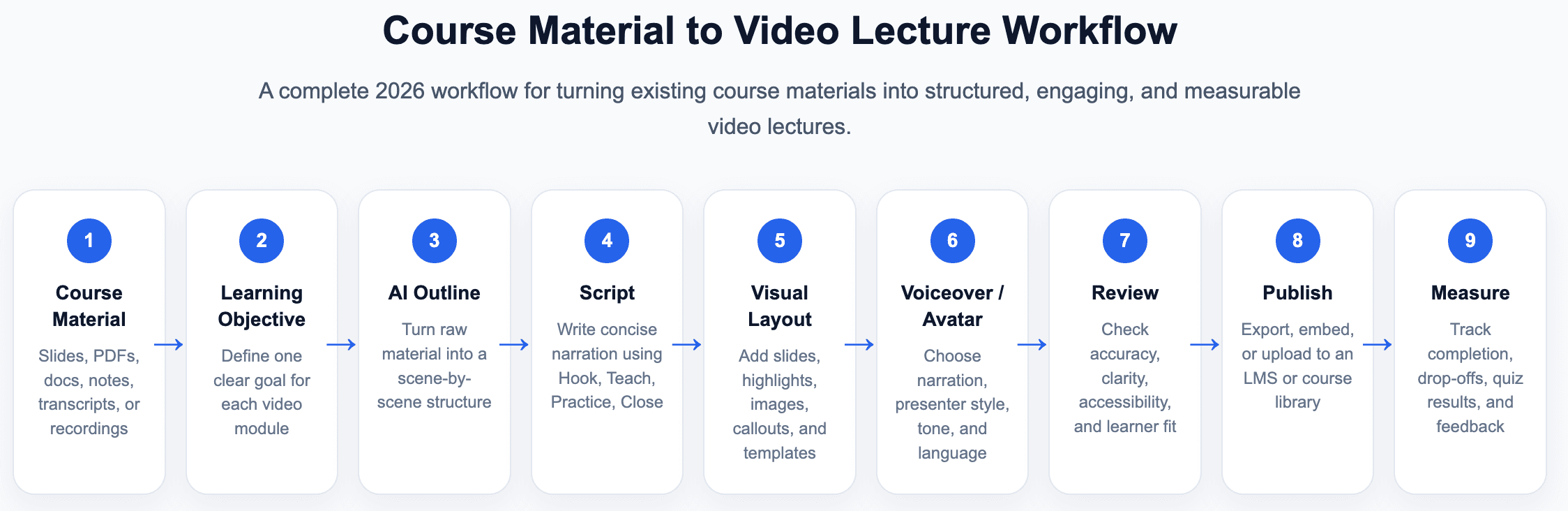
The best process is simple:
- Start with learning goals
- Break the material into short modules
- Create a scene-by-scene outline
- Write or generate a clear script
- Add narration, visuals, and presenter style
- Review for accuracy
- Publish, measure, and update
Why the Best Workflow Starts with Learning Goals, Not File Formats
Many teams begin with the question, “Can I turn this PDF or PowerPoint into a video?” That is the wrong first question.
The better question is: What should the learner understand or do after watching this video?
A file format only tells you where the content comes from. A learning goal tells you how the video should be structured.
For example:
| Starting Material | Weak Goal | Strong Goal |
| PowerPoint deck | Explain all slides | Teach one concept from slides 5–9 |
| PDF handbook | Summarize the document | Show employees how to follow one process |
| Lecture transcript | Turn speech into video | Create a clear 5-minute explanation |
| SOP document | Make a video version | Demonstrate one task step by step |
When you start with the learning goal, the video becomes easier to write, shorter to watch, and easier to update.
What Course Materials Can You Convert: Slides, PDFs, Docs, Notes, Transcripts, and Recordings
Most course materials can become video lectures if they are first reorganized into teachable sections.
Common inputs include:
- PowerPoint slides
- PDF documents
- Word documents
- Lecture notes
- Text scripts
- Audio transcripts
- Live lecture recordings
- Training manuals
- SOPs
- Product education documents
- Compliance materials
The key is not whether the file can be uploaded. The key is whether the content can be divided into short, clear learning units.
A 50-page PDF should not become one 50-minute video. It should become a set of focused modules, each covering one topic, task, or decision.
The New Workflow: Upload, Review, Edit, Generate, Publish, and Improve
The best AI video workflow is not “upload and publish.” It is “upload, review, edit, generate, publish, and improve.”
A strong 2026 workflow looks like this:
- Upload or paste the course material
- Set the audience, tone, language, and learning objective
- Review the AI-generated outline
- Edit the script for accuracy and clarity
- Choose the presenter, template, and visual style
- Preview the video
- Generate the final version
- Publish it to your LMS, course library, or internal platform
- Use analytics and feedback to improve it later
This human-in-the-loop workflow is important because course videos must be accurate, clear, and aligned with learning goals.
Why Should You Turn Long Course Content into Short Video Lessons?
Long recordings often feel easier to create, but they are harder to watch, review, and update. Short video lessons usually work better because they match how learners search, pause, repeat, and apply information.
A short video can focus on one concept, one process, or one decision. That makes it more useful for online courses, employee training, product education, and performance support.
Why Microlearning Works Better Than Long Recorded Lectures
Microlearning breaks a large course into small learning units. Each unit answers one question or teaches one skill.
This format works well because learners can:
- Finish one lesson quickly
- Rewatch difficult topics
- Skip what they already know
- Review before a test or task
- Apply one idea immediately
A long lecture often mixes definitions, examples, instructions, stories, and Q&A into one recording. A microlearning module separates those ideas into cleaner learning blocks.
How to Split a Course into 2–7 Minute Learning Modules
A useful rule is to turn each major idea into a 2-to-7-minute video. This length is short enough for focused viewing but long enough to explain a concept with an example.
To split your material, look for natural breakpoints:
- Definitions
- Key concepts
- Step-by-step processes
- Examples
- Common mistakes
- Case studies
- Practice questions
- Recaps
For example, one 45-minute lecture can become:
| Module | Video Topic |
| 1 | Course roadmap |
| 2 | Core concept 1 |
| 3 | Example of concept 1 |
| 4 | Core concept 2 |
| 5 | Common mistake |
| 6 | Step-by-step demo |
| 7 | Case study |
| 8 | Practice prompt |
| 9 | Summary |
| 10 | Assessment prep |
This structure keeps the course complete while making each video easier to consume.
How Short Videos Improve Reuse, Updates, Completion, and Review
Short videos are easier to maintain than long videos. When a policy, product feature, lesson, or process changes, you only need to update the affected module.
Short lessons also support more flexible learning paths. A team can reuse the same video in:
- A full online course
- A quick onboarding path
- A knowledge base
- A refresher campaign
- A compliance module
- A product training sequence
This makes short video modules more scalable than one long recording.
How Do You Prepare Course Materials Before Creating Video Lectures?
Before you create video lectures, prepare the source material. This step prevents the final video from becoming a dense slideshow, a confusing summary, or a robotic narration of the original document.
Preparation is where you turn raw content into a learning experience.
How to Extract One Clear Learning Objective per Video
Each video should have one clear learning objective. This objective should describe what the learner will know, understand, or do after watching.
Use action-based wording:
- “Explain the difference between X and Y”
- “Apply this process to a real case”
- “Identify the three warning signs”
- “Complete the setup process”
- “Choose the correct response in this scenario”
Avoid vague goals like:
- “Understand chapter 3”
- “Learn about compliance”
- “Review the slide deck”
A strong learning objective keeps the video focused. It also helps the script, visuals, quiz, and title stay aligned.
How to Turn Slides, PDFs, and Notes into a Scene-by-Scene Outline
A scene-by-scene outline breaks the source material into video moments. Each scene should have a purpose.
A simple outline structure can look like this:
| Scene | Purpose | Content |
| Scene 1 | Hook | Problem or question |
| Scene 2 | Context | Why the topic matters |
| Scene 3 | Teach | Main concept |
| Scene 4 | Example | Real-world application |
| Scene 5 | Practice | Reflection or question |
| Scene 6 | Close | Key takeaway |
This outline is especially useful when working with dense documents. It forces you to decide what belongs in the video and what should remain as supporting reading.
How to Write a Video Script with the Hook, Teach, Practice, Close Formula
A strong video lecture script should sound natural, direct, and easy to follow. The Hook, Teach, Practice, Close formula works well for short educational videos.
Use this structure:
| Script Part | Purpose | Example |
| Hook | Capture attention | “Have you ever struggled to explain this concept clearly?” |
| Teach | Explain the main idea | “The key rule is…” |
| Practice | Ask learners to apply it | “Pause and choose the best option.” |
| Close | Summarize the takeaway | “Remember: focus on one objective per video.” |
This framework keeps the video active. It prevents the script from becoming a passive reading of the original material.
How Can You Convert Existing Presentations, Documents, and Recordings Manually?
You can create video lectures manually with slides, scripts, a camera, and editing software. This approach gives strong creative control, but it can take more time.
Manual production is best when the instructor’s personal presence, live demonstration, or expert delivery is central to the learning experience.
How to Adapt PowerPoint Slide Decks Without Simply Reading the Slides
A classroom slide deck is usually not ready for online video. Classroom slides often depend on live explanation, discussion, and instructor context.
Before turning slides into a video, revise them:
- Remove crowded text
- Add one idea per slide
- Use visuals instead of dense bullets
- Add section titles
- Add examples
- Create short transitions
- Add a clear learning objective at the start
The goal is not to read slides aloud. The goal is to use slides as visual support for a clear spoken explanation.
When to Use a Bullet-Point Outline Instead of a Full Script
A full script is useful when accuracy, compliance, or consistency matters. It helps control wording and timing.
A bullet-point outline is better when the instructor wants to sound more natural. It gives structure without forcing a word-for-word delivery.
Use this decision rule:
| Method | Best For |
| Full Script | Compliance, product training, technical lessons, multilingual translation |
| Bullet-Point Outline | Expert lectures, conversational teaching, thought leadership |
| Hybrid Script | Most course videos: scripted key points with natural delivery |
For many video lectures, the best option is a hybrid approach. Script the opening, key definitions, examples, and closing. Use bullet points for supporting explanation.
How to Reuse Live Lectures, Audio Transcripts, and the “Late-Night Talk Show” Recording Style
A live lecture recording is not always a good online video by itself. It may be too long, too slow, or too focused on the in-room audience.
A better approach is to reuse the recording as raw material:
- Extract the transcript
- Identify the strongest teaching moments
- Remove classroom-only references
- Add missing transitions
- Rewrite the explanation for online learners
- Break the lecture into short modules
The “late-night talk show” style is another option. In this format, the instructor speaks directly to the camera, while slides or visuals support the explanation. This helps online learners feel addressed directly instead of feeling like they are watching from the back of a classroom.
What Problems Do AI Video Tools Solve When Turning Course Materials into Video Lectures?
AI video tools can reduce the most time-consuming parts of video production: outlining, scripting, layout, voiceover, visual formatting, localization, and updates.
They are most useful when teams need to create many videos from existing documents, slides, or training materials.
How AI Reduces Camera Shyness, Retakes, Editing Fatigue, and Maintenance Work
Manual video production can create hidden costs. Instructors may need several takes to get one section right. Editors may spend hours cutting pauses, filler words, and mistakes.
AI video tools reduce this pressure by replacing repeated filming with editable scripts and generated presentation scenes.
This helps teams avoid:
- Camera anxiety
- Repeated retakes
- Audio cleanup
- Removing “ums” and “ahs”
- Re-recording for small updates
- Rebuilding videos when one slide changes
- Recreating the same training in multiple languages
For high-volume training, the biggest benefit is not only speed. It is long-term maintainability.
How AI Converts PDFs, Word Docs, PowerPoint Slides, and Text into Video Scenes
AI document-to-video tools can analyze course materials and turn them into structured video drafts.
A strong tool should create:
- A lesson outline
- Video scenes
- Draft narration
- Visual layout suggestions
- Key point highlights
- A preview for review
Leadde converts business content such as PowerPoint files, PDFs, Word documents, scripts, and text into structured video presentations, and its system can automatically generate outlines, scenes, voice-over scripts, and visual layouts.
This matters because the first AI draft should not be the final video. It should be an editable starting point.
How Auto-Layout, Visual Highlighting, AI Avatars, Voiceovers, and Templates Speed Up Production
Good AI video tools do more than place text on slides. They help structure the visual experience.
Important features include:
- Auto-layout for clean scene design
- Key-point highlighting for learner focus
- AI voiceover for narration
- AI avatars for presenter-style delivery
- Templates for consistent visual branding
- Stock image matching for supporting visuals
- Editable scripts for review and improvement
Leadde automates scene layout, key-point highlighting, presentation flow, and voice-over generation, which reduces the manual effort required to produce training, onboarding, and instructional videos.
How Can Leadde Help Create Professional AI Video Lectures from Course Materials?
Leadde is especially relevant for teams that already have documents, slides, scripts, or internal training materials and need to turn them into professional videos quickly.
It supports a workflow that combines AI automation with human review, which is important for education, onboarding, product training, compliance, and SOP content.
How Leadde Turns Documents and Text into Outlines, Scenes, Scripts, and Visual Layouts
Leadde helps teams turn existing written and presentation content into structured video assets. Instead of starting with a blank timeline, users can begin with course materials.
The workflow supports both:
- File-based input
- Text-based input
In the file workflow, users can upload formats such as PPTX, PDF, DOC, DOCX, and TXT. In the text workflow, users can directly paste content into the platform.
After the material is uploaded, Leadde can parse the content and generate an outline and script structure. Users can then review the structure before final video generation.
How Leadde Supports AI Avatars, Slide Editing, Multilingual Video Creation, and Localization
Leadde supports several features that are useful for course video production:
- 200+ AI avatars
- Personal digital avatars from uploaded photos
- Layered PowerPoint import
- Layer-level editing
- 92-language multilingual workflows
- One-click multilingual video draft creation
- Translation progress visibility
Leadde’s official product overview states that the platform supports large-scale multilingual workflows across 92 languages and offers a library of 200+ AI avatars.
This is important for global teams. One course can become multiple localized learning assets without rebuilding the entire video from scratch.
How Chat with Video, Version Control, and Analytics Help Create Interactive and Updatable Learning Content
Traditional video is one-way. Learners watch, pause, and move on. Interactive video can go further by allowing learners to ask questions, review content, and explore specific parts of the lesson.
Leadde includes Chat with Video, advanced playback modes, version control, real-time updates, sharing, and analytics. These features help teams manage, optimize, and improve video content over time.
This makes Leadde useful not only for creating video lectures, but also for maintaining a growing library of learning content.
Traditional vs. AI Video Creation: Which Workflow Should You Choose?
The best method depends on your goal, timeline, budget, update frequency, and learner audience. Manual recording, AI generation, and hybrid workflows each have a place.
The right choice is not always “AI only” or “manual only.” Many teams get the best result from a hybrid process.
When Manual Recording Is Still the Best Choice
Manual recording is still useful when the human instructor is central to the learning experience.
Choose manual recording when:
- The teacher’s personality is a key part of the course
- The topic requires live demonstration
- The lesson depends on emotion, storytelling, or trust
- The course is a premium expert-led program
- The video does not need frequent updates
Manual recording can also work well for interviews, live workshops, and advanced lectures where nuance matters more than speed.
When AI Video Creation Is Faster, More Scalable, and Easier to Update
AI video creation is better when you need speed, repeatability, and easy updates.
Choose AI when:
- You have many documents to convert
- You need videos in multiple languages
- The content changes often
- You want consistent branding
- You need many short training modules
- You want to avoid repeated filming
- You need to turn SOPs, policies, or product documents into videos
AI is especially strong for enterprise onboarding, compliance training, product education, software tutorials, internal communications, and process documentation.
How to Compare Cost, Speed, Localization, Interactivity, and Long-Term Maintenance
| Factor | Manual Recording | AI Video Creation | Hybrid Workflow |
| Speed | Slower | Faster | Medium-fast |
| Human presence | Strong | Consistent | Strong and scalable |
| Update flexibility | Low | High | High |
| Localization | Expensive | Easier | Easier |
| Brand consistency | Variable | Strong | Strong |
| Best use case | Expert-led courses | Scalable training | High-stakes learning |
| Review control | High | Needs human review | High |
For most organizations, the best 2026 workflow is hybrid: use AI to create structure, script, visuals, narration, and versions, then use human review to protect accuracy and quality.
How Do You Publish, Measure, and Improve Converted Video Lectures?
Publishing is not the final step. A video lecture should be measured and improved after learners begin using it.
The most effective teams treat course videos as living learning assets, not one-time media files.
How to Publish Videos to an LMS, Course Library, Knowledge Base, or Internal Training Portal
Choose the publishing format based on where learners will use the video.
Common options include:
- MP4 export for simple hosting
- Shareable link for quick distribution
- Embedded video for web pages or knowledge bases
- LMS upload for structured learning
- Course playlist for modular programs
- Internal training portal for employee learning
Organize videos by topic, difficulty level, course module, department, or job role. Clear organization makes the videos easier to find and reuse.
How to Track Completion, Drop-Off Points, Knowledge Checks, and Time-to-Competence
Video analytics help you understand whether the lesson is working.
Track:
- Completion rate
- Viewer drop-off points
- Rewatch rate
- Quiz scores
- Knowledge check results
- Learner feedback
- Support questions
- Time-to-competence
If many learners drop off at the same point, the video may be too long, unclear, or visually weak. If learners rewatch one section often, that topic may need a clearer example or separate micro-lesson.
How to Update, Localize, and Regenerate Course Videos When Materials Change
Course content changes often. Product features change. Policies change. Compliance rules change. Onboarding processes change.
That is why video lectures should be easy to update.
A strong update workflow includes:
- Identify the changed section.
- Update the script.
- Replace or edit the affected scene.
- Regenerate the video.
- Update captions and translations.
- Publish the new version.
- Track learner response.
Leadde’s version control, real-time updates, multilingual workflows, and translation progress visibility can support this type of ongoing course maintenance.
Conclusion
The smartest way to scale video lecture production is to start with clear learning objectives, not raw files. A slide deck, PDF, document, transcript, or recording only becomes useful video content after it is structured into short, focused learning modules.
AI can speed up the process by generating outlines, scripts, scenes, voiceovers, layouts, avatars, captions, and multilingual versions. But human review is still essential for accuracy, tone, accessibility, and learning quality.