How to Turn PowerPoint Slides into AI-Narrated Videos

To turn PowerPoint slides into AI-narrated videos, write or clean up your speaker notes, generate one AI voiceover per slide, sync each audio file with slide timings and animations, then export the deck as an MP4 using recorded timings and narrations. For a faster workflow, use a tool that reads PowerPoint speaker notes, creates AI narration, syncs audio to slides, and exports a video automatically. The best workflow depends on whether you need a one-time class presentation, an LMS-ready training video, or hundreds of minutes of narrated slide content at scale.
To turn PowerPoint slides into AI-narrated videos, start with your speaker notes, convert those notes into AI voiceover, sync the audio with each slide, then export the presentation as an MP4 using recorded timings and narrations. For a simple deck, you can do this manually with PowerPoint and a text-to-speech tool. For training teams, LMS content, or large batches of slides, the better workflow is to use a tool that reads PowerPoint notes, generates AI narration, syncs slide timing, and exports a finished video.
The most effective process is not “AI avatar first.” In my workflow research, the highest-value need was simpler: turn existing PowerPoint decks into clear narrated videos without recording, retakes, editing, or manual audio syncing.
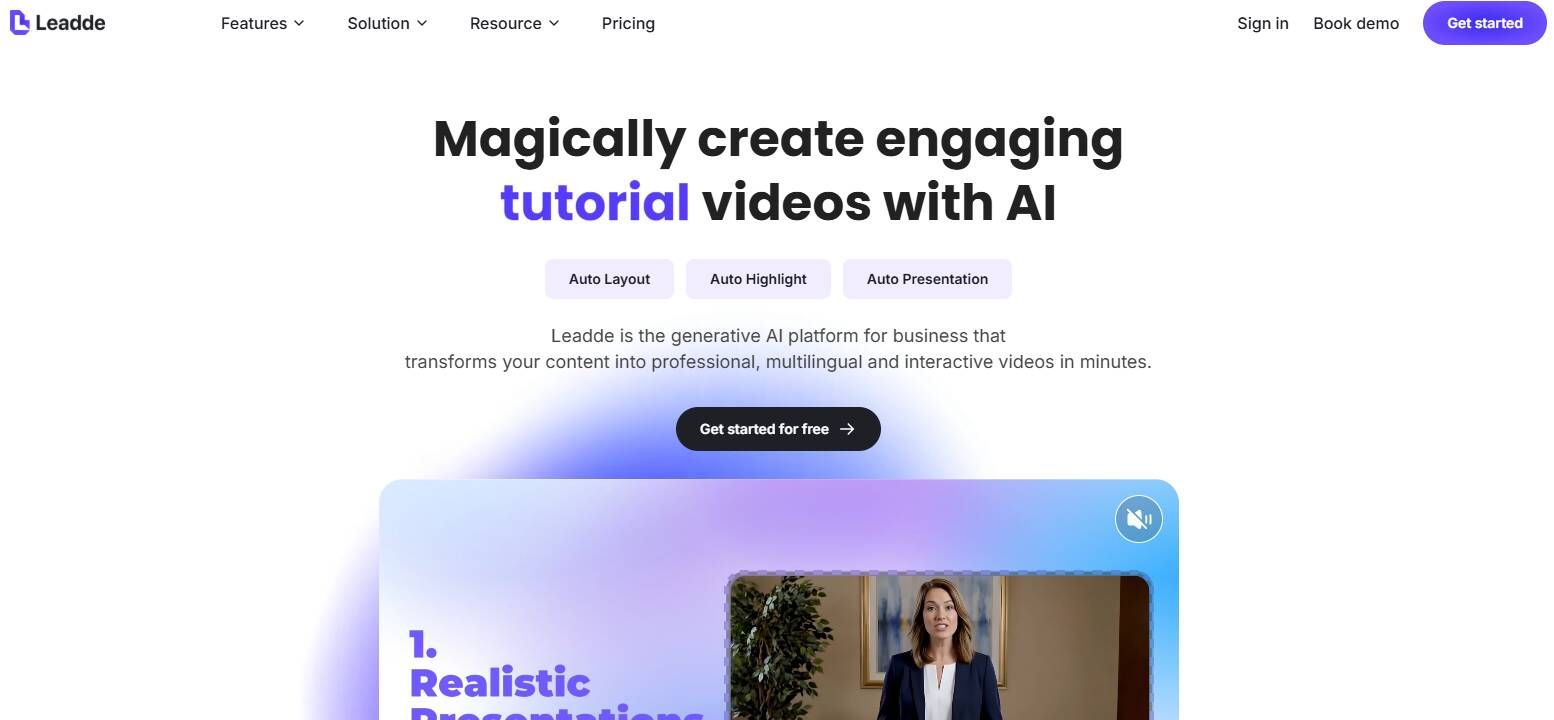
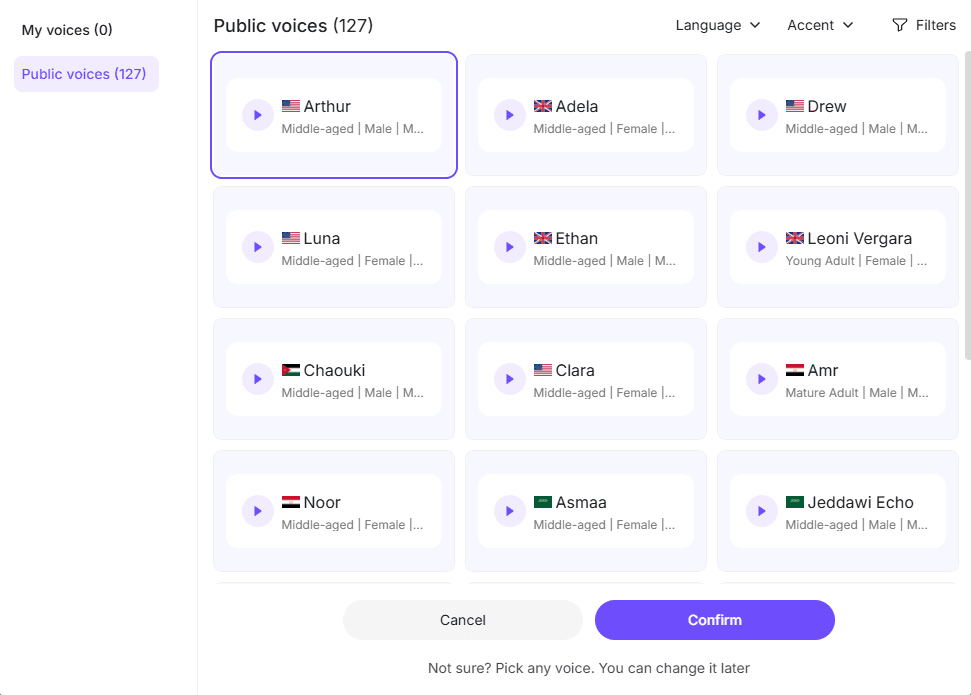
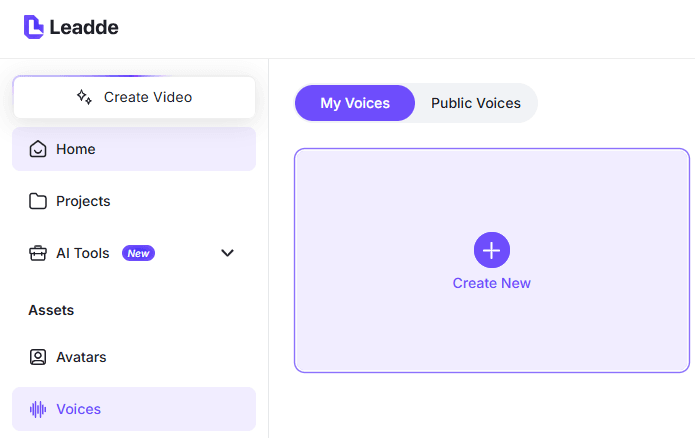
For a faster all-in-one workflow, Leadde lets you turn PowerPoint slides into AI-narrated videos with a large library of AI voices to choose from, so you can match the narration style to your training, business, or educational content.
What Is an AI-Narrated PowerPoint Video?
An AI-narrated PowerPoint video is a video version of a slide deck where an AI voice reads a script, usually from speaker notes, slide text, or a separate narration document.
There are three common types:
- Basic narrated slideshow: each slide has an AI voiceover track.
- Timed presentation video: narration is synced with slide transitions and animations.
- Training or explainer video: the deck is adapted into a polished video for onboarding, LMS courses, internal training, sales enablement, or asynchronous learning.
The best AI-narrated PowerPoint videos do not simply read bullets aloud. They explain the slide, guide the viewer’s attention, and make dense information easier to consume.
Why Turn PowerPoint Slides into AI-Narrated Videos?
The main reason is speed, but the deeper reason is repeatability.
In my research, users consistently needed to solve these practical problems:
Manual recording creates too many retakes.
Recording a narrated presentation often means making mistakes, restarting, cutting bad takes, and re-exporting. This becomes painful when the deck is long or frequently updated.
Speaker notes are already the ideal script source.
Many PowerPoint decks already contain presenter notes. If those notes can become AI narration, the deck becomes easier to maintain. When the script changes, you update the notes and generate a script or voiceover seamlessly.
Training teams need scalable production.
One training use case involved test videos averaging about 5 minutes each, but the full project required around 1,200 minutes of video output. At that scale, manual recording or expensive avatar tools quickly become impractical.
Non-native speakers want professional narration.
AI voiceover helps creators who understand the subject but do not want to record in English or another non-native language.
Long decks need to become watchable.
One internal communication case involved a 50-page PowerPoint that employees were unlikely to read. The better output was not necessarily a 50-slide narrated video, but a shorter AI-narrated explainer.
Best Workflow to Create AI-Narrated PowerPoint Videos
The best workflow is:
- Prepare the PowerPoint deck.
- Clean up speaker notes.
- Generate AI voiceover per slide.
- Sync each audio file with slide timing.
- Align key animations or bullet reveals.
- Export the deck as an MP4.
- Review the final video like a learner, not like a slide creator.
For most projects, avoid generating one long audio file for the whole deck. A slide-by-slide workflow is easier to update. If slide 12 changes later, you only regenerate slide 12’s voiceover instead of rebuilding the entire video.
A practical rule:
| Use Case | Best Workflow |
|---|---|
| One-time presentation | AI voice per slide + PowerPoint export |
| LMS training video | Speaker notes + slide-level narration + MP4 |
| Large-scale training production | Automated PPT-to-video workflow |
| Polished course video | AI voiceover + video editor |
| Avatar presentation | Synthesia, HeyGen, or similar tools |
| Long internal deck | Summarize first, then narrate |
Step 1: Prepare Speaker Notes for AI Narration
Speaker notes should sound spoken, not written. AI narration exposes weak writing quickly. If the notes are stiff, the voiceover will sound stiff.
Bad narration script:
“Q3 revenue growth, churn reduction, onboarding completion, sales enablement expansion.”
Better narration script:
“On this slide, we are looking at the three changes that had the biggest impact in Q3: revenue growth, lower churn, and better onboarding completion. The key takeaway is that sales enablement improved because onboarding became easier to repeat.”
Good speaker notes should:
- Explain the slide instead of reading every bullet
- Use short sentences
- Add context between slides
- Mention visuals only when useful
- Keep one main idea per slide
For training videos, most slides should stay between 30 and 90 seconds of narration. If one slide needs three minutes, it probably should be split into multiple slides.
Step 2: Generate AI Voiceover for PowerPoint Slides
There are two main ways to generate AI voiceover.
Option 1: Generate one audio file per slide
This gives the most control. Copy each slide’s notes into an AI voice tool, generate an MP3 or WAV file, then insert it into the matching slide.
This works well with tools such as:
- ElevenLabs
- Murf AI
- WellSaid
- Audiate
- Descript
- PowerPoint add-ins
- AI presentation narrator tools
The advantage is control. The downside is manual work, especially if the deck has dozens of slides.
Option 2: Use an automated PowerPoint-to-video tool
This is better for scale. Upload the PPT, let the automated PowerPoint-to-video tool read notes or slide content, choose a voice, generate narration, sync timing, and export the video.
This workflow is best when you have:
- Many training decks
- LMS deadlines
- Repeated updates
- Multiple departments creating content
- Non-video editors producing courses
In one internal LMS case, departments were expected to provide slides and scripts, while the training owner needed to convert those materials into narrated videos. This is not just a video editing problem; it is a content operations problem.
Step 3: Sync AI Narration with Slides and Animations
Generating the voice is easy. Syncing it properly is the hard part.
There are three levels of sync:
Slide-level sync
The audio starts when the slide appears, and the slide advances when the audio ends. This is enough for simple narrated videos.
Bullet-level sync
Bullets appear as the narrator mentions them. This is useful for training because it prevents viewers from reading ahead.
Object-level sync
Charts, diagrams, or highlights appear exactly when discussed. This is best for technical explanations, product walkthroughs, and complex diagrams.
For most AI-narrated PowerPoint videos, start with slide-level sync. Add bullet-level sync only where it improves comprehension.
Practical workflow:
- Insert the AI audio into the slide.
- Set audio to play automatically.
- Set the slide to advance after the audio duration.
- Add animations only where they support understanding.
- Preview the full slideshow.
- Export using recorded timings and narrations.
Step 4: Export the AI-Narrated PowerPoint as MP4
Once audio and timings are ready, export the deck as a video.
In PowerPoint:
- Open the final PPTX file.
- Go to File.
- Choose Export.
- Select Create a Video.
- Choose video quality.
- Select Use Recorded Timings and Narrations.
- Export as MP4.
For most online training and internal videos, 1080p is the safest default. It is clear enough for screen viewing without creating unnecessarily large files.
Before publishing, check:
- Audio starts automatically
- Slide timing matches narration
- Animations are not distracting
- Text is readable on small screens
- The exported MP4 works without the original PPT file
Case Studies: Real AI-Narrated PowerPoint Workflows
Case 1: Scaling Training Videos to 1,200 Minutes
A training creator tested AI-narrated slideshow videos with an average length of about 5 minutes. The full project required around 1,200 minutes of video output.
At one video, almost any tool works. At 1,200 minutes, the decision changes completely.
The key questions become:
- What is the cost per finished minute?
- Can scripts be updated without recreating the whole video?
- Can the process run across many decks?
- Is an avatar actually necessary?
- Can non-video editors use the workflow?
The main lesson: for large-scale training, optimize for PPT + script + AI voice + slide sync + MP4 export. Avatar video may look polished, but it can add unnecessary cost when the real need is scalable narrated training content.
Case 2: Department Slides to LMS-Ready Videos
In an internal LMS rollout, the goal was to collect slides and scripts from departments, add AI narration to each slide, and publish the result as training videos.
The challenge was not just voice generation. The real challenge was consistency:
- Different departments wrote scripts differently
- Slides varied in quality
- Subject matter experts did not want to record
- Content needed future updates
- Videos had to fit LMS standards
The best process is to give departments a speaker notes template, review scripts before generating voice, use approved AI voices, export in a consistent format, and add captions or transcripts.
The lesson: AI narration works best when the input is standardized.
Case 3: Speaker Notes as the Video Source File
A common high-value workflow is using PowerPoint speaker notes as the source for AI narration.
The ideal loop is:
Edit notes → regenerate voiceover → update timing → export MP4.
This is much better than:
Record voice → export video → find mistake → re-record → re-edit → re-export.
For teams that update training or product content often, maintainability matters more than one-time generation speed.
Case 4: ElevenLabs for Natural Timing and Voice Quality
One practical approach used ElevenLabs not to create timing from scratch, but to improve an existing narration. The creator first recorded a rough human voiceover, then used AI voice generation to preserve the rhythm, emphasis, and pacing while improving the final sound.
This is useful when the slide deck already has carefully timed animations, cartoons, diagrams, or dialogue.
Workflow:
- Record rough narration.
- Use the recording as the timing guide.
- Convert or regenerate with an AI voice.
- Insert final audio into PowerPoint.
- Keep the existing animation timing.
The lesson: when timing is critical, AI can improve the voice without destroying the structure.
Case 5: Turning a 50-Page PowerPoint into a Shorter Explainer
A 50-page internal deck is often too long to become a slide-by-slide video. The better workflow is to summarize first.
Process:
- Identify the 5–7 core points.
- Remove unnecessary slides.
- Create a shorter narration outline.
- Use only slides that support the story.
- Generate AI voiceover.
- Export a concise video.
The lesson: do not narrate bad slide structure. Fix the structure first.
Best Tools for AI-Narrated PowerPoint Videos
Leadde is best for turning PowerPoint slides into AI-narrated training or business videos with auto-generated scripts, AI voiceover, avatars, smart highlights, and video export in one workflow.
PowerPoint is best for simple recording, timing, and MP4 export. It is the baseline workflow.
ElevenLabs is strong for natural AI voice quality and voice transformation, but may require manual audio insertion.
Murf AI works well for presentation-style voiceover and slide narration.
Descript is useful for editing narration and video like a document.
Audiate helps with voice recording and audio cleanup.
WellSaid is a good option for professional corporate AI voices.
Synthesia is useful when you need an avatar presenter, but it can become expensive at scale.
Canva works for lightweight slide videos and simple visual editing.
Camtasia, Audacity, DaVinci Resolve, and Premiere are better for manual editing, cleanup, and polished production, but they add more work.
For most users, the best tool is the one that minimizes the full workflow: script, voice, sync, export, and future updates.
Common Mistakes When Creating AI-Narrated PowerPoint Videos
Reading every bullet aloud
The narration should explain the slide, not duplicate the script.
Using one long audio file
Use one audio file per slide so updates are easier.
Choosing an avatar when voiceover is enough
Many training videos need clarity more than a talking head.
Ignoring slide timing
Good AI voice with bad timing still feels broken.
Making the video too long
A 50-slide deck may need a 7-minute explainer, not a 50-slide narration.
Skipping captions and transcripts
For LMS and internal training, captions improve accessibility and review.
FAQ: AI-Narrated PowerPoint Videos
Can AI read my PowerPoint presentation out loud?
Yes. Use an AI text-to-speech tool to turn your speaker notes or slide script into voiceover, then insert the audio into PowerPoint and export the deck as a video.
Can PowerPoint speaker notes become AI narration?
Yes. Speaker notes are often the best narration source because they are easy to edit and regenerate.
Can I create an AI-narrated PowerPoint video for free?
For small projects, yes, using free trials or free TTS tools. For larger training projects, free plans are usually too limited.
What is the easiest way to create AI voiceover for PowerPoint?
Use a tool that reads PowerPoint notes, generates AI narration, syncs timing, and exports video. The manual method is to generate one audio file per slide.
How do I sync AI voiceover with PowerPoint slides?
Insert audio into each slide, set it to play automatically, and set the slide to advance after the audio ends.
Can I use ElevenLabs for PowerPoint narration?
Yes. Generate audio in ElevenLabs, download the file, and insert it into PowerPoint.
Is Synthesia good for PowerPoint training videos?
Synthesia is useful for avatar videos, but it may be unnecessary or expensive if you only need narrated slides.
How do I make AI-narrated videos for an LMS?
Prepare slides, write speaker notes, generate AI voice per slide, sync timing, export MP4, and upload with captions or transcript.
Should I use one long voiceover or one file per slide?
Use one file per slide. It is easier to sync, edit, and update.
Can AI narration replace my own voice?
Yes, especially for training, onboarding, internal updates, and explainer videos. For highly personal presentations, your own voice may still be better.
How do I avoid robotic AI narration?
Write natural speaker notes, use short sentences, add pauses, and choose a clear voice.
Can I turn a 50-slide PowerPoint into a video?
Yes, but first decide whether all 50 slides are needed. A shorter explainer may perform better.
Final Takeaway
The best way to turn PowerPoint slides into AI-narrated videos is to use speaker notes as your script, generate AI voiceover slide by slide, sync each audio file with slide timing, and export the deck as an MP4.
For one presentation, a manual workflow works. For LMS training, internal enablement, or hundreds of minutes of video, use a repeatable workflow that supports script updates, consistent voices, slide-by-slide regeneration, and scalable export.