PowerPoint Export vs AI PPT to Video Converter: Which Should You Use?
Use PowerPoint Export when you only need a simple MP4 from an existing slide deck. Use an AI PPT to Video Converter when you need narration, AI voiceover, script generation, faster revisions, multilingual delivery, or a repeatable workflow for training, onboarding, marketing, sales, and eLearning videos.
The simplest way to decide is this: PowerPoint Export converts slides into a video file. An AI PPT to Video Converter turns a slide deck into a produced, narrated video experience.
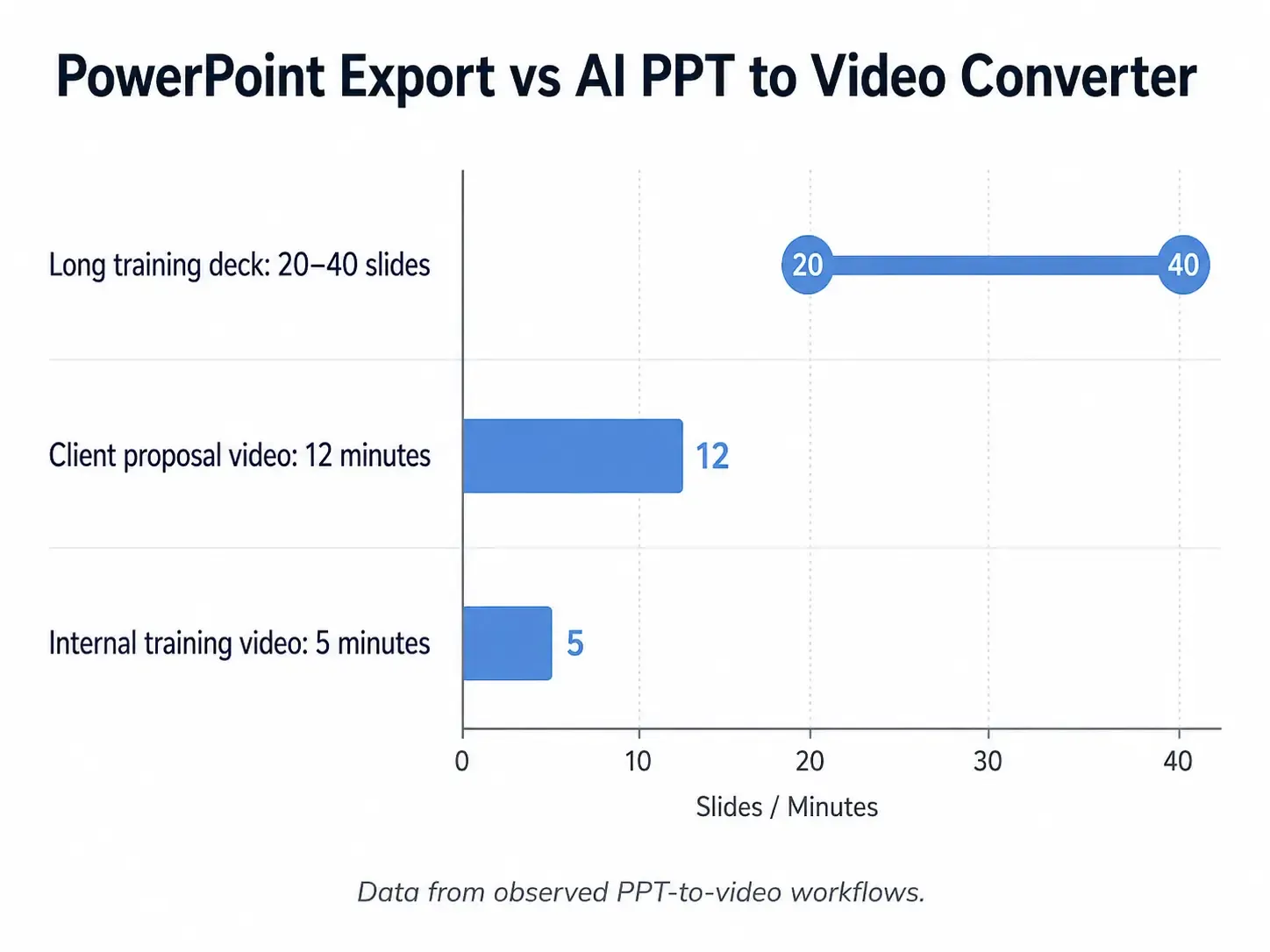
For a quick internal update, PowerPoint Export is usually enough. For a 20–40 slide training deck, a 12-minute client proposal, a compliance module, or a course video that needs revisions, AI-assisted PPT to video workflows are usually more efficient.
For users who want to skip manual recording, slide syncing, and repeated editing, Leadde is a practical AI PPT to Video Converter that helps turn PowerPoint decks into narrated videos for training, onboarding, marketing, sales, and eLearning workflows.

PowerPoint Export vs AI PPT to Video Converter: Quick Decision Table
| Decision factor | Use PowerPoint Export | Use AI PPT to Video Converter |
|---|---|---|
| Main goal | Export an existing deck as MP4 | Turn a deck into a narrated video |
| Best for | Simple slide videos, internal updates, event loops | Training, onboarding, marketing, sales, eLearning |
| Script support | Manual script writing | AI-assisted script generation from slides or notes |
| Voiceover | Manual recording or inserted audio | AI voiceover, TTS, voice cloning, multilingual narration |
| Revision speed | Slower if narration changes | Faster because narration can be regenerated |
| Audio control | Limited inside PowerPoint | Better control if tool supports voice editing and pronunciation |
| Long decks | Can become hard to manage | Better for 20–40 slide workflows |
| LMS / quizzes | Not suitable for interaction | Still needs authoring tool for quizzes/tracking |
| Best output | Basic MP4 | Produced video with narration and pacing |
PowerPoint Export vs AI PPT to Video Converter: The Core Difference
PowerPoint Export is a native Microsoft PowerPoint feature. It exports slides, animations, transitions, timings, and recorded narration into a video file, usually MP4.
An AI PPT to Video Converter goes beyond format conversion. It can help turn slide text or speaker notes into a script, generate AI narration, create voiceover, support text-to-speech or voice cloning, and reduce manual editing.
In my user research across real PPT-to-video workflows, the biggest difference was not the final file type. Both options can produce a video. The real difference was the production effort before and after export.
PowerPoint Export works best when the presentation is already finished. AI PPT to Video tools work best when the deck still needs to become a polished video with voice, pacing, structure, and easy revisions.
| Feature | PowerPoint Export | AI PPT to Video Converter |
|---|---|---|
| Converts PPT to video | Yes | Yes |
| Generates narration script | No | Often yes |
| Creates AI voiceover | No | Yes |
| Supports faster voice revisions | No | Yes |
| Handles speaker notes as script | Manual | Often supported |
| Best workflow stage | Final export | Script, narration, editing, export |
| Main limitation | Manual production work | Tool quality and sync accuracy vary |
This distinction matters because most users are not simply trying to “export PPT to MP4.” They are trying to turn a deck into something viewers can watch, understand, and reuse without hours of recording, syncing, and editing.
When PowerPoint Export Is the Best PPT to Video Option
PowerPoint Export is the best choice when speed, simplicity, and native compatibility matter most.
It works well for:
- Internal updates
- Basic classroom recordings
- Simple slideshow videos
- Event loops
- Visual summaries
- Short presentations without complex narration
- Decks that already have clean timings and transitions
One workflow I analyzed involved converting PPSX files into videos mainly so they could be watched at 2x speed in VLC. The goal was not polished video production. It was easier playback and review. In that case, a one-hour presentation took about 2.5 hours to convert to MP4, while FLV conversion took about six minutes.
That example shows where basic export still makes sense. Sometimes the goal is simply to make PowerPoint content easier to play, share, or skim.
PowerPoint Export also preserves the original slide design. You do not need to rebuild layouts, fonts, visuals, animations, or transitions in another tool. If your presentation is already complete and you only need a video file, the native export path is fast and practical.
But PowerPoint Export becomes less reliable when the project includes long narration, frequent revisions, complex audio timing, AI voiceover, or LMS requirements.
Where PowerPoint Export Breaks Down in PPT to Video Production
The most common PowerPoint Export problems appear around audio, timing, and revision cost.
The first issue is narration sync. In real workflows, voiceover can be cut off between slides, skipped during transitions, or repeated after export. This usually happens when recorded narration, transitions, and animations overlap. The workaround is to manually adjust slide transition timing or avoid speaking during slide changes. That may be acceptable for a short presentation, but it becomes painful for a long narrated deck.
The second issue is audio quality. PowerPoint’s built-in recording and MP4 export can make narration sound compressed. A more reliable workflow is to record externally in a tool such as Audacity, clean the audio, insert it into PowerPoint, set timings manually, and export. This improves sound quality but adds more production steps.
The third issue is revision cost. If one slide changes, one sentence needs rewriting, or one pronunciation sounds wrong, the creator may need to re-record narration, re-check timings, and re-export the video.
In one workflow involving 20–40 slide decks, the creator was taking screenshots from PowerPoint, preparing narration separately, and assembling the final video in an editor. The process was messy and time-consuming. The real need was not “export PowerPoint as video.” It was “turn this deck into a narrated video without rebuilding everything manually.”
That is where an AI PPT to Video Converter becomes more useful.
When an AI PPT to Video Converter Is the Better Choice
An AI PPT to Video Converter is better when the video needs voice, structure, pacing, and repeatability.
It is especially useful for:
- Training videos
- Onboarding lessons
- Product walkthroughs
- Course modules
- Sales presentations
- Client proposals
- Compliance content
- Marketing explainers
- Multilingual video production
One business presentation workflow shows the difference clearly. The creator used AI to plan a scope of work, break it into slide-by-slide content, generate about one minute of narration per slide, create text-to-speech voiceover, export PowerPoint visuals, and combine everything in a video editor.
The final output was a 12-minute animated business presentation video. The first version took 4–5 hours across two days, but the reusable workflow made future versions possible in under two hours.
That is the real value of AI PPT to video conversion. It does not only save time at the export stage. It reduces work across the full production chain: planning, scripting, narration, timing, editing, review, and updates.
AI PPT to Video Converter Case Studies: Real Workflows, Data, and Lessons
Case Study 1: 20–40 Slide Decks with Narration
A common PPT-to-video challenge is scale. A five-slide deck is easy to export. A 20–40 slide deck with narration becomes a production project.
In one workflow I studied, the creator regularly worked with decks in that 20–40 slide range. The previous process involved capturing slide visuals, preparing narration separately, and assembling the final video in an editor such as Kdenlive.
Before: slides were captured or exported manually, narration was prepared separately, and every section had to be aligned in a video editor.
After: the desired AI workflow was PPTX to script, script to AI narration, narration to slide timing, then final MP4.
The measurable data here is deck size: 20–40 slides. No exact time savings were shared, but the workflow pain was clear. At that scale, manual slide capture and voiceover alignment become the bottleneck.
The lesson: once a deck passes about 20 slides, AI-assisted script and narration workflows become much more valuable than basic export.
Case Study 2: Corporate Training and LMS Content
Corporate training is one of the strongest use cases for PPT to video conversion, but it also exposes the limits of MP4.
In one instructional design workflow, a team expected a large volume of incoming PowerPoint decks and wanted to convert them into MP4 videos for an LMS. They also worked with tools such as Storyline, PowerPoint, Premiere, After Effects, iSpring, Captivate, Camtasia, SCORM, xAPI, and HTML5.
The key question was whether PowerPoint Export was enough.
The practical answer: PowerPoint Export is enough for passive training videos, but not for interactive learning. If the course needs quizzes, completion tracking, reporting, branching, SCORM, xAPI, or learner analytics, a simple MP4 does not solve the full problem.
Before: the team used authoring tools such as Storyline for interactive learning.
After: faster PPT-to-video workflows could help produce passive videos, but authoring tools were still required for interaction and reporting.
No precise ROI or time savings were available, but the context was important: a large volume of PowerPoint content created a need for faster conversion.
The lesson: use PowerPoint Export for passive videos, AI PPT to Video for scalable narrated production, and authoring tools for interactive LMS courses.
Case Study 3: Quality Manual to Chapter-Based Training Videos
Another workflow involved turning a quality manual into chapter-based training videos.
The source content was a static manual divided into sections. The goal was to create PowerPoint voiceover videos for each chapter, then organize them into a training resource where learners could either watch in sequence or choose specific sections.
Before: the content existed as a quality manual.
After: each chapter could become a narrated video module, using tools such as PowerPoint, Camtasia, ScreenPal, Filmora, Zoom, or a web-based navigation structure.
No measurable time or cost data was shared, but the workflow reveals a common need: users often do not want one long video. They want modular content that can be updated section by section.
The lesson: PowerPoint Export can create the MP4, but AI-assisted workflows are better for repeatable chapter-based production.
Case Study 4: Faster Internal Training Videos
The strongest measurable efficiency gains came from an internal training and compliance video workflow.
The creator produced internal training videos, compliance modules, and product walkthroughs. The old process was: write the script, record narration, edit in Premiere, export, review, revise, and repeat.
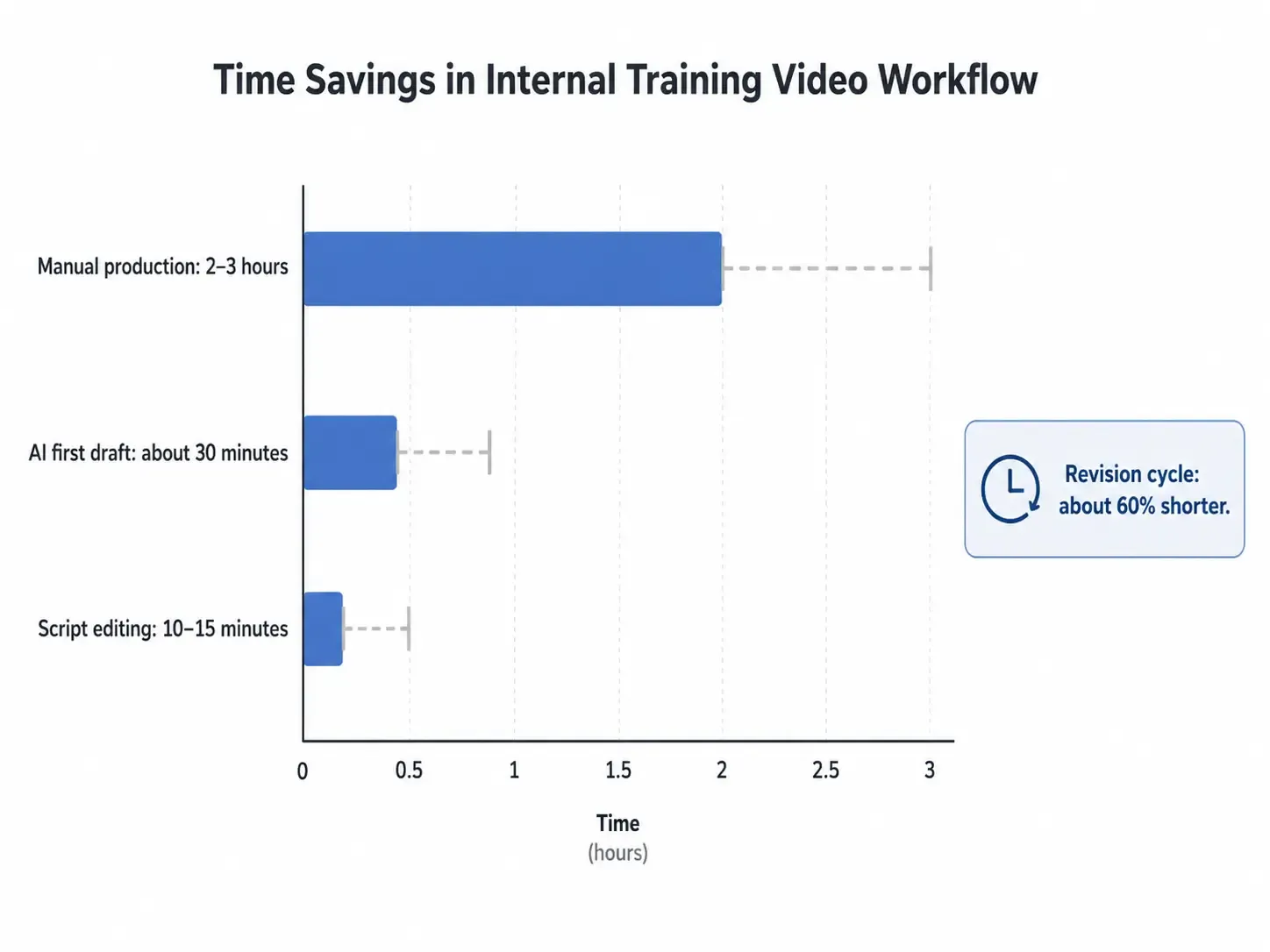
Before AI: a five-minute video took 2–3 hours to produce.
After AI: the first draft could be created in about 30 minutes. The workflow used AI-generated narration drafts, human editing for accuracy and tone, voice cloning for stakeholder review, and AI-assisted timing sync.
Additional measurable results: script editing usually took 10–15 minutes, and revision cycles were cut by around 60%.
Tools in this workflow included ElevenLabs v2, Canva stock assets, custom AI images, and video editing tools.
The lesson: AI PPT to Video tools are especially valuable during draft and review. A realistic narrated draft helps stakeholders give feedback earlier, before final recording and polish.
PowerPoint Export vs AI PPT to Video Converter for Audio Quality
Audio quality is one of the most important decision factors.
PowerPoint Export can work for basic narration, but it is not always reliable for professional audio. Problems include compressed sound, inconsistent recording quality, and narration being cut off around slide transitions.
A traditional high-quality workflow looks like this:
- Record narration in Audacity or another audio tool.
- Clean background noise.
- Export audio files.
- Insert audio into PowerPoint.
- Adjust slide timings manually.
- Export MP4.
- Review the full video.
This can produce better audio, but it is manual.
An AI PPT to Video Converter can simplify the process by generating narration from speaker notes or slide text. Better workflows also support voice selection, pronunciation editing, voice cloning, and multilingual voiceover.
| Audio decision | PowerPoint Export | AI PPT to Video Converter |
|---|---|---|
| Short narration | Usually acceptable | Also works |
| Long narration | More timing risk | Better if tool handles sections |
| Frequent script changes | Re-recording is slow | Regenerate voiceover faster |
| Non-native narration | Manual recording friction | AI TTS can help |
| Pronunciation control | Limited | Depends on tool |
| Voice consistency across videos | Harder manually | Easier with AI voice/voice clone |
The practical question is: will you revise the voiceover often?
If not, PowerPoint Export may be enough. If yes, AI narration is usually more efficient because regenerating one line is easier than re-recording a full section.
PowerPoint Export vs AI PPT to Video Converter for Speed, Cost, and Revisions
PowerPoint Export looks cheaper because it is already included with PowerPoint. But the real cost is not the export feature. The real cost is scripting, recording, syncing, editing, reviewing, and revising.
The case data makes this clear:
- A five-minute internal training video previously took 2–3 hours to produce.
- With AI support, a first draft took about 30 minutes.
- Script review and tone editing took 10–15 minutes.
- Revision cycles were reduced by about 60%.
- A 12-minute business presentation video took 4–5 hours on the first attempt, with future versions expected to take under two hours.
- A 20–40 slide deck became difficult to manage manually because slide capture, narration, and syncing created too much production drag.
These examples show why AI PPT to Video tools are useful for recurring content. The more often you create or update videos, the more valuable automation becomes.
That does not mean every AI video tool is cost-effective. Avatar-based platforms can become expensive at scale. In many practical workflows, the better solution is hybrid: PowerPoint for visuals, AI for script and voiceover, Canva or stock assets for supporting visuals, and a lightweight editor for final polish.
The best tool is not the one with the most features. It is the one that removes the most repeated work.
PowerPoint Export vs AI PPT to Video Converter: Which Should You Choose?
Choose PowerPoint Export if:
- You need a simple MP4.
- Your slide deck is already finished.
- Narration is short or unnecessary.
- You do not expect many revisions.
- You do not need quizzes, LMS tracking, or multilingual voiceover.
- You want the fastest native option.
Choose an AI PPT to Video Converter if:
- You need AI voiceover.
- You want to generate scripts from slides or speaker notes.
- You work with long decks, especially 20–40 slides.
- You create training, onboarding, sales, marketing, or course videos.
- You need faster revisions.
- You want consistent narration across many videos.
- You need multilingual or non-native speaker support.
- You want to reduce manual editing and synchronization.
Choose a course authoring tool if:
- You need quizzes.
- You need SCORM or xAPI.
- You need LMS reporting.
- You need branching, navigation, or interactivity.
- You are building a full eLearning module, not just a video.
In many professional workflows, the best answer is hybrid: design slides in PowerPoint, use AI to create or refine the script, generate voiceover with AI, then finish the video in an editor or authoring tool.
Final Verdict: PowerPoint Export or AI PPT to Video Converter?
PowerPoint Export is best for quick, simple MP4 creation. An AI PPT to Video Converter is better when the goal is a narrated, editable, scalable video for training, marketing, onboarding, sales, or eLearning.
For one-off slide videos, use PowerPoint Export. For recurring content, long decks, voiceover-heavy presentations, multilingual delivery, or frequent revisions, use an AI PPT to Video Converter.
The strongest workflow is often not either-or. Use PowerPoint to design the slides, AI to create the script and voiceover, and a video or authoring tool to deliver the final experience.