How to Convert PowerPoint to MP4 Online

You can convert PowerPoint to MP4 online by uploading your PPT, PPTX, or PPSX file to an online AI PowerPoint-to-video converter, choosing MP4 as the output format, setting slide duration and video quality, then downloading the finished video. For a simple slide deck, this is usually enough. For a narrated, animated, or training-focused presentation, the better method is often PowerPoint’s built-in Export to Video feature, a screen recorder, or a dedicated presentation video tool with voiceover and timing controls.
The most important lesson from my user workflow research is this: the real goal is rarely just changing a file format. In most cases, the need is a reliable way to turn PowerPoint slides into a polished, shareable MP4 video without broken audio, missing narration, slow exports, or time-consuming manual editing.
You can also use Leadde to turn PowerPoint files into polished MP4 videos online, especially when you need a smoother workflow for narration, timing, and shareable video output.
How to Convert PowerPoint to MP4 Online
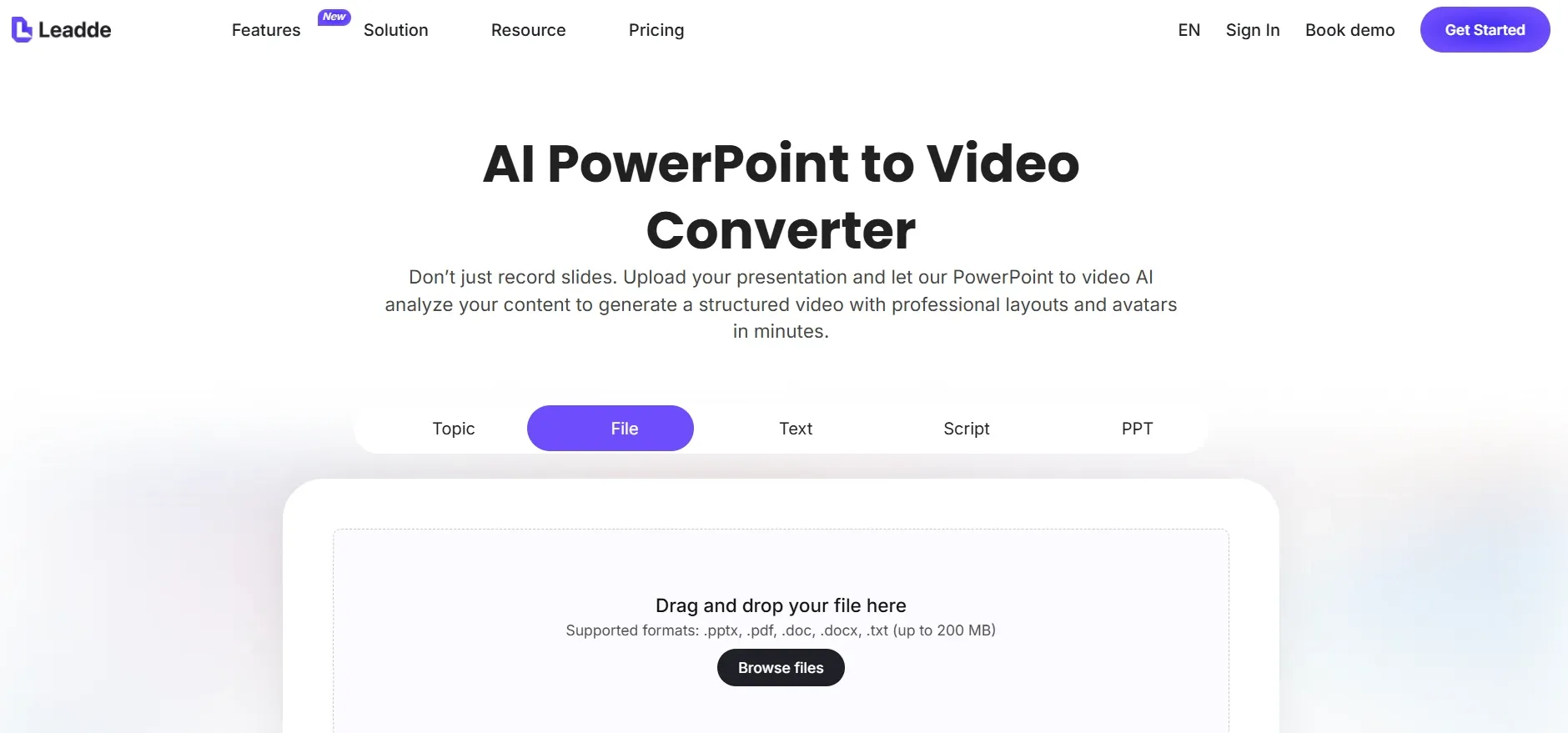
The basic online workflow is simple:
- Upload your PowerPoint file, usually PPT, PPTX, or PPSX.
- Choose MP4 as the output format.
- Select video resolution, such as 720p or 1080p.
- Set slide duration, transitions, and narration options if available.
- Start the conversion.
- Download and review the MP4 file.
This method works best when your presentation is mostly static slides. It is useful for quick sharing, internal previews, class materials, website videos, and simple YouTube uploads.
However, online PowerPoint to MP4 converters can struggle with complex files. In my research, the most common problems appeared when presentations included voiceover, embedded audio, animations, slide timings, or embedded videos. A file may play correctly in PowerPoint but export with cut-off narration, compressed audio, missing transitions, or slides that advance too quickly.
For that reason, my practical recommendation is:
Use an online PPT to MP4 converter for simple decks. Use PowerPoint export, screen recording, or a presentation video tool for narrated, animated, or training-related decks.
A good online converter should support PPT and PPTX upload, MP4 export, slide duration control, audio preservation, animation handling, 720p or 1080p output, and clear file privacy rules. For business or training content, audio and timing support matter more than a polished upload interface.
| Use Case | Recommended Workflow | Why This Works |
|---|---|---|
| Simple slide deck | Upload PPT/PPTX to an online converter and export as MP4 | Fastest option when slides are static and do not rely on narration |
| Narrated presentation | Use PowerPoint Export to Video or an AI presentation video tool | Better control over voiceover, timing, and audio sync |
| Animated presentation | Use PowerPoint native export or screen recording | Online converters may flatten animations or lose transitions |
| Large workshop deck | Split the file into sections or screen record the slideshow | Reduces the risk of extremely slow or failed export |
| PPSX presentation | Open PPSX in PowerPoint, save as PPTX if needed, then export to MP4 | Gives more control over timings, narration, and playback |
| LMS training video | Convert each module to MP4, then add quizzes in the LMS | MP4 handles video delivery; LMS handles tracking and assessment |
| AI voiceover video | Use an AI presentation video tool such as Leadde | Helps generate narration, control slide timing, and create shareable MP4 output |
| Internal review video | Export at 720p or use screen recording | Keeps file size smaller and speeds up review |
Convert PowerPoint to MP4 Online vs PowerPoint Export
PowerPoint already includes a built-in video export option. In most versions, the path is:
File → Export → Create a Video → MP4
or:
File → Save As → MP4
PowerPoint’s native export is often more reliable than third-party online tools because it understands its own slide timings, transitions, animations, and recorded narration. If your deck contains important movement or audio, start with PowerPoint’s own export before trying an online converter.
Online conversion is better when you want convenience and the slides are simple. Native PowerPoint export is better when presentation accuracy matters. Screen recording is better when export fails, takes too long, or breaks audio. Dedicated tools such as Camtasia, iSpring, Storyline, Captivate, or AI presentation video platforms are better when you need a training video, course module, or polished narrated content.
Here is the simplest decision rule:
| Method | Best For | Main Risk |
|---|---|---|
| Online PPT to MP4 converter | Simple slide decks | May lose timing, audio, or animation |
| PowerPoint native export | Narration, animations, transitions | Can be slow on large files |
| Screen recording | Urgent or problematic files | Requires real-time recording |
| AI presentation video tool | Voiceover videos and automation | Needs timing and sync review |
| Course authoring tool | LMS, quizzes, training | Heavier workflow |
The mistake many users make is assuming every PowerPoint video problem needs a converter. In practice, the best solution depends on what the final video must do.
Best Workflow to Convert PPT to MP4 Without Losing Quality
Before uploading or exporting your PowerPoint, prepare the file for video. Most conversion failures start before the conversion process.
First, clean the file. Remove hidden slides, unused media, oversized images, broken audio links, and unnecessary embedded videos. Large images and media-heavy slides can slow down rendering or cause failed exports.
Second, check slide timings. If the presentation has voiceover, each slide must stay on screen longer than the audio attached to that slide. For example, if a slide has 18 seconds of narration, set the slide duration to about 20 seconds. That 1–2 second buffer helps prevent cut-off narration.
Third, choose the right resolution. Use 1080p for public videos, marketing content, YouTube, and text-heavy slides. Use 720p for internal reviews or lower-bandwidth training environments.
Fourth, preview the entire MP4. Do not only check the first slide. Watch for audio sync, skipped narration, missing animations, blurry text, embedded video failure, and glitches in the first few seconds.
Finally, keep both the original PPTX and the exported MP4. For business training, onboarding, or course content, the source file is essential when one policy, product screenshot, or pricing slide needs to be updated later.
Case Study: A 1-Hour PPSX Took 2.5 Hours to Convert to MP4, But 6 Minutes to Convert to FLV
Another useful case involved a PPSX file. A PPSX is a PowerPoint Show file that opens directly in slideshow mode. The goal was to convert the presentation into a video so it could be watched in a media player at faster playback speed.
The preferred output was MP4 because MP4 is the standard format for most platforms. But the conversion took much longer than expected.
The measured result was:
- Source file: 1-hour PPSX presentation
- MP4 generation time: 2.5 hours
- FLV generation time: 6 minutes
- Playback goal: open the video in VLC and watch at faster speed
This case reveals an important point: MP4 is usually the best final format, but it may not always be the fastest format to generate. If your real need is internal review, personal study, or faster playback, another format may work as a temporary output. For publishing, LMS upload, YouTube, or client delivery, MP4 is still the safer final choice.
The deeper insight is that many people searching for “convert PowerPoint to MP4 online” actually want playback control. They want to pause, speed up, share, archive, or upload a presentation like a normal video.
How to Convert a PowerPoint with Voiceover to MP4
Voiceover makes PowerPoint to MP4 conversion harder because the tool must preserve the relationship between audio, slide timing, and transitions.
In my workflow research, voiceover issues were among the most frequent and frustrating problems. The most common problems were:
- Narration gets cut off.
- Audio quality becomes worse after export.
- Voiceover skips or jumps.
- The first few seconds of audio sound broken.
- Slide timing does not match narration.
- Export takes much longer than expected.
To avoid these problems, set timing slide by slide. Each slide should remain visible longer than the narration attached to it. Add a 1–2 second buffer after the voiceover.
For higher-quality audio, avoid relying only on PowerPoint’s internal recording if the video is customer-facing, used in training, or published publicly. A stronger workflow is:
- Record narration in a dedicated audio tool.
- Clean up the audio.
- Import the audio into PowerPoint or a video editor.
- Sync the narration to each slide.
- Export the finished video as MP4.
This adds one production step, but it can prevent the compressed or uneven audio quality that often appears in direct exports.
Case Study: Turning 20–40 PowerPoint Slides into a Narrated MP4 Video
A common workflow I studied involved 20–40 slide presentations. The original process was highly manual:
- Screenshot or export every slide.
- Import slide images into a video editor.
- Write or copy the script.
- Record or generate narration.
- Place audio under the correct slide.
- Adjust timing manually.
- Export the final MP4.
This works, but it is inefficient. The real need was not just “PPT to MP4 conversion.” The real need was an automated way to turn existing slide content into a narrated video.
Core data from this case:
- Typical deck size: 20–40 slides
- Original workflow: manual screenshots plus video editing
- Main pain point: messy and time-consuming production
- Desired output: synchronized narrated MP4
- Desired improvement: automatic script and voiceover generation
The before-and-after contrast is clear. Before, every slide had to be captured, arranged, narrated, timed, and exported manually. After, the ideal workflow would read the slide content, generate or import a script, create narration, sync voiceover to slides, and export the MP4.
This is especially relevant for educators, marketers, consultants, and internal training teams. For these users, the strongest tool is not a basic file converter. It is a presentation-to-video workflow that supports slide extraction, script generation, AI voiceover, timing control, subtitles, and MP4 export.
Convert PowerPoint to MP4 for Training, LMS, and Online Courses
Training teams often need more than a video file. They need content that works inside an LMS, supports onboarding, and may include quizzes or completion tracking.
A common workflow is to convert a quality manual, policy presentation, or onboarding deck into short MP4 training modules. Instead of asking learners to read a long document or click through slides, the team creates video lessons that can be uploaded to an LMS.
The better workflow is:
- Break the source presentation into modules.
- Create one PowerPoint per lesson.
- Add narration or speaker notes.
- Convert each lesson to MP4.
- Upload the MP4 videos to the LMS.
- Add quizzes and tracking inside the LMS or course tool.
The key point is that MP4 is a video format, not a full interactive learning package. An MP4 can be watched, paused, embedded, and streamed, but it does not usually carry trackable quiz logic by itself.
If you need quizzes, branching, completion rules, or reporting, use LMS-native quizzes, SCORM, xAPI, HTML5 course output, or an authoring tool such as Storyline, Captivate, or iSpring.
Case Study: Large-Scale PowerPoint to MP4 Conversion for LMS with Quizzes
One advanced case involved a team with many PowerPoint files that needed to be converted into MP4 videos for an LMS. The team also wanted quizzes and a high degree of creative control.
The tools considered included Storyline, iSpring, Captivate, Camtasia, After Effects, Premiere, SCORM, xAPI, and HTML5 output.
The important details were:
- Source content: many PowerPoint files
- Required output: MP4 videos
- Publishing environment: LMS
- Additional need: quizzes
- Measurable ROI or time savings: no measurable data shared
The main insight was that the team did not need a single “converter.” They needed a scalable production workflow. MP4 handled the video layer, while quizzes and tracking needed to be handled by the LMS or an authoring tool.
A practical version of this workflow is:
- Convert each PowerPoint module into an MP4.
- Upload the videos into the LMS.
- Add quiz questions separately.
- Track completion through the LMS.
- Use SCORM or xAPI only when deeper interaction data is required.
This keeps each tool focused on its strongest role: video tools create videos, and learning platforms manage learner progress.
How to Convert PPSX to MP4 Online
To convert PPSX to MP4 online, first remember that PPSX files are designed to open directly as slide shows. Some online converters support PPSX upload, but the safer workflow is:
- Open PowerPoint.
- Use File → Open to open the PPSX file.
- Save a copy as PPTX if you need to edit it.
- Check slide timings, narration, and playback.
- Export or convert the file to MP4.
This method gives you more control than uploading the PPSX directly to a converter. It also helps you confirm whether the file contains embedded audio, animations, or videos that may not survive online conversion.
For simple PPSX files, online conversion can work. For narrated PPSX files, review the file in PowerPoint first and consider native export or screen recording.
The 1-hour PPSX case is a useful benchmark: MP4 generation took 2.5 hours, while FLV generation took 6 minutes. That difference shows why format choice and tool design can dramatically affect conversion speed.
How to Convert PowerPoint to MP4 with AI Voiceover
AI voiceover is becoming a major reason people look for online PowerPoint to MP4 tools. Many users already have slides but do not want to record their own voice.
A typical AI workflow is:
- Import or upload the PowerPoint.
- Extract slide text or speaker notes.
- Generate a narration script.
- Create voiceover using an AI voice tool.
- Sync the audio slide by slide.
- Add subtitles if needed.
- Export the final MP4.
In one workflow I studied, the slides were created with Gamma.app and the voiceover was generated with ElevenLabs. The missing piece was automation: connecting slide content, script generation, voiceover, file storage, and video assembly into one repeatable process. Tools mentioned in that workflow included ElevenLabs, Gamma.app, n8n, OpenAI API, Google Drive, and Json2Video.
The core details were:
- Source: existing presentation slides
- Voiceover: AI-generated
- Goal: automated narrated MP4
- Quantified time savings: no measurable data shared
- Main gap: syncing slides and narration without manual editing
The important lesson is that AI voiceover alone does not create a finished video. The hard part is timing. A good AI PowerPoint to MP4 tool must support speaker notes, slide-by-slide narration, voice selection, timing control, subtitles, MP4 export, and manual review before final rendering.
Common Problems When Converting PowerPoint to MP4 Online
The most common conversion problems are predictable.
Slow export is one of the biggest issues. In the 45-slide narrated case, export reached only 50% after roughly 18 hours. If your export is extremely slow, compress images, split the deck, lower resolution, remove unused media, or screen record the slideshow instead.
Cut-off narration usually happens when slide timing is shorter than the audio. Set every slide duration longer than its narration and add a short buffer.
Poor audio quality can happen when PowerPoint or an online converter compresses the recording. For important videos, record audio externally, clean it up, then import it into the project.
Broken animations happen when a converter flattens slides into static images. If animation matters, use PowerPoint export or screen recording.
Embedded videos are another high-risk element. Some converters do not preserve them correctly. Always watch the full MP4 before publishing.
Large file size can also be a problem. Use 1080p for public or text-heavy videos, and 720p for internal training or review.
Best Settings for PowerPoint to MP4 Conversion
For most users, these settings work well:
| Use Case | Recommended Setting |
|---|---|
| YouTube or public video | MP4, 1080p |
| LMS training video | MP4, 720p or 1080p |
| Internal review | MP4, 720p |
| Text-heavy slides | 1080p |
| Narrated presentation | Manual slide timing |
| Long training deck | Split into modules |
| AI voiceover video | Slide-by-slide sync |
For slide duration, use these practical guidelines:
- Title slide: 3–5 seconds
- Simple slide: 5–8 seconds
- Text-heavy slide: 10–20 seconds
- Narrated slide: audio length plus 1–2 seconds
- Chart or diagram slide: 15–30 seconds
For training and education, avoid turning one long slide deck into one long video. A 60-slide presentation is usually better as several short modules. Shorter videos are easier to upload, easier to update, and easier for viewers to complete.
Best Way to Convert PowerPoint to MP4 Online
| Conversion Method | Best For | Key Advantage | Main Limitation |
|---|---|---|---|
| Online PowerPoint to MP4 converter | Simple PPT, PPTX, or PPSX files | Fast, browser-based, no software installation | May lose animations, narration, or slide timing |
| PowerPoint Export to Video | Presentations with animations, transitions, or recorded narration | Preserves PowerPoint behavior more accurately | Can be slow for large or media-heavy files |
| Screen recording | Urgent projects, broken exports, complex slide shows | Captures exactly what plays on screen | Requires real-time recording |
| AI presentation video tool | Narrated videos, training content, marketing videos | Can support AI voiceover, script generation, timing, and MP4 export | Output still needs review for sync and accuracy |
| Course authoring tool | LMS training, quizzes, compliance courses | Supports SCORM, xAPI, quizzes, and tracking | More complex than a basic converter |
The best way to convert PowerPoint to MP4 online depends on the presentation.
For simple static slides, use an online PPT to MP4 converter. For narrated or animated presentations, use PowerPoint’s built-in export feature. For large files, urgent deadlines, broken audio, or failed exports, screen record the slideshow. For training, LMS, or course content, use MP4 for the video layer and handle quizzes through your LMS or authoring tool. For AI voiceover videos, choose a tool that can generate narration and sync it slide by slide.
The biggest takeaway from real workflow research is that successful PowerPoint-to-MP4 conversion is not just about creating a video file. It is about preserving timing, narration, audio quality, playback control, and the viewer experience. A good MP4 should not only play. It should communicate the presentation clearly from the first slide to the last.