How to Generate a Script from PowerPoint Slides with AI in 2026

To generate a script from PowerPoint slides with AI, upload your PPTX or PDF to an AI presentation script generator, set your audience, target duration, tone, and output language, then let the AI analyze each slide and create slide-by-slide speaker notes, a full speaking script, or a voiceover-ready narration. For best results, review the script for timing, transitions, chart accuracy, and natural spoken flow before exporting it back into your presentation or video workflow.
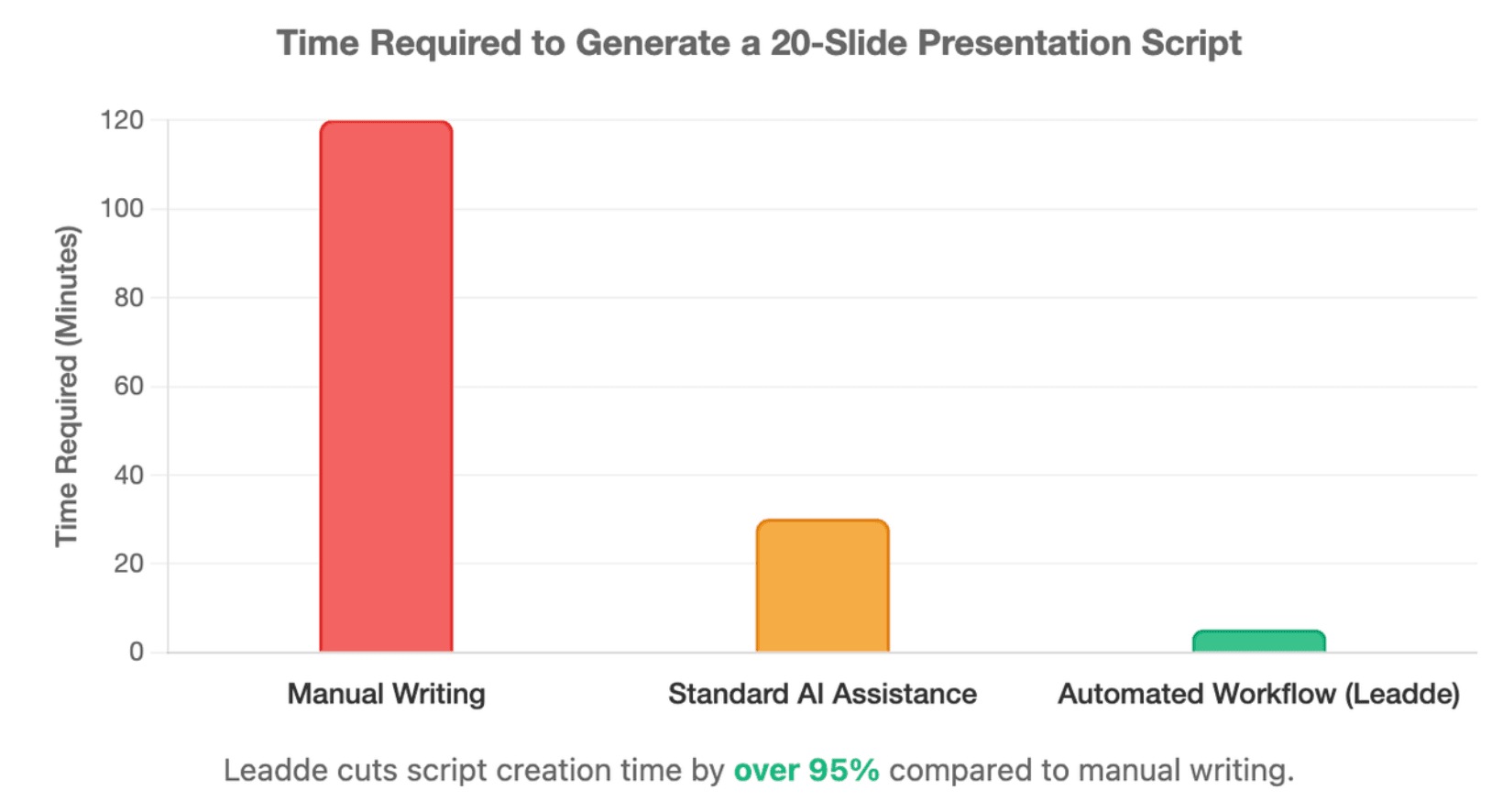
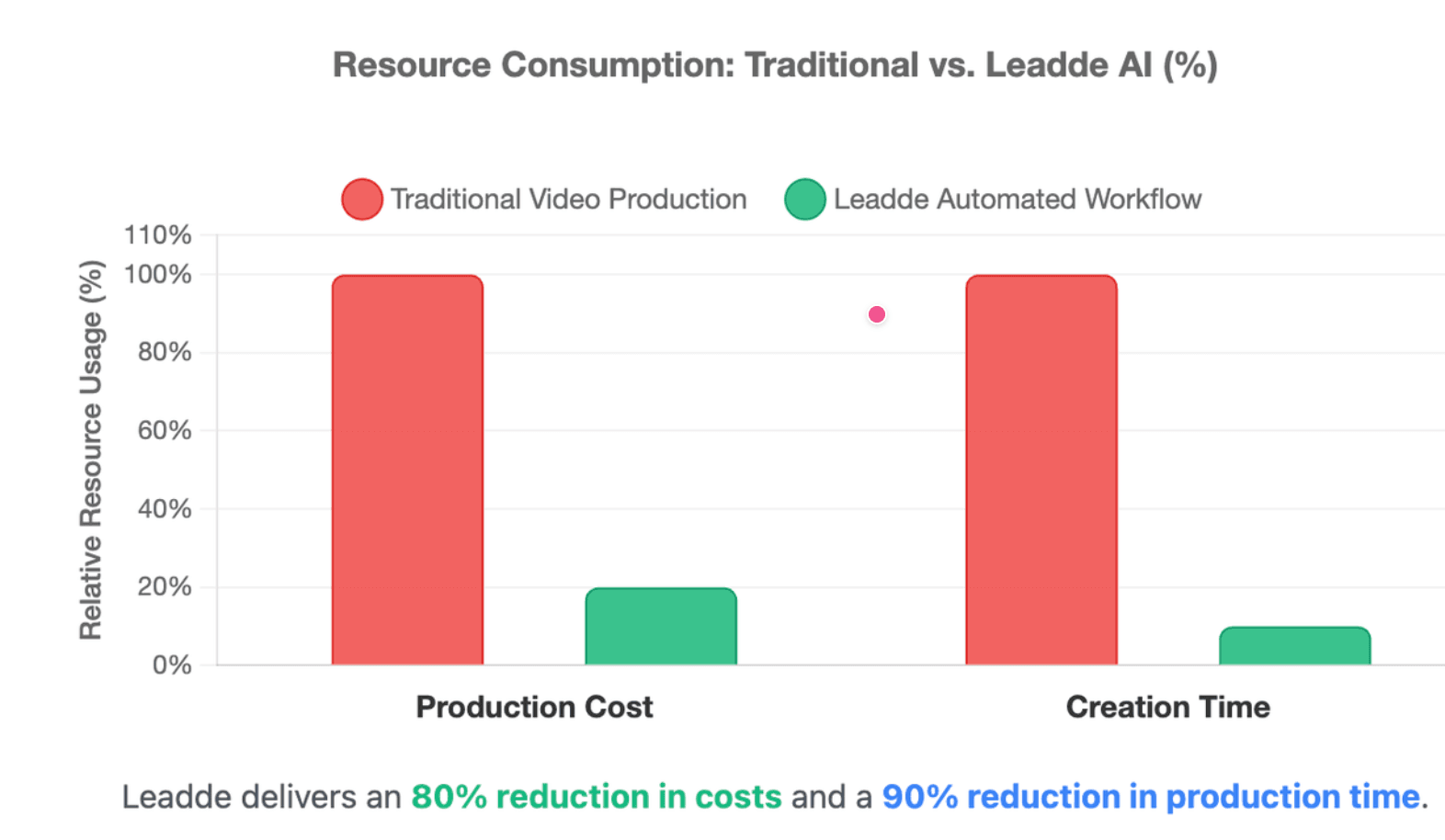
Robotic scripts and manual copy-pasting slow teams down. Leadde removes that friction by turning presentation documents into professional business videos automatically, with Auto Layout, Auto Highlight, and voiceover-ready scenes—helping teams create videos in minutes while cutting production costs by 80% and creation time by 90%.

How to Generate a Script from PowerPoint Slides with AI Automatically
AI can turn PowerPoint slides into speaker notes, a full presentation script, or a video narration script. The best workflow is simple: upload the file, define the output, generate the script, and review it slide by slide.
The goal is not to make AI “read the slides.” The goal is to turn slide content into a clear spoken explanation that fits your audience, time limit, and final format.
Step 1: Upload Your Presentation File as PPTX, PDF, or Document
Start by uploading your slide deck to an AI tool that supports presentation files. Common input formats include PPTX, PDF, DOCX, and TXT, depending on the platform. OpenAI’s official file upload documentation lists PPTX, PDF, DOCX, and TXT among supported common file extensions.
For best results, prepare the file before upload:
- Use clear slide titles.
- Remove duplicate text.
- Keep charts and tables readable.
- Add missing labels to diagrams.
- Save a PDF backup if your layout is complex.
Step 2: Set the Audience, Speaking Duration, Tone, and Output Language
AI needs context before it can write a useful script. A generic prompt creates generic narration.
Give the AI these constraints:
| Setting | Example |
| Audience | New employees, executives, customers, students |
| Duration | 5 minutes, 10 minutes, 30 seconds per slide |
| Tone | Formal, conversational, persuasive, educational |
| Output type | Speaker notes, full script, voiceover narration |
| Language | English, Spanish, French, Japanese, or localized variants |
A strong instruction might be:
“Generate a 10-minute speaker script for this PowerPoint. The audience is enterprise sales leaders. Use a confident but simple tone. Add smooth transitions between slides.”
Step 3: Generate Slide-by-Slide Speaker Notes, Talking Points, or a Full Script
The output should match the way you plan to deliver the presentation.
| Output Type | Best For | Level of Detail |
| Speaker notes | Live presentations | Medium |
| Talking points | Confident presenters | Light |
| Full script | Rehearsal or recorded delivery | High |
| Voiceover script | AI narration or video | High, with pauses and cues |
Ask the AI to generate the script slide by slide. This keeps the narration aligned with the visual flow and makes editing much easier.
Step 4: Review Transitions, Timing, and Export the Final Script
AI-generated presentation scripts often need a final human review. Check whether each paragraph matches the correct slide and whether the transitions sound natural.
Before exporting, review:
- Timing: Can you read it within the target duration?
- Accuracy: Does the script invent anything not shown on the slide?
- Flow: Does each slide connect to the next one?
- Voice: Does it sound like a real presenter?
- Use case: Is it written for live delivery, voiceover, or video?
If you use PowerPoint Copilot, Microsoft’s official workflow lets eligible users generate notes for all slides or the current slide, then keep or discard the result.
What Is the Best AI Presentation Script Generator in 2026?
The best AI presentation script generator depends on your final output. A user who needs live speaker notes has different needs from a team creating training videos or multilingual sales content.
The smartest choice is to pick the tool based on workflow, not just file format.
PowerPoint Copilot, ChatGPT, SlideScript, SlideSpeak, Canva, and Jotform Compared
Each tool solves a different part of the PowerPoint-to-script workflow.
| Tool | Best For | Key Strength | Watch Out For |
| ChatGPT | Flexible script drafting | Custom prompts and rewriting | Visual slides may need added context |
| PowerPoint Copilot | Microsoft 365 users | Speaker notes inside PowerPoint | Access depends on plan and account |
| SlideScript | Timed scripts | Word-for-word, slide-by-slide scripts | Best for script-first workflows |
| SlideSpeak | Speaker notes | Adds AI notes to presentations | May still require review |
| Canva | Presentation design | AI-generated slide drafts | Not mainly a PPT-to-script tool |
| Jotform Presentation Agent | Interactive presentations | Script, narration, and Q&A | Best when interactivity matters |
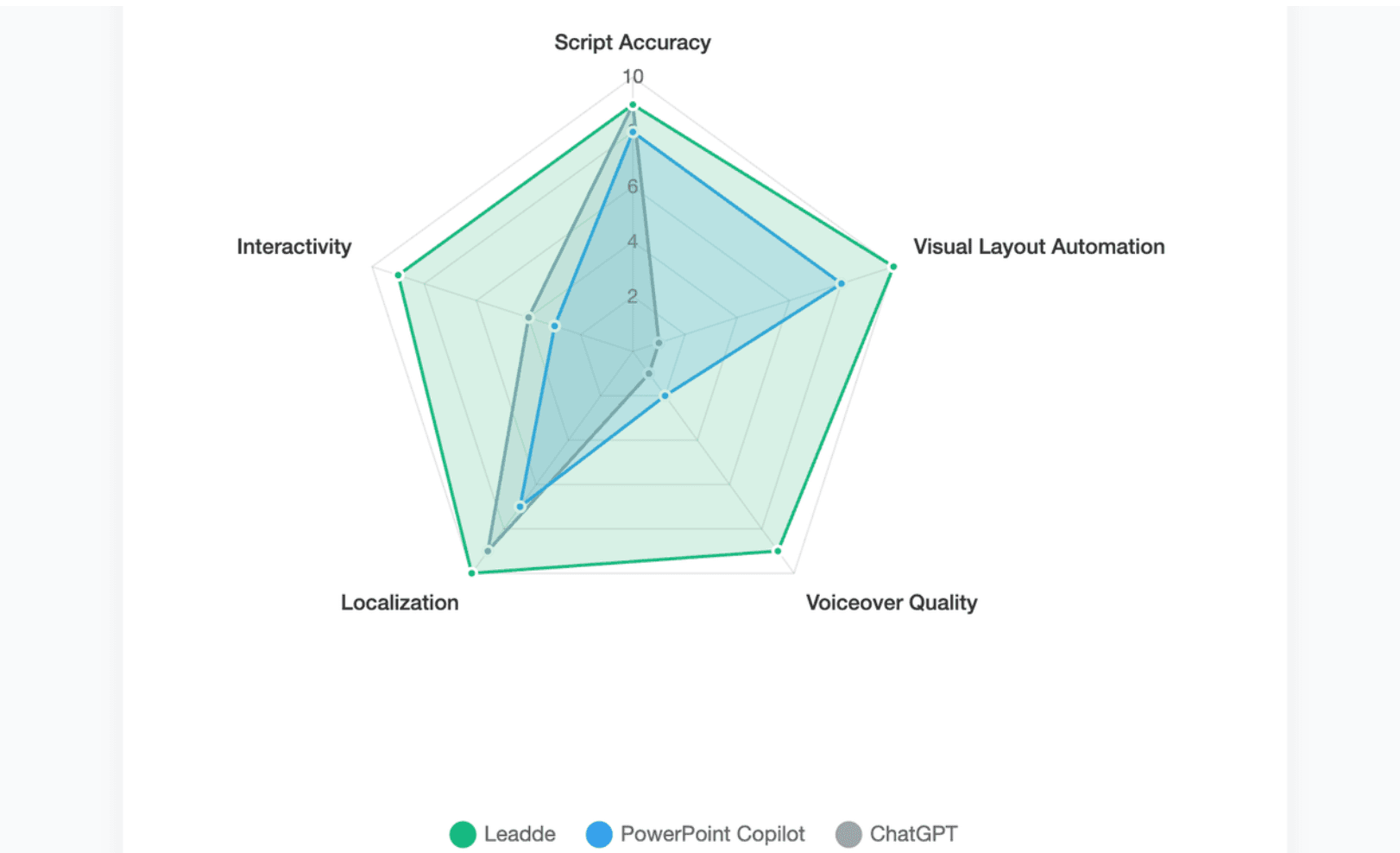
| Leadde | Business videos | Script, scenes, voiceover, avatars, video | Best when final output is video |
SlideScript’s public page focuses directly on turning PowerPoint or PDF slides into complete timed speaking scripts. Canva’s AI presentation maker focuses more on generating designed slide drafts with Magic Design. Jotform Presentation Agents generate and narrate custom scripts for each slide and support real-time audience answers.
Which Tool Is Best for Speaker Notes, Timed Scripts, Voiceover, or Interactive Presentations?
Choosing an application depends entirely on what your specific content execution layer requires in terms of operational functionality:
- For native speaker notes: Microsoft Copilot remains the easiest path to quickly generate standard drafts without leaving the Office ecosystem.
- For slide timing control: SlideScript is unmatched for optimizing word counts dynamically per slide to fit strict time constraints.
- For interaction models: Jotform AI Presentation Agent helps gather basic user reviews by embedding forms right after structural slide intervals.
Why Leadde Is Different: From PowerPoint Slides to Scripted Business Videos
While conventional utilities stop at generating text or layering simple recordings on slides, Leadde pioneers full multi-modal media generation.
- End-to-end automation: It converts presentation slides directly into fully realized digital avatar videos, eliminating the friction of manual narration or editing.
- Dynamic canvas layout: Unlike traditional players that look static, Leadde scales the underlying business layout and visuals automatically to follow script highpoints
Why Do Most AI-Generated Presentation Scripts Sound Robotic?
Most AI-generated scripts sound robotic because they are created from slide text alone. Slides are usually written for scanning, not speaking.
A good script adds context, flow, emphasis, and human judgment. Without those layers, AI often repeats bullet points in a flat voice.
The Bullet-Point Problem: AI Repeats Slides Instead of Building a Story
The primary reason AI narration feels sterile is because basic large language models default to reading presentation text back to the audience line-by-line.
- Lack of narrative hooks: True presenting requires verbal signposts, analogies, and pacing variations that cannot be found inside basic fragments.
- Redundancy trap: When an AI script just reads the words displayed on screen, viewer retention drops rapidly due to extreme audio-visual duplication.
The Visual Context Problem: Charts, Screenshots, Tables, and Diagrams Need Human Guidance
Standard text parsers possess a massive multi-modal blind spot because they only process actual ASCII text strings on a slide canvas.
- Graphic element failure: If your PPT deck features a complex system architecture wireframe or a quarterly sales trend graph, the AI cannot read it natively.
- Disconnected speech: This leads to generated text that skips essential data callouts completely, rendering the resulting video commentary inaccurate.
The Friction of Manual Editing Loops: Why Manual Editing Breaks Slide-to-Script Flow
Legacy script creation strategies create immense execution friction by forcing content creators into manual copy-pasting loops.
- Workflow fragmentation: Workers are forced to constant bounce between standalone AI chat tabs and their offline presentation file apps.
- Version desynchronization: Making a quick update to slide five forces you to completely recalibrate your entire script chronology, causing severe timeline errors.
How Do You Make an AI PowerPoint Script Sound Natural and Presentation-Ready?
A natural presentation script sounds like a person explaining an idea, not a document reading itself aloud.
The best AI script has three qualities:
- Clear structure
- Spoken rhythm
- Slide-to-slide momentum
Add Slide Transitions, Pauses, and Spoken Signposting
Transitions help the audience follow the story. Without them, each slide feels isolated.
Use simple transition phrases:
| Situation | Transition Example |
| Moving from problem to solution | “Now that we understand the challenge, let’s look at the solution.” |
| Moving from data to action | “This trend points to one clear next step.” |
| Moving from overview to details | “Let’s break this down into three parts.” |
| Moving to final recommendation | “Based on this, here is the best path forward.” |
Also ask AI to add pauses and emphasis cues for voiceover scripts:
“Add short pause markers after major points and keep each sentence easy to read aloud.”
Use Per-Slide Refinement Without Rewriting the Whole Deck
Do not rewrite the whole presentation every time one slide feels wrong. That can damage timing and create new inconsistencies.
Use per-slide editing prompts:
- “Rewrite only Slide 4 in a more conversational tone.”
- “Shorten Slide 7 to 30 seconds.”
- “Make Slide 10 sound more executive-friendly.”
- “Keep the same meaning, but make this slide easier to speak.”
Jotform’s help documentation shows that users can edit the narration script for a specific slide inside the Presentation Agent Builder. That kind of slide-level editing is useful because it protects the rest of the presentation from unnecessary changes. (Jotform)
Fix Timing Problems with Word Count, Slide Count, and Read-Aloud Testing
A script that looks fine on screen may be too long when spoken. Always test the script out loud.
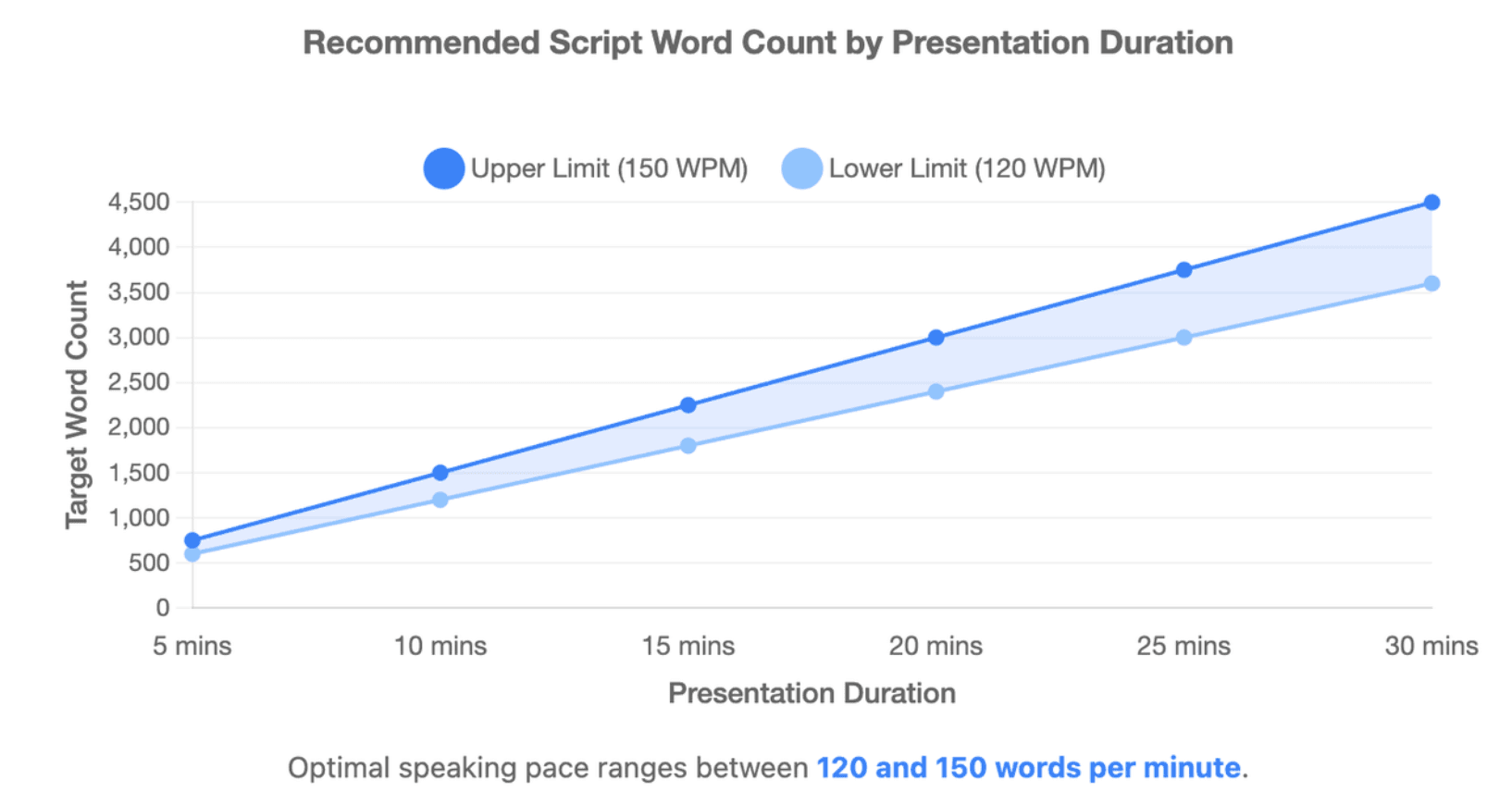
A practical speaking range is:
| Presentation Length | Approximate Script Length |
| 5 minutes | 600–750 words |
| 10 minutes | 1,200–1,500 words |
| 15 minutes | 1,800–2,250 words |
| 20 minutes | 2,400–3,000 words |
Use this as a guide, not a strict rule. Slow speakers, technical slides, and demos need more time per idea.
The most useful test is simple: read the script aloud with the slides open. If you feel rushed, shorten the script before recording or presenting.
How Can You Turn PowerPoint Scripts into Professional Multi-Language Videos?
Speaker notes are useful, but they are not the final asset for many teams. Training, sales, onboarding, and customer education often need a finished video.
A video workflow turns slides into scenes, scripts into voiceover, and presentation content into repeatable learning or marketing assets.
Why Speaker Notes Alone Are Not Enough for Training, Sales, and Customer Education
In 2026, simply handing a text file or an offline PPT copy to global internal teams or prospects fails to drive modern user engagement:
- L&D training friction: Remote workforces and new hires learn faster when interacting with asynchronous visual video modules.
- Sales enablement limits: Modern sales representatives cannot scale outbound outreach if they have to manually record unique sales pitches for every prospect slide deck.
How AI Converts Slides into Scenes, Voiceover Scripts, Avatars, and Video Layouts
In a video workflow, each slide becomes a structured scene. The script becomes narration, and the visual layout is adjusted for video delivery.
Google Vids shows this pattern inside the Google ecosystem: when users convert Google Slides, each slide becomes a scene and speaker notes become scripts for each scene. Google also supports AI voiceover workflows in Vids.
A complete slide-to-video workflow usually includes:
| Presentation Layer | Video Layer |
| Slide title | Scene title |
| Bullet points | Narration script |
| Speaker notes | Voiceover script |
| Images and charts | Visual scene assets |
| Presenter | Avatar or voice |
| Slide order | Video sequence |
| Final deck | Published video |
How Leadde Turns PowerPoint, PDFs, Word Documents, Scripts, and Text into Business Videos
Leadde is built for this full workflow. It converts PowerPoint files, PDFs, Word documents, scripts, and text into structured video presentations, then automatically generates outlines, scenes, voice-over scripts, and visual layouts.
Its video creation process allows users to upload .pptx, .pdf, .doc, .docx, or .txt files, or enter text directly. Before generation, users can set language, tone, detail level, audience, speaker background, and learning objectives.
After upload, Leadde generates an outline and script structure, then lets users choose a template, presenter, image source, and video length. Users can edit each page’s script, preview the video, and generate the final output after review.
What Is the Smartest Workflow for Presentation Script Automation in 2026?
The smartest workflow starts with the final output. Do not ask, “Which AI tool can read my PowerPoint?” Ask, “What do I need this content to become?”
A live talk, a recorded webinar, a training video, and a multilingual sales asset all need different scripts.
Best Workflow for Live Presentations: Script, Speaker Notes, and Rehearsal
For live presentations, keep the script flexible. You need enough structure to stay clear, but not so much text that you sound scripted.
Use this workflow:
- Upload your PPTX or PDF.
- Ask AI to summarize the slide flow.
- Generate speaker notes for each slide.
- Add transitions and timing.
- Practice aloud.
- Shorten notes into natural speaking cues.
PowerPoint Copilot is strong for this use case because it can generate speaker notes directly inside PowerPoint for the current slide or all slides. (微软支持)
Best Workflow for Business Video: Script, Voiceover, Localization, and Publishing
For business video, use a more structured process. The script must work without a live presenter, so it needs more context and clearer pacing.
Use this workflow:
- Upload the presentation or document.
- Generate an outline.
- Convert slides into scenes.
- Generate a voiceover-ready script.
- Choose presenter, voice, language, and layout.
- Preview and edit the script.
- Generate and publish the video.
Leadde fits this workflow because it combines document import, outline generation, scene layout, key-point highlighting, presentation flow, voice-over generation, multilingual video creation, AI avatars, interactive playback, version control, and analytics.
Final Recommendation: Choose the Tool Based on Your Output, Not Just the File Type
There is no single “best” AI script tool for every presentation. The best option depends on what you want after the script is generated.
| Final Goal | Best Workflow |
| Quick draft | ChatGPT |
| Notes inside PowerPoint | PowerPoint Copilot |
| Timed word-for-word script | SlideScript-style script generator |
| Notes inserted into PPTX | SlideSpeak-style speaker notes tool |
| Interactive narrated presentation | Jotform Presentation Agent |
| Google Slides video | Google Vids |
| Business video at scale | Leadde |
If your goal is simply to rehearse a live talk, speaker notes may be enough. If your goal is training, sales enablement, customer education, or multilingual video content, use a workflow that turns the script into a finished video asset.
Conclusion
To sum up, learning how to generate a script from PowerPoint slides with AI automatically is no longer just about extracting bullet points onto a digital notepad. The modern standard requires bridging the gap between flat text and dynamic multi-modal video asset transformation. While traditional utilities can assist with basic formatting and speaker notes, forward-thinking businesses scale through intelligent video platforms. By choosing tools like Leadde, enterprise organizations can turn raw presentation decks into immersive multi-language media in minutes—slashing production costs by 80% and creation timelines by 90%.