How to Add Voiceover to Each PowerPoint Slide Automatically in 2026

To add voiceover to each PowerPoint slide automatically, you can use Microsoft 365’s Record Slide Show feature to capture narration and slide timings, insert one AI-generated MP3 or WAV file per slide and set it to Start Automatically, or use an AI PPT-to-video platform to generate scripts, voiceovers, visual layouts, and a shareable MP4 from the presentation.
PowerPoint can automate narration playback and timing, but fully automatic AI voice generation usually requires an external AI voiceover or video automation tool.
Manual slide-by-slide narration creates friction: recording, editing, syncing, exporting, and reworking every update.
Leadde removes that bottleneck by turning documents and text into professional business videos automatically, helping teams create voiced presentations in minutes while saving up to 80% in production costs and 90% in content creation time.

How to Add Voiceover to Each PowerPoint Slide Automatically
The right workflow depends on what you mean by “automatic voiceover.” In PowerPoint, automation can mean several different things: automatic playback, automatic slide timing, AI-generated narration, or a fully automated PPT-to-video workflow.
PowerPoint can record narration and slide timings while you present, and those recordings can be saved on individual slides. However, PowerPoint does not fully automate AI narration generation from your slide text by itself.
What “automatic voiceover” actually means in PowerPoint
In most PowerPoint workflows, automatic voiceover usually means one of four things:
| User Goal | What It Means | Best Workflow |
| Record your own voice | Speak while presenting | PowerPoint Record Slide Show |
| Make audio start by itself | Audio plays when the slide appears | Playback > Start Automatically |
| Use AI narration | Convert script or notes into voice | AI voiceover + PowerPoint import |
| Remove manual slide work | Turn slides into a narrated video | AI PPT-to-video platform |
The key difference is this: PowerPoint can automate playback and timing, but AI voice generation usually needs an external tool.
Native recording, AI voiceover, screen recording, and PPT-to-video automation compared
Native PowerPoint recording is best when you want a simple narrated deck. It lets you record your voice, slide timings, ink, and laser pointer gestures while moving through the presentation.
AI voiceover is better when you do not want to record your own voice. It works well for training, product demos, onboarding, and multilingual presentations, but you still need to insert and sync the audio files unless your tool handles the full video workflow.
Screen recording tools are useful when you want to present once, trim mistakes later, and share a cloud-hosted video. Loom, for example, positions PowerPoint voice-over as a workflow that can combine recording, post-recording edits, and audience feedback.
PPTX with embedded audio vs shareable MP4 video: which output do you really need?
Before choosing a method, decide whether you need an editable PPTX or a finished MP4 video.
Choose PPTX with embedded audio if:
- You still need to edit slides later
- The audience will open the deck in PowerPoint
- You want one audio file attached to each slide
Choose MP4 video if:
- You want easy sharing
- You need consistent playback
- You are uploading to an LMS, YouTube, SharePoint, or internal training portal
- You do not want viewers to manage PowerPoint settings
Microsoft supports saving a PowerPoint presentation as a video through File > Export > Create a video, with quality options such as 4K, 1080p, 720p, and 480p.
How to Add Voiceover to Each PowerPoint Slide Automatically Using Native Recording Tools
PowerPoint’s native tools are the fastest starting point if you want to record your own narration. The main method is Record Slide Show, which captures your voice and slide timings as you present.
This method is useful for teachers, trainers, consultants, and sales teams who want a narrated deck without installing extra software.
How do you enable the hidden Recording tab in your PowerPoint ribbon?
In some versions of PowerPoint, the Recording tab may not appear by default. You can enable it manually:
- Open File
- Select Options
- Go to Customize Ribbon
- Find and check Recording
- Click OK
Once enabled, the Recording tab gives you access to slide show recording, audio, video, screen recording, and export features.
This is useful because many users look only under Insert or Slide Show and miss the more complete recording workflow.
How do you use Microsoft 365 Teleprompter View with auto-scroll speaker notes?
Microsoft 365 PowerPoint can show speaker notes while recording, which makes the narration workflow easier. Instead of reading from a separate document, you can use notes as a built-in script guide during the recording session.
For best results:
- Write one short narration block per slide
- Keep each slide script focused on one idea
- Avoid reading slide text word for word
- Add pause cues where transitions or animations happen
The goal is not to make your slide notes longer. The goal is to turn them into a clean voice-over script.
How do you format, resize, and style your live camera feed using Cameo?
Cameo is helpful when your presentation needs a human face. You can use it for executive updates, course introductions, sales demos, or leadership training.
Use Cameo when:
- The presenter adds trust
- The content needs a personal explanation
- You want a video-style deck without filming in a studio
Avoid Cameo when:
- The presentation must stay file-light
- The topic is technical and slide detail matters more than face video
- You plan to localize the same deck into many languages
For scalable training, a camera feed can increase engagement, but it also increases update work. If the deck changes every month, AI presenters or a fully automated video workflow may be easier to maintain.
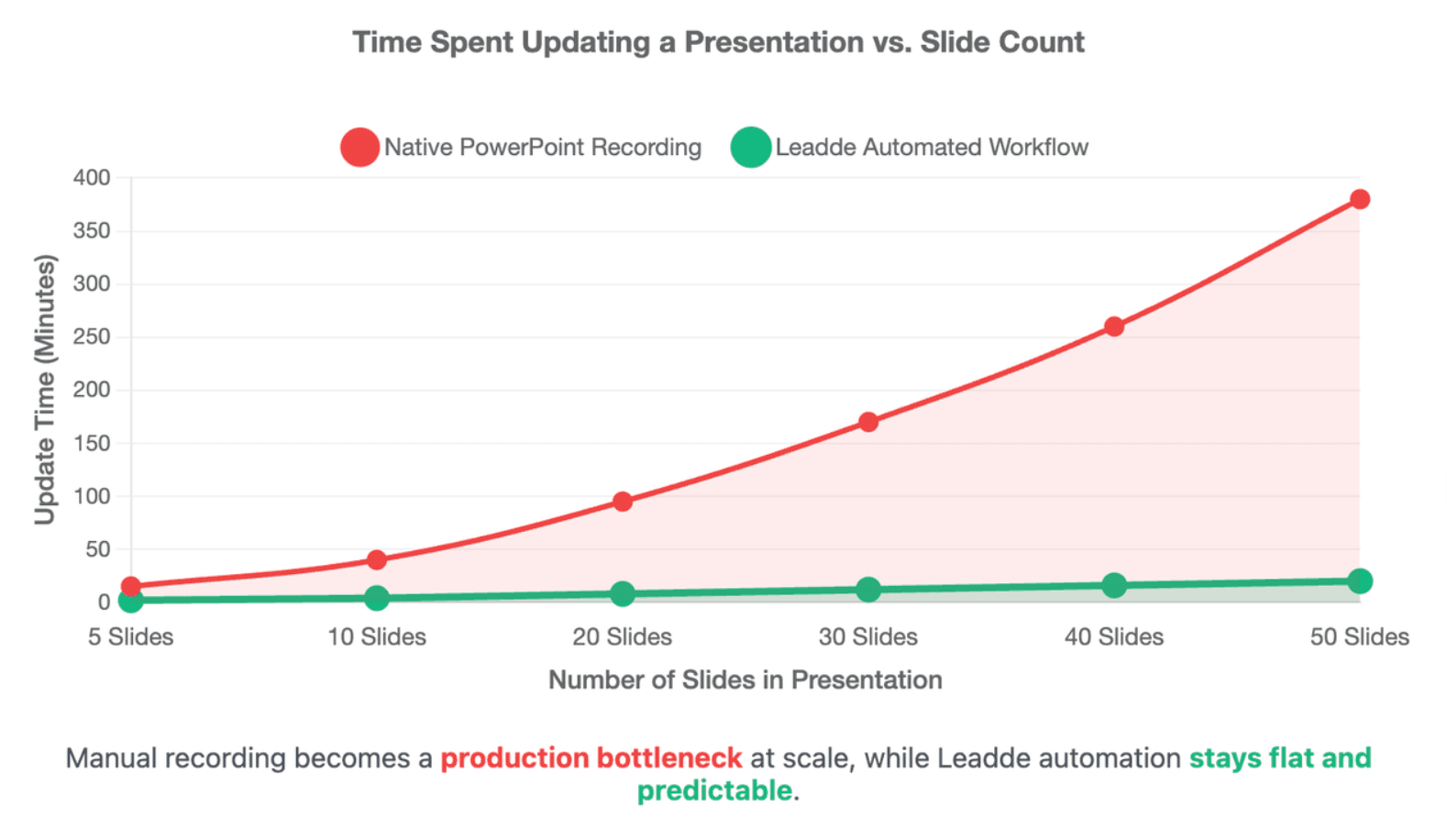
Why Do PowerPoint Power Users Avoid Native Recording, Audacity, and Manual Voiceover Workflows?
Native recording works, but it becomes slow when the deck grows. A 5-slide presentation is manageable. A 50-slide training module with updates, translations, and compliance reviews becomes a production problem.
The hidden cost is not the first recording. The real cost is editing, syncing, replacing, exporting, and repeating.
The audio compression dilemma: background hiss, uneven volume, and sub-optimal native quality
Experienced presentation creators on Reddit avoid native recording due to aggressive audio compression algorithms. The built-in encoder introduces noticeable background hiss and fails to balance voice levels across separate recording sessions.
This lack of acoustic balancing forces corporate teams to utilize expensive external audio hardware setups.
The multi-software friction: AI voice tools, Audacity editing, manual insertion, and timing checks
- Acoustic Cleaning: Forcing users to capture voice inside external tools like Audacity to bypass background noise.
- Manual Stitching: Exporting audio pieces one-by-one and linking them slide-by-slide inside PowerPoint.
- Playback Realignment: Verifying that slide advancement triggers do not conflict with embedded audio file lengths.
The speaker notes scaling problem: why copy-pasting scripts kills large-deck production
Manually copy-pasting speaker notes into separate AI voice interfaces triggers severe workflow scaling bottlenecks. Processing a massive 50-slide deck requires at least 50 individual download and upload sequences.
This high operational friction limits production velocity for fast-moving L&D and product marketing departments.
How to Import External AI Voiceovers Into Each Slide and Make Them Play Automatically
External AI voiceover is a good middle path. You get cleaner narration than a rushed manual recording, but you can still keep the PowerPoint file editable.
The safest method is to create one audio file per slide, insert each file into its matching slide, and set it to play automatically.
How to prepare one MP3 or WAV file per slide for easier syncing
Do not create one long audio file for the whole presentation unless you are editing in a video timeline. In PowerPoint, one long file is harder to sync with slide changes.
Use this structure instead:
| Slide | Script File | Audio File | Duration | Status |
| Slide 01 | slide-01-script.docx | slide-01.mp3 | 0:38 | Approved |
| Slide 02 | slide-02-script.docx | slide-02.mp3 | 0:44 | Needs edit |
| Slide 03 | slide-03-script.docx | slide-03.mp3 | 0:29 | Approved |
This simple naming system prevents confusion when you revise the deck.
Recommended audio naming format:
- slide-01.mp3
- slide-02.mp3
- slide-03.mp3
- slide-04-final.mp3
PowerPoint supports inserting audio from your computer through Insert > Audio > Audio on My PC, then selecting the audio file and inserting it into the slide.
What are the exact PowerPoint Playback settings for hands-free audio?
After inserting the audio file, select the audio icon and configure playback.
Use these settings for per-slide voiceover:
| Setting | Recommended Choice | Why |
| Start | Automatically | Audio starts when slide appears |
| Play Across Slides | Off | Prevents narration from continuing into the next slide |
| Hide During Show | On | Keeps the speaker icon invisible |
| Loop until Stopped | Off | Prevents repeated narration |
| Rewind after Playing | Optional | Useful during review |
Microsoft’s support documentation confirms that audio can be set to play automatically when a slide appears.
The most common mistake is leaving audio set to When Clicked On. That forces the presenter or viewer to click before hearing the narration.
How do you match slide advance timings to audio duration and prevent transition cutoffs?
After setting audio to start automatically, match the slide duration to the audio length.
A practical rule:
Slide duration = audio duration + 0.5 to 1.0 second buffer
For example:
| Audio Duration | Recommended Slide Timing |
| 28 seconds | 29 seconds |
| 42 seconds | 43 seconds |
| 1 minute 10 seconds | 1 minute 11 seconds |
This buffer helps prevent the next slide from cutting off the end of the narration.
PowerPoint can save timings during recording, and users can also turn recorded timings on or off from the Slide Show tab.
How Can Screen Recorders and AI PPT-to-Video Platforms Reduce Re-Recording Stress?
Screen recorders and AI PPT-to-video platforms solve different problems.
Screen recorders reduce the pressure of live delivery. AI PPT-to-video platforms reduce the manual work of building narrated videos from slides and documents.
How Loom-style pause, trim, cloud sharing, and screen recording simplify narrated presentations
A screen recorder is useful when you want to talk through the deck naturally and edit afterward.
This workflow works well for:
- Quick internal updates
- Product walkthroughs
- Async team communication
- Short sales explanations
- Feedback videos
The advantage is simple: you do not need to perfect every slide recording inside PowerPoint. You record the presentation as a video, then trim mistakes later.
Loom’s PowerPoint voice-over guide presents this as a way to add voice-over with built-in PowerPoint features or use Loom for extra video creation capabilities such as edits and audience feedback.
How fully automated PPT-to-video workflows remove slide-by-slide clicking, formatting, and syncing
A fully automated PPT-to-video workflow goes beyond recording. It can help turn existing content into a narrated business video without manually inserting audio on every slide.
This matters when you need to produce:
- Training videos
- SOP videos
- Product education videos
- Compliance content
- Customer onboarding videos
- Multilingual internal updates
In this workflow, the goal is not just to add audio to PowerPoint. The goal is to convert the presentation into a finished learning or communication asset.
How Leadde supports automated layouts, voice-over scripts, AI presenters, and multilingual video workflows
Leadde is designed for business teams that need to transform existing documents and content into professional, multilingual, and interactive videos. Its official product overview states that Leadde converts PowerPoint files, PDFs, Word documents, scripts, and text into structured video presentations, automatically generating outlines, scenes, voice-over scripts, and visual layouts.
This solves a different problem from native PowerPoint recording. Instead of recording, exporting, inserting, and syncing slide by slide, teams can move toward an automated video workflow.
Leadde also supports large-scale multilingual workflows across 92 languages, layered PowerPoint import through Slide Presenter, and 200+ AI avatars for consistent presentation without repeated camera recording.
That makes it a strong fit for teams that need repeatable video production, not just one narrated deck.
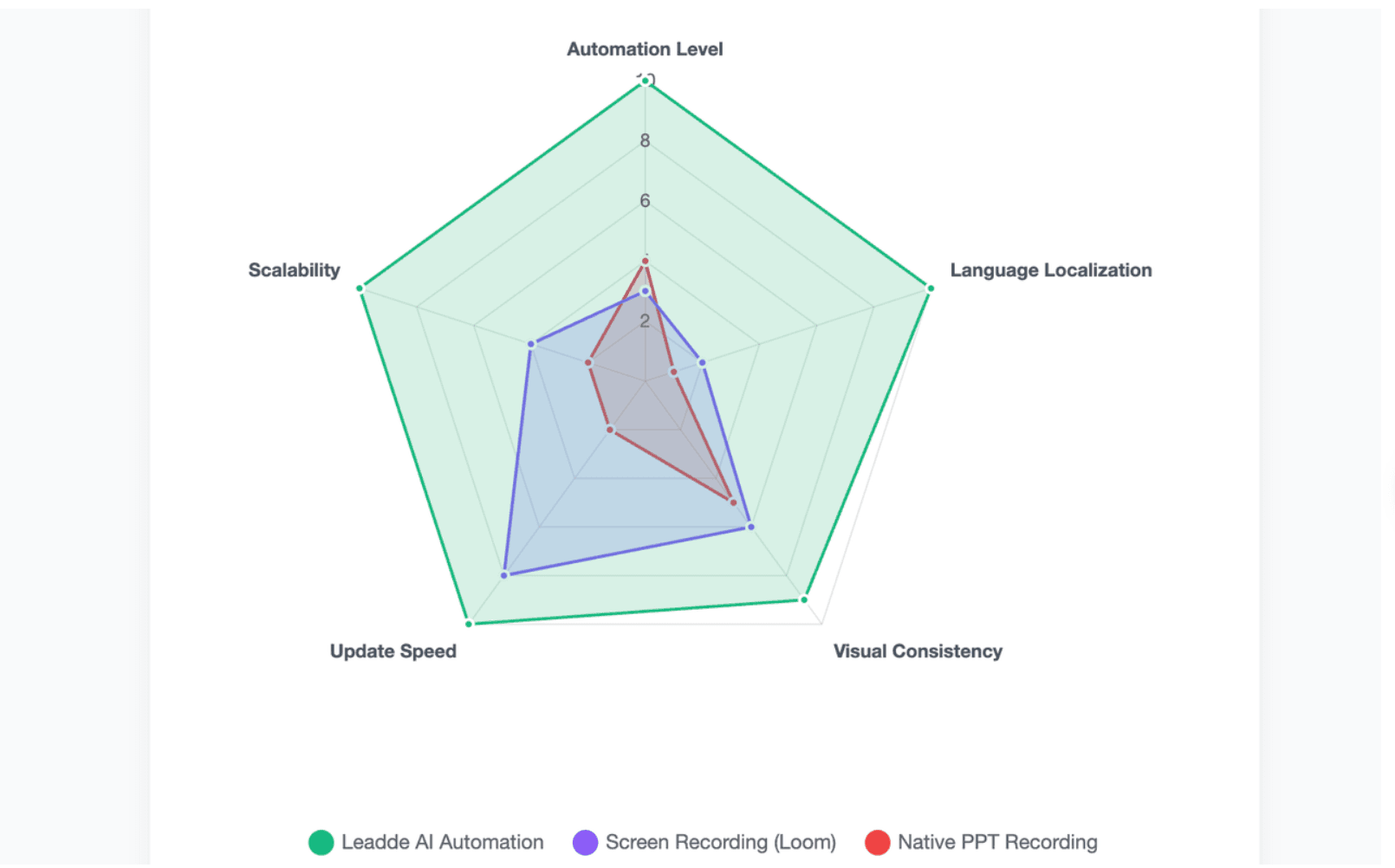
Native PPT Recording vs Screen Recording vs Leadde AI Video Automation
There is no single best method for every user. The best choice depends on your content volume, quality needs, localization needs, and update frequency.
For one simple deck, PowerPoint is enough. For a growing training library, manual voiceover becomes expensive in time and review effort.
Which workflow offers the best balance of speed, audio quality, localization, and team bandwidth?
| Workflow | Best For | Main Strength | Main Limitation |
| Native PowerPoint Recording | Simple narrated decks | Built into PowerPoint | Manual recording and editing |
| External AI Voiceover + PPT | Cleaner AI narration | Better voice consistency | Manual insertion and syncing |
| Screen Recording | Fast async explanation | Easy sharing and trimming | Less structured for large content libraries |
| Leadde AI Video Automation | Business video at scale | Automated scripts, layouts, voiceover, localization | Best when the output can be video-first |
- Native PowerPoint recording wins when the deck is short and the presenter’s real voice matters.
- AI voiceover wins when voice consistency and language coverage matter.
- Leadde-style automation wins when the team needs speed, scale, brand consistency, and repeatable video output.
Which method fits corporate L&D, customer education, sales enablement, and compliance training?
- For corporate L&D, choose a workflow that supports updates. Training content changes often, and every re-recording creates a new production task.
- For customer education, choose a workflow that supports clear narration, branded visuals, and easy publishing. Customers should not need PowerPoint to understand the content.
- For sales enablement, choose a workflow that is fast to update. Product messaging changes quickly, and outdated decks can hurt conversion.
- For compliance training, choose a workflow with consistent scripts, version control, and clear delivery. Leadde’s official overview lists compliance and security training, SOP documentation, onboarding, internal communications, and global localization as typical use cases.
How do you export or publish your completed voiceover presentation as a shareable MP4 video?
After reviewing your narrated deck, export it as a video if you need consistent playback.
In PowerPoint for Windows, use:
- File
- Export
- Create a video
- Select video quality
- Use recorded timings and narrations
- Export the video
Microsoft states that PowerPoint can save a presentation as a video for sharing, with quality options including Ultra HD, Full HD, HD, and Standard.
For Mac users, Microsoft’s guidance says PowerPoint can export to MP4 or MOV through File > Export, depending on the version and available video options.
Before publishing, check:
- Does every slide play its voiceover?
- Are slide timings long enough?
- Are transitions cutting off narration?
- Is the file size acceptable?
- Does the MP4 play correctly outside PowerPoint?
- Are captions or transcripts needed?
Conclusion
For a simple narrated PowerPoint, use Record Slide Show. PowerPoint can capture narration and slide timings while you present, making it the fastest native option for one-off decks.
For a cleaner AI voiceover inside PowerPoint, generate one MP3 or WAV per slide, insert each file, set playback to Start Automatically, and match slide timing to audio duration. This keeps the deck editable while reducing manual recording.
For a shareable business video, use a PPT-to-video workflow. This avoids the repeated work of recording, trimming, inserting, syncing, and exporting every time the deck changes.
For enterprise-scale training, onboarding, product education, and multilingual communication, Leadde is the strongest fit because it turns PowerPoint files into structured videos with automated outlines, scenes, voice-over scripts, and visual layouts.