How to Use Seedance 2.5: Complete 2026 Guide
Seedance 2.5 can be used by selecting the model in Dreamina, adding text, image, video, or audio references, and writing a structured prompt that defines the subject, action, camera movement, lighting, sound, and visual style.
For more consistent results, assign a clear role to each reference, test the concept with a short clip, review identity and motion quality, and only then generate or extend the final 30-second video.
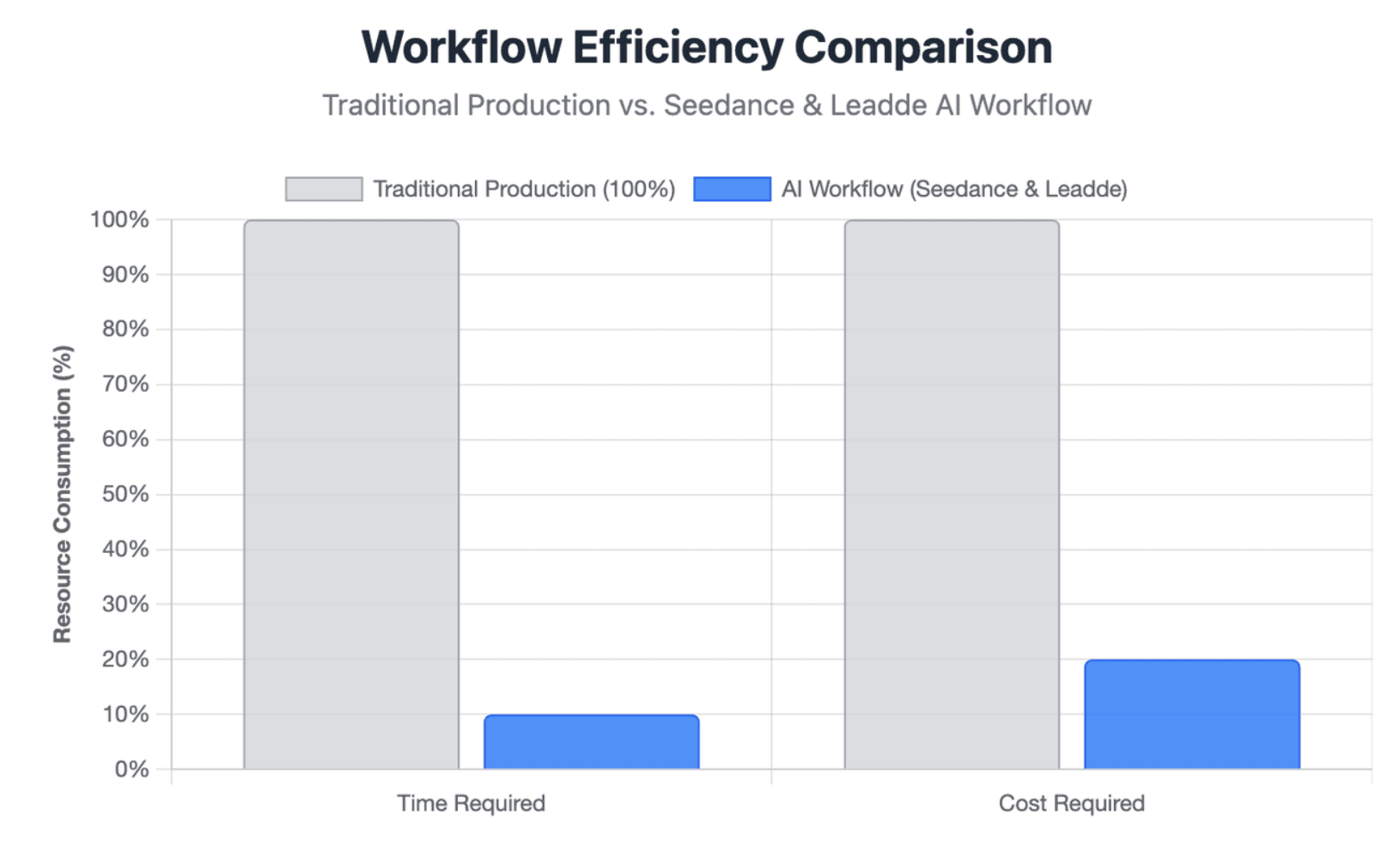
Even with this workflow, turning every idea, document, or script into a polished video can still demand time, budget, and specialist effort.
Leadde removes that bottleneck by automatically converting text and documents into professional business videos in minutes, reducing production costs by up to 80% and creation time by up to 90%.
How to Use Seedance 2.5: A Quick Step-by-Step Workflow
The most reliable way to use Seedance 2.5 is to treat it as a production workflow rather than a one-line video generator. Plan the result first, give each reference a clear role, and review a short test before committing to a longer generation.
Dreamina’s official workflow starts in AI Video. Users select Seedance 2.5, enable Omni Reference when reference control is needed, add their source assets, write a structured prompt, choose the video settings, and generate the clip.
Prepare your video goal, storyboard, and reference assets
Start by defining one clear outcome. A product advertisement, short drama, game trailer, and training illustration require different pacing, camera work, and reference materials.
Prepare only the assets that help control the result:
- A character or product reference
- An environment or style reference
- A motion or camera reference
- An optional audio reference
- A short storyboard or shot list
For a longer scene, write the key beats before opening the generator. Dreamina recommends preparing project goals, storyboards, character sheets, audio references, camera directions, aspect ratio, and target duration before generation.
Select Seedance 2.5, enable Omni Reference, and upload your files
Open Dreamina’s AI Video workspace and select Seedance 2.5 from the model list. Turn on Omni Reference when you need to combine images, videos, audio, scripts, character sheets, or storyboard frames.
Click the “+” control to add your assets. Do not upload every available file without a plan. Start with the smallest set that can define the subject, setting, movement, and sound.
Write the prompt, generate the video, review it, and export the result
Write the prompt as a sequence of production instructions. Describe what appears, what changes over time, how the camera moves, how the scene is lit, and what the audience should hear.
Use @ tags to connect instructions to uploaded assets. Then select the aspect ratio and duration, click Generate, and review the full result before downloading it. Dreamina also provides tools for selective regeneration, upscaling, interpolation, and soundtrack generation.
What Should You Know Before Using Seedance 2.5?
Seedance 2.5 combines text instructions with visual, motion, and audio references. ByteDance presents it as a move from isolated clip generation toward a broader creative workflow with longer scenes, multimodal control, timestamp-based editing, and reference-driven production.
However, the exact feature set may differ between ByteDance’s model, Dreamina’s interface, cloud APIs, beta programs, and third-party platforms.
Official features vs. Dreamina and third-party platform features
ByteDance officially describes support for longer continuous generation, multiple reference types, clay-render control, green-screen editing, camera-perspective editing, reference-based editing, and timestamp-level control. It also acknowledges that complex physics and interactions between multiple subjects can still be unstable.
Dreamina adds its own interface and post-processing tools, including:
- Omni Reference
- Upscale
- Interpolation
- Soundtrack generation
- Multiframes
- Download and project workflow tools
These are Dreamina platform features. A canvas, prompt history, chat editor, pricing system, or asset manager offered by another website may belong to that third-party platform rather than Seedance 2.5 itself.
Where to access Seedance 2.5 and why it may not appear in your account
The clearest international creator workflow is Dreamina, but access can depend on account status, location, rollout stage, and the model list currently shown after sign-in. Some Dreamina pages have also displayed conflicting availability messages, so the model selector inside the user’s account is more reliable than a marketing headline.
If Seedance 2.5 is missing:
- Sign in and check the AI Video model selector.
- Confirm that your account has enough credits.
- Check whether the feature is limited by region or account type.
- Avoid assuming that a third-party page means official access is available.
- Run a small test when the model first appears.
BytePlus provides video-generation API documentation and pricing resources, but developers should verify the current model list, model ID, regional availability, billing rules, and access permissions before building a production integration.
Text-to-video, image-to-video, reference-to-video, and other generation modes
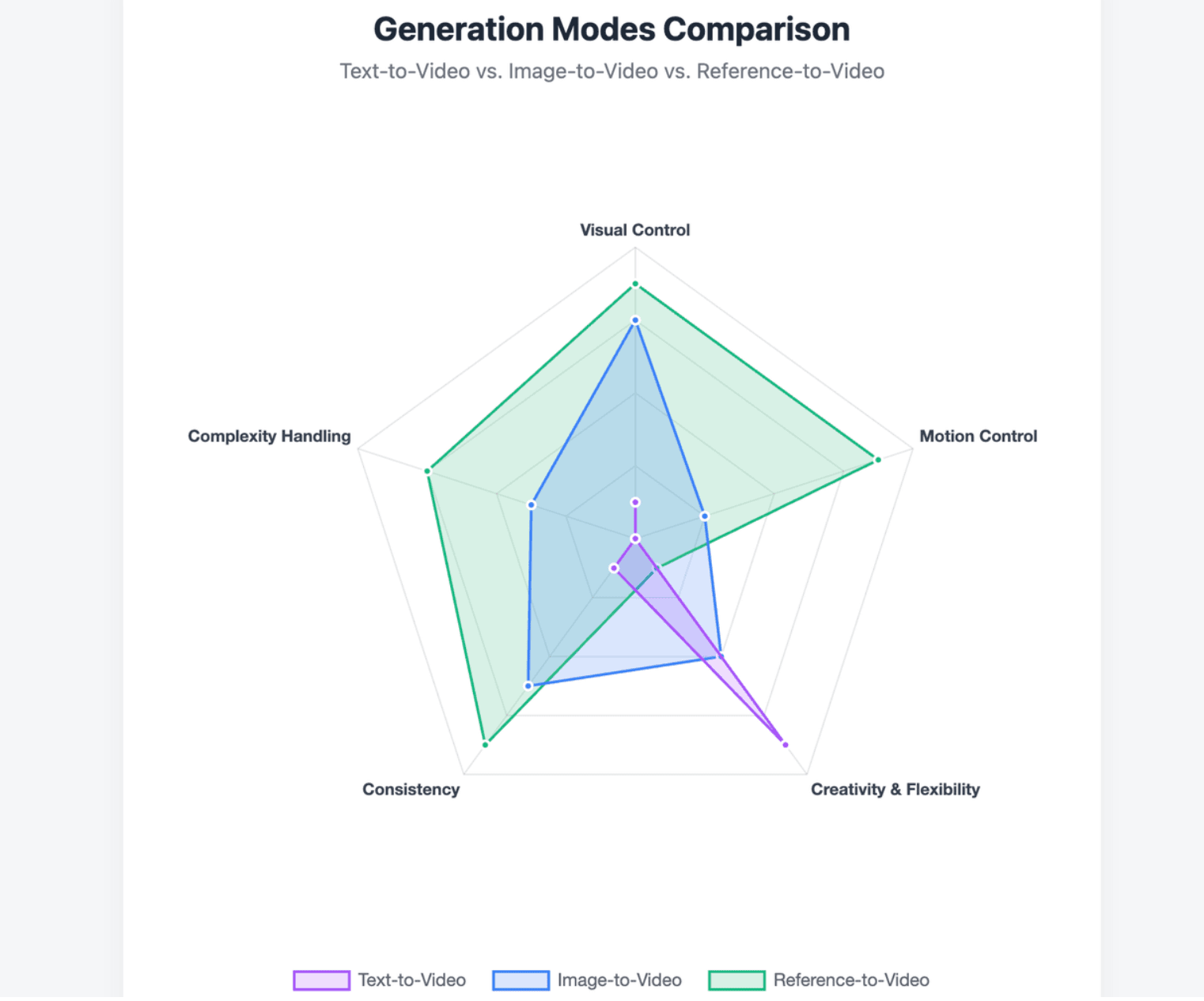
- Use text-to-video when the idea is flexible and no exact subject must be preserved. It is useful for concept scenes, environments, atmosphere, and early creative exploration.
- Use image-to-video when the subject’s appearance matters. A product photo, character sheet, or approved keyframe gives the model a stronger visual anchor.
- Use reference-to-video when you need more control over motion, camera behavior, blocking, audio, or scene structure. ByteDance’s official examples use images to define characters and locations, clay renders to define spatial structure and camera paths, videos to define movement, and timestamp instructions to control specific parts of the sequence.
Green-screen and white-model workflows are better for complex action because they separate structure from final appearance. The motion or 3D reference controls where things move, while another image can control materials, lighting, color, and visual style.
How to Write Seedance 2.5 Prompts and Use Multimodal References
A strong Seedance 2.5 prompt is closer to a director’s brief than a list of visual keywords. It should tell the model what each source controls and how the scene develops from beginning to end.
The model can understand references across characters, props, locations, voices, composition, motion, and style, but conflicting or undefined references can still produce unstable results.
Build prompts with subject, action, camera, lighting, audio, and constraints
A practical prompt structure is:
- Reference assignment
- Subject and environment
- Action over time
- Camera movement
- Lighting and style
- Dialogue and sound
- Elements that must remain unchanged
- Unwanted elements to avoid
For example:
Use @Image 1 for the character’s identity and clothing.
Use @Image 2 for the location and lighting.
Use @Video 1 only for the camera movement.

The character walks through the workshop and stops beside the product.
The camera tracks from behind, moves into a side view, and ends on a close-up.

Preserve the face, clothing, product shape, logo position, and room layout.
No extra people, random subtitles, unwanted music, or camera cuts.
Camera instructions should be specific. “Cinematic movement” is vague; “slow push-in,” “low tracking shot,” or “clockwise orbit ending in a close-up” gives the model a clearer path.
Create a reference hierarchy for identity, environment, motion, and style
Treat your references as a hierarchy:
- Identity reference: face, body, clothing, product shape, packaging
- Environment reference: room, landscape, spatial layout, object positions
- Motion reference: action, performance, speed, camera path
- Style reference: lighting, color, lens feeling, texture
- Audio reference: voice, dialogue timing, rhythm, ambience
Permanent rules should sit above shot-level details. For example, a character’s face, coat, and hairstyle may be fixed for the whole video, while hand position and camera angle can change in one time segment.
ByteDance’s official concert example assigns separate image references to the venue, performers, instruments, choir, and audience. Its clay-render example separates camera movement and blocking from character design, materials, lighting, and final atmosphere.
Organize up to 50 references without creating conflicts
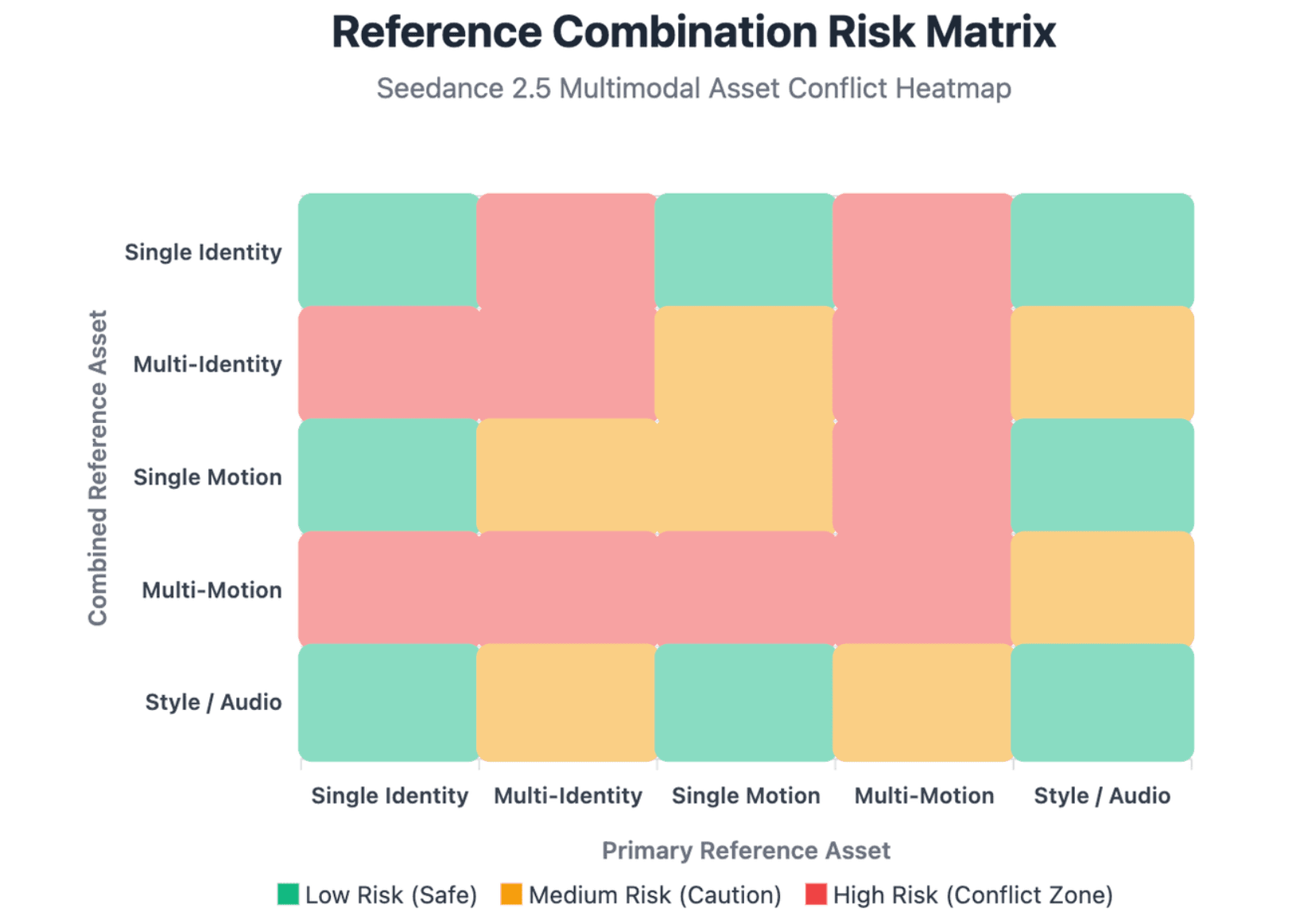
Dreamina describes support for up to 50 multimodal inputs, while ByteDance’s official release materials provide more specific reference limits for images, videos, and audio. More references do not automatically produce a better video.
Use three rules:
- Give each reference one primary job.
- Remove duplicate or contradictory references.
- Place the most important identity and product references first.
Avoid using several images that disagree about a character’s clothing, age, hairstyle, or body shape. Do not use one video for camera movement and another for a conflicting camera direction unless the time ranges are clearly separated.
For a first test, one identity image, one environment image, and one motion reference are often easier to debug than a large reference pack.
How to Create a Stable 30-Second Seedance 2.5 Video
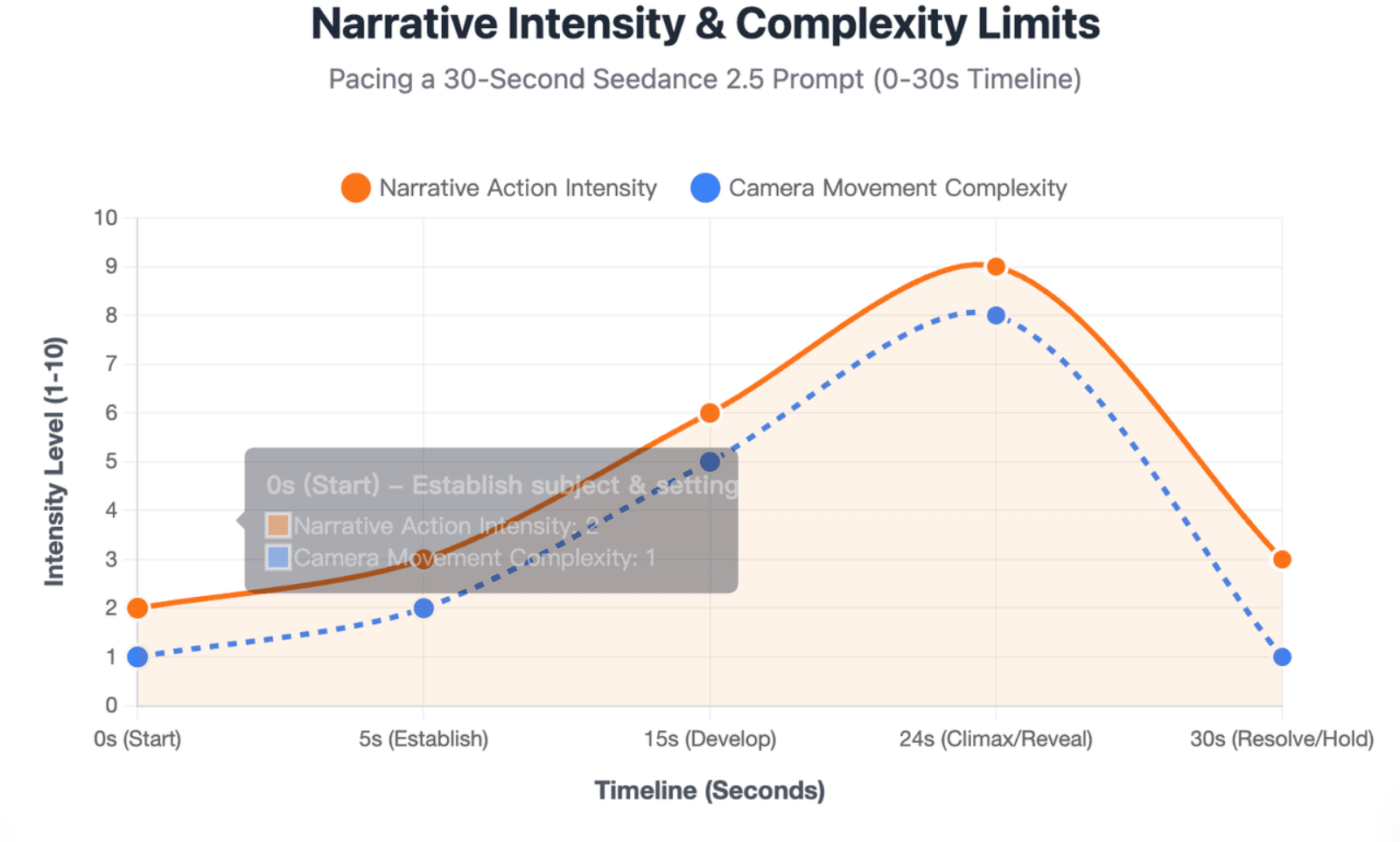
A 30-second video should not be written as a five-second prompt with extra adjectives. The longer duration needs a clear sequence of actions, stable reference rules, and enough visual breathing room for each beat.
ByteDance’s official examples use continuous sequences with ordered events, changing camera positions, and controlled endings rather than random collections of shots.
Structure the scene with an opening, development, turning point, and ending
A simple 30-second structure is:
- 0–5 seconds: Establish the subject, setting, and starting position.
- 5–15 seconds: Develop the main movement or interaction.
- 15–24 seconds: Introduce the reveal, change, or strongest action.
- 24–30 seconds: Resolve the action and hold a clear final image.
Each time range should have one main purpose. Do not introduce a new character, location, costume, product, camera style, and music cue in the same short segment.
A stable ending is also important. The final pose, camera direction, subject position, and motion path should be clear if the clip will later be extended or joined to another scene.
Use a motion spine and complexity budget to control characters and camera movement
A motion spine is one continuous movement that connects the scene. It may be a person walking through a space, a product moving along an assembly line, a tray passing between characters, or a camera following one main subject.
This gives the camera a reason to move. It also helps background actions remain secondary rather than competing with the main event.
Use a complexity budget to limit how much happens at once:
- One main subject or object
- One main camera path
- One action beat per character group
- One major environment change
- One clear audio focus
ByteDance states that multi-subject interactions and complex physical movements remain areas for improvement. Reducing simultaneous actions can therefore improve the chance of a usable result.
Test a 6–8 second proof clip before generating the full video
Before spending credits on a full scene, generate a short proof clip that tests the highest-risk element.
Test one of these first:
- Character identity
- Product shape and packaging
- Camera movement
- Hand or body action
- Multi-character interaction
- Audio timing
Approve the proof clip only when the core motion and identity are stable. Then reuse the successful prompt language and reference set for the longer version.
This method does not guarantee the 30-second result will remain perfect, but it helps separate a weak concept from a weak long-duration execution. It also makes it easier to identify whether the failure came from the prompt, the references, or the model’s limits.
How to Review, Edit, and Troubleshoot Seedance 2.5 Videos
Do not judge the result only by whether it looks impressive in the first two seconds. Review the complete clip for identity, physics, camera logic, story order, audio, and commercial accuracy.
ByteDance supports timestamp-based control and targeted edits to characters, actions, story elements, green-screen scenes, camera perspectives, and referenced videos.
Use a three-pass quality check for identity, motion, camera, story, and audio
Pass 1: Identity and brand accuracy
Check faces, clothing, product dimensions, packaging, colors, props, labels, and logos. Small text and exact packaging details deserve close inspection.
Pass 2: Motion and physical logic
Check hands, feet, object contact, weight, shadows, hair, fabric, reflections, and the way subjects enter or leave the frame.
Pass 3: Story, camera, and audio continuity
Check whether events happen in the correct order, whether the camera has a logical path, and whether dialogue, effects, ambience, and music match the action.
Reject the clip when the main product, character, message, or action is wrong. Minor background defects may be acceptable only when they do not distract the viewer or create a legal or brand risk.
Choose between targeted editing, video extension, regeneration, and clip stitching
- Use targeted editing when most of the clip is correct and the problem is limited to one subject, time range, camera move, background, or action.
- Use regeneration when the core identity, scene direction, or motion logic is wrong. Repeatedly editing a fundamentally weak clip can cost more time than rebuilding it with clearer references.
- Use extension when the existing ending provides a stable position, movement direction, camera angle, and sound bed. Reuse the original identity and world references, and describe exactly what happens next.
- Use clip stitching when the story needs a true location change, hard cut, new time period, or major camera reset. Generate separate controlled scenes and join them in an editor instead of forcing every event into one continuous generation.
Official Dreamina materials also describe an extended-duration beta mode, but availability and performance may depend on the account and platform. Standard 30-second generation and a platform-specific long-video beta should not be treated as the same workflow.
Fix character drift, product distortion, unstable cameras, and conflicting references
- For character drift, reuse the strongest approved face and full-body references. Restate the fixed hairstyle, clothing, body proportions, and accessories.
- For product distortion, use clean multi-angle product images. Reduce unnecessary hand interaction and camera speed. Treat small labels and logos as details that may still require post-production.
- For an unstable camera, remove competing movements. Use one clear path and specify what the camera follows, when it slows down, and where it stops.
- For conflicting references, remove any file that does not have a clear job. If two images disagree about identity or design, select one master reference rather than asking the model to average them.
When motion remains physically implausible or multiple subjects continue to interact incorrectly, simplify the scene or divide it into layers. ByteDance explicitly identifies complex-motion physics and multi-subject stability as areas that still need improvement.
| Common Issue | Diagnosis | Recommended Action | Troubleshooting Fix |
| Character Drift | Inconsistent prompts over time | Targeted Editing / Regen | Restate fixed attributes; reuse strongest face reference. |
| Product Distortion | Over-complex hand/object interaction | Regeneration | Use multi-angle clean images; reduce camera speed. |
| Unstable Camera | Contradictory motion references | Targeted Editing | Remove competing paths; specify exact focus & stops. |
| Conflicting Assets | Too many @ images clashing | Prompt Revision | Assign 1 primary job per reference; use 1 master reference. |
What Are the Best Seedance 2.5 Use Cases and Production Workflows?
Seedance 2.5 is strongest when a project needs cinematic motion, structured camera work, visual references, and controlled short-form storytelling. It is less suitable when every frame must reproduce exact legal text, interface details, technical labels, or regulated instructions without human review.
ByteDance highlights applications in advertising, education, industrial demonstrations, simulation, and other production workflows.
Product ads, e-commerce videos, social content, short dramas, and game trailers
- For product advertisements, use clean product references, controlled studio lighting, slow camera moves, and simple interaction. Keep labels and brand colors under review.
- For e-commerce videos, combine a product image with a lifestyle environment and one clear demonstration of use. Avoid overcrowding the scene with several benefits and several actors.
- For social content, choose the final aspect ratio before generation. Build a fast visual hook, one simple message, and an engaging video ending that can support a caption or call to action.
- For short dramas, prioritize character identity, emotional action, camera distance, dialogue timing, and one clear turning point.
- For anime and game trailers, use stronger motion references, environment frames, dramatic lighting, and designed sound cues. Dreamina’s official guide lists product advertisements, e-commerce videos, short dramas, anime sequences, and game trailers among its main example workflows.
Scale production with reusable prompts, reference libraries, localization, and human review
Teams should save more than the final video. Store:
- The final prompt
- The reference files and their roles
- Aspect ratio and duration
- Approved character and product frames
- Failed prompts
- Editing instructions
- Review notes
- Export version
Create reusable templates for common shots such as product reveals, presenter introductions, tracking scenes, dialogue scenes, and final call-to-action shots.
Localization still needs human review. Names, industry terms, claims, product labels, cultural details, subtitles, and voice delivery should be checked by a qualified reviewer before publication.
For commercial work, keep approval stages for brand accuracy, legal claims, permissions, music, voices, faces, and uploaded assets. AI generation can accelerate production, but it does not remove responsibility for the final content.
Combine Seedance footage with Leadde for structured business, training, and multilingual videos
Seedance 2.5 and Leadde solve different production problems.
Seedance 2.5 is useful for generating cinematic B-roll, product motion, environment shots, demonstrations, and visual story sequences. Leadde is designed to convert business materials such as PowerPoint files, PDFs, Word documents, scripts, and text into structured video presentations with generated outlines, scenes, voice-over scripts, and visual layouts.
A practical combined workflow is:
- Upload a document or script to Leadde.
- Review the generated outline, scenes, and narration.
- Identify sections that need cinematic or visual demonstrations.
- Create those short clips in Seedance 2.5.
- Insert the approved clips into the structured business-video flow.
- Add an AI presenter, narration, branding, and localization.
- Review, publish, manage versions, and track performance.
Leadde’s official overview describes support for multilingual workflows across 92 languages, more than 200 AI avatars, layered PowerPoint editing, interactive Chat with Video, version control, sharing, analytics, and content management. These features make it more suitable for training, onboarding, SOPs, product education, compliance communication, and internal knowledge than using isolated cinematic clips alone.
There is no confirmed native integration between Seedance 2.5 and Leadde in the supplied official materials. The combined workflow should therefore be understood as a practical export-and-import production method, not a built-in technical connection.
Conclusion
The best Seedance 2.5 workflow starts with a clear goal, a small and organized reference set, and a structured prompt covering action, camera, lighting, sound, and fixed constraints. Test the highest-risk idea in a short clip, expand to 30 seconds only after identity and motion are stable, and use targeted editing or separate clips when the scene becomes too complex. For structured business content, Seedance footage can also support a wider Leadde workflow for document-based videos, presenters, localization, interactivity, and content management.