How to Narrate Google Slides: Voiceover, Recording & AI

Google Slides can now be narrated in several ways: you can add separate audio files to individual slides, record an entire presentation with Google Slides’ built-in recording feature, screen-record your delivery, or turn the deck into an AI-narrated video. The right method depends on what you are creating. A one-time presentation may work well as a full recording, while training content that changes frequently is usually easier to maintain with slide-by-slide narration.
The important distinction is that recording a presentation and adding narration to individual slides are not the same workflow. Google Slides’ native recording feature captures the presentation as a recorded video, while inserted audio keeps narration attached to specific slides. AI workflows add another option by turning slide content or speaker notes into scripts, synthesized voiceovers, and video scenes without requiring you to manually record every update.
In this guide, I’ll explain how to narrate Google Slides using each approach, how to choose between per-slide audio and full-presentation recording, how AI voiceover fits into the process, and how to avoid common problems with playback, permissions, pronunciation, and future updates.
How to Narrate Google Slides: Which Method Should You Use?
The best way to narrate Google Slides depends on the final experience you want to create. Per-slide audio is easier to update, native recording is faster for a complete presentation, screen recording gives you more video control, and AI narration is better suited to scalable or frequently revised content.
| Method | Best For | Main Advantage | Main Limitation |
| Per-slide audio | Training, lessons, reusable decks | Replace one slide without re-recording everything | Requires audio-file management |
| Google Slides recording | Lectures, presentations, async updates | Records the presentation directly | Less modular for future edits |
| Screen recording | Tutorials and demonstrations | More editing flexibility | Changes may require video editing |
| AI narration/video | Training libraries, localization, recurring updates | Scripts and voiceovers can be regenerated | Requires review for accuracy and pronunciation |
For teams creating training or educational content, the important question is not only how quickly you can narrate the deck today, but how easily you can update it later.
Can You Record Narration Directly in Google Slides?
Yes. Google Slides now has a built-in presentation recording feature. On eligible accounts, open the deck and select Rec → Record new video. You can record with a microphone and camera, pause, re-record, and save the finished recording to Google Drive.
What do you need before recording?
Google currently allows creation of Slides recordings in Chrome and Edge. You also need edit access to the presentation, available Drive storage, and an account for which the feature is enabled. Each recording is limited to 30 minutes.
This is why older tutorials that say Google Slides cannot record presentations directly are no longer universally accurate.
How Do You Add Voiceover to Individual Google Slides?
If you want narration attached to individual slides rather than one complete recording, use separate audio files.
Step 1: Write a narration script for each slide
Start with what the audience needs to understand—not a word-for-word copy of the slide. Drafting a dedicated narration script helps ensure a natural flow.
Step 2: Record or generate the narration
You can use a human recording or create the voice with a text-to-speech tool.
Step 3: Save each recording in a supported format
Google Slides supports .mp3 and .wav audio stored in Google Drive.
Step 4: Upload the files to Google Drive
Keep them in one clearly named folder.
Step 5: Insert the audio
Open the relevant slide and choose Insert → Audio, then select the corresponding file from Drive.
Step 6: Test the complete presentation
Play the deck as a viewer would. Check timing, volume, permissions, and whether each narration starts on the correct slide.
How Do You Add an Existing Audio Recording to Google Slides?
If the narration already exists, you do not need to record again. Upload the audio to Drive, select the appropriate slide, and use Insert → Audio.
For larger courses or training libraries, use filenames such as:
Module02_Slide08_Narration.mp3
That small operational habit matters when dozens of audio files need to be updated, reviewed, or transferred between collaborators.
How Do You Make Narration Play Automatically in Google Slides?
After inserting audio, use its playback settings to control how the narration starts. For self-guided lessons, automatic playback is usually more practical; for presenter-led decks, click-to-play can provide more control.
Preview the entire deck rather than testing only one slide. A narration track may sound correct independently but still feel rushed when the presentation moves into the next scene.
How Do You Record Yourself Presenting Google Slides?
Use Rec → Record new video, select the microphone or camera you want, and record your presentation from the Slides recording studio. Google also supports compatible external microphones, cameras, and devices such as wireless earbuds. Recordings are saved to the Slides recordings folder in My Drive.
Use this method when the presenter’s delivery is part of the value—for example, a lecture, executive update, or personal explanation.
Should You Use Per-Slide Audio or Record the Whole Presentation?
Choose per-slide narration when the content changes frequently. Choose a complete recording when the presentation is relatively stable and the presenter’s continuous delivery matters more.
This difference becomes important in software training. If one interface screenshot changes in a 20-minute lesson, a single long recording may require editing or re-recording. A modular workflow lets the team update only the affected slide and narration. Instructional-design practitioners frequently use separate tracks for this reason.
| Scenario | Recommended Approach | Why? |
| Software Tutorials (Frequent UI changes) | Per-Slide Audio | Allows replacing just one slide's audio without editing a long video. |
| Executive Updates / Keynotes | Full Presentation Recording | Preserves the natural flow, energy, and continuous delivery of the speaker. |
| SOPs & Employee Onboarding | Per-Slide Audio | Highly modular; easy to update when internal policies change. |
| Guest Lectures | Full Presentation Recording | The value is in the presenter's personal storytelling and uninterrupted delivery. |
Can You Use Speaker Notes as a Google Slides Narration Script?
Yes. Speaker Notes are useful as the source script, but they are not narration by themselves.
A good narration script should add explanation, context, examples, and transitions that are not already obvious from the slide. In Presenter View, Google Slides allows presenters to view Speaker Notes while presenting.
For AI workflows, those notes can also become structured input for generating voiceovers or video scripts.
Should Your Narration Read Everything Written on the Slide?
No. Good narration complements the slide instead of reading every visible word aloud.
Explain ideas instead of repeating bullets
A bullet may say “Reduce onboarding time.” The narration should explain how the process changes and why it matters.
Turn visual hierarchy into auditory hierarchy
Use pauses and transitions so listeners can hear the difference between a heading, a new point, and a supporting example.
Describe important visual information
If a chart, diagram, or screenshot contains information necessary to understand the lesson, explain that information verbally. Research examining 90 presentation videos found that many visual elements were not sufficiently described for non-visual audiences, demonstrating why simply adding speech does not automatically make a presentation accessible.
How Can You Add AI Voiceover to Google Slides?
There are three practical AI workflows.
- Generate audio and insert it slide by slide: Write or generate a script, create the speech with an AI voice tool, and add each audio file to its slide.
- Use Speaker Notes as the narration source: This reduces the gap between presentation development and voice production because each slide already has a structured talk track.
- Convert the deck into an AI-narrated video: This is more useful when the final deliverable is training, customer education, or a reusable video library rather than a presentation file.
AI narration is especially practical when scripts change frequently or content must be produced in multiple versions. Human narration remains valuable when personal delivery, storytelling, or emotional nuance is central to the message.
Can Google Vids Turn Google Slides Into a Narrated Video?
Yes. Google currently allows eligible users to convert a Slides presentation into Google Vids. Each slide becomes a video scene, and Gemini can generate scripts, voiceovers, background music, and animations. Users can also replace generated scripts with their own Speaker Notes.
Google also adjusts generated scene length to match the AI voiceover. This solves a common production problem: manually synchronizing slide duration with narration.
For teams whose real goal is “Slides to narrated video,” this workflow can be more appropriate than embedding audio inside the original deck.
How Do You Make AI Narration Sound Natural on Google Slides?
Natural AI narration starts with the script, not the voice model.
Rewrite slide text for speech
Short bullets often sound unnatural when read literally. Expand them into complete spoken thoughts.
Check difficult pronunciation
Review product names, acronyms, technical terms, numbers, and proper nouns before publishing.
Control pauses and pacing
Google Vids currently allows AI voiceovers to use controls for pace, pauses, emotion, style, and other audio modifiers. Scripts can also be updated and their voiceovers regenerated.
The quality-control step should therefore focus on meaning, pronunciation, timing, and synchronization, not only whether the voice sounds realistic.
How Do You Change One Slide Without Re-Recording Everything?
Build narration as modular content.
Keep a separate script and audio asset for each slide or scene. When slide 12 changes, update slide 12, revise its script, and replace only its narration.
This approach is particularly useful for product training, SOPs, onboarding, and software tutorials where source material changes regularly. Community discussions among instructional designers repeatedly identify full-section re-recording as a maintenance problem.
Can Multiple People Narrate the Same Google Slides Presentation?
Yes. One practical workflow is to assign different slides to different contributors, collect their audio files in a shared Drive structure, and insert the recordings into the corresponding slides.
Before publishing, standardize microphone level, speaking pace, terminology, and filename conventions. The technical ability to combine multiple narrators is easy; maintaining a consistent learner experience requires more coordination.
How Do You Share Google Slides Without Breaking the Voiceover?
Test both the presentation and its media permissions before sending the link.
Audio inserted into Slides comes from Drive, so collaborators and viewers must be able to access the required media assets. For native Slides recordings, Google treats the recording as a Drive file that can also be shared separately from the presentation.
A practical final check is to open the presentation using the same access level your audience will have.
Why Don’t I See the Record Button in Google Slides?
The most common possibilities are:
- Your account does not currently have access to the feature.
- You are not creating the recording in Chrome or Edge.
- You do not have edit access to the presentation.
- Your Drive storage quota has been exceeded.
All four conditions are documented by Google for Slides recording.
Why Isn’t My Microphone Working in Google Slides?
First confirm that the correct microphone is selected in the recording studio. Then check your browser’s microphone permission.
Google notes that Slides requests camera and microphone permissions when you first create a recording, and Chrome permissions can be changed later in browser settings.
Make a short test recording before narrating a long presentation.
When Should You Use Voiceover in Google Slides?
Voiceover is particularly useful when the audience will consume the material without a live presenter.
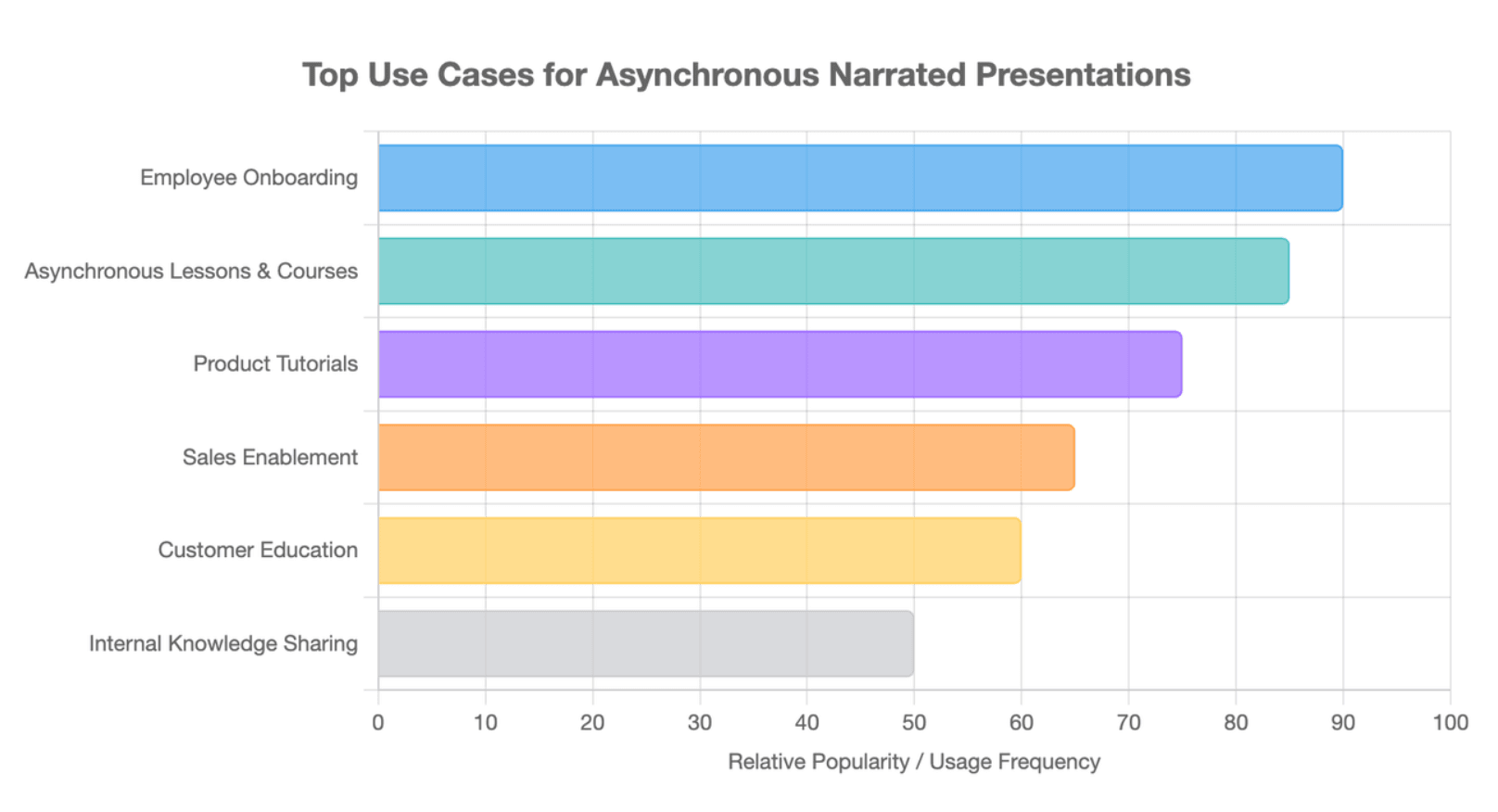
Common applications include asynchronous lessons, employee onboarding, product tutorials, customer education, sales enablement, online courses, and internal knowledge sharing.
From an instructional-design perspective, narration adds the most value when it explains relationships, examples, processes, or context that the slide alone cannot communicate clearly.
Should You Keep the Narration in Google Slides or Export It as a Video?
Keep narration inside Slides when learners need to navigate the deck, revisit individual pages, or interact with the presentation structure.
Choose video when you need consistent timing, controlled visual sequencing, easier distribution, or a presenter-led experience.
For large or frequently updated content libraries, consider a scene-based AI video workflow. The goal is not simply to automate the first production cycle—it is to make future revisions easier.
FAQ
Can I narrate Google Slides for free?
Yes. You can record audio with a free recording tool, save it as a compatible file, upload it to Google Drive, and insert it into Slides. Google Slides’ native recording availability depends on the account you use.
Can I record Google Slides on a Mac?
Yes. You can use Google Slides’ native recording feature in a supported desktop browser if your account has access, or record narration separately and insert the resulting audio. Google currently supports recording creation in Chrome and Edge.
Can I narrate Google Slides on a Chromebook?
You can use compatible Google Slides and browser-based workflows on a Chromebook, although the available recording method depends on your account and device setup. If native Slides recording is unavailable, recording audio separately and inserting it into the deck remains an alternative.
Can I use my phone to record Google Slides narration?
You can use a phone to create the narration audio, then move the finished file to Google Drive and insert it into Slides from a computer. This is useful when you need a quick voice recording but do not have a desktop microphone available.
What audio formats work in Google Slides?
Google currently documents support for MP3 and WAV files stored in Google Drive when adding audio to a Slides presentation.
Can Google Slides automatically advance with narration?
Google Slides supports presentation playback and auto-advance options, but narration timing should be tested carefully. If you need the visual timeline to automatically match generated voiceover length, a video workflow such as Google Vids provides stronger scene-level synchronization.
Can Google Slides read Speaker Notes aloud automatically?
Speaker Notes themselves are primarily a presenter script rather than an automatic text-to-speech feature in Slides. If you want notes turned into AI narration, you can move into a voice-generation workflow; Google Vids can use presentation content and Speaker Notes when generating scripts and voiceovers on eligible plans.