How to Make Video Lectures: A Step-by-Step Guide

Making a video lecture starts with more than pressing Record. The most effective workflow is to define one clear learning goal, organize the source material into focused sections, plan the narration and visuals together, and then choose whether to record the lecture traditionally or generate it with AI. A PowerPoint, PDF, course document, previous lecture, or set of notes can all become the starting point—but they usually need to be redesigned for video rather than simply read aloud.
That distinction matters because prerecorded lectures remove many of the feedback cues instructors rely on in a live classroom. Learners cannot interrupt when an explanation is unclear, and long recordings can be difficult to revisit or update. Good video lectures therefore need deliberate pacing, relevant visuals, clear chapters, captions, and opportunities to pause, reflect, or check understanding.
In this guide, I’ll show you how to make video lectures step by step, including how to turn existing course materials into video, choose between slides, screen recordings, human presenters, and AI avatars, create more engaging visuals, publish lectures effectively, and build videos that are easier to update, localize, and scale later.
How to Make Video Lectures: What’s the Best Step-by-Step Workflow?
The best workflow is to start with the learning goal, not the recording tool. Define what learners should understand or do, choose the right lecture format, divide the material into focused modules, write the narration, plan the visuals, then record or generate the video. Afterward, review, caption, publish, measure, and update it.
Ohio State’s instructional-video guidance similarly recommends developing an outline, script, or storyboard around clear learning outcomes before recording.
Step 1: Who Will Watch the Lecture, and What Should They Learn?
Identify the audience, what they already know, where they will watch, and what they should be able to do afterward.
A standalone YouTube lecture may need more context than a video inside a structured course where learners already have readings, assignments, and instructor support. Synthesia’s current lecture-design framework makes the same distinction between standalone, supported, and hybrid lectures.
Aim for one primary learning objective per module. If a lecture tries to solve several unrelated learning problems, divide it.
Step 2: Which Video Lecture Format Fits the Learning Goal?
Choose the format according to what needs to be learned:
- Talking head: introductions, explanations, instructor presence
- Slides + narration: concepts, frameworks, academic content
- Screencast: software and digital procedures
- Demonstration: physical processes or equipment
- Interactive video: interactive e-learning video checks, branching, practice
- AI-generated lecture: repeatable, multilingual, frequently updated content
The best format is the one that makes the knowledge easiest to understand—not the one with the most production features.
Step 3: How Should You Break the Topic Into Video-Sized Modules?
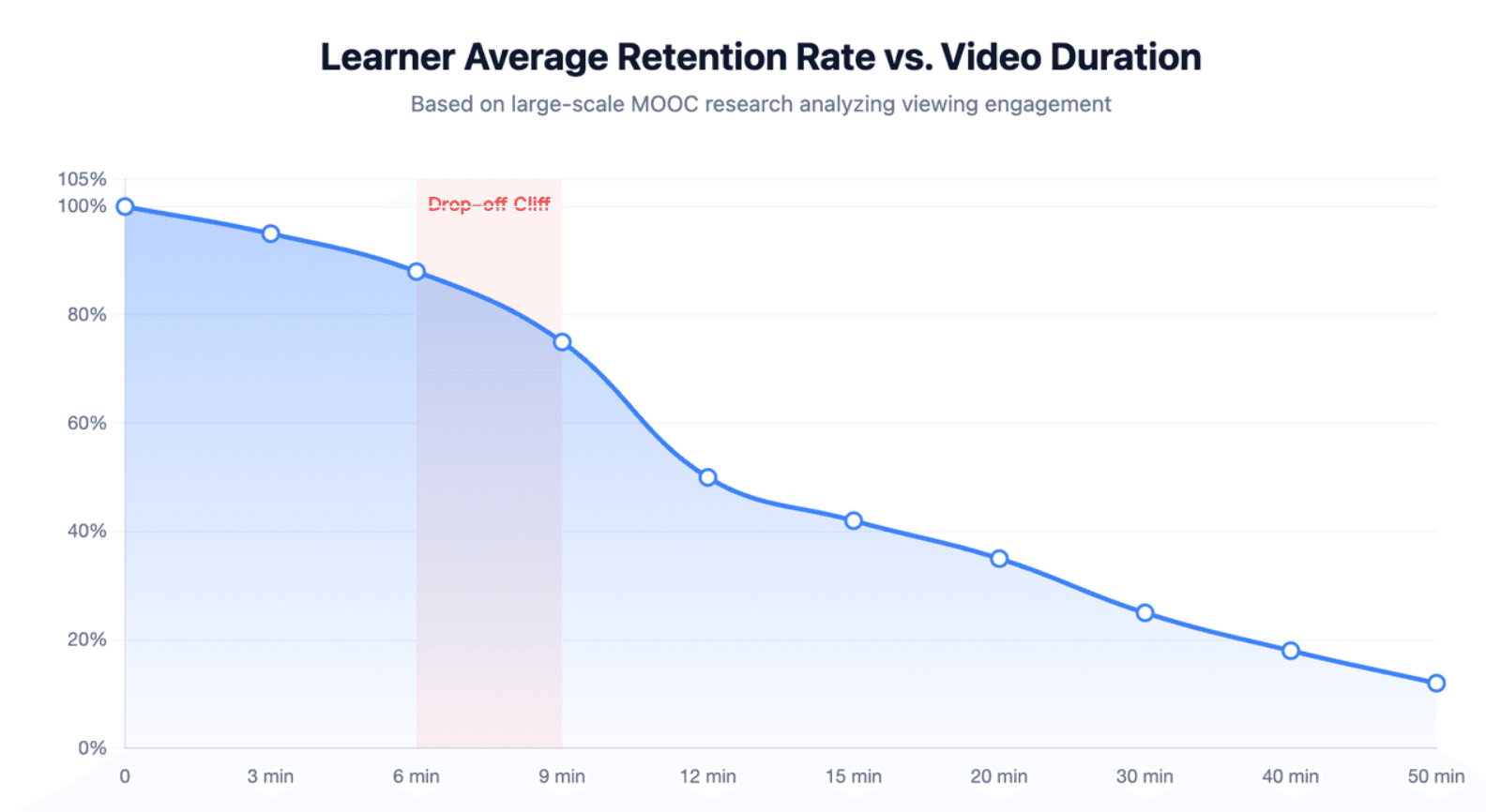
Do not automatically convert a 50-minute classroom lecture into a 50-minute video.
Research analyzing 6.9 million MOOC viewing sessions found that shorter videos were associated with stronger viewing engagement, although the study measured engagement rather than proving an ideal learning duration.
A practical structure is:
Context → Explain → Example → Check understanding
Make each module long enough to complete a meaningful learning objective, but no longer simply because the original classroom session was long.
Step 4: How Do You Turn the Content Into a Script and Visual Plan?
First decide what belongs in the narration and what learners need to see.
The narration should explain reasoning, relationships, and examples. The visual layer should show diagrams, screenshots, processes, keywords, or evidence that helps the explanation.
This prevents a common lecture-video problem: putting the entire script on the slide and then reading it aloud. TechSmith recommends using visuals to reinforce the message while keeping slides simple rather than duplicating narration.
Step 5: Should You Record the Lecture or Generate It With AI?
Traditional recording works well when instructor personality, demonstrations, or spontaneous explanation matter.
AI workflows and best AI lecture video makers become more useful when teams need to:
- produce many videos
- avoid repeated filming
- create multilingual versions
- work from existing documents
- update material frequently
For example, Leadde’s official product documentation describes a document-first workflow to turn teaching materials into video lessons that seamlessly converts PDFs, PowerPoint files, learning materials, SOPs, and other documents into structured scenes, scripts, narration, and multilingual video.
Step 6: What Happens After the First Version Is Created?
Treat the first render as a draft.
Check:
- Is anything unnecessarily long?
- Does each visual appear when it is being discussed?
- Are important terms pronounced correctly?
- Can learners follow the content without guessing where to look?
- Are captions accurate?
- Can the affected section be updated later without rebuilding everything?
In professional video workflows, reviewability and maintainability matter almost as much as initial production speed.
What Type of Video Lecture Should You Create?
Different knowledge needs different visual treatment.
| Format | Best For | Main Advantage | Main Limitation |
| Talking head | Introductions, explanations | Human presence | Requires filming |
| Slides + narration | Concepts, frameworks | Structured visuals | Can become text-heavy |
| Screencast | Software tutorials | Shows real actions | UI may become outdated |
| Interactive | Formal learning | Adds practice | More authoring work |
| AI-generated | Scale and localization | Easier reuse and updates | Requires quality review |
When Should You Use a Talking-Head Lecture?
Use a presenter when seeing the speaker contributes social or instructional value—for example, an introduction, a difficult explanation, or a transition.
The presenter does not need to remain on screen throughout the lecture. When learners need to inspect a diagram or interface, give the content more screen space.
When Should You Use Slides With Narration?
Slides work well for concepts, models, data, and structured arguments.
Keep them visually readable. Use a few meaningful words, diagrams, and examples rather than paragraphs that compete with the spoken explanation.
When Is a Screencast or Demonstration Better?
Use screen recording when the learner must see how something is done.
Software configuration, analytics workflows, design tools, coding, and product tutorials are usually easier to teach by showing the actual process than by describing it abstractly.
When Should You Use Interactive or AI-Generated Lectures?
Use interaction when learners need to make a decision, retrieve information, or apply a concept.
Use AI generation when the operational problem is scale: many source documents, many versions, multiple languages, or frequent revisions.
How Can You Turn Existing Course Materials Into a Video Lecture?
One of the most useful modern workflows is source-first video production.
Instead of starting with a blank script, start with the knowledge you already have:
PowerPoint → PDF → Word document → lesson notes → SOP → previous transcript
Then redesign that source for video.
How Do You Turn a PowerPoint Into a Video Lecture?
PowerPoint can record narration, camera video, ink, and slide timings, and current desktop versions can easily export the presentation as an MP4 video. Recordings are stored per slide, which also makes individual slides easier to re-record.
A better workflow is:
simplify slides → add speaker notes → record/generate narration → review timing → export
Do not assume presentation slides designed for a live classroom are automatically video-ready.
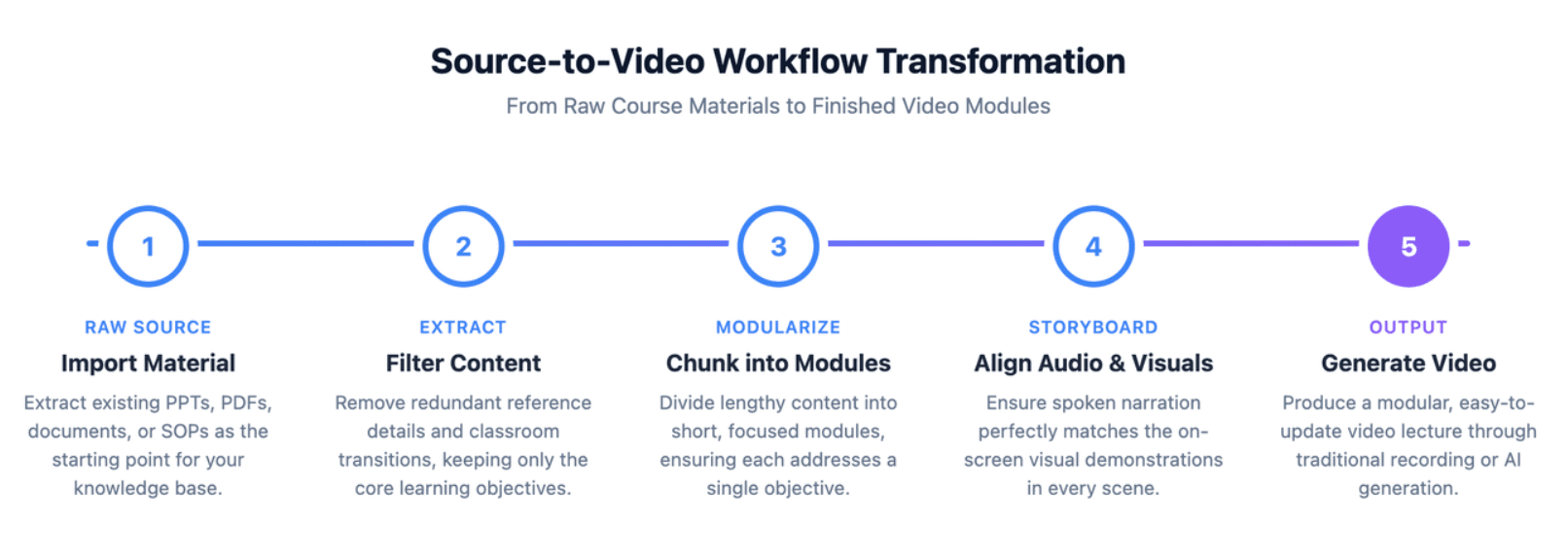
How Do You Turn a PDF, Document, or Notes Into a Video Lecture?
Use six passes:
- Define the learning objective.
- Extract must-know information.
- Remove reference-only detail.
- Group concepts into modules.
- Convert each module into scenes.
- Match each scene with narration and visuals.
This is where document-to-video AI can remove significant manual restructuring work, but the generated structure still needs subject-matter review.
How Do You Turn an Existing Lecture or Transcript Into a Better Video?
Do not simply clean the transcript and read it again.
Remove:
- classroom logistics
- repeated explanations
- tangents that depended on live interaction
- long transitions
- references that make sense only in the original room
Then add deliberate examples, visual cues, and knowledge checks.
How Do You Write a Video Lecture Script and Storyboard?
Should You Write a Full Script or Use an Outline?
Use a full script when wording must be precise, when narration will be AI-generated, or when localization is planned.
Use an outline when the presenter knows the topic well and natural delivery matters more than exact wording.
Either way, write for speaking—not for an academic paper.
What Should the Opening Include?
Within the opening moments, tell learners:
what they will learn, why it matters, and what they should be able to do afterward.
Skip long greetings and generic background unless they directly support the lesson.
How Should You Structure Each Learning Segment?
A useful repeatable model is:
Context → Explain → Example → Check
The “check” can be a question, pause prompt, scenario, or quiz.
How Do You Match Narration With Visuals?
Ask one question for every scene:
What should the learner be looking at while hearing this sentence?
If the narration explains a workflow, show the workflow. If it explains a number, highlight the relevant number. If the learner needs to inspect a chart, reduce competing elements.
This scene-level alignment is more useful than simply “adding visuals.”
How Long Should a Video Lecture Be, and How Do You Keep Learners Engaged?
There is no universal ideal length. Ohio State recommends relatively short, outcome-focused instructional videos, while large-scale MOOC research also supports segmentation as an engagement strategy.
The better rule is:
one meaningful learning objective per video.
How Do You Keep It From Feeling Like a Recorded Classroom Lecture?
Replace the natural attention resets of a classroom with planned ones:
- clear section transitions
- examples
- visual changes
- questions
- pauses
- summaries
Speak conversationally rather than reading formal prose. TechSmith and Synthesia both emphasize natural, video-appropriate delivery.
Should the Instructor Stay on Screen the Whole Time?
Usually not.
Use presenter visibility intentionally. When the learner needs to study a complex diagram, demonstration, or screen recording, the presenter can become smaller or disappear.
How Do Questions Improve the Lecture?
Questions turn viewing into processing.
Use low-stakes prompts such as:
- “Which option would you choose?”
- “Pause and predict what happens next.”
- “What changed between these two examples?”
The objective is not simply to keep eyes on the screen, but to make learners retrieve or apply information.
What Equipment and Tools Do You Need to Make Video Lectures?
You do not need an expensive studio to start.
Prioritize:
clear audio → readable visuals → stable recording → adequate lighting
before upgrading camera quality.
Which Matters More: Microphone or Camera?
For most lecture videos, intelligible audio deserves higher priority than cinematic video.
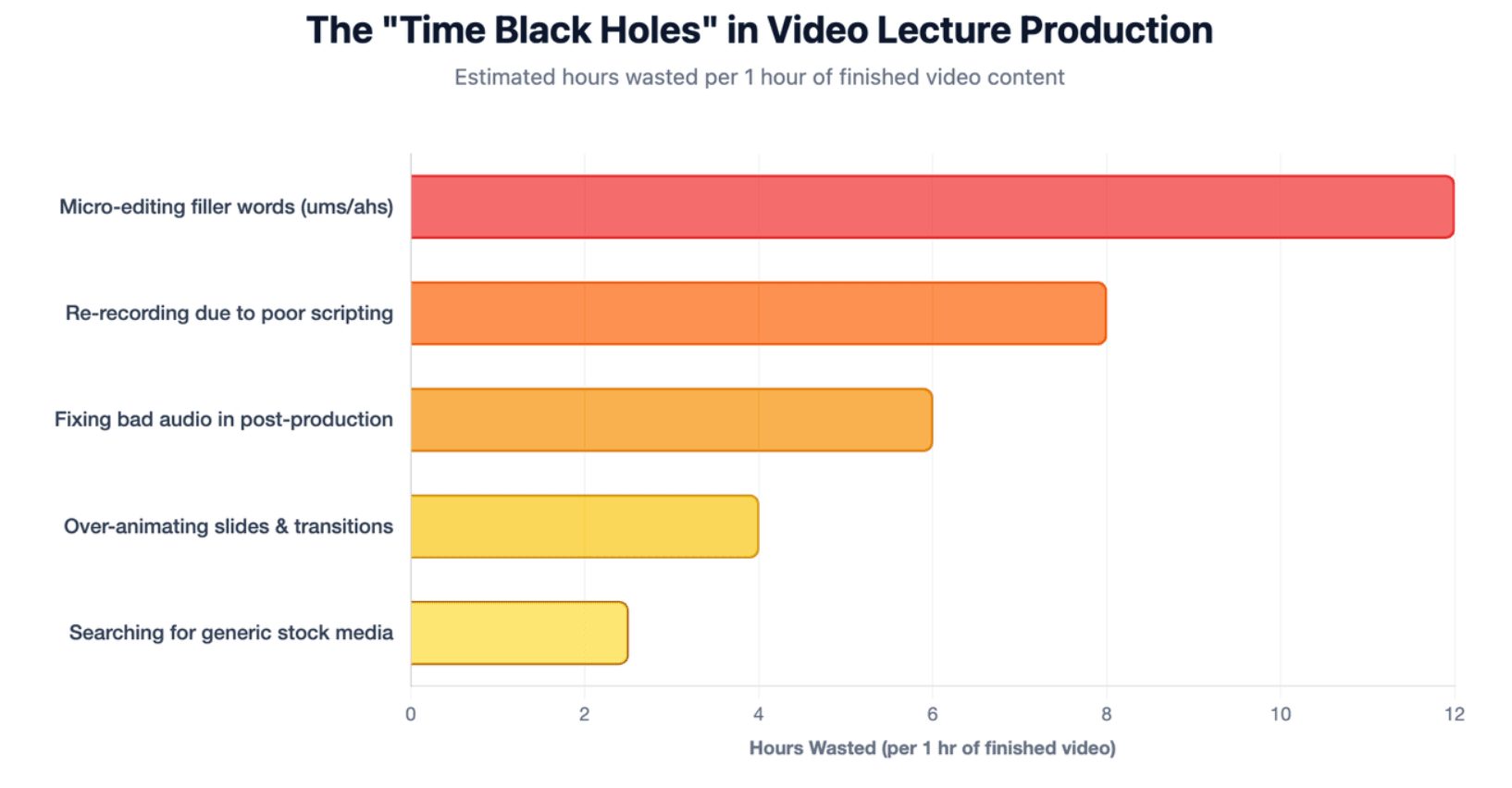
Poor audio makes explanations difficult to follow; ordinary webcam footage can still work if the content is clear. Community discussions among instructors also repeatedly describe excessive editing as a major time cost, particularly when creators try to remove every filler word or pause.
How Should You Choose Between Traditional Recording and AI?
Choose based on workflow:
- One personal lecture: traditional recording may be simplest.
- Software demonstration: screencast.
- Existing PPT: PowerPoint recording or presentation-to-video workflow.
- Many documents: document-to-video AI.
- Frequent updates: modular or AI-generated workflow.
- Many languages: localization-capable AI platform.
How Can You Make Video Lectures Without Showing Your Face?
You can create an effective lecture with slides, diagrams, screen recordings, voice-over, animation, or an AI presenter.
When Does an AI Avatar Help, and When Can It Become Distracting?
Use an avatar when presenter presence contributes value or when filming is a production bottleneck.
Do not let the avatar dominate a technical diagram or software demonstration simply because the tool supports one.
Instructional-design discussions show mixed reactions to AI avatars: some teams value them for easier revisions and scalable voice production, while others report that unnatural presentation can distract learners.
How Do You Handle Technical Terms With AI Voice?
Always review:
- acronyms
- names
- scientific terms
- product terminology
- foreign-language words
A technically correct script can still become a poor lecture if important terminology is mispronounced.
How Do You Make Video Lectures Accessible, Interactive, and Easy to Revisit?
Captions should be part of production planning, not an optional final decoration. WCAG 2.2 requires captions for prerecorded audio in synchronized media under Success Criterion 1.2.2, subject to its stated exception.
Also consider:
- transcript
- readable typography
- strong contrast
- meaningful visual descriptions
- clear chapter names
Why Should You Add Chapters and Transcripts?
Learners do not always watch lectures linearly.
They may return later to find one formula, definition, or process. Chapters and transcripts turn the video into a referenceable knowledge resource, not only a playback experience.
How Can You Add Interaction Without Overcomplicating the Video?
Add interaction only where it supports learning.
A single well-placed knowledge check is usually more valuable than inserting clickable elements into every scene. iSpring, for example, supports quizzes and other interactive components as part of its lecture-authoring workflow.
Where Should You Publish Video Lectures, and How Do You Know They Work?
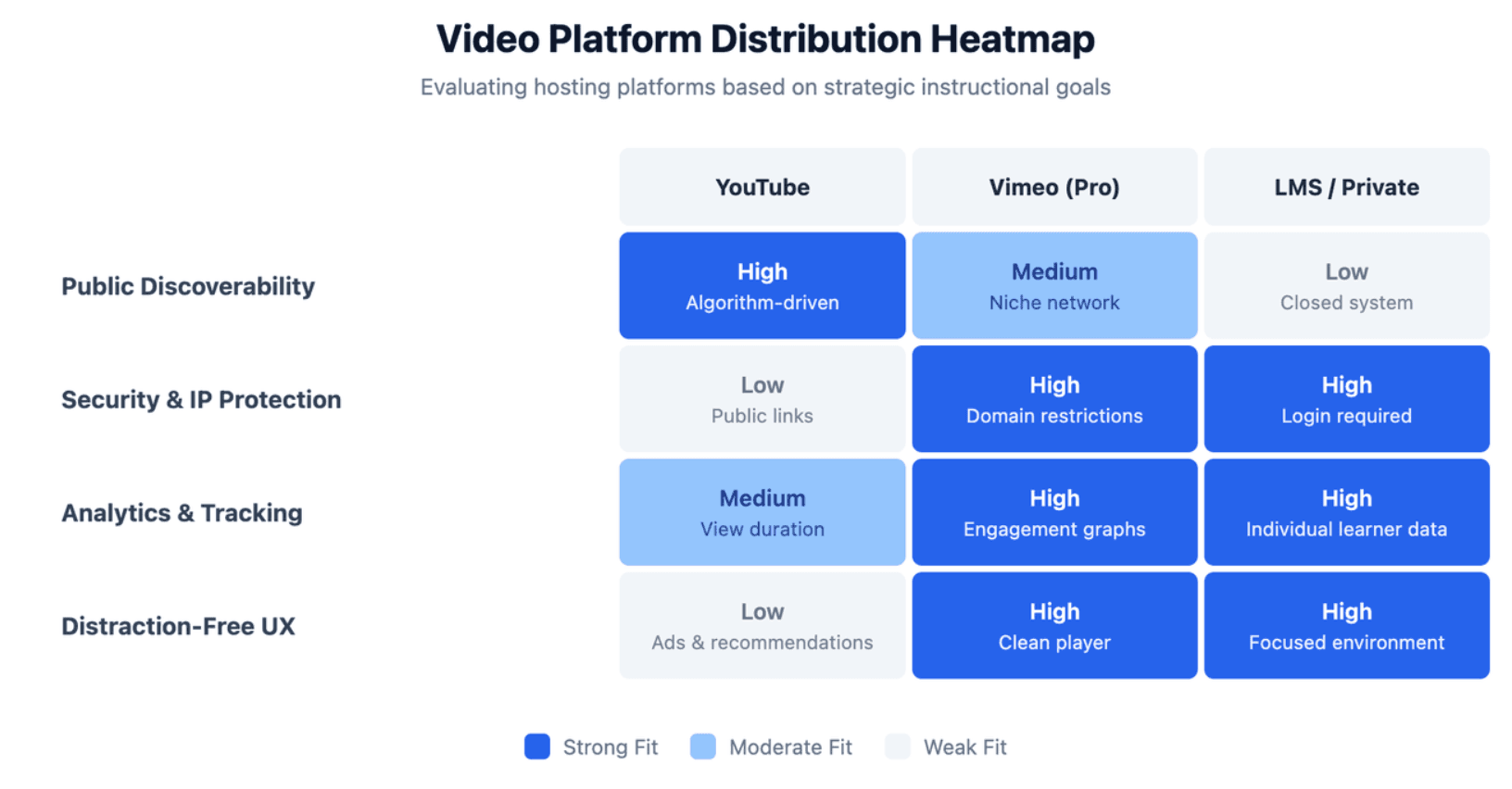
Use YouTube for educational videos that are publicly discoverable, a dedicated video host for controlled distribution, or an LMS when the lecture belongs to structured training with assessment and progress tracking.
Do not judge success by views alone.
Look at:
- completion
- replay behavior
- learner questions
- quiz performance
- assignment application
- feedback
A lecture that receives fewer views but helps learners complete the required task may be more effective than a widely viewed video that produces little understanding.
How Do You Update and Scale Video Lectures Without Re-Recording Everything?
This is where modular video architecture becomes important.
Instead of treating a lecture as one permanent MP4, keep the underlying knowledge modular:
source material → module → script → scenes → video
When the source changes, update the affected module rather than rebuilding the entire course.
What Is a Source-of-Truth Workflow?
Keep the authoritative PDF, PowerPoint, SOP, or course material as the source of truth.
Then use this process:
source changes → identify affected module → update narration/visuals → review → republish
This is especially useful for product education, compliance training, software tutorials, and SOPs.
Where Can AI Save the Most Time?
The most durable value may be revision, not merely first-time generation.
Instructional designers discussing AI voice and avatar workflows frequently identify updates as a practical advantage because revised text can replace parts of a video without recalling presenters or voice talent.
How Can Teams Scale to Multiple Languages?
Keep terminology, visual structure, and source content consistent, then localize:
- narration
- captions
- on-screen text
- examples where necessary
Finally, have a knowledgeable reviewer check technical terminology rather than assuming automatic translation is correct.
What Video Lecture Mistakes Waste the Most Time?
The biggest production problems often happen before or after recording.
Avoid:
- recording before structuring the content
- creating one massive lecture instead of modules
- editing every minor pause or filler word
- prioritizing visual polish over explanation and audio
- keeping an avatar on screen when learners need to inspect content
- publishing without planning how the video will be updated
A small natural pause rarely damages learning. Hours spent removing every human imperfection may.
The better standard is simple:
Edit what interferes with understanding.
FAQ
How long should a video lecture be?
There is no universal ideal duration. Large-scale MOOC research found stronger engagement with shorter videos, but this does not prove that every lecture should be under six minutes. A better approach is to divide content around clear learning objectives and use longer videos only when the topic genuinely requires sustained explanation.
Can I make a video lecture with PowerPoint?
Yes. Current desktop versions of PowerPoint can record narration, camera video, ink, and slide timings and export the presentation as a video. Because recordings are stored per slide, you can also re-record specific slides instead of repeating the entire lecture.
Can I turn a PDF into a video lecture?
Yes. Manually, you can extract the key concepts, group them into learning modules, write narration, and build matching visuals. Document-to-video AI can automate parts of this process by analyzing a PDF and generating a structured video draft. Leadde, for example, officially supports document and PDF-to-video workflows.
Can I make video lectures without showing my face?
Yes. Common options include slides with voice-over, screen recordings, diagrams, animation, and AI avatars without needing to record yourself. Choose based on the learning task. A software tutorial may need the screen rather than a presenter, while an introduction or conceptual explanation may benefit from visible instructor presence.
Can AI create a complete video lecture?
AI can assist with content structuring, scripts, narration, visuals, avatars, translation, and video generation. However, subject-matter review is still important. AI can produce a polished-looking lecture that contains weak prioritization, incorrect terminology, or visuals that do not support the explanation, so review the instructional logic before publishing.
Do I need expensive equipment to record video lectures?
No. Start with a reliable microphone, a quiet environment, readable slides, adequate lighting, and a webcam or screen recorder if needed. Expensive cameras can improve visual quality, but they cannot compensate for unclear explanations, poor audio, or overloaded slides.
Should video lectures include captions and transcripts?
Captions should be considered a core accessibility requirement for prerecorded synchronized media under WCAG 2.2. A transcript also helps learners search, review, and revisit specific information. Together with clear chapters, transcripts make long-term educational content easier to use as a reference.
What is the easiest way to update an old video lecture?
Build the lecture in modules and keep the original course material as the source of truth. When information changes, identify the affected module, update its script and visuals, and replace only that section. This is much easier than maintaining one long, monolithic recording—especially for software, SOP, product, and training content.