AI B-Roll Generator
What Is an AI B-Roll Generator?
An AI B-roll generator produces custom cutaway footage and visual overlays that illustrate your spoken script without digging through generic stock libraries. Leadde Studio and Video Agent let you guide visual generation with 1 to 3 reference images and time cutaway layers on the canvas using 4 Video Fit modes; standalone prompt clips live at AI Text to Video or AI Motion Graphics Generator.
Trusted by the world's leading brands






Inside Our AI B Roll Generator
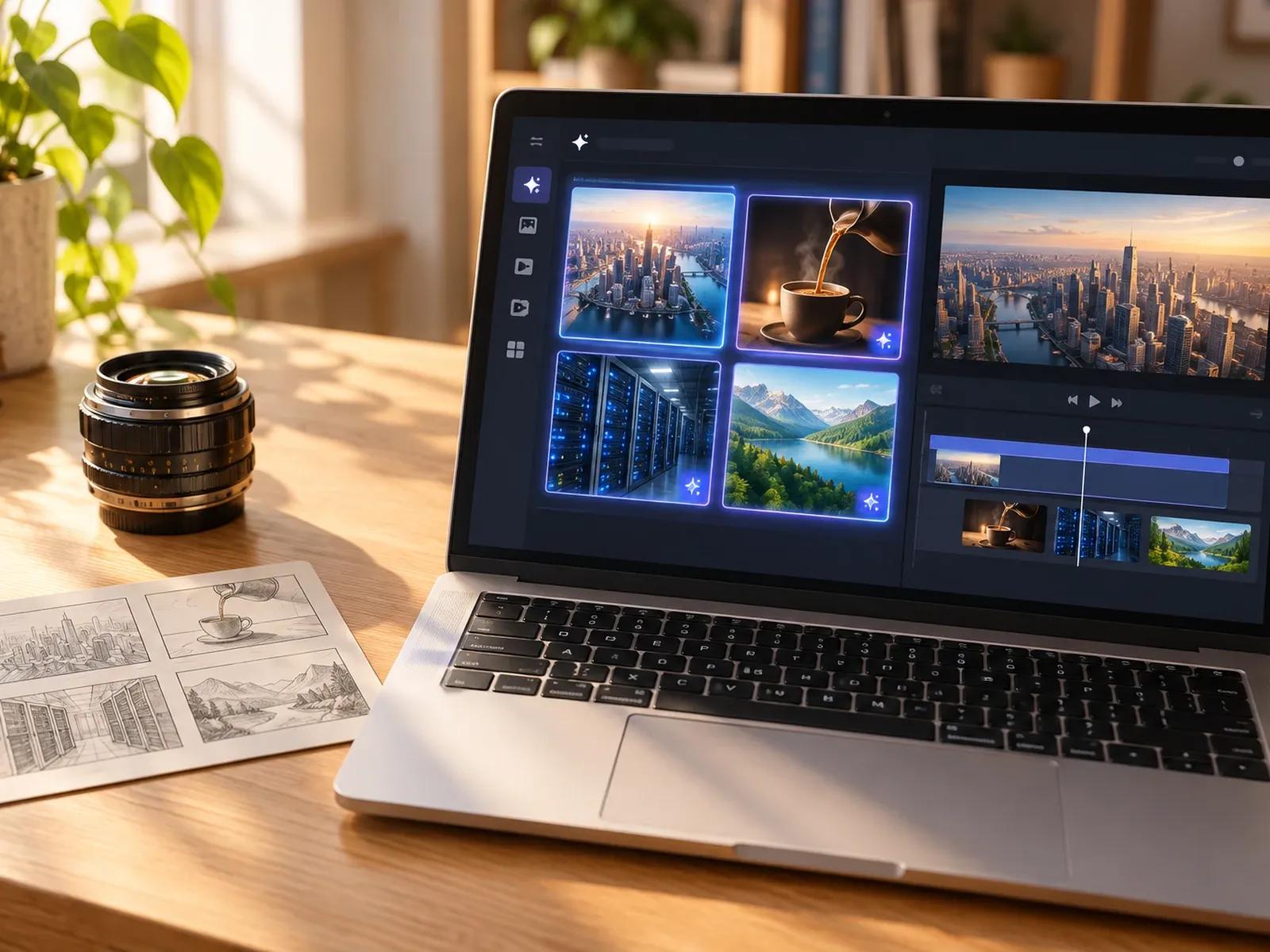
Text-to-Video and Image-to-Video Scenes
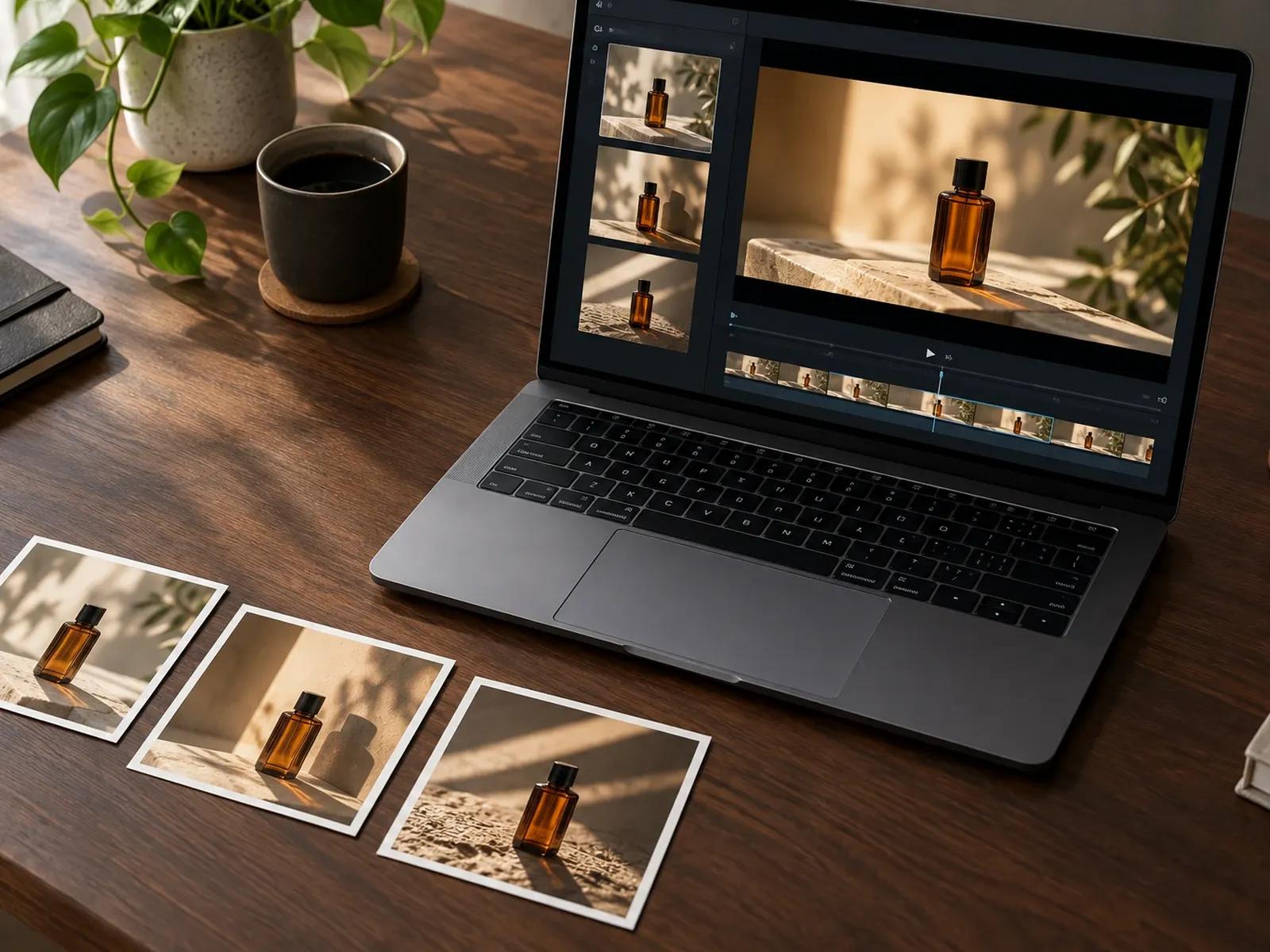
Visual Consistency With 1-3 Reference Images
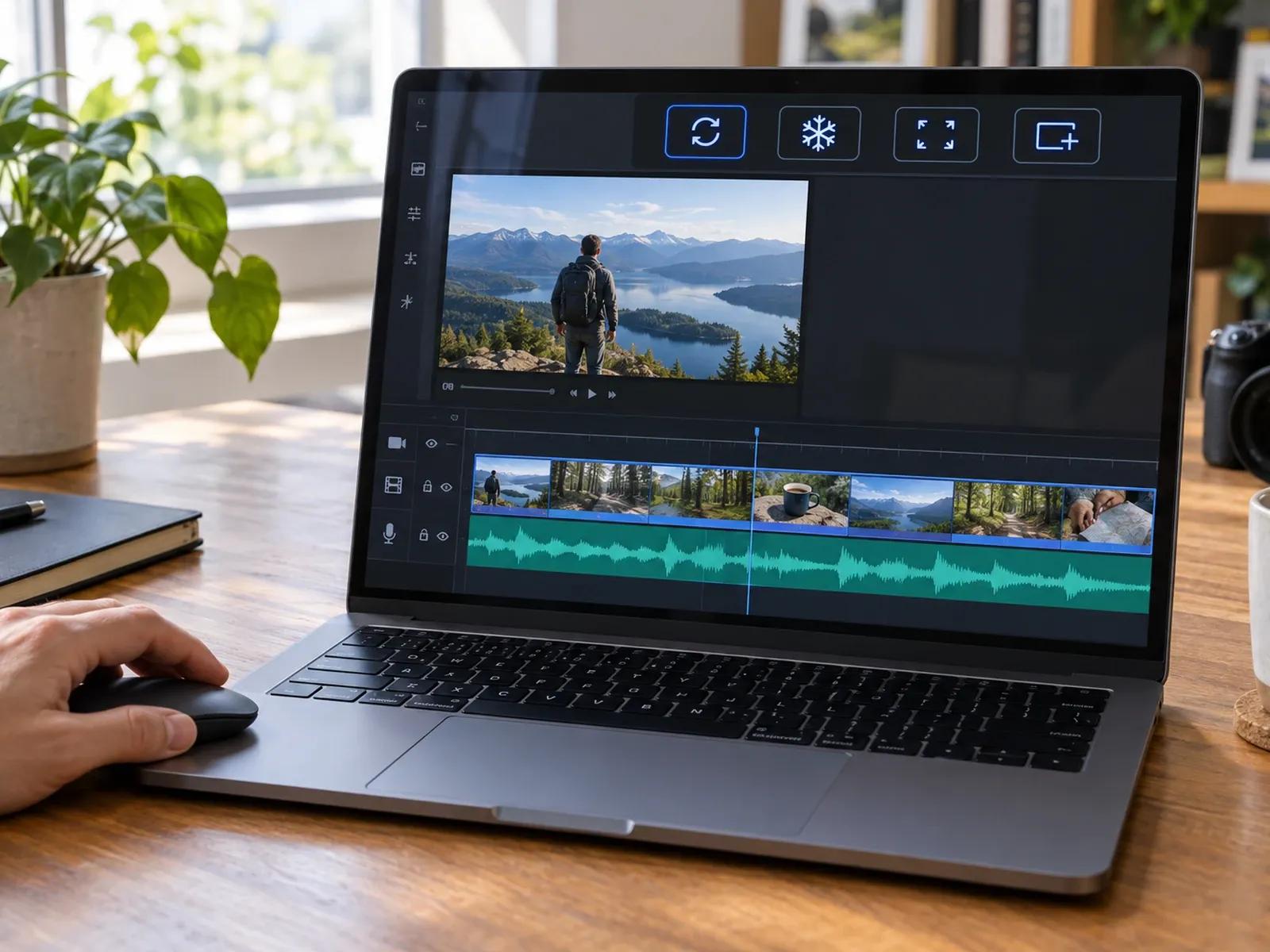
4 Video Fit Modes for Narration Timing
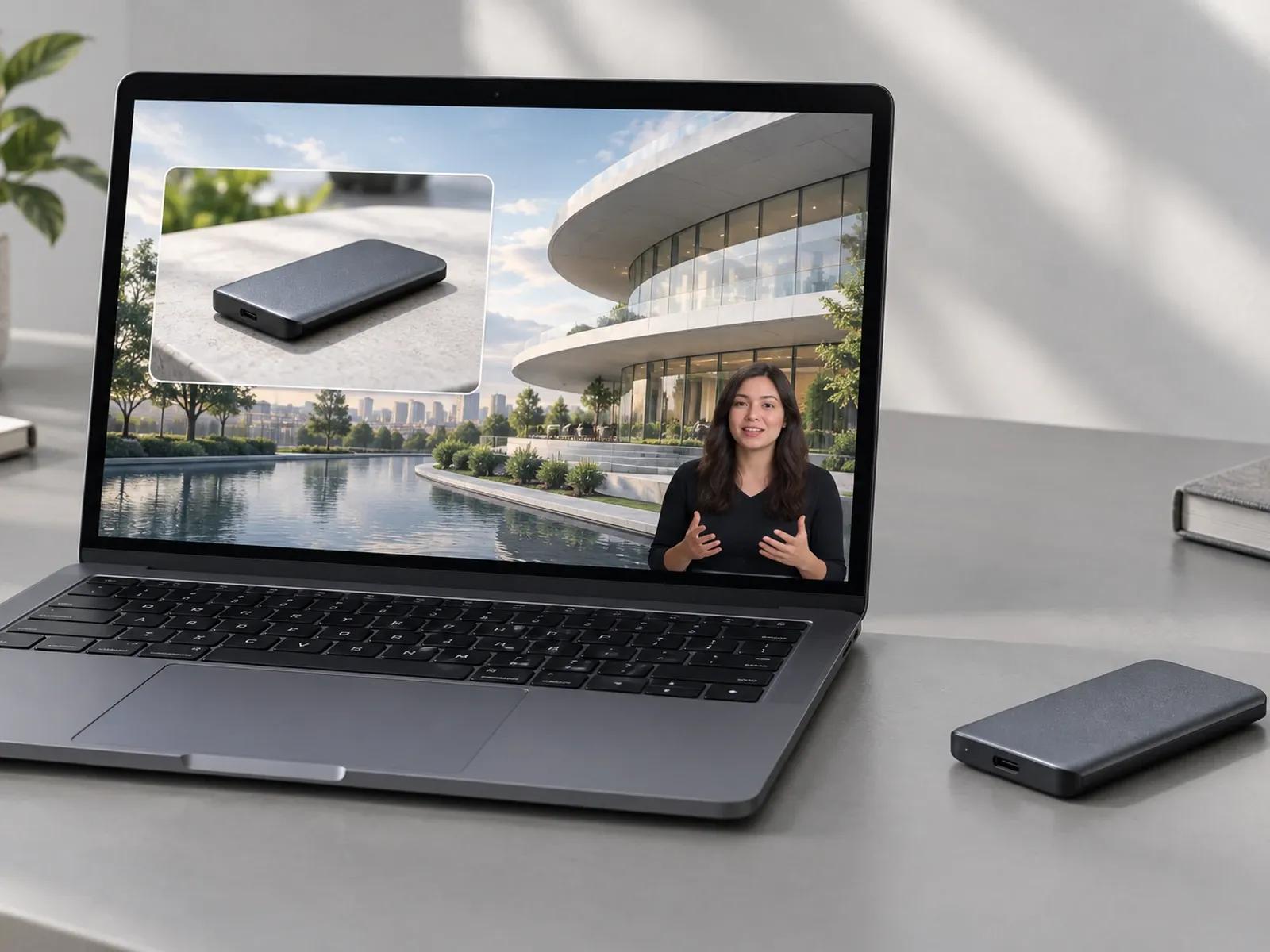
Mix AI Cutaways With Stock and Uploads
Adding Visual Layers in a Cutaway Video Generator
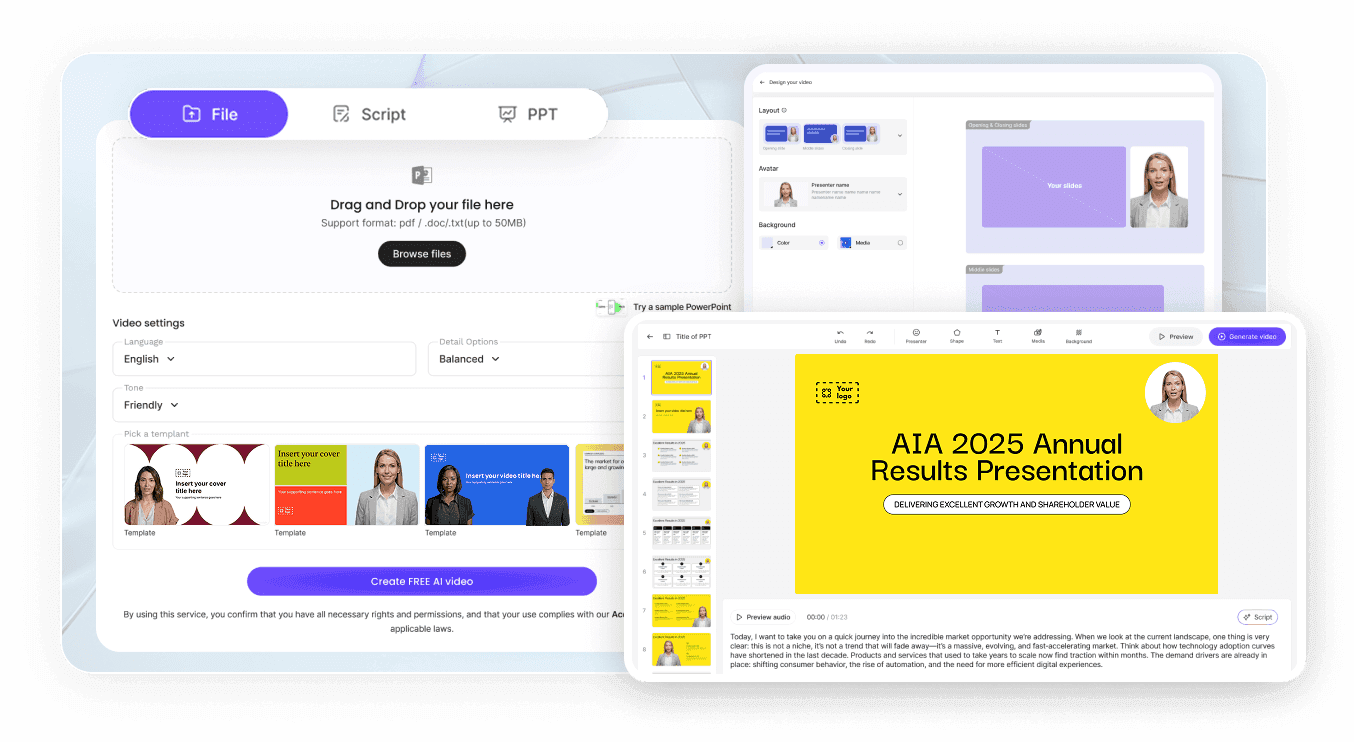
Step 1: Open Your Scripted Project in Studio
Step 2: Create or Upload B-Roll Media Layers
Step 3: Pick a Video Fit Mode and Export
Timelines Enhanced With a Contextual B Roll Maker
Talking-Head & Avatar Explainer Cutaways
Break up long avatar or presenter explanations with custom cutaway clips that illustrate each spoken point on the screen.
YouTube Documentary & Faceless Essay Visuals
Generate context-matched visual scenes for YouTube explainers and documentaries using 1 to 3 reference images in Studio.
Product Demo & Feature Callout Inserts
Apply the Insert Video Fit option in Studio so your avatar pauses automatically while a full product demo clip plays out.
Looping Motion Backgrounds for 9:16 Shorts
Create looping atmospheric background footage with Text-to-Motion and Loop Fit mode for 9:16 social hooks and tutorials.

Why Editors Use Our AI Footage Generator for Editing
Generate and Drop Cutaways Onto One Canvas
Automatic Audio Sync Without Manual Razor Cuts
Brand-Aligned Visuals From Reference Photos
Canvas Layer Controls for Picture-in-Picture
Field Advice for Smooth B-Roll Cutaways
Supply Reference Photos in Studio Media
Pick Loop Mode for Ambient Backgrounds
Pick Insert Mode for Uncut Product Demos
Pick Freeze Mode to Hold Final Charts
Animate Nano Banana 2 Stills into B-Roll
Replace Single Cutaways Without Full Re-Renders
AI B-Roll Generator Frequently Asked Questions
Inside Leadde Studio, open the top Media panel and click Create with AI (or launch AI Tools from the workspace sidebar) to run Text-to-Video, Image-to-Video, Text-to-Motion, or Nano Banana 2 generation. Select Continue in Studio to place the new B-roll clip directly onto your active scene card.
When a cutaway clip's duration does not match your scene script, Studio provides 4 Video Fit settings: Loop repeats the clip continuously, Freeze holds its final frame, Full Video extends the card until the clip ends, and Insert pauses the voiceover until the clip finishes playing.
No. Leadde generates custom AI B-roll visuals and aligns cutaway layers to scripted narration inside Video Agent and Studio, where you can also trim individual video layers. It does not automatically scrub filler words or false starts from raw multi-track camera or podcast recordings.
Within the Studio Media management workflow, you can upload 1 to 3 reference images to guide AI media generation so colors, lighting, and subject styling stay cohesive across scenes. Note that specific parameter support depends on the generation model you select.
AI B-Roll Generator is built for creating contextual cutaway layers and timing them against presenter or voiceover tracks using Loop, Freeze, Full Video, and Insert modes. For standalone prompt clips, visit AI Text to Video; for animated data charts and kinetic text, open AI Motion Graphics Generator.
Arranging cutaway layers and previewing scene timing on the Studio canvas does not deduct credits; workspace credits are consumed only when generating new AI B-roll images, video clips, or motion assets in Media / AI Tools and when exporting finished MP4 timelines per the Leadde Pricing page.
Produce Custom AI B-Roll and Cutaway Footage in Studio