How to Turn Content-Heavy PowerPoints into Engaging AI Training Videos

Turning a content-heavy PowerPoint into an engaging AI training video requires more than adding narration to each slide. The better approach is to treat the deck as source material: identify what learners need to know or do, remove or relocate reference-heavy content, break long presentations into focused modules, and rewrite dense slides for spoken delivery.
This is especially important for 50, 100, or 150+ slide decks, where direct conversion can create long monologues and crowded visuals. Leadde supports this workflow by analyzing content structure, key information, section logic, and narrative flow before generating structured video scenes, narration, AI presenters, and multilingual versions.
In this guide, you’ll learn how to restructure dense PowerPoints into clearer AI training videos that are easier to review, update, and scale.

Content-Heavy PowerPoints: How Do You Turn Them into Effective AI Training Videos?
The most reliable workflow is:
PowerPoint → Content audit → Learning objectives → Content triage → Modules → Scenes → Narration → Visual design → AI generation → QA → Publishing
That distinction matters because PowerPoint can already export presentations as video, including recorded narration and timings. The real value of an AI training workflow is therefore not simply producing an MP4. It is transforming presentation material into something that can teach without a live presenter.
Treat the PowerPoint as source material, not the final script
Slides created for live presentations often contain prompts rather than complete explanations. A presenter supplies context, skips irrelevant details, changes pace, answers questions, and emphasizes what matters.
A self-paced training video has to make those functions explicit. Instead of automatically mapping Slide 1 → Scene 1, organize content around what learners need to understand or perform.
Research on multimedia learning supports this approach: complex material is generally easier to process when it is divided into meaningful segments instead of presented as one continuous unit.
What should AI automate?
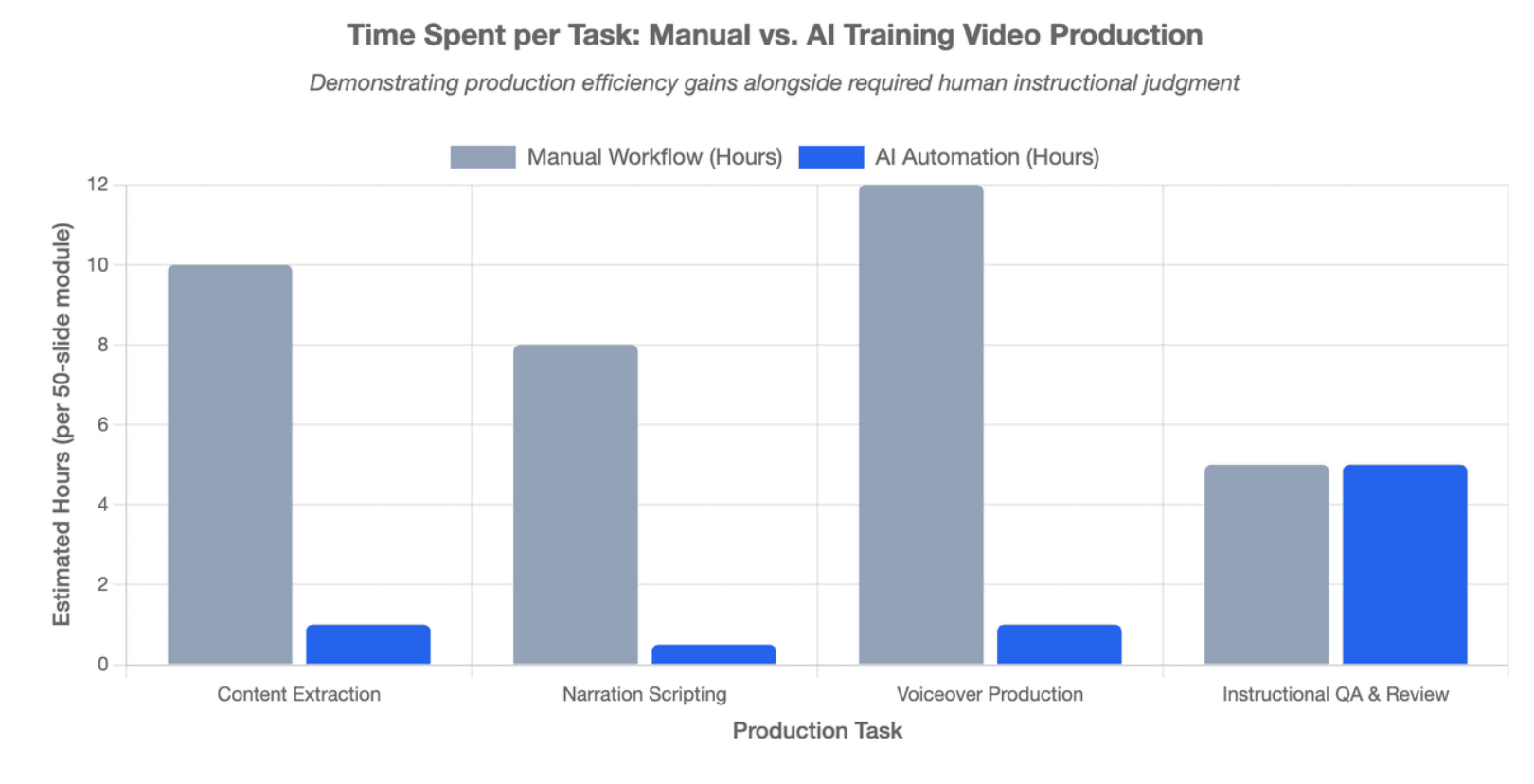
AI is useful for repetitive production work such as extracting content, generating first-draft outlines and narration, creating scenes, adding captions, producing voiceovers, and localizing approved content.
Instructional judgment is still needed for learning priorities, technical accuracy, examples, exceptions, assessment quality, and decisions about what should be removed.
Automation should remove repetitive production work—not automate poor instructional structure.
What Content from a Large PowerPoint Should Actually Become Training?
One of the biggest mistakes with content-heavy decks is assuming that everything important must appear in the video.
In professional training workflows, a PowerPoint often mixes training content, performance support, and reference documentation.
Separate training from reference material
A useful model is:
| Layer | Purpose | Examples |
| Training | Learners must understand or practice it now | Core process, decisions, concepts |
| Performance support | Needed while doing the job | Checklist, workflow guide, troubleshooting steps |
| Reference | Needed occasionally | Full policy, specifications, large tables, appendices |
A 12-column reference table may be important, but that does not mean a narrator should read it aloud. The video can explain how to use the table, while the full table remains available as a job aid.
Ask: know now, do now, or look up later?
For each section of the deck, classify information as:
KNOW NOW: What must the learner understand to make the right decision?
DO NOW: What should the learner be able to perform after training?
LOOK UP LATER: What is important but does not need to be memorized?
This reframes a common SME debate. Instead of asking, “Can we delete this slide?” ask, “Does the employee need to remember this, perform it, or know where to find it?”
Match the content to the right format
Not every slide needs the same treatment.
| Content | Better Format |
| Concepts and frameworks | Narrated training video |
| Software procedures | Screencast or demonstration |
| Judgment and exceptions | Scenario |
| Large tables and exact values | Job aid |
| Complex branching decisions | Interactive eLearning |
| Detailed policies | Searchable reference |
The best output from one PowerPoint may be several learning assets—not one long video.
How Do You Audit and Restructure 50, 100, or 150 PowerPoint Slides?
For a large deck, do not start with a “generate video” button. Start by creating a content inventory.
Audit every slide before generation
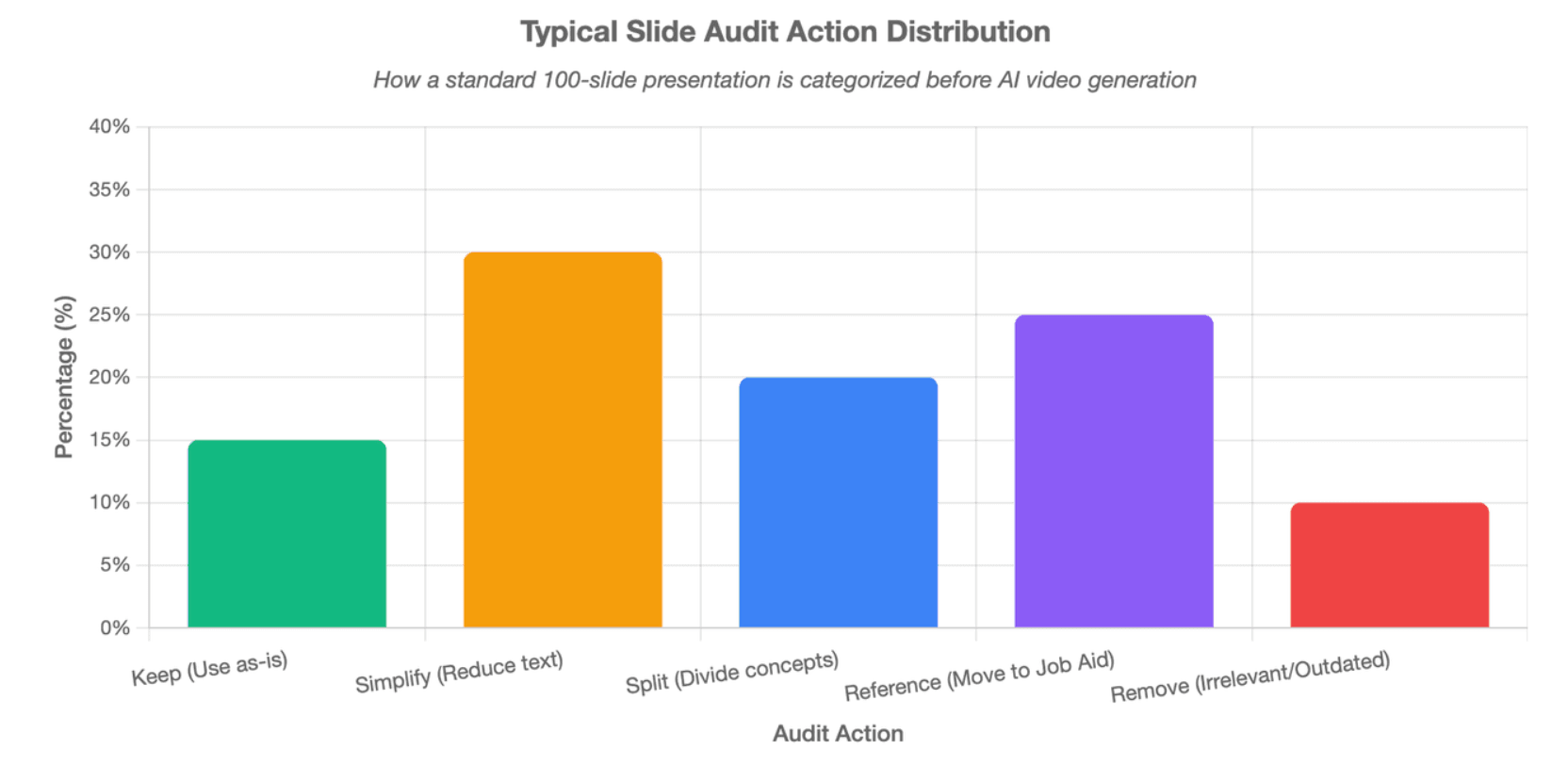
For each slide, record its topic, key message, visual type, speaker notes, training relevance, and proposed action.
Then assign one of six actions:
- KEEP: Already useful for training
- SIMPLIFY: Important but overloaded
- SPLIT: Contains several teachable ideas
- COMBINE: Repeats or continues another point
- REFERENCE: Important, but better outside the video
- REMOVE: Outdated, duplicated, or irrelevant
For technical, safety, or compliance material, also flag critical terminology, numbers, warnings, thresholds, and decision rules so simplification does not change their meaning.
Organize around learning outcomes, not slide numbers
The structure should become:
Learning outcome → Module → Scene → Supporting source slides
For example, a representative 120-slide onboarding deck might become five modules covering tools and access, core workflows, common mistakes, escalation, and resources—rather than a 120-scene video.
The exact module length should follow the learning task rather than an arbitrary minute limit. Research based on 6.9 million MOOC viewing sessions found that shorter educational videos generally received stronger engagement, but the practical lesson is to create focused videos rather than forcing an entire lecture or deck into one recording.
Handle “learners need to know everything” with risk questions
When SMEs want every edge case included, shift the discussion from deletion to performance:
- How often will employees encounter this?
- What happens if they get it wrong?
- Must they remember it?
- Can they safely look it up?
- Is it part of the core workflow or an exception?
This preserves important knowledge without forcing every piece of information into working memory at once.
How Do You Turn Dense Slides into Clear Video Scenes and Natural Narration?
A dense slide rarely becomes engaging simply because an AI voice reads it.
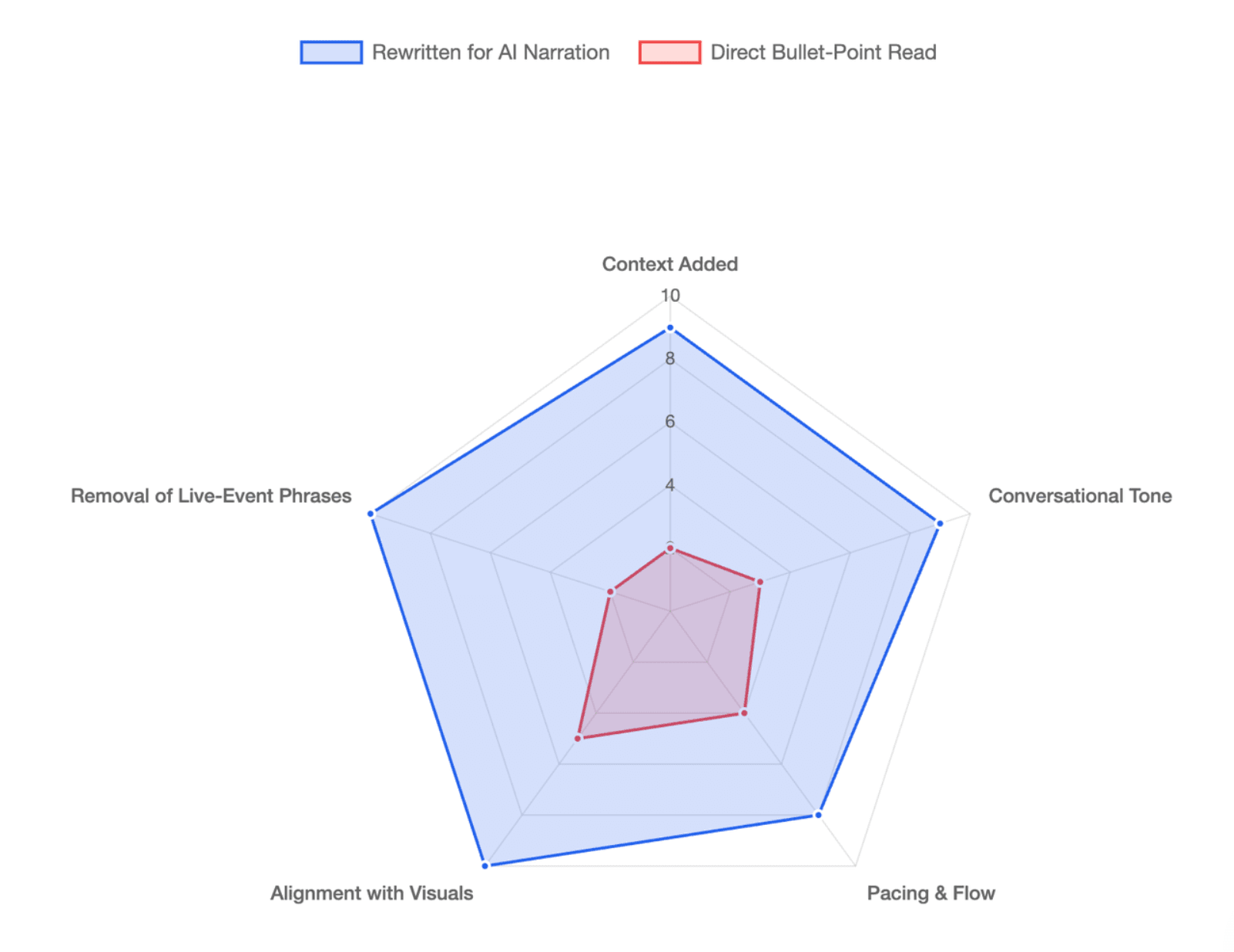
Rewrite slide language for listening
Slide bullets are written for scanning. Narration is written for listening.
Good narration should add context, explanation, transitions, definitions, consequences, and useful examples without inventing information not supported by the source.
Speaker notes can be valuable input, but they should still be reviewed and rewritten for asynchronous delivery. Remove phrases that only make sense during a live presentation and avoid narrating the same large block of text already visible on screen.
Redesign tables, charts, diagrams, and screenshots
Use progressive reveal for complex visuals:
Orient → Isolate → Explain → Connect → Restore the big picture
For a large table, show the full table briefly, isolate the relevant row or column, highlight the takeaway, and provide the complete table separately.
For a process diagram, move from overview to individual steps and decision points. For software training, crop irrelevant interface elements and synchronize zooms or highlights with the narration.
This is consistent with multimedia-learning research: segmentation and signaling help manage the processing demands of complex instructional material.
Use avatars selectively
An AI presenter can work well for introductions, explanations, transitions, and summaries. During detailed charts, software demonstrations, or dense diagrams, voice-only presentation may leave more visual space for the material itself.
Leadde, for example, supports structured training generation from PowerPoints and other documents and allows teams to use AI presenters or voice-over-only delivery.
The principle is simple: the presenter should support the explanation, not compete with it.
How Should AI Generate, Review, and Validate the Training Video?
For a large deck, avoid a one-pass workflow such as:
150 slides → one prompt → final video
A more reliable sequence is:
- Build the content inventory.
- Approve the learning structure.
- Generate one representative module.
- Review narration, scenes, and visual treatment.
- Refine the rules.
- Scale the approved workflow across the remaining modules.
Treat AI output as an editable first draft, especially when the content includes technical procedures or compliance requirements.
Build a source-to-video coverage matrix
One useful QA method is to trace critical information from the source into the final training:
| Critical Item | Source Slide | Module | Scene | Status |
| Safety threshold | 24 | 2 | 2.4 | Verified |
| Escalation rule | 36 | 3 | 3.2 | Verified |
Weight the review by risk. Missing a historical background fact is not equivalent to changing a safety threshold.
Instructional designers should review sequencing, clarity, cognitive load, pacing, and assessment. SMEs should verify terminology, numbers, procedures, warnings, and exceptions.
Final QA should also cover pronunciation, captions, visual synchronization, and accessibility. WCAG 2.2 requires captions for prerecorded audio in synchronized media in applicable conformance contexts.
How Do You Scale PowerPoint-to-AI-Training-Video Production Without Creating Content Debt?
When an organization has hundreds of decks, the goal should not be to generate hundreds of videos immediately.
Start with representative pilots: a simple deck, a technical deck, a screenshot-heavy deck, a dense SME deck, and a frequently updated deck. Use them to establish repeatable rules for content triage, module design, narration, terminology, visual treatment, QA, and SME approval.
Standardize instructional decisions before standardizing avatars, colors, and video templates.
Design for updates from the beginning
Modular training is easier to maintain. If a product screenshot or policy changes, teams should be able to update the affected scene or module instead of rebuilding an entire course.
This matters because poor content architecture creates content debt: a 150-slide deck converted into one large video may be quick to generate today but expensive to maintain every time the source changes.
Leadde’s training workflow keeps projects editable and is designed to restructure source documents into scene-based training content, which supports this type of maintainable production model.
Finally, choose the delivery format based on the learning requirement. MP4 can work for straightforward asynchronous training. An LMS or SCORM workflow is more appropriate when completion and assessment must be tracked. Complex branching, simulations, or decision practice may require an eLearning authoring environment rather than video alone.
Conclusion
Turning a content-heavy PowerPoint into an effective AI training video is less about converting slides and more about restructuring knowledge for learning. Separate what learners must know and do from what they can reference later, organize large decks around learning outcomes, redesign dense information for video, and use AI to accelerate production after the instructional structure is clear. The result is not simply a narrated PowerPoint, but training that is easier to understand, review, update, and scale.
FAQ
Can AI automatically turn a PowerPoint into a training video?
Yes. AI video tools can generate outlines, narration, scenes, voiceovers, captions, and presenters from PowerPoint content. However, direct automation works best when the source material is already well structured. Dense SME presentations should usually be audited and reorganized before final video generation.
How do I convert a 100-slide PowerPoint into training videos?
Start by identifying learning outcomes rather than converting all 100 slides sequentially. Audit each slide, remove or relocate reference material, group relevant content into modules, and map source slides to individual scenes. A large deck will often produce several focused videos plus job aids or reference resources.
Should every PowerPoint slide become one video scene?
No. One dense slide may require several scenes, while several simple or repetitive slides may be combined. Slide structure and video structure serve different purposes. Design scenes around one clear explanation, action, or decision rather than preserving a one-to-one slide mapping.
How long should a PowerPoint training video be?
There is no universal ideal duration. Focus on one meaningful learning outcome per video and split large topics at natural task or concept boundaries. Research on online educational videos suggests shorter videos tend to receive stronger engagement, but clarity and completeness matter more than forcing every module into a fixed duration.
Can AI use PowerPoint speaker notes to create narration?
Yes, depending on the tool. Speaker notes can provide useful SME context that is missing from slide bullets. However, they should be treated as source material rather than automatically accepted as the final script. Rewrite live-presentation notes into concise, natural narration designed for self-paced learners.
How do I make sure AI does not remove important information from my PowerPoint?
Create a source-to-video coverage matrix and mark high-risk items such as procedures, warnings, thresholds, technical terms, and decision rules. Map each critical item to its final module and scene, then have both an instructional designer and subject-matter expert review the output before publishing.