How to Turn PowerPoint into Video Lessons Without Rebuilding Your Course

To turn PowerPoint into video lessons, you can use an AI video platform to convert the slide deck into a structured lesson with an outline, narration script, voiceover, and video output in one workflow. Instead of manually cleaning slides, writing scripts, recording audio, syncing timing, and editing everything separately, this approach can speed up production and make the lesson easier to standardize. For simple lessons, PowerPoint’s built-in recording and export feature may still be enough. But for professional courses, internal training, onboarding, or large-scale lesson production, an AI-assisted workflow can help turn PowerPoint content into publish-ready video lessons with captions, chapters, quizzes, and LMS-friendly outputs.
In my user research across training teams, instructional designers, professors, and course creators, one pattern was clear: turning PowerPoint into a video is easy; turning it into an effective video lesson requires structure, pacing, narration, and learner engagement.
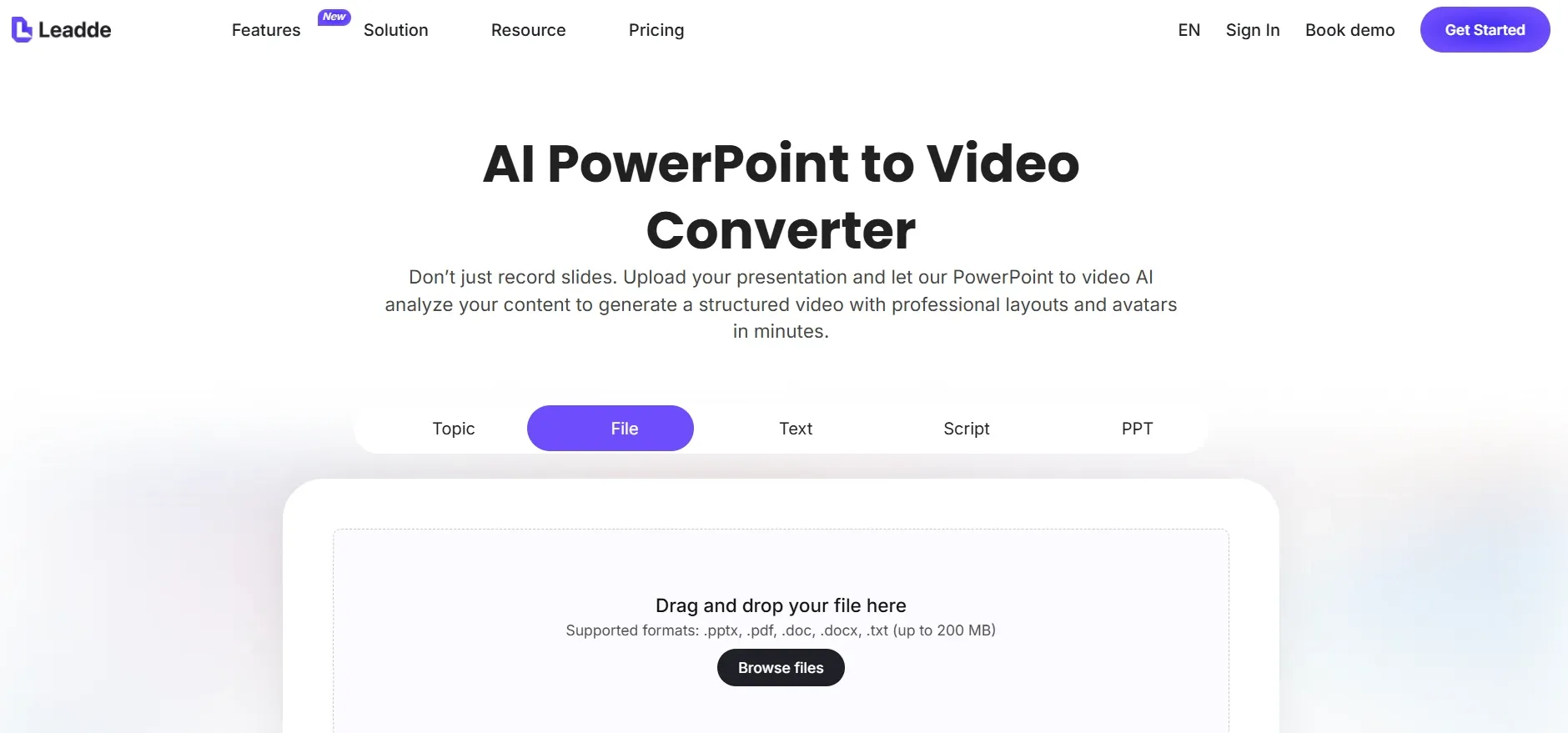
You can also use Leadde for this kind of workflow, especially when you want to turn existing PowerPoint decks into structured AI video lessons without managing separate tools for scripting, voiceover, video generation, and lesson formatting.
How to Turn PowerPoint into Video Lessons: The Practical Workflow
The best workflow is:
- Audit and simplify the PowerPoint deck
- Rewrite the deck into a lesson structure
- Create a narration script
- Record human voiceover or generate AI voiceover
- Sync narration with slide timing
- Export or record the PowerPoint as video
- Edit the video lesson
- Add captions, chapters, quizzes, and LMS tracking
This matters because most PowerPoint decks were built for live presentation, not self-paced learning. A live presenter can explain context and answer questions. A video lesson has to stand alone.
A useful rule is: one slide should answer one learner question. For example:
- What is this concept?
- Why does it matter?
- What should the learner do?
- What mistake should they avoid?
- What does this look like in practice?
If a slide has eight bullet points, do not simply read them aloud. Split the content into smaller slides, add examples, and use narration to explain the idea instead of repeating the text.
How an AI Workflow Simplifies PowerPoint-to-Video Lesson Creation
With an AI workflow, many traditional PowerPoint-to-video steps can be compressed into a single process. Instead of manually rewriting the deck, drafting the script, recording voiceover, syncing timing, and editing the video one step at a time, you can upload the PowerPoint and let AI generate a lesson outline, narration script, voiceover, and video draft automatically.
This is especially useful when you need to convert many slide decks into video lessons quickly. It reduces repetitive production work, makes lesson formatting more consistent, and helps teams move from raw slides to a usable video draft much faster. Human review is still important, but the workflow changes from building every lesson manually to reviewing, refining, and approving an AI-generated first version.
Prepare Your PowerPoint for Video Learning
Before converting PowerPoint to video, make the deck video-ready.
A strong video lesson slide should have:
- One main idea
- Minimal text
- Clear visuals
- Consistent design
- Readable fonts
- No unexplained charts or screenshots
- Enough space for captions or overlays
This step is especially important when the original deck comes from a subject matter expert. SME decks often contain valuable knowledge but too much text. The goal is not to delete the expertise; it is to reshape it for self-paced learning.
For example, instead of turning a dense compliance slide into a narrated wall of text, break it into:
- The rule
- Why it matters
- A realistic workplace example
- A common mistake
- A short knowledge check
That small redesign can turn a passive presentation into a usable video lesson.
Write a Script Before You Record or Generate Voiceover
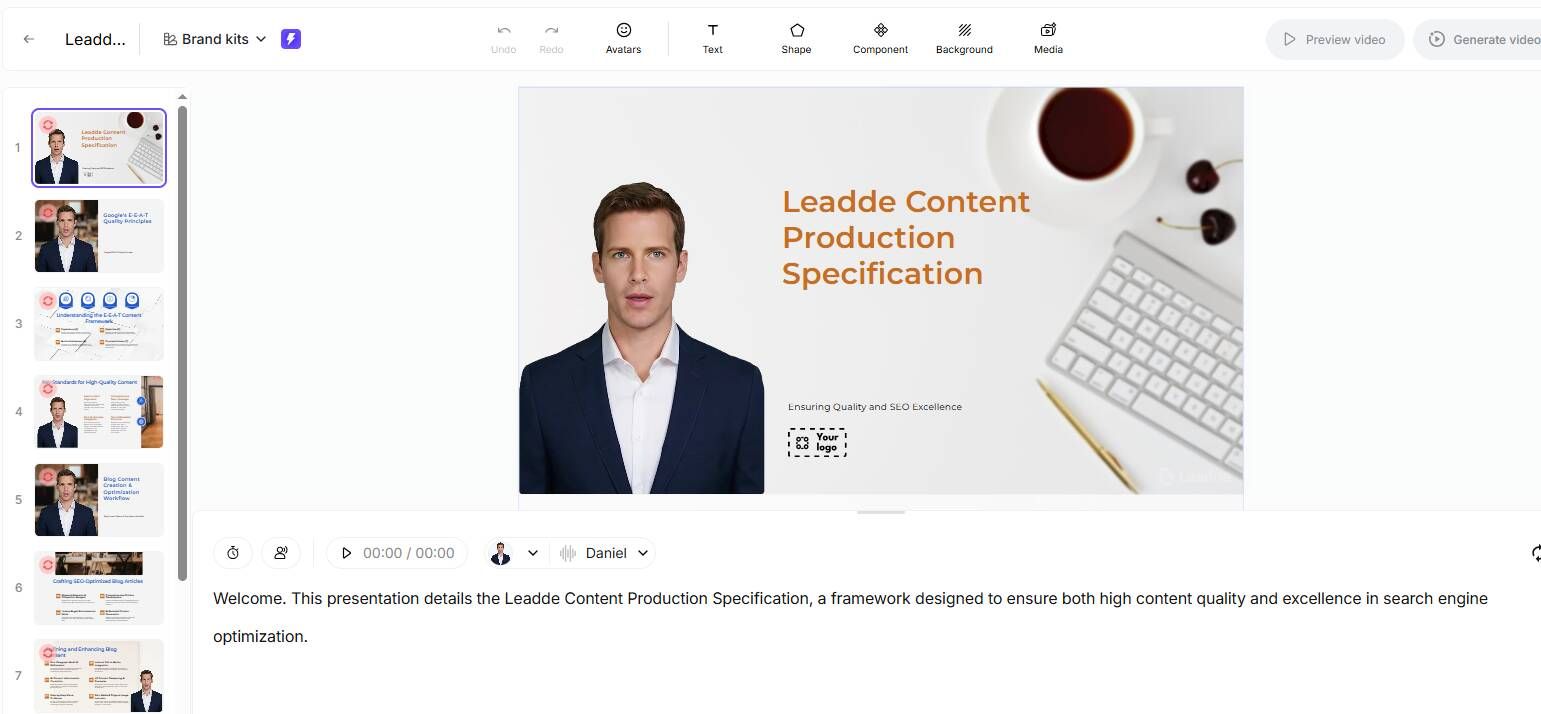
A PowerPoint video lesson needs a script. Slide text alone is not enough.
A practical script structure is:
Opening: What the learner will learn
Context: Why it matters
Explanation: What the slide means
Example: How it applies in real life
Transition: How this connects to the next slide
Recap: What the learner should remember
Example:
“By the end of this lesson, you’ll know how to respond to refund requests in three steps. This matters because refund conversations affect retention, reviews, and team workload. First, confirm the customer’s issue before discussing policy. For example, if a customer reports a damaged item, ask for the order number and a photo before offering a refund or replacement.”
This is much stronger than reading bullet points aloud.
In one internal training workflow I analyzed, the old process for a 5-minute video took 2–3 hours: writing the script, recording voiceover, editing, exporting, and revising. After introducing an AI-assisted workflow, the first draft took about 30 minutes, and the revision cycle dropped by around 60%.
The winning approach was not full automation. The creator still reviewed the outline, corrected the script, adjusted tone, and checked accuracy. AI helped with first drafts, placeholder narration, timing, and rough production.
The lesson: use AI for speed, but keep human review for quality.
Choose the Right Voiceover Method for PowerPoint Video Lessons
Voiceover is one of the biggest quality factors in PowerPoint video lessons. You have three practical options.
Record your own voice in PowerPoint
This is the simplest option for short lessons, lectures, and internal updates. PowerPoint lets you record narration slide by slide and export the final file as MP4.
Best for:
- Teachers
- Consultants
- Small teams
- Quick internal training
- Lessons where personal voice matters
The downside is that re-recording can be time-consuming, audio quality may vary, and large narrated decks can export slowly.
Use AI voiceover
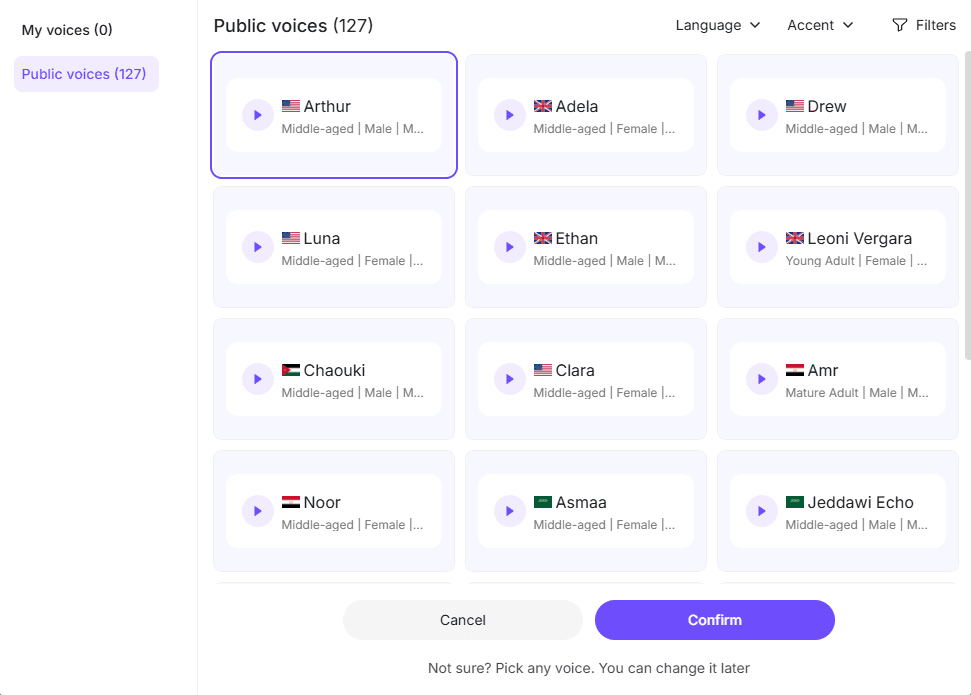
AI voiceover is useful when you need scale, consistency, or fast revisions. Tools often evaluated for this workflow include ElevenLabs, Murf.ai, WellSaid, Descript, Synthesia, Canva voice tools, and Google Vids.
AI voiceover works well for:
- Product walkthroughs
- Compliance training
- Onboarding
- Software tutorials
- Microlearning videos
- Drafts for stakeholder review
The main benefit is speed. If a policy changes, you can edit the script and regenerate a few lines instead of re-recording the whole lesson.
The limitation is quality. Some AI voices still sound too polished, flat, or disconnected. For sensitive topics, leadership messages, or motivational training, a human voice may still perform better.
Use AI voice for drafts and human voice for final
This is often the best production workflow. Use AI voiceover to create a review version, get stakeholder approval, then record the final human narration only after the script and pacing are locked.
This avoids one of the most common mistakes: recording final audio too early and then having to redo it after content changes.
Sync Voiceover with PowerPoint Slide Timing
Syncing narration with slides is where many PowerPoint-to-video workflows slow down.
The learner needs to see the right visual at the exact moment the narration explains it. If the audio says “look at the second column” before the chart appears, the lesson feels confusing.
There are three reliable methods.
Method 1: Record narration slide by slide in PowerPoint
Best for short decks with simple animations.
Method 2: Use a video editor timeline
Export slides as images or video, place the voiceover on a timeline, and adjust timing in Camtasia, Premiere, Filmora, Kdenlive, or similar tools.
Method 3: Use a templated AI-assisted workflow
Best for high-volume production, where standard slide lengths, script lengths, and voiceover pacing reduce manual syncing.
For a 5-minute microlearning video, a practical target is around 650–750 spoken words, depending on speaking speed. If your script is 1,200 words, it is probably too long for a 5-minute lesson.
Export PowerPoint as a Video Lesson
To export PowerPoint as a video:
- Open the PowerPoint file
- Record narration or set slide timings
- Go to File
- Select Export
- Choose Create a Video
- Select quality settings
- Use recorded timings and narrations
- Export as MP4
For short decks, this works well. But for long or complex narrated files, PowerPoint export can be unreliable.
In one workshop case, a 45-slide narrated PowerPoint was exported as video. The export started around 3 p.m. and by the next morning had only reached about 50%. After roughly 18 hours, there was still no finished file.
For real deadlines, do not rely on PowerPoint export as your only option. Safer alternatives include:
- Record slideshow playback with OBS
- Use ScreenPal or another screen recorder
- Use Camtasia for recording and editing
- Export slides as images and build the video in an editor
- Split long decks into shorter modules
In practice, a 45-slide deck should usually become multiple short lessons, not one long video.
Add Editing, Captions, Chapters, and Quizzes
A raw PowerPoint export is rarely the final lesson. Editing turns it from a presentation recording into a learning asset.
Focus on:
- Cutting long pauses
- Adding a clear opening
- Highlighting important areas
- Adding section titles
- Adding captions
- Improving audio levels
- Adding a recap
- Creating chapters for longer content
If the video is used for workplace training, onboarding, compliance, or customer education, MP4 alone may not be enough. You may need quizzes, completion tracking, SCORM, xAPI, certificates, or LMS analytics.
This is where tools like iSpring Suite, Articulate Storyline, Rise, Camtasia, TalentLMS, or other LMS authoring tools become useful.
A better structure than one long video is:
- 2-minute introduction
- Three 5-minute lesson videos
- Short scenario-based quiz
- Downloadable checklist
- Final knowledge check
The key point: video explains, but interaction helps confirm learning.
Best Tools to Turn PowerPoint into Video Lessons
The best tool depends on your goal: simple MP4 export, screen-recorded lessons, AI voiceover, AI-generated video lessons, or LMS-ready eLearning. Here is a clearer way to compare the main options.
| Tool Category | Tools | Best For | Strengths | Limitations |
|---|---|---|---|---|
| Built-in PowerPoint recording | PowerPoint | Simple recording and MP4 export | Easy to use, no extra software needed, good for short internal videos and quick lessons | Limited editing features; large narrated decks can export slowly |
| AI video lesson platform | Leadde | Turning PowerPoint into structured video lessons with less manual work | Can help generate lesson outlines, scripts, voiceover, and video output in one workflow; useful for training, onboarding, and large-scale lesson production | Still requires human review for accuracy, tone, and learning quality |
| Free screen recording | OBS | Recording PowerPoint playback when export is slow or unreliable | Free, flexible, supports screen, webcam, and audio recording | Requires setup and has a learning curve |
| Simple screen recording | ScreenPal, Screencast-O-Matic, Screencastify | Teacher lectures, trainer walkthroughs, and simple slide recordings | Easier than OBS, good for fast capture, useful for lecture-style lessons | Free plans may limit video length, storage, or features |
| Training video editing | Camtasia | Recurring training video production | Combines screen recording, editing, callouts, zooms, captions, and quizzes | More expensive than basic recording tools |
| AI avatar video | Synthesia | Presenter-style AI training videos and multilingual content | Useful when you want an AI presenter or avatar-based delivery | Cost can become high at scale, especially for hundreds or thousands of minutes |
| AI voiceover | Murf.ai, ElevenLabs, WellSaid | Generating narration for PowerPoint video lessons | Useful for script revisions, consistent narration, and fast voiceover drafts | Voice quality and tone still need human review |
| Script-based video editing | Descript | Editing audio and video through text | Good for narration-heavy lessons, transcription, and fast edits | May be more than needed for simple PowerPoint-to-video conversion |
| LMS-ready eLearning authoring | iSpring Suite, Articulate Storyline, Rise | Courses that need quizzes, SCORM, xAPI, interactions, and tracking | Best for formal training, compliance, and LMS publishing | More setup than exporting a simple MP4 |
PowerPoint
Best for simple recording and MP4 export. Good for short internal videos, quick lessons, and low-budget projects. Limited for editing and large-scale production.
OBS
Best free option for screen recording. Useful when PowerPoint export is slow or unreliable. Requires setup.
ScreenPal, Screencast-O-Matic, Screencastify
Good for easy slide recording. Useful for teachers, trainers, and simple lecture capture. Free plans may have limits.
Camtasia
Strong for training videos because it combines screen recording, editing, callouts, zooms, and quizzes. Better for recurring production than one-off conversion.
Leadde
Useful for turning PowerPoint decks into structured AI video lessons with less manual work. It can help generate lesson outlines, scripts, voiceover, and video output in one workflow, but the final lesson still needs human review for accuracy, tone, and learning quality.
Synthesia
Useful for AI avatar training videos and multilingual production. The limitation is cost at scale, especially when producing hundreds or thousands of minutes.
Murf.ai, ElevenLabs, WellSaid
Useful for AI voiceover, script revisions, and consistent narration. Best when paired with human review.
Descript
Good for script-based audio and video editing. Useful when you want to edit media like text.
iSpring Suite, Articulate Storyline, Rise
Best for LMS-ready eLearning with quizzes, interactions, SCORM, xAPI, and tracking.
Case Study: 240 PowerPoint Decks into 1,200 Minutes of Microlearning
One of the clearest production cases involved converting source content from Word documents into PowerPoint decks, then turning those decks into short AI-voiced video lessons.
The project scope was:
- 240 PowerPoint decks
- 5–7 slides per deck
- About 5 minutes per video
- Around 1,200 total minutes of video
At that scale, the problem was not simply “how to export PowerPoint as MP4.” The real problem was building a repeatable production system.
A scalable workflow required:
- Slide templates
- Script templates
- Standard voiceover style
- Batch production
- Naming conventions
- Review rules
- Cost control per finished minute
- LMS publishing process
The team initially evaluated polished AI video output, but cost became a major issue at this volume. The practical insight was clear: AI tools can speed up production, but standardization is what makes large-scale PowerPoint video lessons manageable.
For high-volume projects, avoid treating every deck as a custom video. Use a repeatable lesson format: objective, explanation, example, recap, and knowledge check.
Case Study: Cutting 5-Minute Training Video Production from 2–3 Hours to 30 Minutes
Another internal training workflow focused on compliance modules, product walkthroughs, and short training videos.
The old workflow took 2–3 hours per 5-minute video:
- Write the script
- Record voiceover
- Edit the video
- Export
- Review
- Revise
After introducing AI-assisted scripting and voiceover, the first draft took about 30 minutes, and revisions were reduced by about 60%.
The improved workflow was:
- Create a structured outline
- Draft narration with AI
- Human-edit for accuracy and tone
- Generate AI voiceover for review
- Build a rough video draft
- Get stakeholder feedback
- Record or finalize approved narration
The biggest time saver was avoiding premature final production. Instead of recording perfect audio before approval, the creator used AI voiceover as a draft layer. That made review faster and reduced rework.
Case Study: When PowerPoint Export Is Too Slow
A narrated 45-slide PowerPoint needed to be turned into a video for a workshop. The export began around 3 p.m. and reached only about 50% by the next morning, after roughly 18 hours.
The practical takeaway: always test export early.
For deadline-driven work, use backups:
- Split the file into shorter modules
- Compress large media
- Remove unnecessary animations
- Record playback with OBS or ScreenPal
- Use Camtasia for capture and editing
- Export slides as images if needed
This case also shows why long decks are risky. Shorter lessons are easier to export, easier to update, and easier for learners to finish.
Case Study: Turning Department PowerPoints into LMS Training
In enterprise LMS projects, departments often provide slides, scripts, policies, or process notes, but they do not have the skills or time to create polished training videos.
A better model is a centralized content factory:
- Department submits PowerPoint and script
- Training team checks the learning objective
- Slides are cleaned and standardized
- AI voiceover creates the first draft
- Department reviews for accuracy
- Video is edited and exported
- Quiz or knowledge check is added
- Course is published to the LMS
Tools that can support this include TalentLMS, Descript, Audiate, Murf.ai, WellSaid, Cognispark AI, OpenAI API-based scripting, iSpring, and Storyline.
The lesson: departments should provide expertise, not act as video production teams. Centralized production improves consistency and quality.
Common Mistakes When Converting PowerPoint to Video Lessons
Avoid these mistakes:
Reading every slide word for word
Learners can read faster than you can speak. Use narration to explain.
Making one long video from a large deck
Break long decks into short modules.
Skipping the script
A video lesson needs a flow, not just slides.
Recording final audio too early
Use draft voiceover first, then finalize after approval.
Ignoring captions
Captions improve accessibility and mobile viewing.
Treating video as full eLearning
If learners need to prove understanding, add quizzes, scenarios, and tracking.
Choosing tools before defining the workflow
Start with the learning goal, production volume, and publishing requirement.
Final Takeaway
The best way to turn PowerPoint into video lessons is to treat the deck as source material, not the finished lesson. Clean the slides, write a real script, record or generate voiceover, sync timing carefully, edit the video, and add captions, quizzes, chapters, or LMS tracking when needed.
For one or two simple lessons, PowerPoint export may be enough. For professional training or large-scale course production, use templates, AI-assisted voiceover, review workflows, editing tools, and LMS publishing standards. That is how PowerPoint files become video lessons people can actually learn from.