Explainer Video Script: Templates, Examples, and AI Prompts

An explainer video script is a structured plan that turns a product, service, process, or idea into a short, clear video. It usually includes the voiceover, visual cues, on-screen text, scene timing, and call to action.
A strong explainer video script helps viewers understand the message quickly, keeps production focused, and gives AI video tools or production teams a clear blueprint to turn the script into a finished video.
But writing that blueprint from scratch can slow teams down. The problem is not just finding the right words; it is turning documents, ideas, and visuals into a polished video fast.
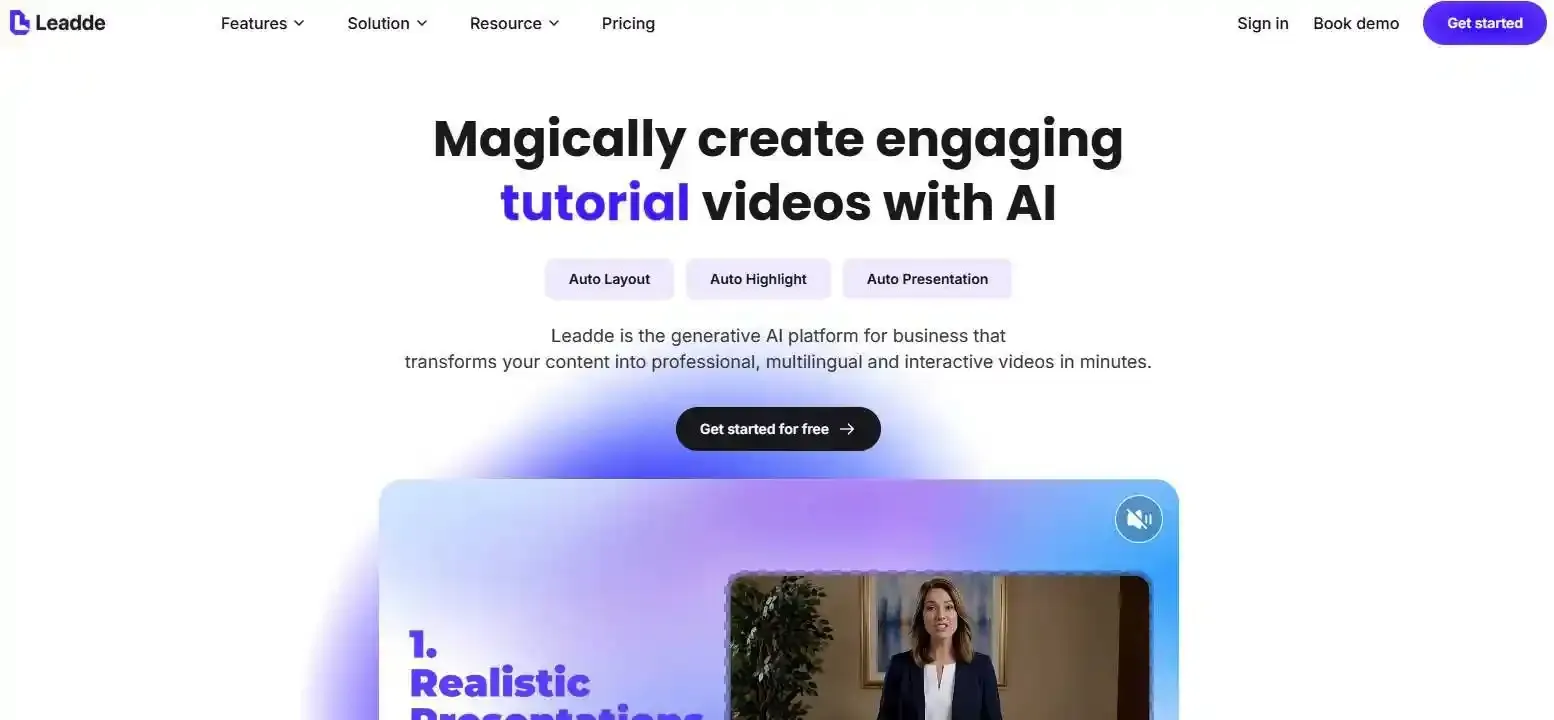
Leadde helps by automatically turning text and documents into professional business videos in minutes, cutting production costs by over 80% and content creation time by 90%.
What Is an Explainer Video Script?
An explainer video script is the written plan for a short video that explains a product, service, process, or idea. To fully grasp what is an explainer video, understand that it usually includes narration, visual direction, on-screen text, timing, and a call to action.
A good script does not only tell the speaker what to say. It also tells the production team, designer, editor, or AI video tool what should appear on screen.
Explainer Video Script Definition
An explainer video script is a structured document that turns one main message into a clear video story. It helps the viewer understand:
- What the topic is
- Why it matters
- How it works
- What to do next
Most explainer scripts are short, focused, and easy to follow. They are often used for SaaS products, apps, employee training videos, customer onboarding, SOPs, internal communication, and educational content.
Explainer Video Script vs Voiceover Script vs Storyboard
A voiceover script only includes the spoken narration. It is useful for recording audio, but it does not fully guide the video.
A storyboard shows the visual sequence of the video. It helps teams plan shots, scenes, design, animation, or screen flow.
An explainer video script connects both sides. It can include:
| Element | Purpose |
| Voiceover | What the viewer hears |
| Visual cues | What the viewer sees |
| On-screen text | Key words or short phrases on screen |
| Timing | How long each scene should last |
| CTA | What the viewer should do next |
This is why many production teams use an AV script format. StudioBinder describes an AV script as a format that places voiceover and visual elements in side-by-side columns, helping teams plan and produce with clarity.
What a Strong Explainer Script Should Include
A strong explainer video script should be simple, visual, and action-focused. It should avoid long explanations and focus on one clear idea.
A complete script usually includes:
- A strong opening hook
- One viewer problem
- A simple explanation of the solution
- A short “how it works” section
- Clear benefits or proof
- One final CTA
The best scripts are also easy to produce. Every important line should connect to a visual cue, scene direction, screenshot, chart, avatar note, or layout instruction.
The Best Explainer Video Script Structure
The best explainer video script structure is usually:
Hook → Problem → Solution → How It Works → Proof → CTA
This structure works because it follows the viewer’s decision path. First, the viewer needs a reason to care. Then they need to understand the problem, see the solution, and know what action to take.
Hook, Problem, Solution, and CTA
The hook should appear in the first few seconds. It can be a question, surprising statement, pain point, or direct promise.
Examples:
- “Still turning every training document into slides by hand?”
- “Your customers do not need another PDF. They need a clear explanation.”
- “Here is how to explain your product in 60 seconds.”
The problem should describe the viewer’s real situation. Avoid starting with your company or product. Start with what the viewer is struggling with.
The solution introduces the product, service, workflow, or idea. Keep it simple. The viewer should understand the solution before they hear every feature.
The CTA should be specific. Do not end with a vague line like “learn more.” Use a direct action such as:
- Start creating your explainer video
- Book a demo
- Download the template
- Turn your document into a video
How to Match Voiceover With Visuals
Every important voiceover line should have a visual partner. This keeps the video easy to follow and reduces confusion.
For example:
| Voiceover Line | Visual Cue |
| “Teams spend hours rewriting training documents.” | A messy document, clock icon, or team dashboard |
| “AI can turn the same document into scenes.” | Document transforming into video slides |
| “Each scene includes narration, visuals, and on-screen text.” | Three labeled blocks: voiceover, visual, text |
| “The final video is ready to review and share.” | Video preview screen or share button |
This matters because explainer videos are not written only for reading. They are written for listening and watching at the same time.
Explainer Video Script Length and Word Count
A short explainer video is usually easier to finish, easier to edit, and easier for viewers to remember. The right length depends on the topic and use case.
Use this simple guide:
| Video Length | Suggested Word Count | Best For |
| 30 seconds | 60–75 words | Short ads, quick product hooks |
| 60 seconds | 140–160 words | Homepage videos, SaaS explainers |
| 90 seconds | 210–230 words | B2B explainers, feature education |
| 2 minutes | 280–320 words | Training, onboarding, process videos |
For complex B2B products, training content, or SOPs, a longer script may work better. For landing pages, social ads, and product introductions, a shorter script usually performs better.
Free Explainer Video Script Template and Examples
A template helps you avoid the blank page problem. It gives you a repeatable structure, so you can focus on the message instead of starting from zero.
You can use the explainer video template below for product explainers, SaaS videos, training videos, SOP videos, onboarding videos, and internal communication videos.
Copy-and-Paste Explainer Video Script Template
| Scene | Voiceover | On-Screen Text | Visual Direction |
| 1. Hook | [Open with the viewer’s problem or goal.] | [Short hook phrase] | [Show the problem visually] |
| 2. Problem | [Explain the pain point in simple words.] | [Problem keyword] | [Show friction, delay, confusion, or manual work] |
| 3. Solution | [Introduce the product, service, process, or idea.] | [Solution name] | [Show the solution appearing or workflow starting] |
| 4. How It Works | [Explain 2–3 simple steps.] | [Step 1 / Step 2 / Step 3] | [Use icons, screenshots, diagrams, or scenes] |
| 5. Benefit | [Explain the practical outcome.] | [Main benefit] | [Show before-and-after or result screen] |
| 6. CTA | [Tell the viewer what to do next.] | [CTA text] | [Show button, link, product screen, or next step] |
Use short sentences. Keep each scene focused on one idea. A script that looks simple on the page often becomes clearer on screen.
60-Second Explainer Video Script Example
Use case: AI tool that turns business documents into videos.
| Scene | Voiceover | Visual Direction |
| Hook | Your team already has the content. It is sitting in PDFs, slides, SOPs, and training documents. | Show documents, slides, and manuals stacked on screen. |
| Problem | But turning those materials into clear videos takes hours of writing, recording, editing, and redesigning. | Show a long manual workflow with script, camera, editor, and review steps. |
| Solution | With an AI video workflow, you can turn existing documents into structured video scenes automatically. | Show a document transforming into a video timeline. |
| How It Works | Upload your file, review the AI-generated outline, edit the script, choose a presenter, and generate the final video. | Show five simple workflow steps. |
| Benefit | The result is a professional explainer video that is easier to watch, update, localize, and share. | Show video preview, language options, and share icon. |
| CTA | Start with one document and turn it into your next explainer video. | Show CTA button. |
This format works because it follows a clear path: existing content → production pain → AI workflow → final video.
Product, SaaS, Training, and Onboarding Examples
Different use cases need different script angles. A product video should focus on buyer pain. A training video should focus on clarity and retention. An onboarding video should reduce confusion for new users.
| Use Case | Best Script Angle | Example Opening |
| Product explainer | Problem → solution → benefit | “Managing team updates across tools can get messy fast.” |
| SaaS explainer | Workflow pain → product workflow | “Your sales data is useful, but only if your team can act on it quickly.” |
| Training video | Process clarity → step-by-step guidance | “Every employee needs to follow the same safety process.” |
| Customer onboarding | New user confusion → guided first success | “Getting started should feel simple, not overwhelming.” |
| SOP video | Dense document → visual process | “A written SOP is helpful, but a visual guide is easier to follow.” |
The best example is the one that matches the viewer’s real situation. Do not use the same tone for a sales page, compliance training, and internal onboarding video.
How to Write an Explainer Video Script Step by Step
Writing an explainer video script is easier when you start with strategy, not sentences. Before writing the voiceover, define the viewer, the message, and the outcome.
The goal is not to say everything. The goal is to make one idea easy to understand and easy to act on.
Define the Audience and Core Message
Start by asking: Who is this video for?
A script for new employees should sound different from a script for software buyers. A script for executives should be shorter and more outcome-driven. A script for product users can include more step-by-step detail.
Use this quick brief before writing:
| Question | Example Answer |
| Who is the audience? | New customers using the platform for the first time |
| What do they already know? | They know the product name but not the workflow |
| What is the main problem? | They feel unsure about the first setup step |
| What should they understand? | How to complete setup in three simple steps |
| What should they do next? | Log in and complete the first action |
Then reduce the whole message to one sentence. This sentence becomes the script’s center.
Turn Research Into a Clear Story
Research can include product notes, customer pain points, sales calls, support tickets, SOPs, training documents, or product pages. The mistake is trying to include all of it.
Instead, sort research into three groups:
- Must say: essential message
- Nice to say: useful but not required
- Do not say: details that slow the video down
Then turn the “must say” points into a simple story:
- Before: What is hard, slow, confusing, or expensive?
- After: What becomes easier, faster, clearer, or more scalable?
- Bridge: What product, method, or workflow creates the change?
This keeps the video focused and prevents feature overload.
Read, Cut, and Simplify the Script
After writing the first draft, read it out loud. If a sentence feels hard to say, it will probably be hard to hear.
Cut:
- Long introductions
- Repeated ideas
- Internal jargon
- Weak filler words
- Extra features
- Multiple CTAs
Use simple words and short lines. For example, change “utilize our advanced workflow optimization capabilities” to “use the workflow to save time.”
A strong explainer script should sound natural when spoken. It should feel like a clear explanation, not a brochure.
How to Write an AI-Ready Explainer Video Script
An AI-ready explainer video script is written for both humans and AI video tools. It gives the system enough structure to generate better scenes, visuals, voiceover, and layouts.
OpenAI’s prompt engineering guidance recommends clear, specific instructions and enough context for the model to understand the task. It also recommends separating instructions from source content and defining the desired output format.
ChatGPT Prompt for an Explainer Video Script
Use this prompt to generate a first draft:
Create an explainer video script for the following topic.

Topic: [Insert topic]
Audience: [Insert audience]
Goal: [Explain, educate, sell, onboard, train, or convert]
Tone: [Professional, friendly, simple, authoritative]
Video length: [30 seconds, 60 seconds, 90 seconds, or 2 minutes]
Core message: [Insert one main idea]
CTA: [Insert one action]

Use this structure:
Hook → Problem → Solution → How It Works → Benefit → CTA

Output the script in a scene-by-scene table with:
Scene number, timing, voiceover, on-screen text, visual direction, and CTA.
Keep the language simple and easy to speak.
This prompt works because it gives the AI a clear role, audience, length, structure, and output format.
Scene-by-Scene Script Format for AI Video Tools
AI video tools usually perform better when the script is structured. A plain paragraph may be easy to write, but it gives less guidance for scene creation.
Use this format:
| Scene | Timing | Voiceover | On-Screen Text | Visual Cue | Presenter Note |
| 1 | 0:00–0:05 | Open with the viewer’s pain point. | Main pain point | Show problem visually | Serious, direct |
| 2 | 0:06–0:15 | Explain why the problem matters. | Why it matters | Show delay, confusion, or cost | Calm, helpful |
| 3 | 0:16–0:30 | Introduce the solution. | Solution name | Show product or workflow | Confident |
| 4 | 0:31–0:45 | Show how it works. | Step 1 / Step 2 / Step 3 | Use icons or screenshots | Clear, paced |
| 5 | 0:46–0:55 | Explain the result. | Main benefit | Show final output | Positive |
| 6 | 0:56–1:00 | End with the CTA. | CTA | Show next step | Direct |
This structure helps AI tools separate narration, screen text, visuals, and presenter behavior.
Add Visual Cues, Avatar Notes, and On-Screen Text
AI-ready scripts should include more than voiceover. They should also tell the system what to show.
Add:
- Visual cues: screenshots, icons, charts, slides, product UI, diagrams
- Avatar notes: tone, pace, expression, role, or presenter style
- On-screen text: short phrases that reinforce the key point
- Layout notes: split screen, process steps, before-and-after, timeline
- Localization notes: terms that should stay consistent across languages
This is especially important for business videos. A training or SOP video often needs accuracy, consistency, and easy updates more than creative style.
From Script to Video: Manual Production vs AI Document-to-Video Workflow
Once the script is ready, the next question is how to turn it into a finished video. Teams usually choose between manual production, AI video generation, or a document-to-video workflow.
As of 2026, available information suggests that the best workflow depends on the content source, update frequency, budget, localization needs and overall video production cost, and production scale.
Traditional Workflow vs AI Video Workflow
A traditional workflow usually includes:
- Scriptwriting
- Storyboarding
- Voiceover recording
- Design or animation
- Editing
- Review
- Export
- Localization
This can be effective for high-end brand videos, commercials, or emotional storytelling. However, it can be slow when the team needs many training, onboarding, SOP, or product education videos.
An AI workflow is usually faster:
- Prompt or upload content
- Generate outline
- Create scenes
- Add voiceover
- Add visuals
- Review and edit
- Generate video
- Localize or update
This works well when teams need repeatable business videos, not one-off cinematic productions.
How Leadde Turns PPTs, PDFs, Word Documents, and Text Into Explainer Videos
Leadde is designed for a document-first workflow. According to its official product overview, Leadde converts PowerPoint files, PDFs, Word documents, scripts, and text into structured video presentations, automatically generating outlines, scenes, voice-over scripts, and visual layouts.
A typical Leadde workflow looks like this:
- Upload content such as a PPT, PDF, Word document, script, or text.
- Set the language, tone, detail level, audience, speaker background, and learning objectives.
- Review the AI-generated outline and script structure.
- Choose a template, presenter, image source, and video length.
- Edit the script, visuals, and page structure.
- Preview and generate the final video.
Your workflow notes show that Leadde supports file and text input, including .pptx, .pdf, .doc, .docx, and .txt files, with a file size limit of 200MB.
Leadde also supports multilingual workflows across 92 languages, 200+ AI avatars, Chat with Video, advanced playback modes, version control, analytics, and content management.
Best Workflow for Marketing, Training, SOPs, and Global Teams
Use the workflow that fits the job:
| Use Case | Best Workflow | Why |
| Brand campaign | Manual production | Needs high creative control |
| Homepage product explainer | AI-assisted script + human review | Balances quality and speed |
| Training video | Document-to-video | Starts from existing materials |
| SOP video | Document-to-video | Needs structure, consistency, and updates |
| Customer onboarding | AI video workflow | Helps scale product education |
| Global team communication | AI workflow with localization | Reduces repeated production work |
For teams with many existing documents, the document-to-video workflow is often the most practical. The script is no longer a blank-page task. It becomes a structured layer generated from existing business knowledge, ideal for scaling corporate explainer videos.
Common Explainer Video Script Mistakes and SEO Checklist
Even a good topic can fail if the script is unclear. Most weak explainer videos suffer from the same problems: too many ideas, too much brand talk, weak visuals, and no clear next step.
A strong script should make the video easier to understand, easier to produce, and easier to find in search.
Mistakes That Make Explainer Videos Confusing
Avoid these common mistakes:
| Mistake | Why It Hurts the Video | Better Approach |
| Starting with the brand | Viewers do not know why they should care | Start with the viewer’s problem |
| Explaining too many ideas | The message becomes hard to remember | Focus on one core message |
| Writing for reading | Sentences sound unnatural when spoken | Read the script out loud |
| Ignoring visuals | The video becomes a narrated article | Add visual cues for each scene |
| Using vague CTA language | Viewers do not know what to do next | Use one direct CTA |
| Overloading scenes | Viewers cannot process the information | Keep one idea per scene |
| Forgetting localization | Global teams must rebuild the video later | Plan language and terminology early |
The script should feel simple, but not empty. It should remove friction from the viewer’s understanding.
Video SEO Basics: Transcript, Timestamps, Schema, and Thumbnail
A good explainer video script can also support video SEO. The script can become the transcript, the scene structure can become timestamps, and the CTA can guide the page experience.
Use this checklist before publishing:
- Add a descriptive video title
- Write a clear video description
- Include the full transcript on the page
- Turn script sections into timestamps
- Use a relevant thumbnail
- Add VideoObject structured data when appropriate
- Make the video crawlable and indexable
- Match the video content with the page’s search intent
Google explains that key moments help users navigate video segments like chapters, and site owners can identify important points through structured data or YouTube descriptions.
Google also says structured data helps Google understand page content and may be used to display richer search results.
That means your script should be planned with search in mind. A clear structure helps not only the viewer, but also the page, transcript, timestamps, and video metadata.
Conclusion
A strong explainer video script turns one clear idea into a simple, visual, and action-focused story. Start with the viewer’s problem, use a clear structure, match every voiceover line with a visual cue, and choose the right workflow to turn the script into a finished video faster.