How to Batch Convert Multiple PowerPoint Decks to AI Videos: A Scalable Workflow

Batch converting multiple PowerPoint decks into AI videos requires more than uploading several files at once. A scalable workflow should preserve important slide content, apply consistent narration and branding, process each deck independently, and make future updates easy.
Leadde supports this type of document-to-video workflow by turning PowerPoint files and other business content into structured videos with AI-generated scripts, narration, avatars, and multilingual output.
In this guide, you’ll learn how to prepare PowerPoint decks for batch conversion, maintain consistency across videos, review large batches efficiently, and build a workflow that stays easy to update.
Batch Convert Multiple PowerPoint Decks to AI Videos: What Is the Best Workflow?
The most reliable workflow is library preparation → standardized settings → independent video generation → exception review → organized publishing. Treating each PowerPoint as an independent job makes failures, revisions, and future localization easier to manage.
Audit and prepare the PowerPoint library
Before generating anything, remove duplicate, draft, and outdated decks. Label each presentation by owner, language, version, audience, and intended video.
Also decide whether each deck should remain one video. A 12-slide onboarding module may convert cleanly, while a 120-slide technical presentation may contain several separate video lectures or learning objectives.
Large libraries can be much more complex than they first appear. One recent instructional-design case described roughly 100–150 PowerPoint files, many containing 120–150 slides with inconsistent formatting and organization.
Apply shared settings and generate each deck independently
Define the production rules once:
- AI voice and avatar
- brand colors and fonts
- subtitle style
- aspect ratio
- target language
- intro and outro
- tone of narration
Then process each deck as its own video project.
Speaker notes are especially valuable. Current PowerPoint-to-video workflows from Synthesia and HeyGen can use PPT/PPTX speaker notes as video scripts, showing why retaining the original PowerPoint is often more useful than flattening everything into a PDF first.
Leadde's Slide Presenter similarly offers an option to import PPT notes as speaking scripts or have AI generate narration from the presentation content.
Review exceptions instead of rebuilding everything manually
The goal of batch automation should not be zero human review. It should be less repetitive human review.
Flag decks that contain:
- missing or weak speaker notes
- unusual layouts
- dense technical terminology
- image-only slides
- very long narration
- unsupported media
- inconsistent branding
Once approved, keep a clear relationship between:
Source PPT → AI Project → Video → Language → Version
That relationship becomes essential when the source presentation changes later.
How Should You Prepare PowerPoint Decks Before Batch AI Video Conversion?
Good batch output starts before the files enter the generator. AI can accelerate production, but it cannot reliably repair an unorganized content library without additional review.
Create a PowerPoint batch-readiness check
A simple preflight system can route presentations into two groups.
| Check | Ready for Batch | Review First |
| Content status | Approved/current | Draft/outdated |
| Speaker notes | Complete | Missing |
| Structure | One clear topic | Multiple topics |
| Slide density | Moderate | Extremely dense |
| Branding | Current | Legacy |
| Language | Identified | Mixed |
| Visuals | Clear/source-owned | Missing or unclear |
Do not pilot the workflow using only your cleanest presentation. Test a normal deck, a long deck, a technical deck, and a difficult deck. Testing edge cases before scaling is more useful than testing only the happy path.
Standardize speaker notes and source content
Speaker notes should communicate meaning, not merely repeat slide bullets. A useful internal structure is:
Main idea → required facts → explanation → pronunciation guidance → transition
If notes are missing, AI can create a draft from the visible slide content, but those presentations deserve closer factual review.
Decide whether to preserve, adapt, or rebuild each deck
Not every PowerPoint should receive the same treatment.
Preserve: Keep most slide design intact when charts, layouts, or approved corporate visuals matter.
Adapt: Retain useful slide assets but improve narration, pacing, and scene composition.
Rebuild: Turn dense, presenter-dependent material into video-first scenes.
This distinction is increasingly visible in modern AI video workflows. Colossyan, for example, currently separates a deck-preserving import workflow from an AI rebuild workflow designed around video pacing.
Should Every PowerPoint Deck Be Converted Slide by Slide?
No. A PowerPoint slide is a presentation unit, not automatically a video scene.
When slide-by-slide conversion works
Direct conversion works well for:
- concise training modules
- product walkthroughs
- structured lessons
- decks with complete speaker notes
- presentations where each slide represents one clear idea
In these cases, slide-to-scene mapping also makes future edits easier.
When long or technical decks should be restructured
A 100- or 150-slide presentation should not automatically become a 100- or 150-scene video.
From an instructional-design perspective, long SME decks often contain material intended to be explained live. AI may need to merge repetitive slides, expand presenter cues, split dense sections, or remove information that belongs in supplementary resources rather than the video itself.
Modern AI workflows are beginning to reflect this distinction. Colossyan's rebuild workflow, for example, can split slide-heavy passages into multiple scenes or merge less important material instead of mechanically preserving a one-slide-one-scene structure.
Use learning objectives rather than slide count
A stronger boundary is:
one learning objective, workflow, product feature, or audience need per video.
This improves viewing experience, but it also improves maintenance. When a product feature changes, the team can update one focused video instead of reopening a 45-minute course.
How Do You Keep Batch AI Videos Accurate, Consistent, and Traceable?
At scale, consistency is not just a branding problem. Teams also need to know where AI-generated statements came from.
Map generated scenes back to source slides
Maintain a content trail such as:
Deck 12 → Slide 18 → Scene 9 → Narration → Video v3
Ideally, the workflow also retains the original speaker notes and required facts separately from the rewritten narration.
This matters because AI may improve the flow of a script while unintentionally compressing an important technical detail. Source mapping lets an SME check the scene against the original material quickly.
Colossyan currently demonstrates this idea by citing source slides in generated scene plans and allowing scene-level edits before rendering.
Separate batch standards from deck-specific content
| Batch-Level Standards | Deck-Level Content |
| Brand template | PowerPoint content |
| AI voice | Speaker notes |
| Avatar | Narration script |
| Subtitle style | Scene timing |
| Intro/outro | Technical terminology |
| Aspect ratio | Deck-specific visuals |
| Default language | Content exceptions |
This makes a 50-video library feel consistent without forcing every presentation into an identical visual treatment.
Avoid making avatars read PowerPoint bullets
An AI presenter should support the explanation, not become the entire visual experience.
Use presenters for introductions, summaries, transitions, and direct explanations. Let screenshots, diagrams, charts, demonstrations, and existing slide assets carry the parts that are better understood visually.
Narration should explain the information; visuals should help learners see it.
How Do You Quality-Control and Update Dozens of AI-Generated Videos?
The workflow that works for five videos may fail at 100 if every output requires the same manual review.
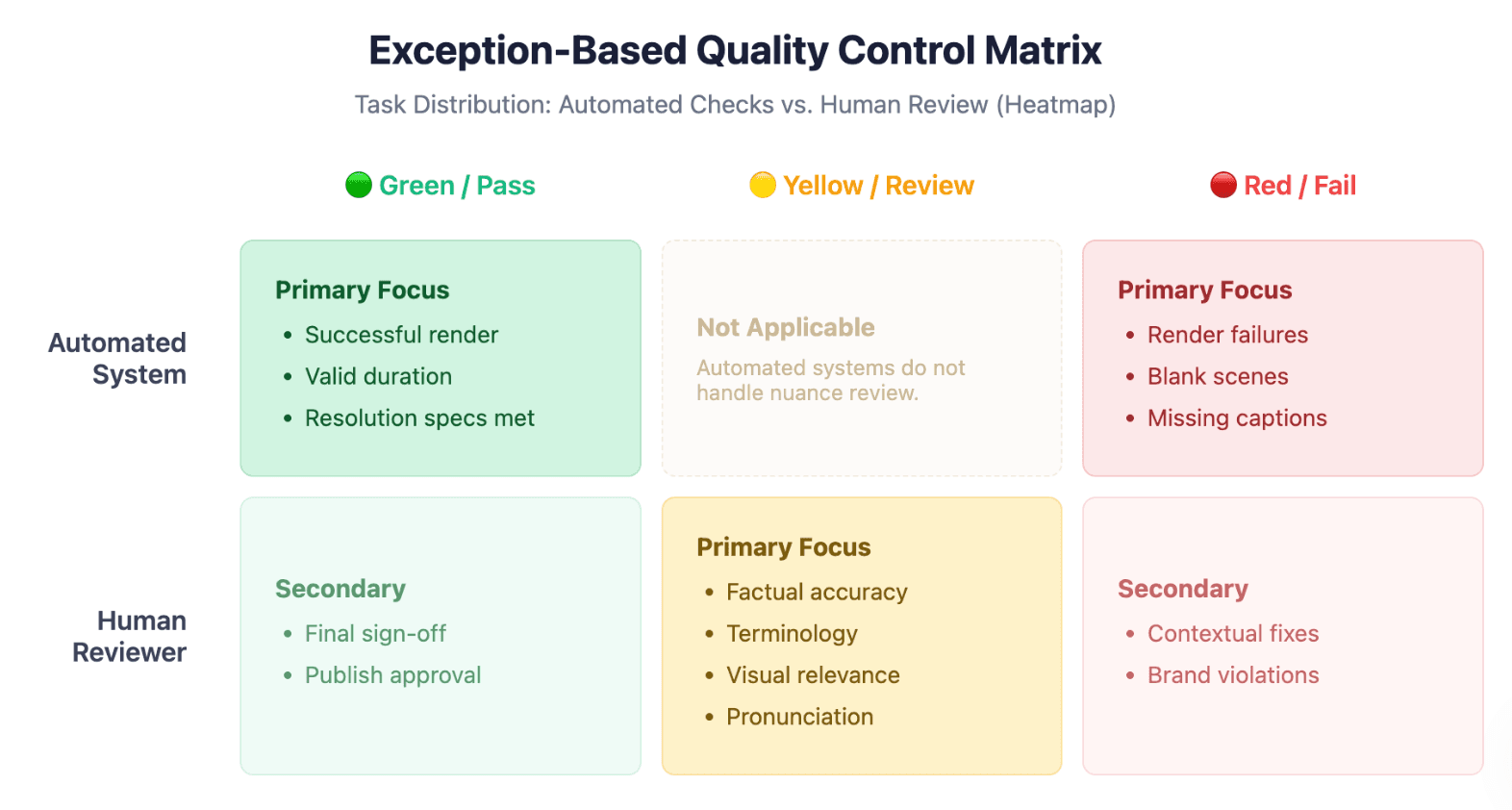
Use exception-based quality control
Automated checks can identify:
- missing narration
- blank scenes
- render failures
- missing captions
- unusual duration
- duplicate outputs
- incorrect resolution
Human reviewers should concentrate on:
- factual accuracy
- terminology
- pronunciation
- instructional clarity
- visual relevance
- branding
- content and media rights
A simple model is:
Green: automated checks passed Yellow: human review required Red: failed or regenerate
Regenerate only what changed
Slide-level production is easier to maintain than treating the final MP4 as the only asset.
A mature update flow is:
PPT changes → identify affected scene → update script/audio/visual → review → republish
This is one reason editable AI video projects matter. Leadde's current presentation workflow allows teams to edit visuals, avatars, pacing, highlights, and language without recording again.
Microsoft PowerPoint remains useful when preservation is more important than AI transformation: it can export a presentation with recorded narration, timings, animations, and transitions directly to video. However, lengthy or media-heavy decks can take considerably longer to export.
Measure whether batch processing actually saves time
Do not measure success only by "videos generated."
Track:
- human touch time per deck
- first-pass approval rate
- percentage requiring manual intervention
- regeneration rate
- update time per video
- time from PPT revision to republished video
These metrics reveal whether automation is actually reducing production work or simply moving it downstream into editing.
Which Batch PowerPoint-to-AI-Video Workflow Is Right for Your Team?
There is no single best method. The right workflow depends on whether the priority is fidelity, AI transformation, creative control, or automation.
| Method | Best For | Batch Strength | Main Limitation |
| PowerPoint native export | Existing narrated presentations | Simple conversion | Limited AI transformation |
| AI PPT-to-video platform | Training and content teams | Narration, avatars, localization | Batch capabilities vary |
| Template-based generation | Highly standardized videos | Strong consistency | Less flexible for unique decks |
| API/custom workflow | Large enterprise libraries | Automation and control | Requires technical resources |
| Manual video production | High-value polished content | Maximum creative control | Difficult to scale |
PowerPoint's built-in export is enough when the deck is already finished and recorded. Microsoft supports exporting recorded narration, slide timings, animations, and transitions to video.
An AI workflow is more appropriate when teams need to turn existing knowledge into new scripts, AI narration, presenter-led scenes, multilingual versions, or reusable video projects.
When evaluating a batch platform, look beyond "supports PPT." Check for speaker-note handling, reusable branding, editable scripts, multilingual generation, batch visibility, retry behavior, content organization, and future updates.
For teams specifically trying to turn an existing presentation library into structured AI videos, Leadde's current public workflow combines PowerPoint or document ingestion with script generation, avatars, multilingual output, and content-at-scale features.
FAQ
Can AI batch convert multiple PowerPoint files into separate videos?
Yes, when the workflow supports multiple presentation jobs. True batch processing should go beyond multi-file selection and include shared production settings, job tracking, review, failure recovery, and organized outputs.
Can PowerPoint speaker notes automatically become AI narration?
Yes, some AI video platforms can import speaker notes as the script. Synthesia and HeyGen currently document this capability for PowerPoint imports.
How many PowerPoint decks can I convert at once?
There is no universal limit. It depends on the platform, plan, file sizes, slide counts, and whether "batch" means multi-file upload, queued generation, or API automation.
Can I use the same AI avatar and voice for every PowerPoint video?
Yes, where reusable templates or shared settings are supported. Standardizing voice, presenter style, captions, and branding is useful when building a coherent training or education library.
What should I do with a PowerPoint that has 100 or 150 slides?
Review its learning objectives before converting it. Large decks often work better as several focused videos rather than one scene for every slide.
Can I update one AI video without regenerating the entire batch?
A scalable workflow should keep each video—and ideally each scene—editable independently. This prevents a single presentation change from triggering unnecessary regeneration across the library.
Can batch-converted PowerPoint videos be uploaded to an LMS?
Usually, yes, if the LMS accepts standard video formats such as MP4. However, an MP4 is not itself a SCORM or xAPI package. Quizzes, branching, and detailed learner tracking may require an additional eLearning authoring layer.
Is AI batch conversion better than PowerPoint's built-in video export?
Not always. PowerPoint export is effective when the presentation already contains the design, narration, animations, and timings you want. AI workflows are more useful when you need content restructuring, generated narration, avatars, localization, or scalable video maintenance.
Conclusion
Batch PowerPoint-to-AI-video works best as a content operations system, not a file-conversion shortcut. Prepare the source library, classify decks before generation, standardize production rules, keep scenes traceable to their source material, review exceptions, and preserve editable projects so future PowerPoint changes can become video updates without rebuilding the entire library.