How to Turn Long PowerPoint Decks Into Microlearning Videos With AI

Turning a long PowerPoint deck into microlearning videos with AI is not about squeezing 100 slides into one shorter video. The better approach is to identify the learning objectives, separate essential knowledge from reference material, and reorganize the deck into focused modules before generating scripts and video scenes.
This matters because long decks are usually built for presenters, not self-paced learners. Important context may sit in speaker notes, while dense slides, technical details, and reference content often need different treatment.
Leadde supports this kind of document-to-video workflow by analyzing presentation structure, extracting key information, and generating structured scenes, narration, AI presenters, and multilingual versions. This guide focuses on the harder part: how to break a long PowerPoint into short microlearning videos without losing the knowledge learners actually need.
How to Turn Long PowerPoint Decks into Short Microlearning Videos with AI
The most reliable workflow is:
Long PPT → learning goals → content audit → microlearning map → scripts → video scenes → SME review → publishing
The key is to split by learning objective, task, or decision—not by slide count. A 10-slide section may contain three distinct learner actions, while information from slides 8, 27, and 46 may all belong in one module.
Start with learning goals, not slide count
Before asking AI to generate anything, define what the learner should be able to do afterward.
For example, instead of creating a module called “Refund Policy Overview,” aim for an outcome such as:
“Approve a standard customer refund correctly.”
That gives AI—and the instructional designer—a much clearer rule for deciding what belongs in the video.
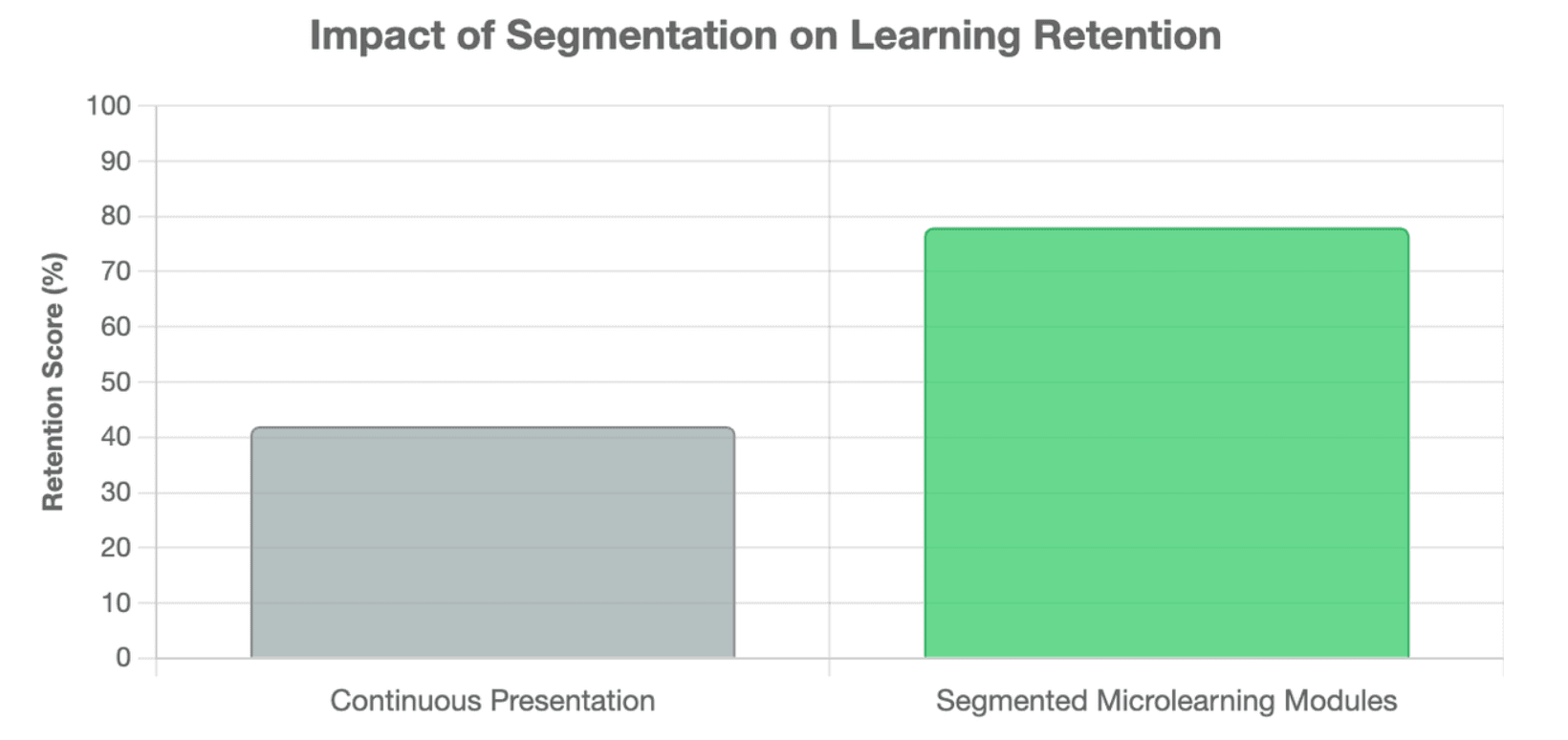
Research on multimedia learning supports breaking complex information into meaningful segments rather than presenting it as one continuous experience. A 2022 systematic review found generally positive learning effects from segmenting multimedia into learner-manageable parts.
Use a two-pass AI workflow
Do not begin with:
“Summarize this 100-slide presentation into a five-minute video.”
Use two passes instead.
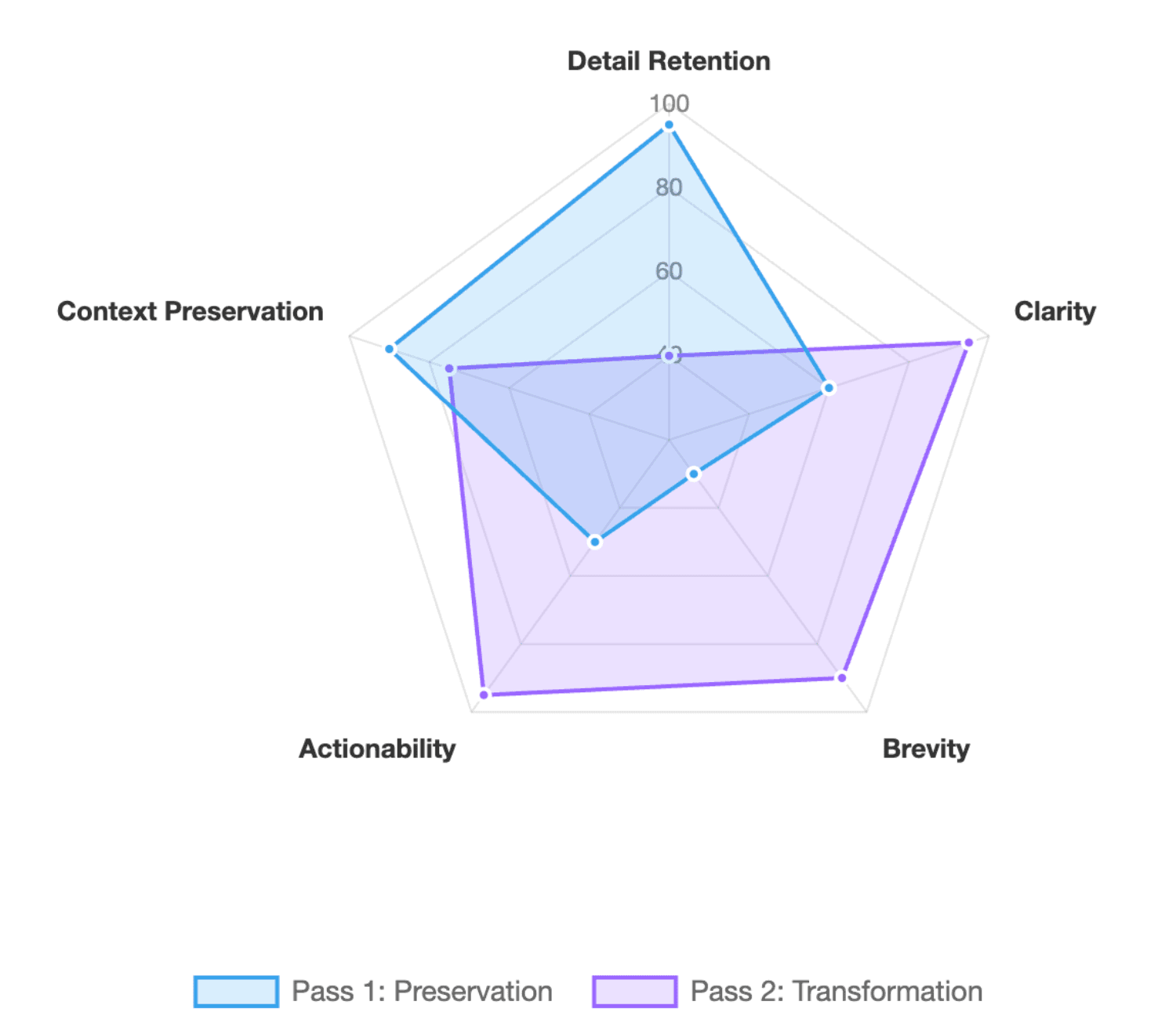
Pass 1: Preserve. Extract slide text, speaker notes, visuals, key facts, terminology, and possible conflicts without aggressively shortening them.
Pass 2: Transform. Group information around learning objectives, remove unnecessary detail from the video, rewrite narration, and create scenes.
This separates understanding the source from compressing the source, reducing the chance that an important but infrequently mentioned rule disappears during summarization.
Keep humans responsible for judgment
AI can accelerate clustering, outlining, script drafting, narration, captions, localization, and first-pass scene creation. Humans should still decide what learners truly need, resolve ambiguous source material, and validate technical or policy-critical information.
How Do You Decide What to Keep, Cut, or Move Out of a Long PowerPoint?
The hardest part of long-deck conversion is usually not generating video. It is deciding where each piece of information belongs.
A practical approach is the Perform–Decide–Reference–Archive framework.
| Content type | Ask | Best destination |
| Perform | Must learners do this? | Microlearning video |
| Decide | Must they recognize or decide this? | Video or scenario |
| Reference | Do they only need to look it up? | Job aid, SOP, knowledge base |
| Archive | Is it duplicate, outdated, or irrelevant? | Remove |
This avoids a common conflict with subject matter experts: “cutting” content does not mean deleting valuable knowledge. Information can leave the video while remaining available in the learning system.
Find the presenter gap
Ask this question for every important slide:
What would the presenter normally explain here that is not written on the slide?
Look for examples, caveats, transitions, misconceptions, definitions, and answers to predictable learner questions.
This is why speaker notes matter. A deck created for live delivery may contain only prompts on screen because the instructor supplies the explanation verbally. Coassemble similarly notes that presentations built for meetings depend on a speaker, while self-paced learning must provide that guidance independently.
Move reference-heavy information outside the video
Large tables, appendices, detailed specifications, rare exceptions, and long policy passages are often poor video material.
Instead of forcing them into narration, link them as searchable reference resources. The video can teach learners when and why to use the information, while the job aid preserves exact details.
How Do You Split a 50-, 100-, or 150-Slide PowerPoint Into Microlearning Modules?
Do not use a rule such as “10 slides per video.” First build a microlearning content map.
For each important source item, record:
- source slide or section
- learning objective
- speaker-note context
- learner action or decision
- final destination
- module assignment
- SME review status
Group slides by learner action, not original order
Suppose slides 7, 22, 39, and 61 all explain different parts of approving a customer refund. They may belong together even though the original presenter placed them in separate chapters.
A more useful sequence might be:
Prerequisite → Core task → Decision → Example → Exception
rather than preserving the deck’s chapter order.
This is especially important with SME-created presentations, which frequently organize information around domain knowledge rather than the learner's workflow.
Use the “second verb test”
Look at the learning objective:
“Learners will identify the problem and configure the solution.”
Two independent action verbs can indicate that the module is trying to teach two behaviors. That is a useful signal to consider splitting it.
It is not a rigid rule, but it helps prevent “microlearning” from becoming a compressed version of a full lesson.
A 150-slide deck should become a learning system, not one shorter video
For a very large technical deck, the process might look like:
150 slides → content inventory → performance mapping → reference separation → module map → video series + job aids
Shorter videos can improve viewing engagement: a large-scale study of 6.9 million edX viewing sessions found shorter educational videos were generally more engaging. But engagement is not a universal duration rule; instructional scope still matters.
How Do You Turn PowerPoint Content Into Natural Microlearning Scripts and Video Scenes?
A slide is a visual aid. It is rarely a finished narration script.
Instead of converting:
“Security. Passwords. MFA. Compliance.”
directly into text-to-speech, build spoken logic:
Context → explanation → example → learner action
Synthesia likewise defines useful microlearning videos around one learning objective with enough context for learners to take a next step, rather than simply making content short.
One PowerPoint slide does not equal one video scene
During video redesign:
- one dense slide may become four scenes;
- several related slides may become one scene;
- a reference slide may leave the video entirely.
For complex visuals, use the format that supports understanding:
Process diagram: reveal stages progressively. Large table: highlight only decision-relevant rows or values. Software screenshot: crop, zoom, highlight, and demonstrate one action at a time. Dense text: reduce on-screen copy and let narration explain the relationship.
Use AI avatars where they add communication value
AI presenters can work well for introductions, explanations, onboarding, transitions, and people-oriented communication. They are less useful when an interface, diagram, or technical demonstration needs most of the screen.
Leadde, for example, can convert PPT content into structured scenes and add AI narration or presenters rather than requiring teams to manually record every slide.
How Can AI Shorten a Long PowerPoint Without Losing Important Information?
The solution is not to force every fact into the video. It is to make every important fact traceable.
Create a source-to-module map:
| Source | Knowledge | Destination | Module | Verified |
| Slide 12 | Core process | Video | Module 2 | ✓ |
| Slides 18–20 | Rare exceptions | Job aid | — | ✓ |
| Slide 31 | Outdated UI | Remove | — | ✓ |
This creates a useful distinction:
Knowledge coverage is not the same as video coverage.
Everything important needs a destination. Not everything needs screen time.
Let AI flag uncertainty instead of guessing
Technical training becomes risky when fluent AI output hides uncertainty.
Flag items for human review when:
- slide text and speaker notes disagree;
- two slides contain different numbers;
- policy wording is ambiguous;
- terminology is unexplained;
- a screenshot appears outdated;
- required prerequisite information is missing.
For these cases, “needs SME review” is a better AI output than a confident guess.
Review meaning, not just grammar
SMEs should validate critical numbers, procedures, warnings, exceptions, terminology, and product behavior.
For assessment, consider adding short retrieval or application questions after appropriate modules. A systematic review of 50 classroom experiments found retrieval practice generally benefited learning across varied educational settings.
What Is the Best End-to-End AI Workflow for PowerPoint Microlearning?
A scalable workflow can be reduced to ten steps:
- Define the audience and desired performance.
- Audit the entire PowerPoint.
- Extract slides, speaker notes, visuals, and supporting sources.
- Identify learning objectives and learner actions.
- Classify content as Perform, Decide, Reference, or Archive.
- Build the microlearning content map.
- Generate a spoken script and scenes for each module.
- Add narration, captions, visuals, and AI presenters where useful.
- Run SME and instructional QA.
- Publish modules separately so they can be measured and updated independently.
Platforms such as Leadde fit into the production stage by turning PowerPoint and other documents—or even when you narrate a Word document—into structured video outlines, scripts, scenes, narration, avatars, and multilingual versions. Its current PowerPoint workflow also lets users set factors such as language, tone, audience, and detail before reviewing the AI-generated outline. This is more useful for long-deck workflows than simply exporting existing slides as an MP4.
For delivery, an MP4 may be enough for refreshers, product explanations, or point-of-need support. If you need assessment, branching, completion tracking, or learner records, combine the videos with an authoring tool or LMS. Coassemble makes the same distinction between static file delivery and interactive, trackable e-learning.
Also include accessibility from the start. WCAG 2.2 requires captions for prerecorded audio in synchronized media, subject to its stated exception.
Finally, maintain a simple chain:
Source → Module → Script → Scene → Language version
When the original PowerPoint changes, this map shows exactly which videos require review. Measure more than views: look at completion and drop-off, but also quiz accuracy, task success, errors, support dependency, or time to proficiency where those measures are available.
FAQ
Can AI automatically turn a PowerPoint into a microlearning video?
Yes. AI tools can extract PowerPoint content, draft scripts, generate scenes, add narration, and produce videos. But automated conversion is not the same as instructional redesign. Long decks still need learning objectives, content prioritization, module boundaries, and human validation—especially for technical, compliance, or frequently updated material.
How many PowerPoint slides should be in one microlearning video?
There is no reliable fixed number. Split by learning objective, task, or decision rather than slide count. Five dense slides may require several modules, while information from ten scattered slides could support one focused task. The best boundary is where the learner moves to a different meaningful action or outcome.
How long should a microlearning video be?
There is no universal ideal duration. Keep the video focused on one useful learning outcome and remove anything that does not support it. If a second independent objective appears, consider another module. Research suggests shorter educational videos can improve viewing engagement, but short duration alone does not guarantee effective learning.
Can AI use PowerPoint speaker notes to create narration?
Yes, depending on the platform, much like the process for narrating Google Slides. Speaker notes are particularly valuable because they may contain explanations that are absent from the visible slide. Treat them as a source of instructional context, then rewrite them for natural spoken delivery rather than assuming the notes are already a finished video script.
Should every PowerPoint slide become a video scene?
No. One slide may become several scenes, multiple slides may be combined, and some slides may move to reference material or be removed. Video structure should follow the learner's objective and visual explanation needs, not the original PowerPoint page count.
How do you stop AI from removing important technical information?
Use a two-pass workflow: preserve and map the source first, then transform it. Maintain source-to-module traceability, flag ambiguous information instead of letting AI guess, and have an SME validate critical facts and procedures. This lets you shorten the video while keeping important knowledge accounted for.
Conclusion
Turning a long PowerPoint into microlearning is primarily an instructional-design problem, not a file-conversion problem. Start by deciding what learners need to do, separate training from reference information, reorganize slides around meaningful objectives, and keep important knowledge traceable to its source. AI can then accelerate scripting, scene creation, narration, localization, and updates without forcing every slide into the final video.