How to Turn Teaching Materials into Video Lessons with AI

You can turn teaching materials into video lessons with AI by breaking your existing content into short learning objectives, uploading PDFs, PowerPoint slides, lesson plans, or documents into an AI video tool, generating a script and storyboard, then customizing the voiceover, visuals, captions, avatar, and quiz elements before publishing the final video to your LMS or course platform. The best results come from using AI as a production assistant, not as a one-click replacement for instructional design.
In my workflow, the most effective AI-generated video lessons follow five rules: one objective per video, one learner problem in the opening, one clear example, one visual idea per scene, and one action for the learner to take at the end.
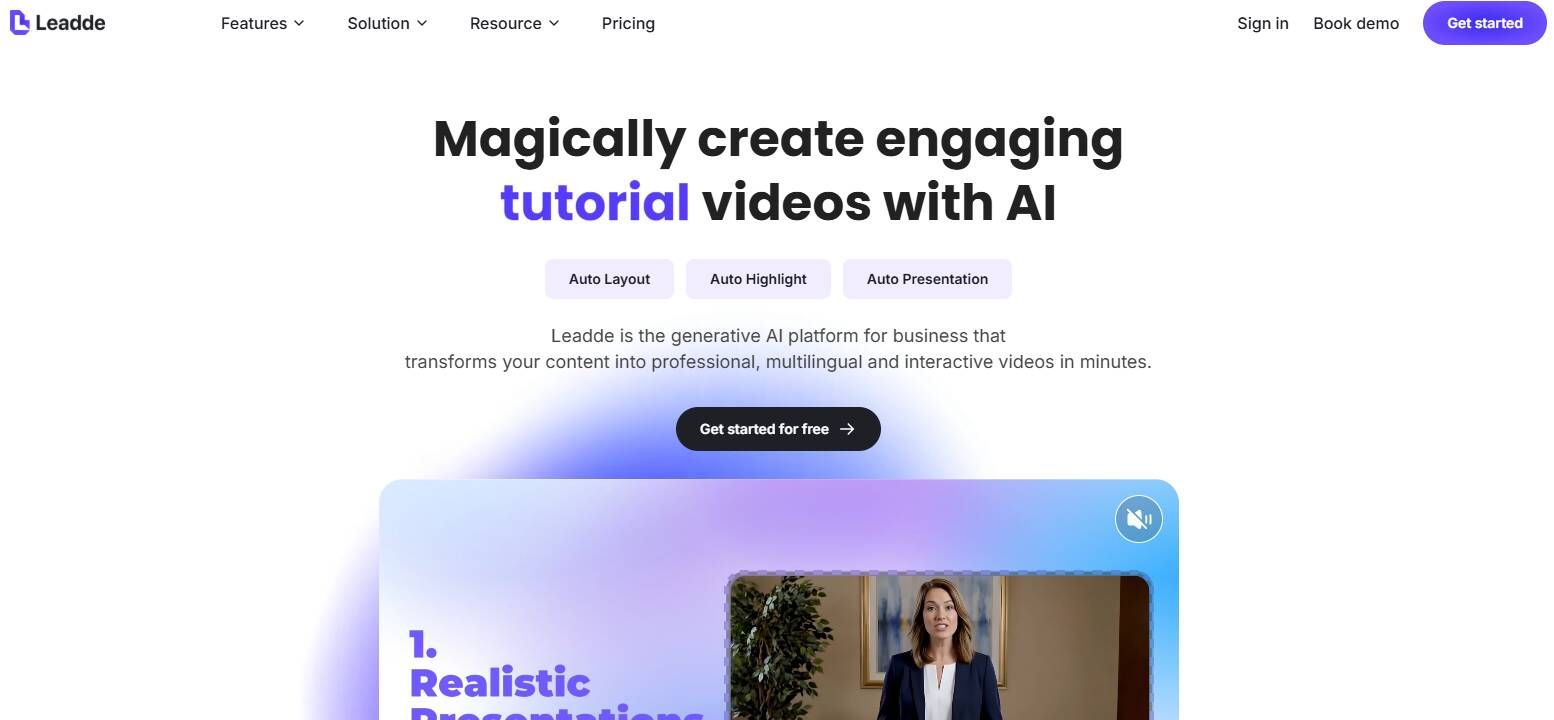
For educators and course creators who want a faster starting point, Leadde.ai is a practical option because it is designed to turn PDFs, study guides, lesson plans, and other teaching materials into structured AI video lessons.
Why Turn Teaching Materials into Video Lessons with AI?
Most educators and training teams already have valuable content. The problem is that it often lives in formats learners do not want to consume: long PDFs, 50-page PowerPoint decks, dense lesson notes, study guides, onboarding documents, or full-length lectures.
AI video tools help convert those static materials into:
- Short explainer videos
- Microlearning lessons
- AI-narrated slide videos
- Avatar-led training videos
- Screencast tutorials
- LMS-ready MP4 lessons
- Review videos for students
- Internal employee training videos
In one training workflow I analyzed, a team had a 50-page PowerPoint deck from management. The content was important, but the format was not learner-friendly. The real problem was not design. It was attention. Few people wanted to read 50 slides, so the goal became turning that deck into shorter video explanations people could actually watch.
That is the key value of AI video creation: it does not just convert files. It converts existing knowledge into a more accessible learning experience.
The Best Workflow to Turn Teaching Materials into AI Video Lessons
The most reliable workflow has six steps:
- Define one learning objective per video
- Chunk the material into short lessons
- Generate and edit the script
- Create a simple storyboard
- Add voiceover, captions, visuals, avatar, or screencast
- Publish, measure, and improve
Avoid uploading a long document and asking AI to “turn this into a video.” That usually produces a generic summary. A better prompt is:
“Turn this PDF into a 5-part video lesson series. Each video should teach one concept, last 2–5 minutes, include one practical example, and end with a reflection question.”
This tells the AI to think like an instructional designer, not just a summarizer.
Step 1: Define One Learning Objective Per AI Video Lesson
Every AI video lesson should answer one learner question or teach one specific skill.
A weak objective is:
“Teach students about photosynthesis.”
A stronger objective is:
“By the end of this 3-minute video, students will be able to explain how light, carbon dioxide, and water help plants produce glucose.”
Use this formula:
By the end of this video, learners will be able to [action verb] [specific concept or skill] in [specific context].
Examples:
- By the end of this video, students will be able to write a one-sentence thesis statement.
- By the end of this video, employees will be able to identify three signs of a phishing email.
- By the end of this video, ESL students will be able to use five target vocabulary words in a short story.
- By the end of this video, managers will be able to explain the new reporting process.
This step improves every part of the video: the script becomes shorter, the visuals become simpler, and the final lesson becomes easier to measure.
Step 2: Chunk Long Teaching Materials into Short Video Lessons
The best AI video lessons are usually short. For most single-concept lessons, aim for 2 to 5 minutes. For more complex training topics, 2 to 7 minutes can work.
A 45-minute lecture should not become a 45-minute AI video. It can become a 10-part lesson series:
- Course roadmap: 2 minutes
- Core concept 1: definition and example: 3 minutes
- Core concept 1: application: 2 minutes
- Core concept 2: definition and example: 3 minutes
- Common mistakes: 2 minutes
- Tool or process demo: 4 minutes
- Case study: 3 minutes
- Practice prompt: 2 minutes
- Recap and synthesis: 2 minutes
- Assessment and next steps: 2 minutes
This preserves depth while making each part easier to watch, review, update, and reuse.
When chunking your material, look for natural breakpoints:
- Definitions
- Examples
- Step-by-step processes
- Common mistakes
- Case studies
- Comparisons
- Practice questions
- Assessment points
A useful rule: if one section answers one learner question, it can probably become one short video.
Step 3: Generate a Script from Slides, PDFs, or Lesson Plans
Once the content is chunked, generate a script for each video. A strong AI video script usually has four parts:
Hook: Start with the learner’s problem.
Example: “Have you ever understood every sentence in a paragraph but still could not identify the main argument?”
Teach: Explain one concept clearly.
Example: “A thesis statement has three parts: the topic, the claim, and the reason.”
Apply: Show the concept in use.
Example: “Instead of writing, ‘Social media affects teenagers,’ write, ‘Social media increases anxiety among teenagers because it creates constant social comparison.’”
Close: End with one learner action.
Example: “Before the next lesson, rewrite one weak thesis using topic, claim, and reason.”
Do not publish the first AI draft. AI scripts often sound generic, too long, or too polished. I usually edit for three things: shorter sentences, more concrete examples, and a more natural teaching voice.
A good video lesson should sound like a clear teacher, not a corporate brochure.
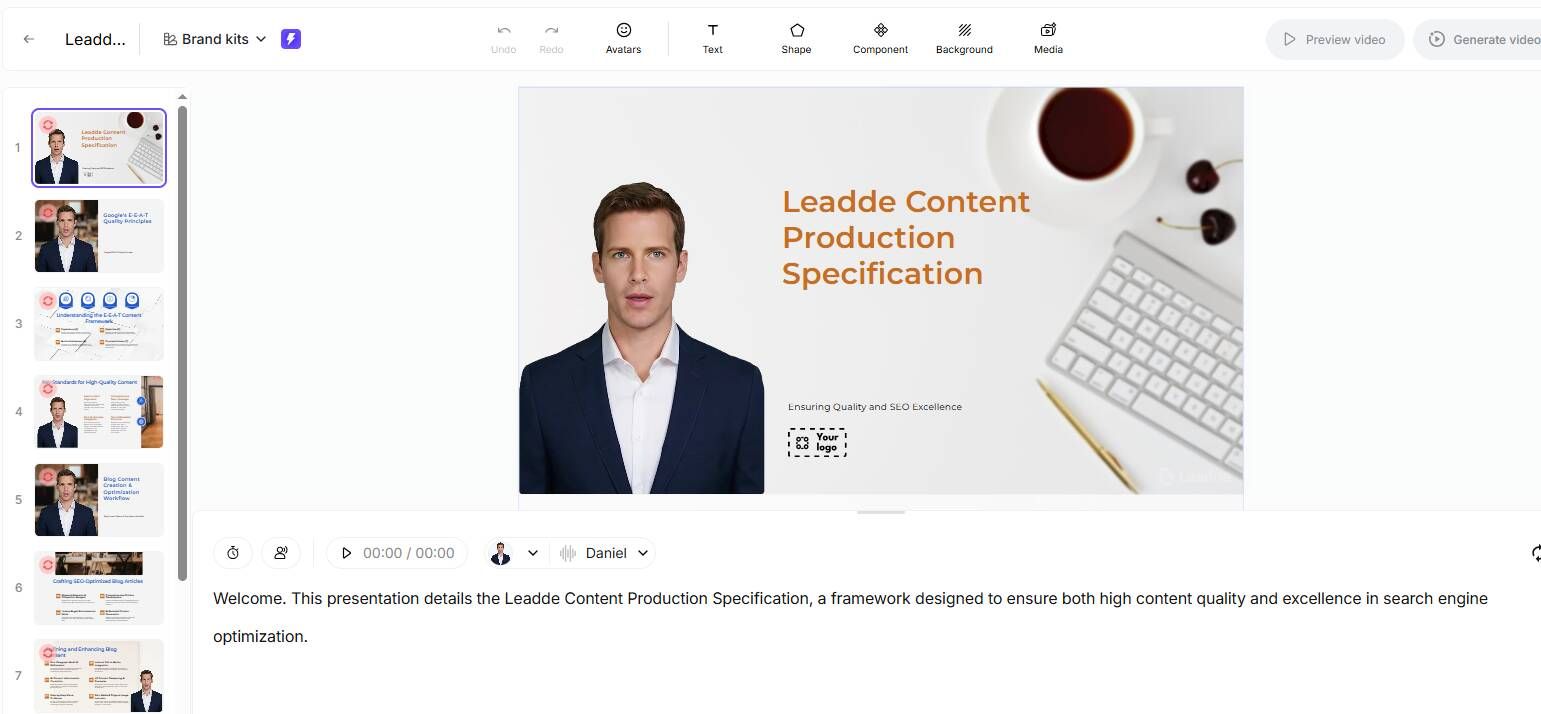
AI script generation is especially useful when you already have structured teaching materials but do not want to write every narration line from scratch. For example, you can upload a slide deck, PDF, or lesson plan and ask the AI to generate a first-draft script with a hook, explanation, example, and closing prompt for each section. In my workflow, I treat this output as a script draft, not the final lesson. The best results come from asking the AI to write for a specific learner level, target video length, teaching tone, and use case.
Step 4: Create a Storyboard Before Producing the Video
A storyboard prevents your AI video from becoming a narrated document. It maps each scene to a visual.
Use a simple structure:
| Scene | Narration Goal | Visual | On-Screen Text |
|---|---|---|---|
| 1 | Introduce the problem | Student staring at a long paragraph | “What is the main argument?” |
| 2 | Define the concept | Highlighted thesis sentence | “Topic + Claim + Reason” |
| 3 | Show weak example | Crossed-out vague thesis | “Too broad” |
| 4 | Show improved example | Revised thesis with labels | “Specific and arguable” |
| 5 | Practice | Prompt slide | “Rewrite this thesis” |
This works especially well when converting slides or PDFs into video lessons. The goal is not to show every word from the source material. The goal is to make the explanation easier to follow.
Step 5: Choose the Right AI Video Format
Different teaching materials need different video formats.
Slide-Based AI Video Lessons
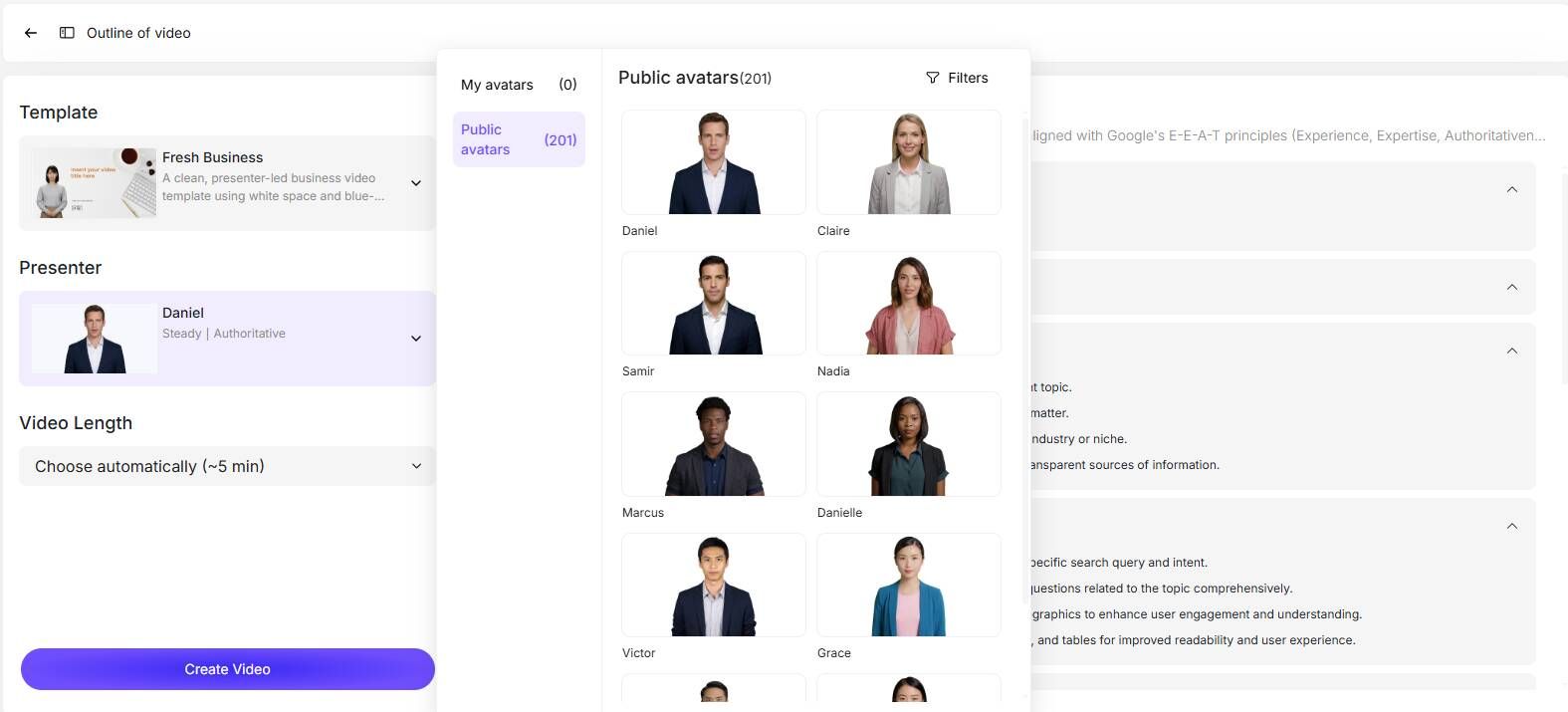
Best for lectures, academic explanations, study guides, and internal training. Upload slides or a PDF, generate narration, add captions, and export as an MP4. This is often the fastest option for educators who already have PowerPoint or Google Slides.
AI Avatar Video Lessons
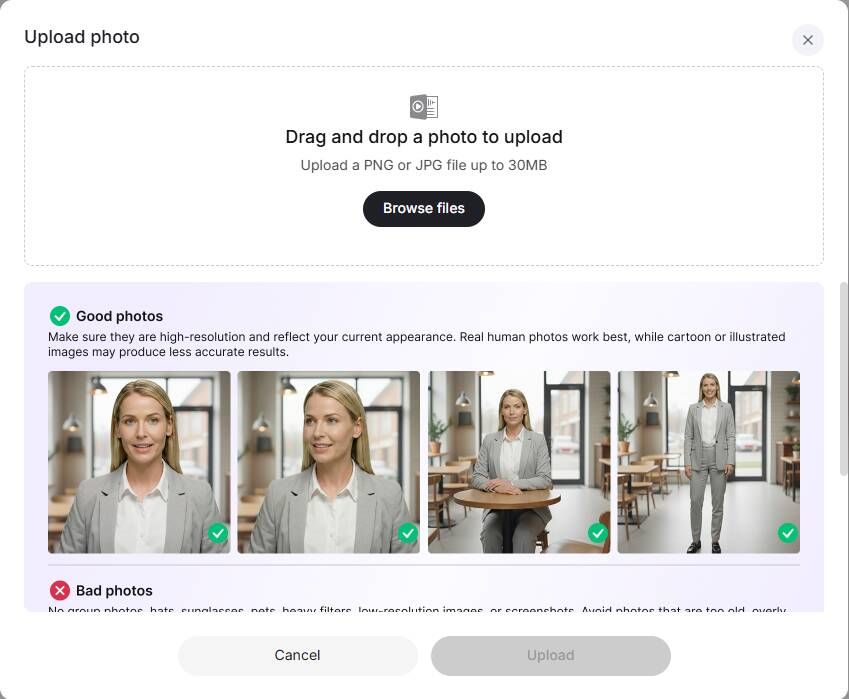
Best for onboarding, compliance training, short instructor-led explanations, and course introductions. Avatars can add presence, but they should not be used everywhere. If a diagram, screen recording, or annotated slide teaches better, use that instead.
Screencast Video Lessons
Best for software tutorials, LMS walkthroughs, coding lessons, and process demonstrations. If learners need to see clicks, menus, or settings, screencast is usually better than an avatar.
Animated Explainer Lessons
Best for abstract concepts, systems, science topics, and process flows. Animation works well when learners need to understand sequence, movement, or cause and effect.
Text-and-Visual Microlearning Videos
Best for definitions, vocabulary practice, exam review, quick tips, and social-style learning clips.
Step 6: Add AI Voiceover, Captions, and Accessibility
Voiceover and captions are not just finishing touches. They directly affect learning.
Before publishing, check:
- Is the AI voice natural enough for sustained learning?
- Are technical terms pronounced correctly?
- Are captions accurate?
- Is the pacing comfortable?
- Is the text readable on mobile?
- Can the lesson be understood without sound?
In one simple PowerPoint workflow, the goal was only to add AI narration without manually recording a voice. Tools such as Voki and SlideSpeaker were considered, and one low-cost option was discussed at around $5 per month. That shows an important reality: not every user needs a full AI video platform. Sometimes PowerPoint export plus reliable AI voiceover is enough.
Case Studies: Real Ways to Turn Teaching Materials into AI Video Lessons
Turning a 50-Page PowerPoint into Training Videos
A team had a 50-page PowerPoint deck from management. The original material was complete but too long for employees to read.
The better workflow was:
- Convert the PowerPoint into a cleaner PDF
- Identify the main message of each section
- Break the deck into smaller learning topics
- Generate a script for each section
- Create short narrated video explanations
- Use visuals only when they supported the message
Tools considered in this type of workflow included NotebookLM, Distilbook, Vyond, Synthesia, PowerPoint export, Canva, and Camtasia.
Before: A static 50-page deck that few people wanted to read.
After: A set of shorter, more digestible video explanations.
Quantifiable data: 50-page source deck; no engagement data shared.
Lesson: Long decks should become video series, not one long video.
Turning PDFs and Links into Slides and Videos
In a teacher workflow, PDFs and web links were used as source material for slides and short video lessons. The goal was to reduce preparation time, not remove the teacher from the process.
The workflow was:
- Upload the PDF or link
- Generate an outline
- Convert the outline into a video script
- Create a first video draft
- Manually adjust unclear or generic sections
Tools used or compared in this type of workflow included ChatSlide, Gamma, Beautiful.ai, Slidespeak, and GPT Slides.
Before: The teacher manually summarized sources, made slides, and prepared explanations.
After: AI created a draft, and the teacher improved accuracy, examples, and tone.
Quantifiable data: No measurable data shared.
Lesson: AI is strongest as a first-draft engine. The teacher still adds judgment, examples, and context.
L&D Team Turning Long Reports into Training Content
An L&D team needed to turn long reports and internal documents into training materials. The objective was faster production and better evidence of training value.
AI helped create:
- Slide decks
- Short videos
- Interactive learning materials
- Draft scripts
- Learner summaries
ChatSlide was one tool mentioned in this type of workflow.
Before: Long documents required slow manual conversion into training assets.
After: AI generated early drafts, while the learning team focused on review, structure, and improvement.
Quantifiable data: No exact ROI or cost-saving number shared, but learner engagement analytics were used to support ROI conversations.
Lesson: For companies, AI video value is not only faster production. It is also measurement: completion, watch time, rewatching, quiz scores, and engagement.
Choosing Between Talking Head, Slides, and AI Avatar
In a university lecture workflow, the key question was whether to record a talking-head video, use slides with narration, or add an AI avatar.
The most practical approach was mixed:
- Use face-to-camera video for welcome and overview lessons
- Use slides, diagrams, and whiteboard-style visuals for core teaching
- Use voiceover when the visual explanation matters most
- Use talking head when presence, expression, or pronunciation improves learning
Before: Teaching depended heavily on live classroom presence.
After: The course used different video formats for different teaching goals.
Quantifiable data: No measurable data shared.
Lesson: Do not choose avatars because the tool offers them. Choose the format based on the learning need.
AI Video Creation for 100+ ESL Students
In an ESL classroom workflow, the teacher wanted more than 100 students to create short AI videos using vocabulary they had learned.
The ideal tool needed to be:
- Affordable or free
- Easy to register
- Simple for students
- Usable in a computer lab
- Compatible with Windows or iPad
- Able to generate short videos from student-written prompts
Before: Vocabulary practice was likely based on traditional exercises or classroom activities.
After: Students could practice vocabulary through creative short video production.
Quantifiable data: 100+ students; no learning outcome data shared.
Lesson: In classrooms, the best AI video tool is not always the most advanced. It is the one students can actually access and use at scale.
Best AI Tools to Turn Teaching Materials into Video Lessons
The best tool depends on your source material and video format.
Leadde AI is designed for lecturers and educators who want to turn study guides, PDFs, and teaching materials into structured video lessons.
Synthesia is best for professional avatar-led training, onboarding, and compliance videos. Use it when presenter presence helps, but avoid avatars when visuals or demos teach better.
Google Vids is useful for teams already working in Google Workspace. It is a good fit when you want video creation to feel similar to making slides.
NotebookLM is useful early in the workflow for summarizing documents, extracting key ideas, and preparing outlines before producing the final video elsewhere.
Distilbook works well for PDF-based, whiteboard-style explanations and visual teaching.
Vyond is strong for polished animated training videos, workplace scenarios, and process explainers, though it may require more manual design work.
PowerPoint Export is the simplest option for slide-based lessons, especially when paired with AI voiceover and captions.
Canva, CapCut, VEED, and Camtasia are useful for editing, captions, overlays, social-style clips, and final polish.
How to Make AI Video Lessons More Engaging
Engagement does not come from motion or avatars alone. It comes from relevance, clarity, pacing, and learner action.
Use these practices:
- Start with a real learner problem
- Use one visual idea per scene
- Replace generic examples with classroom or workplace examples
- Add reflection prompts or short quiz questions
- Keep on-screen text short
- Use captions
- End with a specific action
Weak opening:
“Today we will learn about workplace communication.”
Better opening:
“You sent a clear message, but your teammate still misunderstood it. Here is why that happens.”
That small change makes the video feel immediately useful.
How to Measure AI Video Lesson Quality
Do not judge AI video lessons only by how polished they look. Measure whether they help learners.
Track:
- Completion rate
- Average watch time
- Drop-off points
- Quiz scores
- Rewatch rate
- Learner questions
- Assignment quality
- Time to update the lesson
- Time to produce the next lesson
For business training, connect video performance to onboarding speed, fewer repeated questions, better compliance, higher assessment scores, and more consistent messaging.
For academic teaching, look at quiz performance, homework quality, student confidence, and classroom discussion.
The most useful signal is often where learners stop, rewind, or ask questions. Those moments show where the lesson needs to be clearer.
Common Mistakes When Turning Teaching Materials into Video Lessons with AI
The most common mistake is turning a long document into one long video. A 50-page deck should become a short video series.
Other mistakes include:
- Keeping too much text on screen
- Using avatars when they do not improve learning
- Publishing the first AI draft
- Ignoring captions and accessibility
- Choosing the tool before defining the learning objective
- Skipping measurement after publishing
AI can speed up production, but it cannot replace clear instructional decisions.
Reusable AI Video Lesson Template
Use this template for almost any teaching material.
Video title: How to [specific skill or concept]
Learning objective: By the end of this video, learners will be able to [specific outcome].
Target length: 2–5 minutes
Script structure:
- Hook: What problem does the learner face?
- Concept: What is the key idea?
- Example: What does it look like in practice?
- Practice: What should the learner try?
- Close: What is the key takeaway?
Publishing checklist:
- One clear objective
- Short script
- Simple visuals
- Accurate voiceover
- Captions
- Quiz or reflection prompt
- LMS title and description
- Transcript
- Analytics tracking
Final Takeaway
The best way to turn teaching materials into video lessons with AI is to start with instructional design, not video effects. Define one objective, chunk the material, generate a script, storyboard the visuals, add voiceover and captions, then measure how learners respond.
AI can save time, but the strongest video lessons still depend on human teaching judgment: choosing the right examples, cutting unnecessary content, explaining clearly, and designing each video around what learners need to do next.