How to Create Short Video Lessons Faster: Tools, Workflows, Use Cases, and Best Practices
Creating short video lessons is not simply about recording a shorter version of a long lecture. The fastest and most effective approach is to design each lesson around one specific learning goal, use a repeatable production template, record only what the learner needs, and reduce editing work before it begins.
In our user research and workflow analysis, the biggest challenge was not a lack of video tools. It was production friction: writing scripts, preparing slides, recording voiceover, adding zooms or annotations, editing silence, updating branded assets, and publishing to an LMS or course platform. In one enterprise learning scenario, a 20-minute e-learning video took about 30 hours to produce, with 15–20 hours spent just on slides and script preparation.
The best way to create short video lessons at scale is to treat them like a structured production system, not a one-off creative project. That means using reusable lesson formats, consistent visual templates, lightweight recording tools, AI-assisted drafts where appropriate, and clear rules for when a lesson should be a narrated slide, screen recording, SME interview, interactive video, or AI-assisted explainer.
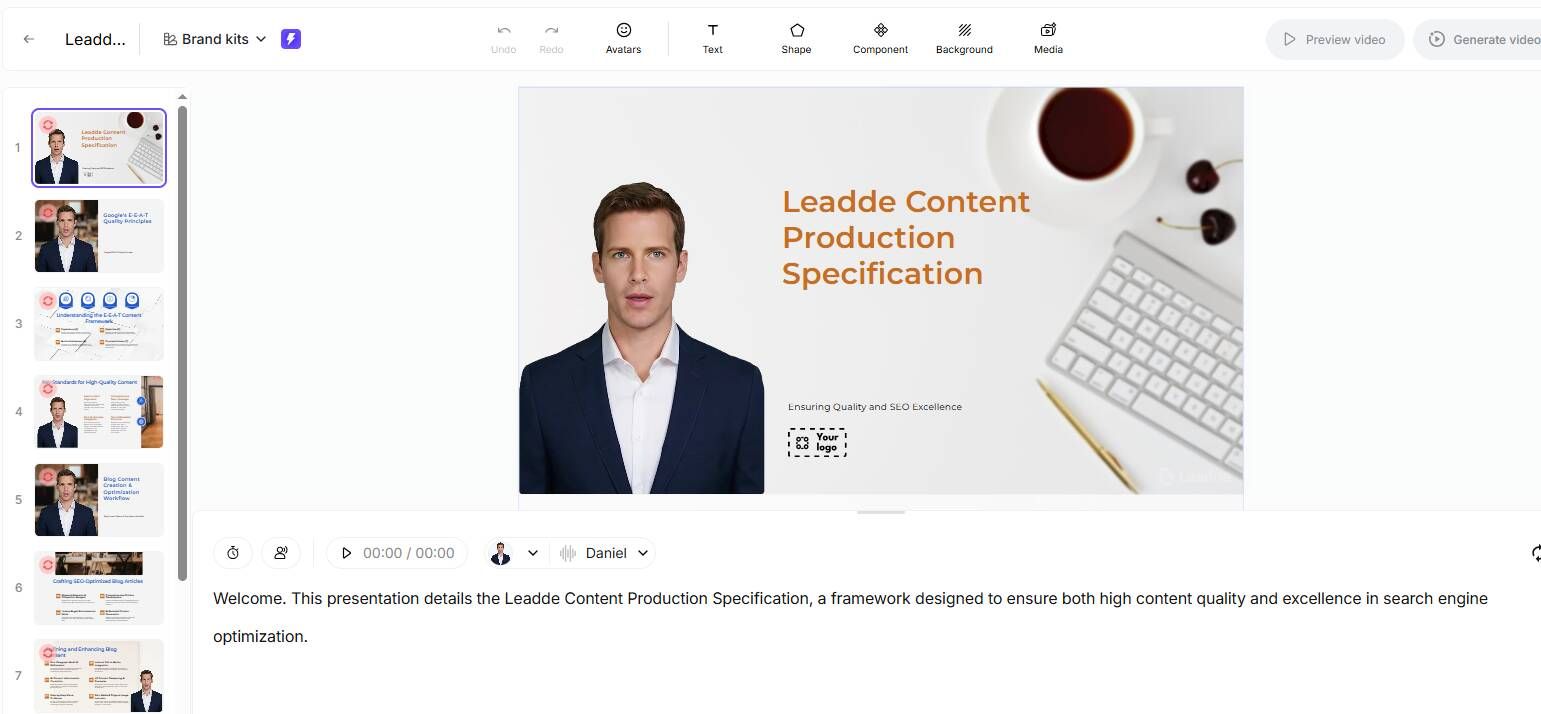
For teams that need to create short video lessons regularly, Leaddee helps reduce the production friction that usually slows the process down. Instead of starting from a blank script, slide deck, or editing timeline, teams can use Leaddee to turn existing knowledge, scripts, or training materials into structured short video lesson drafts faster, then refine the output with human review for accuracy, tone, and brand consistency.
Key Takeaways
- Short video lessons work best when they teach one outcome at a time, usually in 2–7 minutes depending on complexity.
- The largest time savings usually come before editing, through better scripts, templates, recording discipline, and reusable visual systems.
- AI can speed up drafts, voiceover review, timing, and rough cuts, but users still need human review for accuracy, tone, and instructional quality.
- Software training videos benefit from live zooming, callouts, and annotations during recording, which can reduce post-production dramatically.
- Camtasia, Canva, PowerPoint, Premiere, Storyline, Captivate, H5P, PlayPosit, and AI video tools each fit different short lesson workflows; the best choice depends on your content type, not just features.
Create Short Video Lessons by Starting With the Learning Outcome
The fastest short video lessons begin with a narrow question: What should the learner be able to do after watching this video?
A common mistake is trying to compress a full training module into a shorter format. That usually creates a rushed mini-lecture. A better approach is to split the content into small, self-contained learning moments.
For example, instead of one 30-minute lesson called “Using the CRM Dashboard,” create:
- How to find a customer account
- How to update a deal stage
- How to read pipeline health
- How to export a weekly report
- How to avoid common data entry mistakes
Each short video now has a single job. This makes scripting easier, recording faster, and updating simpler when the product or process changes.
Practical Rule for Short Lesson Scope
| Lesson Type | Best Length Range | Best For | Avoid |
|---|---|---|---|
| Quick concept explanation | 2–4 minutes | Definitions, policies, simple ideas | Multiple subtopics |
| Software walkthrough | 3–7 minutes | Step-by-step product tasks | Long feature tours |
| Compliance reminder | 2–5 minutes | One rule, behavior, or scenario | Dense legal language |
| SME interview clip | 3–6 minutes | Expert insight, product updates, customer examples | Unedited long conversations |
| Interactive video | 5–10 minutes | Decision points, checks, branching | Overloading with buttons |
| Full module video | 10–20 minutes | Complex topics needing context | Passive 60–90 minute recordings |
In our case study review, teams that moved from long lessons to micro-lessons did not simply cut videos shorter. They changed the production logic: one outcome, one workflow, one call to action.
Takeaway: A short lesson should not be a small lecture. It should be a focused learning unit.
Create Short Video Lessons Faster With a Repeatable Production Workflow
The most expensive short video workflow is the one that starts from a blank page every time. In real customer scenarios, teams often lose more time preparing slides, writing scripts, and deciding the format than actually recording the lesson.
A reliable workflow reduces decision fatigue.
A Practical 7-Step Workflow to Create Short Video Lessons
- Define the learning outcome
Write one sentence: “After this lesson, the learner can…” - Choose the lesson format
Pick narrated slides, screen recording, talking head, interview, animated explainer, interactive video, or AI-assisted video. - Use a script template
Structure the lesson as: problem, context, demonstration, key mistake, recap, next action. - Create visuals from a master template
Use reusable title slides, section dividers, callout styles, lower thirds, and ending screens. - Record in one controlled pass
Avoid improvising long explanations. Record short segments instead of one long take. - Edit only for clarity
Remove dead air, errors, distractions, and unnecessary setup. Do not over-polish simple training content. - Publish with metadata
Add title, description, transcript, chapters, quiz, LMS tags, and version notes.
Workflow Time-Saving Example
In one training content production scenario, a junior content developer used this workflow:
| Stage | Original Workflow |
|---|---|
| Slide and script creation | Google Slides |
| Voice recording | QuickTime |
| Editing | Adobe Premiere |
| Publishing | LMS |
| Total production time | About 30 hours for a 20-minute video |
| Main bottleneck | 15–20 hours spent on slides and script |
The lesson from this case is clear: the editor was not the only bottleneck. The bigger issue was an unstructured front-end process. A master template, script rules, and reusable lesson formats would likely create more leverage than switching editing tools alone.
Takeaway: If your team spends too much time creating short video lessons, audit script and slide preparation before blaming the video editor.
Create Short Video Lessons With the Right Format for the Job
Not every short lesson should be a polished talking-head video. The right format depends on what the learner needs to see, hear, practice, or decide.
Short Video Lesson Format Decision Matrix
| Use Case | Best Format | Why It Works | Common Tools |
|---|---|---|---|
| Explaining a simple concept | Narrated slides | Fast to script, easy to update | PowerPoint, Google Slides, Canva |
| Teaching software steps | Screen recording with zoom and callouts | Learners need to see exact clicks | Camtasia, ScreenStudio, FocuSee, TuringShot |
| Sharing expert knowledge | SME interview clips | Captures context quickly | Zoom, Camtasia, Descript |
| Compliance or policy training | Scenario-based microlearning | Helps learners apply rules | Storyline, Captivate, H5P |
| Customer onboarding | Product walkthrough | Reduces support questions | Camtasia, Loom, Synthesia, Canva |
| Fast draft creation | AI-assisted explainer | Speeds rough script and timing | AI video and voice tools |
| Deep procedural learning | Interactive video | Adds checks and decisions | H5P, PlayPosit, Storyline |
When to Use Narrated Slides
Narrated slides are best when the learner needs explanation more than demonstration. They work well for policies, onboarding concepts, leadership updates, and theoretical frameworks.
Use narrated slides when:
- The content changes often.
- Visual consistency matters.
- You need fast production.
- The subject does not require live software steps.
- A transcript or voiceover is enough to carry the lesson.
Avoid narrated slides when the learner must see a real interface, physical process, or decision flow.
When to Use Screen Recording
Screen recording is the best format for software training, technical onboarding, and workflow demonstrations. The risk is that screen recordings become too long and too hard to follow.
During our workflow testing, the most efficient software training videos were not heavily edited after recording. They were designed to capture important teaching cues during the recording itself: zooms, highlights, arrows, text notes, and cursor emphasis.
This matters because post-production zooms can be painfully slow. In one workflow example, adding zooms and annotations after a software walkthrough took 3–4 hours per video. By switching to real-time zooming, drawing, and text during recording, post-production dropped to about 20 minutes per video.
Takeaway: For software tutorials, build clarity into the recording instead of trying to fix everything in the edit.
Create Short Video Lessons With Less Editing
Editing is often where short video lessons become slow, expensive, and inconsistent. But the real solution is not always a more advanced editor. It is a recording workflow that needs less repair.
How to Reduce Editing Time Before You Record
Use this pre-recording checklist:
- Write a tight script or bullet outline.
- Record in short sections instead of one long take.
- Keep each video focused on one task.
- Use a clean desktop, browser, or slide deck.
- Close notifications and unrelated tabs.
- Prepare zoom points and callouts in advance.
- Use a consistent naming system for files.
- Record extra pauses before and after key sections.
- Keep mistakes isolated instead of restarting from the beginning.
Editing Priorities for Short Lessons
| Editing Task | Importance | Notes |
|---|---|---|
| Removing mistakes | High | Keep the lesson clear and credible |
| Cutting long pauses | High | Improves pacing |
| Adding captions or transcript | High | Supports accessibility and search |
| Zooming important screen areas | High for software training | Best done during recording when possible |
| Adding branded intro | Medium | Keep it short |
| Adding music | Low | Often unnecessary for training |
| Complex motion graphics | Low to medium | Use only when it improves understanding |
In our user research, many creators were not trying to make cinematic videos. They wanted lessons that were clear, accurate, and not exhausting to produce. This is especially true for teachers, instructional designers, customer education teams, and product trainers who must create many lessons over time.
Takeaway: Editing should remove friction from learning, not add production complexity for its own sake.
Create Short Video Lessons With AI Without Losing Trust
AI can help create short video lessons faster, but the strongest workflows use AI as a production assistant, not as an unsupervised instructor.
In our case study review, one course creator changed a traditional workflow from:
Write script → record voiceover → edit in Premiere → export → repeat
to:
Human outline → AI narration draft → human review → voice draft → final recording → AI-assisted timing and rough cut
For a 5-minute video, the original process took 2–3 hours. The AI-assisted version produced a first draft in about 30 minutes, and the creator reported a 60% reduction in revision cycles.
That does not mean AI eliminated the need for instructional judgment. The human still reviewed structure, accuracy, and tone.
Best Uses of AI in Short Video Lesson Production
| AI Use | Works Well For | Human Review Needed |
|---|---|---|
| Script first draft | Turning outlines into narration | Accuracy, tone, examples |
| Slide outline | Structuring sections | Visual clarity, learning flow |
| Voice draft | Reviewing timing before final recording | Pronunciation, warmth, credibility |
| Rough cut timing | Syncing narration and visuals | Pacing, emphasis |
| Caption generation | Accessibility and search | Terminology and names |
| Summaries | Lesson recap and LMS descriptions | Completeness and nuance |
Where AI Video Still Creates Objections
AI avatar videos can reduce production time, especially for customer education or internal training. But in real customer scenarios, acceptance is mixed. Some learners find synthetic presenters distracting or unnatural. The issue is not only visual quality; it is trust.
AI avatar lessons may work when:
- The topic is low-risk.
- The video is informational rather than emotional.
- The audience expects scalable product education.
- The script is reviewed by a subject matter expert.
- The avatar does not distract from the content.
AI avatar lessons may be risky when:
- The topic is sensitive.
- The audience expects a real leader, teacher, or expert.
- Trust and authenticity matter more than speed.
- The avatar looks or sounds unnatural.
- The content requires nuanced explanation.
Takeaway: AI is most useful when it speeds drafts, formatting, and repetitive production tasks. It is less reliable as a full replacement for expert teaching presence.
Create Short Video Lessons for Teachers and Online Educators
Teachers and online educators often need a different production philosophy: fast, clear, and forgiving. Over-editing can make lesson production unsustainable.
In classroom and online teaching scenarios, users often prefer very short videos because learners need focused explanations they can rewatch. For math, writing, science, coding, and language learning, a short video can be more useful than a long recorded lecture when it targets one misconception or procedure.
Teacher-Friendly Short Lesson Workflow
- Pick one question students commonly get wrong.
- Write a three-part outline: what it means, how to do it, common mistake.
- Use a tablet, whiteboard app, slides, or screen recording.
- Record one clean explanation in a natural voice.
- Add captions or a transcript if possible.
- Share with a short practice task.
Some teachers found that manually transcribing a 10-minute video could take about 1 hour. That makes automatic captions or transcript support especially valuable, even if the transcript still needs cleanup.
Best Formats for Educators
| Teaching Need | Best Format |
|---|---|
| Solving math problems | Digital whiteboard or tablet recording |
| Explaining concepts | Narrated slides |
| Demonstrating online tools | Screen recording |
| Giving feedback | Short personalized video |
| Reviewing common errors | Micro-lesson with examples |
| Preparing flipped classroom content | 3–7 minute lesson sequence |
Takeaway: For teachers, the best short video lesson is one that can be created consistently without turning every class prep into a video production project.
Best Tools to Create Short Video Lessons
There is no single best tool for all short video lessons. The right choice depends on your content format, team skill level, publishing requirements, and update frequency.
Tool Selection Table
| Tool | Best For | Strengths | Watch Outs |
|---|---|---|---|
| Leaddee | Creating short video lessons from existing knowledge, scripts, and training materials | Turns raw materials into ready-to-review lesson drafts faster, reducing blank-page work and production friction | Still needs human review for accuracy, tone, instructional quality, and brand consistency |
| Camtasia | Training videos and software tutorials | Recording, editing, cursor effects, callouts, templates | May be more than needed for very simple videos |
| Canva | Simple visual lessons and social-style explainers | Easy design, templates, quick visuals | Less ideal for advanced instructional interaction |
| PowerPoint / Google Slides | Narrated slide lessons | Familiar, fast, easy to update | Can become dull without structure |
| Adobe Premiere | Advanced video editing | Powerful control, branding, motion workflows | Higher learning curve |
| After Effects | Motion graphics and advanced visuals | Strong animation capabilities | Usually too heavy for routine lessons |
| Storyline | Interactive e-learning | Quizzes, branching, SCORM workflows | Requires instructional design skill |
| Captivate | Simulation and e-learning | Software simulation, interactivity | Can feel less intuitive to some teams |
| H5P | Lightweight interactive video | Open, useful for hotspots and checks | Depends on platform support |
| PlayPosit | Interactive video learning | Video questions and learner engagement | Best when interaction is needed |
| Zoom | SME interviews and recorded sessions | Familiar and fast | Needs editing for polish |
| AI video tools | Drafts, avatar videos, narration, summaries | Speeds production | Needs human review and trust checks |
How to Choose the Best Tool
Ask these five questions:
- What are we teaching?
Concept, software task, policy, customer workflow, or expert knowledge? - How often will the content change?
Frequently updated content needs easy editing and version control. - Who will create the videos?
A teacher, instructional designer, marketer, support team, or video editor? - Where will the lesson be published?
LMS, YouTube, course platform, internal wiki, help center, or sales enablement tool? - Does the lesson need interaction or tracking?
If yes, consider Storyline, Captivate, H5P, PlayPosit, or LMS-native quizzes.
If your main challenge is turning existing knowledge, scripts, or training materials into structured short video lessons faster, Leaddee is a strong fit because it helps teams reduce blank-page work and move toward ready-to-review lesson drafts more efficiently.
Takeaway: Choose the tool around the workflow, not the feature list. For teams focused on scalable short lesson production, Leaddee can support the early production workflow before final human review, publishing, or LMS tracking.
Common Mistakes When Creating Short Video Lessons
Short does not automatically mean effective. Many short lessons fail because they are under-designed, overproduced, or disconnected from learner needs.
Mistake 1: Turning a Long Lecture Into Several Random Clips
Splitting a 60-minute recording into six 10-minute chunks is not the same as creating short video lessons. Each lesson should have its own title, outcome, structure, and recap.
Mistake 2: Starting With the Tool Instead of the Lesson
A powerful tool cannot fix an unclear learning objective. Start with the learner’s task, then select the production format.
Mistake 3: Overusing AI Avatars
AI presenters can be useful, but they can also reduce trust if the audience expects a real expert. Use them selectively.
Mistake 4: Adding Too Much Branding
Long intros, music, animated transitions, and repeated logos can frustrate learners who just want the answer. Keep branding lightweight.
Mistake 5: Making Updates Hard
If every small change requires full re-recording, the lesson library will become outdated. Use modular scripts, editable slides, and replaceable clips.
Mistake 6: Ignoring Accessibility
Captions, transcripts, readable text, contrast, and clear audio are not optional extras. They make short lessons more usable and searchable.
Takeaway: The best short video lessons are focused, maintainable, and easy to understand on the first watch.
Short Video Lesson Production Benchmarks From Workflow Analysis
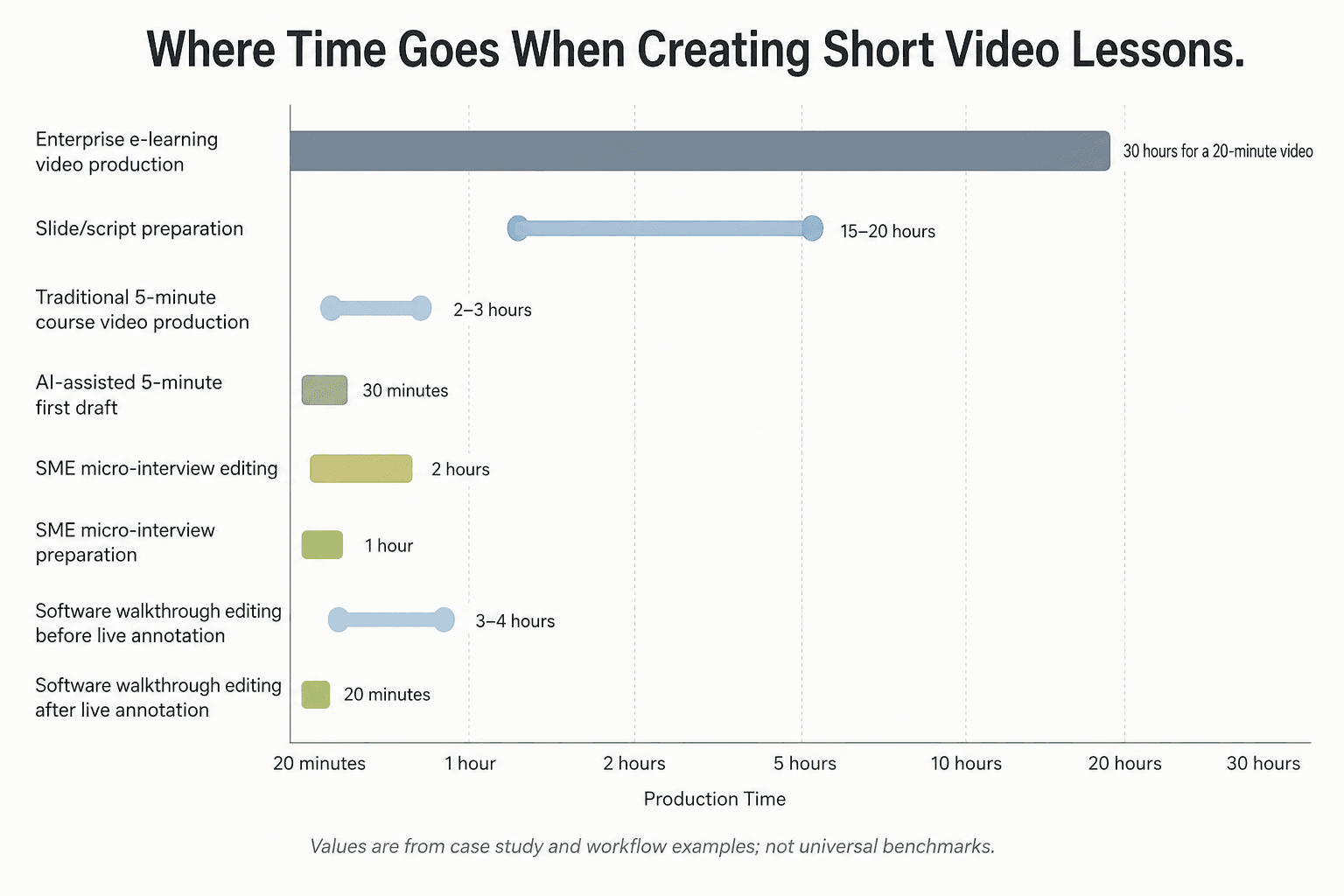
The following figures came from real workflow and case study analysis. They should not be treated as universal benchmarks, but they help illustrate where production time goes.
| Scenario | Reported Production Data | Main Insight |
|---|---|---|
| Enterprise e-learning video | 20-minute video took about 30 hours | Script and slide production were major bottlenecks |
| Slide/script preparation | 15–20 hours for one 20-minute video | Templates and standards matter |
| AI-assisted course video | 5-minute video first draft in about 30 minutes | AI can speed drafts and review cycles |
| Traditional course video workflow | 5-minute video took 2–3 hours | Manual scripting, recording, and editing add up |
| AI-assisted revision cycle | Reported 60% reduction | Human review still required |
| Software walkthrough editing | 3–4 hours per video before workflow change | Post-production zooms are costly |
| Software walkthrough after live annotation | About 20 minutes editing per video | Recording-time clarity reduces editing |
| SME micro-interview video | 5-minute video, about 2 hours editing, 1 hour prep | Repeatable formats scale well |
| Teacher transcript workload | 10-minute transcript could take about 1 hour manually | Captions/transcripts are a major time factor |
Takeaway: The biggest gains usually come from reducing avoidable work: unclear scripts, inconsistent slides, manual annotation, and repeated editing decisions.
FAQ: How to Create Short Video Lessons
What is the best length for a short video lesson?
A practical range is 2–7 minutes for most short video lessons. Simple concept explanations often work best in 2–4 minutes, while software walkthroughs or scenario lessons may need 5–10 minutes. The better rule is to cover one learning outcome per video.
How do I make video lessons without spending hours editing?
Use a repeatable script, record in short sections, prepare visuals before recording, and avoid fixing everything in post-production. For software training, use live zooms and annotations during recording to reduce editing time.
What is the easiest tool for creating training videos?
For many training teams, Camtasia is a practical choice because it combines screen recording, editing, cursor effects, annotations, and templates. For simpler visual lessons, Canva or PowerPoint may be faster. For advanced editing, Premiere is more powerful but harder to learn.
Should I use AI to create short video lessons?
AI can be useful for script drafts, narration drafts, slide outlines, captioning, summaries, and rough timing. However, human review is still important for accuracy, tone, examples, and instructional quality.
Are AI avatar videos good for training?
AI avatar videos can work for simple informational lessons, product updates, or scalable customer education. They are less suitable for sensitive topics, leadership communication, or content where trust and human presence matter.
How do I create software training videos faster?
Teach one task per video, prepare a clean demo environment, use zooms and callouts during recording, narrate decisions rather than every click, and keep post-production focused on trimming and clarity.
Should a 90-minute training video be uploaded to an LMS?
Usually, it is better to split a long video into shorter lessons with clear titles, chapters, checks, and outcomes. A 90-minute video may be useful as a recording archive, but it is rarely ideal as the main learning experience.
How do I create interactive short video lessons?
Use tools such as Storyline, Captivate, H5P, or PlayPosit when learners need to answer questions, make decisions, click hotspots, or follow branching scenarios. Add interaction only when it improves learning, not just to make interactive short video lessons feel more advanced.
How much time should it take to create a short video lesson?
It depends on the format. A simple 5-minute lesson may take under an hour with a mature template, while a polished e-learning video can take many hours. In reviewed workflows, one 20-minute enterprise video took about 30 hours, while an AI-assisted 5-minute draft took about 30 minutes.
How do I keep short video lessons engaging?
Start with the learner’s problem, show the outcome early, remove unnecessary context, use clear visuals, add examples, and end with a practical next step. Engagement comes from relevance and clarity more than animation.
What is the best way to update old training videos?
Use modular assets: separate scripts, editable slides, replaceable screen recordings, reusable lower thirds, and version notes. Avoid baking too much text or branding into video files if updates are frequent.
Do short video lessons need captions?
Yes. Captions and transcripts improve accessibility, searchability, review, and learner convenience. They are especially valuable when learners watch without sound or need to revisit specific steps.
Conclusion: The Best Way to Create Short Video Lessons Is to Build a System
To create short video lessons efficiently, do not start with a camera, an AI tool, or an editing timeline. Start with a clear learning outcome and a repeatable production system.
The strongest short lesson workflows combine focused instructional design, reusable templates, lightweight recording habits, practical editing standards, and selective AI assistance. In real production scenarios, the biggest time savings came from reducing script confusion, slide rework, manual annotations, and unnecessary post-production.
A good short video lesson is not just shorter. It is easier to watch, easier to update, easier to reuse, and easier to produce again next week.