How to Make a Picture Talk with AI: A Step-by-Step Guide
Want to make a picture talk with AI? Simply upload a photo, add a script or voice, and let AI turn it into a talking video with synchronized lip movements and natural facial expressions. No filming or editing experience is required.
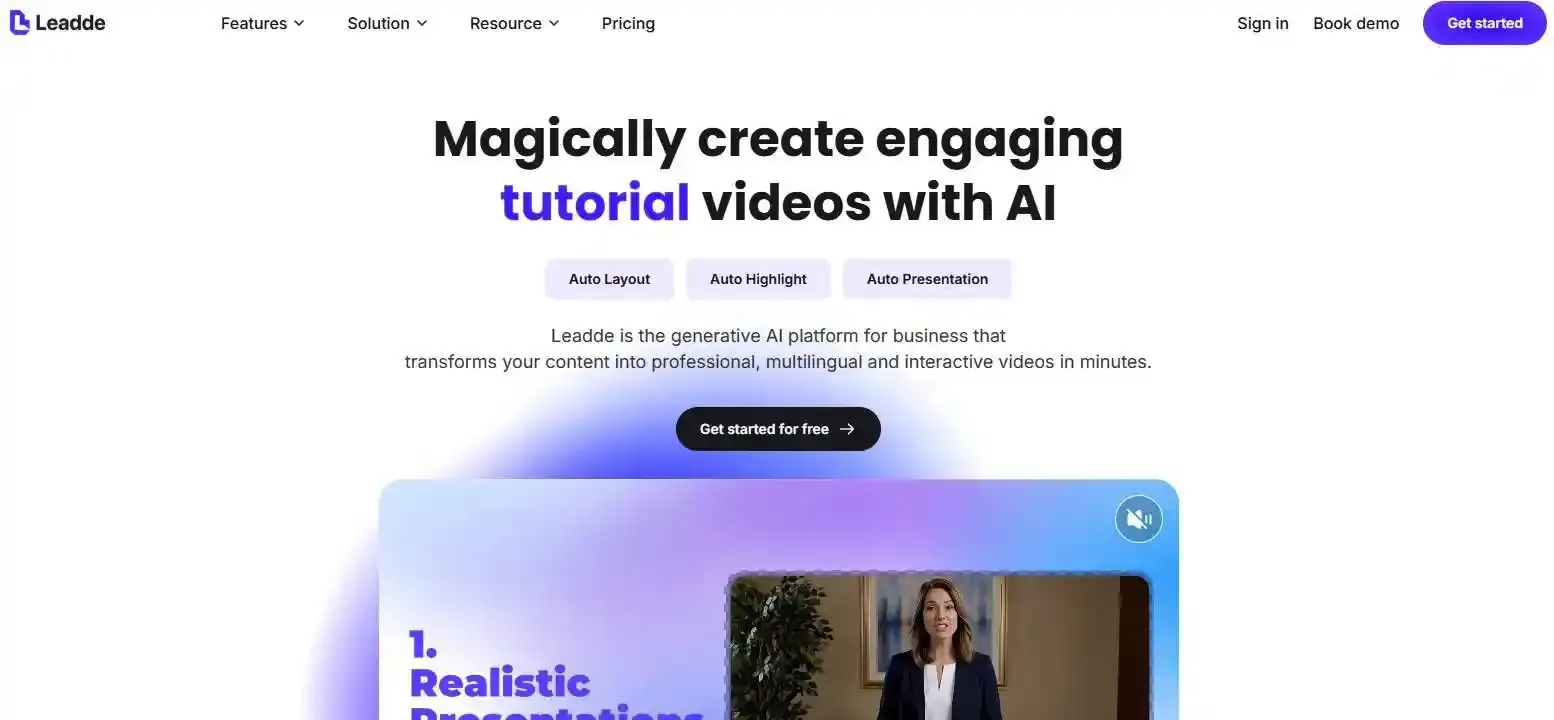
With Leadde, you can bring photos to life using AI avatars and voices, then create engaging videos for education, marketing, or training. In this guide, you'll learn 5 easy steps, explore free AI talking photo tools, and discover tips for more realistic results.
How to Make a Picture Talk with AI in 5 Easy Steps
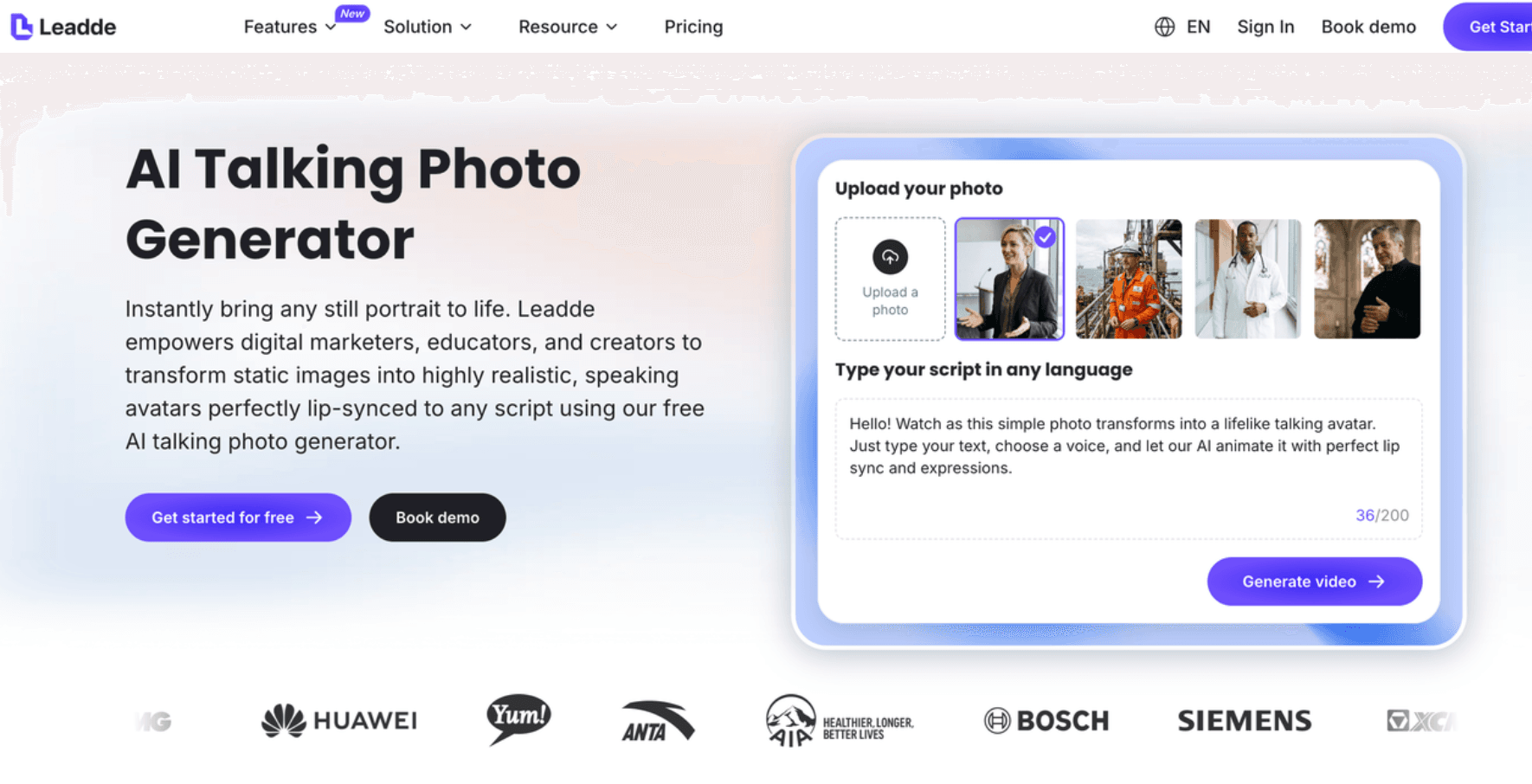
You can make a photo talk using an AI talking photo generator in just a few steps. Here's how to do it with Leadde's Photo Avatar feature.
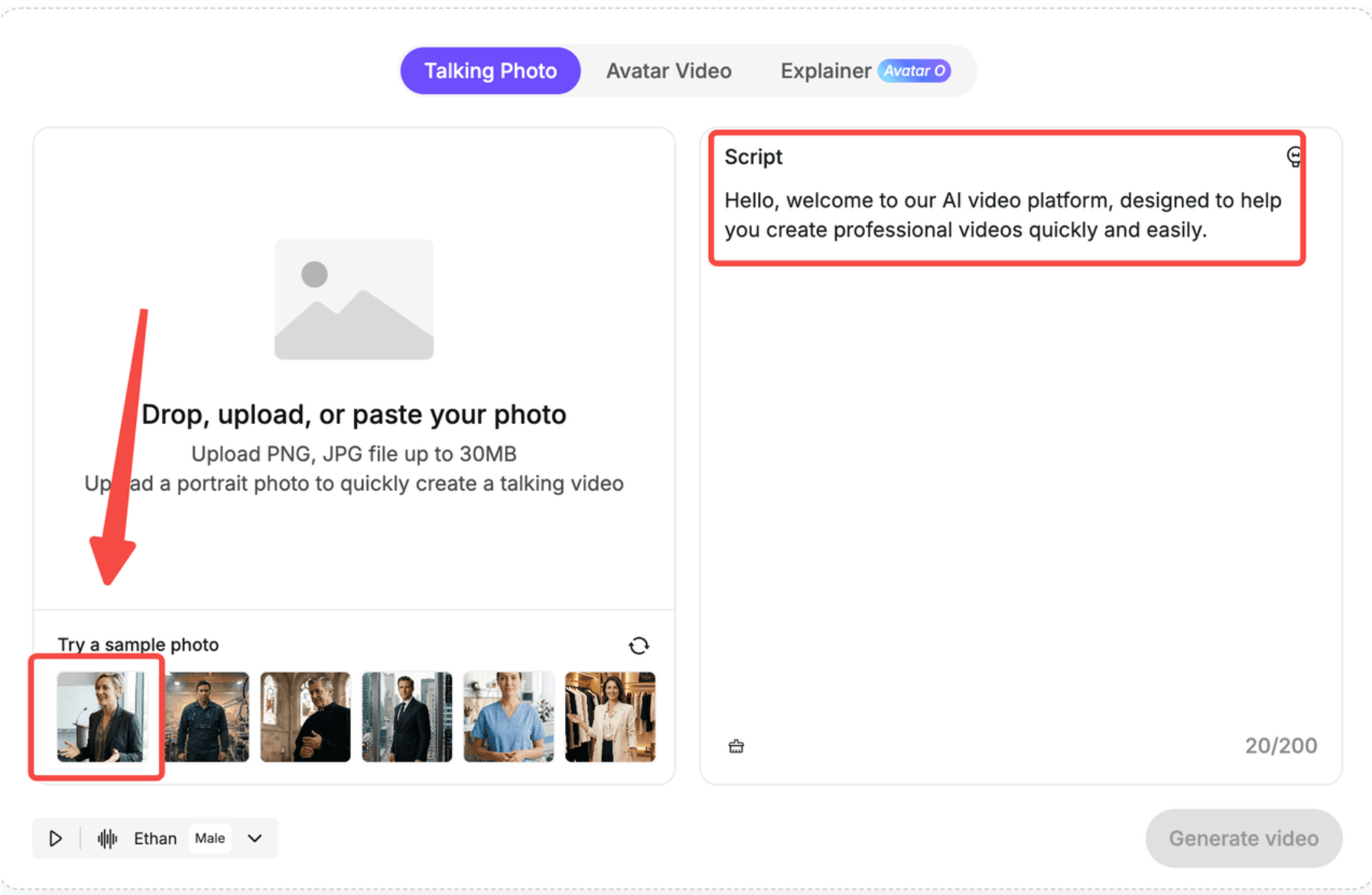
Step 1: Choose a Clear Photo and Open an AI Talking Photo Generator
Start with a high-quality portrait where the person's face is clearly visible. Front-facing photos with even lighting and an unobstructed mouth generally produce better results.
Visit Leadde's AI Talking Photo Generator, sign in, and open Photo Avatar.
Upload the portrait you want to animate. You can use your own photo, an authorized employee portrait, or an illustration with recognizable facial features.
Pro tip: If the person appears very small in the image, crop closer to the face while leaving enough room for natural head movement.
Step 2: Add Your Script and Choose an AI Voice
Enter the words you want your photo to say.
For example:
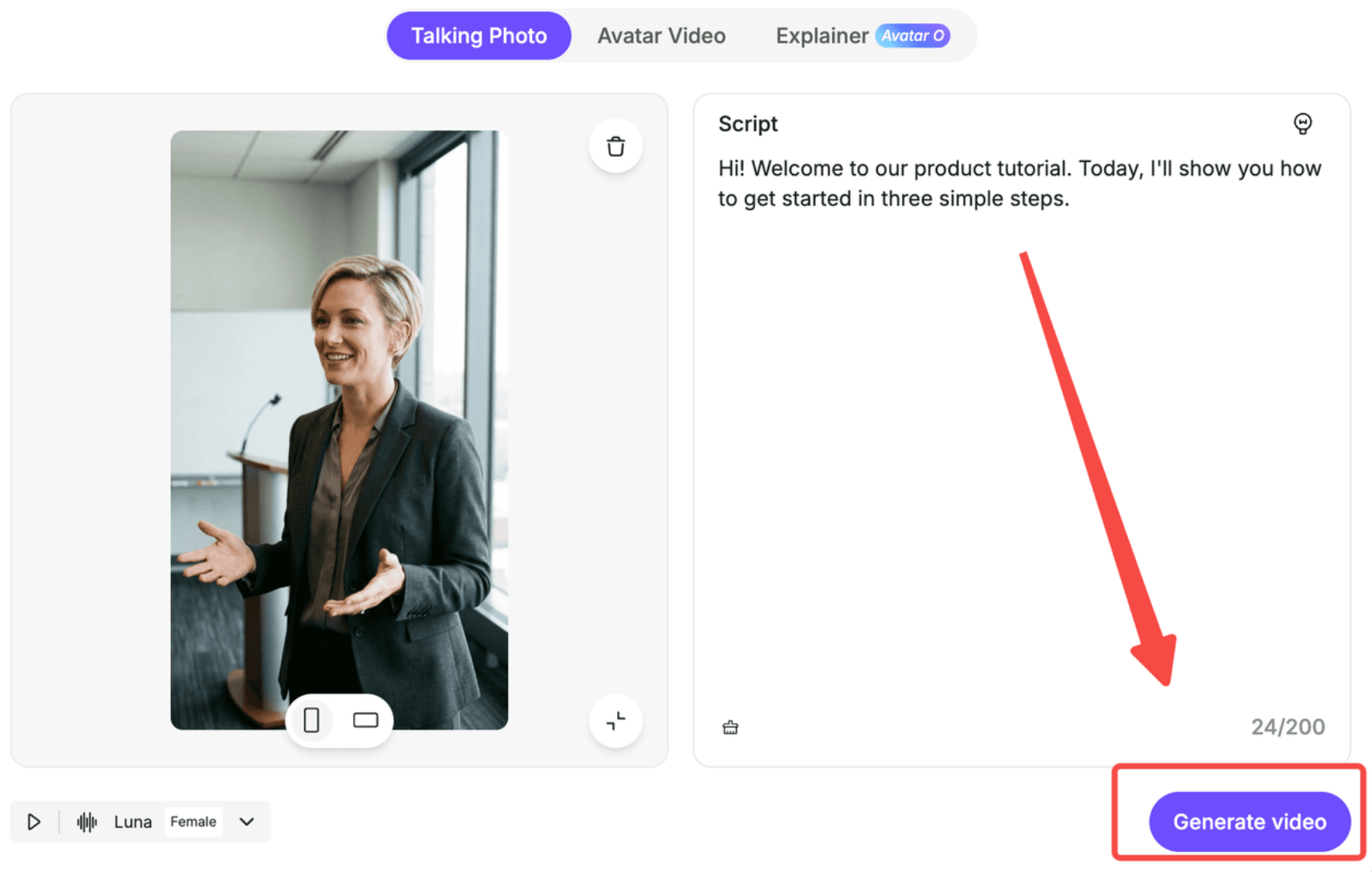
"Hi! Welcome to our product tutorial. Today, I'll show you how to get started in three simple steps."
Choose an AI voice that matches your character and audience. A friendly conversational voice works well for social media, while a clear, steady delivery is often better for educational videos.
If you prefer your own recording, choose a talking photo tool that supports audio uploads, such as Magic Hour.
Pro tip: Use short sentences, natural pauses, and conversational language. Test the pronunciation of names, numbers, and technical terms before generating a longer video.
Step 3: Generate Your Talking Photo
Click Generate Video.
The AI processes your portrait, creates speech from the script, and animates the face to match the spoken words.
Depending on the selected model, the animation may also include blinking, subtle head movements, and facial expressions.
For your first attempt, generate a short introduction rather than a lengthy speech. This helps you identify problems before spending time or credits on a longer video.
Step 4: Preview, Refine, and Download
Watch the generated video and check whether the mouth movements match the narration.
Pay attention to the eyes, teeth, facial expressions, and voice timing. If something looks unnatural, try adjusting your script, audio, or source image before generating again.
Once satisfied, download the video in an available format or share it through the platform.
The key is to treat your first generation as a test, not necessarily the final version.
What Is an AI Talking Photo, and How Does It Work?
An AI talking photo is a video generated from a static image using artificial intelligence to animate a person's or character's face. The technology combines facial analysis, speech input, and lip synchronization to create the appearance of natural speech without recording the subject on camera.
How AI Turns a Still Picture into a Talking Video
Most AI talking photo workflows involve three processes:
- Facial analysis: AI identifies facial landmarks, including the mouth, eyes, and jaw.
- Speech processing: Text-to-speech generates narration, or an uploaded recording supplies the audio.
- Facial animation: The model generates mouth shapes and expressions that follow the speech.
AI Talking Photo vs. Lip Sync vs. Image-to-Video
These technologies are related but serve different purposes.
| Technology | What It Does | Best For |
| AI Talking Photo | Makes a static portrait speak | Photo avatars, greetings, presentations |
| AI Lip Sync | Synchronizes mouth movements with audio | Dubbing existing videos |
| Image-to-Video | Adds movement to a still image | Creative animation and visual storytelling |
If your goal is to make a single portrait speak specific words, choose a talking photo generator rather than a general image-to-video tool.
What Are the Best AI Tools to Make a Picture Talk for Free?
Several AI video platforms can animate still photos, but their capabilities and free-access conditions differ.
Best AI Talking Photo Generators Compared
| AI Tool | Best For | Key Features | Limitations |
| Leadde | Education, training, business videos | Photo avatars, AI voices, multilingual video workflows | Watermark removal requires a paid plan |
| CapCut | Social media and mobile editing | AI dialogue scenes, voice options, video editing | Feature access may vary by app version and region |
| HeyGen | Avatar presentations | Photo-based avatars, scripts, voice options | Free-plan restrictions apply |
| D-ID | Talking portraits and business communication | AI presenters, speech, avatar videos | Trial and paid-plan conditions apply |
| Magic Hour | Audio-driven talking photos | Audio uploads, lip sync, animation modes | Credits, duration, and resolution depend on access |
Which should you choose?
For mobile social content, CapCut offers an editing-oriented workflow. For animating a portrait from an existing voice recording, Magic Hour is worth considering.
For educational presentations and business communication, Leadde combines talking photo creation with broader AI avatar and document-to-video capabilities.
Are Free AI Talking Photo Generators Really Free?
Many tools offer free access, but free generation doesn't always mean unlimited or watermark-free downloads.
Before choosing a platform, check:
- Free credits or trial allowances.
- Maximum video duration.
- Watermarks and export resolution.
- Supported voices and languages.
- Commercial-use permissions.
For example, Leadde offers free AI video creation, while watermark removal is associated with its paid plans.
Compare what you can actually export, not just whether a tool advertises free generation.
How Can You Make an AI Talking Photo Look More Realistic?
Realistic talking photos depend on more than lip synchronization. Image composition, voice quality, and natural facial movements all influence the result.
Choose the Right Photo, Face Framing, and Script
Use a sharp image with balanced lighting and a clearly visible mouth.
Face framing matters: A high-resolution full-body photo may provide fewer useful facial details than a well-cropped portrait.
For scripts, avoid overly long sentences and unnatural phrasing. Short, clearly punctuated dialogue is easier to test and refine.
Improve Lip Sync, Voice, and Facial Expressions
Before publishing, use this five-point talking photo quality checklist:
- Mouth movement: Does the mouth follow the speech naturally?
- Voice: Are the words clear, correctly pronounced, and appropriately paced?
- Facial identity: Does the person still resemble the original portrait?
- Expressions: Are blinking and head movements natural rather than exaggerated?
- Final video: Does the downloaded file play correctly without missing audio or abrupt cuts?
From a professional video workflow perspective, testing a short clip first makes it easier to identify which input needs adjustment.
Fix Common AI Talking Photo Problems
| Problem | Possible Cause | What to Try |
| Voice plays, but the mouth doesn't move | Wrong generation mode or insufficient facial detail | Select a talking-photo workflow and use a clearer, closer portrait |
| Lips are out of sync | Audio timing or generation mismatch | Check the selected audio segment and regenerate a shorter test |
| Face looks distorted | Obstruction, difficult angle, or unstable facial animation | Try a front-facing image with a neutral expression |
| Video is silent | Incorrect audio selection or playback settings | Check volume, audio input, and exported file |
| Video ends too early | Clip-duration or audio-selection limits | Check the mode's maximum duration and selected audio range |
Avoid repeatedly regenerating the same inputs without identifying the likely problem. Change one variable at a time so you can understand what improves the output.
Can You Make Cartoons, Pets, or Old Photos Talk with AI?
Yes, some AI talking photo generators support illustrations, animals, and historical portraits. However, compatibility and animation quality depend on the tool and image.
Animate Cartoon Characters and Pets
Talking photo tools can animate illustrated characters, brand mascots, or pets when their facial features are recognizable.
However, models optimized for human faces may struggle with cartoon mouths or animal facial structures.
Choose a tool that explicitly supports your image type, and test a short animation before developing a longer project.
Make Old Family Photos or Group Pictures Talk
Old portraits can be animated for family storytelling, personal messages, or educational demonstrations.
If the original image is blurry or damaged, consider improving its clarity first.
For group pictures, tools such as CapCut describe options for selecting which character speaks.
When animating real people, obtain appropriate permission. Historical reenactments should also be clearly presented as AI-generated rather than authentic recordings.
What Can You Use AI Talking Photos for Beyond Social Media?
Talking photos can help educators, businesses, and content teams introduce information through a recognizable visual presenter.
Educational Videos and Historical Storytelling
Teachers can animate an authorized historical portrait or illustrated character to introduce a lesson, explain a concept, or present a short narrative.
For example, a history teacher might use an animated portrait to introduce the context of an important event, followed by maps, timelines, and primary-source materials.
The animated character provides a storytelling element, while supporting visuals carry the factual explanation.
Employee Training, Product Tutorials, and Explainer Videos
Training teams can use AI photo avatars to introduce onboarding lessons, explain company policies, or guide employees through standardized training videos.
For a software tutorial, an avatar might introduce the task before the video switches to screenshots or a screen demonstration.
An effective training video should show what learners need to do, not simply display a speaking face throughout the lesson.
Turn One Talking Photo into Reusable Multilingual Videos
A talking photo becomes more useful when integrated into a repeatable content workflow.
For example, a training team can:
- Extract key instructions from an approved SOP or training document.
- Divide the information into short, focused lessons.
- Use an AI photo avatar for introductions and explanations.
- Combine narration with slides, diagrams, or demonstrations.
- Review captions and translated scripts before publishing.
With Leadde's AI video creation platform, teams can explore document-based video generation, AI presenters, and multilingual content production.
When information changes, teams can revise affected scripts and video sections rather than organizing an entirely new filming session. The exact editing and regeneration options depend on the selected workflow.
This approach is particularly valuable for organizations managing frequently updated training materials or multilingual video libraries.
Frequently Asked Questions About AI Talking Photos
Can I make a picture talk with AI without paying?
Yes. Some platforms, including Leadde and Magic Hour, provide free ways to try AI talking photo creation. However, free access may include limited credits, shorter videos, watermarks, or restricted export settings. Check the current plan before generating a video, especially if you need it for commercial content.
Can I make a photo talk using only text?
Yes. AI talking photo generators with text-to-speech functionality can transform a written script into spoken narration and matching facial movements. You don't need to record audio yourself. Simply upload a supported portrait, enter the dialogue, choose an available AI voice, and generate the talking video.
Can I use my own voice to make a picture talk?
Yes, if the tool supports recorded audio uploads or authorized voice cloning. You can record your narration separately and use it to drive the portrait's mouth movements. This can be useful for personal storytelling or training videos where a consistent, recognizable voice is important.
Can I make an AI talking photo in different languages?
Yes. Many AI talking photo platforms support multiple languages through text-to-speech, uploaded audio, or video translation features. However, lip synchronization and automatic translation are separate capabilities. Check whether your chosen tool can translate content or only animate speech that is already recorded in the target language.
Can I make a picture talk on my phone?
Yes. Mobile-friendly tools such as CapCut allow users to create talking-photo animations using supported app features. You can upload a photo, add dialogue, generate the animation, and edit the result. The specific menus and available features may differ between iOS, Android, desktop, and online versions.
How long can an AI talking photo video be?
Video length depends on the platform, generation model, account plan, and selected mode. Some tools specialize in short clips, while others support longer recordings. Longer generation limits do not guarantee accurate lip synchronization throughout. For longer explanations, consider dividing the narration into shorter sections and reviewing each one.
Conclusion
Making a picture talk with AI is straightforward: choose a clear photo, add a script or voice, generate the animation, and refine the result. The best videos combine natural lip sync, clear narration, and consistent facial expressions. With tools like Leadde, talking photos can also become part of scalable educational, marketing, and business training videos.