How to Make Google Slides Into a Video: 6 Easy Methods
To make Google Slides into a video, eligible users can choose File → Convert to Video to turn selected slides into editable Google Vids scenes, then add scripts, speaker-note narration, music, animations, AI voiceovers, or an avatar.
When this option is unavailable—or you need a traditional MP4—download the deck as a PPTX for PowerPoint, record the slideshow, or use a video editor or AI video platform.
Yet manual recording, slide timing, voiceovers, and revisions can turn a simple conversion into hours of production.
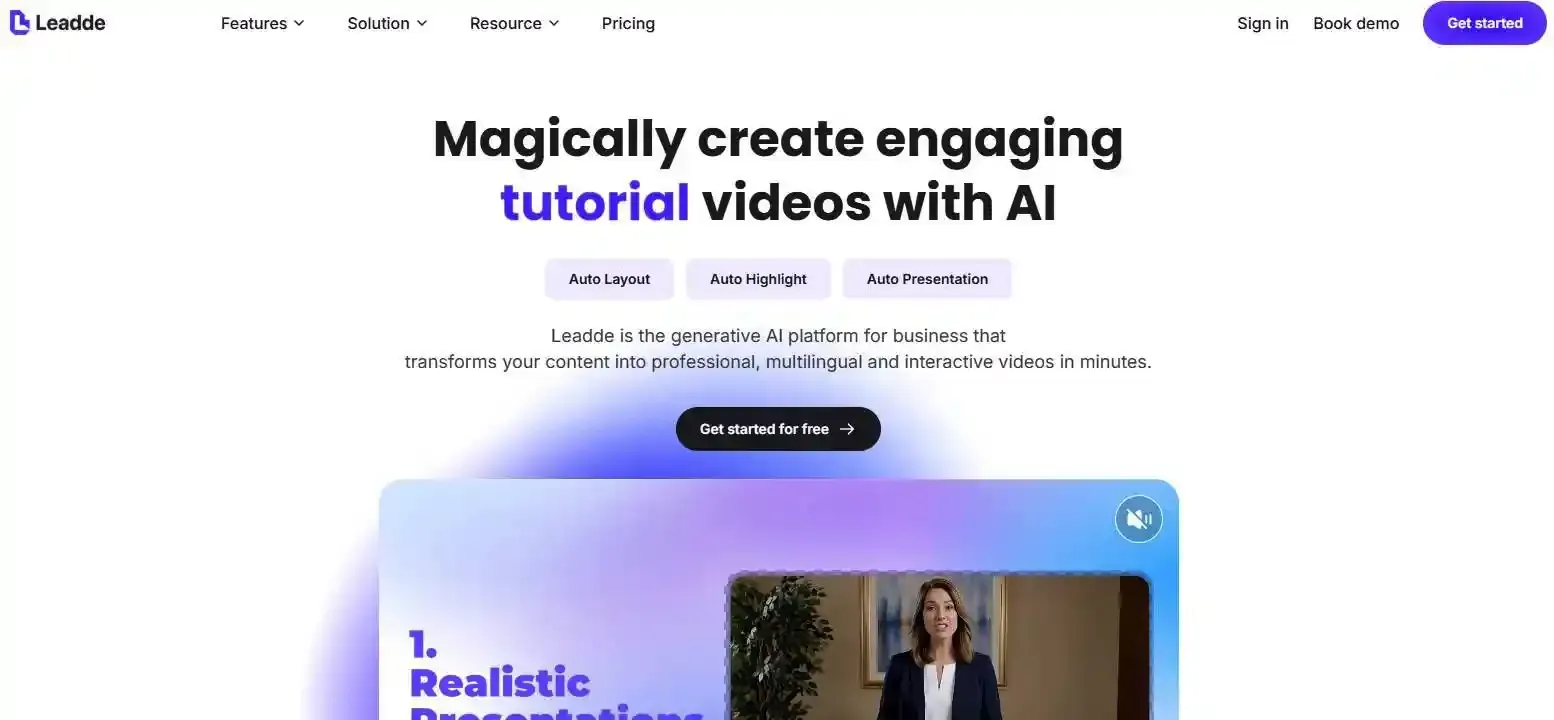
Leadde automatically turns documents and text into professional business videos in minutes, with reported savings of over 80% in production costs and 90% in content creation time.
How to Make Google Slides Into a Video in 2026: 6 Practical Methods
To make Google Slides into a video, eligible users can choose File → Convert to Video to turn selected slides into editable Google Vids scenes, then add scripts, speaker-note narration, music, animations, AI voiceovers, or an avatar. When this option is unavailable—or you need a traditional MP4—download the deck as a PPTX for PowerPoint, record the slideshow, or use a video editor or AI video platform.
Yet manual recording, slide timing, voiceovers, and revisions can turn a simple conversion into hours of production. Leadde automatically turns documents and text into professional business videos in minutes, with reported savings of over 80% in production costs and 90% in content creation time.
How to Make Google Slides Into a Video: Which Method Should You Choose?
The right method depends on the file you need, the amount of editing required, and whether you want to record yourself.
A simple slideshow may only need screen recording. A business training video may need editable scenes, narration, captions, translation, and a repeatable update process.
Can Google Slides export directly to MP4?
Google Slides does not turn the presentation into an MP4 immediately from its normal download menu. However, eligible users can select File → Convert to Video, edit the presentation in Google Vids, and then export the completed project as an MP4.
Google Vids can also save the MP4 to Google Drive, download it to a device, or export it to YouTube. Therefore, the native workflow is:
Google Slides → Google Vids project → MP4 export
It is not a one-click Slides-to-MP4 download.
Google Vids vs. PowerPoint vs. screen recording vs. AI video tools
- Google Vids is useful when you want to stay inside Google Workspace and create editable video scenes. It can use speaker notes, generate narration, and add AI-assisted video elements.
- PowerPoint is better when you want a traditional video file based on slide timings, recorded narration, animations, and transitions. Microsoft provides a direct File → Export → Create a Video workflow.
- Screen recording captures the presentation as it is delivered. It is useful when you need to preserve live cursor movement, demonstrations, or a real presenter.
- AI video tools are better when you need generated scripts, AI presenters, multiple languages, reusable templates, or faster updates across many videos.
| Method | Best For | Output Format | Key Advantage |
| Google Vids | Native Workspace users | Editable project, MP4 | Stays in Google ecosystem, easy AI tools |
| PowerPoint | Traditional slideshows | MP4, WMV | Direct export, preserves specific animations |
| Screen Recording | Live presentations | MP4, WebM | Captures real-time cursors and timing |
| AI Tools (Leadde) | Scalable business videos | MP4, Multilingual | Auto-generation, AI presenters, easy updates |
Choose the right method based on output, editing, cost, and video length
Choose a method by answering four questions:
- Do you need a downloadable MP4, a GIF, or an editable project?
- Do you want to record your own voice or generate narration?
- Does the video need advanced editing, translation, or an AI presenter?
- Is the presentation short enough for the platform’s limits?
For a quick native workflow, start with Google Vids. For a long traditional presentation, PowerPoint or a screen recorder may be more practical. For business content that will be translated or updated often, use a scene-based AI platform rather than a single continuous recording.
How Do You Convert Google Slides Into a Video With Google Vids?
Google Vids is Google’s native scene-based video editor. Instead of recording the presentation as one long clip, it converts selected slides into individual video scenes.
The process requires an eligible Google Workspace or Google AI plan when Gemini features are used. Feature availability can also vary by account and rollout status.
Convert slides into editable Google Vids scenes
Open the presentation on a computer and select:
File → Convert to Video
Choose the slides you want to import. Each selected slide becomes a new scene that can be reviewed, edited, reordered, or removed.
When AI features are disabled, Google Vids can import up to 100 eligible slides. Each imported scene is initially set to five seconds, although you can change the timing later.
After editing, you can keep the project as a collaborative Google Vids file or export it as an MP4. This makes the workflow useful when several people need to review or update the video.
Add scripts, speaker notes, AI voiceovers, avatars, music, and animations
During conversion, you can ask Gemini to generate:
- A script for each scene
- AI voiceover
- Background music
- Animations
- An AI avatar
You can review the generated scripts before creating the draft. To use your existing presentation notes, select Replace with speaker notes. This overwrites the generated script rather than combining the two versions.
After the draft is created, you can continue editing the script and update the voiceover. When an AI voiceover is present, Google automatically matches the scene length to the narration. Without a generated voiceover, the default scene length is five seconds.
Google Vids slide, audio, language, and duration limits
The Slides conversion workflow supports up to 45 slides when AI generation is enabled and up to 100 slides when it is disabled.
Google also documents these limits:
- The converted video must stay within 10 minutes.
- A video can contain up to 50 audio objects.
- Existing audio can reduce the number of slides available for import.
- WordArt and video files inside the Slides deck are not imported.
- The documented Slides-to-Vids Gemini conversion languages are English, French, German, Italian, Japanese, Korean, Portuguese, and Spanish.
| Feature / Metric | Limit with AI Generation | Limit without AI (Manual) |
| Max Slides Imported | 45 slides | 100 slides |
| Max Video Duration | 10 minutes | 10 minutes |
| Max Audio Objects | 50 objects | 50 objects |
| Unsupported Elements | WordArt, embedded videos | WordArt, embedded videos |
A general Google Vids project can be longer than the Slides conversion workflow, but Google currently states that videos created in Vids have a maximum duration of 30 minutes.
What Are the Best Alternative Ways to Turn Google Slides Into a Video?
Google Vids is not the only option. A different method may be better when you need a longer video, an exact recording of the presentation, a simple GIF, or a file that does not depend on Google Vids access.
Export Google Slides as an MP4 with Microsoft PowerPoint
First, download the Google Slides presentation as a .pptx file. Open it in the desktop version of PowerPoint and check every slide before exporting.
Add or confirm:
- Slide timings
- Voice narration
- Animations
- Transitions
- Embedded media
Then select File → Export → Create a Video. PowerPoint can use recorded timings and narration, or apply one fixed duration to every slide. It provides several resolution options, including 1080p and 720p, and the Windows workflow can create an MPEG-4 video.
PowerPoint is a strong choice for longer presentations, but conversion from Google Slides may change fonts, layouts, media links, or unsupported effects. Always review the downloaded PPTX before exporting the full video. Alternatively, if you wish to simplify the process, you can use a powerpoint-to-video tool.
Record the presentation with Google Slides, ScreenPal, Loom, or OBS
Eligible work and school accounts can use the native Google Slides recording feature. Select Rec → Record new video, present the slideshow, and save the recording to Google Drive.
Google states that Slides recording works in Chrome and Edge, requires edit access, and has a 30-minute limit for each recording. Recordings are saved in a Drive folder named Slides recordings.
Third-party recorders such as ScreenPal, Loom, and OBS are useful when you need greater control over screen areas, system sound, webcam placement, or editing. Record in sections when possible, especially if you expect to make corrections.
ScreenPal removed its direct Google Slides storyboard import in 2025. Its current storyboard method requires exporting Slides as a PDF and using Start from a PDF, although its normal screen recorder can still record a live slideshow.
Create an MP4 or GIF with add-ons, Canva, or a video editor
Google Workspace add-ons can render each slide as an image, apply a display time, and produce an MP4 or GIF. This method is convenient for simple photo slideshows or decks that do not depend on complex animation.
Canva and traditional video editors offer more creative control. Export Slides as PPTX, PDF, PNG, or JPG, import the content, and arrange it on a video timeline.
You can then add:
- New transitions
- Music and sound effects
- Voiceover
- Captions
- Branding
- B-roll
- Presenter footage
The main disadvantage is manual work. Imported text can shift, and a PDF or image-based workflow usually flattens the slide elements, making them harder to edit separately.
| Alternative Method | Tool Example | Pros | Cons |
| Desktop Export | Microsoft PowerPoint | High quality MP4, preserves timings | Requires downloading PPTX, fonts may break |
| Screen Recording | Loom, OBS, Native Rec | Captures live delivery and system audio | Hard to edit later, must record in real-time |
| Design/Video Editors | Canva, Premiere Pro | Total creative control, advanced effects | Highly manual, flattens slide elements |
How Do You Preserve Voiceover, Timing, Animations, and Video Quality?
A presentation can look correct in Google Slides but fail after conversion. Audio may end too early, fonts may change, and animations may disappear.
The safest process is to export a short test containing your most complex slide, a voiceover, an animation, and embedded media before producing the full video.
Match each slide’s duration to narration and prerecorded audio
Do not apply one global duration when each slide contains a different amount of narration.
Measure the length of every voice track and set the scene slightly longer than the spoken audio. A small pause before and after narration prevents words from being cut off during transitions.
For prerecorded audio, create a timing sheet containing:
- Slide number
- Audio-file name
- Audio duration
- Required scene duration
- Notes about transitions
Google Vids automatically matches scene duration to generated voiceovers, while PowerPoint can use recorded slide timings and narration.
When using a screen recorder, play the presentation in sections rather than recording a long deck in one take. This makes it easier to fix one mistake without repeating the full presentation.
What happens to transitions, fonts, WordArt, charts, and embedded media?
The result depends on the method.
- Screen recording captures what appears during playback, including visible animations and transitions. However, system audio must be configured correctly when the presentation includes embedded videos.
- PowerPoint export can include supported animations, transitions, narration, and embedded video. Microsoft warns that certain linked or older media may be excluded unless it is upgraded or embedded correctly.
- Google Vids conversion creates new scenes but does not import WordArt or video files contained in the original slides.
- Static add-ons and image exports usually capture the final appearance of each slide rather than its original animation timeline.
Custom fonts are another common problem. A replacement font may change line breaks, move text, or cause a title to cover another element. Review every scene after importing PPTX or PDF files.
How to convert a 20-minute or longer presentation without audio-sync problems
A 20-minute presentation exceeds the documented 10-minute Google Slides-to-Vids conversion limit. In that case, divide the deck into logical sections or choose PowerPoint, direct Slides recording, or another recorder.
A reliable long-video workflow is:
- Divide the deck into short chapters.
- Export or record each chapter separately.
- Test the audio at the start and end of every part.
- Combine the parts in a video editor.
- Add one intro, one outro, and consistent transitions.
| Element | Potential Conversion Risk | Safest Preservation Workflow |
| Custom Fonts | Replacement alters layout | Use standard web-safe fonts before export |
| Voiceover Audio | Cut off during transitions | Add a 1-second buffer to scene duration |
| Long Videos (>20m) | Audio sync drift, export crashes | Divide into 5-minute chapters, merge in post |
| Embedded Video | Stripped out in Google Vids | Re-insert media file directly into video editor |
Short sections are also easier to revise. If slide 38 changes, you only need to rebuild its section rather than regenerate or re-record the entire presentation.
How Can AI Turn Google Slides Into a Professional Business Video?
Traditional conversion keeps the presentation close to its original form. AI video creation can go further by restructuring the content for spoken delivery, adding presenters, and creating multiple language versions.
The goal is not only to “play the slides.” It is to turn the information into a video that is easy to understand and maintain.
Convert speaker notes and slide content into editable video scenes
Speaker notes often contain the most useful narration. An AI video tool can turn those notes into scene scripts, shorten long sentences, and create more natural spoken language.
A strong AI workflow should:
- Keep facts and numbers from the source deck
- Separate one complex slide into several short scenes
- Avoid reading every word displayed on screen
- Leave enough time for viewers to understand charts
- Flag missing information instead of inventing it
Editable scenes are more useful than one flat recording. Text, images, narration, and presenters can be updated separately when the source content changes.
Use Leadde to add AI presenters, narration, subtitles, visuals, and multiple languages
To use Google Slides with Leadde, first download the presentation as a PPTX file and upload it to the platform.
Leadde’s workflow can generate an outline, scene structure, and narration from a presentation or document. Users can also set the language, tone, level of detail, audience, speaker background, learning objectives, template, presenter, image source, and target video length.
Leadde provides two useful approaches:
- Slide Presenter: Preserve and present existing slide assets.
- AI Video Creator: Restructure document content into a new video presentation.
The resulting project can include an AI presenter, voiceover, subtitles, matched visual material, and multilingual versions. Users can review and edit the generated script before creating the final video.
When is an AI video platform better than a screen recording or static MP4?
Use an AI platform when the content will be:
- Translated into several languages
- Updated often
- Used for onboarding or training
- Presented by a consistent digital presenter
- Produced at scale
- Reviewed by several stakeholders
A screen recording is faster for a one-time presentation. A static MP4 converter is enough for a simple image slideshow.
An AI platform becomes more valuable when the video is a maintained business asset rather than a one-time export. The ability to change one scene, replace narration, or create another language version can reduce repeated recording work.
How Do You Avoid Common Google Slides-to-Video Problems?
Most failures can be prevented before the final export. Check the account, source deck, audio, output format, and privacy settings before committing to a long render.
Check free-plan limits, watermarks, downloads, and third-party permissions
A tool described as “free” may still limit:
- The number of slides
- Video duration
- Monthly production minutes
- Resolution
- MP4 downloads
- Watermark removal
- AI voiceover
- Captions
- File storage
Check the current pricing and export rules before building the project. A free editor that prevents MP4 downloads may not meet the final requirement.
For add-ons, review the Google permission screen carefully. Determine whether the tool can access only the current file or all presentations, and whether it sends content to an external server.
Confidential presentations should follow the organization’s security policy. Use a local recording or PowerPoint export when uploading the deck to a third-party service is not permitted.
Test audio, captions, layouts, avatars, and aspect ratios before publishing
Create a short test containing:
- A text-heavy slide
- A chart
- An animation
- A voiceover
- Background music
- An avatar or webcam
- Captions
Check the test on a laptop and a phone. Confirm that captions do not cover important text and that an avatar does not block charts, logos, or key instructions.
Listen with headphones and ordinary speakers. The voice should remain clear when music is present. Check names, acronyms, product terms, and technical language for pronunciation errors.
Fix missing conversion options, broken fonts, silent exports, and oversized videos
When Convert to Video is missing, confirm that you are using a computer and an eligible account. Gemini-based conversion requires an eligible Google Workspace or Google AI plan, and some features may roll out gradually.
If Convert Slides is gray in Google Vids, Google states that the current video is too large. Shorten it before importing more slides.
For broken fonts, replace unsupported typefaces with common alternatives before export. For silent output, check whether the recorder captured the microphone, system sound, or both.
If the file is too large, reduce the resolution only after testing readability. Small text may become difficult to read at lower quality.
| Pre-Export Check | What to Verify |
| Plan Limits | Can you download an MP4 without a watermark? |
| Permissions | Does the tool require access to all your Google Drive files? |
| Mobile Layout | Do captions or avatars block critical charts on small screens? |
| Audio Mix | Is the voiceover audible over background music? |
Which Google Slides-to-Video Method Is Best for Your Project?
There is no single best method for every presentation. The strongest choice is the one that produces the required output without adding unnecessary work.
Best option for a fast native Google workflow
Choose Google Vids when:
- Your account has access
- The presentation fits the conversion limits
- You want editable scenes
- You want speaker-note scripts or AI voiceover
- Your team works in Google Workspace
- You may export to Drive, MP4, GIF, or YouTube
Google Vids is the most direct native option, but users should remember that Convert to Video creates an editable video project before the final MP4 is exported.
For a simple live presentation, Google Slides recording may be even faster. It saves the result directly to Drive and supports recordings up to 30 minutes on eligible accounts.
Best option for a downloadable MP4 or long presentation
Choose PowerPoint when you want a standard video file and already have slide timings, narration, transitions, or animations.
PowerPoint provides direct video export, selectable quality, and support for recorded timings. It is also a practical option when the presentation exceeds Google Vids’ 10-minute Slides-conversion limit.
Choose a screen recorder when exact live playback matters more than element-level editing. It is especially useful for demonstrations, embedded web content, or presentations that combine slides with live software.
For very long content, record or export in chapters. This reduces the risk of losing a full project because of one mistake or failed render.
Best option for training, localization, and videos that require frequent updates
Choose a scene-based AI video platform when the presentation is part of an ongoing training, onboarding, compliance, or product-education program.
Leadde is designed to turn documents and presentations into structured business videos with generated scripts, presenters, narration, subtitles, visuals, and multilingual workflows.
This approach is more suitable than one continuous screen recording when:
- Policies change regularly
- Different regions need different languages
- Several videos must share the same presenter and style
- Individual scenes need to be replaced
- The organization wants to reuse existing documents at scale
Conclusion
The best way to make Google Slides into a video depends on the required output. Google Vids offers a native editable workflow, PowerPoint and screen recording provide reliable MP4 options, and AI platforms such as Leadde are better suited to professional narration, multilingual production, and content that must be updated regularly.