How to Make a Video from PowerPoint Without Recording Yourself
The easiest way to make a video from PowerPoint without recording yourself is to add AI voiceover to your slides, set slide timings, and export the presentation as an MP4. For a simple deck, PowerPoint plus an AI text-to-speech tool is enough. For courses, onboarding, training, or many slide decks, a PPT-to-video AI tool is usually faster because it can generate scripts, narration, and video in one workflow.
Based on my user research and production testing, the biggest challenge is not simply exporting PowerPoint to video. The real problems are manual narration, slow video export, unnatural AI voices, audio-animation sync, and the cost of avatar-based video tools.
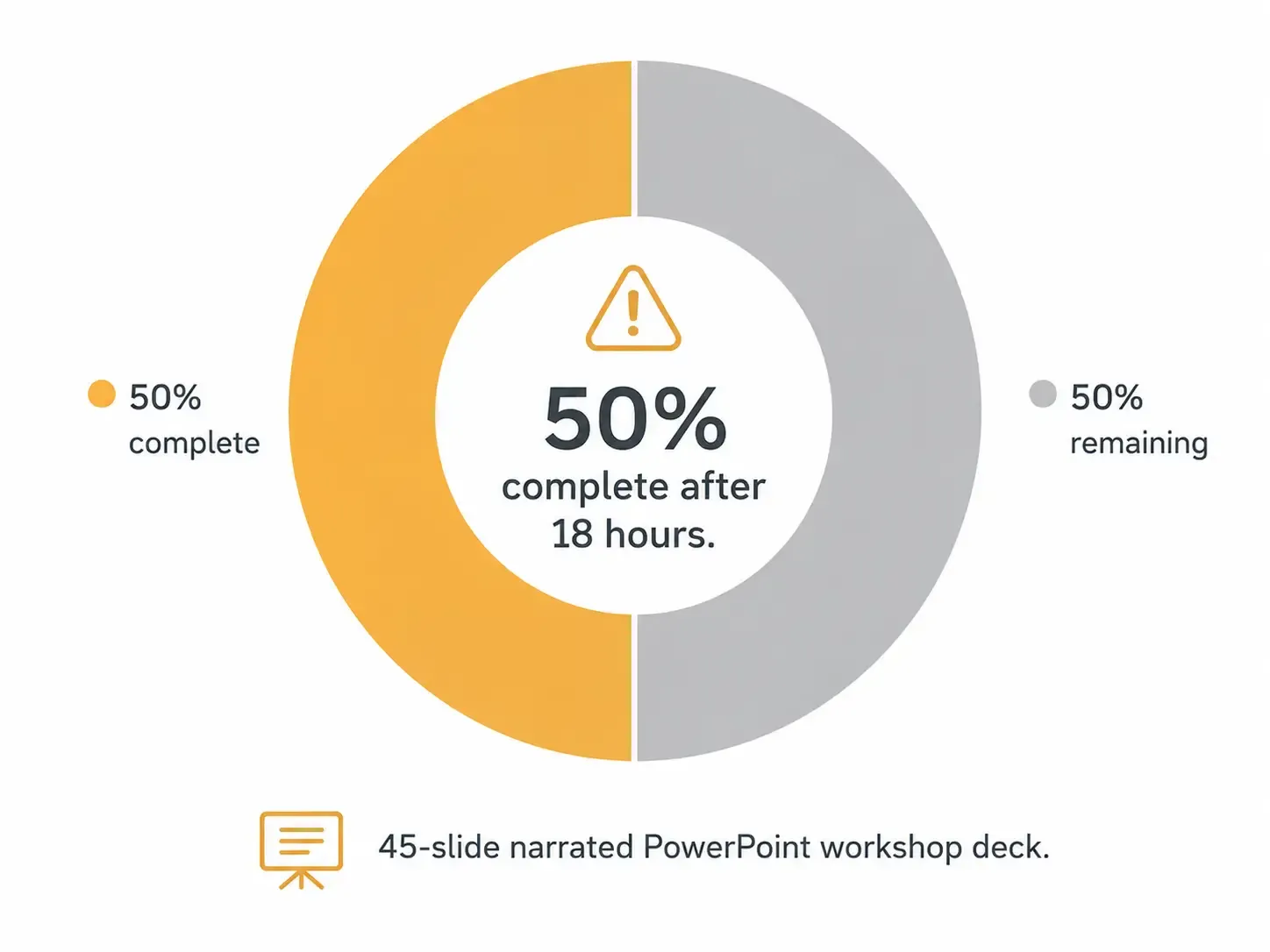
One case from my research shows why workflow matters: a 45-slide PowerPoint with narration was exported directly from PowerPoint for a workshop. After about 18 hours, the export was only around 50% complete. For real training or workshop production, that kind of delay is not practical.
This guide explains the best ways to convert PowerPoint to video without recording yourself, using real use cases, measurable results, and practical workflow lessons.
If you want a faster all-in-one workflow, Leadde is a practical PPT-to-video AI tool to try because it can help turn PowerPoint files into narrated videos with AI-generated scripts and voiceover, without requiring you to record yourself.

Best Ways to Make a Video from PowerPoint Without Recording Yourself
| Method | Best For | How It Works | Main Advantage | Main Limitation |
|---|---|---|---|---|
| PowerPoint Export | Short and simple presentations | Add AI audio to slides, set timings, and export as MP4 | No extra video software required | Can be slow or unreliable for large narrated decks |
| AI Voiceover + PowerPoint | Most narrated PowerPoint videos | Generate one AI voice file per slide, insert audio, then export | Good balance of speed, control, and update flexibility | Requires manual timing and review |
| PPT-to-Video AI Tool | Courses, onboarding, and repeatable production | Upload a PowerPoint file and generate script, voiceover, and video | Fastest end-to-end workflow | May cost more and offer less precise timing control |
| Screen Recording | Export problems or animation capture | Play the slideshow and record the screen without showing your face | Useful fallback when PowerPoint export is slow | Less automated and may require retakes |
| Video Editor Workflow | E-learning and polished training videos | Use PowerPoint for slides, AI voiceover for narration, and a video editor for timing | Best control over sync, pacing, and polish | More manual work and higher learning curve |
The Best Workflow to Make a Video from PowerPoint Without Recording Yourself
The most reliable workflow is:
- Finalize your PowerPoint slides.
- Create a narration script for each slide.
- Generate AI voiceover from the script.
- Insert one audio file per slide.
- Set slide and animation timings.
- Export a short test video.
- Export the final MP4.
- Review the full video for pacing, pronunciation, and sync.
The key is to avoid one long audio file. Use one voiceover file per slide, such as slide-01.mp3, slide-02.mp3, and so on. This makes editing much easier. If slide 12 changes later, you only regenerate the audio for slide 12 instead of rebuilding the entire video.
For most projects, this slide-by-slide workflow gives the best balance of speed, quality, and future flexibility.
| Use Case | Recommended Workflow | Why It Works | Key Tip |
|---|---|---|---|
| Short business presentation | PowerPoint + AI voiceover | Fast setup with minimal tools | Use one audio file per slide |
| Online course | PPT-to-video AI tool or AI voiceover + video editor | Better for narration quality, pacing, and lesson structure | Write the script before finalizing animations |
| Employee onboarding | Modular PowerPoint videos with AI narration | Easy to update and reuse across teams | Export short modules instead of one long video |
| Compliance or quality manual training | Section-by-section video modules | Learners can watch specific sections as needed | Keep scripts and audio files organized for future updates |
| Workshop presentation | PowerPoint export test + screen recording backup | Reduces risk of slow export before deadlines | Test export with 3 to 5 slides first |
| Frequently updated content | AI voiceover + slide-level audio files | Makes revisions much faster | Regenerate only the changed slide audio |
Why Use AI Voiceover Instead of Recording Yourself?
Making a PowerPoint video without recording yourself is not just about avoiding the camera or microphone. It makes your content easier to update and scale.
In one training-content workflow I studied, switching to AI voice generation made narration updates at least 10 times faster. Before AI voiceover, every update required a human recording session, audio cleanup, compression, mixing, and volume normalization. After AI voiceover, the creator only needed to edit the script, regenerate the changed section, replace the audio, and re-export the video.
That is the strongest business case for AI narration: it turns voice into an editable asset.
This is especially useful for:
- Online courses
- Employee onboarding
- Compliance training
- Quality manuals
- Workshop materials
- Product tutorials
- Sales enablement
- Internal knowledge sharing
If your slides change often, recording yourself becomes a maintenance burden. AI voiceover lets you update the video without re-recording your own voice every time.
Method 1: Export PowerPoint to Video Without Recording Yourself
PowerPoint can export a presentation as a video. If you already have AI narration files, you can insert them into your slides, set timings, and export the deck as an MP4.
Basic workflow:
Add AI-generated audio to each slide.
Set each audio file to start automatically.
Adjust slide duration to match the narration.
Go to Export.
Choose Create a Video.
Export as MP4.
This method is best for short decks, simple internal videos, and occasional presentations. It keeps your workflow inside PowerPoint and does not require a separate video editor.
However, it has limits. In the 45-slide workshop case, the deck already had narration, but PowerPoint export was extremely slow. After roughly 18 hours, only about half of the video had exported. That experience shows that PowerPoint’s built-in video export can be convenient, but it is not always reliable for large narrated decks.
Use PowerPoint export when:
The deck is short.
Animations are simple.
Audio files are not too large.
You only need occasional videos.
Avoid relying on PowerPoint alone when:
You have a long deck.
You are producing many videos.
You need precise timing.
The file contains heavy images, videos, or animations.
You are working under a deadline.
For large projects, always export a 3- to 5-slide test first.
Method 2: Use AI Voiceover to Create a Narrated PowerPoint Video
AI voiceover is the most practical way to make a PowerPoint video without recording your own voice.
The workflow is simple:
Write a script for each slide.
Paste the script into an AI text-to-speech tool.
Choose a natural voice.
Generate the audio.
Download the files.
Insert each file into the matching slide.
Set slide timings.
Export the video.
The biggest mistake is letting AI read the slide bullets exactly as written. A good voiceover should explain the slide, not repeat it.
For example, instead of narrating:
“Benefits: faster onboarding, lower cost, consistent training.”
Use:
“There are three reasons this workflow is useful for onboarding. First, it helps new employees learn faster. Second, it reduces repeated live training costs. Third, it keeps the message consistent across teams.”
That small change makes the AI voice sound much more natural.
From my research, AI voiceover works best when the script uses:
Short sentences
Clear transitions
Natural spoken language
Correct pronunciation for names and acronyms
One idea per paragraph
AI voiceover is especially helpful for non-native speakers, trainers with many decks, and teams that need a consistent voice across multiple videos.
Method 3: Use a PPT-to-Video AI Tool for Faster Production
If you want the fastest way to make a video from PowerPoint without recording yourself, use a PPT-to-video AI tool. These platforms are designed to handle more than export. Many can upload a PowerPoint file, generate a script, create AI voiceover, and turn the slides into a narrated video.
In one course-production case I studied, the creator had many class presentations and wanted to avoid manually recording narration for each one. The original workflow required recording voice slide by slide inside PowerPoint. After testing an AI slide-to-video workflow, the creator found the automatic script and voiceover generation to be a major time saver, although the tool was not free.
This is the tradeoff:
Free workflows usually require more manual work.
Paid PPT-to-video tools can save time when you have many slides or recurring content.
These tools are strongest for:
- Course videos
- Training libraries
- Onboarding videos
- Department knowledge sharing
- Workshop content
- Product education
Before choosing a tool, test it with your real deck. Check whether it can preserve layout, generate editable scripts, create natural voiceover, export MP4, handle long presentations, and let you regenerate only changed sections.
Do not choose based on polished demos. Use your actual PowerPoint file.
Method 4: Use Screen Recording Without Showing Your Face
Screen recording is a practical fallback when PowerPoint export is slow or unreliable. You can play your slides in presentation mode, record the screen, and use AI voiceover as the narration.
Workflow:
Generate AI narration.
Open the deck in slideshow mode.
Record the screen while the presentation plays.
Add or align the AI audio.
Trim the beginning and end.
Export the final video.
This method is useful when you need to capture animations exactly as they appear. It was also one of the practical alternatives considered in the 45-slide workshop case after PowerPoint export became too slow.
The downside is that screen recording is less automated. You may still need to sit through the presentation playback, and mistakes can require another take. Use it as a workaround, not necessarily as your main production system.
How to Sync AI Voiceover with PowerPoint Slides and Animations
Syncing AI voiceover with slides is often the hardest part of making a PowerPoint video without recording yourself.
There are three levels of sync:
Slide-level sync: the audio matches the slide duration.
Animation-level sync: bullets, charts, or images appear when mentioned.
Scene-level sync: the video behaves like a designed course module with precise visual changes.
For most business videos, slide-level sync is enough. For e-learning, product tutorials, and training, animation-level or scene-level sync may be needed.
In one public e-learning case I studied, the creator wanted to use AI voiceover but needed the narration to match slide animations and image transitions. The problem was not generating the voice. The problem was making the visuals appear at the right moment.
The best workflow is:
Write the narration first.
Generate slide-level audio.
Design visuals around the narration.
Keep animations simple.
Use a video editor for precise timing.
This order matters. If you create complex animations first and then try to force AI narration to match them, the workflow becomes slow and frustrating.
For detailed training videos, a hybrid workflow often works best:
PowerPoint for slide design
AI voiceover for narration
Video editor for timing and polish
The more educational the video is, the more timing matters.
| Case Study | Starting Problem | Workflow Change | Measurable Result | Practical Lesson |
|---|---|---|---|---|
| Class PowerPoints to narrated videos | Too many course slides to record manually | Used script generation and AI voiceover | No measurable data shared | AI narration removes the most time-consuming manual step |
| 45-slide workshop video | PowerPoint export was too slow | Considered splitting the deck, compressing media, or screen recording | 45 slides; after about 18 hours, export was only around 50% complete | Always test video export before the deadline |
| Public e-learning video | AI narration needed to match slide animations | Script-first workflow with simpler animations | No measurable data shared | Audio should lead the visual design in learning videos |
| Quality manual training | Written manual needed to become video training | Converted sections into short narrated modules | No measurable data shared | Modular videos are easier to update and navigate |
| Training narration updates | Human re-recording slowed down content maintenance | Replaced manual narration with AI voice generation | Narration updates became at least 10 times faster | AI voiceover is most valuable for content that changes often |
Case Study: Turning Class PowerPoints into Videos Without Manual Recording
A common use case is converting existing class PowerPoints into narrated videos.
The starting problem: many course slides already existed, but recording voice manually for every slide was too time-consuming. The goal was to generate a script, create voiceover, and turn each deck into a video without personal recording.
Before:
Open PowerPoint.
Write or improvise narration.
Record voice manually.
Adjust slide timings.
Export video.
Repeat for every class deck.
After:
Upload or process the PowerPoint.
Generate a slide-by-slide script.
Edit the script for accuracy.
Generate AI voiceover.
Create a narrated video.
No measurable time savings were shared in this case, but the workflow removed the most frustrating step: manual voice recording.
The key insight is that many teachers and course creators do not need an AI avatar. They need a fast, reliable way to turn existing slides into narrated lessons.
Case Study: A 45-Slide Workshop Export That Took Too Long
This case is the clearest example of why PowerPoint export should be tested early.
The project was a 45-slide narrated PowerPoint for a workshop. The creator tried exporting it directly as a video from PowerPoint. The export began around 3 p.m. After about 18 hours, it was only around 50% complete. At that rate, the full export could take close to two days.
Before:
Create 45 slides.
Add narration.
Use PowerPoint’s export-to-video function.
Wait for MP4 rendering.
Problem:
Export was too slow for a real workshop timeline.
Better workflow:
Export a short test first.
Compress large images.
Reduce unnecessary animations.
Split the deck into smaller modules.
Use screen recording if export stalls.
Keep backup narration files outside PowerPoint.
The lesson: do not wait until the final deadline to test PowerPoint video export. Large narrated decks should be tested in sections.
Case Study: Creating Public E-Learning with AI Voiceover
For public e-learning, the standard is higher than a simple internal presentation. The video needs clear narration, good pacing, and visuals that match the explanation.
In one e-learning case, the creator wanted to use AI voiceover instead of recording their own voice. The main issue was syncing narration with animations and visual transitions.
Before:
Create course slides.
Generate AI narration.
Try to match voiceover to animations manually.
After:
Write the script first.
Generate AI voiceover by slide.
Build visuals around the narration.
Use simple animations.
Move complex timing into a video editor.
No measurable data was shared, but the production lesson is important: in e-learning, audio should lead the workflow. The slide design and animation timing should support the narration, not fight against it.
This is especially important for public courses, where poor pacing or awkward AI narration can reduce trust.
Case Study: Turning a Quality Manual into Training Videos
Another business use case involved converting a quality manual into training videos. The goal was to create separate PowerPoint voiceover videos for each section so learners could watch them in sequence or choose the section they needed.
This is not just a PowerPoint export task. It is a training design task.
Before:
A quality manual existed as written documentation.
Training content was organized by sections.
PowerPoint was used as the base format.
After:
Break the manual into short modules.
Create one deck per section.
Write narration for each module.
Generate AI voiceover.
Export each module as a separate MP4.
Organize videos into a structured training path.
No measurable data was shared, but the practical insight was clear: shorter modules are easier to update, easier to navigate, and better for learners than one long video.
For quality manuals, SOPs, compliance training, and onboarding, modular videos are usually the best format. If one policy changes, you only update one module instead of rebuilding the full course.
Case Study: Updating Training Narration 10 Times Faster
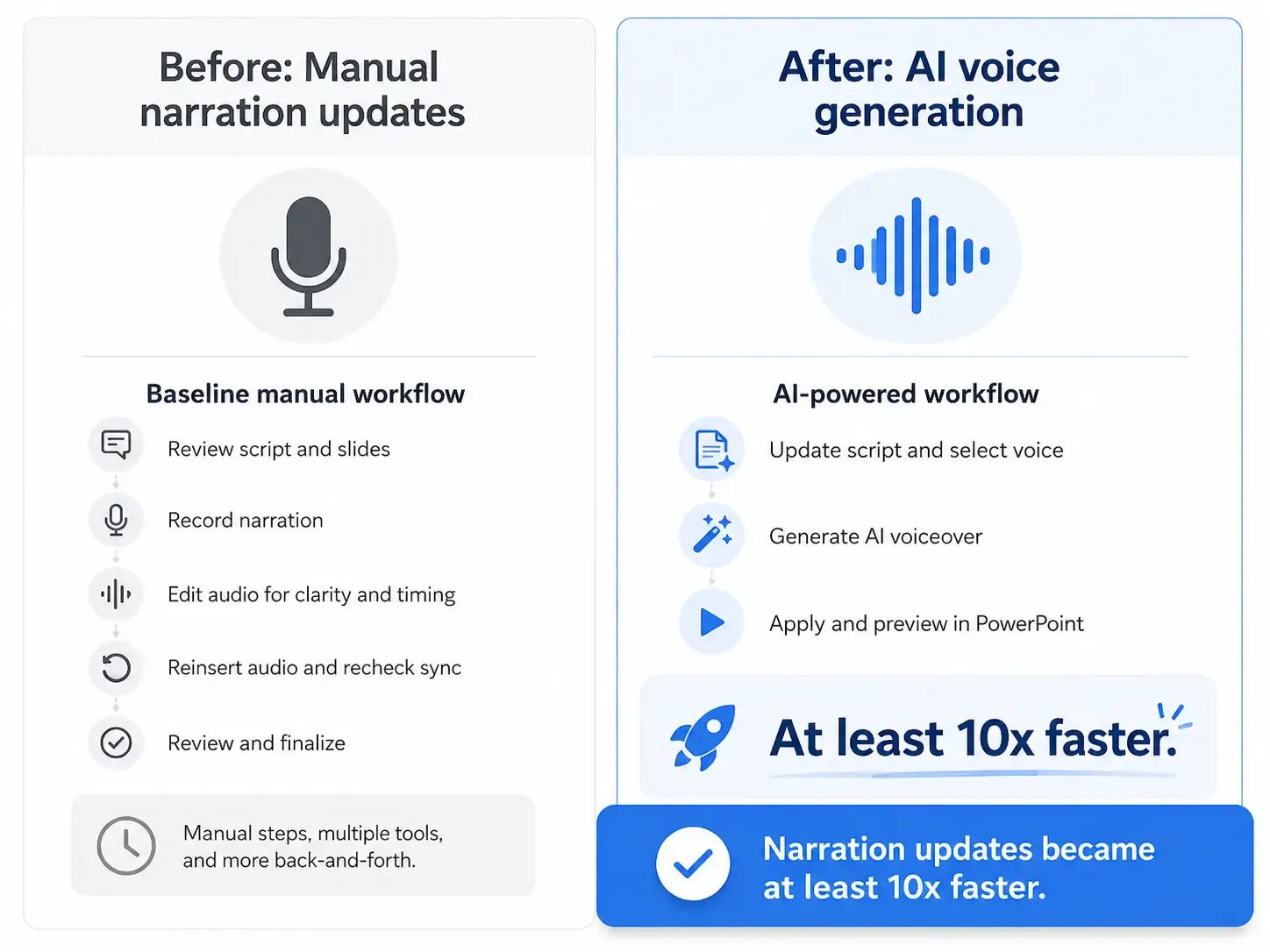
The strongest measurable result from my research came from a training workflow where AI voice generation made narration updates at least 10 times faster.
Before AI voiceover, updates required:
Script revision
Human recording
Audio editing
Compression
Mixing
Volume normalization
Replacing the old narration
Re-exporting the video
After AI voiceover, the workflow became:
Revise the script.
Regenerate the AI voiceover.
Replace the audio.
Re-export the updated video.
Quantifiable result: narration updates became at least 10 times faster.
This is the best argument for using AI voiceover in PowerPoint videos. The benefit is not only faster first production. The bigger advantage is faster maintenance.
This matters most for software tutorials, HR onboarding, compliance training, product education, and any content that changes regularly.
Best Tools to Make a Video from PowerPoint Without Recording Yourself
The best tool depends on your goal.
PowerPoint
Best for simple slide-to-video export.
PowerPoint can export MP4 videos and preserve your slide structure. It is a good option for short, simple decks. But for long narrated presentations, it can be slow, as the 45-slide workshop case showed.
AI Voiceover Tools
Best for replacing your own voice.
AI voice tools are ideal when you want natural narration without recording. They work well for courses, internal training, and repeatable content. The main limitations are pronunciation errors, subscription costs, and the need to manually sync audio.
PPT-to-Video AI Tools
Best for faster end-to-end production.
These tools can generate scripts, voiceover, and video from a PowerPoint file. They are useful when you have many decks or need a repeatable production process. The limitations are cost, weaker timing control, and imperfect script generation.
For this workflow, Leadee is a practical option to consider because it is designed to turn PowerPoint files into narrated videos with AI-generated scripts and voiceover, making it especially useful for users who want a faster PPT-to-video process without recording themselves.
Screen Recording Tools
Best as a fallback.
Screen recording is useful when PowerPoint export is too slow or when you need to capture animations exactly. It is less automated but practical in urgent cases.
Video Editors
Best for precise timing.
A video editor is best for e-learning, product walkthroughs, and polished training content. It gives better control over voiceover, animation, callouts, and pacing.
Do You Need an AI Avatar?
You do not need an AI avatar to make a good PowerPoint video.
For many use cases, slides plus natural narration are enough. This is especially true for internal training, compliance videos, product education, and knowledge-sharing content.
Use an AI avatar when you want a presenter-like experience or when the video is sales-facing. Avoid it when you have many videos to create, a limited budget, or content that changes often.
In my research, the real need was usually not a face on screen. The real need was clear explanation, natural narration, easy updates, and fast production.
Common Mistakes to Avoid
The biggest mistake is treating the video like a normal slide deck. A video needs a script, pacing, and structure.
Avoid these mistakes:
Reading slide bullets directly
Using one long audio file
Overusing animations
Skipping a short export test
Choosing an AI voice without checking pronunciation
Creating one long training video instead of modules
Using an avatar when narration is enough
Ignoring future updates
The best workflow is built for revision. Keep your scripts, audio files, and PowerPoint modules organized so you can update the video later without starting over.
Final Recommendation
The best way to make a video from PowerPoint without recording yourself is to use AI voiceover with a slide-by-slide workflow. For simple projects, insert AI audio into PowerPoint and export an MP4. For courses, onboarding, training, or many slide decks, use a PPT-to-video AI tool or combine PowerPoint, AI voiceover, and a video editor.
The most reliable workflow is:
Prepare the slides.
Write a natural script.
Generate AI voiceover.
Add one audio file per slide.
Sync timings.
Export a short test.
Export the final MP4.
Review before publishing.
If your priority is speed, use a PPT-to-video AI platform. If your priority is control, use PowerPoint plus AI voiceover and a video editor. If your content changes often, build the workflow around modular scripts and slide-level audio from the start.
The goal is not just to convert PowerPoint to video. The goal is to create a clear, scalable, and easy-to-update narrated video without recording yourself every time.