How to Turn PDFs into Lecture Videos: The Complete AI Workflow
You can turn PDFs into lecture videos by uploading the document to an AI lecture video generator, extracting the key concepts, generating a teaching script, adding voice narration, creating visual scenes or slide-based animations, and exporting the final video with subtitles, summaries, and optional quizzes. The best workflow depends on whether you want a simple narrated PDF walkthrough, a classroom-style lecture, a training video, or a polished explainer video.
In practice, the biggest challenge is not converting a PDF into a video file. The real challenge is turning a static document into a clear, accurate, and engaging learning experience. A useful lecture video should explain the material, preserve important details, handle charts and tables correctly, and give learners a reason to keep watching.
Based on our user research and workflow testing, the strongest PDF-to-lecture-video workflows combine automation with review. AI can save hours of production time, but human checks are still important when the PDF includes formulas, medical content, financial data, compliance material, or dense academic slides.
Quick Answer: How to Turn PDFs into Lecture Videos
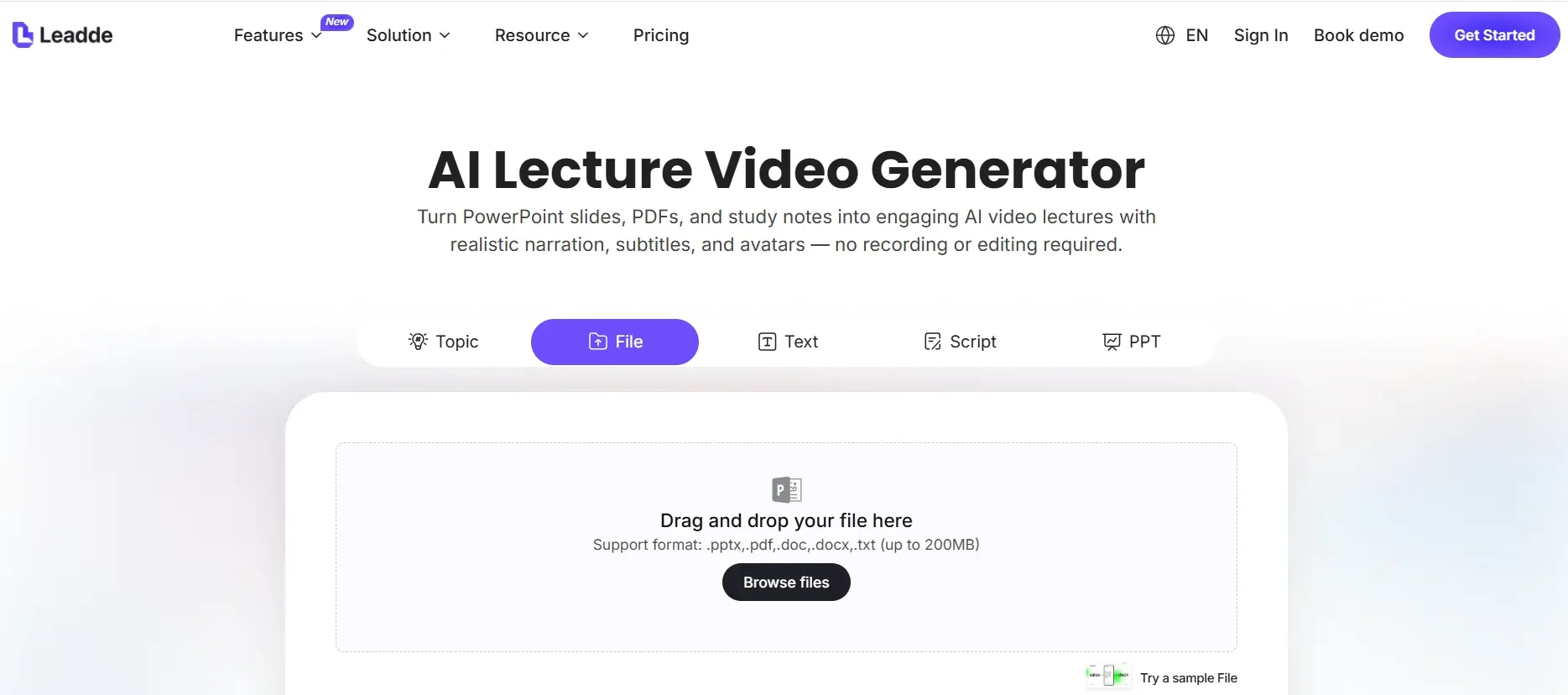
- Upload your PDF, slides, or course notes into a lecture video generator or AI study tool.
- Choose the output format: narrated lecture, explainer video, audio-first lesson, training module, or quiz-based study session.
- Generate a script, voiceover, subtitles, and visual structure from the PDF content.
- Review charts, tables, formulas, and technical claims before publishing.
- Use interactive outputs such as quizzes, flashcards, summaries, or Q&A when the goal is learning, not just video creation.
How PDF to Lecture Video Conversion Works
A PDF-to-lecture-video workflow usually follows five stages: content extraction, lesson structuring, script generation, visual production, and review.
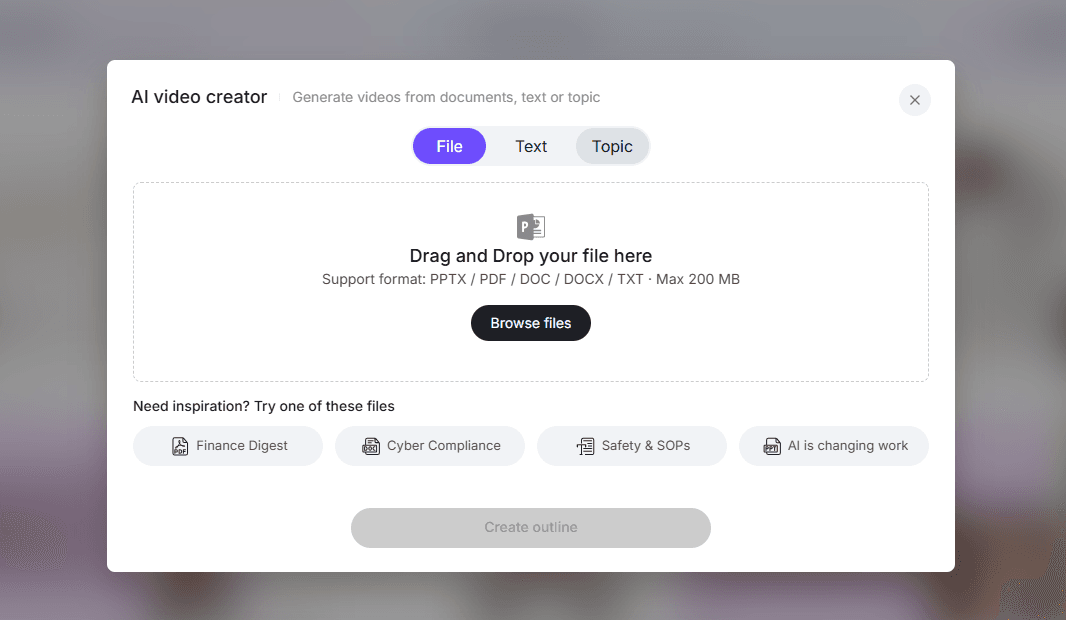
At the simplest level, the tool reads the PDF, identifies headings and key points, turns them into a narration script, and creates a video using slides, animated text, stock visuals, avatars, or motion graphics. More advanced tools go further by generating summaries, subtitles, quizzes, flashcards, and clickable learning modules.
Standard Workflow
| Step | What Happens | Why It Matters |
|---|---|---|
| 1. Upload PDF | The tool imports slides, notes, reports, or documents | Determines how much structure the AI can detect |
| 2. Extract key points | AI identifies topics, headings, examples, and definitions | Prevents the video from becoming a plain reading |
| 3. Generate script | The PDF is rewritten into spoken lecture narration | Makes the content sound teachable |
| 4. Add visuals | Slides, animations, diagrams, or scenes are created | Helps learners follow complex ideas |
| 5. Add voice and subtitles | AI voiceover and captions are generated | Improves accessibility and retention |
| 6. Review and edit | User checks accuracy, pacing, and visual quality | Reduces hallucinations and misinterpretation |
| 7. Export | Final video is shared, embedded, or uploaded to an LMS | Enables training, teaching, or self-study |
During our workflow testing, simple text-heavy PDFs converted more smoothly than visual-heavy documents. PDFs with clear headings, short paragraphs, and logical sections produced better scripts. Dense academic PDFs, scanned documents, and data-heavy files required more manual review.
Why Turn PDFs into Lecture Videos?
The main reason to convert PDFs into lecture videos is that static documents are often hard to finish, hard to remember, and hard to reuse. A PDF can contain excellent information, but it does not guide the learner through the material.
In our user research, students, trainers, and business teams repeatedly described the same problem: they had too many PDFs, slides, notes, onboarding decks, and lecture materials, but not enough time or motivation to study or present them properly.
Lecture videos solve this by adding structure, pacing, narration, and visual explanation.
Common Reasons Users Convert PDFs into Lecture Videos
| User Type | Typical PDF Content | Goal |
|---|---|---|
| Students | Class slides, lecture notes, textbook chapters | Review material before exams |
| Medical learners | Pathology, pharmacology, clinical PDFs | Understand dense technical topics |
| Corporate L&D teams | Onboarding documents, compliance manuals | Create scalable training videos |
| SaaS teams | Product docs, feature updates, proposals | Explain products to customers |
| Educators | Lesson plans, lecture slides, course handouts | Make reusable teaching materials |
| Course creators | Ebooks, guides, frameworks | Build video course assets |
The strongest use cases are not about video for its own sake. They are about comprehension, retention, and scale.
Best Use Cases for Turning PDFs into Lecture Videos
1. Student Study Videos from Slides and Notes
One of the clearest use cases is student learning. A student may have a 200-slide PowerPoint, multiple PDF handouts, and scattered notes from lectures. Instead of rereading everything manually, they can turn the material into lecture-style videos, flashcards, quizzes, and summaries.
In one case study review, a 200-slide deck was converted into 30 flashcards. While that example focused on flashcards rather than full video output, it shows the broader learning pattern: users want AI to transform passive material into active study assets.
A strong student workflow looks like this:
- Upload class slides or PDF notes.
- Generate a narrated lecture video.
- Review the summary for missing concepts.
- Create flashcards from the same source.
- Use quizzes to test recall before exams.
The key insight is that students often do not want another file to manage. They want a guided way to understand and remember what is already in their files.
2. Medical and Technical Learning Videos
Medical, scientific, and technical PDFs are excellent candidates for lecture videos, but they also carry higher accuracy risk. A pharmacology handout, pathology chapter, or engineering guide cannot be loosely summarized without losing important meaning.
In real learning scenarios, users often get better results by uploading one PDF at a time rather than combining too many sources. This helps the AI stay focused and reduces the chance that important details are skipped.
For dense technical material, the best workflow is:
- Split large PDFs into chapters or sections.
- Generate one lecture video per section.
- Ask for definitions, diagrams, and examples.
- Verify claims against the source PDF.
- Use Q&A and flashcards after the video.
This approach works especially well when learners want a “primer” before reading. The video gives context first, then the PDF provides depth.
3. Corporate Training and Onboarding Videos
Corporate learning teams often have large libraries of PDF manuals, onboarding decks, policy documents, and compliance materials. Turning these into lecture videos can make training easier to consume and easier to scale.
In one product workflow review, a 10-minute explainer video that might normally take around 3 days to produce was described as taking about 30 minutes with an AI-assisted workflow. That does not mean every organization will get the same result, but it highlights the type of efficiency gain users are looking for: faster production of training content without rebuilding every asset from scratch.
For corporate teams, PDF-to-video tools should be evaluated on more than speed. They also need:
- Brand control
- LMS compatibility
- Consistent voice and tone
- Subtitle support
- Editing controls
- Version management
- Accuracy review for compliance topics
The best corporate use case is not a one-off video. It is a repeatable content production system.
4. Product Explainer Videos from PDF Documents
SaaS founders, marketers, and product teams often create PDFs for feature updates, sales enablement, onboarding, and proposals. These documents are useful, but customers may not read them carefully.
A lecture-style or explainer-style video can turn a product PDF into a clearer customer education asset. For example, a product team might turn a feature release PDF into a short narrated video that explains what changed, who benefits, and how to use the feature.
In real customer scenarios, users care deeply about quality here. A generic slideshow with robotic narration may look cheap. A better explainer video should include:
- A clear problem-solution structure
- Product screenshots or visual walkthroughs
- Short sections with specific outcomes
- Professional narration
- Branded visuals
- Calls to action
For sales and customer success teams, the goal is not simply to “make a video.” The goal is to help customers understand faster and take the next step.
PDF to Lecture Video Tools: What to Look For
Not all PDF-to-video tools are built for the same job. Some are better for students, some for enterprise training, and some for polished marketing videos.
Tool Selection Checklist
| Feature | Why It Matters |
|---|---|
| PDF and PPT support | Many users work with both documents and slide decks |
| AI script generation | Turns written material into spoken teaching language |
| Voiceover options | Affects clarity, tone, and professionalism |
| Subtitle generation | Improves accessibility and review |
| Visual scene generation | Helps avoid boring slide narration |
| Quiz and flashcard creation | Supports active learning |
| Source referencing | Helps users verify claims |
| Editing controls | Essential for fixing errors and improving pacing |
| Chart/table handling | Critical for technical and business PDFs |
| LMS export or embedding | Important for corporate learning teams |
| Brand customization | Needed for customer-facing or enterprise use |
Common Tool Categories
| Category | Best For | Limitations |
|---|---|---|
| AI lecture generators | Students, educators, self-study | May need review for accuracy |
| Explainer video generators | Marketing, SaaS, customer education | Can be less academic in structure |
| AI study tools | Summaries, flashcards, podcasts, quizzes | Not always video-first |
| Avatar video tools | Talking-head training and introductions | May not explain complex visuals well |
| Slide-to-video tools | Simple presentation videos | Can feel like narrated slides |
| Manual recording tools | High control and accuracy | More time-consuming |
Based on hands-on comparisons, tools that only add voiceover to slides are often not enough for serious learning. The strongest tools help restructure the PDF into a lesson.
Common Problems When Converting PDFs into Lecture Videos
Problem 1: The Video Feels Like a Slideshow with Voiceover
This is the most common disappointment. A PDF becomes a sequence of static pages, and the voice simply reads or paraphrases the text.
A better lecture video should:
- Introduce the concept before showing details
- Explain why each section matters
- Use examples and transitions
- Highlight key terms visually
- Avoid reading dense paragraphs aloud
Problem 2: Charts, Tables, and Formulas Are Misread
Accuracy becomes a serious concern when the PDF contains charts, formulas, financial models, medical guidance, or compliance rules. During our workflow testing, these elements required extra review because AI tools may simplify, skip, or misinterpret them.
Use this review checklist before publishing:
- Are chart labels preserved correctly?
- Are table values accurate?
- Are formulas rendered properly?
- Are units and dates unchanged?
- Are limitations or warnings included?
- Are citations or source references retained?
For high-stakes content, always review the final script and visuals manually.
Problem 3: The AI Summary Is Too Shallow
Long PDFs are often compressed into a short overview. This may be useful for orientation but not enough for real learning.
A practical fix is to split the PDF into sections. In one workflow case, users generated longer, deeper audio-style explanations by dividing a large document into smaller logical parts. This same principle applies to lecture videos: smaller inputs often produce better lessons.
Problem 4: The Tool Does Not Offer Enough Control
Some tools produce a fast result but give limited control over script, tone, visual style, or lesson structure. That is acceptable for rough study videos, but not for professional training or customer-facing content.
If quality matters, choose a tool that lets you edit:
- Script sections
- Voice style
- Scene order
- Visual assets
- Captions
- Branding
- Video length
- Learning objectives
Problem 5: Pricing Does Not Match the User’s Situation
Students may need affordable or free options. Businesses may justify paid tools if they save production time or reduce agency costs. The buying logic differs by audience.
A student asks, “Will this help me study better?”
A business asks, “Will this reduce production time without lowering quality?”
An educator asks, “Will this improve learning without creating extra review work?”
The right tool depends on which question matters most.
Best Workflow: How to Turn a PDF into a Lecture Video
Here is a practical workflow that works for students, educators, and business teams.
Step 1: Prepare the PDF
Before uploading, clean the source file.
Remove duplicate pages, outdated sections, irrelevant appendices, and low-quality scans. If the PDF is long, divide it into smaller modules. For example, instead of uploading a 50-page PDF at once, split it into five 10-page lessons or topic-based sections.
Step 2: Define the Learning Goal
Do not just ask the tool to “make a video.” Define the outcome.
Examples:
- “Create a 7-minute lecture for first-year biology students.”
- “Turn this onboarding manual into a compliance training video.”
- “Explain this product update to non-technical customers.”
- “Create a study video with quiz questions at the end.”
A clear goal improves script structure and pacing.
Step 3: Generate the Teaching Script
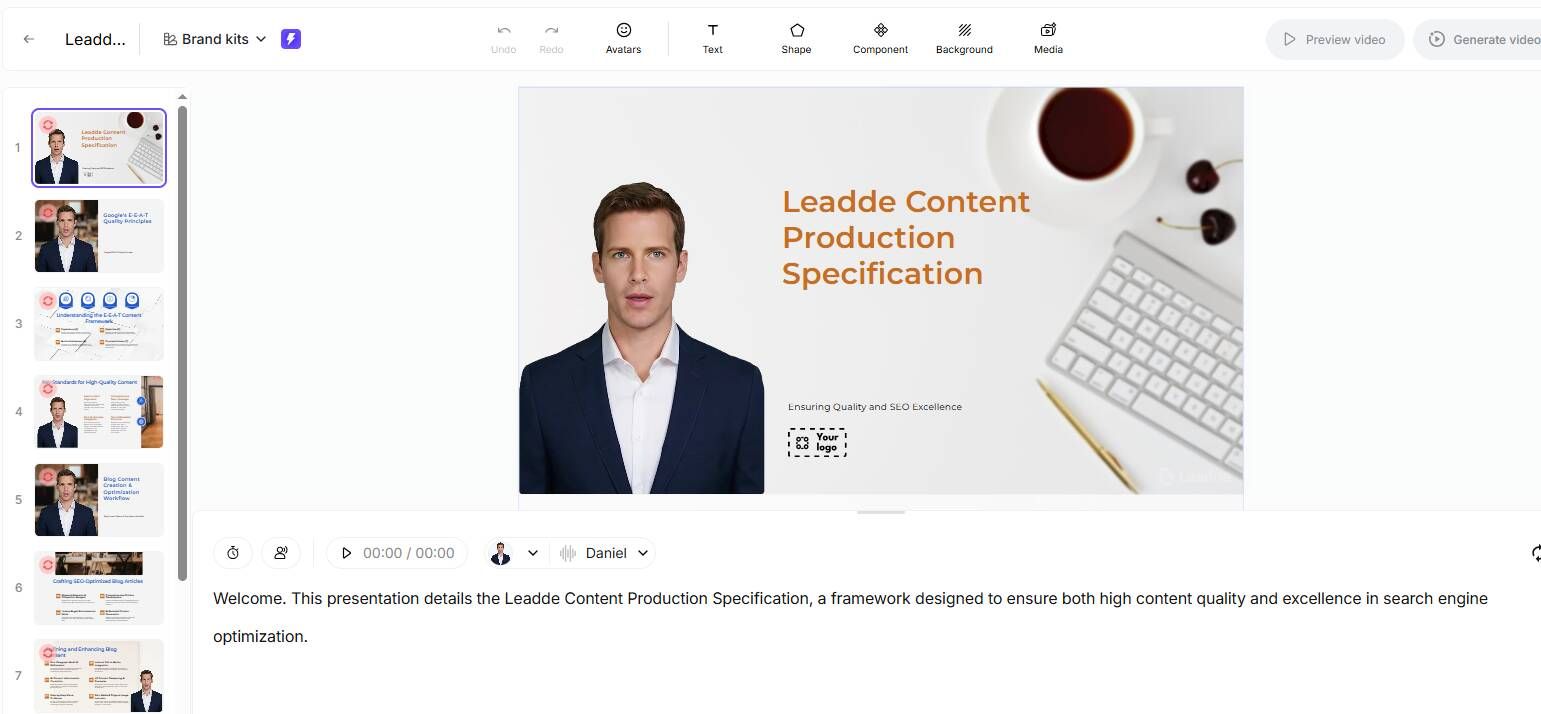
The script should not simply repeat the PDF. It should translate the PDF into spoken explanation.
A good script includes:
- A short introduction
- Learning objectives
- Section-by-section explanation
- Examples or analogies
- Smooth transitions
- Summary points
- Optional review questions
Step 4: Choose the Video Style
The right format depends on the audience.
| Video Style | Best For |
|---|---|
| Narrated slides | Quick classroom review |
| Motion graphics | Explaining abstract concepts |
| Avatar narration | Corporate introductions |
| Screen walkthrough | Software or product training |
| Whiteboard style | Math, science, frameworks |
| Audio-first video | Long-form study and review |
For academic learning, clarity matters more than polish. For customer-facing videos, production quality matters more.
Step 5: Add Voiceover and Subtitles
Voice quality affects whether learners keep watching. Choose a voice that matches the audience and subject. A calm instructional voice works well for study content. A more polished voice may be better for enterprise or marketing use.
Subtitles are not optional for serious learning content. They help with accessibility, review, and comprehension.
Step 6: Review for Accuracy
This is the most important step. Compare the video against the original PDF.
Pay special attention to:
- Technical definitions
- Numbers and percentages
- Dates and legal language
- Medical or scientific claims
- Diagrams and chart explanations
- Tables and formulas
Do not publish high-stakes content without review.
Step 7: Add Learning Assets
If the goal is education, add active learning components.
Useful add-ons include:
- Quiz questions
- Flashcards
- Chapter summaries
- Glossaries
- Key takeaways
- Discussion prompts
- Source-linked notes
This turns a lecture video from passive content into a learning system.
PDF to Lecture Video Decision Matrix
Use this matrix to choose the right workflow.
| Goal | Best Workflow | Must-Have Features |
|---|---|---|
| Exam review | PDF to lecture video plus flashcards | Summaries, quizzes, subtitles |
| Medical or technical study | Section-by-section video creation | Source accuracy, Q&A, manual review |
| Corporate onboarding | Branded training video | LMS support, voiceover, editing |
| Compliance training | Reviewed lecture module | Version control, accurate scripts |
| Product education | Explainer video from PDF | Branding, screenshots, CTA |
| Course creation | Multi-lesson video series | Chapter splitting, templates, exports |
| Fast internal summary | Short narrated overview | Speed, captions, simple sharing |
The most important decision is whether the video is for personal understanding, formal training, or public-facing communication. Each use case has a different quality bar.
PDF to Lecture Video Tool Comparison Criteria
When comparing tools, focus less on feature lists and more on output quality.
Ask These Questions Before Choosing a Tool
| Question | Why It Matters |
|---|---|
| Does it explain or just read the PDF? | Determines educational value |
| Can I edit the script? | Needed for accuracy and tone |
| Can it handle charts and tables? | Critical for technical PDFs |
| Does it create quizzes or flashcards? | Useful for learning outcomes |
| Can I control video length? | Prevents shallow summaries |
| Does it support branding? | Important for business use |
| Can it export to my platform? | Needed for LMS, YouTube, or internal portals |
| Does it preserve source meaning? | Reduces risk of misinformation |
A good PDF-to-lecture-video tool should feel less like a file converter and more like a teaching assistant.
Conclusion: The Best PDF Lecture Videos Teach, Not Just Convert
Turning PDFs into lecture videos is now practical for students, educators, training teams, and product marketers. But the best results come from treating the process as lesson design, not file conversion.
A good PDF lecture video explains the material clearly, preserves the source meaning, uses visuals with purpose, and gives learners a way to review what they learned. AI can dramatically reduce production effort, especially for repetitive training and study workflows, but accuracy and control still matter.
The best approach is simple: start with a clean PDF, define the learning goal, generate a structured script, choose the right video format, review carefully, and add learning assets such as quizzes or flashcards. That is how a static document becomes a useful lecture video rather than just another piece of content.