How to Turn PowerPoint Slides into AI Lecture Videos
The fastest modern way to turn PowerPoint slides into lecture videos is to use an AI workflow: upload your PPT, let AI generate a lecture outline and script, choose a virtual presenter and voiceover, then automatically create a narrated video from your slides.
This approach is especially useful for educators, course creators, corporate trainers, and L&D teams that need to convert existing slide decks into scalable learning content without manually recording narration, editing timelines, or syncing every slide by hand.
The key is not simply “PPT to MP4.” A strong AI PowerPoint-to-video workflow should understand the slide structure, turn slide content into a spoken lecture script, match narration to each slide, support AI avatars or voice-only narration, and export a polished lecture video that is easy to revise.
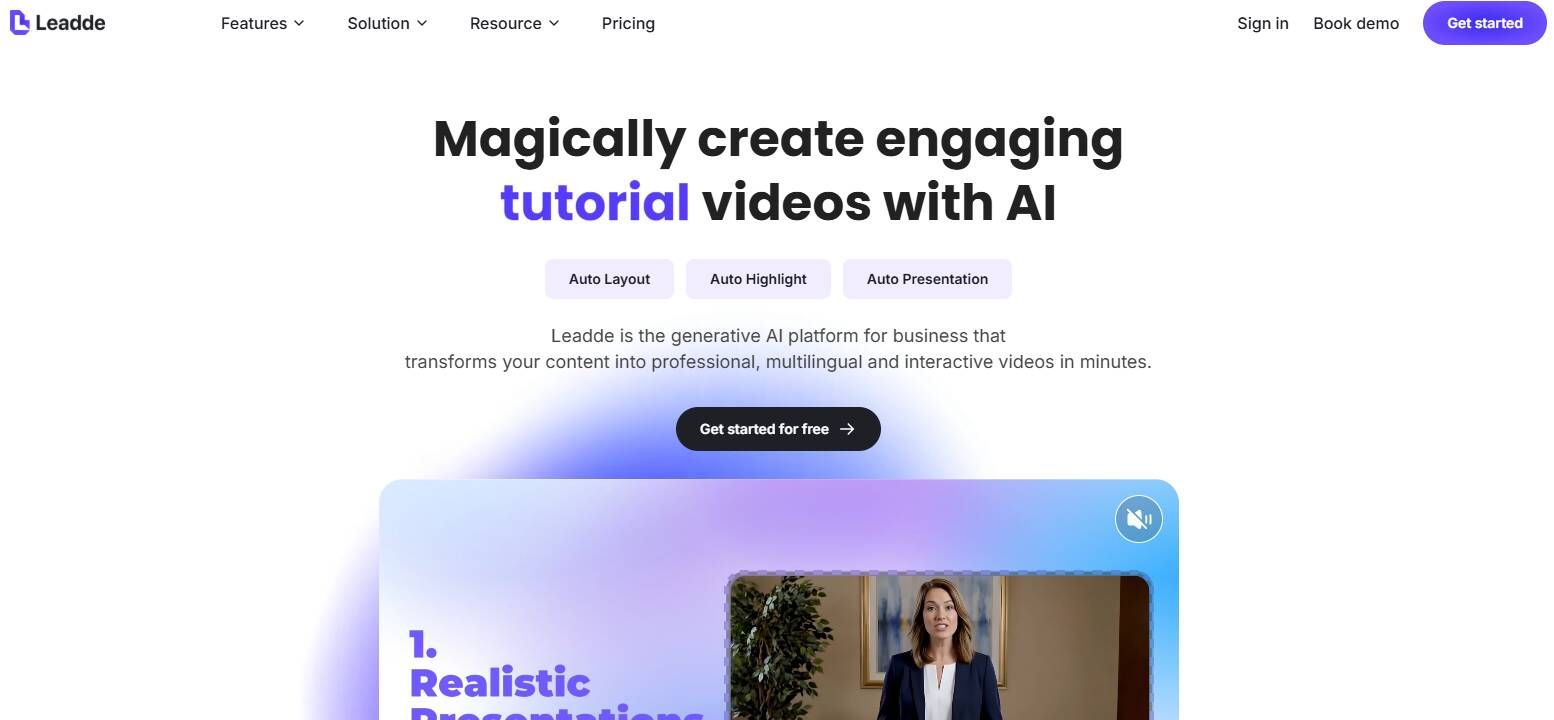
For a simpler end-to-end option, Leadde can turn uploaded PowerPoint slides into AI lecture videos with generated scripts, virtual presenters, and voiceovers.
Key Takeaways
- The best AI workflow is: upload PPT → generate outline → create lecture script → choose avatar and voice → auto-generate video → review and export.
- AI lecture video tools solve the biggest pain points of traditional PPT video creation: manual recording, slide timing, voiceover syncing, and repetitive editing.
- AI avatars are useful for training, onboarding, and explainer videos, but voice-only lecture videos may work better for academic or technical content.
- The best results come from reviewing the AI-generated script before video generation instead of letting the tool simply read slide text.
- For scalable course production, choose an AI workflow that lets you update slides, regenerate narration, and export videos without rebuilding everything manually.
How to Turn PowerPoint Slides into AI Lecture Videos
To turn PowerPoint slides into AI lecture videos, use this workflow:
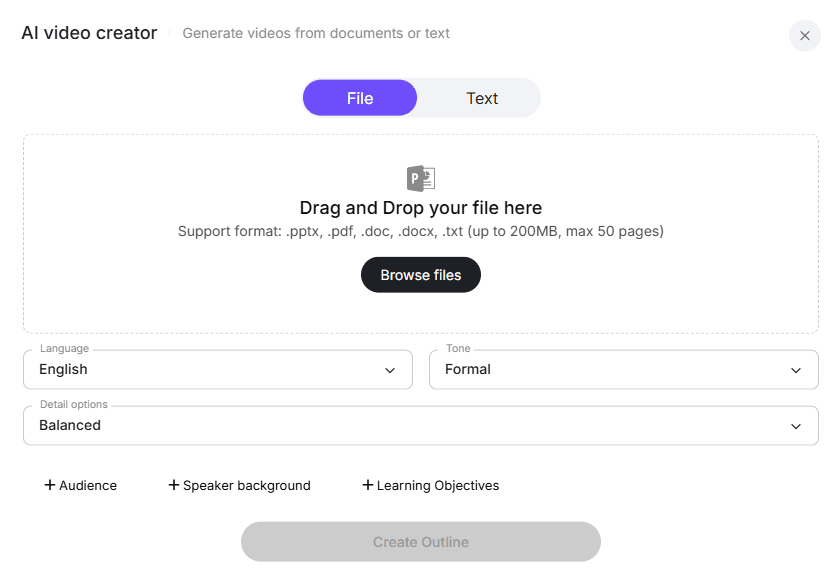
- Upload your PowerPoint file
- Let AI analyze the slide deck
- Generate a lecture outline
- Create a slide-by-slide narration script
- Choose a virtual presenter or voice-only format
- Select AI voiceover, language, tone, and pace
- Automatically generate the lecture video
- Review, edit, export, and publish
This AI-first process removes the most tedious parts of lecture video production. Instead of exporting slides as images, recording audio separately, importing everything into a video editor, and manually syncing each segment, the AI system handles structure, narration, pacing, and video assembly.
In our user research, the clearest demand was not just “convert PPT to video.” Users wanted a tool that could read their slides, understand the presentation flow, generate a usable speaking script, and produce a complete lecture-style video with minimal manual editing.
A practical AI workflow looks like this:
| Step | AI Workflow Action | What It Solves |
|---|---|---|
| Upload PPT | Import the full slide deck | Avoids screenshots and manual slide extraction |
| Analyze slides | AI detects topics, sections, and slide order | Creates a logical lecture flow |
| Generate outline | AI turns slides into a structured teaching plan | Prevents flat slide-by-slide reading |
| Write script | AI creates spoken narration for each slide | Saves manual scriptwriting time |
| Choose avatar | Select a virtual presenter if needed | Adds human-like delivery without filming |
| Choose voice | Pick voice, language, tone, and speed | Replaces manual voice recording |
| Generate video | AI syncs slides, narration, and presenter | Reduces timing and editing work |
| Export | Download or publish the final video | Makes the content ready for learners |
The strongest AI tools do not simply read the bullet points on the slide. They turn the slide deck into a lecture narrative.
Why Use an AI Workflow to Turn PowerPoint into Lecture Videos?
AI lecture video creation is valuable because it solves the practical production problems that make traditional slide videos slow and frustrating.
In real customer scenarios, creators often start with a slide deck that already exists. The content is there, but transforming it into a polished learning video requires several additional layers: structure, script, narration, timing, visual pacing, and export.
Without AI, that usually means:
- Writing a script manually
- Recording voiceover slide by slide
- Re-recording mistakes
- Setting slide timings by hand
- Fixing audio that cuts off
- Editing long timelines
- Compressing large video files
- Repeating the same process for every course update
With an AI workflow, the process becomes more scalable. You upload the PPT, review the AI-generated lecture script, choose an avatar and voice, then generate the video automatically.
Traditional PPT-to-Video vs AI PPT-to-Lecture Video
| Factor | Traditional Workflow | AI Lecture Video Workflow |
|---|---|---|
| Starting point | PPT file | PPT file |
| Scriptwriting | Manual | AI-generated outline and script |
| Narration | Human recording | AI voiceover or cloned/selected voice |
| Presenter | Instructor on webcam or none | AI avatar, virtual presenter, or voice-only |
| Timing | Manual slide timing | Auto-sync based on narration |
| Editing | Video editor required | Built-in review and regeneration |
| Updates | Often require re-recording | Regenerate selected sections |
| Best for | One-off lectures | Scalable course and training production |
The biggest advantage of the AI workflow is repeatability. If you need to convert one short presentation, manual recording may be fine. If you need to convert 20, 50, or 100 slide decks into training videos, AI becomes much more compelling.
Best AI Workflow for PowerPoint to Lecture Video
The best workflow is not “upload slides and instantly publish.” For quality, use AI to accelerate production while keeping human review in the loop.
Step 1: Upload the PowerPoint File
Start by uploading the PPT or PPTX file into an AI lecture video platform.
The tool should preserve:
- Slide order
- Text hierarchy
- Images and diagrams
- Speaker notes if available
- Section breaks
- Animations where supported
- Visual formatting as much as possible
This matters because many users do not want to rebuild slides from scratch. They already have a finished presentation, training deck, or classroom lecture. The AI tool should treat the PowerPoint as the source material.
Step 2: Let AI Generate a Lecture Outline
After upload, AI should analyze the deck and create an outline.
A strong outline should identify:
- Main topic
- Learning objective
- Key sections
- Slide groups
- Logical transitions
- Summary points
- Potential gaps in explanation
This is where AI adds value beyond simple file conversion. A PowerPoint deck is often designed for live presentation, not standalone learning. In a live session, the speaker fills in context. In a lecture video, the video itself must provide that context.
For example, a 30-slide onboarding deck may include company values, platform walkthroughs, compliance reminders, and next steps. AI should group those into a coherent lecture structure rather than treating each slide as an isolated image.
Step 3: Generate a Slide-by-Slide Lecture Script
Next, AI should generate a spoken script for each slide.
This is one of the most important steps. Good lecture video narration should not sound like someone reading bullets. It should explain, connect, and guide.
A useful AI-generated script should:
- Expand short bullet points into clear explanations
- Add transitions between slides
- Define technical terms
- Turn dense text into spoken language
- Keep the tone consistent
- Avoid overexplaining simple slides
- Match the expected audience level
In our workflow testing, the best results came from editing the script before generating the final video. Even a small review pass can significantly improve clarity, tone, and accuracy.
Step 4: Choose a Virtual Presenter or Voice-Only Format
Once the script is ready, choose the presentation style.
There are usually three options:
| Format | Best For | Trade-Off |
|---|---|---|
| AI avatar presenter | Training, onboarding, sales enablement, explainer videos | Can feel less natural if overused |
| Voice-only narration | Academic lectures, technical training, slide-heavy content | Less visual human presence |
| Hybrid avatar plus slides | Executive updates, internal training, product walkthroughs | Needs careful layout design |
AI avatars are useful when you want a human-like presence without filming. They work well for employee training, onboarding videos, product explainers, and repeatable internal education.
Voice-only narration is often better when the slides themselves are the main learning object, such as diagrams, code examples, data charts, process maps, or academic lecture notes.
Step 5: Select AI Voiceover, Language, Tone, and Pace
AI voiceover is one of the main reasons users adopt this workflow.
Choose voice settings based on the lecture context:
| Lecture Type | Recommended Voice Style |
|---|---|
| University lecture | Clear, calm, instructional |
| Corporate onboarding | Warm, confident, professional |
| Compliance training | Precise, neutral, serious |
| Product training | Energetic but clear |
| Technical tutorial | Slower pace, strong pronunciation |
| Sales enablement | Confident and conversational |
If the tool supports multiple languages, this is also where AI becomes especially useful. Instead of re-recording a lecture in every language, teams can translate or localize the script and generate new voiceovers.
The best practice is to preview the voice before generating the full lecture video. Pay attention to pronunciation, pacing, pauses, and whether the tone fits the audience.
Step 6: Automatically Generate the Lecture Video
After the script, avatar, and voice are selected, the AI system generates the lecture video.
A strong AI video generator should automatically handle:
- Slide sequencing
- Voiceover generation
- Avatar rendering
- Slide-to-audio synchronization
- Scene transitions
- Captions or subtitles
- Intro and outro scenes
- Final MP4 export
This is the point where AI saves the most production time. Instead of manually syncing 20–40 slides with separate audio files, the system assembles the lecture as a structured video.
Step 7: Review, Edit, and Regenerate
Never skip review.
Even when the AI output is strong, check:
- Does the script explain the slide correctly?
- Is any important context missing?
- Are technical terms pronounced correctly?
- Does the avatar placement block slide content?
- Is the voice too fast or too slow?
- Are transitions smooth?
- Do captions match the narration?
- Does the video feel like a lecture rather than a slide reading?
The best AI workflows allow section-level regeneration. That means you can fix one slide, one paragraph, or one scene without recreating the whole video.
Best Use Cases for AI PowerPoint Lecture Videos
AI PowerPoint-to-video workflows are especially valuable when the source material already exists and the main challenge is production speed.
1. Online Course Creation
Course creators often have slide decks from webinars, workshops, or classroom lessons. AI can turn those decks into structured video lessons by generating the lecture script, voiceover, and presenter.
Workflow example:
- Upload a 25-slide lesson deck
- AI creates a learning outline
- AI writes narration for each slide
- Creator edits the script for accuracy
- AI avatar presents the lesson
- Final video is exported for the course platform
Why it works:
The creator avoids starting from a blank script and does not need to record every lesson manually.
2. Corporate Training and Onboarding
L&D teams often maintain large libraries of PowerPoint training materials. These decks may be accurate but not engaging as standalone learning assets.
AI can help convert them into consistent onboarding or compliance videos.
Workflow example:
- Upload a company onboarding deck
- AI groups slides into sections
- AI generates a friendly presenter script
- HR selects a professional avatar and voice
- The platform generates a complete onboarding video
- The video is uploaded to an LMS or internal portal
Why it works:
The same workflow can be repeated for role-specific onboarding, policy updates, security training, and product education.
3. Lecture Videos for Professors and Educators
Educators often need asynchronous lectures but may not want to spend hours recording and editing.
AI can create a first version of the lecture from the PowerPoint deck, then the instructor can revise the script to preserve teaching style and subject accuracy.
Workflow example:
- Upload weekly lecture slides
- AI generates a lecture outline
- Instructor reviews and adjusts examples
- AI voiceover generates narration
- Voice-only or avatar video is exported
- Captions and transcript are added for accessibility
Why it works:
The instructor remains in control of the explanation while avoiding repetitive recording and export work.
4. Product Training and Sales Enablement
Product teams often create slides for internal enablement, feature launches, and customer education. AI can convert those decks into short video explainers.
Workflow example:
- Upload a product update deck
- AI turns each section into a short lesson
- Select an energetic but professional voice
- Add an avatar for intro and summary scenes
- Export a video for sales reps or customers
Why it works:
The content can be updated quickly when product messaging changes.
5. Multilingual Training Videos
AI voiceover and avatar workflows are useful for global teams. Once the main script is approved, it can be localized into multiple languages.
Workflow example:
- Upload English training deck
- Generate English script and video
- Translate script into target languages
- Generate localized AI voiceovers
- Export regional versions
Why it works:
Teams avoid recording the same training repeatedly with different speakers.
What to Look for in an AI PowerPoint-to-Lecture Video Tool
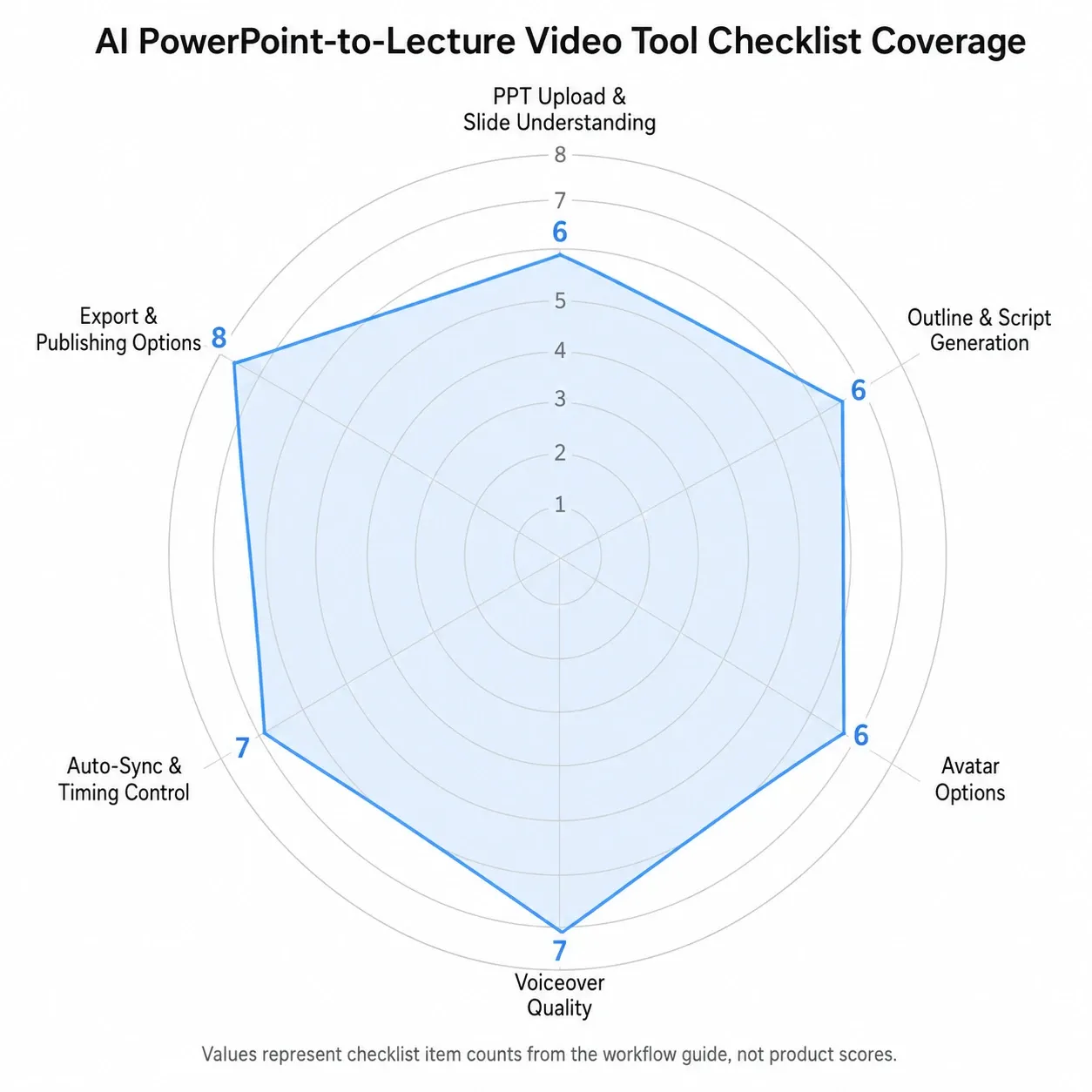
Not every AI video tool is built for lecture content. Some are better for marketing videos, while others are designed for training, education, or internal communications.
Use this checklist when comparing tools.
AI PPT Upload and Slide Understanding
The tool should support direct PPT or PPTX upload. It should not force you to manually copy slides into a new editor.
Look for:
- PPT/PPTX import
- Slide layout preservation
- Speaker notes import
- Image and diagram support
- Section recognition
- Ability to edit slide order
AI Outline and Script Generation
This is the core feature for lecture video creation.
Look for:
- Automatic lecture outline
- Slide-by-slide narration script
- Audience-level adjustment
- Tone controls
- Script editing before video generation
- Ability to shorten, expand, or simplify narration
A tool that only reads slide text aloud is not enough for high-quality lecture videos.
AI Avatar and Virtual Presenter Options
If you want a virtual presenter, check:
- Avatar variety
- Professional presenter styles
- Avatar placement controls
- Full-body or talking-head options
- Gesture and expression quality
- Whether avatar can appear only on selected scenes
For many lecture videos, the avatar does not need to appear on every slide. A useful pattern is to use the virtual presenter for the introduction, transitions, and summary, while keeping complex slides full-screen.
AI Voiceover Quality
Voice quality can make or break the video.
Check:
- Voice naturalness
- Language options
- Accent options
- Pronunciation controls
- Speed adjustment
- Pauses and emphasis
- Consistency across long videos
During hands-on comparisons, voice pacing was one of the most important quality factors. A voice that sounds acceptable for a 30-second demo may feel tiring across a 20-minute lecture.
Auto-Sync and Timing Control
The tool should automatically match narration to slides, but still allow manual control.
Look for:
- Auto slide timing
- Scene-level editing
- Animation support
- Caption synchronization
- Audio preview
- Regeneration for selected slides
- Timeline editing if needed
This directly solves one of the biggest pain points in traditional PowerPoint video export: narration and visuals drifting out of sync.
Export and Publishing Options
Check whether the tool supports the formats you need.
Look for:
- MP4 export
- Captions or subtitle files
- Transcript export
- LMS upload support
- Share links
- 1080p or higher output if needed
- Team collaboration
- Version control
For corporate training, MP4 alone may not be enough. You may also need SCORM, xAPI, LMS analytics, or completion tracking through another platform.
AI Avatar vs AI Voiceover: Which Is Better for Lecture Videos?
AI avatar and AI voiceover workflows solve different problems.
| Option | Best For | Pros | Cons |
|---|---|---|---|
| AI avatar | Training, onboarding, executive explainers | Adds human presence, useful for introductions | Can distract from dense slides |
| AI voiceover only | Academic lectures, technical content | Keeps focus on slides, simpler production | Less personal presence |
| Avatar plus slides | Corporate learning, product education | Balances presenter and visual content | Requires good layout |
| Human recording | High-trust expert content | Most authentic | Slower and harder to scale |
The best choice depends on the learning context.
Use an AI avatar when the video needs a presenter-like feel. This is helpful for onboarding, HR training, policy updates, sales enablement, and internal announcements.
Use AI voiceover only when the slides carry most of the information. This is usually better for technical tutorials, diagrams, academic lessons, and data-heavy presentations.
Use a hybrid format when you want a presenter to introduce or summarize, but do not want the avatar covering slide content throughout the entire video.
Best Practices for Creating AI Lecture Videos from PowerPoint
Start With a Clean Slide Deck
Before uploading your PPT, remove unnecessary clutter.
Check:
- Are slide titles clear?
- Are visuals readable?
- Are there too many bullets?
- Are diagrams high-resolution?
- Are animations necessary?
- Are speaker notes accurate?
- Are sections logically ordered?
AI can improve narration, but it cannot fully fix a confusing deck.
Use Speaker Notes as AI Input
If your PowerPoint has speaker notes, use them. They provide better context than slide text alone.
Good speaker notes help AI understand:
- What the slide means
- What the audience should learn
- What examples to include
- What should be emphasized
- What can be skipped
Review the AI-Generated Outline Before the Script
Do not jump straight to video generation. Review the outline first.
Ask:
- Does the lecture have a clear beginning, middle, and end?
- Are the sections in the right order?
- Are any slides redundant?
- Are any learning objectives missing?
- Should the deck be split into multiple videos?
A 40-slide deck may work better as four shorter videos than one long video.
Edit the Script for Human Delivery
AI-generated scripts are a starting point. Make them sound natural.
Improve the script by adding:
- Short transitions
- Real examples
- “Why this matters” explanations
- Definitions for beginners
- Recap sentences
- Clear calls to action
Generate a Short Test Video First
Before rendering the full lecture, generate a short sample.
Test:
- One title slide
- One content slide
- One complex visual slide
- One transition slide
- One closing slide
This helps you catch voice, avatar, layout, and timing issues early.
Keep the Workflow Modular
For scalable production, keep source files organized:
- Original PPT
- Cleaned PPT
- AI-generated outline
- Edited script
- Voice settings
- Avatar settings
- Final MP4
- Captions
- Transcript
This makes it easier to update the video when the course changes.
AI PowerPoint Lecture Video Decision Matrix
Use this decision matrix to choose the best AI workflow.
| Goal | Recommended AI Workflow |
|---|---|
| Create a quick lecture from slides | Upload PPT, generate script, use AI voiceover, export MP4 |
| Create a presenter-led training video | Upload PPT, generate script, choose AI avatar, export video |
| Convert many training decks | Batch-friendly AI workflow with reusable voice and avatar settings |
| Build multilingual learning content | Generate script, localize, create AI voiceovers in each language |
| Make academic lecture videos | Use voice-only or minimal avatar, review script carefully |
| Create onboarding videos | Use avatar presenter with warm professional voice |
| Create product training | Use hybrid avatar plus screen-focused slides |
| Publish to LMS | Export MP4, captions, transcript, and upload to LMS |
| Need quizzes and tracking | Combine AI video with an eLearning authoring or LMS tool |
The most scalable approach is to separate content from production. Keep the PowerPoint, outline, script, voice, and video as editable layers instead of treating the final MP4 as the only asset.
Common Problems in AI PowerPoint-to-Video Workflows
AI makes production faster, but it does not remove the need for quality control.
Problem 1: The AI Script Sounds Like Slide Reading
This happens when the tool turns bullet points directly into narration.
Fix:
Rewrite the script in spoken language. Add transitions, examples, and explanations. A lecture video should sound like teaching, not reading.
Problem 2: The Avatar Distracts From the Slides
A virtual presenter can help, but it can also block charts, diagrams, or dense text.
Fix:
Use the avatar in intro, transition, and summary scenes. For complex slides, switch to voice-only narration or move the avatar to a small corner.
Problem 3: Technical Terms Are Mispronounced
AI voices may struggle with acronyms, product names, scientific terms, or industry jargon.
Fix:
Use pronunciation controls if available. Otherwise, rewrite terms phonetically or add pauses.
Problem 4: Video Length Becomes Too Long
AI may over-explain every slide, turning a short deck into a long lecture.
Fix:
Set a target video length or ask the AI to make the script concise. Break large decks into modules.
Problem 5: The Lecture Lacks Instructional Flow
Slide decks made for live presentations often skip context because the speaker was expected to explain it live.
Fix:
Use the AI-generated outline as a diagnostic tool. Add missing learning objectives, transitions, examples, and summaries before generating the video.
Conclusion: The Future of PowerPoint Lecture Videos Is AI-Generated, but Human-Reviewed
The best way to turn PowerPoint slides into lecture videos is now an AI-assisted workflow: upload the PPT, generate an outline and lecture script, choose a virtual presenter and voiceover, then automatically create a polished video.
This workflow is faster and more scalable than manually recording narration, setting slide timings, and editing every scene by hand. It is especially useful for online courses, corporate training, onboarding, product education, and multilingual learning content.
The best results still come from human review. AI should handle the repetitive production work, while you refine the message, check accuracy, and make sure the final lecture feels clear, credible, and useful for learners.