PowerPoint to AI Video Without Avatars: When AI Voice Works Better

A PowerPoint can become an effective AI video without an avatar. For training, education, technical content, and product explainers, slides plus AI voice often work better when viewers need to focus on charts, diagrams, screenshots, or processes. AI narration can add the missing explanation without competing with the main visual.
The goal is not just to export PPT slides as MP4. A stronger workflow turns slides and speaker notes into clear narration, matches the voice to each scene, and makes updates easier. Leadde supports this content-first approach by turning PowerPoint and other source materials into structured videos with AI-generated scripts, narration, scenes, and multilingual output.
This guide explains when slides + AI voice work better than an AI avatar, when a presenter still adds value, and how to create PowerPoint videos that are clear, engaging, and easier to scale.
PowerPoint to AI Video Without Avatars: How Does It Work?
A PowerPoint-to-AI-video workflow without avatars keeps the slides or slide-derived visuals as the main visual layer while AI generates or improves narration, voice, timing, captions, and video scenes. The finished presentation can then become an MP4 without placing a virtual presenter on screen.
PowerPoint itself already records narration, slide timings, animations, ink, and pointer movements and can export presentations as MP4 video. The value of AI is therefore not simply “PPT to MP4.” It is reducing the work between a presentation and a video designed for asynchronous viewing.
What does AI add beyond PowerPoint's native video export?
There is an important difference between conversion and transformation:
- Conversion: PPT → MP4.
- Transformation: PPT → video-ready script → AI narration → timed scenes → captions → localized or updated versions.
Modern PowerPoint-to-video tools can also convert speaker notes into narration. Synthesia, for example, imports PPTX content as editable elements and can turn speaker notes into a synchronized script; it treats an AI presenter as optional.
Can speaker notes become the AI voiceover script?
Yes, but speaker notes should usually be treated as source material rather than a finished voiceover.
Notes written for a live presentation may assume that a presenter will point to a chart, pause for questions, or provide missing context. An asynchronous video has to make those connections explicit.
A better AI workflow therefore turns short notes and slide bullets into spoken explanations rather than simply reading them aloud.
Should every PowerPoint slide become one video scene?
Not necessarily. Use a simple Preserve, Split, or Merge decision:
- Preserve a slide if it already communicates one clear visual idea.
- Split a dense slide when several concepts need separate explanation.
- Merge lightweight slides when separating them would interrupt the narrative.
One slide does not always equal one good video scene.
When Do Slides + AI Voice Work Better Than an AI Avatar?
The most useful question is not whether AI avatars are good or bad. Ask:
Where does the information live, and what should the viewer be looking at?
When viewers need to inspect the slide
Slides + narration are particularly useful when the primary information is contained in:
- charts and tables;
- process diagrams;
- dashboards;
- software screenshots;
- technical architecture;
- product interfaces;
- workflows and SOPs.
If removing the slide would make the explanation difficult to follow, the slide is probably the primary visual.
That principle also fits multimedia-learning research. People process visual/pictorial and auditory/verbal information through limited-capacity channels, while signaling and synchronized narration can help direct attention to essential content.
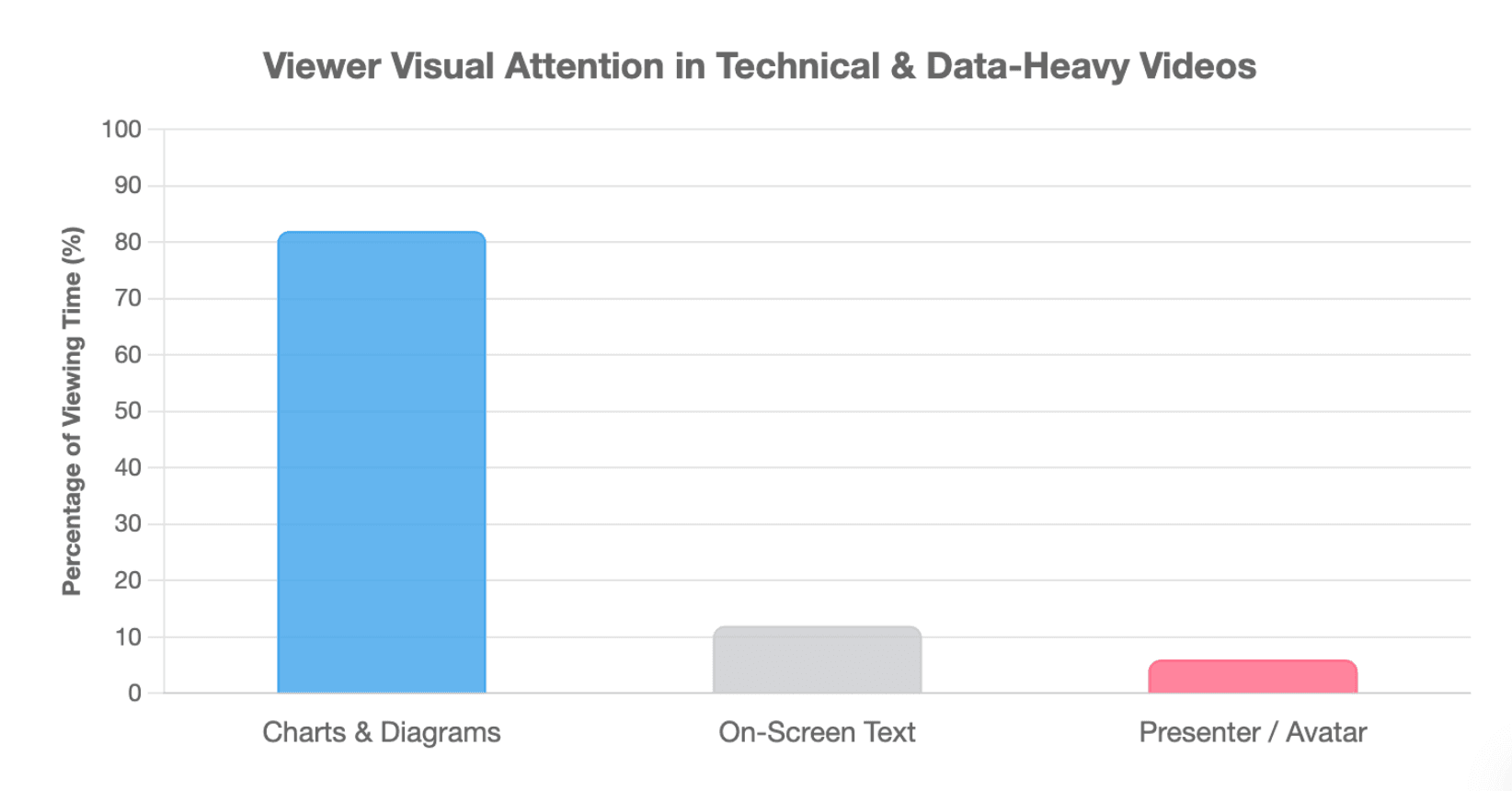
When a presenter adds visual competition but little information
Use a Visual Competition Test:
During this scene, what should the viewer be looking at?
If the answer is the chart, let the chart dominate. If it is the software interface, show the interface. If expression and direct address matter, a presenter may deserve the screen.
This is not merely aesthetic. Research on multimedia learning cautions against extraneous visual information and split attention, and the image principle indicates that displaying an instructor does not automatically improve learning.
A second check is the Remove-the-Presenter Test: if hiding the avatar causes little loss of meaning, guidance, trust, or emotion, it may not be an essential layer.
When content changes frequently or is produced at scale
For large training libraries, the production problem changes. Teams begin caring about:
- repeatable narration;
- scene-level updates;
- localization;
- consistent delivery;
- avoiding unnecessary re-recording.
In professional video workflows, maintainability can matter more than how quickly the first video is generated.
When Is an AI Avatar Better, and When Should You Use a Hybrid Video?
Slides + AI voice are not always the better format. A presenter has value when the person's presence is part of the communication.
Use an avatar when presence contributes to the message
An avatar or human presenter can make more sense for:
- welcome videos;
- course introductions;
- onboarding messages;
- executive communication;
- customer-facing explanations;
- sales introductions.
The important value is direct address, personality, expression, or social presence—not simply filling empty space.
Use slides + voice when information matters more than presence
For a technical chart, workflow, software interface, or data-heavy explanation, the viewer may benefit more from seeing the content clearly while narration provides context.
This aligns with instructional-design guidance that recommends removing nonessential elements and using visual or verbal cues to direct attention to important material.
Use a hybrid format when attention needs change
Many videos do not need a single format from beginning to end.
| Format | Best For | Primary Visual |
| Slides + AI voice | Training, charts, technical explanations | Content |
| Avatar + slides | Welcome, onboarding, direct communication | Presenter + content |
| Screen + AI voice | Software and product tutorials | Interface |
| Hybrid | Courses and complex training | Changes by scene |
A practical rule is:
Information-first → slides + AI voice Presenter-first → avatar Demonstration-first → screen + AI voice Mixed needs → hybrid
For example, an onboarding video could open with an avatar, switch to voice-led slides for policies and diagrams, move into a screen demonstration, and return to a presenter for the closing action.
How Do You Turn a PowerPoint Into an AI Voice Video Without an Avatar?
A reliable workflow is more than pressing “convert.”
Step 1: Prepare the PowerPoint for video
Before generating anything, ask:
Can someone understand this slide without me standing in the room?
Reduce unnecessary text, keep one main idea visible at a time, enlarge important screenshots, and make visual hierarchy obvious. For content-heavy presentations, treating the deck as source material rather than converting every slide unchanged can prevent long monologues and crowded scenes.
Step 2: Turn speaker notes into narration that explains
Good narration has four levels:
Read → Describe → Explain → Guide
Reading simply repeats the text.
Describing tells viewers what is visible.
Explaining adds context, relationships, and meaning.
Guiding goes further by directing attention—for example: “Notice how the line begins to rise after April” while the relevant portion of the chart is highlighted.
This approach also reduces unnecessary duplication between narration and on-screen text, a concern addressed by the redundancy principle in multimedia learning.
Step 3: Generate, synchronize, and review
A practical production sequence is:
- Review or generate the narration.
- Select an AI voice appropriate for the audience.
- Check names, acronyms, and technical pronunciation.
- Generate narration scene by scene.
- Let narration determine scene duration.
- Add captions and useful highlighting.
- Preview pacing and visual synchronization.
- Export the final MP4.
Leadde's PowerPoint workflow follows this general content-first model: upload the deck, analyze its structure, generate an outline and slide-level script, select a voice-only or presenter format, and then generate and review the video.
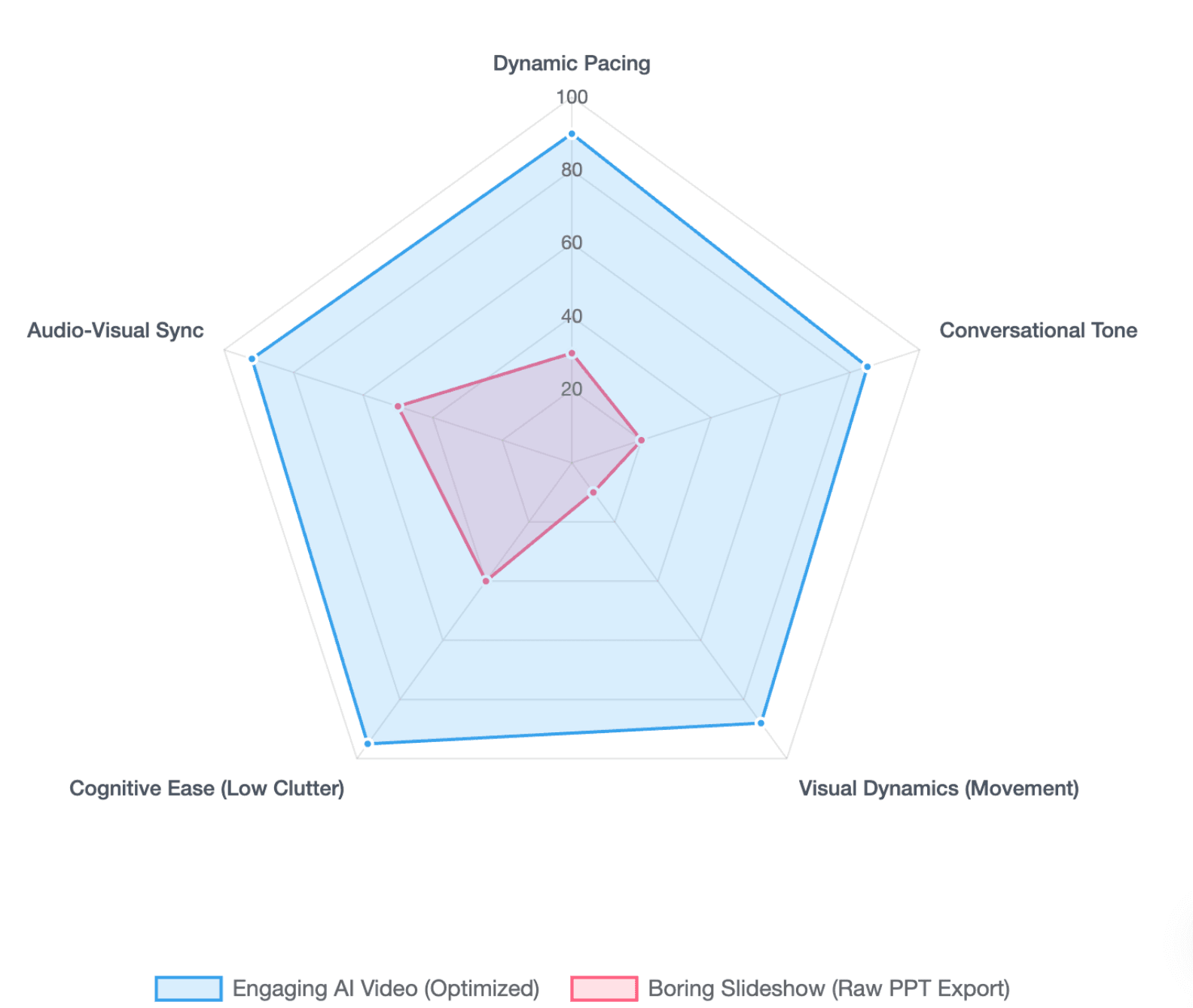
How Do You Keep an AI-Narrated PowerPoint From Becoming a Boring Slideshow?
The biggest mistake is assuming that adding a synthetic voice automatically turns a presentation into good video.
Let visuals and narration do different jobs
A useful rule is:
Visuals show. Narration explains.
If a slide displays a process diagram, the voice should explain how the stages relate—not read every label from left to right.
Research on multimedia learning similarly recommends minimizing redundant information and synchronizing corresponding narration and visuals.
Do not automate a bad deck
AI can speed up production, but a poorly structured deck can simply become a poorly structured video faster.
Before conversion, fix slides that:
- contain several unrelated ideas;
- depend heavily on live explanation;
- use unreadable screenshots;
- contain reference text learners do not need to hear;
- lack a clear learning objective.
From an instructional-design perspective, video generation is a production step, not a substitute for deciding what learners actually need to understand or do.
Review watchability, not only slide quality
A slide can look good and still produce a weak video.
During review, ask:
- Does any scene remain static for too long?
- Does the narration sound conversational?
- Does the viewer know where to look?
- Does the visual change when the idea changes?
- Should the deck become several short modules instead of one long video?
For learning content that requires practice or decisions, video may also need to sit alongside quizzes, scenarios, or other activities rather than carry the entire instructional experience alone.
How Can Teams Build a PowerPoint-to-AI-Video Workflow That Is Easy to Update and Scale?
For recurring training, onboarding, and product education, production does not end when the first MP4 is exported. Building a scalable workflow is critical.
Keep content layers separate
Maintain the:
source PPT → narration script → audio → scenes → captions → localized versions → final video
as separate layers whenever the production system allows it.
This makes future revisions more manageable.
Minimize the “change radius”
The change radius is the amount of downstream content that must be rebuilt when one source item changes.
If slide 12 changes, an efficient workflow should ideally allow the team to:
update slide 12 → revise its script → regenerate its narration → update captions → replace that scene
rather than remake the entire video.
For frequently updated training, the best workflow may not be the one that creates the first video fastest. It may be the one that minimizes repeat work six months later.
Plan for editable elements, animation, and localization
PowerPoint imports are not identical across tools. For example, Synthesia says PPT slides can be imported as editable elements, but original animations and transitions do not transfer exactly and may need to be recreated in its video editor.
Localization also involves more than swapping voices. Teams may need to review:
- slide text;
- subtitles;
- terminology;
- screenshots;
- pronunciation;
- scene duration.
Different languages can produce different narration lengths, so timing should be reviewed after localization rather than assumed to remain identical.
Conclusion. Turning PowerPoint into AI video does not require adding an avatar to every scene. When the important information lives in charts, screenshots, diagrams, or processes, slides + AI voice can keep attention on the content while restoring the explanation normally provided by a presenter. When presence, trust, or direct address matters, an avatar can add value. The strongest workflow chooses the visual format scene by scene—and is designed not only for the first export, but also for future updates, localization, and scale.
FAQ
Can I convert PowerPoint to video with AI voice without an avatar?
Yes. You can keep PowerPoint slides as the main visuals and use AI to generate narration, timing, captions, and video output. An avatar is optional. Leadde, for example, describes both virtual-presenter and voice-only PowerPoint workflows.
Can AI use PowerPoint speaker notes as narration?
Yes. Some AI video platforms can import PowerPoint speaker notes and convert them into narration. However, notes written for a live presenter often benefit from editing so the final voiceover explains context instead of simply reading bullet points.
Is an AI avatar necessary for a training video?
No. An avatar is most useful when presenter presence, expression, or direct address contributes to the message. For diagrams, software screenshots, processes, and data-heavy training, keeping the content as the primary visual may be more appropriate.
Should AI narration read PowerPoint slides word for word?
Usually not. Narration should add information the viewer cannot get from simply reading the slide. A stronger script explains relationships, provides context, connects scenes, and directs attention to important parts of charts or diagrams.
Will PowerPoint animations transfer to an AI video tool?
It depends on the platform. Microsoft can preserve recorded PowerPoint animations when exporting directly from PowerPoint, while some AI platforms import slides as scenes and require animations or transitions to be recreated. Check the tool's import behavior before choosing a workflow.
What is better for e-learning: an AI avatar or narrated slides?
Neither is universally better. Use narrated slides when learners need to study visual information. Use an avatar when human-like presence supports welcome, trust, motivation, or direct communication. A hybrid format often works well when a course includes both kinds of scenes.
Question: Can PowerPoint AI videos be translated into multiple languages?
Answer: Yes, many AI video workflows support multilingual narration and captions. Translation should also account for slide text, terminology, screenshots, pronunciation, and scene timing because translated speech can be longer or shorter than the original narration.
What is the easiest way to update a PowerPoint training video?
Use a scene-based workflow that keeps the source deck, script, narration, captions, and video layers editable. When one slide changes, regenerate only the affected scene where possible. This reduces the video's “change radius” and makes recurring training libraries easier to maintain.