Best Tool to Turn a Training Deck into a Narrated Video? 8 Picks
Turning a training deck into a narrated video is easier with the right tool. AI video generators like Leadde, Pictory, SlideSpeak, and Synthesia can convert PowerPoint slides into videos with AI voiceovers, captions, and presenters—without manual recording or complex editing.
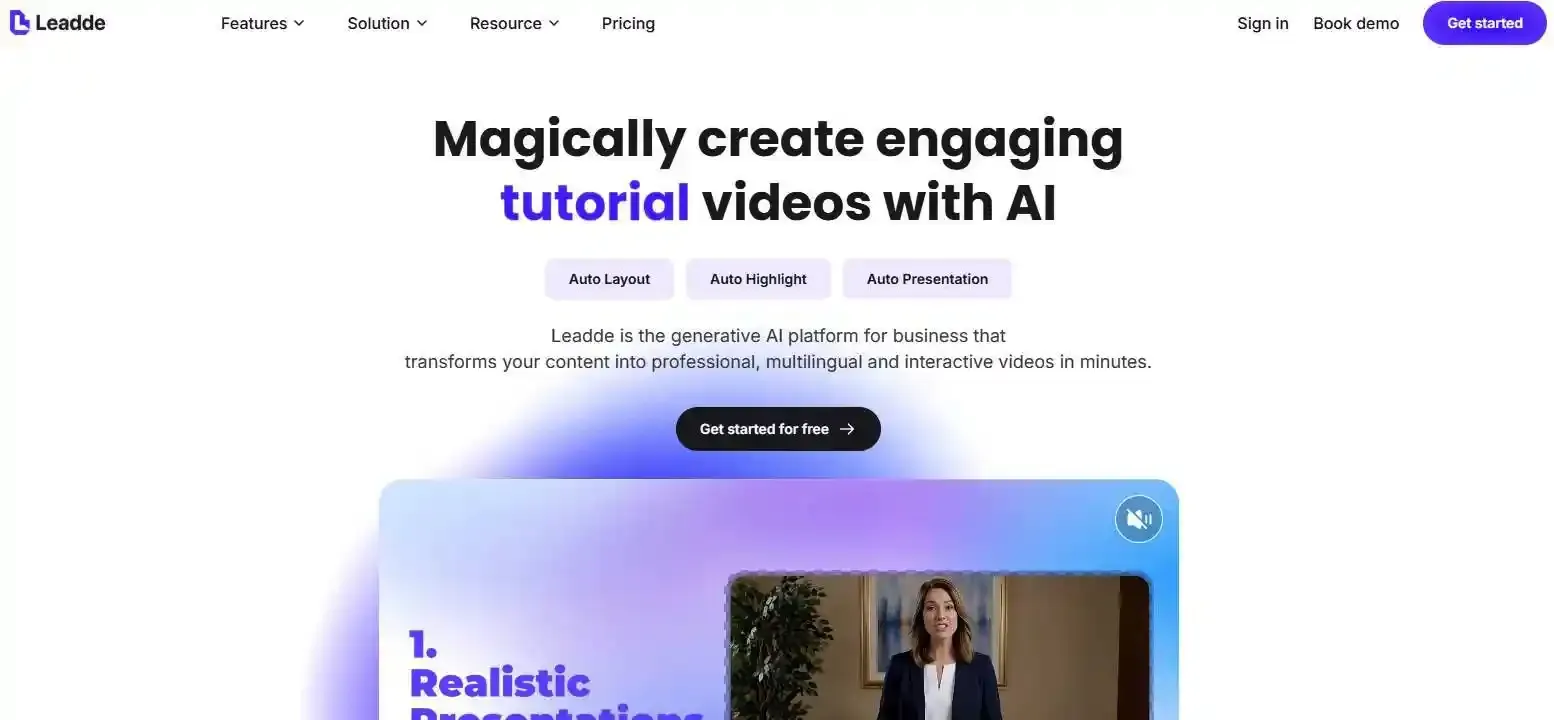
For teams that need more than slide-by-slide narration, Leadde transforms training presentations into structured, AI-narrated videos with customizable avatars and multilingual support, helping businesses scale employee training and onboarding.
But which tool fits your needs best? This guide compares 8 PowerPoint-to-video tools, covering features, limitations, free options, and practical workflows to help you choose the right solution.
Best Tool to Turn a Training Deck into a Narrated Video: Which Should You Choose?
Leadde is a strong choice for structured AI training videos, PowerPoint works for manual narration, and Pictory or SlideSpeak suit straightforward slide-to-video conversion. Synthesia and HeyGen are worth considering when you need AI presenters.
What Is the Best Tool for Each Training Video Workflow?
Choose based on what you need to produce: a narrated slideshow, an avatar-led presentation from PowerPoint, or a redesigned training video.
How Do the Best Training Deck-to-Video Tools Compare?
| Tool | Best For | Narration | Main Limitation |
| Leadde | Structured AI training videos | AI voice, scripts, avatars | Generated content needs review |
| PowerPoint | Preserving existing slides | Recorded voice | Manual narration |
| Pictory | Repurposing presentations | AI voice, speaker notes | Complex media needs checking |
| SlideSpeak | Quick narrated MP4s | Automatic AI voice | Limited free editing |
| Synthesia | Avatar-led training | AI voice and avatars | PPT animations not imported |
| HeyGen | Presenter-led videos | AI voice and avatars | 50-slide import limit |
| Narakeet | Script-driven narration | Text-to-speech | Less focused on visual redesign |
| Loom | Quick walkthroughs | Recorded voice | Not automatic PPT narration |
What Is the Difference Between Converting Slides and Creating a Training Video?
Conversion preserves the presentation and adds audio. Training video creation may rewrite explanations, reorganize content, and introduce visuals that help learners understand the material.
What Makes a Tool Suitable for Training Rather Than Just Video Creation?
Evaluate content accuracy, narration control, visual editability, instructional quality, update efficiency, and training delivery. A polished MP4 is not necessarily an effective learning resource.
What Are the 8 Best Tools for Turning PowerPoint Training Decks into Narrated Videos?
Leadde — Best for Turning Training Content into Structured AI-Narrated Videos
Leadde converts PowerPoint presentations and documents into structured videos with AI-generated narration, editable scenes, subtitles, and optional avatars.
Teams can import speaker notes or generate scripts from slide content. Its editable PPT import option is particularly relevant when training materials require ongoing changes.
Best for: Employee onboarding, SOP explanations, educational videos, and multilingual training.
Microsoft PowerPoint — Best for Recording and Exporting Existing Slides
PowerPoint supports recorded narration, slide timings, animations, and MP4 export.
It is practical when your slides are already complete and you prefer recording your own explanation.
Best for: One-time training presentations and straightforward narrated slideshows.
Pictory — Best for Repurposing Slides into Edited Videos
Pictory supports PowerPoint uploads, AI narration, speaker notes, captions, and scene editing.
Its newer workflow lets users retain their original slides or create new video scenes from the presentation content.
Best for: Repurposing existing presentations into training or explainer videos.
SlideSpeak — Best for Quick PPT-to-Video Conversion and Training Exports
SlideSpeak offers a free converter that generates an English-narrated MP4 without registration.
Its separate, more advanced video editor provides additional narration and editing capabilities.
Best for: Quick conversions and teams exploring slide-based training production.
Synthesia — Best for AI Avatar-Led Training Presentations
Synthesia converts PPTX files into editable video scenes, imports speaker notes, and supports AI presenters.
Its PowerPoint import documentation confirms that original slide animations are not imported.
Best for: Presenter-led corporate training and standardized instructional delivery.
HeyGen — Best for Presenter-Led PowerPoint Videos
HeyGen supports PowerPoint and PDF imports, editable or static slide layouts, and AI avatar presentations.
Best for: Digital-presenter videos and narrated business presentations.
Narakeet — Best for Narrating Slides with Prepared Speaker Notes
Narakeet focuses on turning written narration and presentation materials into voice-led videos.
Best for: Educators and trainers who already have scripts and primarily need text-to-speech narration.
Loom — Best for Recording Quick Training Walkthroughs
Loom records your screen, voice, and optionally camera.
Best for: Informal product tutorials, internal walkthroughs, and demonstrations where a human explanation is preferable.
Which Tools Have the Most Important Limitations?
Check upload limits, subscription restrictions, animation compatibility, voice editing, and export options before committing to ppt to video AI tools.
Which Tools Preserve Editable Slides Instead of Flattening Them into Images?
Visual fidelity and editability are different. A slide imported as an image may look correct but be difficult to update.
Leadde offers static-image and editable-layer PPT import modes. Synthesia also supports editable imported elements. Test both visual accuracy and subsequent editing.
How Can You Turn a Training PowerPoint into a Narrated Video Without Recording Your Voice?
A typical AI-assisted workflow allows teams to make a video from PowerPoint without recording yourself across six steps.
Step 1 — Prepare the Deck, Learning Objectives, and Speaker Notes
Remove outdated information, identify the intended audience, and check that each learning objective is supported by the source material.
Step 2 — Upload the PPTX or PDF into an AI Video Tool
Choose a compatible platform. PPTX is generally preferable when editable slide elements or speaker notes matter.
Step 3 — Generate or Import the Narration Script
Use existing notes or generate a draft from slide content. Review the script before creating audio.
Step 4 — Choose an AI Voice and Synchronize It with the Slides
Select a suitable language and speaking style. Ensure that the slide remains visible long enough for its explanation.
Step 5 — Review the Visuals, Captions, and Narration
Check pronunciation, diagrams, slide transitions, subtitles, and missing information.
Step 6 — Export the Video and Test It with Learners
Export the required format and verify playback, readability, accessibility, and learning-platform compatibility.
How Do You Validate AI-Generated Narration Against the Original Deck?
Use a source-to-script review: connect every important instruction, numerical claim, and policy statement to its original slide or approved document.
This is especially important for safety, compliance, and technical training.
Should You Keep Your Original Slides, Use an AI Avatar, or Rebuild the Training Video?
When Is a Simple Slide-and-Voiceover Video Enough?
Keep the slides when the visual design is clear and the training content is stable.
When Does an AI Avatar Help Deliver Training?
An avatar can provide consistent presenter-led delivery for onboarding, announcements, and guided explanations.
It should support the lesson rather than distract from it.
When Should AI Reorganize the Deck into New Scenes?
Rebuild the content when slides contain dense text, disconnected ideas, or visuals that require additional explanation to turn content-heavy PowerPoints into engaging AI training videos.
What Happens to Charts, Animations, Images, and Complex Layouts?
Import compatibility varies. Preview complex diagrams, embedded media, animations, and fonts before publishing.
When Should You Skip Video and Keep the Content as a Job Aid?
Detailed reference tables, troubleshooting checklists, and frequently updated specifications may work better as searchable documents.
Not every training slide needs to become a video scene.
| Content Type | Primary Goal | Recommended Format | Why This Approach Works |
| Compliance & Onboarding | Engagement & Human Touch | AI Avatar-Led Presentation | Avatars build rapport and simulate instructor-led training. |
| Technical SOPs & System Workflows | Procedural Accuracy | Reorganized Video Scenes + Screen Captures | Breaks dense slides into digestible, bite-sized tasks. |
| Stable Conceptual Overviews | Rapid Delivery | Preserved Slides + AI Voiceover | Quickest turnaround; ideal when visuals are already polished. |
| Troubleshooting & Data Specs | Searchability & Quick Lookup | Skip Video (Interactive Job Aid / Doc) | Video scrub bars frustrate users looking for quick error codes. |
Can AI Turn PowerPoint Speaker Notes into Natural Narration?
Yes. Several AI video tools can transform speaker notes into spoken narration.
How Do AI Video Tools Use Speaker Notes as Scripts?
They extract notes and associate the text with the corresponding slide or video scene.
What If the Training Deck Has No Speaker Notes?
AI can draft narration from slide text. However, incomplete slides may not provide enough context for accurate explanations.
How Can You Improve AI Voiceovers for Technical Terms and Acronyms?
Use pronunciation controls where available, spell out uncommon abbreviations, and test representative sections before generating the entire video.
How Do You Keep Narration and Slide Timing in Sync?
Use audio-driven timing when supported. Review pauses around diagrams, demonstrations, and transitions.
When Is a Human Voice Better Than AI Narration?
A human voice may be preferable for sensitive messages, leadership communication, or explanations requiring personal credibility and nuanced delivery.
How Do You Make an AI-Narrated Training Video Accurate and Easy to Learn From?
How Can You Stop AI from Adding Unsupported Training Instructions?
Provide authoritative source materials and prohibit unsupported additions. Review all procedural instructions before publication.
How Should You Turn Dense Slides into Short Learning Segments?
Organize content around learning objectives, not slide numbers, or consider how to turn long PowerPoint decks into microlearning videos with AI.
When Should You Add Examples, Callouts, or Screen Demonstrations?
Use examples to clarify decisions, callouts to emphasize important details, and screen recordings to demonstrate actual software operations.
How Should Subject Matter Experts Review the Script?
Ask SMEs to verify technical accuracy, terminology, mandatory steps, and policy alignment when converting SME PowerPoint decks into learner-friendly AI videos.
How Can You Check Whether Learners Understand the Material?
Use short knowledge checks, realistic scenarios, or follow-up exercises rather than relying solely on video completion.
How Can You Turn a 50-Slide Deck into Learning Modules Instead of 50 Narrated Slides?
Apply a Preserve–Split–Merge approach:
- Preserve slides that communicate one clear idea.
- Split slides containing multiple learning objectives.
- Merge repetitive slides that belong to one explanation.
For example, an onboarding deck could become separate modules for company orientation, security procedures, software access, and role-specific tasks.
This creates a more navigable learning experience than a single uninterrupted narrated slideshow.
Which PPT-to-Video Features Matter Most for Corporate Training?
Do You Need Captions, Transcripts, and Accessible Video Controls?
Yes, especially when supporting different learning environments. Captions, readable text, and transcripts improve access to instructional content.
Can the Tool Support Multiple Languages and Localized Narration?
Some platforms support multilingual narration. Check whether they can also localize on-screen text, captions, and terminology, or use tools to create multilingual PowerPoint videos with AI.
Does It Export MP4, SCORM, or Other LMS-Compatible Formats?
MP4 is a video format, while SCORM packages can support learning-platform tracking.
A narrated MP4 does not automatically provide quiz scores or completion tracking.
Can Teams Review, Update, and Reuse Training Videos?
Look for editable projects, reusable templates, script editing, and clear approval workflows.
What Should You Check Before Uploading Confidential Training Materials?
Review data retention, access controls, vendor privacy terms, and internal information-security requirements.
Can Learners Search and Navigate the Video After It Is Uploaded?
Long videos can make individual instructions difficult to locate.
Consider chapter markers, searchable transcripts, supplementary documents, and LMS navigation before publishing.
| Enterprise Feature | Why It Matters for L&D | Risk of Omitting | Format / Standard |
| SCORM / xAPI Export | Tracks learner completion, quiz scores, and LMS progress. | Only get passive video views without compliance proof. | SCORM 1.2 / 2004, xAPI |
| Multilingual Voice & Subtitles | Global rollouts across regional branches. | High re-recording costs for local voice actors. | Multi-track audio, VTT/SRT |
| Editable Slide Layers | Fixes typos or compliance updates in seconds. | Complete re-render and project rebuilding for single changes. | PPTX layered import |
| Enterprise Security & SOC2 | Protects internal IP and proprietary trade secrets. | Data leaks or unauthorized AI training on company assets. | SOC2 Type II, GDPR, SSO |
| Searchable Chapters | Enables quick reference without scrubbing the timeline. | Reduced productivity when looking up specific SOP steps. | Timestamped VTT / Chapters |
Are Free PowerPoint-to-Video Tools Good Enough for Training?
Can You Export a Narrated MP4 Using PowerPoint for Free?
PowerPoint can export recorded presentations as MP4 files without requiring a separate AI video subscription, provided you already have a supported PowerPoint version.
What Can Free AI PPT-to-Video Converters Actually Do?
SlideSpeak offers free automatic English narration and MP4 conversion. Free features and usage conditions differ across platforms, though alternatives exist to convert PowerPoint to MP4 online.
Which Limits Matter: Watermarks, Credits, Voices, or Export Length?
Check file limits, available voices, editing permissions, export restrictions, and regeneration costs.
When Is a Paid Training Video Platform Worth Considering?
Paid tools become more relevant when teams need repeatable workflows, advanced editing, localization, or standardized training output.
How Much Will AI Narration Cost Across Hundreds of Training Videos?
Estimate the total production cost, not simply the subscription price.
Include video generation, revisions, translation, review labor, and recurring updates to determine how much it costs to convert PowerPoint to AI video at scale. A low-cost initial export may become expensive if every change requires substantial rework.
How Do You Update Narrated Training Videos When the Slides Change?
Can You Edit One Slide Without Rebuilding the Entire Video?
Some tools support scene-level editing and regeneration, allowing teams to update an AI PowerPoint video without re-recording. Confirm the extent of that capability before selecting a platform.
How Do You Regenerate Narration and Captions After an Edit?
Update the approved script, regenerate affected audio, verify timing, and review synchronized captions.
How Can You Keep Multilingual Training Versions Consistent?
Maintain one approved source script and track changes across localized versions.
What Is an Efficient Workflow for Maintaining a Training Video Library?
Store source documents, video projects, approval records, and publication versions together.
What Happens When One Policy Change Affects Multiple Training Videos?
Use a change-impact workflow:
- Identify the changed policy or procedure.
- Locate affected scripts and scenes.
- Update the approved source content.
- Regenerate relevant narration and visuals.
- Review language versions and republish.
This reduces the risk of inconsistent instructions across a training library.
| Maintenance Approach | Required Steps | Typical Turnaround | Maintenance Effort | Risk of Version Drift |
| Scene-Level AI Regeneration | 1. Edit text on affected slide. 2. Regenerate single audio track. 3. Republish. | 5–10 Minutes | Low | Low (Source script is synced across versions) |
| Full Video Re-render (Flattened MP4) | 1. Re-edit external video timeline. 2. Re-time voiceover. 3. Export full file. | 2–4 Hours | Medium | Medium (Manual caption and timing alignment) |
| Traditional Human Re-recording | 1. Book speaker/studio. 2. Re-record voiceover. 3. Re-edit audio track and slice slides. | 2–5 Business Days | High | High (Voice tone and environment changes between sessions) |
How Do You Choose the Right Training Deck-to-Video Tool for Your Team?
What Should You Test with a Real Training Deck Before Buying?
Use one representative deck containing speaker notes, complex diagrams, technical terminology, and an instruction that will need updating.
How Can You Compare Narration Quality, Editing Effort, and Learning Accuracy?
Apply the Training Deck-to-Video Fitness Framework:
| Evaluation Factor | Suggested Weight |
| Content accuracy | 25% |
| Narration control | 20% |
| Visual editability | 15% |
| Instructional quality | 15% |
| Update efficiency | 15% |
| Training delivery | 10% |
These are suggested evaluation weights, not independent product test results.
Which Tool Fits Your Training Team's Workflow and Budget?
Choose PowerPoint for simple recordings, AI presenters for presenter-led content, and structured video-generation tools when training materials need broader transformation.
For teams converting documents and presentations into scalable training content, Leadde is worth evaluating for its structured AI narration, editable PPT workflows, and multilingual video creation.
How Can You Score Tools Using the Same Training Deck?
Rate each platform from 1 to 5 on the six evaluation factors, apply the suggested weights, and compare results.
Repeat the test after changing one slide. The second export can reveal maintenance limitations that the initial demonstration misses.
Frequently Asked Questions
Can AI automatically turn a PowerPoint presentation into a narrated video?
Yes. AI video tools can analyze PowerPoint slides, generate narration, synchronize speech with visuals, and export video. The level of automation and editing control depends on the platform. Important training instructions should still be reviewed before publication.
Can I convert PowerPoint speaker notes into AI voiceovers?
Yes. Tools such as Pictory, Synthesia, and Leadde support speaker-note-based narration workflows. You can use existing explanations instead of writing every script from scratch. Review notes originally written for live presentations because they may lack context needed for independent viewing.
What is the best free tool to turn a PPT into a video with audio?
SlideSpeak is an option for free, straightforward PPT-to-MP4 conversion with English AI narration. PowerPoint is practical when you already have the software and prefer recording your voice. Check current file, editing, and export restrictions.
Can I create a narrated training video without an AI avatar?
Yes. Many tools let you combine slide visuals, AI voiceovers, captions, and screen demonstrations without using a digital presenter. Avatar-free videos can work particularly well for technical diagrams, software tutorials, and process explanations.
Can AI video tools preserve PowerPoint animations and charts?
Compatibility varies. Some tools preserve the appearance of charts, while others reconstruct or flatten slide elements. Original PowerPoint animations may not transfer. Always test complex presentations before converting a large training library.
How long does it take to turn a training deck into a narrated video?
The time depends on presentation length, script complexity, rendering, and review requirements. Automatic generation can reduce manual recording, but accurate training videos still require script verification, visual inspection, and approval.
Can I upload an AI-narrated PowerPoint video to an LMS?
Usually, if the LMS supports your exported video format. However, MP4 playback and SCORM-based tracking are different capabilities. Confirm whether your learning platform requires completion tracking, assessments, or specific packaging.
How can I update an AI training video without recording everything again?
Use a platform that supports editing saved video projects and regenerating affected scenes. Update the script, replace the relevant audio, check captions and timing, and republish. Also review translated versions and other videos using the same source material.