How to Update an AI PowerPoint Video Without Re-Recording

Updating an AI PowerPoint video does not have to mean re-recording the entire presentation. If the project remains editable, knowing how to update outdated video content allows you to update only the changed slide, script, narration, avatar, or visual, then regenerate the affected content and review timing, captions, and transitions.
This is especially useful for training, education, and business content that changes often, such as product updates, policies, SOPs, and learning materials. Instead of rebuilding the full video, structured AI workflows make ongoing maintenance easier when teams convert PowerPoint to training videos for employees.
Platforms such as Leadde turn PowerPoint files and other documents into structured video content that can be updated more efficiently. By using tools to turn PowerPoint slides into AI-narrated videos, you ensure faster turnaround times. This guide explains what to change, what to regenerate, and how to keep updated videos accurate and consistent.

How to Update an AI PowerPoint Video Without Re-Recording Everything
The key is to understand the difference between a standard PowerPoint export vs AI PPT to video converter—updating the editable source and regenerating only the affected video layers rather than treating the finished MP4 as the project.
Traditional PowerPoint video production often follows this model:
PowerPoint → presenter or voice recording → fixed video
An AI video workflow can instead look like:
PowerPoint → scenes → script → AI narration/avatar → captions → video
That structure matters because the individual elements remain easier to modify. Current PowerPoint-to-video platforms illustrate this model in different ways. In a detailed Synthesia review, you can see how importing text, images, videos, shapes, and speaker notes produces editable video content, while Colossyan describes turning individual slides into scenes with narration.
Why AI PowerPoint videos can be updated without full re-recording
If one sentence changes, the presenter does not necessarily need to return to a microphone or camera. You may be able to edit the script and regenerate the voice or avatar for that scene.
The same logic applies to other changes:
| What changed? | What you update | What may need regeneration |
| One sentence or number | Slide or script | Narration/scene |
| One slide | Visual scene | Affected scene |
| Narration error | Script | AI voice/avatar |
| Screenshot | Visual asset | Scene |
| New slide | Scene + script | New scene |
| Presenter | Voice/avatar | Presenter layer |
| Language | Translation | Voice + captions |
Speaker notes are particularly useful because some AI video tools can generate a script from PowerPoint slides directly into narration scripts.
What Should You Update When a PowerPoint Slide Changes?
Before regenerating anything, identify what type of change occurred.
Identify whether the change is visual, narrative, or structural
A visual change might be a new screenshot, chart, button label, logo, or layout.
A narrative change affects what the audience needs to hear: a new statistic, policy rule, explanation, product feature, or process instruction.
A structural change changes the logic of the presentation itself, such as adding workflow steps, reorganizing a lesson, or replacing the learning objective.
Structural changes usually require more work because they can affect several scenes rather than one.
Use the “Update Blast Radius”
In professional video workflows, I find it more useful to ask, “What else does this change affect?” rather than simply, “Which slide changed?”
I call this the Update Blast Radius.
For example:
Script change → narration duration → scene timing → captions → animations → transitions → localized versions
A two-line script edit may therefore create more work than its size suggests, particularly when managing multilingual PowerPoint videos with AI.
This is especially important when animations are involved. Third-party PowerPoint conversion systems do not all handle complex motion paths, triggers, or layered effects the same way, so updated scenes should be previewed rather than assumed to match the original.
When should you update instead of rebuild?
| Situation | Update | Rebuild |
| One sentence changed | ✓ | |
| Screenshot changed | ✓ | |
| One slide added | ✓ | |
| Minor narration correction | ✓ | |
| Several workflow steps changed | Maybe | Maybe |
| Most slides are outdated | ✓ | |
| Learning objective changed | ✓ | |
| Story no longer makes sense | ✓ |
Repeated small fixes can eventually create patch debt: inconsistent pacing, duplicated explanations, mismatched visuals, or uneven presentation. At that point, rebuilding the affected section may be cleaner than continuing to patch it.
How Do You Update an AI PowerPoint Video Step by Step?
A reliable update workflow should preserve the source material, limit regeneration, and include a final quality check.
Step 1–3: Keep the editable project, find the changed scenes, and update the source
- Keep the original files. Save the PPTX, speaker notes, script, editable AI video project, captions, brand assets, and current published video.
- Identify affected scenes. Map the changed PowerPoint content to the corresponding video scenes.
- Update the authoritative source first. If a policy or SOP changed, correct that source before editing the video.
Do not make the final MP4 your only source of truth.
For recurring training content, this is especially important. Leadde's document-to-video workflow is designed around being able to turn SOP documents into training videos, turning learning materials and other documents into structured video content rather than treating the output as a single fixed recording.
Step 4–6: Update the script, regenerate narration, and recheck timing
- Edit the narration source. Update the speaker notes or scene script.
- Regenerate only the affected voice or presenter content, utilizing tools that can add voiceover to each PowerPoint slide automatically.
- Review the new scene length.
A useful content model is:
Slide = what viewers see
Speaker notes/script = what viewers hear
This makes future maintenance easier. Platforms analyzed in this HeyGen review and Synthesia guides describe workflows in which PowerPoint speaker notes can become or inform AI narration.
If the revised narration is longer, remember that scene duration, animations, and transitions may also need adjustment.
Step 7–9: Update captions, preview in context, and publish
- Regenerate or correct captions. Never leave old subtitles under updated narration.
- Preview the scene in context. Watch the previous scene, updated scene, and following scene together.
- Publish the new version and archive the old one.
That contextual preview catches problems a single-scene check may miss, including repeated explanations, abrupt pacing, inconsistent voice delivery, or transitions that no longer fit.
How Do You Keep Narration, Animations, and Captions in Sync After an Update?
A content update is only complete when the surrounding media still works.
Why can a small script change affect timing?
Suppose the original narration says:
“The process has three steps.”
The new script says:
“The revised process has five steps and now requires manager approval.”
The second version takes longer to speak.
That change can affect:
voice duration → scene duration → animation timing → captions → transition
Timing is already a common issue in traditional PowerPoint video workflows. Vidocu's guide, for example, highlights audio running longer or shorter than slide timing as a frequent conversion problem.
What should you check after updating visuals or animations?
Check:
- screenshot cropping and readability
- charts and labels
- narration references to on-screen elements
- animation timing
- transitions
- caption synchronization
Do not assume every PowerPoint animation will transfer identically. HeyGen notes that basic transitions may be supported while video-side scene editing is used for other effects; Vidocu likewise warns that complex motion paths and triggered animations may behave unpredictably outside PowerPoint.
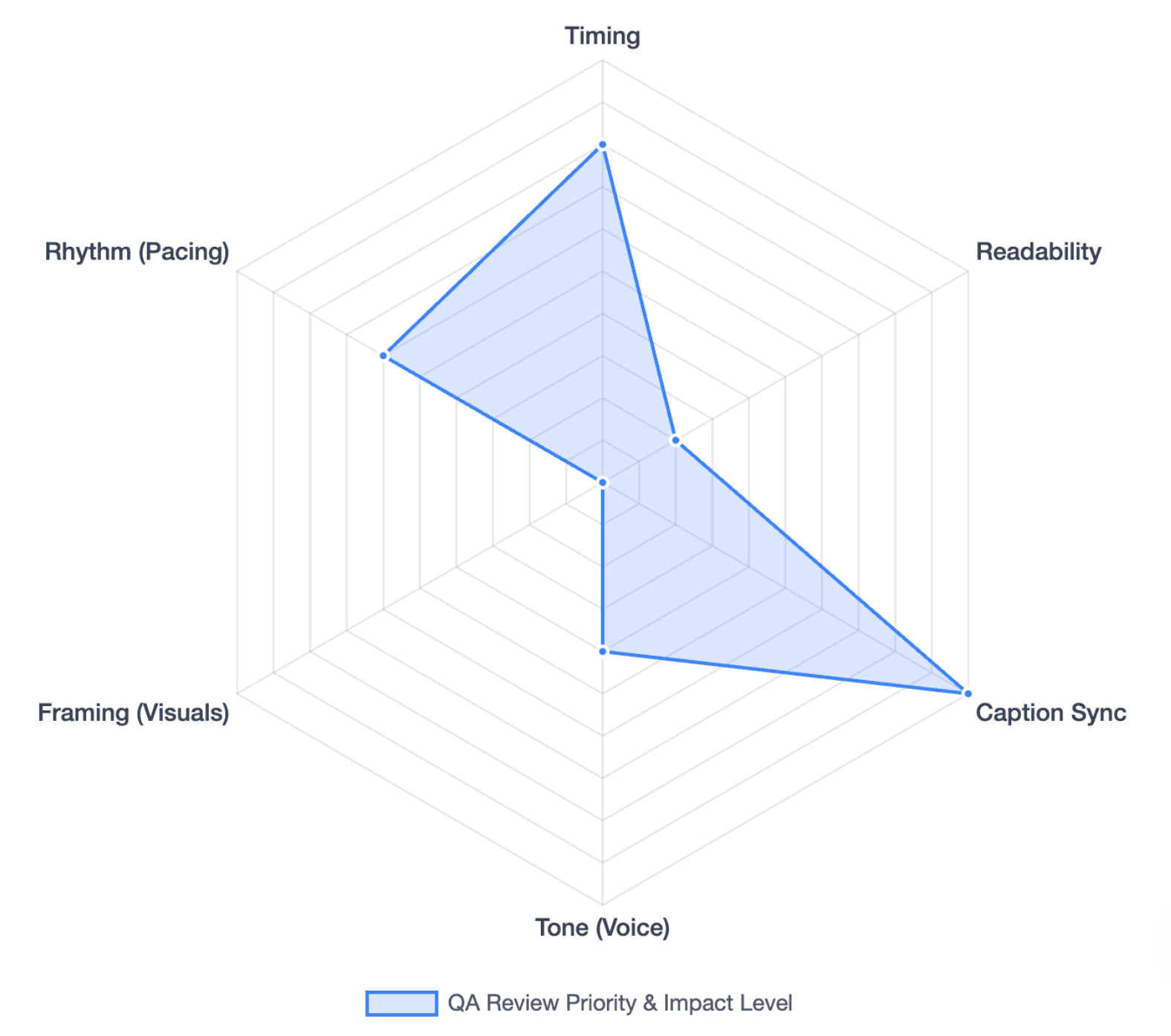
How do you prevent regeneration drift?
Regeneration drift is the small inconsistency that can appear when one generated scene is recreated while neighboring scenes remain unchanged.
Review:
- voice tone and pace
- avatar size and position
- scene framing
- visual style
- pauses
- transition rhythm
A practical rule is to change only the variables that need changing and preview one affected scene before regenerating a larger section.
How Can You Make AI PowerPoint Videos Easier to Update Next Time?
The best update workflow starts when the original video is created.
Keep slides, speaker notes, and scenes modular
Avoid packing too many ideas into one long scene. For frequently changing content, smaller modules are easier to replace. You can even turn long PowerPoint decks into microlearning videos to minimize update friction.
From an instructional design perspective, content volatility should influence video structure.
High-volatility information includes:
- product interfaces
- pricing
- procedures
- policies
- compliance rules
The more frequently information changes, the more useful it is to keep that content in a smaller, independently editable scene.
Build a source-to-video version workflow
Maintain:
Source PPT → speaker notes/script → editable project → captions/localizations → published video
Use clear statuses such as:
Draft → Review → Approved → Published → Archived
For larger training libraries, it is also useful to track dependencies when you batch convert multiple PowerPoint decks to AI videos. One product change might affect onboarding, customer education, sales training, and several translated videos.
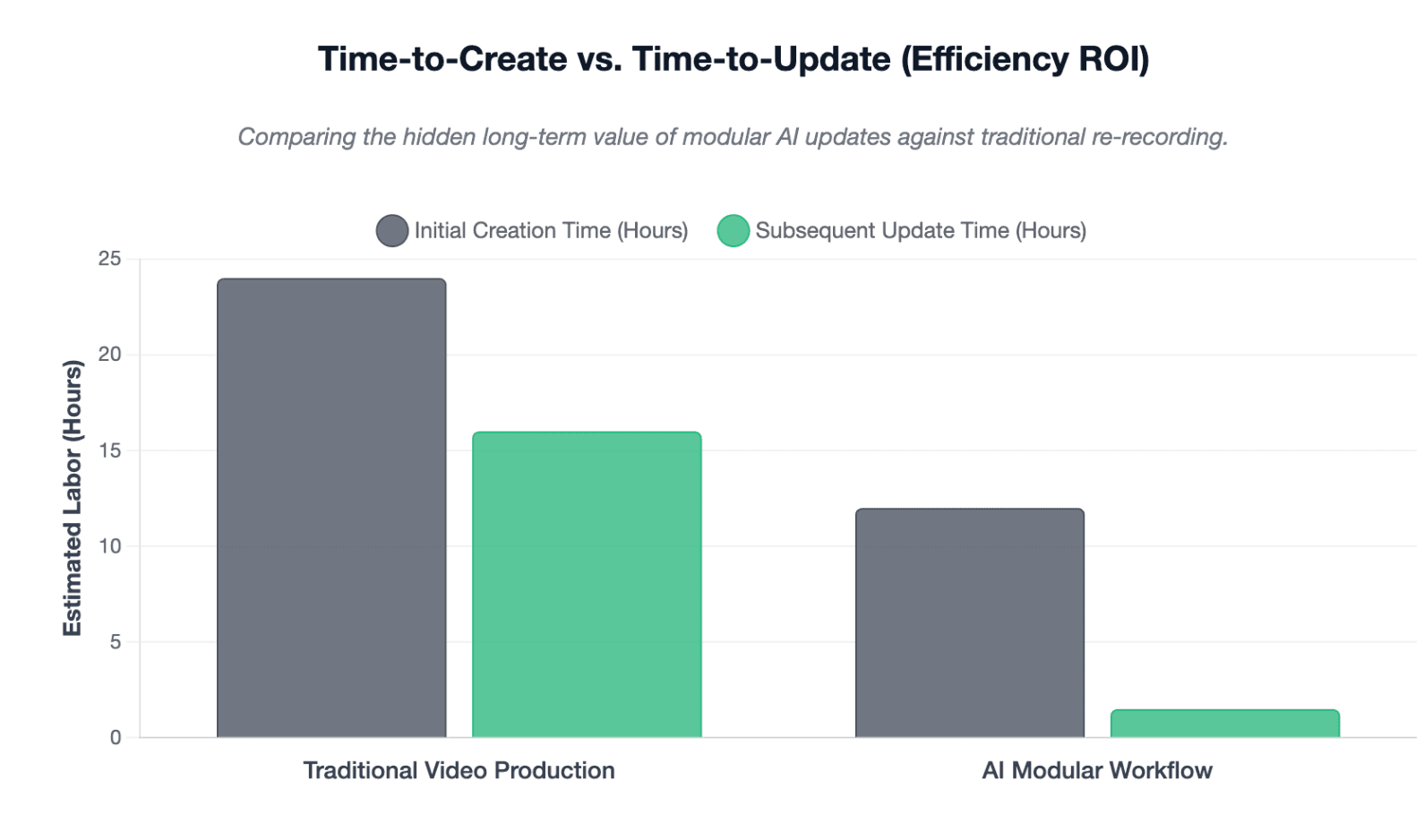
Measure time-to-update, not only time-to-create
AI video tools are often evaluated by how quickly they create the first version.
For organizations managing large video libraries, another metric matters just as much:
How quickly can every affected video be safely updated when the source information changes?
That includes regeneration time, human QA, localization, and republishing—not just generation speed.
How Does AI PowerPoint Updating Compare With Traditional Re-Recording?
| Task | Traditional recording | AI PowerPoint workflow |
| Fix one sentence | Re-record narration | Edit script |
| Change one slide | Re-record/re-edit | Update scene |
| Replace screenshot | Edit footage | Replace visual |
| Change narrator | Record again | Change AI voice |
| Change presenter | Reshoot | Update avatar |
| Add language | Record new version | Translate + regenerate |
| Update captions | Resync manually | Regenerate + review |
| Maintain many versions | More manual work | Structured workflow |
Current AI video platforms increasingly treat PowerPoint content as editable scenes and scripts rather than simple slide recordings. Synthesia describes editable imported elements and script-based narration, while Colossyan describes slide-by-slide scenes and script-first editing.
For Leadde, the same broader principle appears in its positioning around transforming documents, PowerPoint presentations, SOPs, and learning materials into structured, multilingual video workflows with AI narration and avatars.
Conclusion
Updating an AI PowerPoint video should be treated as content maintenance, not a full production restart. Identify what changed, calculate its update blast radius, regenerate only the affected layers, review timing and continuity, and preserve the editable source for the next update. A well-structured workflow reduces re-recording today and makes the entire video library easier to maintain over time.
FAQ
Can I edit one slide in an AI PowerPoint video without regenerating the whole video?
Often, yes. If your AI video platform keeps slides as editable scenes, you can update the affected scene and regenerate what changed. However, check whether the new content also affects narration, timing, captions, or transitions.
Do I need to re-record narration when PowerPoint text changes?
Not necessarily. In script-based AI video workflows, you can edit the narration text or speaker notes and regenerate the AI voice instead of recording yourself again.
Can AI regenerate only one scene of a PowerPoint video?
Some scene-based AI video platforms support editing individual scenes. The exact regeneration workflow varies by tool, so confirm whether your platform allows scene-level editing before assuming the full project can remain untouched.
What happens if the updated narration is longer than the original?
A longer narration may increase scene duration and affect captions, animations, pacing, and transitions. Always preview the updated scene together with the scenes before and after it.
Will PowerPoint animations still work after I update the video?
It depends on the platform and animation type. Simple transitions are generally easier to reproduce, while motion paths, triggers, and layered effects may require additional review or recreation.
Can I update translated PowerPoint videos without recording every language again?
AI workflows can regenerate translated scripts, voices, and captions without requiring a new human recording for every language. By following a proven video localization guide, translated versions can be updated rapidly while preserving terminology and sync.
Should I edit the final MP4 or the original AI video project?
Whenever possible, edit the original source and editable AI video project. Editing only the MP4 makes future slide, narration, caption, and localization updates more difficult.
When is it better to rebuild the entire video instead of updating it?
Rebuild when the learning objective, story structure, workflow, visual identity, or most of the slides have changed. If repeated patches are creating inconsistent pacing or outdated sections, a clean rebuild may be more efficient than another local fix.