How to Turn PowerPoint Into an AI Video Without Manual Editing

Turning a PowerPoint into an AI video no longer requires recording your own voice or manually editing a video timeline. With an AI PowerPoint-to-video workflow, you can upload a PPTX, turn slide content and speaker notes into narration, add an AI voice or avatar, generate scenes and captions, and review the result before export.
Tools like Leadde treat PowerPoint slides as structured source content rather than simply converting them into a recorded slideshow. This helps reduce repetitive work across scripting, voice generation, timing, and scene assembly.
In this guide, you’ll learn how to make a video from PowerPoint without recording yourself, prepare slides for stronger results, choose the right presentation format, and build a workflow that is easier to update and scale.

How Do You Turn a PowerPoint Into an AI Video Without Manual Video Editing?
A practical workflow is prepare → upload → structure → narrate → review → generate.
Step 1 — Prepare and Upload Your PowerPoint
Before uploading the deck, remove duplicate or unnecessary slides and check your speaker notes, fonts, charts, hidden slides, and embedded media.
Then upload the PPTX to an AI video generator. Depending on the tool, slides may be imported as static visuals or broken into editable elements. For example, Leadde offers both static-image import and fully editable PPT layers, while Synthesia can import text, shapes, images, videos, and tables as editable objects.
Step 2 — Let AI Build the Script, Scenes, and Narration
The AI can use slide text, content hierarchy, and speaker notes to create a spoken script, making it simple to generate a script from PowerPoint slides with AI.
This is where a good workflow goes beyond basic conversion. A PowerPoint slide is not always the same thing as a video scene. A dense process diagram may need several explanation beats, while three simple slides may work better as one short section.
The narration should also explain the slides rather than read them word for word. Leadde's own PowerPoint workflow emphasizes turning PowerPoint slides into AI-narrated videos instead of simply reading bullet points.
Step 3 — Review, Regenerate, and Export Without a Timeline
Instead of editing audio tracks and clips manually, review the video at the script or scene level.
You may need to:
- shorten a script
- correct pronunciation
- reorder scenes
- change an AI voice
- move or remove an avatar
- regenerate one section
- fix captions
Then generate the finished video and export it as MP4 or publish it to an LMS, training portal, knowledge base, or video platform.
What Does “Without Manual Video Editing” Actually Mean?
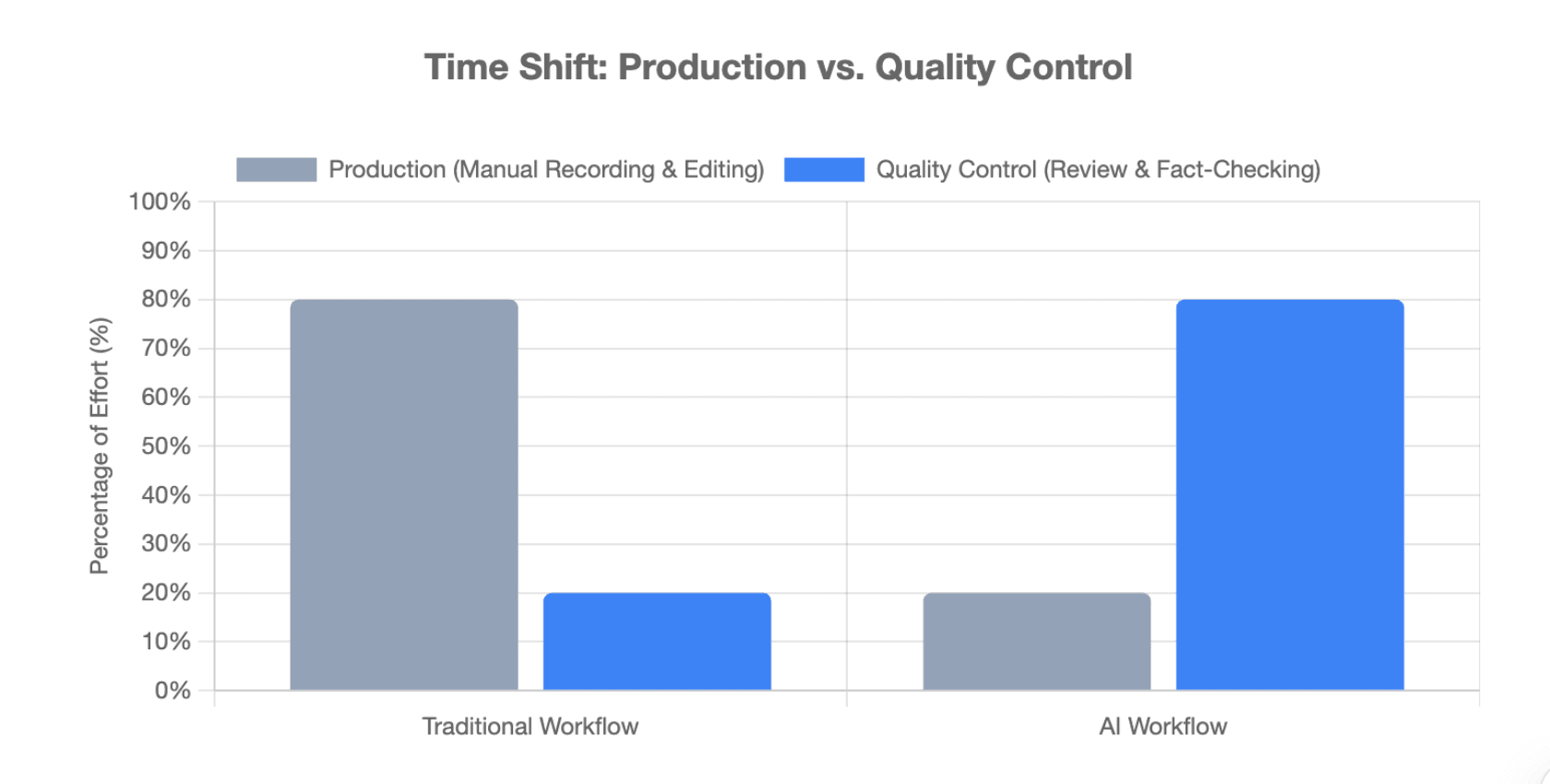
It does not mean that nobody reviews the output. It means AI replaces many production tasks that traditionally require recording and timeline editing.
| Task | Traditional Workflow | AI Workflow |
| Narration | Write manually | Generate or rewrite |
| Voice | Record and retake | AI voice |
| Slide timing | Set manually | Narration-driven |
| Captions | Separate workflow | Auto-generated |
| Scene assembly | Timeline editing | Scene-based generation |
| Presenter | Camera recording | Optional AI avatar |
| Updates | Re-record and re-edit | Edit and regenerate |
The human role shifts from production to quality control. You still need to verify facts, names, numbers, pronunciation, pacing, chart readability, captions, and presenter placement.
The goal is not zero human judgment. It is removing unnecessary production work.
That distinction matters because “one-click video” can sound attractive but still produce weak training or educational content if the script is inaccurate or the pacing is poor.
How Should You Prepare PowerPoint Slides and Speaker Notes for Better AI Video?
Use Slides for Visual Communication and Speaker Notes for Explanation
From an instructional design perspective, slides and narration should do different jobs.
Slides are the visual layer. Speaker notes are the explanation layer.
A slide might contain:
- Faster onboarding
- Consistent training
- Easier updates
The narration should not simply repeat those three bullets. It should explain how standardized video training can shorten repeated instructor-led sessions, provide a consistent explanation, and make future revisions easier.
Speaker notes are especially useful because they often contain the context missing from the visible slide, which helps when learning how to add voiceover to each PowerPoint slide automatically. Both Leadde and Synthesia support using PowerPoint notes as video script input.
However, notes still need review. Presenter reminders such as “click next,” “ask the group,” or shorthand comments should not automatically become narration.
Simplify Dense Slides, Charts, and Diagrams for Video
A live presenter can point to a chart and explain it in real time. An asynchronous AI video has to create that clarity itself.
For dense slides:
- explain the main insight rather than every label
- give charts enough screen time
- highlight the part being discussed
- split complex explanations into multiple scenes when needed
Also distinguish between knowledge visuals and decoration visuals. A product screenshot or highlighted diagram can improve understanding. Random stock footage may only create distraction. Teams looking to polish presentation aesthetics can explore how to make AI PowerPoint videos look less like PowerPoint.
What Happens to Animations, Fonts, Embedded Media, and Hyperlinks?
PowerPoint elements do not always transfer perfectly into AI video tools.
| PPT Element | What to Expect |
| Text and images | Commonly imported |
| Speaker notes | Often usable as narration |
| Animations | May not be preserved |
| Transitions | Often replaced by video transitions |
| Fonts | May require substitution or checking |
| Charts | Need readability review |
| Embedded media | Tool-dependent |
| Hyperlinks | Usually lose interactivity in MP4 |
For example, Synthesia's current PowerPoint documentation says PowerPoint animations are not imported and that missing fonts may need to be replaced or uploaded.
How Can You Make an AI PowerPoint Video Feel Like a Real Video Instead of a Recorded Slideshow?
Turn Slides Into Video Scenes, Not Simple Page Changes
The biggest quality improvement often comes from changing how you think about the source deck.
A slide deck follows presentation logic. A video follows attention and narrative logic.
A complex slide may need:
- an overview scene
- a close-up explanation
- a takeaway scene
Likewise, several lightweight slides may work better as one section.
This prevents the common “slide changes every 20 seconds while a voice reads text” result.
Rewrite Bullet Points Into Natural Spoken Narration
Written slide language is usually compressed. Spoken language needs transitions and context.
Instead of:
“Customer retention. Faster onboarding. Lower support demand.”
Use narration that connects the ideas:
“Faster onboarding helps customers reach value earlier. That can also reduce repetitive support questions and give customer success teams more time to focus on retention.”
This is why AI script generation should be treated as a draft, not an automatic final answer.
Choose Between AI Avatar, Voice-Only, and Hybrid Video
You do not need an AI avatar on every PowerPoint video.
AI avatars work well for onboarding, sales enablement, policy explainers, and internal communication where presenter presence adds value, especially when building an avatar-led presentation from PowerPoint.
Voice-only narration is often better for technical training, academic lectures, charts, diagrams, or software-heavy content.
A hybrid format can use an avatar for introductions and summaries while keeping complex slides full-screen. Leadde's own guidance similarly distinguishes avatar, voice-only, and hybrid formats based on the content being explained.
When Is AI PowerPoint-to-Video Better Than PowerPoint Export or Screen Recording?
PowerPoint already has a built-in video export feature. Microsoft allows users to export presentations as MP4 or WMV and include previously recorded narration and slide timings.
Evaluating PowerPoint export vs. AI PPT-to-video converters reveals that native export primarily renders what already exists. An AI workflow can help create the script, voice, presenter, captions, timing, and scenes.
| Method | Best For | Narration | Updates |
| PowerPoint Export | Finished recorded decks | Existing/manual | Moderate |
| Screen Recording | Live demos and interaction | Human | Difficult |
| AI PPT-to-Video | Repeatable narrated content | AI-generated | Easier |
Use PowerPoint export when your narration and animations are already complete.
Use screen recording when the value comes from live cursor movement, handwriting, software demonstrations, or presenter interaction.
Use AI PowerPoint-to-video when you need to convert many decks, avoid repeated recording, maintain training libraries, or create multilingual PowerPoint videos with AI.
How Do You Build a PowerPoint-to-AI-Video Workflow That Is Easy to Update and Scale?
Treat the PowerPoint, Script, and Video as Separate Content Layers
A scalable workflow should keep the source assets separate:
PPTX = visual source Speaker notes/script = spoken source Video project = production source MP4 = distribution output
Do not treat the final MP4 as the source of truth.
If a policy, product feature, or training step changes, update the source content and regenerate the affected video section rather than rebuilding the entire video. For organizations managing large slide collections, establishing a workflow to batch convert multiple PowerPoint decks to AI videos can drastically reduce maintenance overhead.
Test Representative Slides Before Rendering the Entire Deck
Before generating a long presentation, test a small group of difficult slides:
- a dense text slide
- a chart
- a diagram
- a branded layout
- an acronym-heavy slide
Check voice quality, pronunciation, timing, layout fidelity, and avatar placement first.
This catches workflow problems before they are repeated across 30 or 50 scenes.
Plan for Updates and Localization From the Beginning
For content that changes regularly, maintain approved scripts, terminology lists, pronunciation rules, and source files.
Localization also involves more than swapping the voice. Translated narration can become shorter or longer, which changes scene timing. On-slide text may need translation too.
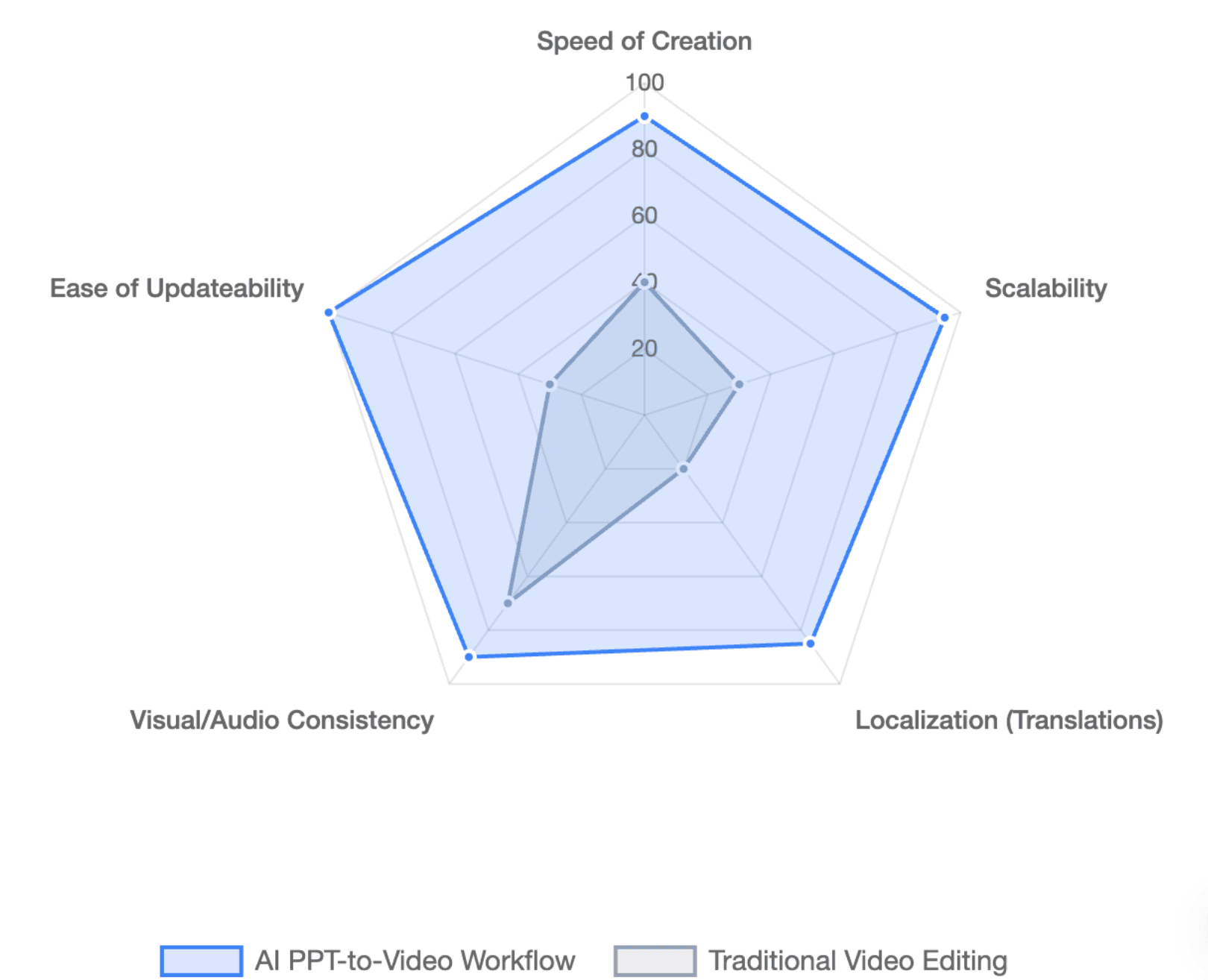
The best measure of AI efficiency is therefore not:
“How quickly can I generate the first video?”
It is:
“How easily can I update and republish this video when the source content changes?”
Conclusion
Turning a PowerPoint into an AI video works best when AI handles repetitive production while humans retain control over accuracy and communication quality. By treating slides as visual source material, speaker notes as structured knowledge, and the video project as an editable production layer, teams can create videos that are easier to review, update, localize, and scale.
FAQ
Can AI automatically turn a PowerPoint into a video?
Yes. AI PowerPoint-to-video tools can import a PPTX, generate or use an existing narration script, create AI voiceover, assemble scenes, add captions, and export a finished video. The amount of automation varies by platform, so the final result should still be reviewed for accuracy and presentation quality.
Can I turn a PowerPoint into a video without recording my voice?
Yes. AI voice generation can replace manual narration recording. You can either let AI create narration from the slide content or use existing speaker notes as the basis for the voiceover.
Can AI use PowerPoint speaker notes as narration?
Yes, some platforms support this directly. Leadde can import PPT notes into speaking script segments, while Synthesia can import speaker notes as the video script.
Do PowerPoint animations stay in an AI-generated video?
Not necessarily. Support depends on the tool. Some platforms import slide elements but not native PowerPoint animations. For example, Synthesia currently states that PowerPoint animations are not imported.
Can I add an AI avatar to a PowerPoint presentation?
Yes. Many AI video tools let you add a virtual presenter after importing the PowerPoint. Avatars are particularly useful for onboarding and presenter-led training, while voice-only videos may be better for dense technical or academic slides.
What is the difference between PowerPoint export and an AI PowerPoint-to-video generator?
PowerPoint export renders an existing presentation and can preserve recorded narration and timings. An AI video generator can add new narration, AI voices, avatars, captions, scene structure, and text-based editing without requiring you to record the presentation manually.
Can I edit an AI PowerPoint video without using a video timeline?
Yes, depending on the platform. Scene-based AI tools let you change scripts, layouts, voices, presenter settings, or individual scenes and regenerate the affected content instead of editing clips on a traditional timeline.
Can I update only one slide or scene after the video is generated?
Some AI workflows support scene-level regeneration. This is particularly useful for training, onboarding, and product education because a changed slide or policy does not necessarily require recreating the entire video.