PowerPoint-to-AI-Video Workflow: All-in-One vs 3–4 AI Tools

Turning a PowerPoint into an AI video usually follows one of two paths: use an integrated platform like Leadde to handle content analysis, scripting, narration, scenes, and localization in one workflow, or combine 3–4 specialized tools for writing, voice, avatars, and editing.
The all-in-one approach reduces handoffs and simplifies revisions, while a multi-tool stack offers more control over individual production stages. For training teams managing frequent updates, technical content, or multilingual video libraries, the key question is not just which workflow generates faster, but which one is easier to review, update, and scale.
This guide compares both approaches across speed, cost, creative control, revisions, localization, and long-term workflow efficiency.
PowerPoint-to-AI-Video Workflow: What Actually Happens Between a PPT and the Final Video?
A complete PowerPoint-to-AI-video workflow is closer to:
PowerPoint → content analysis → script → scenes → narration → visuals or avatar → captions → editing → QA → localization → export
That distinction matters because PowerPoint can already export presentations as video. AI adds more value when it transforms presentation material into something designed to be watched and heard.
Recorded Slides vs AI-Structured Video
There are several levels of PowerPoint-to-video conversion:
| Approach | What Happens |
| Slide export | Slides become a video file |
| Narrated presentation | Slides are paired with voiceover |
| AI-structured video | Content becomes scripts, scenes, narration, and visuals |
| Managed learning asset | Video can also be reviewed, updated, localized, and maintained |
Current platforms illustrate these differences. HeyGen can turn PPT/PDF presentations into editable or static slide-based avatar videos, while Synthesia can import PowerPoint elements as editable video elements and use speaker notes as narration.
But presentation language is not automatically good video language. A bullet such as “New onboarding workflow — 3 stages” may make sense when a presenter explains it live. Reading that bullet aloud does not recreate the missing explanation.
What Information Should AI Preserve From the PowerPoint?
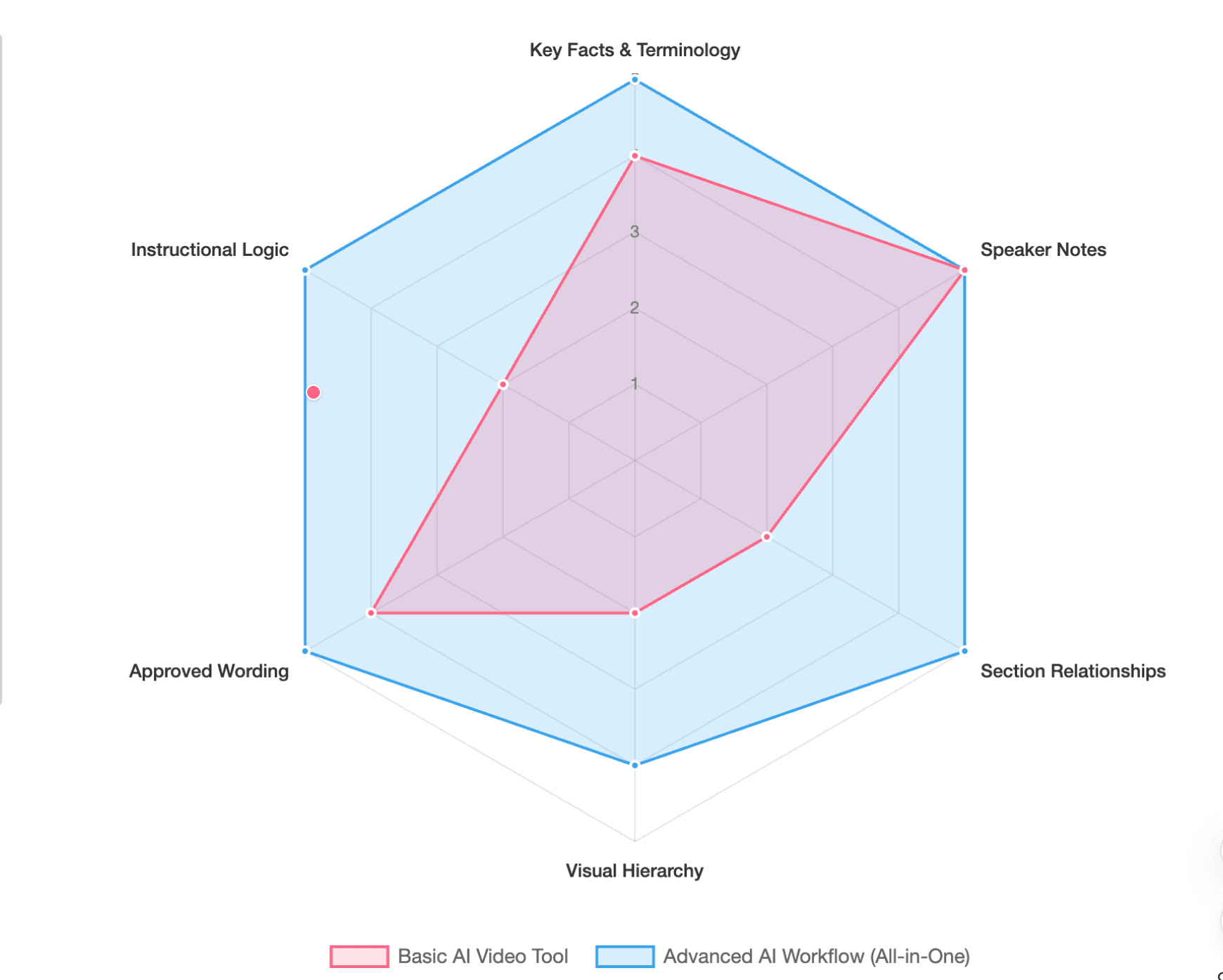
A useful workflow should preserve more than slide appearance. It may need to recognize:
- key facts and technical terminology;
- speaker notes;
- relationships between sections;
- diagrams and visual hierarchy;
- approved wording;
- the overall instructional logic.
I think of this as semantic preservation: the goal is not to reproduce every slide exactly, but to make sure the meaning survives the transformation.
That also means one slide should not automatically equal one video scene. A complex process diagram might need three scenes, while several short slides may belong in one explanation.
How Does an All-in-One Workflow Compare With Using 3–4 Separate AI Tools?
A multi-tool workflow might look like:
PowerPoint → LLM for scripting → AI voice tool → avatar/visual generator → video editor
An integrated workflow keeps more of those stages inside one project:
PowerPoint → content understanding → script and scenes → narration and visuals → editing/localization → video
Where Separate AI Tools Give You More Control
Dedicated tools can offer a higher creative ceiling. A production team can select its preferred model for every stage: one system for scripting, another for voice quality, another for generative visuals, and a professional editor for timing and compositing.
This makes sense when the video requires unusual visual treatments, sophisticated motion design, a specific voice, or frame-level editing.
Where an All-in-One Workflow Reduces Production Friction
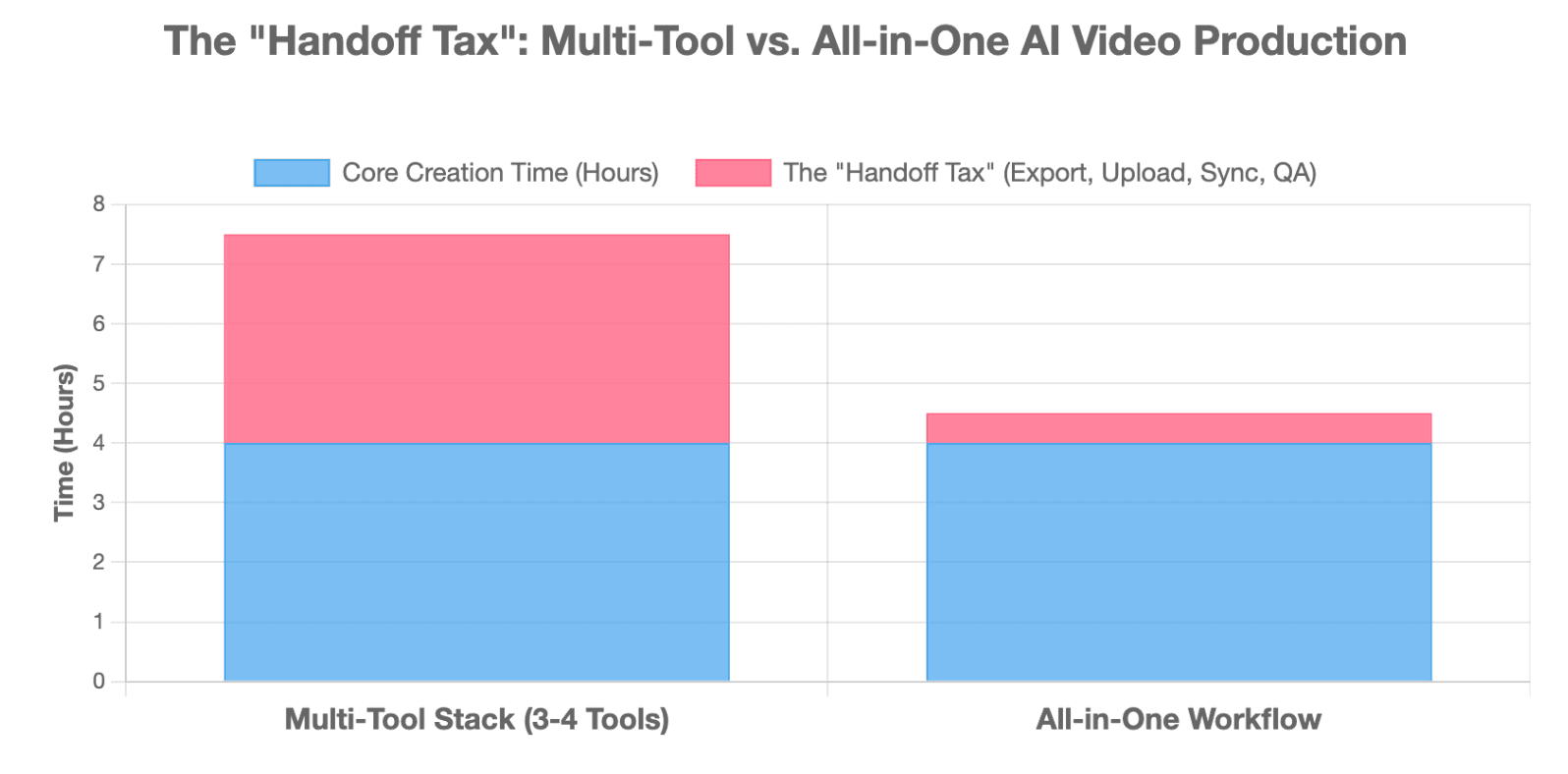
The advantage of integration is usually not that every individual component is automatically “better.” It is that fewer assets need to move between systems.
Each extra transfer can create a handoff tax:
Asset handoff: exporting and uploading files. Context handoff: the next tool does not know why earlier decisions were made. Decision handoff: a content change must be manually repeated downstream.
For teams producing recurring training or educational videos, those small coordination steps accumulate.
Integrated vs Bundled: Are the Tools Actually Connected?
An important distinction is integrated vs bundled.
A platform can put scripting, voice, avatars, and editing under one login while still forcing users to manage each stage independently. True integration becomes more visible during revisions.
A useful test is:
If one script line changes, can the workflow update only the affected narration, caption, and scene without forcing the team to rebuild everything else?
One tool is not automatically integrated, just as four tools are not automatically fragmented.
Which Workflow Is Faster and Cheaper in Real Production?
Most comparisons focus on generation speed and subscription prices. Those metrics are useful, but incomplete.
Generation Time vs Time-to-Approval
Generation time measures how quickly AI produces a first draft.
Time-to-approval measures how long it takes to produce something an SME, training manager, or stakeholder is willing to publish.
The difference can be substantial. An AI system may create a draft quickly but still require corrections to terminology, narration, visual choices, or instructional sequencing.
For professional workflows, time-to-approved-video is usually more meaningful than time-to-first-generation.
Software Cost vs Total Workflow Cost
A multi-tool stack may require separate subscriptions for writing, voice, avatar generation, and editing. An all-in-one platform may consolidate some of them.
But subscription count alone does not determine the cheaper option.
A better calculation is:
Total workflow cost = software + production time + coordination + QA + revisions + localization
An experienced creative team with an established stack may operate several specialist tools efficiently. A training team without dedicated editors may spend far more time coordinating the same stack.
Why the First Revision Is a Better Test Than the First Generation
Imagine a training video is approved and then an SME says:
“The policy on slide 17 changed.”
In a disconnected workflow, that small change can trigger:
PowerPoint → script → voice → avatar → captions → video edit → localized versions
This is a revision cascade.
The more downstream assets that require manual intervention, the greater the change propagation depth.
That leads to a practical rule:
Don’t compare tool counts. Compare change propagation.
Which Workflow Works Better for Training, Education, and Large PowerPoint Libraries?
Training decks are different from many marketing presentations. They often contain SME-approved terminology, SOPs, compliance information, diagrams, procedures, and material that will need future updates.
Dense PowerPoints Need Content Transformation, Not Slide Narration
Instructional designers frequently receive content-heavy PowerPoints built as reference-heavy SME documents rather than video scripts. A 50- or 100-slide deck should not automatically become a 50- or 100-scene video.
A useful content audit is:
KEEP essential instruction. SIMPLIFY unnecessarily dense explanations. SPLIT complex ideas into multiple scenes. COMBINE repetitive slides. REFERENCE information learners need later but do not need narrated. REMOVE content that does not support the learning goal.
Some tables, regulations, code examples, and detailed procedures may work better as downloadable references than as narrated video.
Where Human Instructional Design Should Stay in the Workflow
AI can automate repetitive production work such as narration generation, captions, visual assembly, and localization.
Humans should remain responsible for decisions involving:
- learning objectives;
- factual and technical accuracy;
- instructional sequence;
- assessment alignment;
- final approval.
The practical boundary is simple: automate production mechanics, not instructional judgment.
Video Generation Is Not the Same as Interactive Learning
A PowerPoint-to-video platform solves the video layer.
Quizzes, branching, learner practice, SCORM/xAPI tracking, and LMS delivery belong to other layers of the learning stack. A generated MP4 does not automatically become an interactive course.
This matters when comparing “all-in-one” claims: teams should determine whether they need an integrated video workflow, a full learning-authoring workflow, or both.
Which Workflow Is Easier to Update, Localize, and Scale?
The first video may not reveal much difference between workflows. The gap becomes clearer when a company maintains dozens or hundreds of videos.
Can You Fix One Scene Without Rebuilding the Video?
Two capabilities are especially valuable:
Local recoverability: regenerate only the affected part.
Surgical editability: change one script line, pronunciation, visual, or caption without disturbing approved content.
Leadde's document-first approach, for example, is designed around transforming existing PowerPoints and other business documents into structured videos within a connected workflow. For teams evaluating any platform, however, the important question is not simply whether editing exists—it is how much of the production chain must be repeated after an edit.
Why Localization Multiplies More Than Translation Work
Localization involves more than translating narration. Teams may need to review:
- terminology;
- AI voice pronunciation;
- captions;
- on-screen text;
- scene timing;
- layout;
- visual overflow.
Text expansion is especially important. A layout designed around a short English phrase may need adjustment after translation.
Some integrated platforms increasingly address this directly. Synthesia, for example, says imported PowerPoint elements remain editable and can resize as translated content changes.
Localization multiplies QA work as well as generation work.
Why a Single Source of Truth Matters
When a library grows, teams need to know which asset is authoritative:
PowerPoint v8?
Script v5?
English video v4?
Spanish video v3?
A scalable system benefits from a single source of truth and strong context continuity between source material, script, scenes, narration, and localized versions.
Without that connection, maintaining the library can eventually require more effort than generating it.
How Should You Choose Between an All-in-One Tool, a Multi-Tool Stack, and a Hybrid Workflow?
There is no universal winner.
| Workflow | Best For | Main Advantage | Main Limitation |
| All-in-one | Training, onboarding, recurring videos, localization | Fewer handoffs and easier maintenance | Less specialist control |
| 3–4 tools | Creative teams and highly customized videos | Maximum component-level control | More coordination |
| Hybrid | Teams needing scale plus specialist finishing | Balance of automation and control | Requires deliberate handoffs |
Choose an all-in-one workflow when coordination is the bottleneck and consistent, repeatable production matters more than maximum customization.
Choose separate specialist tools when the project genuinely benefits from specialized voice, advanced visual generation, complex motion, or professional post-production.
A hybrid workflow often works well when only one stage needs specialist treatment—for example, generating the core training video in an integrated platform and moving the finished draft into a professional editor for a specific final treatment.
The key is distinguishing an intentional handoff from accidental fragmentation. Add another tool because it contributes something important, not simply because the existing workflow forces another export and upload.
How Can You Test a PowerPoint-to-AI-Video Workflow Before Committing?
Do not evaluate a platform only with a clean demo deck.
Use a real PowerPoint containing dense slides, speaker notes, diagrams, tables, acronyms, technical language, and inconsistent formatting.
Run the same source through both workflows and measure:
| Metric | What It Reveals |
| Time-to-first-draft | Generation speed |
| Time-to-approval | Real production efficiency |
| Manual handoffs | Workflow fragmentation |
| QA time | Hidden automation cost |
| Revision time | Maintainability |
| Change propagation depth | Update complexity |
| Localization steps | Scaling difficulty |
| Creative control | Specialist flexibility |
Then perform a first revision test: change one sentence, number, or image in the source presentation.
Watch what happens downstream.
That small test often tells you more about the long-term value of a workflow than how quickly it generated the original video.
Conclusion
An all-in-one PowerPoint-to-AI-video platform and a 3–4-tool stack optimize for different things. Multi-tool workflows can provide a higher creative ceiling, while integrated workflows often provide a higher operational floor. For training and recurring content, the strongest workflow is usually not the one that creates the fastest first draft, but the one that reaches approval, handles revisions, supports localization, and scales without repeatedly rebuilding context. Use the fewest tools necessary while preserving the level of control your content actually requires.
FAQ
Can AI automatically turn a PowerPoint into a video?
Yes. AI video platforms can import PowerPoint content and generate narration, scenes, presenters, captions, or other video elements. The level of transformation varies by platform: some preserve the original slides, while others restructure the source into new video scenes. Human review is still important for factual accuracy, pacing, and instructional quality.
What is the easiest way to convert a PowerPoint into an AI video?
For teams that want minimal setup, an integrated PowerPoint-to-video platform is usually the simplest approach because scripting, narration, visuals, and editing remain in one workflow. Teams that need highly specialized voices, visual generation, or professional editing may prefer separate tools despite the additional handoffs.
Is an all-in-one AI video tool better than using ChatGPT, ElevenLabs, HeyGen, and CapCut separately?
Not always. A specialist stack can provide more control over each production stage, while an integrated platform can reduce copying, exporting, uploading, version management, and revision work. The better choice depends on whether creative specialization or workflow efficiency is more important for the project.
Can AI turn PowerPoint speaker notes into video narration?
Yes. Some PowerPoint-to-video platforms can use speaker notes as the starting script. Synthesia, for example, documents speaker-note import as part of its PowerPoint workflow. Speaker notes should still be reviewed because language written for a live presenter may need rewriting for standalone video.
What is the best workflow for PowerPoint training videos?
For repeatable training, onboarding, SOP, and educational content, prioritize source fidelity, editable scenes, QA, localization, and easy updates. Integrated workflows can be particularly useful when teams maintain many videos, while specialist stacks make more sense when individual productions require advanced creative treatment.
Can I update an AI video after the original PowerPoint changes?
Many tools allow video editing after import, but update workflows differ significantly. The important question is whether you can change only the affected script, narration, visual, or scene without recreating unrelated content. Testing a small post-production revision is one of the best ways to evaluate a platform.
Should every PowerPoint slide become one video scene?
No. Video structure should follow the explanation or learning objective rather than slide count. A dense slide may require several scenes, while multiple short slides may be combined. Treat the PowerPoint as source material rather than a fixed storyboard.
Do PowerPoint-to-video AI tools support quizzes, SCORM, or LMS training?
Some platforms or learning-authoring tools support interactive or LMS-related features, but video generation, interactivity, and LMS tracking are separate capabilities. Before choosing a tool, verify whether you need only a video file or also quizzes, branching, SCORM/xAPI reporting, learner analytics, and LMS distribution.