How to Make Lecture Videos Without Recording Yourself (AI)
You can make lecture videos without recording yourself by using AI to turn PowerPoint slides, PDFs, lecture notes, or written scripts into narrated educational videos. Instead of setting up a camera, recording your voice, or manually editing every scene, AI video tools can help you generate lecture scripts, voiceovers, virtual presenters, and visual explanations.
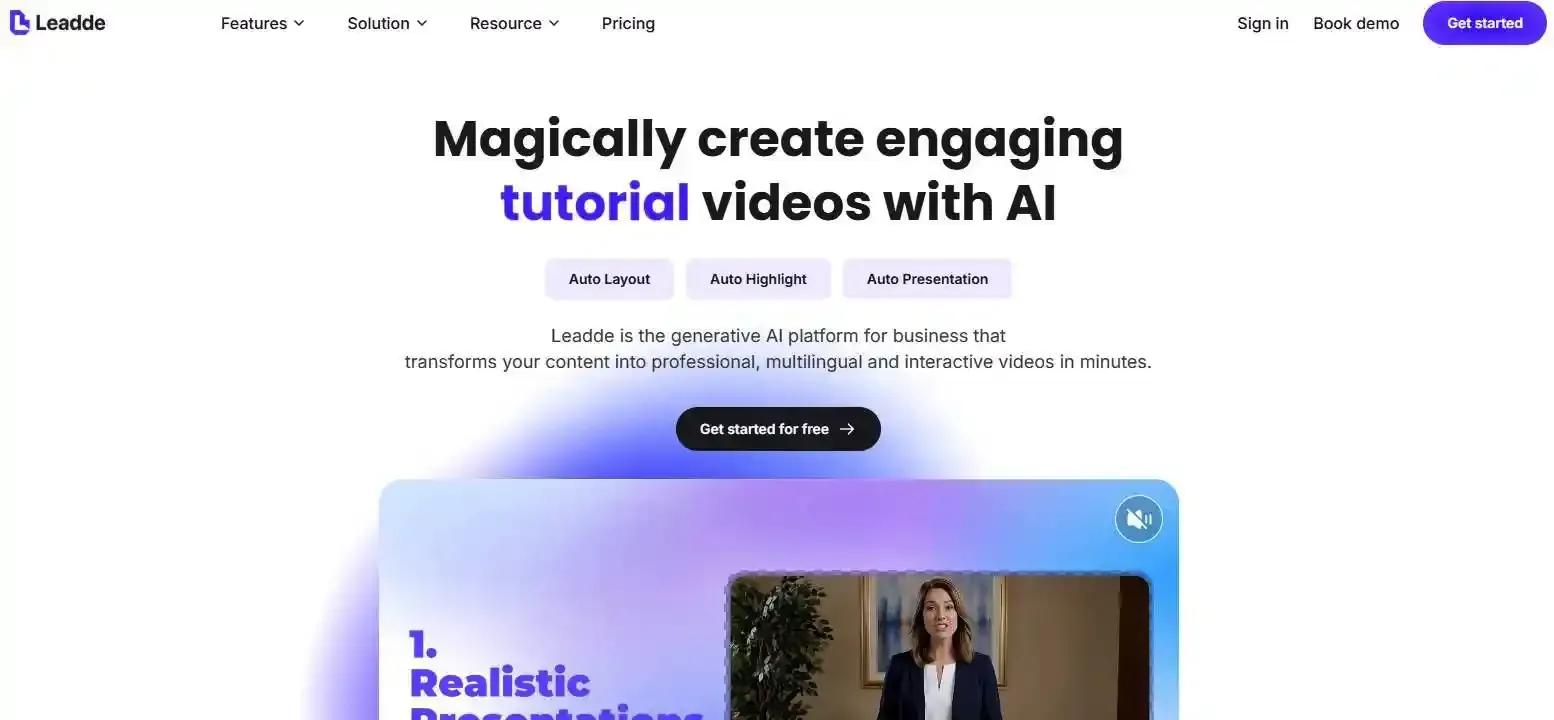
For teachers, online course creators, and training teams, this makes it easier to turn course materials into video lectures. Leadde simplifies this process by turning documents into structured AI videos, using AI Avatars that can understand on-screen content and Motion animations to help explain complex concepts visually—all without filming yourself.
In this guide, you'll learn how to make lecture videos without recording yourself in six practical steps, explore different AI video creation methods, and discover how to create engaging video content that helps students understand what they're learning.
How to Make Lecture Videos Without Recording Yourself Using AI
The simplest way to create a lecture video without recording yourself is to use an AI video generator that converts teaching materials into scripts, narrated scenes, and visual presentations.
You don't need a camera, microphone, or traditional video editing experience. Here's a practical six-step workflow.
Step 1–2: Prepare Your Teaching Materials and Generate a Lecture Script
Start with materials you already have:
- PowerPoint slides or lecture presentations
- PDF textbooks, handouts, or lesson notes
- Word documents and training manuals
- A written lecture script or topic outline
Before generating the video, identify one clear learning objective. What should students understand or be able to do after watching?
Next, organize the material into a lecture script with an introduction, explanations, examples, and summary, or reference a proven tutorial script example to streamline the writing phase.
For example, instead of simply reading a slide that says "Evaporation converts liquid water into vapor," explain how heat provides energy for water molecules to escape into the atmosphere.
This turns a slide into an actual teaching moment.
Step 3–4: Choose an AI Presenter, Voiceover, and Educational Visuals
Select an AI voice that matches your subject and audience. For technical lectures, prioritize clear pronunciation and a measured speaking pace.
You can also use an AI avatar as a virtual lecturer, eliminating the need to appear on camera, especially when comparing AI avatar vs voiceover for lecture videos.
Next, match your visuals to the lesson:
- Diagrams for explaining structures and relationships
- Animations for demonstrating processes
- Screen demonstrations for software tutorials
- AI avatars for introducing or summarizing concepts
The key is to choose visuals based on what students need to understand, not simply what looks impressive.
Step 5–6: Generate, Review, and Export Your Lecture Video
Generate the video and review it scene by scene.
Check whether the narration accurately explains each concept, visuals match the spoken content, and subtitles display technical terminology correctly.
Make corrections before exporting the finished video.
You can then share it on YouTube, an online course platform, or a learning management system (LMS) like Canvas (for instance, following steps on how to post a video on Canvas), depending on the platform's supported formats.
A practical shortcut: Leadde combines document analysis, AI-generated scripts, visual scenes, narration, and virtual presenters in one workflow. Teachers can upload existing learning materials, review the generated outline, and create lecture videos without recording themselves.
What Are the Best Ways to Create Lecture Videos Without Showing Your Face?
There are several ways to create faceless lecture videos, but they differ in how much recording and editing they require.
Slide-Based Lectures and Screen Demonstrations
Slide-based videos combine PowerPoint presentations with narration. Using AI text-to-speech, teachers can discover how to add voiceover to each PowerPoint slide automatically without recording their own voices.
Screen demonstrations are especially useful for software, programming, and technical tutorials. However, traditional screen-recording workflows still require capturing the actual software activity.
If you want to avoid recording entirely, you can use existing screenshots, prepared demonstrations, or AI-generated explanatory visuals where appropriate.
AI Avatar Videos and Animated Educational Explainers
AI avatar videos use a digital presenter to deliver lessons. They are useful for course introductions, theoretical explanations, and structured training.
Animated explainer videos are particularly valuable when students need to visualize changes over time, and adopting dedicated animation tools for educators makes this visual storytelling straightforward.
For example, an animation can demonstrate how electrical current flows through a circuit more clearly than a static image alone.
Document-to-Video: Turning Existing Lessons into Videos
Document-to-video AI tools convert existing educational content into structured video scenes with narration and visuals.
This is particularly useful for educators with extensive teaching materials but limited video production resources.
| Method | Best for | Recording needed? |
| Slides + AI voiceover | Academic lectures | No |
| Screen recording | Software demonstrations | Usually screen capture |
| AI avatar videos | Instructor-led lessons | No |
| Animated explainers | Abstract concepts | No |
| Document-to-video | Existing PDFs and course materials | No |
For teachers who want to avoid both camera and voice recording, document-to-video and AI avatar workflows offer particularly practical starting points.
How Can You Turn PowerPoint Slides, PDFs, and Lecture Notes into AI Videos?
Existing teaching materials are often the most efficient starting point because the essential knowledge has already been organized.
However, effective conversion requires more than adding narration to each page.
Convert PowerPoint Slides into Narrated Lecture Videos
Start by uploading your presentation into a compatible AI video generator.
Review the generated narration and expand short bullet points into complete explanations.
For example:
Original slide: "Three types of renewable energy: solar, wind, hydro."
Improved narration: "Renewable energy comes from naturally replenished sources. Solar panels convert sunlight into electricity, wind turbines capture moving air, and hydropower systems generate electricity using flowing water."
The second version explains the concepts instead of merely listing them. If you prefer to avoid digital presenters altogether, you can implement a PowerPoint to AI video without avatars approach.
Create Lecture Videos from PDFs and Written Teaching Materials
PDFs and lecture notes often contain more information than should appear in a single video.
A document-to-video workflow can help identify main concepts, organize sections, and transform a long PDF to video.
For instance, an instructor teaching the water cycle could organize a PDF lesson into:
- Introduction to the water cycle
- Evaporation and condensation
- Precipitation and collection
- Real-world examples and recap
With Leadde's document-to-video tool, users can upload teaching documents, review an AI-generated outline, and edit the script, scenes, narration, and visuals before publishing.
How to Keep AI-Generated Lectures Accurate to Your Source Materials
AI-generated explanations can sometimes omit details, oversimplify processes, or introduce unsupported information. Educators must understand how to keep AI-generated PDF videos faithful to the source.
A useful safeguard is Source-to-Scene Mapping: connect each video scene to the original document section it explains.
| Original material | Video scene | Verification |
| PDF page 2: Evaporation | Animated evaporation explanation | Check process accuracy |
| PDF page 4: Condensation | Cloud formation diagram | Check terminology |
| PDF page 6: Precipitation | Rainfall animation | Check sequence |
This makes it easier to identify missing concepts and correct inaccurate explanations before students watch the lesson.
How Can AI Avatars and Motion Animations Improve Lecture Videos?
AI avatars and educational animations can make lessons easier to follow when they are used for a clear instructional purpose.
The goal is not to add movement everywhere. It is to connect spoken explanations with meaningful visual information.
AI Avatars That Understand and Explain Visual Content
Traditional talking avatars primarily deliver scripted narration.
More advanced presenter workflows can also connect the presenter to information displayed on screen.
For example, Leadde's Avatar O is designed to understand presentation content and use pointing, gestures, and movement to guide attention toward relevant visual elements.
In a business lecture, an AI presenter could introduce a chart and direct attention toward the metric being discussed.
This provides a more presentation-oriented experience than continuously displaying a talking head alongside unrelated slides.
However, teachers should still verify the explanations, particularly when discussing complex charts, formulas, or scientific content.
Using Motion Animations to Explain Complex Concepts
Some concepts are difficult to communicate through static slides.
Consider a biology lesson explaining how blood circulates through the heart.
A labeled diagram can identify the chambers, but an animation can show the direction and sequence of blood flow.
Leadde Motion supports animated explanations generated from documents, notes, or scripts, helping creators visualize concepts without manually animating every element.
Short animations can be particularly useful for:
- Scientific processes and biological systems
- Mathematical transformations
- Business workflows and decision processes
- Technical systems and cause-and-effect relationships
For a longer lecture, these animations can serve as focused visual explanations between presenter-led sections.
When Should You Use an AI Avatar, Animation, or Static Diagram?
Not every teaching moment needs an animated presenter.
| Teaching objective | Recommended visual |
| Introduce a lecture topic | AI avatar |
| Explain a process or change | Motion animation |
| Present formulas or labeled structures | Static diagram |
| Demonstrate software operations | Actual interface demonstration |
| Summarize learning outcomes | AI avatar or summary slide |
From an instructional design perspective, the best visual is the one that helps students understand the specific concept being taught.
Unnecessary movement can distract learners, while inaccurate animation can create misconceptions.
How Do You Make AI Lecture Videos That Students Actually Learn From?
Generating a lecture video is a production task. Making that video educationally effective requires instructional planning and review.
Keep Lessons Focused, Structured, and Easy to Follow
Avoid converting an entire hour-long lecture into one uninterrupted AI video.
Instead, divide the material into sections built around clear learning objectives, or learn how to turn a long PDF into microlearning videos with AI.
UCLA's teaching guidance recommends approximately 8–10 minutes as a useful target for recorded instructional segments. Cornell University also recommends shorter videos where practical.
These are useful guidelines rather than universal duration limits.
For each segment, consider this structure:
Learning objective → Explanation → Example → Recap
Use an example to demonstrate how a concept works rather than simply repeating its definition.
Review AI Narration, Visual Accuracy, and Accessibility
AI-generated lectures should undergo two types of review.
Pass 1: Academic Accuracy
Check whether definitions, formulas, examples, terminology, and explanations are correct.
Pass 2: Learning Experience
Review narration speed, visual readability, scene transitions, captions, and the timing of animations.
For accessibility, provide synchronized captions and describe important visual information verbally.
Cornell specifically advises reviewing automatically generated captions and correcting spelling, timing, and other errors.
Test and Improve the Lesson Before Publishing
Start with one short lesson rather than converting an entire course immediately.
Ask a student or colleague to watch the video and answer a question that requires applying the concept.
For example, after an evaporation lesson, ask:
"Why does a puddle dry faster on a warm, windy day?"
If learners cannot explain the relationship between temperature, airflow, and evaporation, review the relevant teaching scene.
A completed AI video is not necessarily a completed lesson. Learning checks and feedback help identify where the explanation needs improvement.
Which AI Tools Are Best for Creating Lecture Videos Without Recording?
The best AI lecture video generator depends on your source materials, teaching format, and editing requirements.
Comparing AI Lecture Video Creation Tools
Several platforms support camera-free educational video production.
| Tool | Main workflow | Suitable use cases |
| Leadde | Document-to-video, AI presenter, Motion visuals | Lecture materials, training, educational explainers |
| Synthesia | AI presenters, scripts and presentation-to-video | Presenter-led lessons and training |
| HeyGen | AI avatars, PPT-to-video, narration | Narrated slides and avatar presentations |
| Colossyan | Document-to-video, AI training and course creation | Corporate training and interactive learning |
These are workflow distinctions, not measured performance rankings. Available features, limits, and pricing can change. For an in-depth evaluation of enterprise capabilities, you can read our Colossyan review or compare key players in our HeyGen vs Synthesia guide.
What Should You Look for in an AI Lecture Video Generator?
Before choosing a tool, evaluate whether it can:
- Import your existing learning materials
- Generate editable lecture scripts
- Explain concepts rather than simply read text
- Support appropriate diagrams, animations, or AI presenters
- Correct individual scenes and narration
- Export videos in formats compatible with your learning platform
A useful comparison method is to upload the same short teaching document into different tools.
Then evaluate content accuracy, explanation quality, visual relevance, and ease of revision.
This provides more meaningful evidence than comparing promotional demonstrations alone.
How Can You Update and Reuse Lecture Videos Without Re-Recording?
One practical advantage of AI-generated lessons is that some platforms allow changes to scripts and scenes without recording new footage.
For example, when a software interface changes, an instructor may need to replace an outdated explanation or screenshot rather than recreate the entire lecture.
Leadde's document-to-video workflow supports editing affected scripts and scenes and generating updated video content.
For large course libraries, maintain the original teaching documents, approved scripts, and lesson versions. Review translated narration and captions when creating multilingual lessons.
This helps educators keep recurring training and online courses consistent as the underlying information evolves.
Conclusion
Creating lecture videos no longer requires filming yourself or recording your voice. With AI narration, virtual presenters, document-to-video tools, and educational animations, teachers can transform existing materials into structured video lessons. The most effective workflow combines AI-assisted production with thoughtful teaching design, accurate content, and human review. Start with one lesson, test the result, and improve the process before expanding to an entire course.
Frequently Asked Questions
Can I make lecture videos without showing my face or using my own voice?
Yes. AI lecture video generators can create narrated lessons using written scripts, presentations, PDFs, or teaching notes. AI voices replace manual narration, while virtual presenters or educational visuals replace camera footage. You still need to review the generated explanations and presentation to ensure they meet your teaching objectives.
Can AI turn PowerPoint slides or PDFs into lecture videos automatically?
Yes. AI document-to-video tools can analyze presentations and PDFs, generate lecture scripts, organize scenes, and add narration. Some platforms also provide AI avatars and visual layouts. However, automatic conversion should be treated as a first draft, especially when source materials contain specialized terminology, diagrams, or complex explanations.
What is the difference between an AI avatar lecture and a narrated slideshow?
A narrated slideshow primarily displays presentation slides with spoken explanations. An AI avatar lecture adds a virtual presenter who delivers the material on screen. Some advanced avatar systems can also gesture toward visual information. Neither format is inherently better; the appropriate choice depends on the lesson's content and instructional goals.
Can I create educational animations without animation skills?
Yes. AI animation tools can help transform descriptions, scripts, and educational documents into animated visual explanations. These are useful for processes, relationships, and changes that static images cannot easily demonstrate. Teachers should review scientific accuracy, sequence, labels, and narration synchronization before including generated animations in formal lessons.
How much does it cost to create AI lecture videos?
Costs depend on the platform, video duration, generation credits, avatar options, export resolution, and subscription plan. Some tools offer free trials or limited free generation, while others require paid subscriptions for advanced features. Compare the complete cost of producing, editing, exporting, and updating lessons rather than looking only at advertised entry prices.
Can I upload AI-generated lecture videos to YouTube or an online learning platform?
Generally, yes, provided you have the necessary rights to the educational materials and the generated content complies with the platform's policies. Many AI video tools export MP4 files suitable for video hosting. For LMS integration, check the required format and whether features such as completion tracking or SCORM packaging are needed.