How to Update Lecture Videos Without Re-Recording (6 Easy Steps)
You can update lecture videos without re-recording by replacing outdated slides, editing narration, updating specific scenes, or adding new visual explanations. Instead of filming an entire lecture again, educators can preserve accurate content and revise only the sections that need attention—even when working with an existing video file.
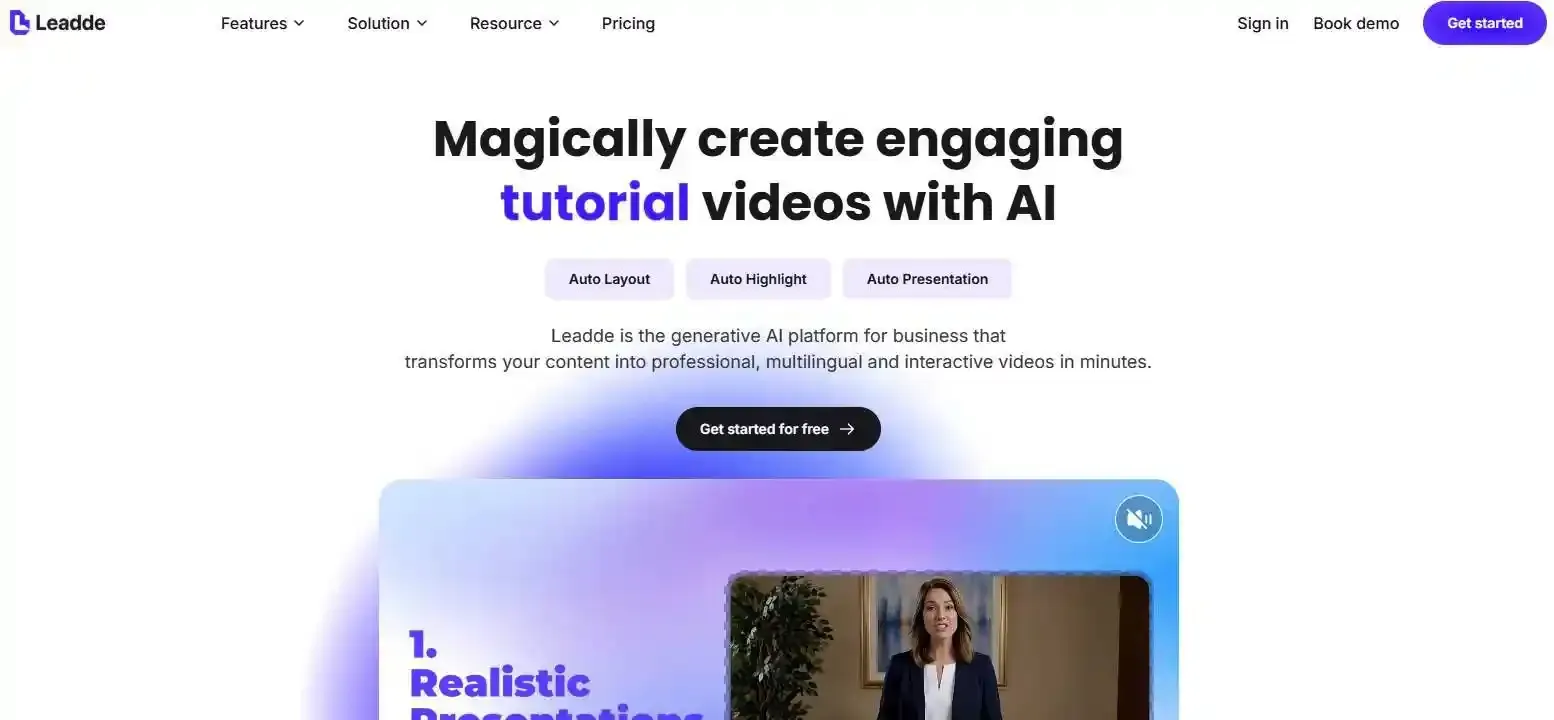
AI video tools make this process more flexible. With Leadde, educators can turn updated PowerPoint presentations, PDFs, and teaching materials into structured videos using AI avatars and narration. AI-powered visual explanations and Motion animations can also help make complex concepts easier to follow without putting the instructor back in front of a camera.
This guide explains six practical steps to update existing lecture videos, choose the right editing method, maintain instructional accuracy, and keep course content easier to update every semester.
How to Update Lecture Videos Without Re-Recording: A 6-Step Guide
To update lecture videos without re-recording, identify the outdated sections, revise the original teaching materials, replace the affected visuals or narration, and insert the updated scenes into the existing video. Modern AI lecture video makers can generate new explanations and educational animations, allowing educators to preserve useful lecture content without filming again.
The best approach depends on whether you have an editable video project, the original slides, or only an exported MP4.
Step 1–2: Identify Outdated Content and Prepare Your Source Files
Start by reviewing the lecture and noting where information needs updating.
- Identify outdated content. Record timestamps for incorrect facts, old screenshots, unclear explanations, or outdated slides.
- Gather your source files. Collect the original PowerPoint, PDF, narration script, captions, or editable video project.
If you only have an MP4, you can still replace sections using a video editor, although individual slide elements may no longer be editable.
From an instructional design perspective, avoid cutting halfway through an explanation. Select editing boundaries around complete concepts or teaching steps to preserve continuity.
Step 3–4: Update Slides, Scripts, and Narration With AI
Once you know what needs changing, revise the source materials before generating new video content.
For example, if a lecturer needs to update a scientific diagram, they can replace the diagram in their PowerPoint and prepare a revised explanation.
Leadde supports document-to-video workflows that turn PowerPoint presentations, PDFs, and educational materials into structured videos with AI narration and avatars. If you already maintain slide decks, you can update an AI PowerPoint video without re-recording or follow a streamlined power point to AI video workflow rather than filming in front of a camera.
Educators can also create replacement explanations or short animations by exploring educational animation examples and benefits when a static slide does not communicate a concept clearly.
Step 5–6: Replace the Scene, Review, and Publish
Insert the updated segment into the existing lecture or regenerate the affected section of an editable AI video project.
Before publishing, check:
- Narration timing and pronunciation
- Slide accuracy and visual continuity
- Animation synchronization
- Captions and technical terminology
- Connections to the preceding and following explanations
Export the revised video and replace the appropriate course content in your learning management system (LMS). If you deliver courses via platforms like Canvas, you can check guides on how to post a video on Canvas or how to record a video on Canvas to manage your material smoothly.
For example, Udemy's official documentation describes replacing video content within an existing lecture rather than deleting the entire lecture.
What Parts of an Existing Lecture Video Can You Update Without Re-Recording?
You can update many elements of a recorded lecture independently, including slides, narration, subtitles, charts, demonstrations, and short explanations.
However, the method depends on the original recording format and the extent of the changes.
Updating Slides, Voiceovers, Captions, and Video Clips
| What Needs Updating | Recommended Method | Important Check |
| Outdated PowerPoint slide | Replace slide visuals or regenerate the scene | Narration references |
| Incorrect explanation | Edit script and generate replacement narration | Technical accuracy |
| Old software demonstration | Replace the affected screen recording | Workflow consistency |
| Unclear scientific concept | Add an AI explanation or Motion animation | Conceptual accuracy |
| Incorrect subtitles | Correct captions and timestamps | Accessibility |
| Missing example | Insert a new instructional segment | Learning continuity |
Not every correction requires AI. A simple incorrect label may be easier to fix with a video overlay, while a revised explanation may benefit from AI-generated narration, especially if you need to resolve common issues like power point narration gets cut off or power point narration out of sync.
The principle is to make the smallest change that preserves instructional accuracy.
Can You Edit a Lecture Video If You Only Have the MP4?
Yes. An exported MP4 can be trimmed, split, and combined with replacement media using a video editor.
For instance, an educator could cover an outdated chart with a corrected image while retaining the original narration, provided the explanation remains accurate.
However, an MP4 generally does not preserve the original editable PowerPoint objects, separate presenter layers, or animation settings.
For repeated updates, keeping original presentations and scripts is more practical than relying exclusively on finished video files.
How Can AI Avatars and Motion Animations Improve Updated Lecture Videos?
Updating lectures is not only about correcting outdated information. It can also be an opportunity to make difficult concepts easier to understand.
AI avatars and educational animations offer ways to add explanations without requiring the instructor to appear on camera again.
Use AI Avatars to Explain Updated Slides and Visual Content
Traditional narration workflows primarily convert written scripts into speech.
A visual-aware AI avatar workflow goes further by using information from the slide or visual content to inform the explanation.
Consider a biology professor updating a diagram of cellular transport. Instead of simply reading the labels, a visual-aware workflow can help develop narration describing how substances move across the membrane.
Leadde combines structured content generation with AI avatar presentations, helping educators learn how to create an avatar-led presentation from PowerPoint directly from updated learning materials.
The important distinction is between generating narration from a script and correctly interpreting visual information. Formula relationships, chart axes, and scientific processes still require subject-matter review.
Add Motion Animations to Explain Complex Concepts
Some teaching concepts are easier to explain through movement than static slides.
Motion animations can illustrate:
- Physics: How forces influence acceleration and motion
- Mathematics: How a graph changes as variables change
- Biology: Stages of cell division
- Computer science: How an algorithm processes information
- Business education: How decisions move through a workflow
For example, an existing physics lecture might explain Newton's second law using a static diagram. A short animation showing changes in force and acceleration could make the relationship more visible.
Educators can insert this animation into the relevant section instead of recreating the entire lecture, leveraging dedicated animation tools for educators to build concise visuals quickly.
Animations should communicate a specific learning objective rather than simply add movement. They should also be checked for scientific accuracy.
Keep AI Explanations Consistent With the Original Lecture
New AI-generated content should feel like part of the same learning experience.
Maintain consistent terminology, visual presentation, narration pace, and conceptual difficulty.
For example, a replacement segment should not introduce advanced terminology that students have not yet encountered.
A useful review technique is to watch the preceding scene, updated scene, and following scene together.
This reveals transitions and knowledge gaps that may not be apparent when reviewing the replacement in isolation.
Which Is Better for Updating Lecture Videos: Traditional Editing or AI?
The best method depends on your source files, the type of correction, and the amount of new content required.
Traditional Editing vs. AI Video Updating
| Method | Best For | Main Limitation |
| Traditional video editing | Replacing clips, images, and simple overlays | Manual editing work |
| Transcript-based AI editing | Updating spoken explanations | Visuals may still need editing |
| AI avatar generation | Adding or replacing presenter explanations | Requires consistency and accuracy checks |
| Document-to-video workflows | Updating PPT- or PDF-based lessons | Depends on source files and platform capabilities |
Tools such as Camtasia are suitable for timeline editing, while solutions like Descript alternatives offer transcript-based audio and video workflows.
For educators maintaining document-based lectures, Leadde provides an alternative approach built around transforming teaching materials into structured AI videos.
The most efficient workflow is not necessarily the one with the most AI features. It is the one that safely resolves the required changes with the least unnecessary reconstruction.
When Should You Re-Record a Lecture Instead?
Partial editing is not always appropriate.
Consider rebuilding a lecture or major chapter when:
- Most of the course content is outdated.
- Learning objectives have substantially changed.
- Multiple edits have disrupted the explanation.
- The original audio or visuals are unusable.
- The existing content cannot legally or appropriately be reused.
A discussion among university instructors on r/Professors highlights another consideration: instructor identity.
Some educators prefer recording their own lectures so students recognize the person responsible for teaching the course. Others favor reusing accurate materials and investing their time in feedback or course activities.
When reusing another instructor's recordings, check institutional policies, obtain necessary permissions, and clearly identify the current instructor.
| Scenario / Condition | Recommendation | Reason |
| Minor factual error or outdated stat | Edit / Update | Can be fixed quickly with overlay or AI narration. |
| Most course content is outdated | Re-record | Partial edits will be too time-consuming. |
| Core learning objectives changed | Re-record | Foundation of the video no longer aligns with the curriculum. |
| Audio/visuals are corrupted or unusable | Re-record | Poor baseline quality cannot be fully fixed by simple edits. |
| Reusing content without legal permission | Re-record | Compliance and copyright issues. |
How Do You Keep Updated Lecture Videos Accurate and Consistent?
A successfully exported video is not necessarily a successful teaching update.
Educators must verify both media quality and instructional accuracy.
Check Narration, Captions, Timing, and Visual Consistency
A revised sentence can change the duration of a scene, affecting subtitles, animations, and transitions.
Review the complete chain:
Updated script → Narration → Scene timing → Animation → Captions
Pay particular attention to mathematical expressions, scientific terminology, units, and proper names.
Automated captions can misinterpret specialized vocabulary. Incorrect captions can create accessibility problems and communicate inaccurate information.
For AI-generated explanations, review the actual spoken content rather than relying solely on the written script.
Verify Learning Continuity After Replacing a Scene
Use a short Learning Continuity Test before publishing:
- Does the revised explanation support the original learning objective?
- Does it contradict definitions introduced earlier?
- Do later examples still make sense?
- Have related assignments or quiz answers changed?
- Is the updated explanation understandable without additional context?
For example, changing a formula in one lecture may also require correcting a worked example in the next lesson.
This is why educational video maintenance should focus on connected knowledge, not just isolated media files.
How Can Educators Keep Lecture Videos Updated Every Semester?
The easiest lecture to update is one that was designed for future revisions.
Instead of maintaining every course as a single fixed recording, educators can organize content into smaller, reusable teaching units.
Organize Lectures Into Easy-to-Update Modules
Divide lectures around learning objectives, demonstrations, or major concepts.
In the r/Professors discussion, one instructor described creating short videos for individual slides so that mistakes could be corrected without recording the entire lecture again.
This approach is particularly useful for frequently changing material such as software tutorials, scientific data, and professional training procedures.
However, not every concept should be reduced to an extremely short clip. A complex explanation may need a longer uninterrupted sequence.
Choose module boundaries based on instructional meaning, not an arbitrary duration.
Track Changes Across Slides, Scripts, and Course Videos
Maintain a clear relationship between your teaching sources and published videos:
Course documents → Scripts → Video scenes → Captions → LMS versions
When a source changes, identify which related assets require review.
For example, updating a software tutorial may affect several lessons that use the same interface screenshot.
This source-driven approach is also central to platforms such as LectureGuru, which describes monitoring source changes and preparing updated training content for human review.
Keep a simple update log identifying the source, affected lesson, revision date, and reviewer.
Practical Example — Updating an Outdated Science Lecture
The following is an illustrative workflow, not a claimed customer project or measured product test.
Imagine a physics educator has a recorded lesson explaining the relationship between force, mass, and acceleration.
The underlying equation remains valid, but one diagram is confusing and the explanation does not clearly illustrate changing variables.
Rather than filming the entire lecture again, the educator could:
- Preserve the accurate introduction and original worked examples.
- Update the PowerPoint diagram and explanation script.
- Generate a revised narration or AI avatar teaching segment using an appropriate video workflow.
- Create a short Motion animation demonstrating the variable relationships.
- Insert the revised content into the existing lecture.
- Review scientific accuracy, captions, transitions, and related exercises before publishing.
This example demonstrates three distinct goals:
Preserve what is accurate. Replace what is outdated. Improve what is difficult to understand.
The instructor avoids filming a complete new lecture while maintaining control over the educational content.
Frequently Asked Questions
Can I update a lecture video without the original project file?
Yes. You can edit an exported MP4 using a video editor to trim sections, replace clips, add visual overlays, or insert new narration. However, you generally cannot directly edit individual slide objects or restore the original project structure. Keep editable source files for future updates whenever possible.
Can AI replace just one sentence in a recorded lecture?
Some AI audio editing tools allow creators to replace spoken content by editing the transcript or generating new narration. The replacement may still require adjustments to timing, audio transitions, and visible lip movements. Voice cloning should only be performed with appropriate authorization.
How do I replace an outdated PowerPoint slide in a lecture video?
If the PowerPoint and video project remain editable, update the slide and regenerate or export the affected scene. If only an MP4 exists, replace the relevant visual section through video editing. Check that the original narration still matches the revised slide and update it if necessary.
Can I add an AI avatar to an existing lecture video?
Yes, you can create an AI avatar explanation as a separate video segment and insert it into an existing lecture using a compatible editor. Some AI platforms support editable scene-based production. The precise workflow depends on the platform, and the avatar's explanation should be reviewed for accuracy and consistent presentation.
Can I insert educational animations without re-recording my lecture?
Yes. Create a short instructional animation and insert it into the existing video at the relevant teaching point. This works well for processes, variable relationships, and step-by-step demonstrations. Ensure the animation accurately represents the concept and matches the surrounding narration.
Can I replace an updated lecture in my LMS without losing student progress?
It depends on the LMS and how the lecture is delivered. Some platforms allow content replacement within an existing course item, but completion records, embedded links, quiz tracking, and analytics may behave differently. Check your platform's documentation and test the replacement before updating a course used by active students.
Do I need permission to edit another professor's lecture video?
Often, yes. Permission requirements depend on copyright ownership, institutional agreements, licensing, and applicable law. Having access to a recording does not automatically grant permission to modify or republish it. Using an instructor's likeness or cloning their voice may require additional consent. Check institutional policies before editing.
Conclusion
Updating lecture videos without re-recording allows educators to preserve accurate content while improving outdated explanations, visuals, and examples. Traditional editing handles simple corrections, while AI narration, avatars, and Motion animations offer additional options for instructional updates. By maintaining editable sources, reviewing content accuracy, and organizing lectures into reusable modules, educators can keep their courses relevant without repeatedly filming entire lessons.