
How to Do a Voice Over on PowerPoint: 4 Methods + AI

Adding a voiceover to PowerPoint is simple. You can record narration directly in PowerPoint, add pre-recorded audio, or use AI to generate a voiceover without speaking yourself.
Whether you're creating a class presentation, training video, or business tutorial, the right method can save time and make your slides easier to follow. For a faster, automated approach, Leadde can turn your PowerPoint into an AI-narrated video with natural-sounding voiceovers and AI avatars, without manual recording.
In this guide, you'll learn four ways to add a voiceover to PowerPoint, sync audio with slides, fix common recording issues, and export your presentation as a video.

How to Do a Voice Over on PowerPoint Using Built-In Recording
PowerPoint offers three practical ways to add your own narration: record an entire presentation, record audio for one slide, or insert an existing audio file.
| Method | Best for |
| Record Slide Show | Narrating an entire presentation with slide timings |
| Record Audio | Adding voiceover to an individual slide |
| Insert Audio | Using pre-recorded narration |
Record Narration for an Entire PowerPoint Presentation
The built-in recording feature captures your voice, slide timings, and optionally your camera and annotations.
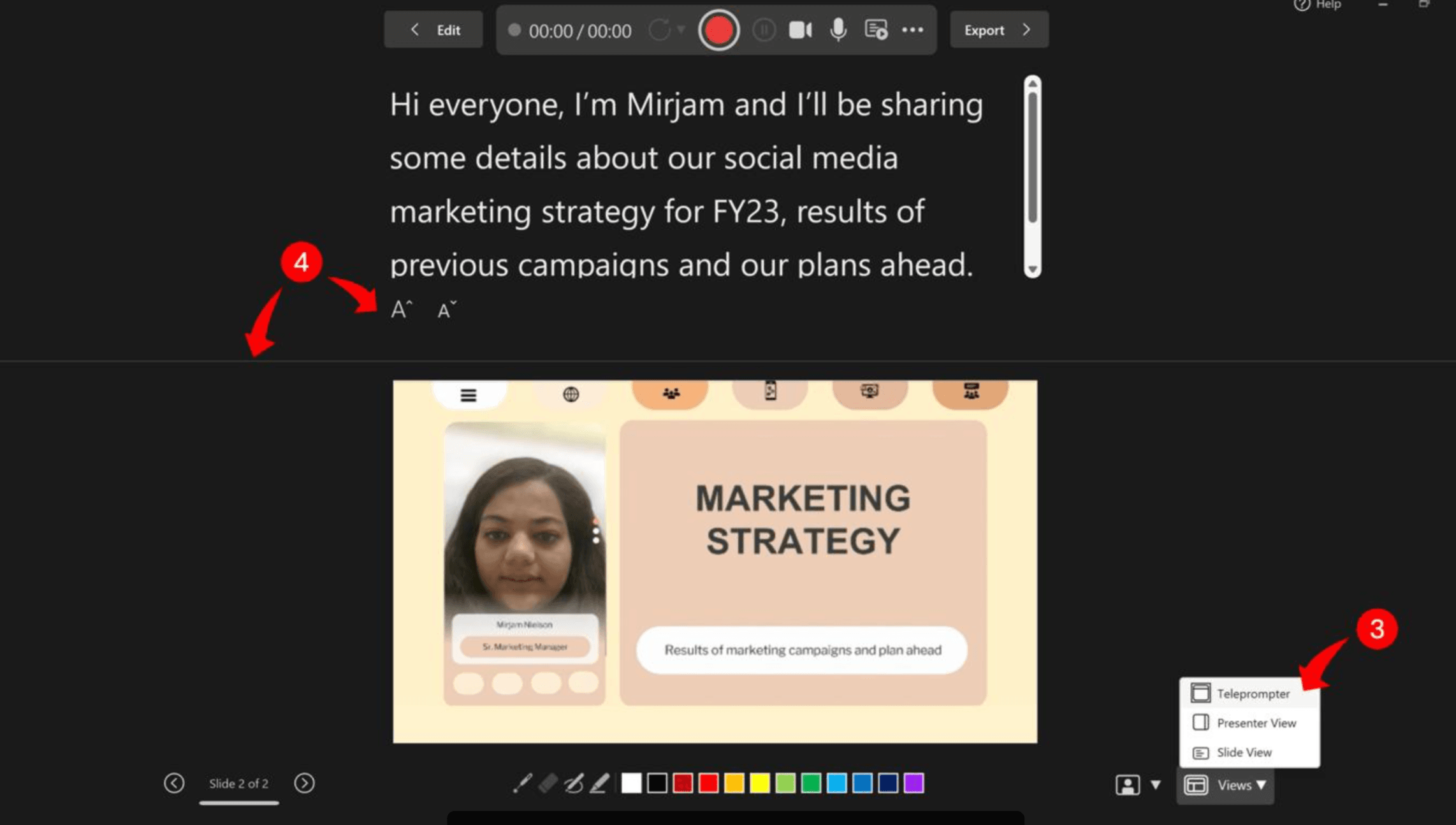
- Open your presentation in the PowerPoint desktop application.
- Select Record → From Beginning, or use Slide Show → Record Slide Show, depending on your version.
- Choose your microphone and turn off the camera if you only need audio.
- Click Start Recording and begin speaking after the countdown.
- Advance through your slides while PowerPoint records narration and timings.
- Click Stop, then preview your presentation.
- Save the PowerPoint file to preserve your recording.
If you've written speaker notes, PowerPoint's newer Recording Studio can display them as a teleprompter, or you can even generate a script from PowerPoint slides with AI.
Practical tip: Record and replay your first slide before continuing. Microsoft notes that narration isn't captured during slide transitions, so wait until each transition finishes before speaking.
Add a Voiceover to a Single PowerPoint Slide
If you only want to narrate one slide:
- Select the slide.
- Go to Insert → Audio → Record Audio.
- Enter a name and click Record.
- Speak into your microphone, then stop and preview the recording.
- Select OK to insert the audio.
- Under Playback, choose Automatically or On Click.
You can also trim the audio or replace it without re-recording the entire presentation, which helps you add voiceover to each PowerPoint slide automatically.
Add a Pre-Recorded Audio File to PowerPoint
Already have a voice recording? You can add audio to PowerPoint directly.
- Select the relevant slide.
- Go to Insert → Audio → Audio on My PC (or the corresponding audio-file option on Mac).
- Select your MP3, WAV, or M4A file.
- Adjust the playback settings and slide timings.
- Preview the slideshow to check synchronization.
For presentations that change frequently, consider using one audio file per slide. This makes it easier to replace narration when only one section needs updating.
How to Add an AI Voiceover to PowerPoint Without Recording Yourself
AI voiceover tools let you create narrated presentations without recording your own voice. This can be particularly useful for educators producing video lessons, training teams updating presentations, and businesses preparing multilingual content.
Generate AI Narration from Slide Text or Speaker Notes
Start with a script based on your slide content.
- Extract the key points from each slide or use existing speaker notes.
- Rewrite them into natural, spoken explanations.
- Use an AI text-to-speech tool to generate narration.
- Review terminology, pronunciation, pacing, and accuracy.
Avoid simply reading every bullet point aloud. Good narration explains what the audience sees and why it matters.
Add AI-Generated Audio to Your PowerPoint Slides
If you need to keep your presentation editable, generate audio files with a text-to-speech tool and insert them into PowerPoint.
Assign each audio clip to its corresponding slide, configure automatic playback, and adjust the slide timings.
This approach preserves the PowerPoint editing workflow, although narration updates and synchronization may require manual work.
Turn PowerPoint into an AI-Narrated Video
If your goal is a finished training or educational video rather than an editable PowerPoint file, an AI video platform offers another approach to make a video from PowerPoint without recording yourself.
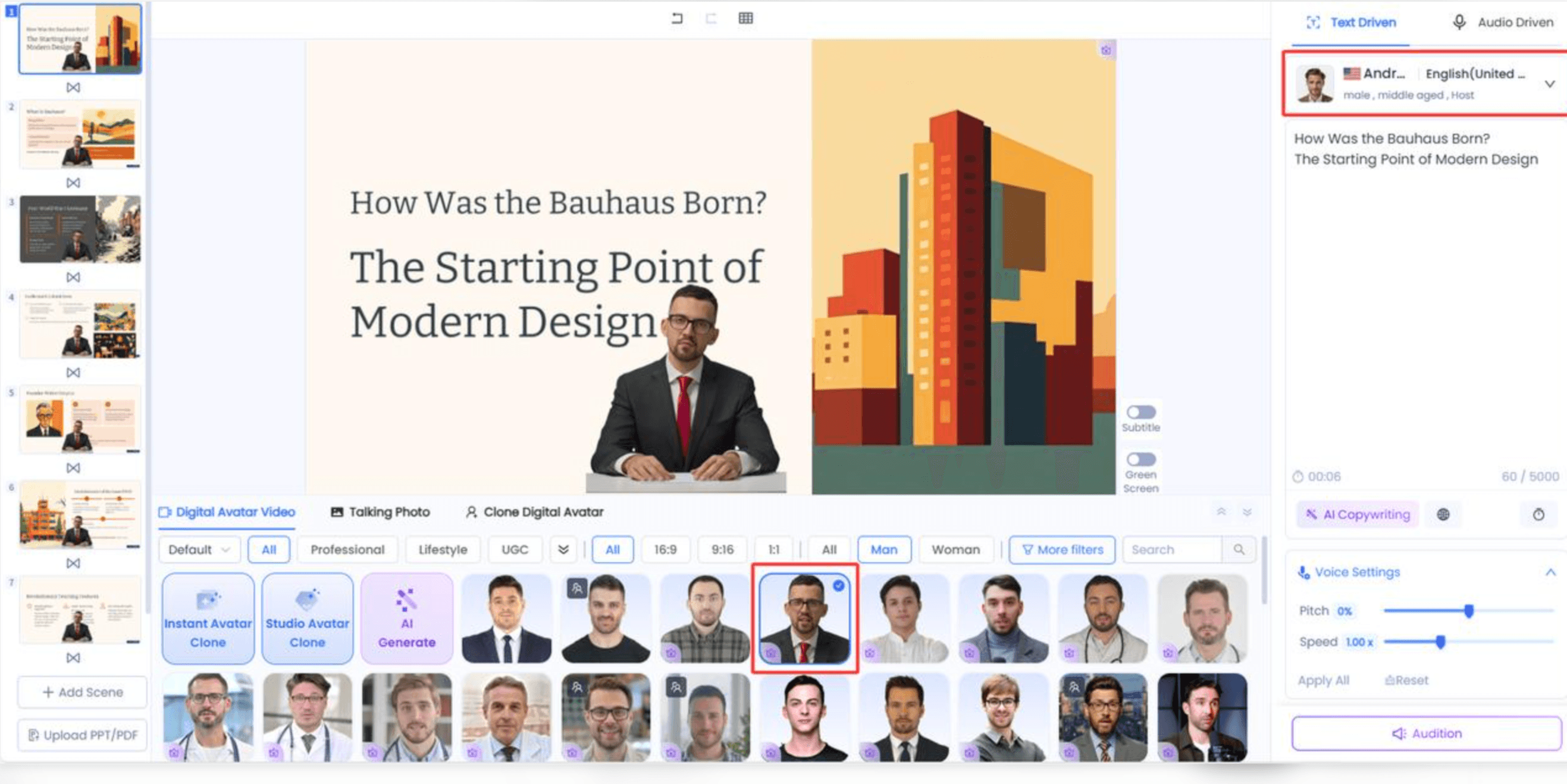
For example, Leadde can transform existing PowerPoint presentations into structured videos with AI narration and avatars.
The workflow is straightforward:
- Upload your PowerPoint presentation to Leadde.
- Let the AI analyze the content and organize the video structure.
- Generate narration and select an AI presenter when needed to create an avatar-led presentation from PowerPoint.
- Review the script, visuals, and pronunciation.
- Produce the narrated video for training, education, or business communication.
This can be useful when you convert PowerPoint into training videos for employees or prepare localized educational content.
Important: Creating an AI-narrated video is different from inserting audio into the original PPTX. You can review the trade-offs in our guide on PowerPoint export vs AI PPT to video converter to choose the workflow based on whether you need an editable presentation or a finished video.
How to Record a PowerPoint Voiceover on Mac or Online
PowerPoint recording features vary between desktop and browser versions. Checking your version first can prevent unnecessary troubleshooting.
Recording a Voiceover in PowerPoint for Mac
PowerPoint for Mac supports recording slide narration and exporting presentations as videos.
- Open your presentation in the desktop application.
- Select Slide Show → Record Slide Show, or use the Record tab if available.
- Select your microphone and camera settings.
- Record your narration while advancing through slides.
- Stop, preview, and save the presentation.
- Use the video export option if you need an MP4.
Menu names and recording controls may vary depending on your PowerPoint version.
Can You Record a Voiceover in PowerPoint Online?
PowerPoint for the web does not support recording an entire slide show with narration. Microsoft confirms this limitation in its official recording documentation.
Microsoft Support
If you cannot find the Record Slide Show button, check whether you're using PowerPoint in a browser instead of the desktop application.
You can switch to desktop PowerPoint if you have access, or create narration using an external recording or AI tool and import audio where your version supports it.
For users who mainly need a narrated video, a PowerPoint to AI video workflow may be more convenient than relying on desktop recording.
How to Sync, Edit, and Export Your PowerPoint Voiceover
Recording narration is only part of the process. Your audio also needs to match slide transitions, animations, and the final video.
Sync Voiceover Audio with Slide Timings and Animations
PowerPoint can record slide timings automatically when you use Record Slide Show.
For manually inserted audio:
- Select the slide and open Transitions.
- Under Advance Slide, enable After and enter the appropriate duration.
- Check the audio's playback settings.
- Preview the presentation to ensure that the audio finishes before the slide changes.
If your slide contains animations or embedded videos, check their playback triggers to prevent overlapping audio.
Practical tip: Leave a natural pause between slides. Avoid speaking during transitions, when PowerPoint may not capture narration.
Edit or Replace Narration Without Re-Recording Everything
You don't need to record your entire presentation again when one slide changes; you can update an AI PowerPoint video without re-recording.
For example, imagine a training team updating a 20-slide employee onboarding presentation. If only the company policy on slide eight changes, they can:
- Update the slide content and narration script.
- Replace or re-record that slide's audio.
- Check the revised slide timing.
- Preview the presentation and export an updated video if needed.
This slide-by-slide approach makes narrated presentations easier to maintain, particularly when training content changes frequently.
Export PowerPoint with Voiceover as an MP4 Video
To share your presentation as a video, follow these steps in PowerPoint for Windows:
- Select File → Export → Create a Video.
- Choose your preferred video quality.
- Select Use Recorded Timings and Narrations.
- Click Create Video.
- Choose MP4 as the output format and save.
Microsoft recommends MP4 for broad video-player compatibility.
Microsoft Support
After exporting, play the video from beginning to end. Check narration, volume, slide timing, animations, and embedded media, or use tools to convert PowerPoint to MP4 online.
Remember: Saving a narrated PPTX preserves the presentation, but it doesn't automatically create a video file.
Why Is My PowerPoint Voiceover Not Working?
PowerPoint voiceover problems often involve recording permissions, playback settings, or slide timing. Start by identifying where the problem occurs.
| Problem | Possible cause | How to fix it |
| Record button is missing | Unsupported version or different interface | Check whether you're using desktop PowerPoint; look under Record or Slide Show |
| Microphone isn't recording | Incorrect input device or missing permission | Select the correct microphone and check system permissions |
| Audio doesn't play automatically | Playback is set to click | Change Start to Automatically |
| Narration gets cut off | Speech overlaps a slide transition | Wait for transitions to finish and adjust slide timings |
| Exported video has no sound | Narration settings or export issue | Enable recorded timings and narrations; test the MP4 |
| Voice volume changes | Inconsistent recording levels or playback behavior | Compare individual recordings, the slideshow, and exported video |
| Embedded video overlaps narration | Conflicting media triggers | Review animation order and video playback settings |
If your PowerPoint narration is out of sync or you experience PowerPoint audio not playing in exported video, record a short test slide in a new presentation. This helps determine whether the issue comes from the original file, recording settings, or audio device.
Which PowerPoint Voiceover Method Is Best for Your Needs?
The best method depends on how frequently you update your slides, whether you want to record your own voice, and what format your audience needs.
Built-In Recording vs. External Audio vs. AI Voiceover
| Method | Best for | Main limitation |
| Built-in PowerPoint recording | Lectures, presentations, personal narration | Requires recording your voice |
| Pre-recorded audio | Presentations with existing voice clips | May require manual synchronization |
| AI text-to-speech | Creating narration without speaking | Requires script and pronunciation review |
| AI PowerPoint-to-video | Training videos, education, multilingual communication | May produce video rather than an editable PPTX |
For a one-time class assignment, built-in recording is usually sufficient. For a frequently updated training library, individually managed narration or AI-assisted video creation with the best PPT to video AI tools may offer a more maintainable workflow.
Best Practices for Clear, Professional PowerPoint Narration
From an instructional design perspective, effective voiceover should help viewers understand the content—not simply repeat what's written on the slide.
Follow these practices:
- Write for listening. Use clear sentences and explain relationships between ideas.
- Keep narration focused. Give each slide one main message where practical.
- Maintain consistent audio. Use the same microphone settings and recording environment.
- Review slide transitions. Leave natural pauses and check that narration isn't cut off.
- Plan for updates. Keep scripts organized by slide to simplify revisions.
- Consider accessibility. Provide accurate captions or transcripts when distributing narrated learning content.
For educators and training teams, the goal isn't simply to add sound. It's to learn how to turn content-heavy PowerPoints into engaging AI training videos so audiences can understand key takeaways without a live presenter.
Frequently Asked Questions About PowerPoint Voiceovers
Can you add a voiceover to PowerPoint for free?
Yes, if you already have access to a desktop version of PowerPoint that supports recording, you can use its built-in narration tools without purchasing a separate voiceover application. Availability depends on your Microsoft license and version. External audio recorders and some AI voice tools may also offer free options.
Can PowerPoint read speaker notes aloud automatically?
PowerPoint can display speaker notes as a teleprompter while you record, but its standard recording feature doesn't automatically convert those notes into spoken narration. To generate speech from text, use a text-to-speech tool and import the resulting audio, or choose an AI video workflow that supports script-based narration.
Can you add a voiceover without a microphone?
Yes. You can generate speech using AI text-to-speech, obtain a pre-recorded audio file, and insert it into your slides. This is useful when you don't want to record your own voice or need consistent narration across multiple presentations.
Can you record only one slide in PowerPoint?
Yes. Select the slide and use Insert → Audio → Record Audio, or record the selected slide using PowerPoint's presentation recording feature. You can also replace an individual slide's narration without re-recording the entire slideshow.
Can you add one continuous voiceover across multiple slides?
Yes. Insert an audio file and select Play Across Slides in PowerPoint's playback settings. However, you'll need to coordinate slide transitions with the continuous narration. For presentations that require frequent revisions, separate audio clips for each slide may be easier to manage.
Microsoft Support
Why is there no audio in my exported PowerPoint video?
Check whether you selected Use Recorded Timings and Narrations during export. Also confirm that the original recording plays in Slide Show mode. If narration works inside PowerPoint but not in the MP4, test the exported file in another video player and review any embedded media.
Conclusion
Adding a voiceover to PowerPoint can be as simple as recording directly in the application or inserting an audio file. For teams that need narrated training videos without manual recording, AI solutions such as Leadde offer another approach. Choose the method that fits your presentation, review your audio and slide timings, and test the final file before sharing.